 Red Hat Summit
Este conteúdo não está disponível no idioma selecionado.
Chapter 9. Managing Gluster volumes using Cockpit
9.1. Accessing the Gluster Management dashboard
The Gluster Management dashboard lets you view information about the currently configured Gluster volumes in your hyperconverged cluster.
To access the Gluster Management dashboard:
Click Virtualization
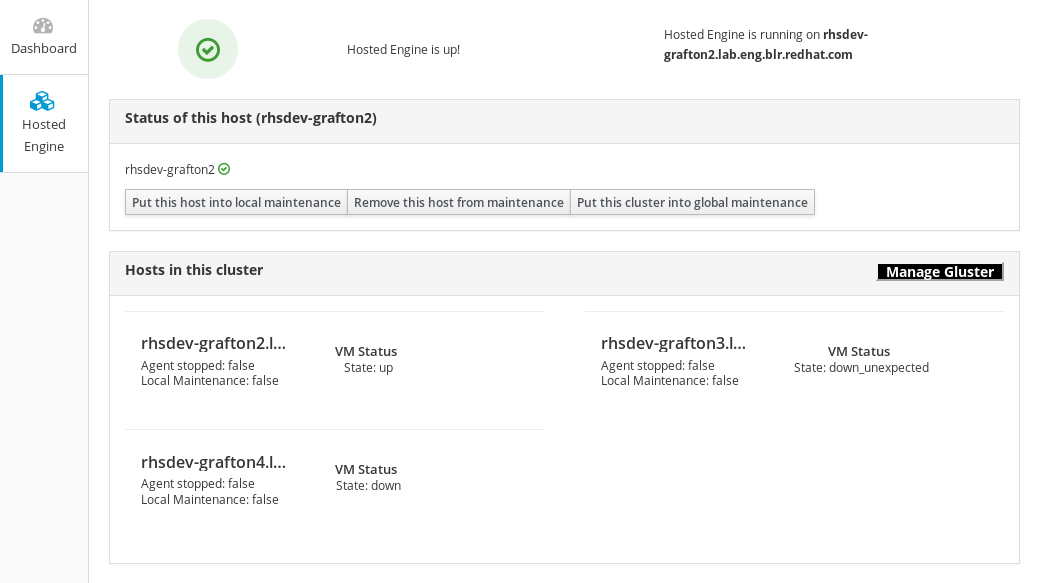
Hosted Engine to reach the Hosted Engine dashboard. The Hosted Engine dashboard in Cockpit
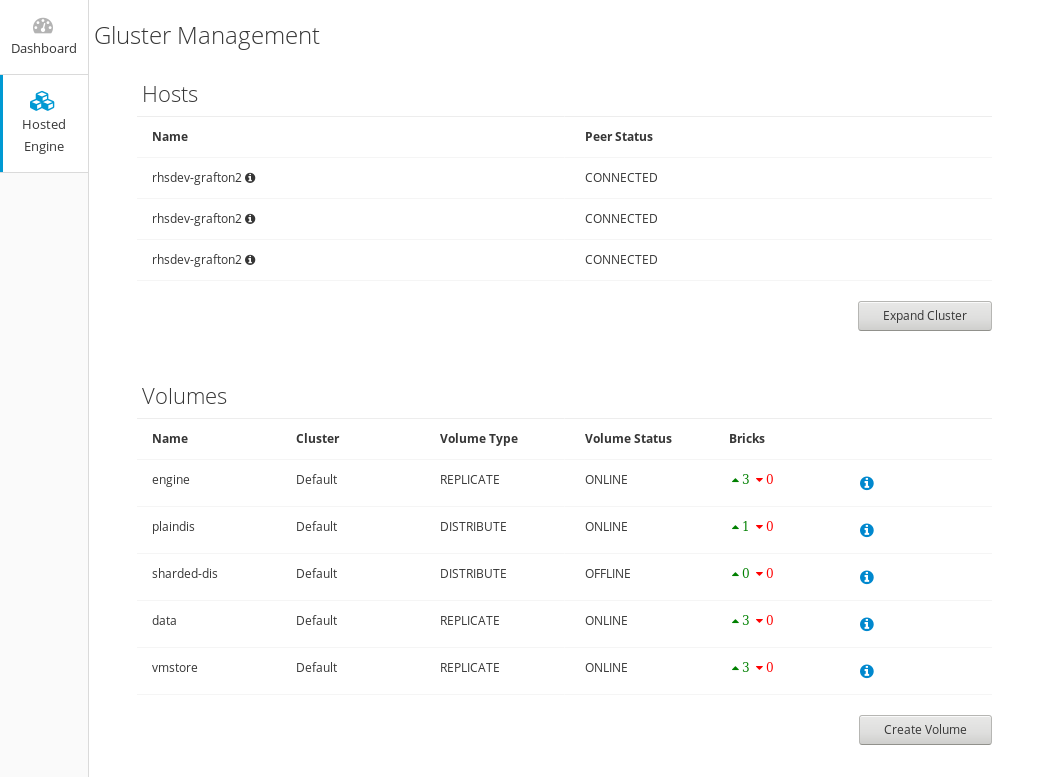
Click Manage Gluster to reach the Gluster Management dashboard.
The Gluster Management dashboard in Cockpit
9.2. Expanding the hyperconverged cluster by adding a new volume on new nodes using Cockpit
Follow these instructions to use the Cockpit UI to expand your hyperconverged cluster.
Prerequisites
- Verify that your scaling plans are supported.
- If your existing deployment uses certificates signed by a Certificate Authority for encryption, prepare the certificates that will be required for the new nodes.
Install three physical machines to serve as the new hyperconverged nodes.
Follow the instructions in Deploying Red Hat Hyperconverged Infrastructure for Virtualization.
Configure key-based SSH authentication without a password.
Configure this from the node that is running Cockpit to all new nodes, and from the first new node to all other new nodes.
ImportantRHHI for Virtualization expects key-based SSH authentication without a password between these nodes for both IP addresses and FQDNs. Ensure that you configure key-based SSH authentication between these machines for the IP address and FQDN of all storage and management network interfaces.
Follow the instructions in Using key-based authentication to configure key-based SSH authentication without a password.
Procedure
- Log in to Cockpit.
-
Click Virtualization
Hosted Engine and then click Manage Gluster. Click Expand Cluster. The Gluster Deployment window opens.
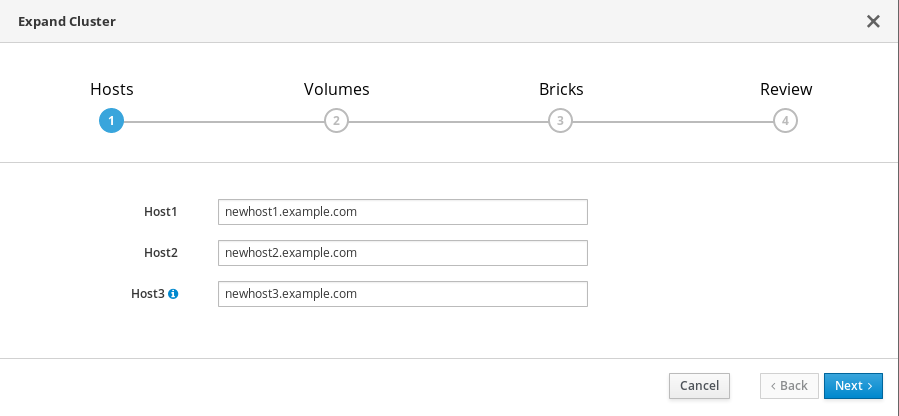
On the Hosts tab, enter the FQDN or IP address of the new hyperconverged nodes and click Next.
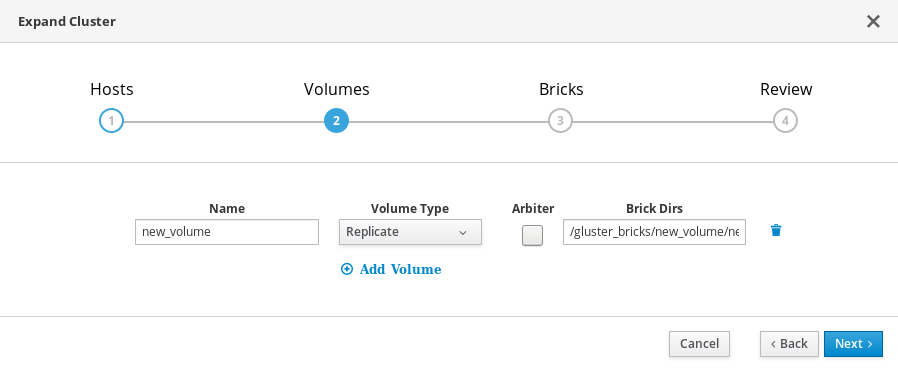
On the Volumes tab, specify the details of the volume you want to create.
On the Bricks tab, specify the details of the disks to be used to create the Gluster volume.
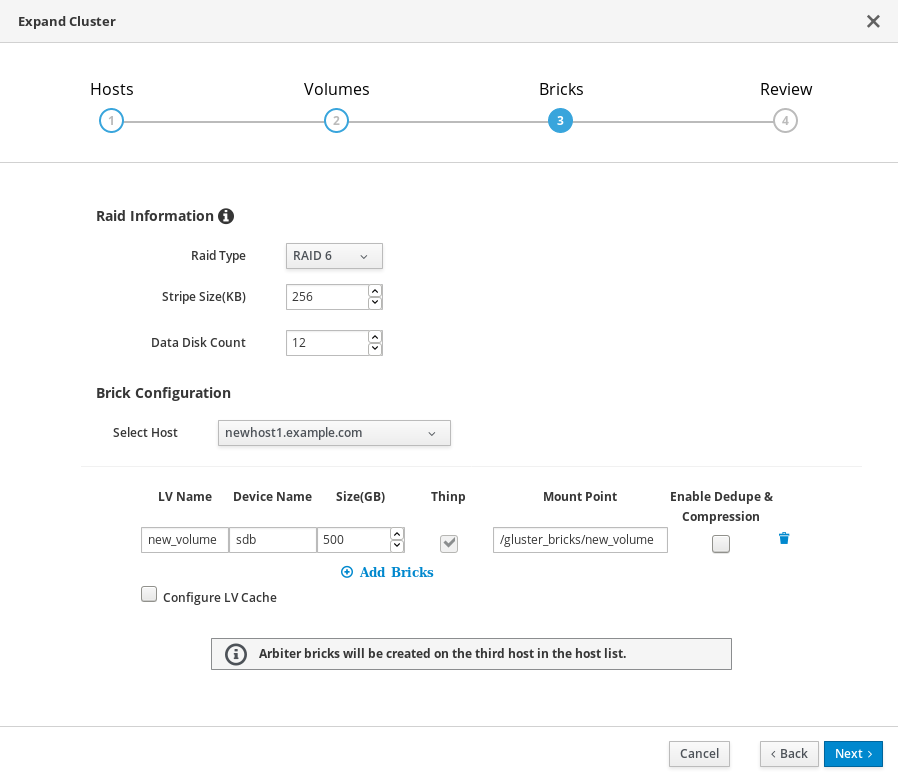
On the Review tab, check the generated gdeploy file for any problems. When you are satisfied, click Deploy.
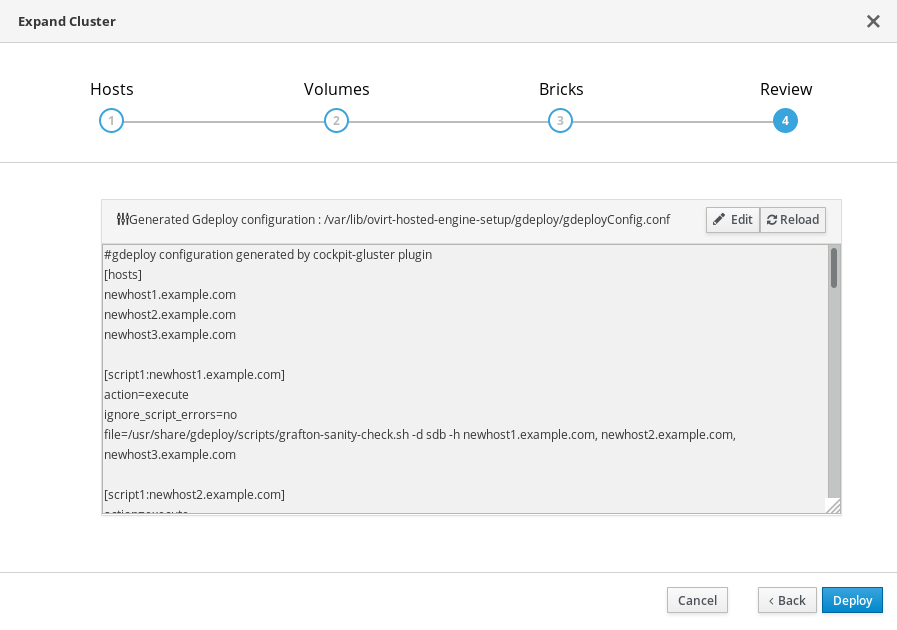
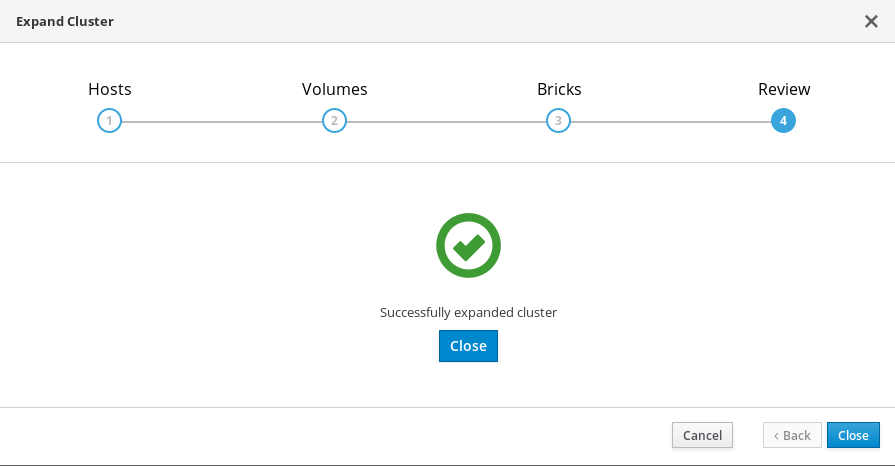
Deployment takes some time to complete. The following screen appears when the cluster has been successfully expanded.
9.3. Creating an additional Gluster volume using Cockpit
Follow these instructions to use the Cockpit UI to create a new Red Hat Gluster Storage volume using raw disks that are available on hyperconverged hosts in your cluster.
Prerequisites
- Verify that the raw disk drives you plan to use for the new volume are visible under the Drives section of the Storage Dashboard, and do not have any file systems listed on their Drive Overview page.
Procedure
- Log in to Cockpit.
-
Click Virtualization
Hosted Engine and then click Manage Gluster. Click Create Volume. The Create Volume window opens.
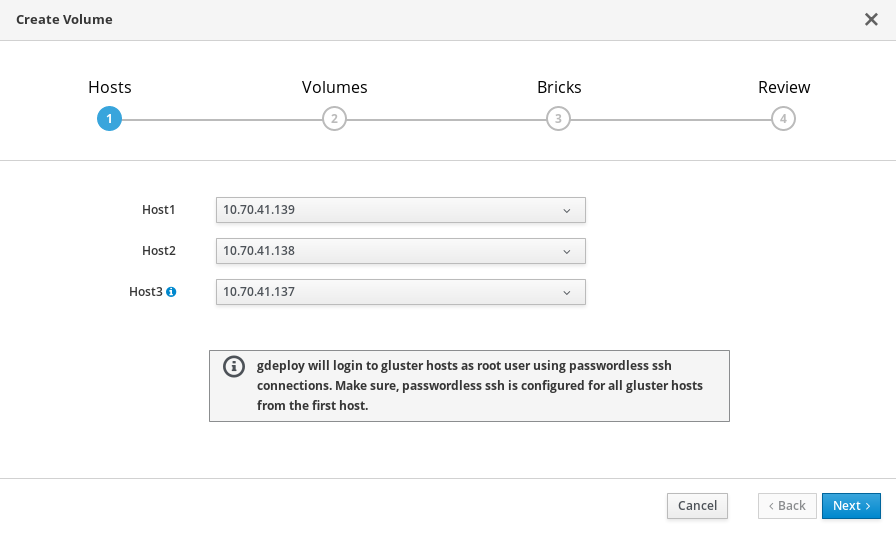
On the Hosts tab, select three different hyperconverged hosts with unused disks and click Next.
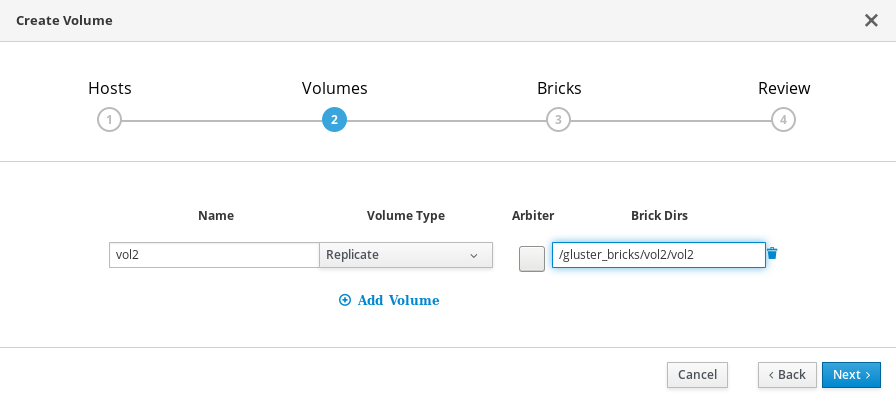
On the Volumes tab, specify the details of the volume you want to create and click Next.
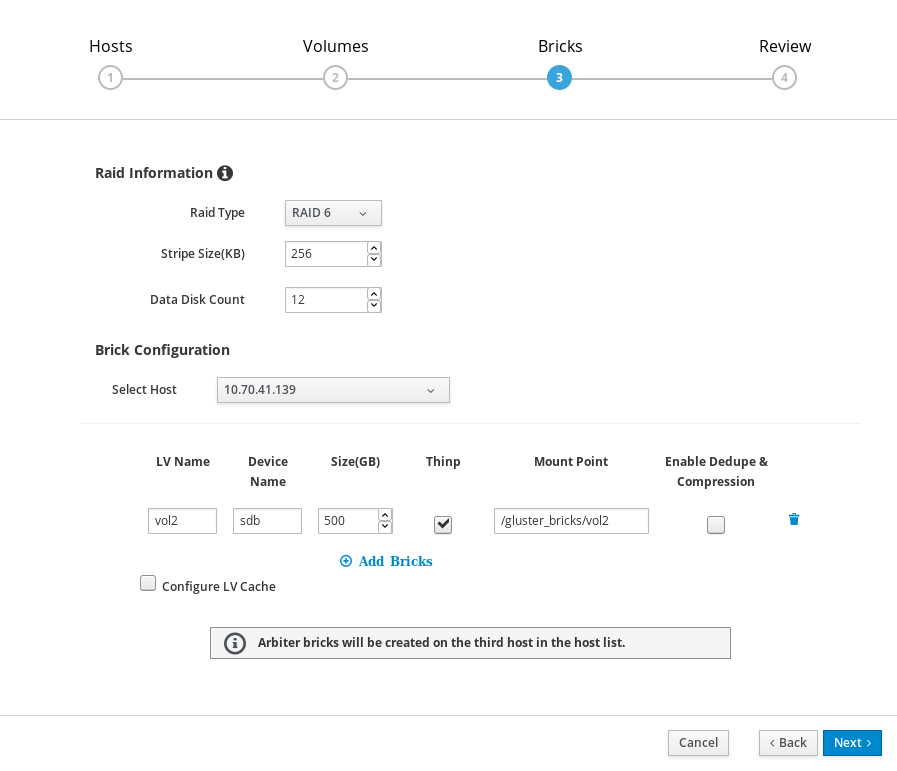
On the Bricks tab, specify the details of the disks to be used to create the volume and click Next.
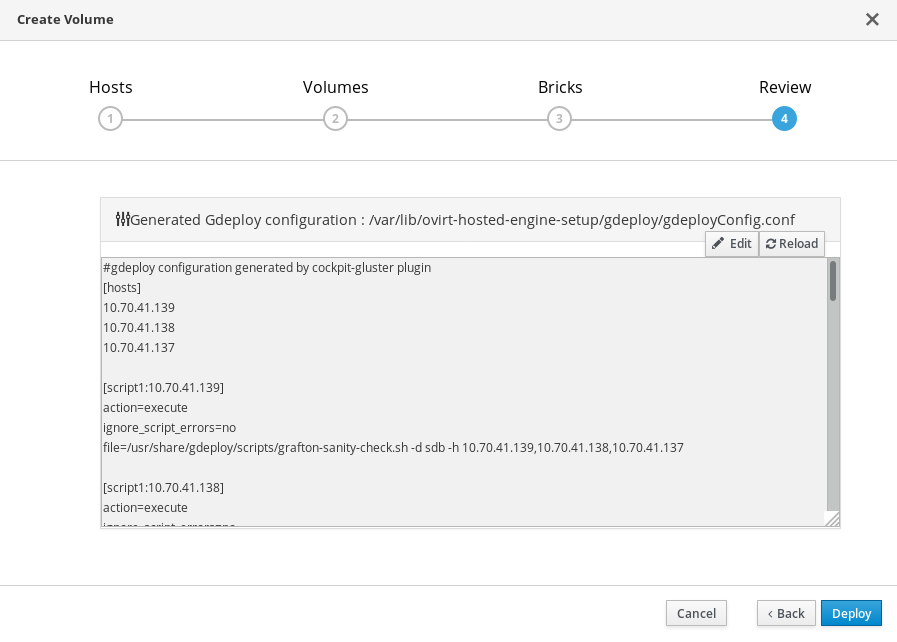
On the Review tab, check the generated configuration file for any incorrect information. When you are satisfied, click Deploy.
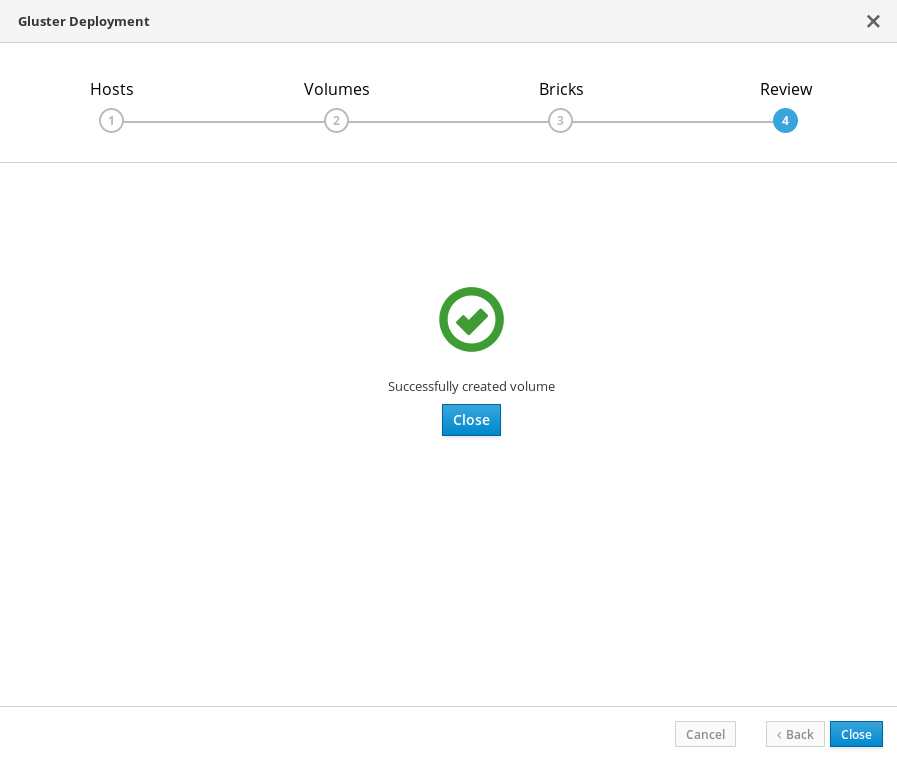
The following screen is displayed when deployment completes successfully.

'%20d='M201.5%20305.5c-13.8%200-24.9-11.1-24.9-24.6%200-13.8%2011.1-24.9%2024.9-24.9%2013.6%200%2024.6%2011.1%2024.6%2024.9%200%2013.6-11.1%2024.6-24.6%2024.6zM504%20256c0%20137-111%20248-248%20248S8%20393%208%20256%20119%208%20256%208s248%20111%20248%20248zm-132.3-41.2c-9.4%200-17.7%203.9-23.8%2010-22.4-15.5-52.6-25.5-86.1-26.6l17.4-78.3%2055.4%2012.5c0%2013.6%2011.1%2024.6%2024.6%2024.6%2013.8%200%2024.9-11.3%2024.9-24.9s-11.1-24.9-24.9-24.9c-9.7%200-18%205.8-22.1%2013.8l-61.2-13.6c-3-.8-6.1%201.4-6.9%204.4l-19.1%2086.4c-33.2%201.4-63.1%2011.3-85.5%2026.8-6.1-6.4-14.7-10.2-24.1-10.2-34.9%200-46.3%2046.9-14.4%2062.8-1.1%205-1.7%2010.2-1.7%2015.5%200%2052.6%2059.2%2095.2%20132%2095.2%2073.1%200%20132.3-42.6%20132.3-95.2%200-5.3-.6-10.8-1.9-15.8%2031.3-16%2019.8-62.5-14.9-62.5zM302.8%20331c-18.2%2018.2-76.1%2017.9-93.6%200-2.2-2.2-6.1-2.2-8.3%200-2.5%202.5-2.5%206.4%200%208.6%2022.8%2022.8%2087.3%2022.8%20110.2%200%202.5-2.2%202.5-6.1%200-8.6-2.2-2.2-6.1-2.2-8.3%200zm7.7-75c-13.6%200-24.6%2011.1-24.6%2024.9%200%2013.6%2011.1%2024.6%2024.6%2024.6%2013.8%200%2024.9-11.1%2024.9-24.6%200-13.8-11-24.9-24.9-24.9z'/%3e%3c/svg%3e)