 Red Hat Summit
Este conteúdo não está disponível no idioma selecionado.
E.3. Table Editor
E.3.1. Table Editor
Copiar o linkLink copiado para a área de transferência!
The Table Editor provides a table-based object type structured view of the contents of a model. The figure below shows a relational model viewed in the Table Editor. Common object types are displayed in individual folders/tables. All base tables, for instance, are shown in one table independent of their parentage.
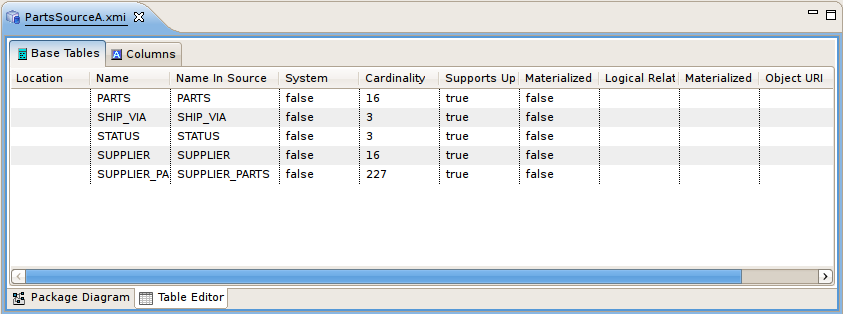
Figure E.10. Table Editor Example
You can customize Table Editor properties via Table Editor Preferences.
These are the primary features of the Table Editor:
- Edit existing properties.
- Add, remove or edit objects, via the main Edit menu and context menu ( Cut, Copy, Paste, Clone, Delete, Rename, Insert Rows ).
- Paste information from your clipboard into the table.
- Print your tables.
When a Table Editor is in focus, the Insert Table Rows action
 is added to the application's main toolbar.
is added to the application's main toolbar.
A few Table Editor actions are contributed to the right-click menu for selected table rows. These actions, described and shown below include:
 Table Paste - Paste common spreadsheet data (like Microsoft Excel) to set object properties.
- Table Editor Preferences - Change table editor preferences, including customizing visible properties.
- Insert Rows - Create multiple new sibling objects.
 Refresh Table - Refreshes the contents of the current Table Editor to insure it is in sync with the model.
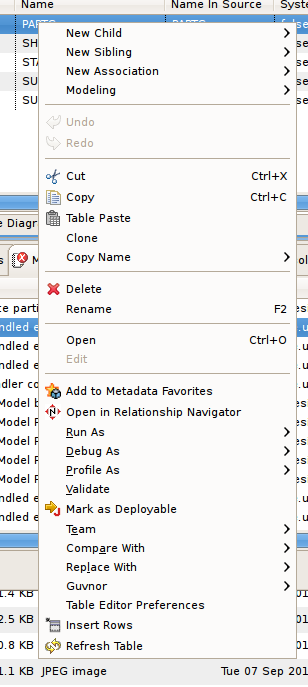
Figure E.11. Table Editor Example
E.3.2. Editing Properties
Copiar o linkLink copiado para a área de transferência!
You can edit properties for an object by double-clicking a table cell.
For String properties, the table cell will become an in-place text editor field.
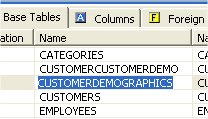
Figure E.12. Editing String Property
If a property is of a boolean (true or false) type or has multiple, selectable values, a combo box will be displayed to change the value.
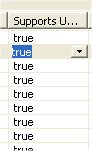
Figure E.13. Editing Boolean Value
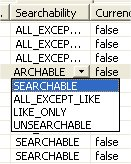
Figure E.14. Editing Multi-Value Property
For multi-valued properties where the available values are dynamic (i.e. can change based on available models or data), a picker button .... will be displayed.
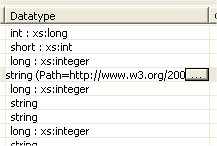
Figure E.15. Editing Multi-Value With Picker
An example of this type is the relational column datatype property. Editing via the table cell and clicking the ... button for datatype will display the following dialog.
Figure E.16. Editing Datatype Values
E.3.3. Inserting Table Rows
Copiar o linkLink copiado para a área de transferência!
The Insert Rows action provides an additional way to create objects in a model. Insert Rows action performs the same function as Insert Sibling action, but allows you to create multiple children at the same time. All new rows will correspond to an object of the same type as the selected object and be located under the same parent as the selected object.
To Insert Rows in a table:
- Select a table row to insert rows after.
- Right-click select Insert Rows action or click the Insert Rows action on the main toolbar. The following dialog will be displayed.
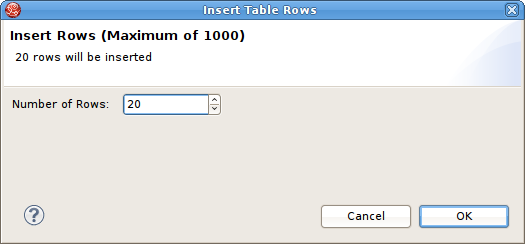
Figure E.17. Editing String Property
- Edit the Number of Rows value in the dialog, or use the up/down buttons to change the value.
- Click OK in dialog.
The desired number of rows (new model objects) will be added after the original selected table row.

'%20d='M201.5%20305.5c-13.8%200-24.9-11.1-24.9-24.6%200-13.8%2011.1-24.9%2024.9-24.9%2013.6%200%2024.6%2011.1%2024.6%2024.9%200%2013.6-11.1%2024.6-24.6%2024.6zM504%20256c0%20137-111%20248-248%20248S8%20393%208%20256%20119%208%20256%208s248%20111%20248%20248zm-132.3-41.2c-9.4%200-17.7%203.9-23.8%2010-22.4-15.5-52.6-25.5-86.1-26.6l17.4-78.3%2055.4%2012.5c0%2013.6%2011.1%2024.6%2024.6%2024.6%2013.8%200%2024.9-11.3%2024.9-24.9s-11.1-24.9-24.9-24.9c-9.7%200-18%205.8-22.1%2013.8l-61.2-13.6c-3-.8-6.1%201.4-6.9%204.4l-19.1%2086.4c-33.2%201.4-63.1%2011.3-85.5%2026.8-6.1-6.4-14.7-10.2-24.1-10.2-34.9%200-46.3%2046.9-14.4%2062.8-1.1%205-1.7%2010.2-1.7%2015.5%200%2052.6%2059.2%2095.2%20132%2095.2%2073.1%200%20132.3-42.6%20132.3-95.2%200-5.3-.6-10.8-1.9-15.8%2031.3-16%2019.8-62.5-14.9-62.5zM302.8%20331c-18.2%2018.2-76.1%2017.9-93.6%200-2.2-2.2-6.1-2.2-8.3%200-2.5%202.5-2.5%206.4%200%208.6%2022.8%2022.8%2087.3%2022.8%20110.2%200%202.5-2.2%202.5-6.1%200-8.6-2.2-2.2-6.1-2.2-8.3%200zm7.7-75c-13.6%200-24.6%2011.1-24.6%2024.9%200%2013.6%2011.1%2024.6%2024.6%2024.6%2013.8%200%2024.9-11.1%2024.9-24.6%200-13.8-11-24.9-24.9-24.9z'/%3e%3c/svg%3e)