 Red Hat Summit
Este conteúdo não está disponível no idioma selecionado.
F.3. Edit Menu
The Edit menu provides actions to manage the content, structure and properties of your model and project resources. The figure below represents the Edit menu presented when a metadata model is selected.
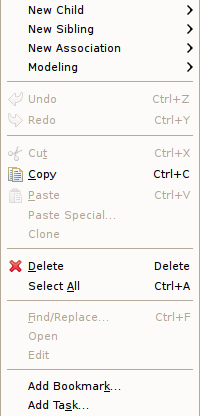
Figure F.4. Edit Menu
The Edit menu contains the following actions:
- New > Child - This menu is created dynamically to support the creation of whatever types of child objects can be created under the selected object.
- New > Sibling - This menu is created dynamically to support the creation of whatever types of sibling objects can be created under the same parent as the selected object
- New > Association - This menu is created dynamically to support the creation of whatever types of associations can be created with the selected object.
- Modeling > - This menu is created dynamically. Various modeling operations are presented based on selected model object type.
 Undo - Reverses the effect of the most recent command.
 Redo - Reapplies the most recently undone command.
 Cut - Deletes the selected object(s) and copies it to the clipboard.
 Copy - Copies the selected object(s) to the clipboard.
 Paste - Pastes the contents of the clipboard to the selected context.
- Paste Special... - Provides additional paste capabilities for complex clipboard objects.
- Clone - Duplicates the selected object in the same location with the same name. User is able to rename the new object right in the tree.
 Delete - Deletes the selected object(s).
- Select All - Select All objects in current view.
- Rename - Allows a user to rename an object in the tree.
- Find/Replace - Launches dialog that can be used to search in the current text view, such as a Transformation Editor.
- Open - Opens the selected object in the appropriate editor.
- Edit - Opens the selected object in the appropriate specialized editor, such as the Choice Editor or Recursion Editor..
- Add Bookmark... - This command adds a bookmark in the active file on the line where the cursor is currently displayed.
- Add Task... - This command adds a task in the active file on the line where the cursor is currently displayed.

'%20d='M201.5%20305.5c-13.8%200-24.9-11.1-24.9-24.6%200-13.8%2011.1-24.9%2024.9-24.9%2013.6%200%2024.6%2011.1%2024.6%2024.9%200%2013.6-11.1%2024.6-24.6%2024.6zM504%20256c0%20137-111%20248-248%20248S8%20393%208%20256%20119%208%20256%208s248%20111%20248%20248zm-132.3-41.2c-9.4%200-17.7%203.9-23.8%2010-22.4-15.5-52.6-25.5-86.1-26.6l17.4-78.3%2055.4%2012.5c0%2013.6%2011.1%2024.6%2024.6%2024.6%2013.8%200%2024.9-11.3%2024.9-24.9s-11.1-24.9-24.9-24.9c-9.7%200-18%205.8-22.1%2013.8l-61.2-13.6c-3-.8-6.1%201.4-6.9%204.4l-19.1%2086.4c-33.2%201.4-63.1%2011.3-85.5%2026.8-6.1-6.4-14.7-10.2-24.1-10.2-34.9%200-46.3%2046.9-14.4%2062.8-1.1%205-1.7%2010.2-1.7%2015.5%200%2052.6%2059.2%2095.2%20132%2095.2%2073.1%200%20132.3-42.6%20132.3-95.2%200-5.3-.6-10.8-1.9-15.8%2031.3-16%2019.8-62.5-14.9-62.5zM302.8%20331c-18.2%2018.2-76.1%2017.9-93.6%200-2.2-2.2-6.1-2.2-8.3%200-2.5%202.5-2.5%206.4%200%208.6%2022.8%2022.8%2087.3%2022.8%20110.2%200%202.5-2.2%202.5-6.1%200-8.6-2.2-2.2-6.1-2.2-8.3%200zm7.7-75c-13.6%200-24.6%2011.1-24.6%2024.9%200%2013.6%2011.1%2024.6%2024.6%2024.6%2013.8%200%2024.9-11.1%2024.9-24.6%200-13.8-11-24.9-24.9-24.9z'/%3e%3c/svg%3e)