 Red Hat Summit
Este conteúdo não está disponível no idioma selecionado.
15.3. Testing With Your VDB
15.3.1. Testing With Your VDB
Copiar o linkLink copiado para a área de transferência!
In Teiid Designer you can execute a VDB to test/query actual data.
The requirements for VDB execution are:
- A deployed VDB backed by valid deployed Data Sources
- An instance of a Teiid Connection Profile configured for the deployed VDB
Teiid Designer simplifies this process via Deploy VDB and Execute VDB actions. Deploy VDB does just that, deploy a selected VDB to a running Teiid instance. Execute VDB performs the VDB deployment, creates a Teiid Connection Profile, opens the Database Development perspective and creates a connection to your VDB.
15.3.2. Creating Data Sources
Copiar o linkLink copiado para a área de transferência!
The mechanism by which VDBs are able to query actual data sources is the Data Source. These are deployed configurations backed by database or source connection jars. Each source model referenced within a VDB requires a JNDI name representing a deployed Data Source.
When creating VDBs you do not need to have deployed data sources on your JBoss Data Virtualization server, but if you wish to test your VDB, the data sources need to be present.
Teiid Designer provides a Create Data Source action so you can create compatible data sources for your source model. If you wish to create a data source for a specific model you can select that source model in your workspace and select the Modeling > Create Data Source action. This will extract the connection profile data from your source model and create a corresponding data source on your default JBoss Data Virtualization server.
You can also create data sources from the Server view. Expand a JBoss Data Virtualization server instance in the Server view, select a particular data source and right-click the Create Data Source action. This will launch the Create Data Source dialog.

Figure 15.10. Create Data Source Dialog
You can either select and existing Connection Profile from the drop-down list (Use Connection Profile Info option) or check the Use Model Info option and select an existing source model containing connection info.
After creating your new data source it should now be shown in the Data Sources folder of the corresponding JBoss Data Virtualization server.
15.3.3. Execute VDB from Model Explorer
Copiar o linkLink copiado para a área de transferência!
If you have a JBoss Data Virtualization instance defined and connected in your Server view you can:
- Right-click a VDB in your Model Explorer select Modeling > Execute VDB action. This action will insure your selected VDB is deployed to JBoss Data Virtualization, create a Teiid Connection Profile specific for that VDB, open the Database Development perspective and create a connection to your VDB.

Figure 15.11. Execute VDB Action
- In the SQL Scrapbook, enter your designer SQL (i.e.
SELECT * FROM TableXXXX), select all text and right-click select Execute Selected Text.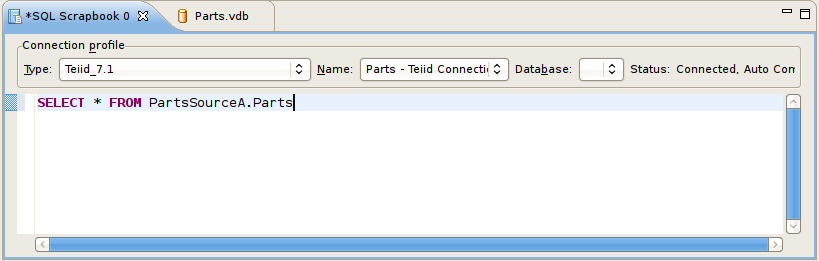
Figure 15.12. SQL Scrapbook Editor
- Results of query should be displayed in the SQL Results view on the Result1 tab.

Figure 15.13. SQL Results View
15.3.4. Deploy VDB from Model Explorer
Copiar o linkLink copiado para a área de transferência!
You can also deploy your VDB first by selecting it in the Model Explorer and dragging/dropping it onto a connected JBoss Data Virtualization instance in the Server view, or right-click select Modeling > Deploy action.
Once deployed, you can select the VDB in the Server view and right-click select the Execute VDB action there. This will create a Teiid Connection Profile specific for that VDB, open the Database Development perspective and create a connection to your VDB. Continue with Step's 2 and 3 above.
Note
If you do not have a JBoss Data Virtualization instance defined or your default JBoss Data Virtualization instance is disconnected, the following dialog will be displayed if the Modeling > Deploy action is launched.
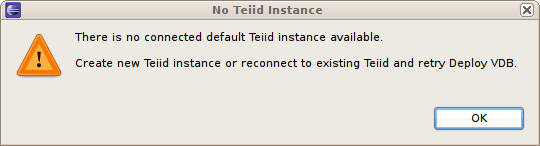
Figure 15.14. No Teiid Instance Defined
15.3.5. Executing a Deployed VDB
Copiar o linkLink copiado para a área de transferência!
To execute a VDB, that's been deployed manually, follow the steps below:
- Open the Database Development perspective.
- Select the Database Connections folder and choose the New Connection Profile action to display the New Connection Profile dialog.
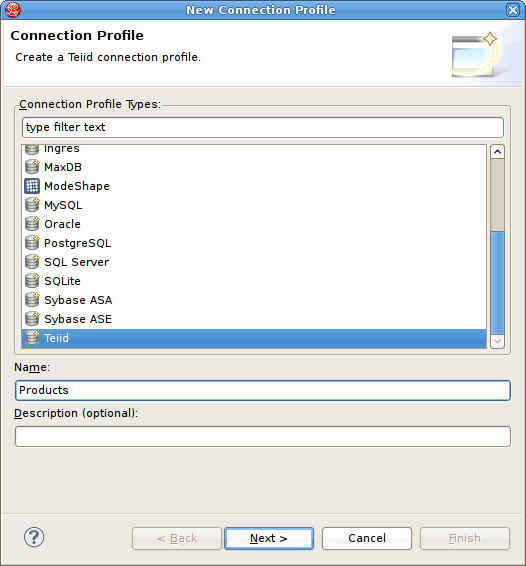
Figure 15.15. New Connection Profile Dialog
- Enter unique name for your profile, select an existing connection profile type and hit Next.
- In the Teiid Profile Wizard page, select the New Driver Definition button to locate and select the Teiid client jar on your file system. Configure your URL using your VDB Name, Host, Port, Username (default = admin) and Password (default = teiid).

Figure 15.16. Teiid Connection Profile Dialog
- Select Next to view a summary of your new Teiid Connection Profile.
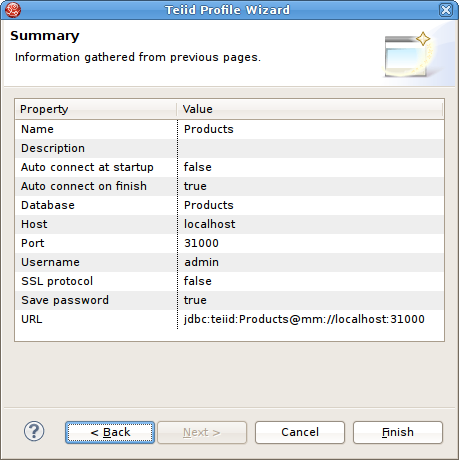
Figure 15.17. Teiid Connection Profile Summary
- Select Finish.
- Select your new Teiid connection profile and right-click select Open SQL Scrapbook, enter your designer SQL (i.e. SELECT * FROM TableXXXX), select all text and right-click select Execute Selected Text.
Figure 15.18. SQL Scrapbook Editor

'%20d='M201.5%20305.5c-13.8%200-24.9-11.1-24.9-24.6%200-13.8%2011.1-24.9%2024.9-24.9%2013.6%200%2024.6%2011.1%2024.6%2024.9%200%2013.6-11.1%2024.6-24.6%2024.6zM504%20256c0%20137-111%20248-248%20248S8%20393%208%20256%20119%208%20256%208s248%20111%20248%20248zm-132.3-41.2c-9.4%200-17.7%203.9-23.8%2010-22.4-15.5-52.6-25.5-86.1-26.6l17.4-78.3%2055.4%2012.5c0%2013.6%2011.1%2024.6%2024.6%2024.6%2013.8%200%2024.9-11.3%2024.9-24.9s-11.1-24.9-24.9-24.9c-9.7%200-18%205.8-22.1%2013.8l-61.2-13.6c-3-.8-6.1%201.4-6.9%204.4l-19.1%2086.4c-33.2%201.4-63.1%2011.3-85.5%2026.8-6.1-6.4-14.7-10.2-24.1-10.2-34.9%200-46.3%2046.9-14.4%2062.8-1.1%205-1.7%2010.2-1.7%2015.5%200%2052.6%2059.2%2095.2%20132%2095.2%2073.1%200%20132.3-42.6%20132.3-95.2%200-5.3-.6-10.8-1.9-15.8%2031.3-16%2019.8-62.5-14.9-62.5zM302.8%20331c-18.2%2018.2-76.1%2017.9-93.6%200-2.2-2.2-6.1-2.2-8.3%200-2.5%202.5-2.5%206.4%200%208.6%2022.8%2022.8%2087.3%2022.8%20110.2%200%202.5-2.2%202.5-6.1%200-8.6-2.2-2.2-6.1-2.2-8.3%200zm7.7-75c-13.6%200-24.6%2011.1-24.6%2024.9%200%2013.6%2011.1%2024.6%2024.6%2024.6%2013.8%200%2024.9-11.1%2024.9-24.6%200-13.8-11-24.9-24.9-24.9z'/%3e%3c/svg%3e)