 红帽全球峰会
此内容没有您所选择的语言版本。
4.2. Setting up Google Compute Engine
To set up Google Compute engine, perform the following steps:
4.2.1. SSH Keys
复制链接链接已复制到粘贴板!
SSH keys must be generated and registered with the Google Compute Engine project to connect via standard SSH. You can SSH directly to the instance public IP addresses after it is generated.
- Generate an SSH key pair for use with Google Compute Engine using the following command:
# ssh-keygen -t rsa -f ~/.ssh/google_compute_engine - In the Google Developers Console, click Computer > Compute Engine > Metadata > SSH Keys > Edit.

- Enter the output generated from
~/.ssh/google_compute_engine.pubfile, and click Save.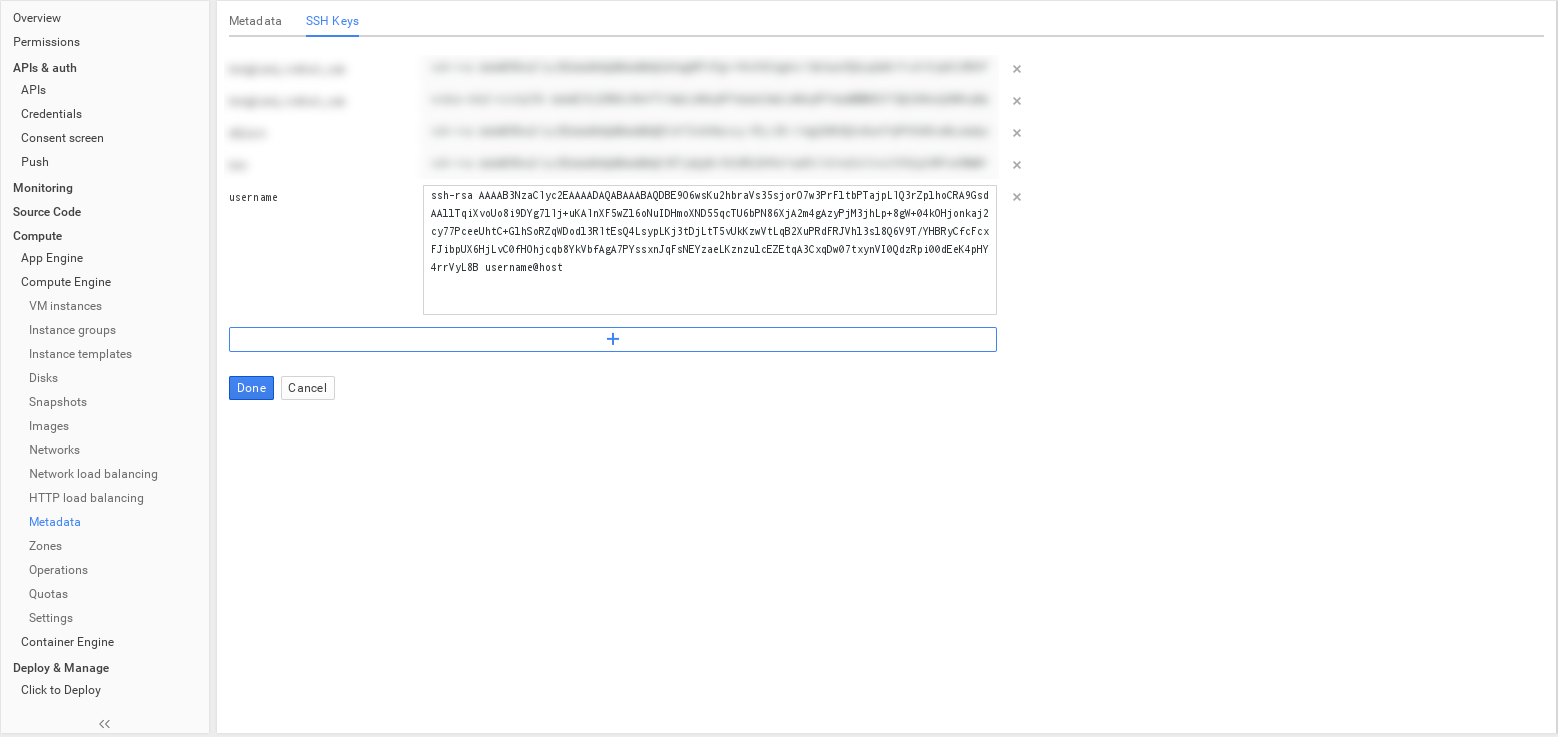
- To enable SSH agent to use this identity file for each new local console session, run the following command on the console:
# ssh-add ~/.ssh/google_compute_engine - Adding the below line to your
~/.ssh/configfile helps you automate this command.IdentityFile ~/.ssh/google_compute_engine - You can now connect via standard SSH to the new VM instances created in your Google Compute Engine project.
# ssh -i ~/.ssh/google_compute_engine <username>@<instance_external_ip>
The gcloud compute config-ssh command from the Google Cloud SDK populates your
~/.ssh/config file with aliases that allows simple SSH connections by instance name.
4.2.2. Setting up Quota
复制链接链接已复制到粘贴板!
The minimum persistent disk quotas listed below are required for this deployment. It may be necessary to request a quota increase from Google.
- Local region (see US-CENTRAL1 illustration in Section 4.1.3, “Primary Storage Pool Configuration”)
- Total persistent disk reserved (GB) >= 206,000
- CPUs >= 100
- Remote region (see EUROPE-WEST1 illustration in Section 4.1.4, “Secondary Storage Pool Configuration”)
- Total persistent disk reserved (GB) >= 103,000
- CPUs >=40

'%20d='M201.5%20305.5c-13.8%200-24.9-11.1-24.9-24.6%200-13.8%2011.1-24.9%2024.9-24.9%2013.6%200%2024.6%2011.1%2024.6%2024.9%200%2013.6-11.1%2024.6-24.6%2024.6zM504%20256c0%20137-111%20248-248%20248S8%20393%208%20256%20119%208%20256%208s248%20111%20248%20248zm-132.3-41.2c-9.4%200-17.7%203.9-23.8%2010-22.4-15.5-52.6-25.5-86.1-26.6l17.4-78.3%2055.4%2012.5c0%2013.6%2011.1%2024.6%2024.6%2024.6%2013.8%200%2024.9-11.3%2024.9-24.9s-11.1-24.9-24.9-24.9c-9.7%200-18%205.8-22.1%2013.8l-61.2-13.6c-3-.8-6.1%201.4-6.9%204.4l-19.1%2086.4c-33.2%201.4-63.1%2011.3-85.5%2026.8-6.1-6.4-14.7-10.2-24.1-10.2-34.9%200-46.3%2046.9-14.4%2062.8-1.1%205-1.7%2010.2-1.7%2015.5%200%2052.6%2059.2%2095.2%20132%2095.2%2073.1%200%20132.3-42.6%20132.3-95.2%200-5.3-.6-10.8-1.9-15.8%2031.3-16%2019.8-62.5-14.9-62.5zM302.8%20331c-18.2%2018.2-76.1%2017.9-93.6%200-2.2-2.2-6.1-2.2-8.3%200-2.5%202.5-2.5%206.4%200%208.6%2022.8%2022.8%2087.3%2022.8%20110.2%200%202.5-2.2%202.5-6.1%200-8.6-2.2-2.2-6.1-2.2-8.3%200zm7.7-75c-13.6%200-24.6%2011.1-24.6%2024.9%200%2013.6%2011.1%2024.6%2024.6%2024.6%2013.8%200%2024.9-11.1%2024.9-24.6%200-13.8-11-24.9-24.9-24.9z'/%3e%3c/svg%3e)