 红帽全球峰会
此内容没有您所选择的语言版本。
Chapter 7. Multicloud Object Gateway
7.1. About the Multicloud Object Gateway
The Multicloud Object Gateway (MCG) is a lightweight object storage service for OpenShift, allowing users to start small and then scale as needed on-premise, in multiple clusters, and with cloud-native storage.
You can access the object service with any application targeting AWS S3 or code that uses AWS S3 Software Development Kit (SDK). Applications need to specify the MCG endpoint, an access key, and a secret access key. You can use your terminal or the MCG CLI to retrieve this information.
Prerequisites
- A running OpenShift Container Storage Platform
Download the MCG command-line interface for easier management:
# subscription-manager repos --enable=rh-ocs-4-for-rhel-8-x86_64-rpms # yum install mcg-
Alternatively, you can install the
mcgpackage from the OpenShift Container Storage RPMs found here https://access.redhat.com/downloads/content/547/ver=4/rhel---8/4/x86_64/packages
You can access the relevant endpoint, access key, and secret access key two ways:
Procedure
Run the describe command to view information about the MCG endpoint, including its access key (AWS_ACCESS_KEY_ID value) and secret access key (AWS_SECRET_ACCESS_KEY value):
# oc describe noobaa -n openshift-storageThe output will look similar to the following:
Name:         noobaa
Namespace:    openshift-storage
Labels:       <none>
Annotations:  <none>
API Version:  noobaa.io/v1alpha1
Kind:         NooBaa
Metadata:
  Creation Timestamp:  2019-07-29T16:22:06Z
  Generation:          1
  Resource Version:    6718822
  Self Link:           /apis/noobaa.io/v1alpha1/namespaces/openshift-storage/noobaas/noobaa
  UID:                 019cfb4a-b21d-11e9-9a02-06c8de012f9e
Spec:
Status:
  Accounts:
    Admin:
      Secret Ref:
        Name:           noobaa-admin
        Namespace:      openshift-storage
  Actual Image:         noobaa/noobaa-core:4.0
  Observed Generation:  1
  Phase:                Ready
  Readme:

  Welcome to NooBaa!
  -----------------

  Welcome to NooBaa!
    -----------------
    NooBaa Core Version:
    NooBaa Operator Version:

    Lets get started:

    1. Connect to Management console:

      Read your mgmt console login information (email & password) from secret: "noobaa-admin".

        kubectl get secret noobaa-admin -n openshift-storage -o json | jq '.data|map_values(@base64d)'

      Open the management console service - take External IP/DNS or Node Port or use port forwarding:

        kubectl port-forward -n openshift-storage service/noobaa-mgmt 11443:443 &
        open https://localhost:11443

    2. Test S3 client:

      kubectl port-forward -n openshift-storage service/s3 10443:443 &
NOOBAA_ACCESS_KEY=$(kubectl get secret noobaa-admin -n openshift-storage -o json | jq -r '.data.AWS_ACCESS_KEY_ID|@base64d')
      NOOBAA_SECRET_KEY=$(kubectl get secret noobaa-admin -n openshift-storage -o json | jq -r '.data.AWS_SECRET_ACCESS_KEY|@base64d')
      alias s3='AWS_ACCESS_KEY_ID=$NOOBAA_ACCESS_KEY AWS_SECRET_ACCESS_KEY=$NOOBAA_SECRET_KEY aws --endpoint https://localhost:10443 --no-verify-ssl s3'
      s3 ls


    Services:
      Service Mgmt:
        External DNS:
          https://noobaa-mgmt-openshift-storage.apps.mycluster-cluster.qe.rh-ocs.com
          https://a3406079515be11eaa3b70683061451e-1194613580.us-east-2.elb.amazonaws.com:443
        Internal DNS:
          https://noobaa-mgmt.openshift-storage.svc:443
        Internal IP:
          https://172.30.235.12:443
        Node Ports:
          https://10.0.142.103:31385
        Pod Ports:
          https://10.131.0.19:8443
      serviceS3:
        External DNS:
          https://s3-openshift-storage.apps.mycluster-cluster.qe.rh-ocs.com
          https://a340f4e1315be11eaa3b70683061451e-943168195.us-east-2.elb.amazonaws.com:443
        Internal DNS:
          https://s3.openshift-storage.svc:443
        Internal IP:
          https://172.30.86.41:443
        Node Ports:
          https://10.0.142.103:31011
        Pod Ports:
          https://10.131.0.19:6443
The output from the oc describe noobaa command lists the internal and external DNS names that are available. When using the internal DNS, the traffic is free. The external DNS uses Load Balancing to process the traffic, and therefore has a cost per hour.
Prerequisites
Download the MCG command-line interface:
# subscription-manager repos --enable=rh-ocs-4-for-rhel-8-x86_64-rpms
# yum install mcg
Procedure
Run the status command to access the endpoint, access key, and secret access key:
noobaa status -n openshift-storageThe output will look similar to the following:
INFO[0000] Namespace: openshift-storage
INFO[0000]
INFO[0000] CRD Status:
INFO[0003] ✅ Exists: CustomResourceDefinition "noobaas.noobaa.io"
INFO[0003] ✅ Exists: CustomResourceDefinition "backingstores.noobaa.io"
INFO[0003] ✅ Exists: CustomResourceDefinition "bucketclasses.noobaa.io"
INFO[0004] ✅ Exists: CustomResourceDefinition "objectbucketclaims.objectbucket.io"
INFO[0004] ✅ Exists: CustomResourceDefinition "objectbuckets.objectbucket.io"
INFO[0004]
INFO[0004] Operator Status:
INFO[0004] ✅ Exists: Namespace "openshift-storage"
INFO[0004] ✅ Exists: ServiceAccount "noobaa"
INFO[0005] ✅ Exists: Role "ocs-operator.v0.0.271-6g45f"
INFO[0005] ✅ Exists: RoleBinding "ocs-operator.v0.0.271-6g45f-noobaa-f9vpj"
INFO[0006] ✅ Exists: ClusterRole "ocs-operator.v0.0.271-fjhgh"
INFO[0006] ✅ Exists: ClusterRoleBinding "ocs-operator.v0.0.271-fjhgh-noobaa-pdxn5"
INFO[0006] ✅ Exists: Deployment "noobaa-operator"
INFO[0006]
INFO[0006] System Status:
INFO[0007] ✅ Exists: NooBaa "noobaa"
INFO[0007] ✅ Exists: StatefulSet "noobaa-core"
INFO[0007] ✅ Exists: Service "noobaa-mgmt"
INFO[0008] ✅ Exists: Service "s3"
INFO[0008] ✅ Exists: Secret "noobaa-server"
INFO[0008] ✅ Exists: Secret "noobaa-operator"
INFO[0008] ✅ Exists: Secret "noobaa-admin"
INFO[0009] ✅ Exists: StorageClass "openshift-storage.noobaa.io"
INFO[0009] ✅ Exists: BucketClass "noobaa-default-bucket-class"
INFO[0009] ✅ (Optional) Exists: BackingStore "noobaa-default-backing-store"
INFO[0010] ✅ (Optional) Exists: CredentialsRequest "noobaa-cloud-creds"
INFO[0010] ✅ (Optional) Exists: PrometheusRule "noobaa-prometheus-rules"
INFO[0010] ✅ (Optional) Exists: ServiceMonitor "noobaa-service-monitor"
INFO[0011] ✅ (Optional) Exists: Route "noobaa-mgmt"
INFO[0011] ✅ (Optional) Exists: Route "s3"
INFO[0011] ✅ Exists: PersistentVolumeClaim "db-noobaa-core-0"
INFO[0011] ✅ System Phase is "Ready"
INFO[0011] ✅ Exists:  "noobaa-admin"

#------------------#
#- Mgmt Addresses -#
#------------------#
ExternalDNS : [https://noobaa-mgmt-openshift-storage.apps.mycluster-cluster.qe.rh-ocs.com https://a3406079515be11eaa3b70683061451e-1194613580.us-east-2.elb.amazonaws.com:443]
ExternalIP  : []
NodePorts   : [https://10.0.142.103:31385]
InternalDNS : [https://noobaa-mgmt.openshift-storage.svc:443]
InternalIP  : [https://172.30.235.12:443]
PodPorts    : [https://10.131.0.19:8443]

#--------------------#
#- Mgmt Credentials -#
#--------------------#

email    : admin@noobaa.io
password : HKLbH1rSuVU0I/souIkSiA==

#----------------#
#- S3 Addresses -#
#----------------#

ExternalDNS : [https://s3-openshift-storage.apps.mycluster-cluster.qe.rh-ocs.com https://a340f4e1315be11eaa3b70683061451e-943168195.us-east-2.elb.amazonaws.com:443]
ExternalIP  : []
NodePorts   : [https://10.0.142.103:31011]
InternalDNS : [https://s3.openshift-storage.svc:443]
InternalIP  : [https://172.30.86.41:443]
PodPorts    : [https://10.131.0.19:6443]

#------------------#
#- S3 Credentials -#
#------------------#
AWS_ACCESS_KEY_ID : jVmAsu9FsvRHYmfjTiHV
AWS_SECRET_ACCESS_KEY : E//420VNedJfATvVSmDz6FMtsSAzuBv6z180PT5c

#------------------#
#- Backing Stores -#
#------------------#

NAME                           TYPE     TARGET-BUCKET                                               PHASE   AGE
noobaa-default-backing-store   aws-s3   noobaa-backing-store-15dc896d-7fe0-4bed-9349-5942211b93c9   Ready   141h35m32s

#------------------#
#- Bucket Classes -#
#------------------#

NAME                          PLACEMENT                                                             PHASE   AGE
noobaa-default-bucket-class   {Tiers:[{Placement: BackingStores:[noobaa-default-backing-store]}]}   Ready   141h35m33s

#-----------------#
#- Bucket Claims -#
#-----------------#

No OBC's found.You now have the relevant endpoint, access key, and secret access key in order to connect to your applications.
Example 7.1. Example
If AWS S3 CLI is the application, the following command will list buckets in OCS:
AWS_ACCESS_KEY_ID=<AWS_ACCESS_KEY_ID>
AWS_SECRET_ACCESS_KEY=<AWS_SECRET_ACCESS_KEY>
aws --endpoint <ENDPOINT> --no-verify-ssl s3 ls
7.3. Adding storage resources for hybrid or Multicloud
7.3.1. Creating a new backing store
Use this procedure to create a new backing store in OpenShift Container Storage.
Prerequisites
- Administrator access to OpenShift.
Procedure
-
Click Operators
Installed Operators from the left pane of the OpenShift Web Console to view the installed operators. - On the Installed Operator page, select openshift-storage from the Project drop down list to switch to the openshift-storage project.
- Click OpenShift Container Storage Operator.
On the OpenShift Container Storage Operator page, scroll right and click the Backing Store tab.
Figure 7.1. OpenShift Container Storage Operator page with backing store tab

Click Create Backing Store.
Figure 7.2. Create Backing Store page
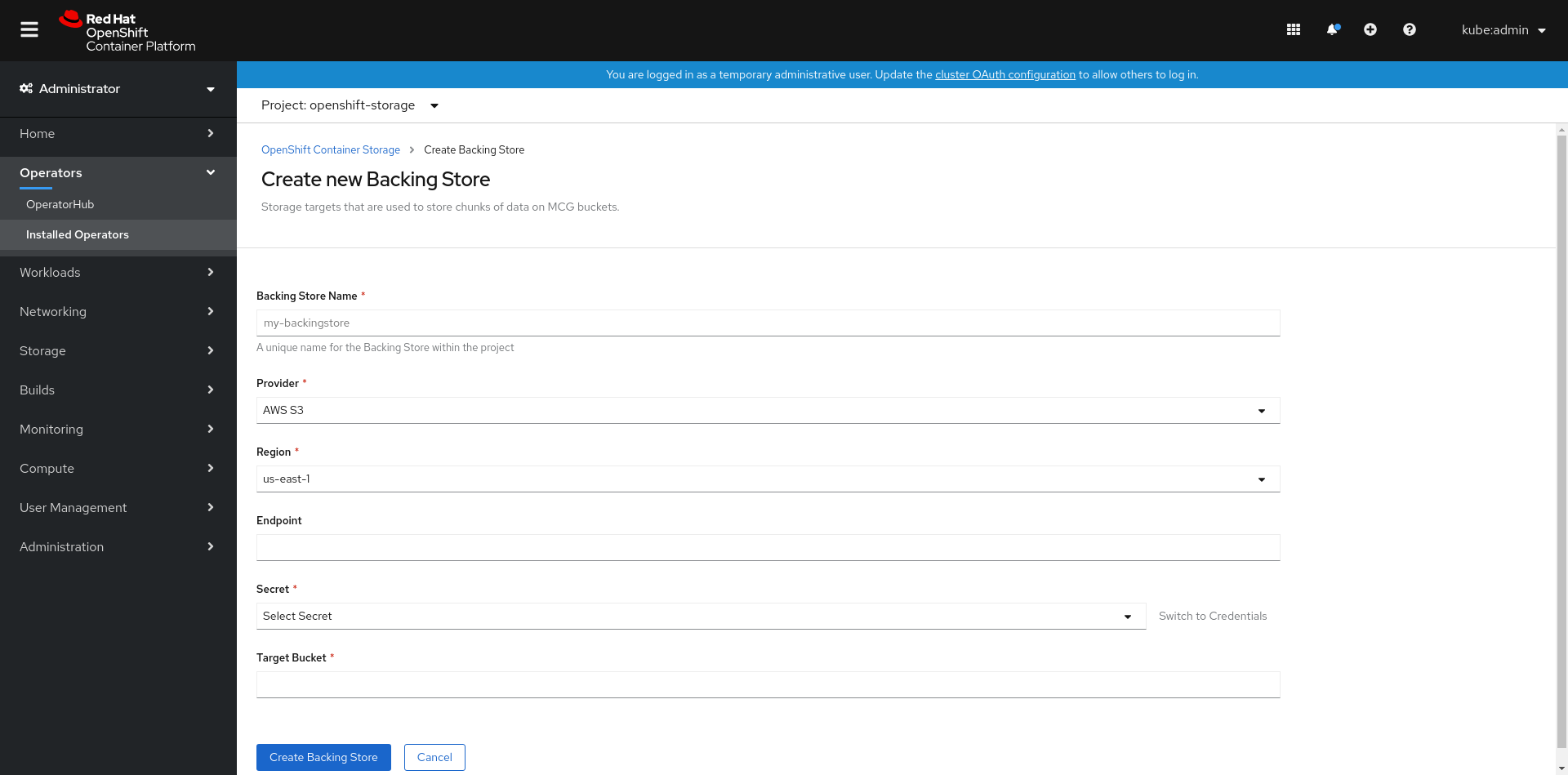
On the Create New Backing Store page, perform the following:
-
Make sure the Namespace is set to
openshift-storage. - Enter a Backing Store Name.
- Select Provider.
- Select Region.
- Enter Endpoint. This is optional.
Select Secret from drop down list, or create your own secret. Optionally, you can Switch to Credentials view which lets you fill in the required secrets.
NoteThis menu is relevant for all providers except Google Cloud and local PVC.
- Enter Target bucket. The target bucket is a container storage that is hosted on the remote cloud service. It allows you to create a connection that tells NooBaa that it can use this bucket for the system.
-
Make sure the Namespace is set to
- Click Create Backing Store.
Verification steps
-
Click Operators
Installed Operators. - Click OpenShift Container Storage Operator.
- Search for the new backing store.
The Multicloud Object Gateway (MCG) simplifies the process of spanning data across cloud provider and clusters.
You must add a backing storage that can be used by the MCG.
Depending on the type of your deployment, you can choose one of the following procedures to create a backing storage:
- For creating a AWS-backed backingstore, see Section 7.3.2.1, “Creating an AWS-backed backingstore”
- For creating a IBM COS-backed backingstore, see Section 7.3.2.2, “Creating an IBM COS-backed backingstore”
For VMWare deployments, skip to Section 7.3.3, “Creating an S3 compatible Multicloud Object Gateway backingstore” for further instructions.
7.3.2.1. Creating an AWS-backed backingstore
Prerequisites
Download the Multicloud Object Gateway (MCG) command-line interface:
# subscription-manager repos --enable=rh-ocs-4-for-rhel-8-x86_64-rpms # yum install mcg-
Alternatively, you can install the
mcgpackage from the OpenShift Container Storage RPMs found here https://access.redhat.com/downloads/content/547/ver=4/rhel---8/4/x86_64/packages
Procedure
From the MCG command-line interface, run the following command:
noobaa backingstore create <backingstore_name> --access-key=<AWS ACCESS KEY> --secret-key=<AWS SECRET ACCESS KEY> --target-bucket <bucket-name>
-
Replace
<backingstore_name>with the name of the backingstore. -
Replace
<AWS ACCESS KEY>and<AWS SECRET ACCESS KEY>with an AWS access key ID and secret access key you created for this purpose. Replace
<bucket-name>with an existing AWS bucket name. This argument tells Multicloud Object Gateway which bucket to use as a target bucket for its backing store, and subsequently, data storage and administration.The output will be similar to the following:
INFO[0001] ✅ Exists: NooBaa "noobaa"
INFO[0002] ✅ Created: BackingStore "aws-resource"
INFO[0002] ✅ Created: Secret "backing-store-secret-aws-resource"
You can also add storage resources using a YAML:
Create a secret with the credentials:
apiVersion: v1 kind: Secret metadata: name: <backingstore-secret-name> type: Opaque data: AWS_ACCESS_KEY_ID: <AWS ACCESS KEY ID ENCODED IN BASE64> AWS_SECRET_ACCESS_KEY: <AWS SECRET ACCESS KEY ENCODED IN BASE64>-
You must supply and encode your own AWS access key ID and secret access key using Base64, and use the results in place of
<AWS ACCESS KEY ID ENCODED IN BASE64>and<AWS SECRET ACCESS KEY ENCODED IN BASE64>. -
Replace
<backingstore-secret-name>with a unique name.
-
You must supply and encode your own AWS access key ID and secret access key using Base64, and use the results in place of
Apply the following YAML for a specific backing store:
apiVersion: noobaa.io/v1alpha1 kind: BackingStore metadata: finalizers: - noobaa.io/finalizer labels: app: noobaa name: bs namespace: openshift-storage spec: awsS3: secret: name: <backingstore-secret-name> namespace: noobaa targetBucket: <bucket-name> type: aws-s3-
Replace
<bucket-name>with an existing AWS bucket name. This argument tells Multicloud Object Gateway which bucket to use as a target bucket for its backing store, and subsequently, data storage and administration. -
Replace
<backingstore-secret-name>with the name of the secret created in the previous step.
-
Replace
7.3.2.2. Creating an IBM COS-backed backingstore
Prerequisites
Download the Multicloud Object Gateway (MCG) command-line interface:
# subscription-manager repos --enable=rh-ocs-4-for-rhel-8-x86_64-rpms # yum install mcg-
Alternatively, you can install the
mcgpackage from the OpenShift Container Storage RPMs found here https://access.redhat.com/downloads/content/547/ver=4/rhel---8/4/x86_64/packages
Procedure
From the MCG command-line interface, run the following command:
noobaa backingstore create ibm-cos <backingstore_name> --access-key=<IBM ACCESS KEY> --secret-key=<IBM SECRET ACCESS KEY> --endpoint=<IBM COS ENDPOINT> --target-bucket <bucket-name>-
Replace
<backingstore_name>with the name of the backingstore. Replace
<IBM ACCESS KEY>,<IBM SECRET ACCESS KEY>,<IBM COS ENDPOINT>with an IBM access key ID, secret access key and the appropriate regional endpoint that corresponds to the location of the existing IBM bucket.To generate the above keys on IBM cloud, you must include HMAC credentials while creating the service credentials for your target bucket.
Replace
<bucket-name>with an existing IBM bucket name. This argument tells Multicloud Object Gateway which bucket to use as a target bucket for its backing store, and subsequently, data storage and administration.The output will be similar to the following:
INFO[0001] ✅ Exists: NooBaa "noobaa"
INFO[0002] ✅ Created: BackingStore "ibm-resource"
INFO[0002] ✅ Created: Secret "backing-store-secret-ibm-resource"
-
Replace
You can also add storage resources using a YAML:
Create a secret with the credentials:
apiVersion: v1 kind: Secret metadata: name: <backingstore-secret-name> type: Opaque data: IBM_COS_ACCESS_KEY_ID: <IBM COS ACCESS KEY ID ENCODED IN BASE64> IBM_COS_SECRET_ACCESS_KEY: <IBM COS SECRET ACCESS KEY ENCODED IN BASE64>-
You must supply and encode your own IBM COS access key ID and secret access key using Base64, and use the results in place of
<IBM COS ACCESS KEY ID ENCODED IN BASE64>and<IBM COS SECRET ACCESS KEY ENCODED IN BASE64>. -
Replace
<backingstore-secret-name>with a unique name.
-
You must supply and encode your own IBM COS access key ID and secret access key using Base64, and use the results in place of
Apply the following YAML for a specific backing store:
apiVersion: noobaa.io/v1alpha1 kind: BackingStore metadata: finalizers: - noobaa.io/finalizer labels: app: noobaa name: bs namespace: openshift-storage spec: ibmCos: endpoint: <endpoint> secret: name: <backingstore-secret-name> namespace: openshift-storage targetBucket: <bucket-name> type: ibm-cos-
Replace
<bucket-name>with an existing IBM COS bucket name. This argument tells Multicloud Object Gateway which bucket to use as a target bucket for its backing store, and subsequently, data storage and administration. -
Replace
<endpoint>with a regional endpoint that corresponds to the location of the existing IBM bucket name. This argument tells Multicloud Object Gateway which endpoint to use for its backing store, and subsequently, data storage and administration. -
Replace
<backingstore-secret-name>with the name of the secret created in the previous step.
-
Replace
The Multicloud Object Gateway (MCG) can use any S3 compatible object storage as a backing store, for example, Red Hat Ceph Storage’s RADOS Gateway (RGW). The following procedure shows how to create an S3 compatible Multicloud Object Gateway backing store for RGW. Note that when RGW is deployed, Openshift Container Storage operator creates an S3 compatible backingstore for Multicloud Object Gateway automatically.
Procedure
From the Multicloud Object Gateway command-line interface, run the following NooBaa command:
noobaa backingstore create s3-compatible rgw-resource --access-key=<RGW ACCESS KEY> --secret-key=<RGW SECRET KEY> --target-bucket=<bucket-name> --endpoint=http://rook-ceph-rgw-ocs-storagecluster-cephobjectstore.openshift-storage.svc.cluster.local:80To get the
<RGW ACCESS KEY>and<RGW SECRET KEY>, run the following command using your RGW user secret name:oc get secret <RGW USER SECRET NAME> -o yaml- Decode the access key ID and the access key from Base64 and keep them.
-
Replace
<RGW USER ACCESS KEY>and<RGW USER SECRET ACCESS KEY>with the appropriate, decoded data from the previous step. Replace
<bucket-name>with an existing RGW bucket name. This argument tells Multicloud Object Gateway which bucket to use as a target bucket for its backing store, and subsequently, data storage and administration.The output will be similar to the following:
INFO[0001] ✅ Exists: NooBaa "noobaa"
INFO[0002] ✅ Created: BackingStore "rgw-resource"
INFO[0002] ✅ Created: Secret "backing-store-secret-rgw-resource"
You can also create the backingstore using a YAML:
Create a
CephObjectStoreuser. This also creates a secret containing the RGW credentials:apiVersion: ceph.rook.io/v1 kind: CephObjectStoreUser metadata: name: <RGW-Username> namespace: openshift-storage spec: store: ocs-storagecluster-cephobjectstore displayName: "<Display-name>"-
Replace
<RGW-Username>and<Display-name>with a unique username and display name.
-
Replace
Apply the following YAML for an S3-Compatible backing store:
apiVersion: noobaa.io/v1alpha1 kind: BackingStore metadata: finalizers: - noobaa.io/finalizer labels: app: noobaa name: <backingstore-name> namespace: openshift-storage spec: s3Compatible: endpoint: http://rook-ceph-rgw-ocs-storagecluster-cephobjectstore.openshift-storage.svc.cluster.local:80 secret: name: <backingstore-secret-name> namespace: openshift-storage signatureVersion: v4 targetBucket: <RGW-bucket-name> type: s3-compatible-
Replace
<backingstore-secret-name>with the name of the secret that was created withCephObjectStorein the previous step. -
Replace
<bucket-name>with an existing RGW bucket name. This argument tells Multicloud Object Gateway which bucket to use as a target bucket for its backing store, and subsequently, data storage and administration.
-
Replace
Procedure
In your OpenShift Storage console, navigate to
DashboardsOCS Object Serviceselect the noobaalink: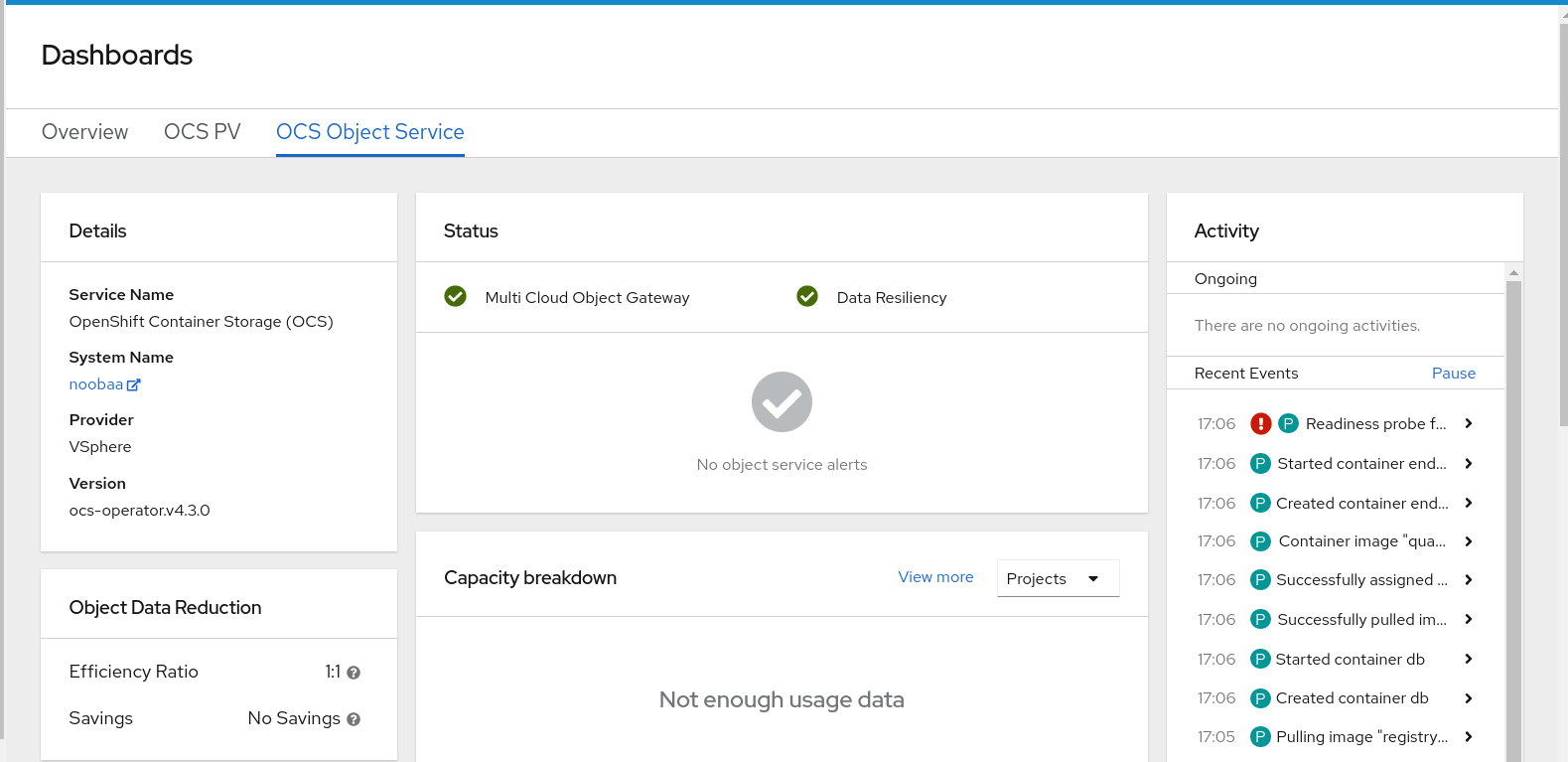
Select the Resources tab in the left, highlighted below. From the list that populates, select
Add Cloud Resource: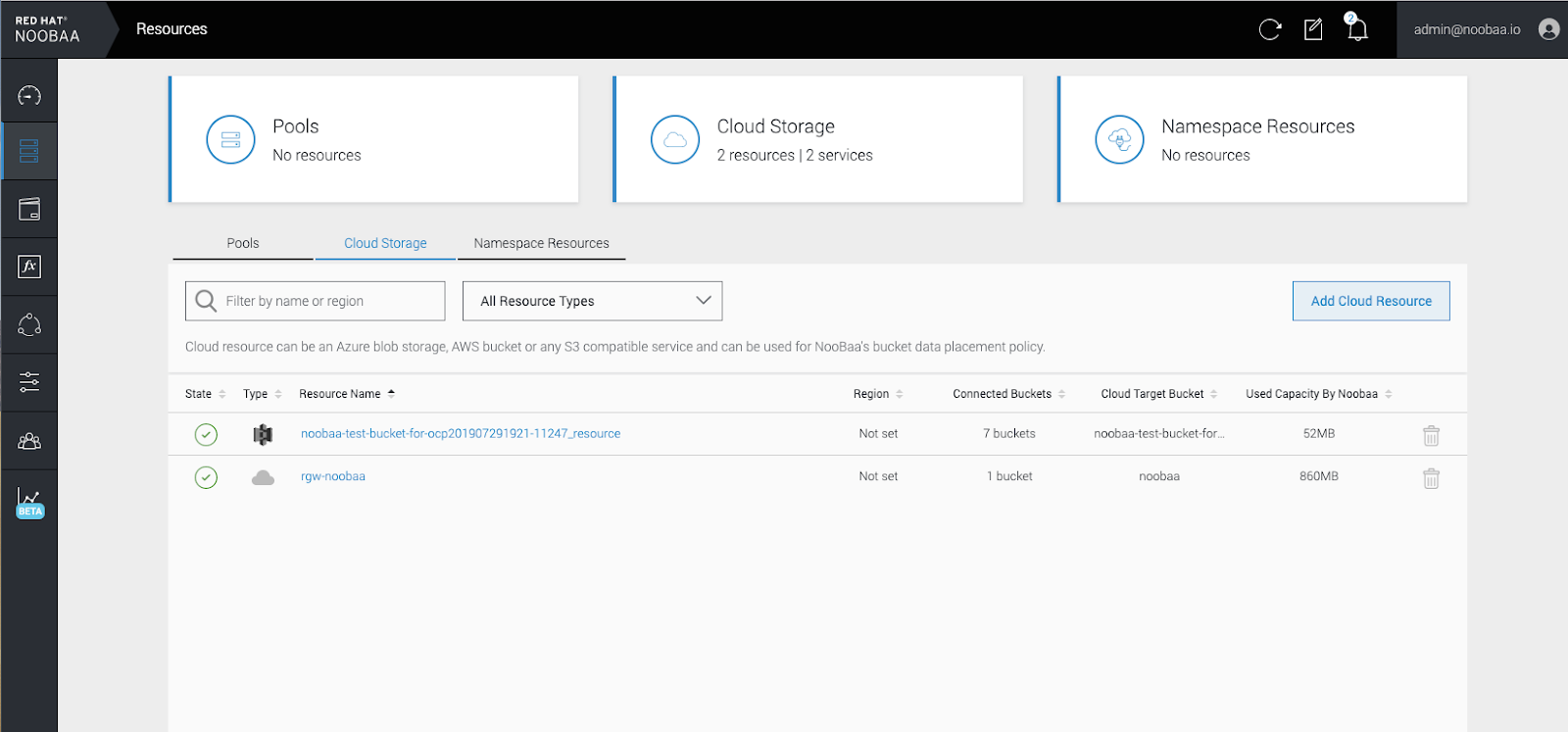
Select
Add new connection: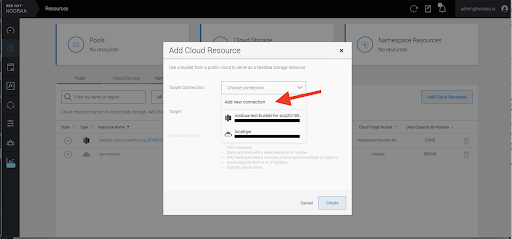
Select the relevant native cloud provider or S3 compatible option and fill in the details:
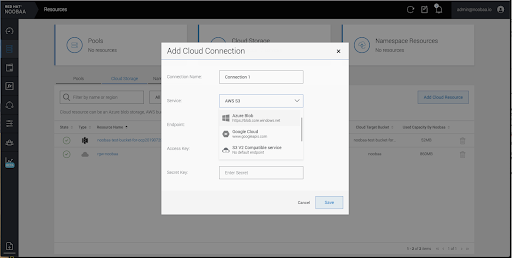
Select the newly created connection and map it to the existing bucket:
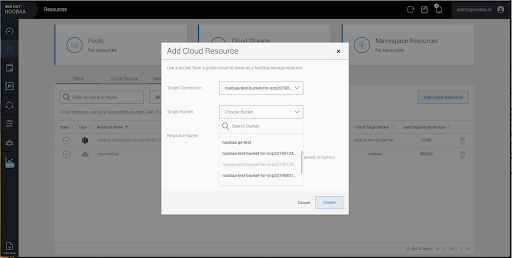
- Repeat these steps to create as many backing stores as needed.
Resources created in NooBaa UI cannot be used by OpenShift UI or MCG CLI.
7.3.5. Creating a new bucket class
Bucket class is a CRD representing a class of buckets that defines tiering policies and data placements for an Object Bucket Class (OBC).
Use this procedure to create a bucket class in OpenShift Container Storage.
Procedure
-
Click Operators
Installed Operators from the left pane of the OpenShift Web Console to view the installed operators. - Click OpenShift Container Storage Operator.
On the OpenShift Container Storage Operator page, scroll right and click the Bucket Class tab.
Figure 7.3. OpenShift Container Storage Operator page with Bucket Class tab
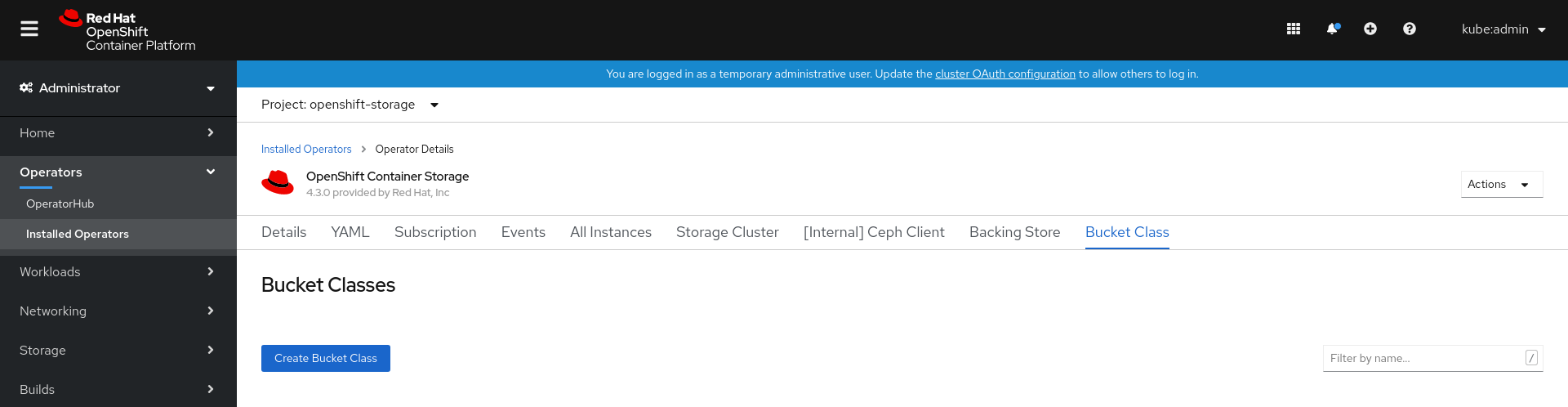
- Click Create Bucket Class.
On the Create new Bucket Class page, perform the following:
Enter a Bucket Class Name and click Next.
Figure 7.4. Create Bucket Class page

In Placement Policy, select Tier 1 - Policy Type and click Next. You can choose either one of the options as per your requirements.
- Spread allows spreading of the data across the chosen resources.
- Mirror allows full duplication of the data across the chosen resources.
Click Add Tier to add another policy tier.
Figure 7.5. Tier 1 - Policy Type selection page
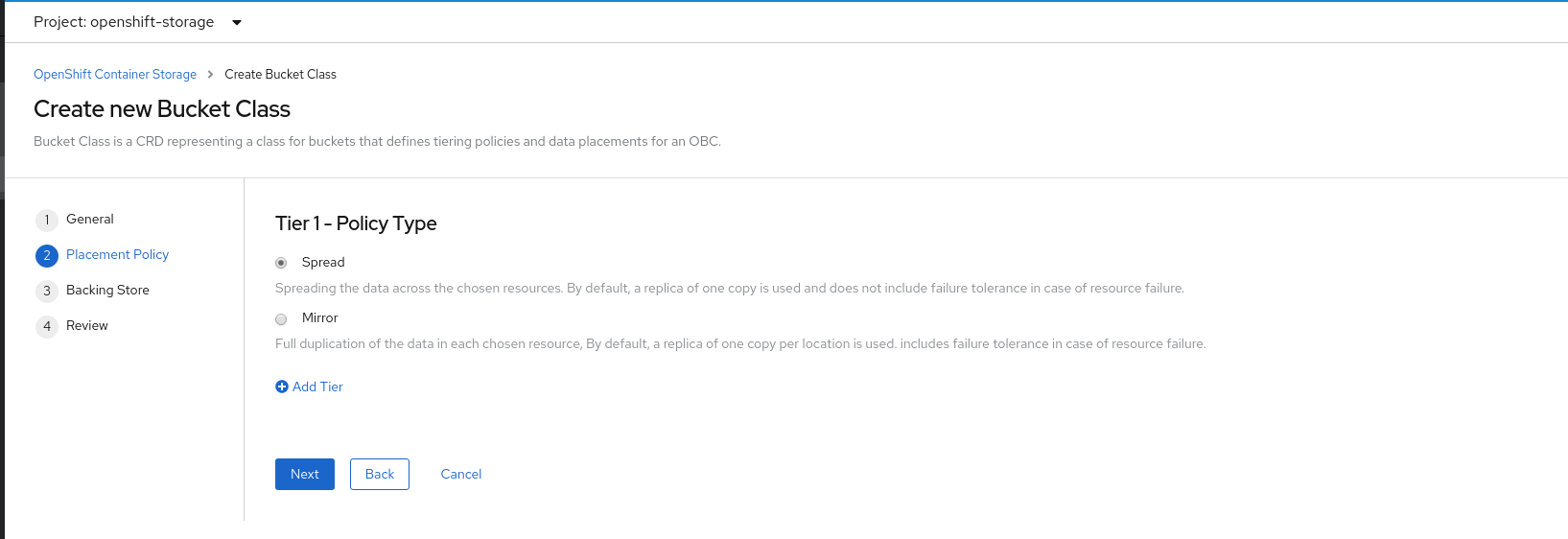
Select atleast one Backing Store resource from the available list if you have selected Tier 1 - Policy Type as Spread and click Next. Alternatively, you can also create a new backing store.
Figure 7.6. Tier 1 - Backing Store selection page

You need to select atleast 2 backing stores when you select Policy Type as Mirror in previous step.
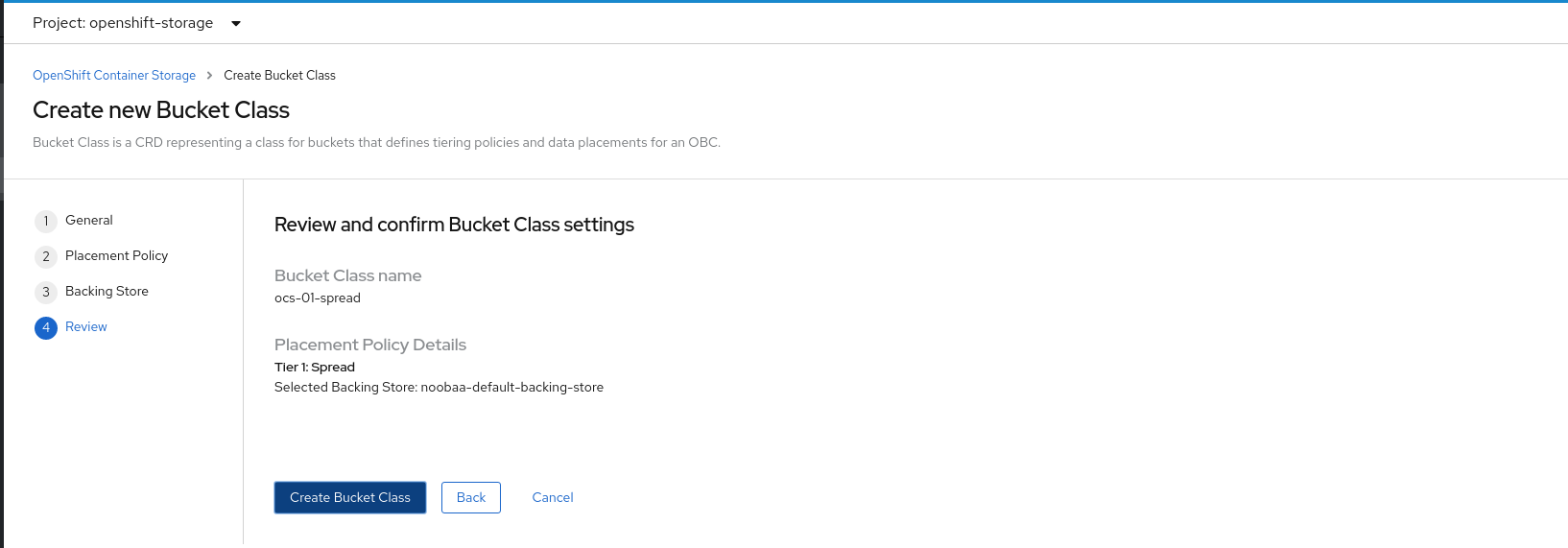
Review and confirm Bucket Class settings.
Figure 7.7. Bucket class settings review page
- Click Create Bucket Class.
Verification steps
-
Click Operators
Installed Operators. - Click OpenShift Container Storage Operator.
- Search for the new Bucket Class or click Bucket Class tab to view all the Bucket Classes.
7.4. Mirroring data for hybrid and Multicloud buckets
The Multicloud Object Gateway (MCG) simplifies the process of spanning data across cloud provider and clusters.
Prerequisites
- You must first add a backing storage that can be used by the MCG, see Section 7.3, “Adding storage resources for hybrid or Multicloud”.
Then you create a bucket class that reflects the data management policy, mirroring.
Procedure
You can set up mirroring data three ways:
From the MCG command-line interface, run the following command to create a bucket class with a mirroring policy:
$ noobaa bucketclass create mirror-to-aws --backingstores=azure-resource,aws-resource --placement MirrorSet the newly created bucket class to a new bucket claim, generating a new bucket that will be mirrored between two locations:
$ noobaa obc create mirrored-bucket --bucketclass=mirror-to-aws
Apply the following YAML. This YAML is a hybrid example that mirrors data between local Ceph storage and AWS:
apiVersion: noobaa.io/v1alpha1
kind: BucketClass
metadata:
  name: hybrid-class
  labels:
    app: noobaa
spec:
  placementPolicy:
    tiers:
      - tier:
          mirrors:
            - mirror:
                spread:
                  - cos-east-us
            - mirror:
                spread:
                  - noobaa-test-bucket-for-ocp201907291921-11247_resource
Add the following lines to your standard Object Bucket Claim (OBC):
additionalConfig:
  bucketclass: mirror-to-aws
For more information about OBCs, see Section 7.6, “Object Bucket Claim”.
In your OpenShift Storage console, navigate to
DashboardsOCS Object Serviceselect the noobaalink:
Click the
bucketsicon on the left side. You will see a list of your buckets:
- Click the bucket you want to update.
Click
Edit Tier 1 Resources: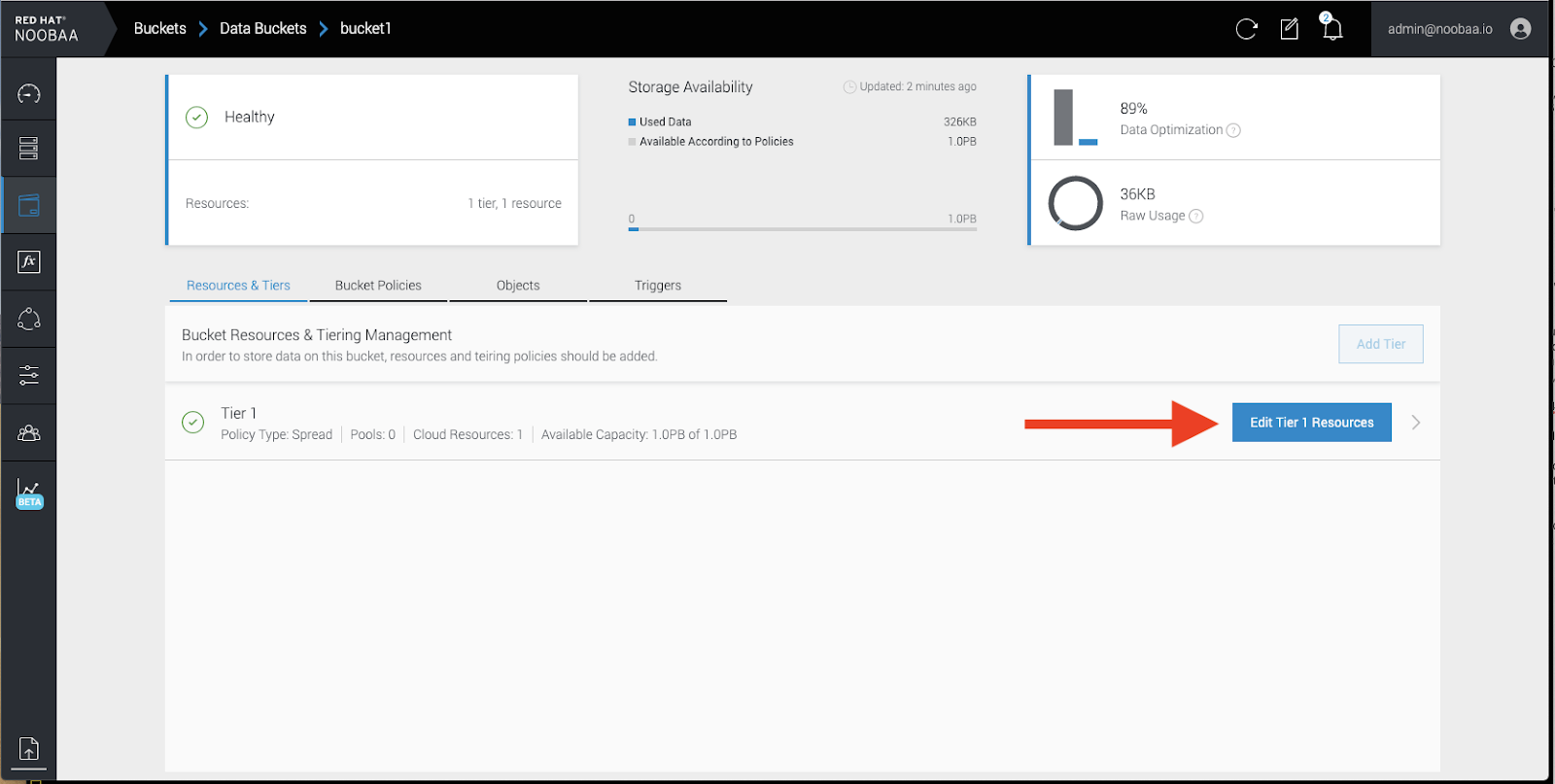
Select
Mirrorand check the relevant resources you want to use for this bucket. In the following example, we mirror data between on prem Ceph RGW to AWS: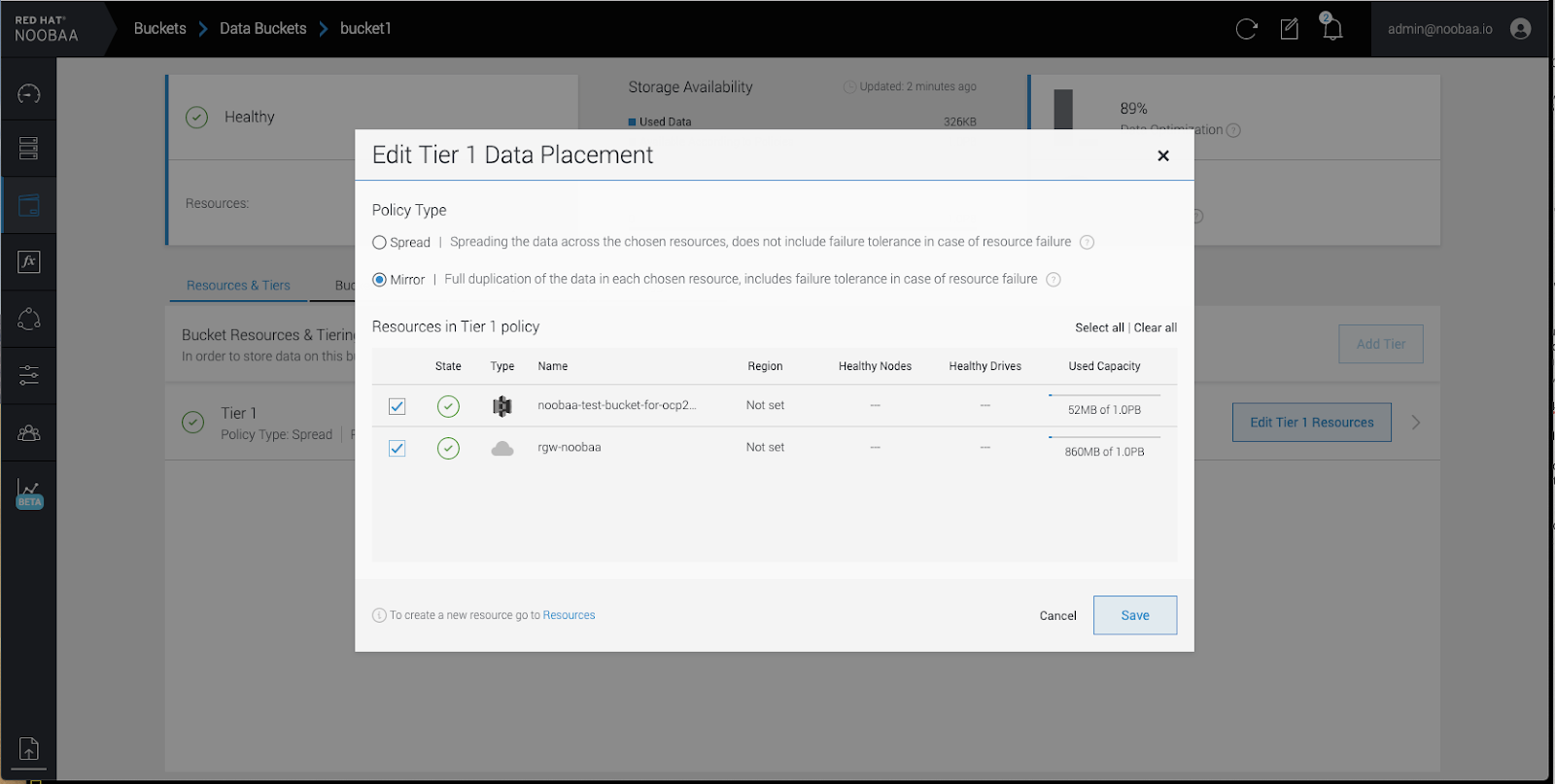
-
Click
Save.
Resources created in NooBaa UI cannot be used by OpenShift UI or MCG CLI.
7.5. Bucket policies in the Multicloud Object Gateway
OpenShift Container Storage supports AWS S3 bucket policies. Bucket policies allow you to grant users access permissions for buckets and the objects in them.
7.5.1. About bucket policies
Bucket policies are an access policy option available for you to grant permission to your AWS S3 buckets and objects. Bucket policies use JSON-based access policy language. For more information about access policy language, see AWS Access Policy Language Overview.
7.5.2. Using bucket policies
Prerequisites
- A running OpenShift Container Storage Platform
- Access to the Multicloud Object Gateway, see Section 7.2, “Accessing the Multicloud Object Gateway with your applications”
Procedure
To use bucket policies in the Multicloud Object Gateway:
Create the bucket policy in JSON format. See the following example:
{
    "Version": "NewVersion",
    "Statement": [
        {
            "Sid": "Example",
            "Effect": "Allow",
            "Principal": [
                    "john.doe@example.com"
            ],
            "Action": [
                "s3:GetObject"
            ],
            "Resource": [
                "arn:aws:s3:::john_bucket"
            ]
        }
    ]
}
There are many available elements for bucket policies. For details on these elements and examples of how they can be used, see AWS Access Policy Language Overview.
For more examples of bucket policies, see AWS Bucket Policy Examples.
Instructions for creating S3 users can be found in Section 7.5.3, “Creating an AWS S3 user in the Multicloud Object Gateway”.
Using AWS S3 client, use the
put-bucket-policycommand to apply the bucket policy to your S3 bucket:# aws s3api put-bucket-policy --bucket MyBucket --policy BucketPolicyReplace
MyBucketwith the bucket to set the policy onReplace
BucketPolicywith the bucket policy JSON fileFor example:
# aws s3api put-bucket-policy --bucket MyBucket --policy file://BucketPolicyFor more information on the
put-bucket-policycommand, see the AWS CLI Command Reference for put-bucket-policy.
Only Noobaa account principals are supported.
Bucket policy conditions are not supported.
Prerequisites
- A running OpenShift Container Storage Platform
- Access to the Multicloud Object Gateway, see Section 7.2, “Accessing the Multicloud Object Gateway with your applications”
Procedure
In your OpenShift Storage console, navigate to
DashboardsOCS Object Serviceselect the noobaalink:
Under the
Accountstab, clickCreate Account:
Select
S3 Access Only, provide theAccount Name, for example, john.doe@example.com. Click Next:
Select
S3 default placement, for example, noobaa-default-backing-store. SelectBuckets Permissions. A specific bucket or all buckets can be selected. ClickCreate: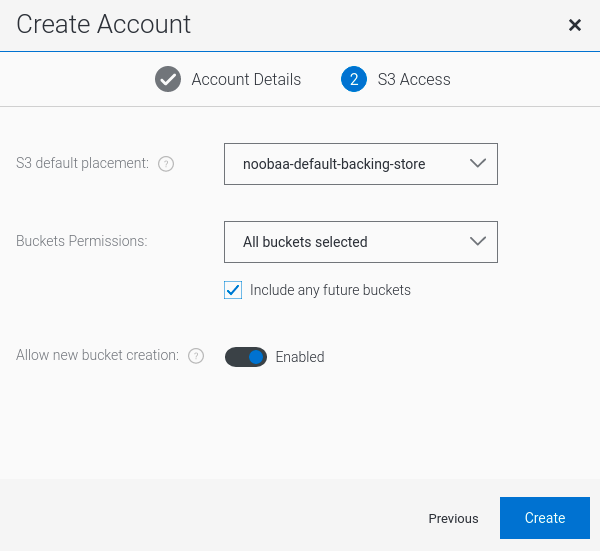
7.6. Object Bucket Claim
An Object Bucket Claim can be used to request an S3 compatible bucket backend for your workloads.
You can create an Object Bucket Claim three ways:
An object bucket claim creates a new bucket and an application account in NooBaa with permissions to the bucket, including a new access key and secret access key. The application account is allowed to access only a single bucket and can’t create new buckets by default.
7.6.1. Dynamic Object Bucket Claim
Similar to persistent volumes, you can add the details of the Object Bucket claim to your application’s YAML, and get the object service endpoint, access key, and secret access key available in a configuration map and secret. It is easy to read this information dynamically into environment variables of your application.
Procedure
Add the following lines to your application YAML:
apiVersion: objectbucket.io/v1alpha1
kind: ObjectBucketClaim
metadata:
  name: <obc-name>
spec:
  generateBucketName: <obc-bucket-name>
  storageClassName: noobaa
These lines are the Object Bucket Claim itself.
-
Replace
<obc-name>with the a unique Object Bucket Claim name. -
Replace
<obc-bucket-name>with a unique bucket name for your Object Bucket Claim.
-
Replace
You can add more lines to the YAML file to automate the use of the Object Bucket Claim. The example below is the mapping between the bucket claim result, which is a configuration map with data and a secret with the credentials. This specific job will claim the Object Bucket from NooBaa, which will create a bucket and an account.
apiVersion: batch/v1 kind: Job metadata: name: testjob spec: template: spec: restartPolicy: OnFailure containers: - image: <your application image> name: test env: - name: BUCKET_NAME valueFrom: configMapKeyRef: name: <obc-name> key: BUCKET_NAME - name: BUCKET_HOST valueFrom: configMapKeyRef: name: <obc-name> key: BUCKET_HOST - name: BUCKET_PORT valueFrom: configMapKeyRef: name: <obc-name> key: BUCKET_PORT - name: AWS_ACCESS_KEY_ID valueFrom: secretKeyRef: name: <obc-name> key: AWS_ACCESS_KEY_ID - name: AWS_SECRET_ACCESS_KEY valueFrom: secretKeyRef: name: <obc-name> key: AWS_SECRET_ACCESS_KEY- Replace all instances of <obc-name> with your Object Bucket Claim name.
- Replace <your application image> with your application image.
Apply the updated YAML file:
# oc apply -f <yaml.file>-
Replace
<yaml.file>with the name of your YAML file.
-
Replace
To view the new configuration map, run the following:
# oc get cm <obc-name>Replace
obc-namewith the name of your Object Bucket Claim.You can expect the following environment variables in the output:
-
BUCKET_HOST- Endpoint to use in the application BUCKET_PORT- The port available for the application-
The port is related to the
BUCKET_HOST. For example, if theBUCKET_HOSTis https://my.example.com, and theBUCKET_PORTis 443, the endpoint for the object service would be https://my.example.com:443.
-
The port is related to the
-
BUCKET_NAME- Requested or generated bucket name -
AWS_ACCESS_KEY_ID- Access key that is part of the credentials -
AWS_SECRET_ACCESS_KEY- Secret access key that is part of the credentials
-
When creating an Object Bucket Claim using the command-line interface, you get a configuration map and a Secret that together contain all the information your application needs to use the object storage service.
Prerequisites
Download the MCG command-line interface:
# subscription-manager repos --enable=rh-ocs-4-for-rhel-8-x86_64-rpms
# yum install mcg
Procedure
Use the command-line interface to generate the details of a new bucket and credentials. Run the following command:
# noobaa obc create <obc-name> -n openshift-storageReplace
<obc-name>with a unique Object Bucket Claim name, for example,myappobc.Additionally, you can use the
--app-namespaceoption to specify the namespace where the Object Bucket Claim configuration map and secret will be created, for example,myapp-namespace.Example output:
INFO[0001] ✅ Created: ObjectBucketClaim "test21obc"The MCG command-line-interface has created the necessary configuration and has informed OpenShift about the new OBC.
Run the following command to view the Object Bucket Claim:
# oc get obc -n openshift-storageExample output:
NAME        STORAGE-CLASS                 PHASE   AGE
test21obc   openshift-storage.noobaa.io   Bound   38s
Run the following command to view the YAML file for the new Object Bucket Claim:
# oc get obc test21obc -o yaml -n openshift-storageExample output:
apiVersion: objectbucket.io/v1alpha1
kind: ObjectBucketClaim
metadata:
  creationTimestamp: "2019-10-24T13:30:07Z"
  finalizers:
  - objectbucket.io/finalizer
  generation: 2
  labels:
    app: noobaa
    bucket-provisioner: openshift-storage.noobaa.io-obc
    noobaa-domain: openshift-storage.noobaa.io
  name: test21obc
  namespace: openshift-storage
  resourceVersion: "40756"
  selfLink: /apis/objectbucket.io/v1alpha1/namespaces/openshift-storage/objectbucketclaims/test21obc
  uid: 64f04cba-f662-11e9-bc3c-0295250841af
spec:
  ObjectBucketName: obc-openshift-storage-test21obc
  bucketName: test21obc-933348a6-e267-4f82-82f1-e59bf4fe3bb4
  generateBucketName: test21obc
  storageClassName: openshift-storage.noobaa.io
status:
  phase: Bound
Inside of your
openshift-storagenamespace, you can find the configuration map and the secret to use this Object Bucket Claim. The CM and the secret have the same name as the Object Bucket Claim. To view the secret:# oc get -n openshift-storage secret test21obc -o yamlExample output:
Example output:
apiVersion: v1
data:
  AWS_ACCESS_KEY_ID: c0M0R2xVanF3ODR3bHBkVW94cmY=
  AWS_SECRET_ACCESS_KEY: Wi9kcFluSWxHRzlWaFlzNk1hc0xma2JXcjM1MVhqa051SlBleXpmOQ==
kind: Secret
metadata:
  creationTimestamp: "2019-10-24T13:30:07Z"
  finalizers:
  - objectbucket.io/finalizer
  labels:
    app: noobaa
    bucket-provisioner: openshift-storage.noobaa.io-obc
    noobaa-domain: openshift-storage.noobaa.io
  name: test21obc
  namespace: openshift-storage
  ownerReferences:
  - apiVersion: objectbucket.io/v1alpha1
    blockOwnerDeletion: true
    controller: true
    kind: ObjectBucketClaim
    name: test21obc
    uid: 64f04cba-f662-11e9-bc3c-0295250841af
  resourceVersion: "40751"
  selfLink: /api/v1/namespaces/openshift-storage/secrets/test21obc
  uid: 65117c1c-f662-11e9-9094-0a5305de57bb
type: Opaque
The secret gives you the S3 access credentials.
To view the configuration map:
# oc get -n openshift-storage cm test21obc -o yamlExample output:
apiVersion: v1
data:
  BUCKET_HOST: 10.0.171.35
  BUCKET_NAME: test21obc-933348a6-e267-4f82-82f1-e59bf4fe3bb4
  BUCKET_PORT: "31242"
  BUCKET_REGION: ""
  BUCKET_SUBREGION: ""
kind: ConfigMap
metadata:
  creationTimestamp: "2019-10-24T13:30:07Z"
  finalizers:
  - objectbucket.io/finalizer
  labels:
    app: noobaa
    bucket-provisioner: openshift-storage.noobaa.io-obc
    noobaa-domain: openshift-storage.noobaa.io
  name: test21obc
  namespace: openshift-storage
  ownerReferences:
  - apiVersion: objectbucket.io/v1alpha1
    blockOwnerDeletion: true
    controller: true
    kind: ObjectBucketClaim
    name: test21obc
    uid: 64f04cba-f662-11e9-bc3c-0295250841af
  resourceVersion: "40752"
  selfLink: /api/v1/namespaces/openshift-storage/configmaps/test21obc
  uid: 651c6501-f662-11e9-9094-0a5305de57bb
The configuration map contains the S3 endpoint information for your application.
You can create an Object Bucket Claim (OBC) using the OpenShift Web Console.
Prerequisites
- Administrative access to the OpenShift Web Console.
Procedure
- Log into the OpenShift Web Console.
-
On the left navigation bar, click Storage
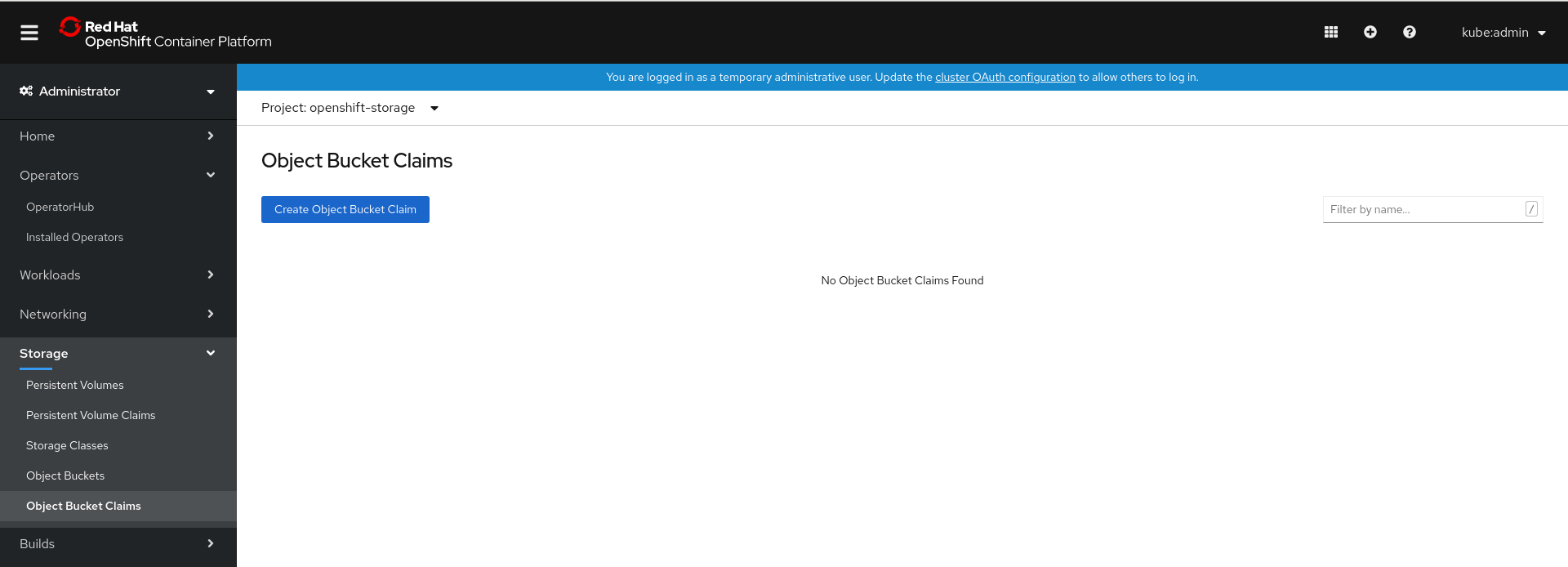
Object Bucket Claims. In the following window, click Create Object Bucket Claim:
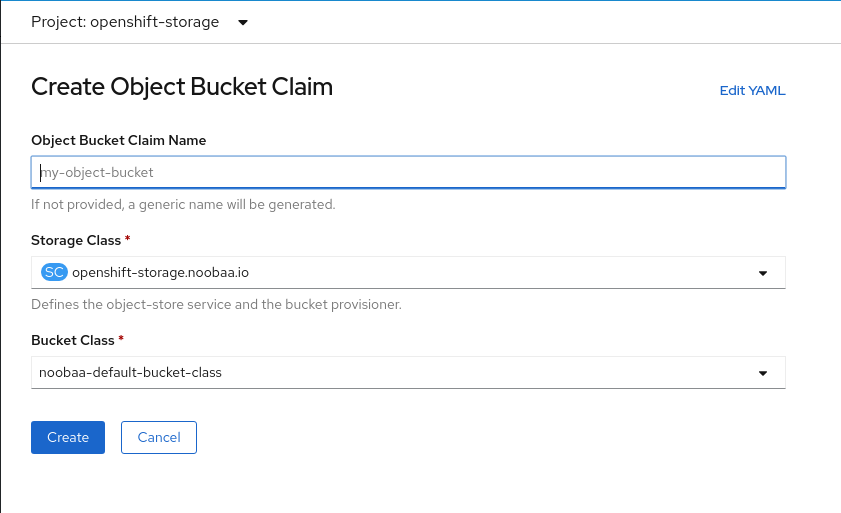
In the following window, enter a name for your object bucket claim, and select the appropriate storage class and bucket class from the dropdown menus:
Click Create.
Once the OBC is created, you will be redirected to its detail page:

Once you’ve created the OBC, you can attach it to a deployment.
-
On the left navigation bar, click Storage
Object Bucket Claims. - Click the action menu (⋮) next to the OBC you created.
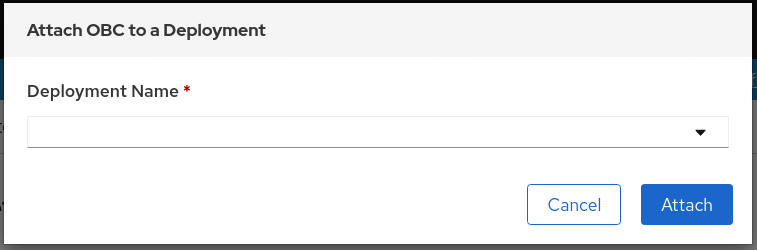
From the drop down menu, select Attach to Deployment.

In the following window, select the desired deployment from the drop down menu, then click Attach:
-
On the left navigation bar, click Storage
In order for your applications to communicate with the OBC, you need to use the configmap and secret. For more information about this, see Section 7.6.1, “Dynamic Object Bucket Claim”.
7.6.3.1. Delete an Object Bucket Claim
On the Object Bucket Claims page, click on the action menu (⋮) next to the OBC that you want to delete.
Select Delete Object Bucket Claim from menu.
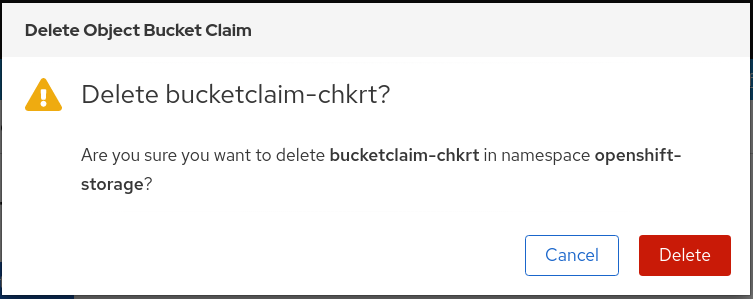
- Click Delete.
You can view the details of object buckets created for Object Bucket Claims (OBCs).
Procedure
To view the object bucket details:
- Log into the OpenShift Web Console.
On the left navigation bar, click Storage
Object Buckets: 
You can also navigate to the details page of a specific OBC and click the Resource link to view the object buckets for that OBC.
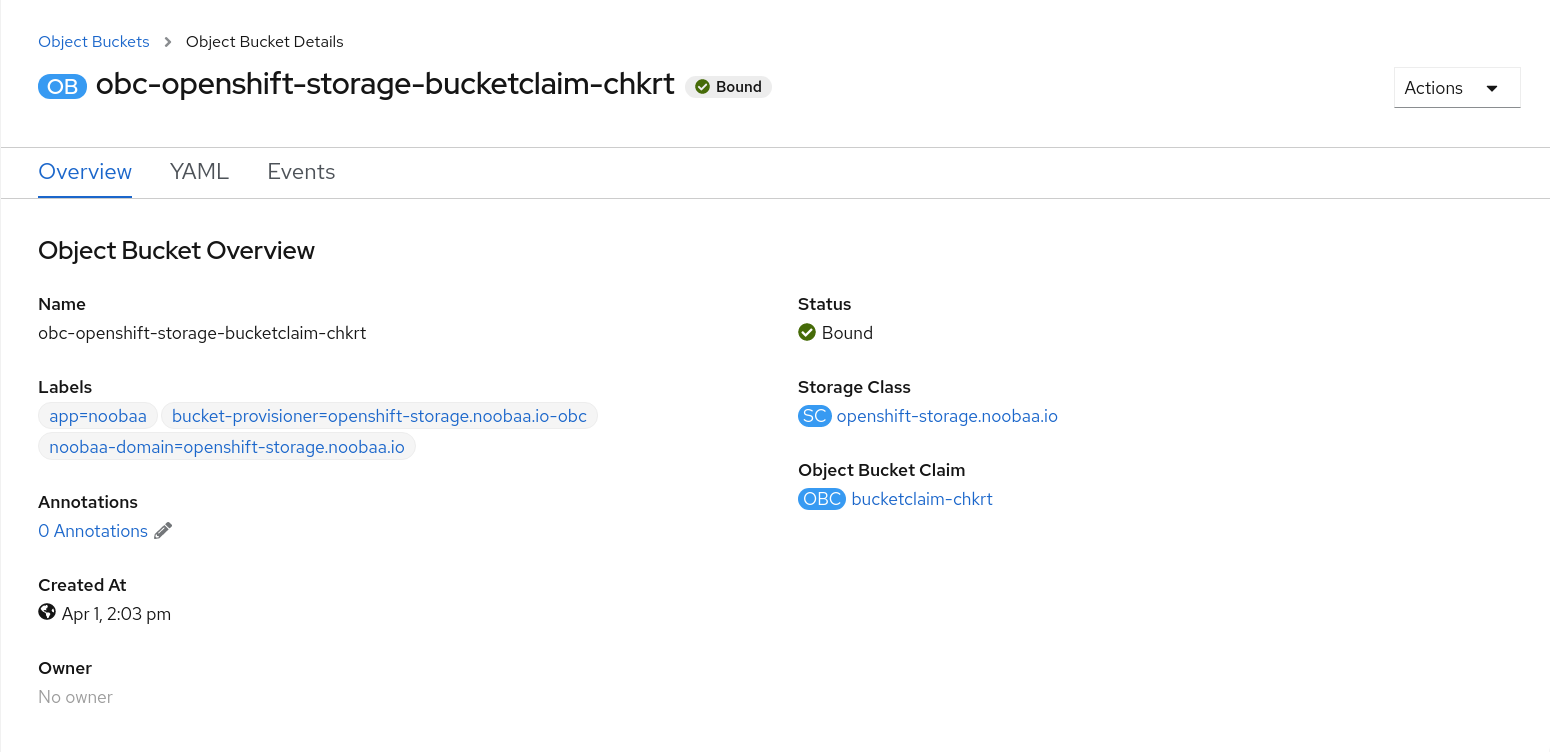
Select the object bucket you want to see details for. You will be navigated to the object bucket’s details page:
The Multicloud Object Gateway performance may vary from one environment to another. In some cases, specific applications require faster performance which can be easily addressed by scaling S3 endpoints.
The Multicloud Object Gateway resource pool is a group of NooBaa daemon containers that provide two types of services enabled by default:
- Storage service
- S3 endpoint service
The S3 endpoint is a service that every Multicloud Object Gateway provides by default that handles the heavy lifting data digestion in the Multicloud Object Gateway. The endpoint service handles the data chunking, deduplication, compression, and encryption, and it accepts data placement instructions from the Multicloud Object Gateway.
7.7.2. Scaling with storage nodes [Technology Preview]
Prerequisites
- A running OpenShift Container Storage cluster on OpenShift Container Platform with access to the Multicloud Object Gateway.
A storage node in the Multicloud Object Gateway is a NooBaa daemon container attached to one or more persistent volumes and used for local object service data storage. NooBaa daemons can be deployed on Kubernetes nodes. This can be done by creating a Kubernetes pool consisting of StatefulSet pods.
Procedure
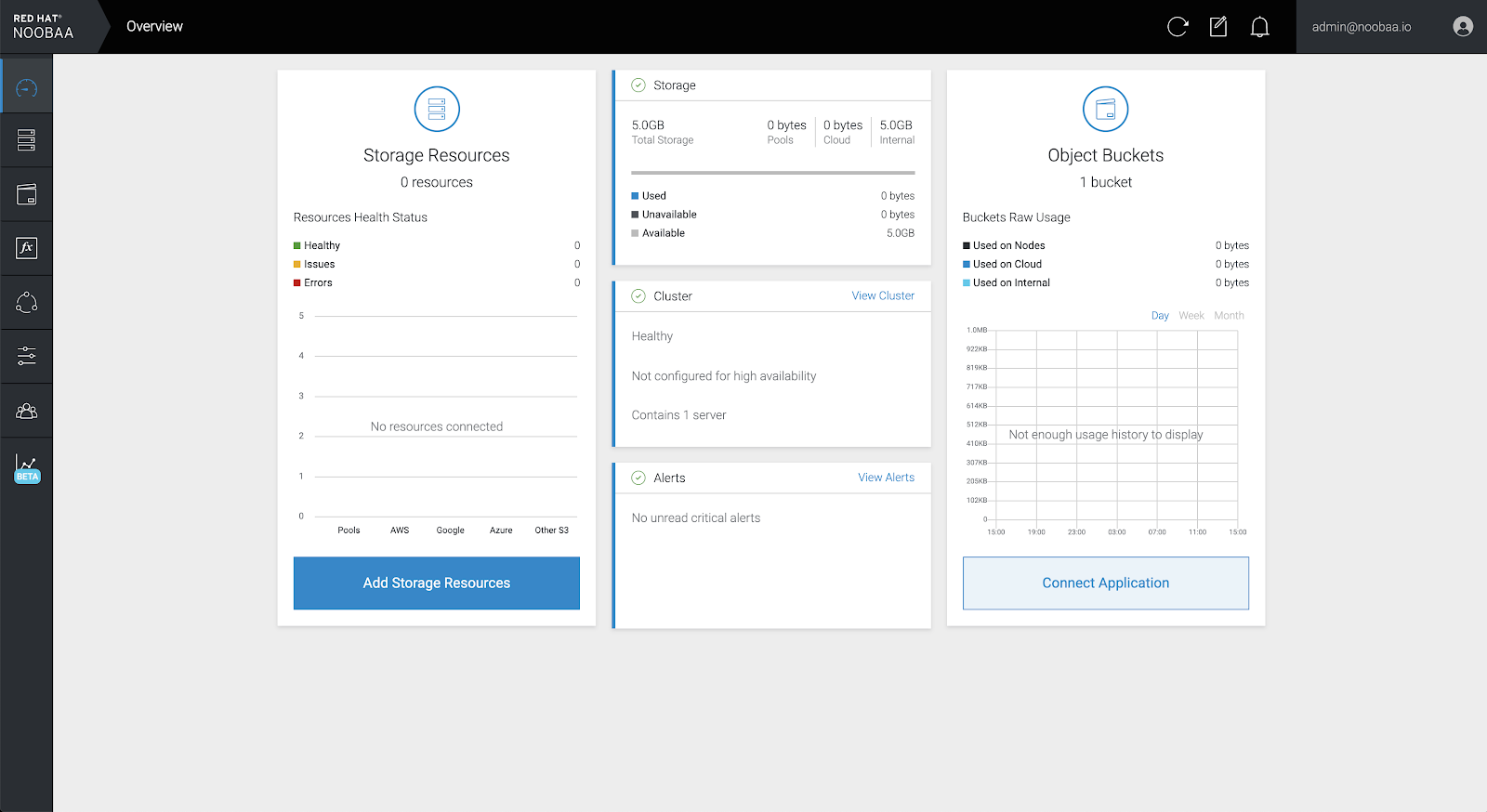
In the Mult-Cloud Object Gateway user interface, from the Overview page, click Add Storage Resources:
In the window, click Deploy Kubernetes Pool:

In the Create Pool step create the target pool for the future installed nodes.

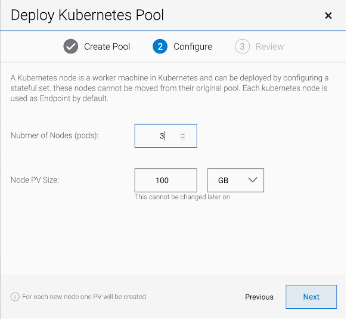
In the Configure step, configure the number of requested pods and the size of each PV. For each new pod, one PV is be created.
- In the Review step, you can find the details of the new pool and select the deployment method you wish to use: local or external deployment. If local deployment is selected, the Kubernetes nodes will deploy within the cluster. If external deployment is selected, you will be provided with a YAML file to run externally.
All nodes will be assigned to the pool you chose in the first step, and can be found under Resources
Storage resources Resource name: 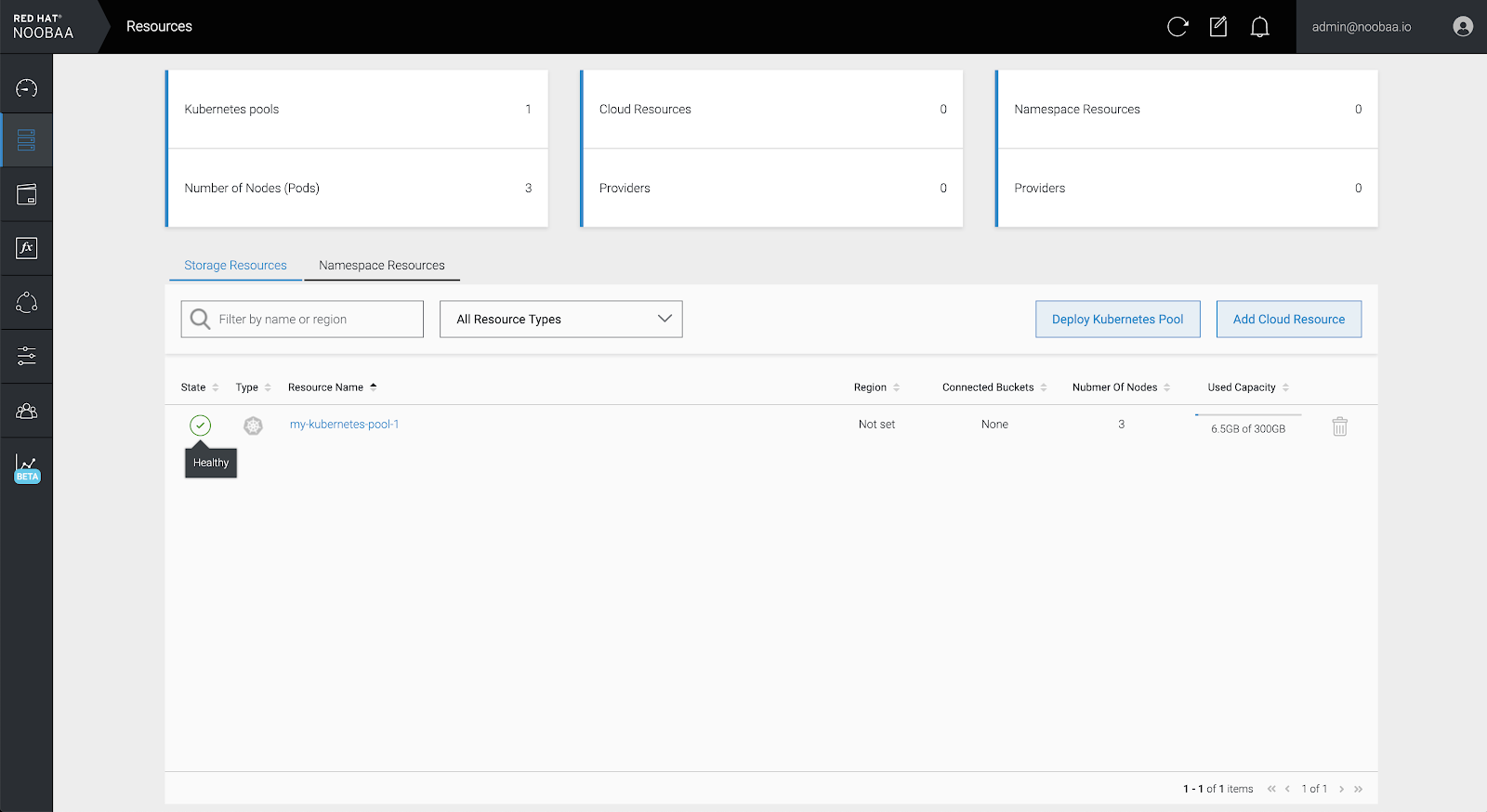
Prerequisites
- A running OpenShift Container Storage Platform with access to the Multicloud Object Gateway
- An additional running OpenShift Container Platform that has network access to, and can communicate with the Multicloud Object Gateway on the other cluster
The following instructions will guide you to stretching a bucket across two different clusters: Cluster A and Cluster B. Stretching a bucket across two different clusters involves the following:
- Section 7.7.3.1, “Create an external NooBaa Daemon pool on Cluster B”
- Section 7.7.3.2, “Adding Cluster B as a backing store to Cluster A”
- Section 7.7.3.3, “Create a federated bucket on Cluster A using Cluster B’s NooBaa system”
- Section 7.7.3.4, “Assign regions for the locality optimization”
- Section 7.7.3.5, “Managing the clusters”
In the Mult-Cloud Object Gateway user interface for cluster A, from the Overview page, click Add Storage Resources:
In the window, click Deploy Kubernetes Pool:
In the Create Pool step create the target pool for the future installed nodes.
In the Configure step, configure the number of requested pods and the size of each PV. For each new pod, one PV is be created.
- In the Review step, select Deploy external to the Kubernetes cluster and click on Download YAML.
Connect to Cluster B and run the following command to deploy the NooBaa daemon pods on Cluster A.
oc create namespace external
oc apply -f <YAML file> -n external
Replace
<YAML file>with the YAML file from the previous step.
From Cluster B, run the following command:
noobaa statusScroll down and look for the S3 information:
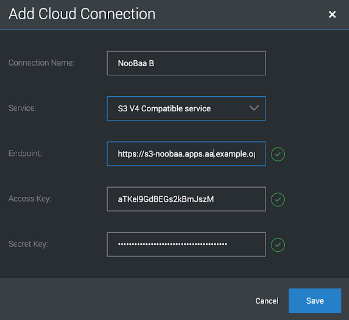
AWS_ACCESS_KEY_IDandAWS_SECRET_ACCESS_KEY. Keep this information for the next stepINFO[0000] #----------------# INFO[0000] #- S3 Addresses -# INFO[0000] #----------------# INFO[0000] INFO[0000] ExternalDNS : [s3-noobaa.apps.aa.example.open.com] INFO[0000] ExternalIP : [https://172.29.225.78:443 https://172.29.225.78:443] INFO[0000] NodePorts : [https://192.168.0.11:32530] INFO[0000] InternalDNS : [https://s3.noobaa:443] INFO[0000] InternalIP : [https://172.30.147.221:443] INFO[0000] PodPorts : [https://10.1.4.21:6443] INFO[0000] INFO[0000] #------------------# INFO[0000] #- S3 Credentials -# INFO[0000] #------------------# INFO[0000] INFO[0000] AWS_ACCESS_KEY_ID: aTKel9GdBEGs2kBmJszM INFO[0000] AWS_SECRET_ACCESS_KEY: 3JEzHc7pCZVOAAnTTTY5bZIG12T1I2a+lHkWlhQ8 INFO[0000]On Cluster A, navigate to the Resources screen and click on Add Cloud Resource:

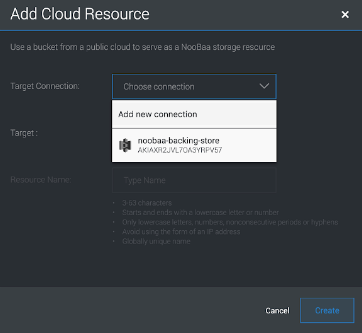
Select Add new connection:
Enter the S3 endpoint information for Cluster B from The previous step:
- Follow the steps in the window to finish creating the cloud resource.
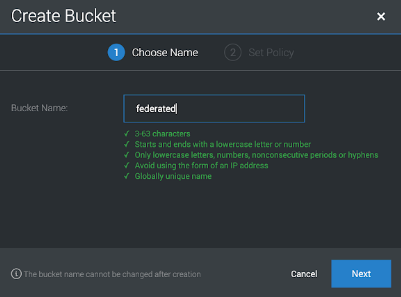
Navigate to Buckets and click Create Bucket, then set the bucket name:
Select the backing store that we just created with a mirror to the local storage of Cluster A:
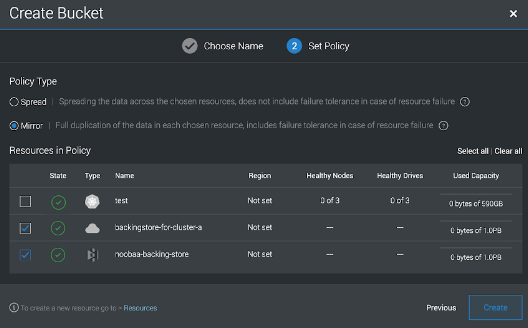
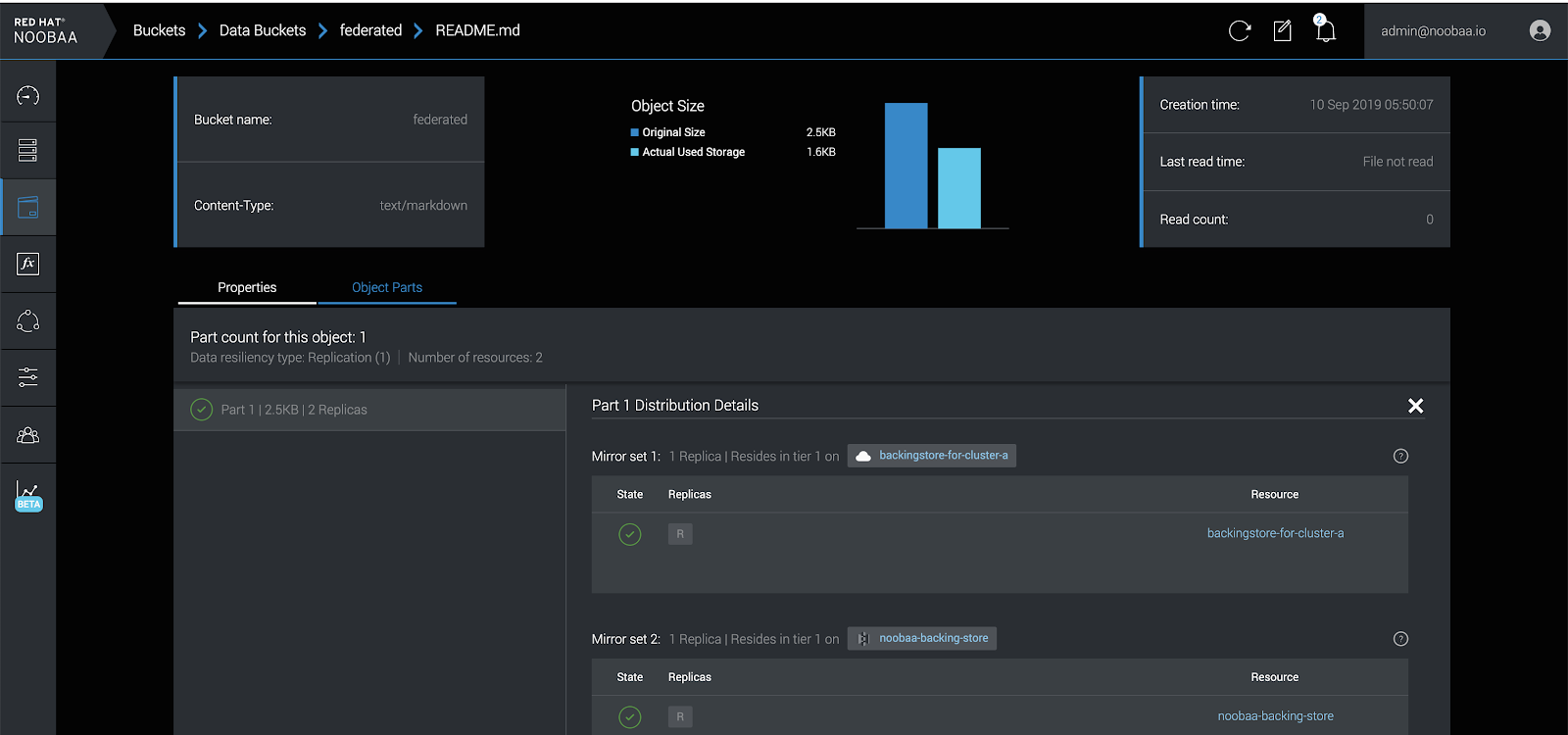
Now any object uploaded to the federated bucket will be mirrored between Cluster A and Cluster B:
7.7.3.4. Assign regions for the locality optimization
On Cluster A, navigate to Resources:

Click on each resource and assign a region:
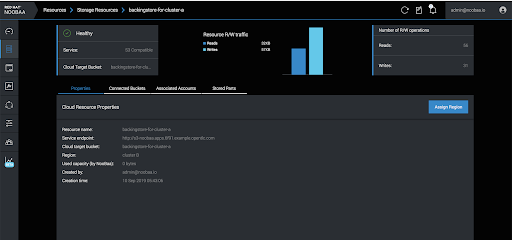
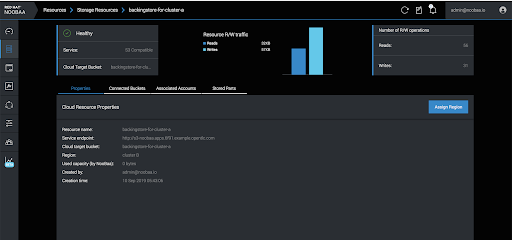
Once completed, it should look like the following image. The external endpoints and the NooBaa system on Cluster B are in one region, while the local backing store is in another region:
7.7.3.5. Managing the clusters
Applications on Cluster A will use the federated bucket by using the local S3 endpoint:
noobaa statusINFO[0000] #----------------#
INFO[0000] #- S3 Addresses -#
INFO[0000] #----------------#
INFO[0000]
INFO[0000] ExternalDNS : [s3-noobaa.apps.aa.example.open.com]
INFO[0000] ExternalIP : [https://172.29.225.78:443 https://172.29.225.78:443]
INFO[0000] NodePorts : [https://192.168.0.11:32530]
INFO[0000] InternalDNS : [https://s3.noobaa:443]
INFO[0000] InternalIP : [https://172.30.147.221:443]
INFO[0000] PodPorts : [https://10.1.4.21:6443]
INFO[0000]
INFO[0000] #------------------#
INFO[0000] #- S3 Credentials -#
INFO[0000] #------------------#
INFO[0000]
INFO[0000] AWS_ACCESS_KEY_ID: aTKel9GdBEGs2kBmJszM
INFO[0000] AWS_SECRET_ACCESS_KEY: 3JEzHc7pCZVOAAnTTTY5bZIG12T1I2a+lHkWlhQ8
INFO[0000]Applications on cluster B, should use the same credentials, but the endpoint URL should be local S3 service
oc get service -n externalNAME TYPE CLUSTER-IP EXTERNAL-IP PORT(S) AGE
s3 LoadBalancer 172.30.18.172 s3-external.apps.aa.example.opentlc.com 80:32741/TCP,443:30949/TCP 4m
'%20d='M201.5%20305.5c-13.8%200-24.9-11.1-24.9-24.6%200-13.8%2011.1-24.9%2024.9-24.9%2013.6%200%2024.6%2011.1%2024.6%2024.9%200%2013.6-11.1%2024.6-24.6%2024.6zM504%20256c0%20137-111%20248-248%20248S8%20393%208%20256%20119%208%20256%208s248%20111%20248%20248zm-132.3-41.2c-9.4%200-17.7%203.9-23.8%2010-22.4-15.5-52.6-25.5-86.1-26.6l17.4-78.3%2055.4%2012.5c0%2013.6%2011.1%2024.6%2024.6%2024.6%2013.8%200%2024.9-11.3%2024.9-24.9s-11.1-24.9-24.9-24.9c-9.7%200-18%205.8-22.1%2013.8l-61.2-13.6c-3-.8-6.1%201.4-6.9%204.4l-19.1%2086.4c-33.2%201.4-63.1%2011.3-85.5%2026.8-6.1-6.4-14.7-10.2-24.1-10.2-34.9%200-46.3%2046.9-14.4%2062.8-1.1%205-1.7%2010.2-1.7%2015.5%200%2052.6%2059.2%2095.2%20132%2095.2%2073.1%200%20132.3-42.6%20132.3-95.2%200-5.3-.6-10.8-1.9-15.8%2031.3-16%2019.8-62.5-14.9-62.5zM302.8%20331c-18.2%2018.2-76.1%2017.9-93.6%200-2.2-2.2-6.1-2.2-8.3%200-2.5%202.5-2.5%206.4%200%208.6%2022.8%2022.8%2087.3%2022.8%20110.2%200%202.5-2.2%202.5-6.1%200-8.6-2.2-2.2-6.1-2.2-8.3%200zm7.7-75c-13.6%200-24.6%2011.1-24.6%2024.9%200%2013.6%2011.1%2024.6%2024.6%2024.6%2013.8%200%2024.9-11.1%2024.9-24.6%200-13.8-11-24.9-24.9-24.9z'/%3e%3c/svg%3e)