 Red Hat Summit
Este contenido no está disponible en el idioma seleccionado.
4.5. Migrating with virt-manager
This section covers migrating a KVM guest virtual machine with
virt-manager from one host physical machine to another.
Open virt-manager
Openvirt-manager. Choosefrom the main menu bar to launch virt-manager.
Figure 4.1. Virt-Manager main menu
Connect to the target host physical machine
Connect to the target host physical machine by clicking on the menu, then click .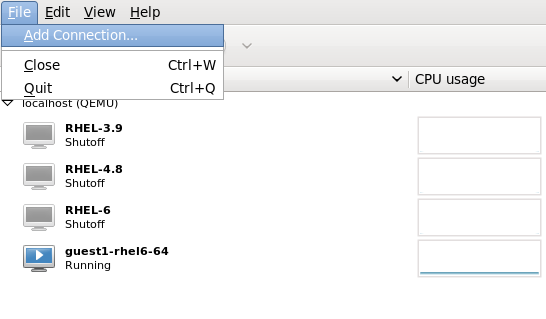
Figure 4.2. Open Add Connection window
Add connection
The Add Connection window appears.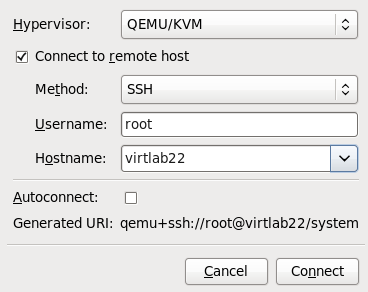
Figure 4.3. Adding a connection to the target host physical machine
Enter the following details:- Hypervisor: Select .
- Method: Select the connection method.
- Username: Enter the user name for the remote host physical machine.
- Hostname: Enter the host name for the remote host physical machine.
Click the button. An SSH connection is used in this example, so the specified user's password must be entered in the next step.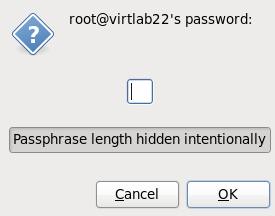
Figure 4.4. Enter password
Migrate guest virtual machines
Open the list of guests inside the source host physical machine (click the small triangle on the left of the host name) and right click on the guest that is to be migrated (guest1-rhel6-64 in this example) and click .
Figure 4.5. Choosing the guest to be migrated
In the field, use the drop-down list to select the host physical machine you wish to migrate the guest virtual machine to and click .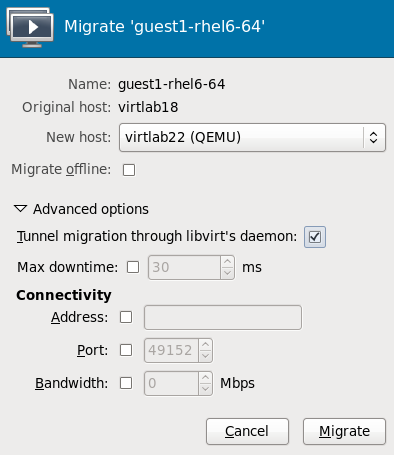
Figure 4.6. Choosing the destination host physical machine and starting the migration process
A progress window will appear.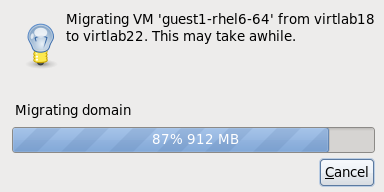
Figure 4.7. Progress window
virt-manager now displays the newly migrated guest virtual machine running in the destination host. The guest virtual machine that was running in the source host physical machine is now listed inthe Shutoff state.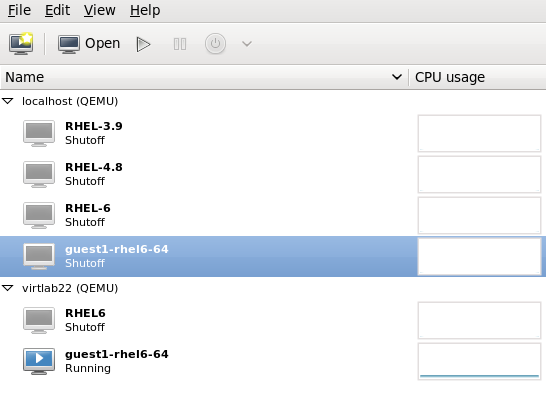
Figure 4.8. Migrated guest virtual machine running in the destination host physical machine
Optional - View the storage details for the host physical machine
In the menu, click , the Connection Details window appears.Click the tab. The iSCSI target details for the destination host physical machine is shown. Note that the migrated guest virtual machine is listed as using the storage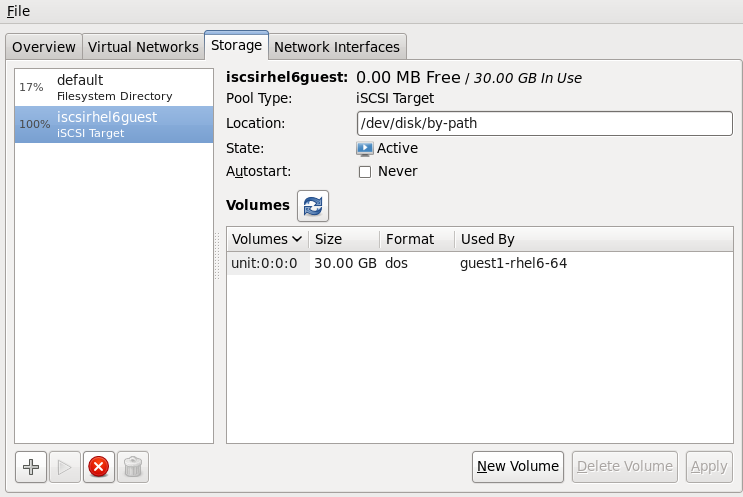
Figure 4.9. Storage details
This host was defined by the following XML configuration:<pool type='iscsi'> <name>iscsirhel6guest</name> <source> <host name='virtlab22.example.com.'/> <device path='iqn.2001-05.com.iscsivendor:0-8a0906-fbab74a06-a700000017a4cc89-rhevh'/> </source> <target> <path>/dev/disk/by-path</path> </target> </pool> ...Figure 4.10. XML configuration for the destination host physical machine

'%20d='M201.5%20305.5c-13.8%200-24.9-11.1-24.9-24.6%200-13.8%2011.1-24.9%2024.9-24.9%2013.6%200%2024.6%2011.1%2024.6%2024.9%200%2013.6-11.1%2024.6-24.6%2024.6zM504%20256c0%20137-111%20248-248%20248S8%20393%208%20256%20119%208%20256%208s248%20111%20248%20248zm-132.3-41.2c-9.4%200-17.7%203.9-23.8%2010-22.4-15.5-52.6-25.5-86.1-26.6l17.4-78.3%2055.4%2012.5c0%2013.6%2011.1%2024.6%2024.6%2024.6%2013.8%200%2024.9-11.3%2024.9-24.9s-11.1-24.9-24.9-24.9c-9.7%200-18%205.8-22.1%2013.8l-61.2-13.6c-3-.8-6.1%201.4-6.9%204.4l-19.1%2086.4c-33.2%201.4-63.1%2011.3-85.5%2026.8-6.1-6.4-14.7-10.2-24.1-10.2-34.9%200-46.3%2046.9-14.4%2062.8-1.1%205-1.7%2010.2-1.7%2015.5%200%2052.6%2059.2%2095.2%20132%2095.2%2073.1%200%20132.3-42.6%20132.3-95.2%200-5.3-.6-10.8-1.9-15.8%2031.3-16%2019.8-62.5-14.9-62.5zM302.8%20331c-18.2%2018.2-76.1%2017.9-93.6%200-2.2-2.2-6.1-2.2-8.3%200-2.5%202.5-2.5%206.4%200%208.6%2022.8%2022.8%2087.3%2022.8%20110.2%200%202.5-2.2%202.5-6.1%200-8.6-2.2-2.2-6.1-2.2-8.3%200zm7.7-75c-13.6%200-24.6%2011.1-24.6%2024.9%200%2013.6%2011.1%2024.6%2024.6%2024.6%2013.8%200%2024.9-11.1%2024.9-24.6%200-13.8-11-24.9-24.9-24.9z'/%3e%3c/svg%3e)