 Red Hat Summit
Este contenido no está disponible en el idioma seleccionado.
15.6. Displaying Guest Details
You can use the Virtual Machine Monitor to view activity information for any virtual machines on your system.
To view a virtual system's details:
- In the Virtual Machine Manager main window, highlight the virtual machine that you want to view.
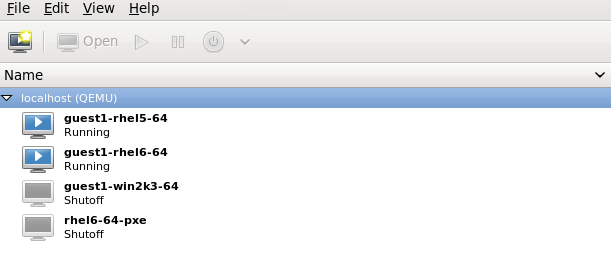
Figure 15.10. Selecting a virtual machine to display
- From the Virtual Machine Manager Edit menu, select Virtual Machine Details.
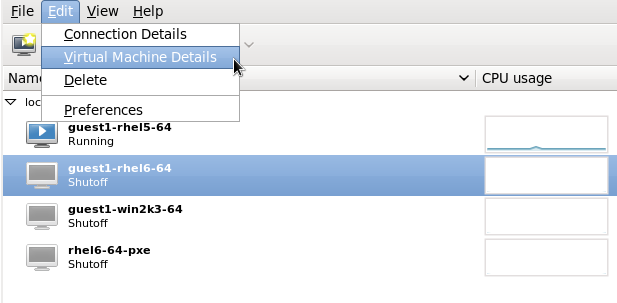
Figure 15.11. Displaying the virtual machine details
When the Virtual Machine details window opens, there may be a console displayed. Should this happen, click View and then select Details. The Overview window opens first by default. To go back to this window, select Overview from the navigation pane on the left hand side.The Overview view shows a summary of configuration details for the guest.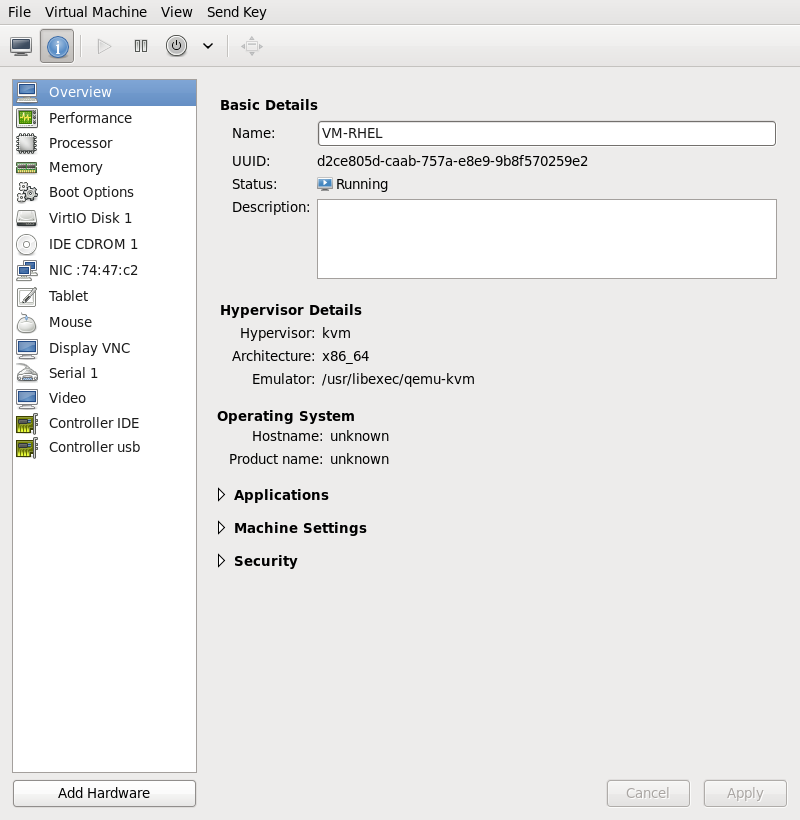
Figure 15.12. Displaying guest details overview
- Select Performance from the navigation pane on the left hand side.The Performance view shows a summary of guest performance, including CPU and Memory usage.
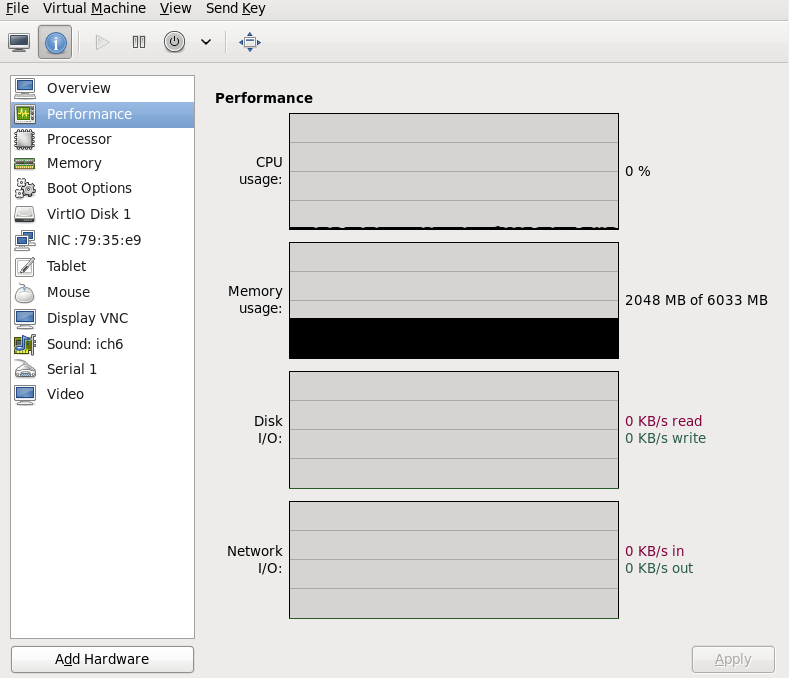
Figure 15.13. Displaying guest performance details
- Select Processor from the navigation pane on the left hand side. The Processor view allows you to view the current processor allocation, as well as to change it.It is also possible to change the number of virtual CPUs (vCPUs) while the virtual machine is running, which is referred to as hot plugging and hot unplugging.
Important
The hot unplugging feature is only available as a Technology Preview. Therefore, it is not supported and not recommended for use in high-value deployments.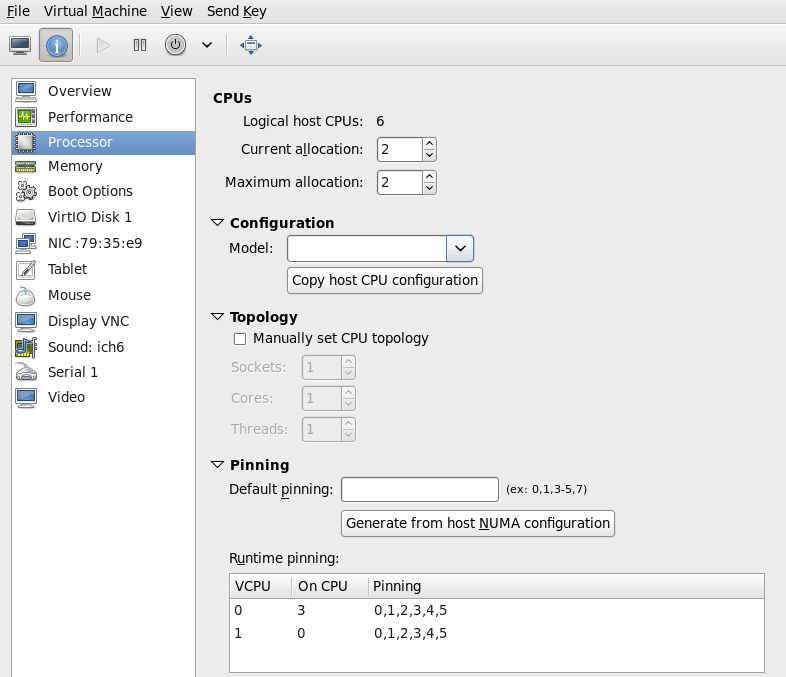
Figure 15.14. Processor allocation panel
- Select Memory from the navigation pane on the left hand side. The Memory view allows you to view or change the current memory allocation.
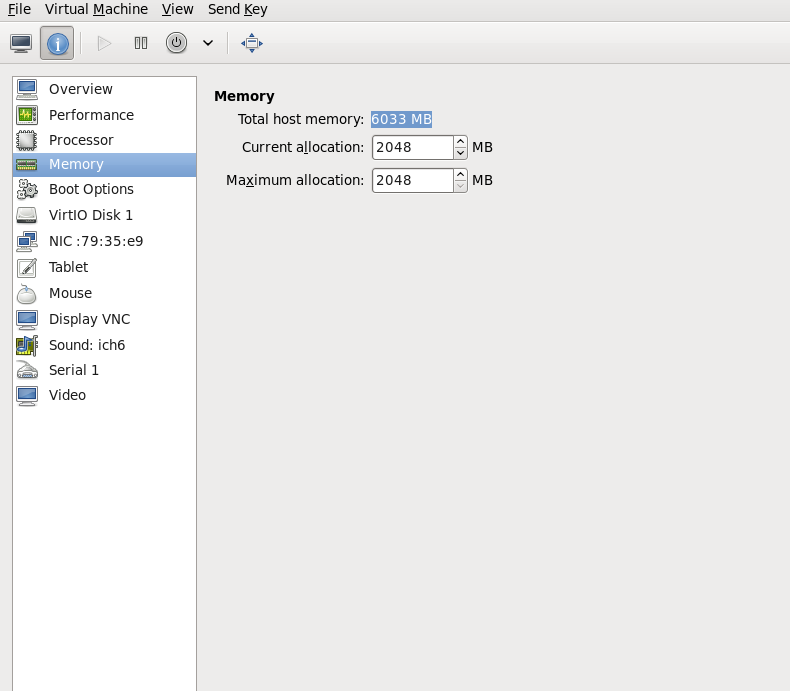
Figure 15.15. Displaying memory allocation
- Each virtual disk attached to the virtual machine is displayed in the navigation pane. Click on a virtual disk to modify or remove it.
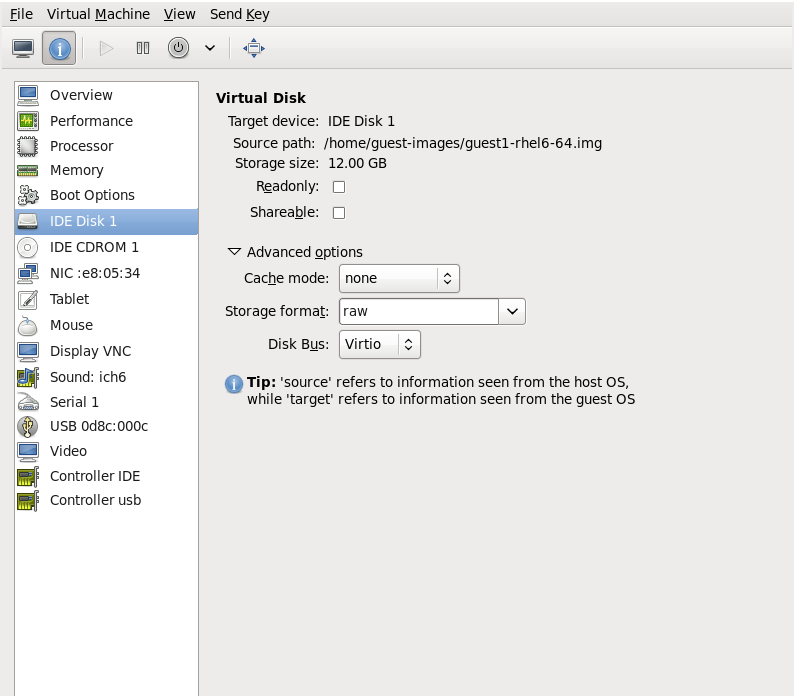
Figure 15.16. Displaying disk configuration
- Each virtual network interface attached to the virtual machine is displayed in the navigation pane. Click on a virtual network interface to modify or remove it.
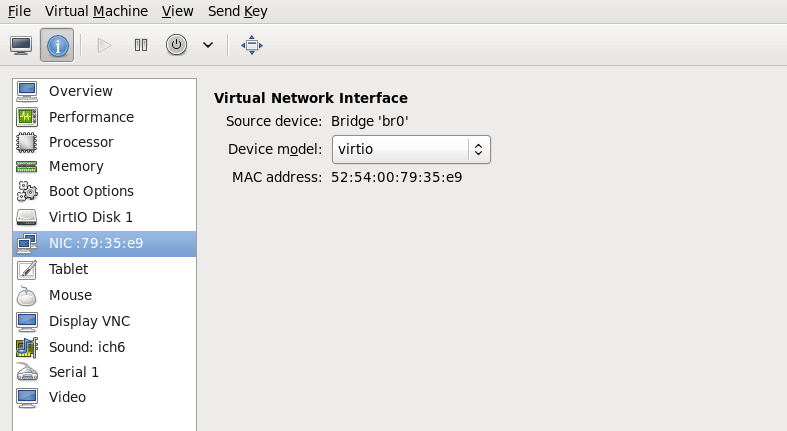
Figure 15.17. Displaying network configuration

'%20d='M201.5%20305.5c-13.8%200-24.9-11.1-24.9-24.6%200-13.8%2011.1-24.9%2024.9-24.9%2013.6%200%2024.6%2011.1%2024.6%2024.9%200%2013.6-11.1%2024.6-24.6%2024.6zM504%20256c0%20137-111%20248-248%20248S8%20393%208%20256%20119%208%20256%208s248%20111%20248%20248zm-132.3-41.2c-9.4%200-17.7%203.9-23.8%2010-22.4-15.5-52.6-25.5-86.1-26.6l17.4-78.3%2055.4%2012.5c0%2013.6%2011.1%2024.6%2024.6%2024.6%2013.8%200%2024.9-11.3%2024.9-24.9s-11.1-24.9-24.9-24.9c-9.7%200-18%205.8-22.1%2013.8l-61.2-13.6c-3-.8-6.1%201.4-6.9%204.4l-19.1%2086.4c-33.2%201.4-63.1%2011.3-85.5%2026.8-6.1-6.4-14.7-10.2-24.1-10.2-34.9%200-46.3%2046.9-14.4%2062.8-1.1%205-1.7%2010.2-1.7%2015.5%200%2052.6%2059.2%2095.2%20132%2095.2%2073.1%200%20132.3-42.6%20132.3-95.2%200-5.3-.6-10.8-1.9-15.8%2031.3-16%2019.8-62.5-14.9-62.5zM302.8%20331c-18.2%2018.2-76.1%2017.9-93.6%200-2.2-2.2-6.1-2.2-8.3%200-2.5%202.5-2.5%206.4%200%208.6%2022.8%2022.8%2087.3%2022.8%20110.2%200%202.5-2.2%202.5-6.1%200-8.6-2.2-2.2-6.1-2.2-8.3%200zm7.7-75c-13.6%200-24.6%2011.1-24.6%2024.9%200%2013.6%2011.1%2024.6%2024.6%2024.6%2013.8%200%2024.9-11.1%2024.9-24.6%200-13.8-11-24.9-24.9-24.9z'/%3e%3c/svg%3e)