 Red Hat Summit
Ce contenu n'est pas disponible dans la langue sélectionnée.
22.3. GNOME Boxes
Boxes is a lightweight graphical desktop virtualization tool used to view and access virtual machines and remote systems.
Unlike virt-viewer and remote-viewer, Boxes allows viewing guest virtual machines, but also creating and configuring them, similar to virt-manager. However, in comparison with virt-manager, Boxes offers fewer management options and features, but is easier to use.
To install Boxes, run:
# yum install gnome-boxes
Open Boxes through ⇒ .
The main screen shows the available guest virtual machines. The right side of the screen has two buttons:
Clicking the selection button allows you to select one or more guest virtual machines in order to perform operations individually or as a group. The available operations are shown at the bottom of the screen on the operations bar:
 - the search button, to search for guest virtual machines by name, and
 - the selection button.

Figure 22.3. The Operations Bar
There are four operations that can be performed:
- : Adds a heart to selected guest virtual machines and moves them to the top of the list of guests. This becomes increasingly helpful as the number of guests grows.
- : The selected guest virtual machines will stop running.
- : Removes selected guest virtual machines.
- : Shows the properties of the selected guest virtual machine.
Create new guest virtual machines using the button on the left side of the main screen.
Procedure 22.1. Creating a new guest virtual machine with Boxes
Click
This opens the screen. Click .
Figure 22.4. Introduction screen
Select source
The screen has three options:- Available media: Any immediately available installation media will be shown here. Clicking any of these will take you directly to the screen.
- : Type in a URL to specify a local URI or path to an ISO file. This can also be used to access a remote machine. The address should follow the pattern of
protocol://IPaddress?port;, for example:spice://192.168.122.1?port=5906;The protocols can bespice://,qemu://, orvnc:// - : Open a file directory to search for installation media manually.

Figure 22.5. Source Selection screen
Review the details
The screen shows the details of the guest virtual machine.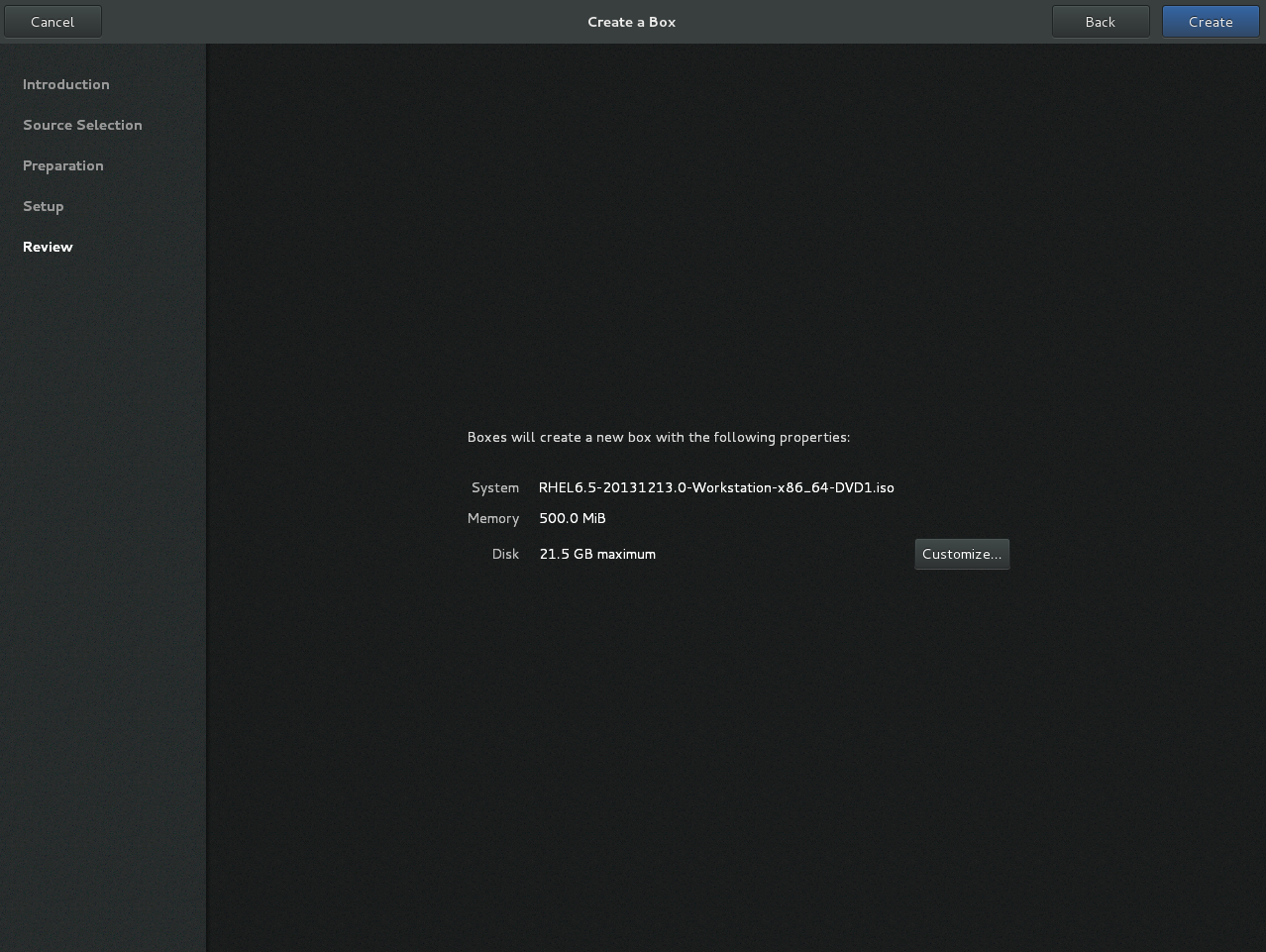
Figure 22.6. Review screen
These details can be left as is, in which case proceed to the final step, or:Optional: customize the details
clicking allows you to adjust the configuration of the guest virtual machine, such as the memory and disk size.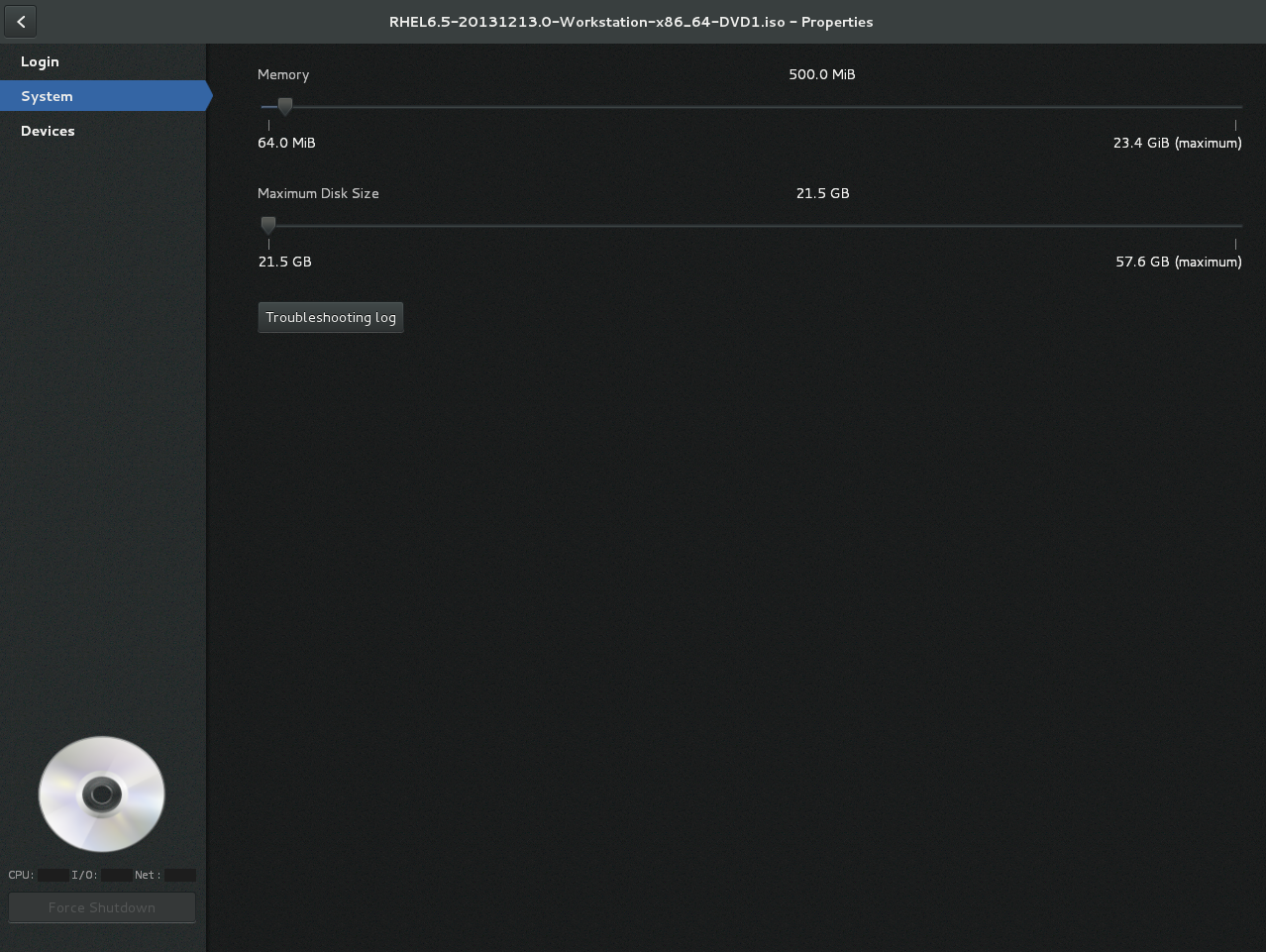
Figure 22.7. Customization screen
Create
Click . The new guest virtual machine will open.

'%20d='M201.5%20305.5c-13.8%200-24.9-11.1-24.9-24.6%200-13.8%2011.1-24.9%2024.9-24.9%2013.6%200%2024.6%2011.1%2024.6%2024.9%200%2013.6-11.1%2024.6-24.6%2024.6zM504%20256c0%20137-111%20248-248%20248S8%20393%208%20256%20119%208%20256%208s248%20111%20248%20248zm-132.3-41.2c-9.4%200-17.7%203.9-23.8%2010-22.4-15.5-52.6-25.5-86.1-26.6l17.4-78.3%2055.4%2012.5c0%2013.6%2011.1%2024.6%2024.6%2024.6%2013.8%200%2024.9-11.3%2024.9-24.9s-11.1-24.9-24.9-24.9c-9.7%200-18%205.8-22.1%2013.8l-61.2-13.6c-3-.8-6.1%201.4-6.9%204.4l-19.1%2086.4c-33.2%201.4-63.1%2011.3-85.5%2026.8-6.1-6.4-14.7-10.2-24.1-10.2-34.9%200-46.3%2046.9-14.4%2062.8-1.1%205-1.7%2010.2-1.7%2015.5%200%2052.6%2059.2%2095.2%20132%2095.2%2073.1%200%20132.3-42.6%20132.3-95.2%200-5.3-.6-10.8-1.9-15.8%2031.3-16%2019.8-62.5-14.9-62.5zM302.8%20331c-18.2%2018.2-76.1%2017.9-93.6%200-2.2-2.2-6.1-2.2-8.3%200-2.5%202.5-2.5%206.4%200%208.6%2022.8%2022.8%2087.3%2022.8%20110.2%200%202.5-2.2%202.5-6.1%200-8.6-2.2-2.2-6.1-2.2-8.3%200zm7.7-75c-13.6%200-24.6%2011.1-24.6%2024.9%200%2013.6%2011.1%2024.6%2024.6%2024.6%2013.8%200%2024.9-11.1%2024.9-24.6%200-13.8-11-24.9-24.9-24.9z'/%3e%3c/svg%3e)