 Red Hat Summit
このコンテンツは選択した言語では利用できません。
9.3. Import From JDBC Database
You can create relational source models from your JDBC source schema data using the steps below.
Note
Depending the detail provided in the database connection URL information and schema, Steps 5 through 7 may not be required.
- In Model Explorer, Click File > Import action in the toolbar or select a project, folder or model in the tree and click Import...
- Select the import option Metadata Modeling > JDBC Database >> Source Model and click Next>.
- Select existing or previous connection profile from the drop-down selector or click New... button to launch the New Connection Profile dialog or Edit... to modify/change an existing connection profile prior to selection.
Note
The Connection Profile selection list will be populated with only JDBC Database connections.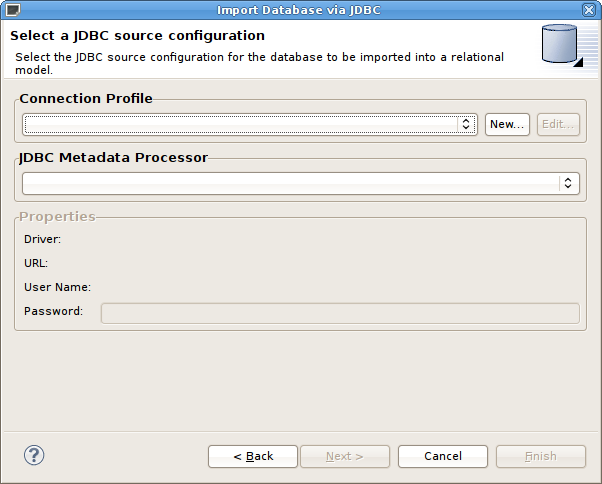
Figure 9.4. Select JDBC Source Configuration Dialog
Because JDBC databases are different, special processing of your metadata to be required in order to convert datatypes or to interpret your metadata. The JDBC Metadata Processor drop-down selector will be selected automatically based on your selected connection profile. Special processors are available for DB2, ModeShape, ODBC, Oracle, PostgeSQL, SQL Server and Sybase. For all other DBs a default JDBC processor is available. - After selecting a Connection Profile, enter the password (if not provided). Click Next> (or Finish if enabled).
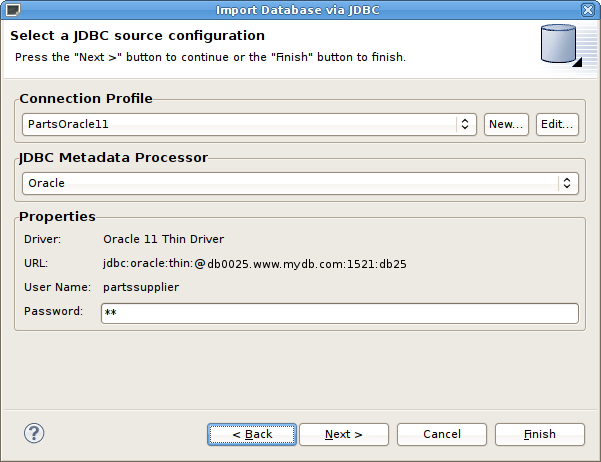
Figure 9.5. Select JDBC Source Configuration Dialog
- On the Select Database Metadata page, select the types of objects in the database to import. Click Next> (or Finish if enabled).
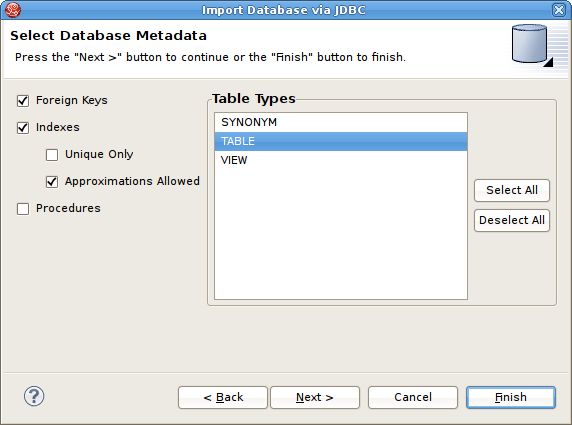
Figure 9.6. Select Database Metadata Dialog
- On the Select Database Objects page, view the contents of the schema, or change selections. Select which database schema objects will be used to construct relational objects. Click Next> (or Finish if enabled).
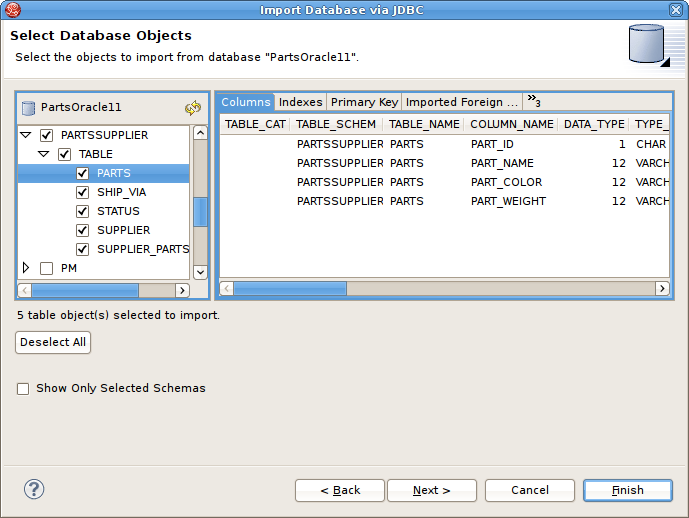
Figure 9.7. Select Database Options Dialog
- On the Specify Import Options page, specify desired Model Name as well as any other options used to customize the naming of your relational objects. Click Finish to complete.
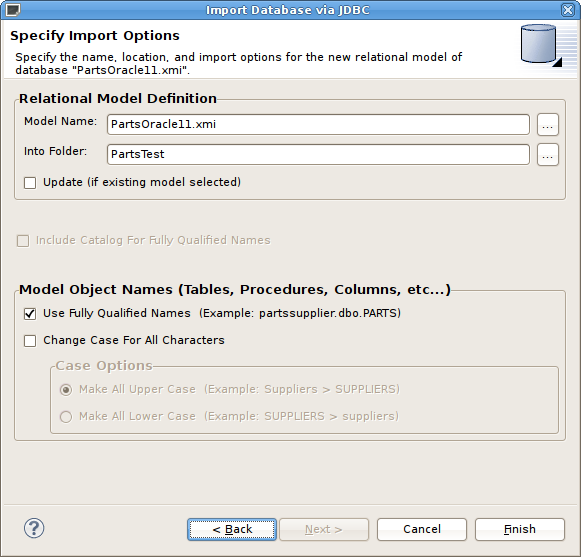
Figure 9.8. Specify Import Options Dialog
- During the Finish processing, a monitor will be displayed providing feedback on the import progress.
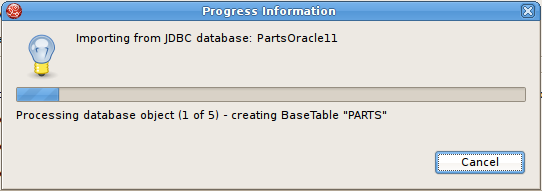
Figure 9.9. JDBC Import Progress Dialog

'%20d='M201.5%20305.5c-13.8%200-24.9-11.1-24.9-24.6%200-13.8%2011.1-24.9%2024.9-24.9%2013.6%200%2024.6%2011.1%2024.6%2024.9%200%2013.6-11.1%2024.6-24.6%2024.6zM504%20256c0%20137-111%20248-248%20248S8%20393%208%20256%20119%208%20256%208s248%20111%20248%20248zm-132.3-41.2c-9.4%200-17.7%203.9-23.8%2010-22.4-15.5-52.6-25.5-86.1-26.6l17.4-78.3%2055.4%2012.5c0%2013.6%2011.1%2024.6%2024.6%2024.6%2013.8%200%2024.9-11.3%2024.9-24.9s-11.1-24.9-24.9-24.9c-9.7%200-18%205.8-22.1%2013.8l-61.2-13.6c-3-.8-6.1%201.4-6.9%204.4l-19.1%2086.4c-33.2%201.4-63.1%2011.3-85.5%2026.8-6.1-6.4-14.7-10.2-24.1-10.2-34.9%200-46.3%2046.9-14.4%2062.8-1.1%205-1.7%2010.2-1.7%2015.5%200%2052.6%2059.2%2095.2%20132%2095.2%2073.1%200%20132.3-42.6%20132.3-95.2%200-5.3-.6-10.8-1.9-15.8%2031.3-16%2019.8-62.5-14.9-62.5zM302.8%20331c-18.2%2018.2-76.1%2017.9-93.6%200-2.2-2.2-6.1-2.2-8.3%200-2.5%202.5-2.5%206.4%200%208.6%2022.8%2022.8%2087.3%2022.8%20110.2%200%202.5-2.2%202.5-6.1%200-8.6-2.2-2.2-6.1-2.2-8.3%200zm7.7-75c-13.6%200-24.6%2011.1-24.6%2024.9%200%2013.6%2011.1%2024.6%2024.6%2024.6%2013.8%200%2024.9-11.1%2024.9-24.6%200-13.8-11-24.9-24.9-24.9z'/%3e%3c/svg%3e)