 Red Hat Summit
このコンテンツは選択した言語では利用できません。
E.9. Model Extension Definition Editor
The MED Editor is a editor with multiple tabs and is used to create and edit user defined MEDs (
*.mxd files) in the workspace. The MED Editor has 3 sub-editors (Overview, Properties, and Source) which share a common header section. Here are the MED sub-editor tabs:
- Overview Sub-Editor - this editor is where the general MED information is managed. This information includes the namespace prefix, namespace URI, extended model class, and the description. The Overview sub-editor looks like this:
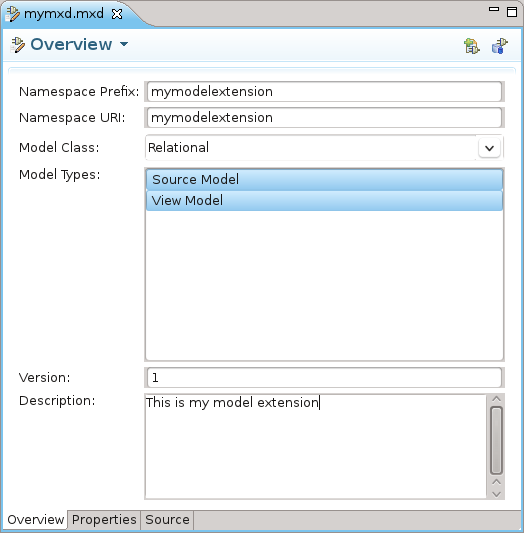
Figure E.26. Overview Tab
- Properties Sub-Editor - this editor is where the MED extension properties are managed. Each extension property must be associated with a model object type. The Properties sub-editor is divided into 2 sections (Extended Model Objects and Extension Properties) and looks like this:
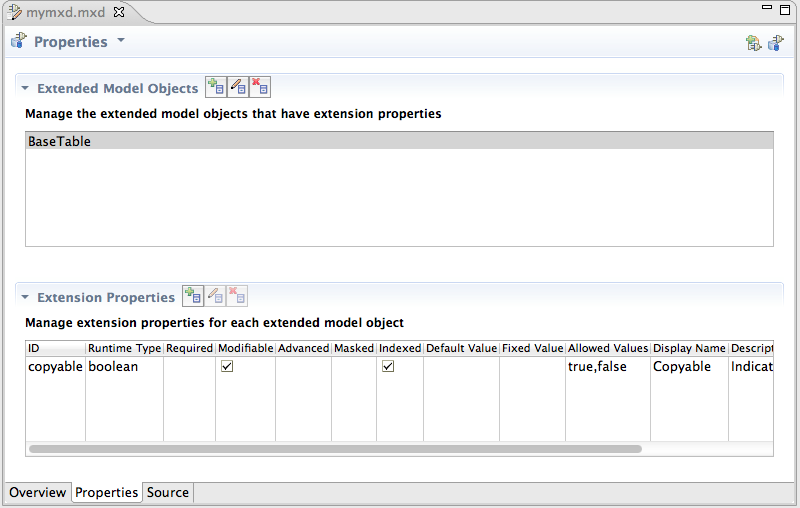
Figure E.27. Properties Tab
- Source - this tab is a read-only XML source viewer to view the details of your MED. This source viewer is NOT editable.
The GUI components on the Overview and Properties sub-editors will be decorated with an error icon when the data in that GUI component has a validation error. Hovering over an error decoration displays a tooltip with the specific error message. Those error message relate to the error messages shown in the common header section. Here is an example of the error decoration:

Figure E.28. Text Field With Error
The MED sub-editors share a header section. The header is composed of the following:
- Status Image - an image indicating the most severe validation message (error, warning, or info). If there are no validation messages the model extension image is shown.
- Title - the title of the sub-editor being shown.
- Menu - a drop-down menu containing actions for (1) adding to and updating the MED in the registry, and (2) for showing the Model Extension Registry View.
- Validation Message - this area will display an OK message or an error summary message. When a summary message is shown, the tooltip for that message will enumerate all the messages.
- Toolbar - contains the same actions as the drop-down menu.
Below is an example of the shared header section which includes an error message tooltip.

Figure E.29. Shared Header Example

'%20d='M201.5%20305.5c-13.8%200-24.9-11.1-24.9-24.6%200-13.8%2011.1-24.9%2024.9-24.9%2013.6%200%2024.6%2011.1%2024.6%2024.9%200%2013.6-11.1%2024.6-24.6%2024.6zM504%20256c0%20137-111%20248-248%20248S8%20393%208%20256%20119%208%20256%208s248%20111%20248%20248zm-132.3-41.2c-9.4%200-17.7%203.9-23.8%2010-22.4-15.5-52.6-25.5-86.1-26.6l17.4-78.3%2055.4%2012.5c0%2013.6%2011.1%2024.6%2024.6%2024.6%2013.8%200%2024.9-11.3%2024.9-24.9s-11.1-24.9-24.9-24.9c-9.7%200-18%205.8-22.1%2013.8l-61.2-13.6c-3-.8-6.1%201.4-6.9%204.4l-19.1%2086.4c-33.2%201.4-63.1%2011.3-85.5%2026.8-6.1-6.4-14.7-10.2-24.1-10.2-34.9%200-46.3%2046.9-14.4%2062.8-1.1%205-1.7%2010.2-1.7%2015.5%200%2052.6%2059.2%2095.2%20132%2095.2%2073.1%200%20132.3-42.6%20132.3-95.2%200-5.3-.6-10.8-1.9-15.8%2031.3-16%2019.8-62.5-14.9-62.5zM302.8%20331c-18.2%2018.2-76.1%2017.9-93.6%200-2.2-2.2-6.1-2.2-8.3%200-2.5%202.5-2.5%206.4%200%208.6%2022.8%2022.8%2087.3%2022.8%20110.2%200%202.5-2.2%202.5-6.1%200-8.6-2.2-2.2-6.1-2.2-8.3%200zm7.7-75c-13.6%200-24.6%2011.1-24.6%2024.9%200%2013.6%2011.1%2024.6%2024.6%2024.6%2013.8%200%2024.9-11.1%2024.9-24.6%200-13.8-11-24.9-24.9-24.9z'/%3e%3c/svg%3e)