Customize the default theme mode to match organizational preferences
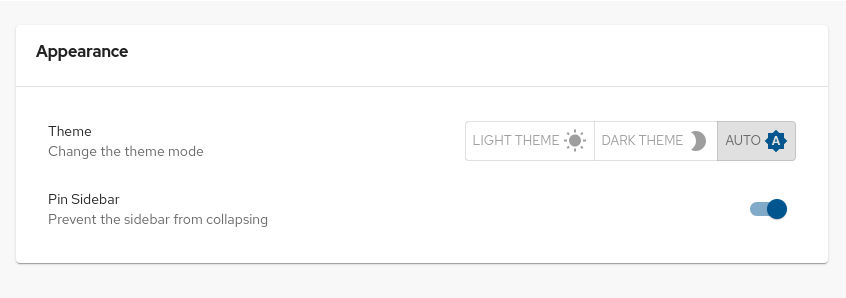
You can switch the RHDH interface between light, dark, or auto mode (which matches your system preference).
Before you begin
- You are logged in to the RHDH web console.
About this task
In RHDH, theme configurations are used to change the look and feel of different UI components. So, you might notice changes in different UI components, such as buttons, tabs, sidebars, cards, and tables along with some changes in background color and font used on the RHDH pages.
Procedure
- From the Developer Hub web console, click Settings.
-
From the Appearance panel, select Light, Dark, or Auto to change the theme mode.
Results
- The interface immediately updates to reflect the selected theme.

