 Red Hat Summit
이 콘텐츠는 선택한 언어로 제공되지 않습니다.
Chapter 3. Repository Hooks
In Business Central, it is possible to trigger a chosen action every time a particular event happens. For this purpose, you can configure the repository to use scripts called hooks.
3.1. Configuring Git Hooks
Business Central can automatically push changes to a remote repository using the Git hooks. Git hooks support has been introduced with the release of Red Hat JBoss BPM Suite 6.2.0.
Please note that currently only the post-commit hook is supported. Post-commit hooks are triggered after finishing the entire commit process.
The following procedure shows how to configure the post-commit hook to automatically push your changes to the remote repository.
-
In Business Central, go to Authoring
Administration. -
Below the main menu, click Repositories
Clone repository. In the displayed Clone repository dialog box, fill in the repository information:
- Repository Name
- Organizational Unit
Git URL: For example
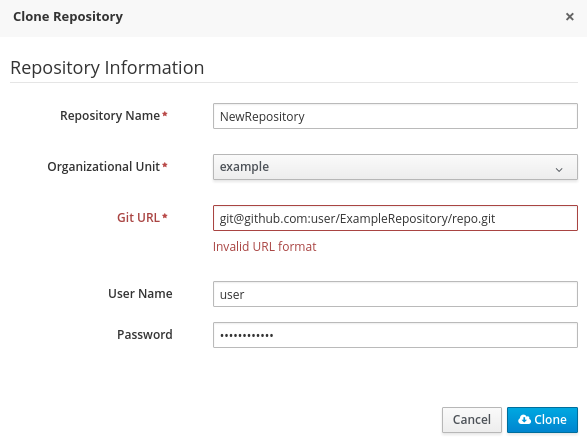
https://github.com/USERNAME/REPOSITORY_NAME.gitImportantIt is important to use the HTTPS or Git protocol instead of a SCP-style SSH URL. Business Central does not support the basic SSH URL and fails with Invalid URL format.
Figure 3.1. An invalid SCP-style SSH URL.
- User Name: your Git user name
- Password: your Git password
Change to the created repository:
cd JBOSS_HOME/bin/.niogit/REPOSITORY_NAME.gitChange the remote URL:
git remote set-url origin git@github.com:USERNAME/REPOSITORY_NAME.gitMake sure that you can access the remote repository through command line using SSH. For example, the private SSH key for the repository should exist under the
~/.ssh/directory.If you created a new repository, you may encounter the following error:
fatal: No such remote 'origin'To resolve it, add the remote origin URL:
git remote add origin git@github.com:USERNAME/REPOSITORY_NAME.gitVerify that the remote repository was successfully added:
git remote -vThe command should list the following:
origin  git@github.com:USERNAME/REPOSITORY_NAME.git (fetch)
origin  git@github.com:USERNAME/REPOSITORY_NAME.git (push)
Create a file named
post-commitwith the permissions set torwxr--r--underJBOSS_HOME/bin/.niogit/REPOSITORY_NAME.git/hookswith the following content:#!/bin/sh git push origin masterMake sure that the configuration was successful by creating a new guided rule in Business Central:
-
Go to Authoring
Project Authoring New Item Guided Rule. - Fill in the required information in the displayed Create new Guided Rule window.
- Click Ok.
-
Go to Authoring
All of the changes should be pushed automatically.
For further information about remote Git repositories, see How to configure the BxMS 6 server to use a remote Git repository for storing assets?.
It is also possible to specify the system property org.uberfire.nio.git.hooks. Its value determines a directory with default hook files, which will be copied to the newly created Git repositories. See the example of a standalone.xml file with this setting below:
<system-properties>
  <property name="org.uberfire.nio.git.hooks" value="/opt/jboss-as/git-hooks">
  </property>
  ...
</system-properties>
'%20d='M201.5%20305.5c-13.8%200-24.9-11.1-24.9-24.6%200-13.8%2011.1-24.9%2024.9-24.9%2013.6%200%2024.6%2011.1%2024.6%2024.9%200%2013.6-11.1%2024.6-24.6%2024.6zM504%20256c0%20137-111%20248-248%20248S8%20393%208%20256%20119%208%20256%208s248%20111%20248%20248zm-132.3-41.2c-9.4%200-17.7%203.9-23.8%2010-22.4-15.5-52.6-25.5-86.1-26.6l17.4-78.3%2055.4%2012.5c0%2013.6%2011.1%2024.6%2024.6%2024.6%2013.8%200%2024.9-11.3%2024.9-24.9s-11.1-24.9-24.9-24.9c-9.7%200-18%205.8-22.1%2013.8l-61.2-13.6c-3-.8-6.1%201.4-6.9%204.4l-19.1%2086.4c-33.2%201.4-63.1%2011.3-85.5%2026.8-6.1-6.4-14.7-10.2-24.1-10.2-34.9%200-46.3%2046.9-14.4%2062.8-1.1%205-1.7%2010.2-1.7%2015.5%200%2052.6%2059.2%2095.2%20132%2095.2%2073.1%200%20132.3-42.6%20132.3-95.2%200-5.3-.6-10.8-1.9-15.8%2031.3-16%2019.8-62.5-14.9-62.5zM302.8%20331c-18.2%2018.2-76.1%2017.9-93.6%200-2.2-2.2-6.1-2.2-8.3%200-2.5%202.5-2.5%206.4%200%208.6%2022.8%2022.8%2087.3%2022.8%20110.2%200%202.5-2.2%202.5-6.1%200-8.6-2.2-2.2-6.1-2.2-8.3%200zm7.7-75c-13.6%200-24.6%2011.1-24.6%2024.9%200%2013.6%2011.1%2024.6%2024.6%2024.6%2013.8%200%2024.9-11.1%2024.9-24.6%200-13.8-11-24.9-24.9-24.9z'/%3e%3c/svg%3e)