 Red Hat Summit
Este conteúdo não está disponível no idioma selecionado.
23.4. Configuring a User Name Hint Policy for Smart-card Authentication
As an Identity Management administrator, you can configure a user name hint policy for smart cards linked with multiple accounts.
23.4.1. User Name Hints in Identity Management
Copiar o linkLink copiado para a área de transferência!
The user name hint policy configures Identity Management to prompt smart card users for their user name. When a user tries to authenticate with a smart card certificate that matches multiple user accounts in Identity Management, one of the following occurs:
- If the user name hint policy is enabled, the user is prompted for a user name and then can proceed with authentication.
- If the user name hint policy is disabled, the authentication fails without prompting.
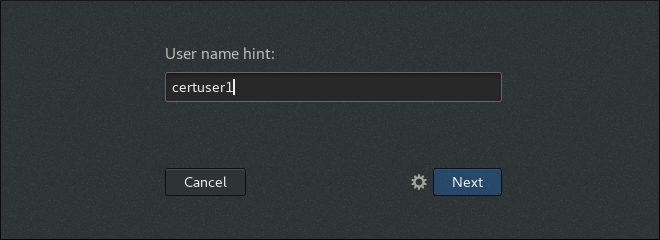
Identity Management adds the user name hint to applications that would by default prompt for a smart card PIN without asking for a user name. On Red Hat Enterprise Linux, this is currently only the Gnome Desktop Manager (GDM) login.
Figure 23.14. User name hint in the Gnome Desktop Manager
Identity Management does not add the user name hint to applications that ask for a user name by default, for example:
- The Identity Management web UI authentication, because the GUI always displays the
Usernamefield sshauthentication, becausesshuses the current user’s login name or the name provided with the-loption or in theusername@hostformat- Console authentication, where the login name is always supplied
In these situations, authentication with a certificate that matches multiple users is always allowed.
23.4.2. Enabling User Name Hints in Identity Management
Copiar o linkLink copiado para a área de transferência!
The Identity Management administrator sets the user name hint policy centrally. The policy applies to all hosts enrolled into the Identity Management domain.
Perform these steps on any Identity Management system.
Command Line: Enabling User Name Hints in Identity Management
- Log in as the Identity Management administrator:
$ kinit admin Password for admin@IDM.EXAMPLE.COM: - Enable user name hints by using the ipa certmapconfig-mod command with the
--promptusername=Trueoption.$ ipa certmapconfig-mod --promptusername=TRUE Prompt for the username: TRUETo disable user name hints, use the--promptusername=Falseoption.
Web UI: Enabling User Name Hints in Identity Management
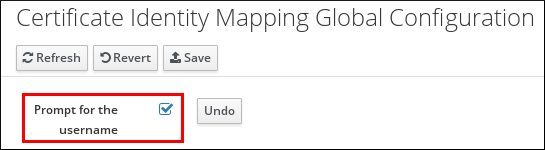
- Click
. - Select Prompt for the username, and click .
Figure 23.15. Enabling user name hints in the web UI
Additional Resources
- For details on the ipa certmapconfig-mod command, execute it with the
--helpoption.

'%20d='M201.5%20305.5c-13.8%200-24.9-11.1-24.9-24.6%200-13.8%2011.1-24.9%2024.9-24.9%2013.6%200%2024.6%2011.1%2024.6%2024.9%200%2013.6-11.1%2024.6-24.6%2024.6zM504%20256c0%20137-111%20248-248%20248S8%20393%208%20256%20119%208%20256%208s248%20111%20248%20248zm-132.3-41.2c-9.4%200-17.7%203.9-23.8%2010-22.4-15.5-52.6-25.5-86.1-26.6l17.4-78.3%2055.4%2012.5c0%2013.6%2011.1%2024.6%2024.6%2024.6%2013.8%200%2024.9-11.3%2024.9-24.9s-11.1-24.9-24.9-24.9c-9.7%200-18%205.8-22.1%2013.8l-61.2-13.6c-3-.8-6.1%201.4-6.9%204.4l-19.1%2086.4c-33.2%201.4-63.1%2011.3-85.5%2026.8-6.1-6.4-14.7-10.2-24.1-10.2-34.9%200-46.3%2046.9-14.4%2062.8-1.1%205-1.7%2010.2-1.7%2015.5%200%2052.6%2059.2%2095.2%20132%2095.2%2073.1%200%20132.3-42.6%20132.3-95.2%200-5.3-.6-10.8-1.9-15.8%2031.3-16%2019.8-62.5-14.9-62.5zM302.8%20331c-18.2%2018.2-76.1%2017.9-93.6%200-2.2-2.2-6.1-2.2-8.3%200-2.5%202.5-2.5%206.4%200%208.6%2022.8%2022.8%2087.3%2022.8%20110.2%200%202.5-2.2%202.5-6.1%200-8.6-2.2-2.2-6.1-2.2-8.3%200zm7.7-75c-13.6%200-24.6%2011.1-24.6%2024.9%200%2013.6%2011.1%2024.6%2024.6%2024.6%2013.8%200%2024.9-11.1%2024.9-24.6%200-13.8-11-24.9-24.9-24.9z'/%3e%3c/svg%3e)