 Red Hat Summit
Scalability and performance
Scaling your OpenShift Container Platform cluster and tuning performance in production environments
Abstract
Chapter 1. OpenShift Container Platform scalability and performance overview
OpenShift Container Platform provides best practices and tools to help you optimize the performance and scale of your clusters. The following documentation provides information on recommended performance and scalability practices, reference design specifications, optimization, and low latency tuning.
To contact Red Hat support, see Getting support.
Some performance and scalability Operators have release cycles that are independent from OpenShift Container Platform release cycles. For more information, see OpenShift Operators.
1.1. Recommended performance and scalability practices
1.2. Telco reference design specifications
Telco RAN DU reference design specification for OpenShift Container Platform 4.20
1.3. Planning, optimization, and measurement
Planning your environment according to object maximums
Recommended practices for IBM Z and IBM LinuxONE
Using the Node Tuning Operator
Using CPU Manager and Topology Manager
Scheduling NUMA-aware workloads
Optimizing storage, routing, networking and CPU usage
Managing bare metal hosts and events
What are huge pages and how are they used by apps
Low latency tuning for improving cluster stability and partitioning workload
Improving cluster stability in high latency environments using worker latency profiles
Chapter 2. Recommended performance and scalability practices
2.1. Recommended control plane practices
Review the recommended performance and scalability practices for control planes in OpenShift Container Platform. By doing this task, you can better scale the number of compute machines and set the control plane node sizing for your cluster.
2.1.1. Recommended practices for scaling the cluster
For a cluster installation on a cloud provider, review the recommended practices for scaling the cluster.
Apply the following best practices to scale the number of compute machines in your OpenShift Container Platform cluster. You scale the worker machines by increasing or decreasing the number of replicas that are defined in the compute machine set.
When scaling up the cluster to higher node counts:
- Spread nodes across all of the available zones for higher availability.
- Scale up by no more than 25 to 50 machines at once.
-
Consider creating new compute machine sets in each available zone with alternative instance types of similar size to help mitigate any periodic provider capacity constraints. For example, on AWS, use
m5.largeandm5d.large.
Cloud providers might implement a quota for API services. Therefore, gradually scale the cluster.
The controller might not be able to create the machines if the replicas in the compute machine sets are set to higher numbers all at one time. The number of requests the cloud platform, which OpenShift Container Platform is deployed on top of, is able to handle impacts the process. The controller starts to query more while trying to create, check, and update the machines with the status. The cloud platform on which OpenShift Container Platform is deployed has API request limits; excessive queries might lead to machine creation failures due to cloud platform limitations.
Enable machine health checks when scaling to large node counts. In case of failures, the health checks monitor the condition and automatically repair unhealthy machines.
When scaling large and dense clusters to lower node counts, it might take large amounts of time because the process involves draining or evicting the objects running on the nodes being terminated in parallel. Also, the client might start to throttle the requests if there are too many objects to evict. The default client queries per second (QPS) and burst rates are currently set to 50 and 100 respectively. These values cannot be modified in OpenShift Container Platform.
2.1.2. Control plane node sizing
The control plane node resource requirements depend on the number and type of nodes and objects in the cluster. Reference the control plane node size recommendations to better understand your sizing needs.
The following control plane node size recommendations are based on the results of a control plane density focused testing, or Cluster-density. This test creates the following objects across a given number of namespaces:
- 1 image stream
- 1 build
-
5 deployments, with 2 pod replicas in a
sleepstate, mounting 4 secrets, 4 config maps, and 1 downward API volume each - 5 services, each one pointing to the TCP/8080 and TCP/8443 ports of one of the previous deployments
- 1 route pointing to the first of the previous services
- 10 secrets containing 2048 random string characters
- 10 config maps containing 2048 random string characters
| Number of compute nodes | Cluster-density (namespaces) | CPU cores | Memory (GB) |
|---|---|---|---|
| 24 | 500 | 4 | 16 |
| 120 | 1000 | 8 | 32 |
| 252 | 4000 | 16, but 24 if using the OVN-Kubernetes network plug-in | 64, but 128 if using the OVN-Kubernetes network plug-in |
| 501, but untested with the OVN-Kubernetes network plug-in | 4000 | 16 | 96 |
The data from the table above is based on an OpenShift Container Platform running on top of AWS, using r5.4xlarge instances as control-plane nodes and m5.2xlarge instances as compute nodes.
On a large and dense cluster with three control plane nodes, the CPU and memory usage will spike up when one of the nodes is stopped, rebooted, or fails. The failures can be due to unexpected issues with power, network, underlying infrastructure, or intentional cases where the cluster is restarted after shutting it down to save costs. The remaining two control plane nodes must handle the load in order to be highly available, which leads to increase in the resource usage. This is also expected during upgrades because the control plane nodes are cordoned, drained, and rebooted serially to apply the operating system updates, as well as the control plane Operators update. To avoid cascading failures, keep the overall CPU and memory resource usage on the control plane nodes to at most 60% of all available capacity to handle the resource usage spikes. Increase the CPU and memory on the control plane nodes accordingly to avoid potential downtime due to lack of resources.
The node sizing varies depending on the number of nodes and object counts in the cluster. It also depends on whether the objects are actively being created on the cluster. During object creation, the control plane is more active in terms of resource usage compared to when the objects are in the Running phase.
Operator Lifecycle Manager (OLM) runs on the control plane nodes and its memory footprint depends on the number of namespaces and user installed operators that OLM needs to manage on the cluster. Control plane nodes need to be sized accordingly to avoid OOM kills. Following data points are based on the results from cluster maximums testing.
| Number of namespaces | OLM memory at idle state (GB) | OLM memory with 5 user operators installed (GB) |
|---|---|---|
| 500 | 0.823 | 1.7 |
| 1000 | 1.2 | 2.5 |
| 1500 | 1.7 | 3.2 |
| 2000 | 2 | 4.4 |
| 3000 | 2.7 | 5.6 |
| 4000 | 3.8 | 7.6 |
| 5000 | 4.2 | 9.02 |
| 6000 | 5.8 | 11.3 |
| 7000 | 6.6 | 12.9 |
| 8000 | 6.9 | 14.8 |
| 9000 | 8 | 17.7 |
| 10,000 | 9.9 | 21.6 |
You can modify the control plane node size in a running OpenShift Container Platform 4.20 cluster for the following configurations only:
- Clusters installed with a user-provisioned installation method.
- AWS clusters installed with an installer-provisioned infrastructure installation method.
- Clusters that use a control plane machine set to manage control plane machines.
For all other configurations, you must estimate your total node count and use the suggested control plane node size during installation.
In OpenShift Container Platform 4.20, half of a CPU core (500 millicore) is now reserved by the system by default compared to OpenShift Container Platform 3.11 and previous versions. The sizes are determined taking that into consideration.
2.2. Selecting a larger AWS instance type for control plane machines
If the control plane machines in an Amazon Web Services (AWS) cluster require more resources, you can select a larger AWS instance type for the control plane machines to use.
The procedure for clusters that use a control plane machine set is different from the procedure for clusters that do not use a control plane machine set.
If you are uncertain about the state of the ControlPlaneMachineSet CR in your cluster, you can verify the CR status.
2.2.2. Changing the Amazon Web Services instance type by using a control plane machine set
You can change the Amazon Web Services (AWS) instance type that your control plane machines use by updating the specification in the control plane machine set custom resource (CR).
Prerequisites
- Your AWS cluster uses a control plane machine set.
Procedure
Edit the following line under the
providerSpecfield:providerSpec: value: ... instanceType: <compatible_aws_instance_type>-
<compatible_aws_instance_type>: Specifies a larger AWS instance type with the same base as the previous selection. For example, you can changem6i.xlargetom6i.2xlargeorm6i.4xlarge.
-
- Save your changes.
2.2.3. Changing the Amazon Web Services instance type by using the AWS console
You can change the Amazon Web Services (AWS) instance type that your control plane machines use by updating the instance type in the AWS console.
Prerequisites
- You have access to the AWS console with the permissions required to modify the EC2 Instance for your cluster.
-
You have access to the OpenShift Container Platform cluster as a user with the
cluster-adminrole.
Procedure
- Open the AWS console and fetch the instances for the control plane machines.
Choose one control plane machine instance.
- For the selected control plane machine, back up the etcd data by creating an etcd snapshot. For more information, see "Backing up etcd".
- In the AWS console, stop the control plane machine instance.
- Select the stopped instance, and click Actions → Instance Settings → Change instance type.
-
Change the instance to a larger type, ensuring that the type is the same base as the previous selection, and apply changes. For example, you can change
m6i.xlargetom6i.2xlargeorm6i.4xlarge. - Start the instance.
-
If your OpenShift Container Platform cluster has a corresponding
Machineobject for the instance, update the instance type of the object to match the instance type set in the AWS console.
- Repeat this process for each control plane machine.
2.3. Recommended infrastructure practices
This topic provides recommended performance and scalability practices for infrastructure in OpenShift Container Platform.
2.3.1. Infrastructure node sizing
Infrastructure nodes are nodes that are labeled to run pieces of the OpenShift Container Platform environment. The infrastructure node resource requirements depend on the cluster age, nodes, and objects in the cluster, as these factors can lead to an increase in the number of metrics or time series in Prometheus. The following infrastructure node size recommendations are based on the results observed in cluster-density testing detailed in the Control plane node sizing section, where the monitoring stack and the default ingress-controller were moved to these nodes.
| Number of worker nodes | Cluster density, or number of namespaces | CPU cores | Memory (GB) |
|---|---|---|---|
| 27 | 500 | 4 | 24 |
| 120 | 1000 | 8 | 48 |
| 252 | 4000 | 16 | 128 |
| 501 | 4000 | 32 | 128 |
In general, three infrastructure nodes are recommended per cluster.
These sizing recommendations should be used as a guideline. Prometheus is a highly memory intensive application; the resource usage depends on various factors including the number of nodes, objects, the Prometheus metrics scraping interval, metrics or time series, and the age of the cluster. In addition, the router resource usage can also be affected by the number of routes and the amount/type of inbound requests.
These recommendations apply only to infrastructure nodes hosting Monitoring, Ingress and Registry infrastructure components installed during cluster creation.
In OpenShift Container Platform 4.20, half of a CPU core (500 millicore) is now reserved by the system by default compared to OpenShift Container Platform 3.11 and previous versions. This influences the stated sizing recommendations.
2.3.2. Scaling the Cluster Monitoring Operator
OpenShift Container Platform exposes metrics that the Cluster Monitoring Operator (CMO) collects and stores in the Prometheus-based monitoring stack. As an administrator, you can view dashboards for system resources, containers, and components metrics in the OpenShift Container Platform web console by navigating to Observe → Dashboards.
2.3.3. Prometheus database storage requirements
Red Hat performed various tests for different scale sizes.
- The following Prometheus storage requirements are not prescriptive and should be used as a reference. Higher resource consumption might be observed in your cluster depending on workload activity and resource density, including the number of pods, containers, routes, or other resources exposing metrics collected by Prometheus.
- You can configure the size-based data retention policy to suit your storage requirements.
| Number of nodes | Number of pods (2 containers per pod) | Prometheus storage growth per day | Prometheus storage growth per 15 days | Network (per tsdb chunk) |
|---|---|---|---|---|
| 50 | 1800 | 6.3 GB | 94 GB | 16 MB |
| 100 | 3600 | 13 GB | 195 GB | 26 MB |
| 150 | 5400 | 19 GB | 283 GB | 36 MB |
| 200 | 7200 | 25 GB | 375 GB | 46 MB |
Approximately 20 percent of the expected size was added as overhead to ensure that the storage requirements do not exceed the calculated value.
The above calculation is for the default OpenShift Container Platform Cluster Monitoring Operator.
CPU utilization has minor impact. The ratio is approximately 1 core out of 40 per 50 nodes and 1800 pods.
Recommendations for OpenShift Container Platform
- Use at least two infrastructure (infra) nodes.
- Use at least three openshift-container-storage nodes with non-volatile memory express (SSD or NVMe) drives.
2.3.4. Configuring cluster monitoring
You can increase the storage capacity for the Prometheus component in the cluster monitoring stack.
Procedure
To increase the storage capacity for Prometheus:
Create a YAML configuration file,
cluster-monitoring-config.yaml. For example:apiVersion: v1 kind: ConfigMap data: config.yaml: | prometheusK8s: retention: {{PROMETHEUS_RETENTION_PERIOD}}1 nodeSelector: node-role.kubernetes.io/infra: "" volumeClaimTemplate: spec: storageClassName: {{STORAGE_CLASS}}2 resources: requests: storage: {{PROMETHEUS_STORAGE_SIZE}}3 alertmanagerMain: nodeSelector: node-role.kubernetes.io/infra: "" volumeClaimTemplate: spec: storageClassName: {{STORAGE_CLASS}}4 resources: requests: storage: {{ALERTMANAGER_STORAGE_SIZE}}5 metadata: name: cluster-monitoring-config namespace: openshift-monitoring- 1
- The default value of Prometheus retention is
PROMETHEUS_RETENTION_PERIOD=15d. Units are measured in time using one of these suffixes: s, m, h, d. - 2 4
- The storage class for your cluster.
- 3
- A typical value is
PROMETHEUS_STORAGE_SIZE=2000Gi. Storage values can be a plain integer or a fixed-point integer using one of these suffixes: E, P, T, G, M, K. You can also use the power-of-two equivalents: Ei, Pi, Ti, Gi, Mi, Ki. - 5
- A typical value is
ALERTMANAGER_STORAGE_SIZE=20Gi. Storage values can be a plain integer or a fixed-point integer using one of these suffixes: E, P, T, G, M, K. You can also use the power-of-two equivalents: Ei, Pi, Ti, Gi, Mi, Ki.
- Add values for the retention period, storage class, and storage sizes.
- Save the file.
Apply the changes by running:
$ oc create -f cluster-monitoring-config.yaml
Chapter 3. Telco core reference design specifications
The telco core reference design specifications (RDS) configures an OpenShift Container Platform cluster running on commodity hardware to host telco core workloads.
3.1. Telco core RDS 4.20 use model overview
The Telco core reference design specification (RDS) describes a platform that supports large-scale telco applications including control plane functions such as signaling and aggregation. It also includes some centralized data plane functions, for example, user plane functions (UPF). These functions generally require scalability, complex networking support, resilient software-defined storage, and support performance requirements that are less stringent and constrained than far-edge deployments such as RAN.
3.2. About the telco core cluster use model
The telco core cluster use model is designed for clusters running on commodity hardware. Telco core clusters support large scale telco applications including control plane functions like signaling, aggregation, session border controller (SBC), and centralized data plane functions such as 5G user plane functions (UPF). Telco core cluster functions require scalability, complex networking support, resilient software-defined storage, and support performance requirements that are less stringent and constrained than far-edge RAN deployments.
Networking requirements for telco core functions vary widely across a range of networking features and performance points. IPv6 is a requirement and dual-stack is common. Some functions need maximum throughput and transaction rate and require support for user-plane DPDK networking. Other functions use typical cloud-native patterns and can rely on OVN-Kubernetes, kernel networking, and load balancing.
Telco core clusters are configured as standard with three control plane and one or more worker nodes configured with the stock (non-RT) kernel. In support of workloads with varying networking and performance requirements, you can segment worker nodes by using MachineConfigPool custom resources (CR), for example, for non-user data plane or high-throughput use cases. In support of required telco operational features, core clusters have a standard set of Day 2 OLM-managed Operators installed.
Figure 3.1. Telco core RDS cluster service-based architecture and networking topology

3.3. Reference design scope
The telco core, telco RAN and telco hub reference design specifications (RDS) capture the recommended, tested, and supported configurations to get reliable and repeatable performance for clusters running the telco core and telco RAN profiles.
Each RDS includes the released features and supported configurations that are engineered and validated for clusters to run the individual profiles. The configurations provide a baseline OpenShift Container Platform installation that meets feature and KPI targets. Each RDS also describes expected variations for each individual configuration. Validation of each RDS includes many long duration and at-scale tests.
The validated reference configurations are updated for each major Y-stream release of OpenShift Container Platform. Z-stream patch releases are periodically re-tested against the reference configurations.
3.4. Deviations from the reference design
Deviating from the validated telco core, telco RAN DU, and telco hub reference design specifications (RDS) can have significant impact beyond the specific component or feature that you change. Deviations require analysis and engineering in the context of the complete solution.
All deviations from the RDS should be analyzed and documented with clear action tracking information. Due diligence is expected from partners to understand how to bring deviations into line with the reference design. This might require partners to provide additional resources to engage with Red Hat to work towards enabling their use case to achieve a best in class outcome with the platform. This is critical for the supportability of the solution and ensuring alignment across Red Hat and with partners.
Deviation from the RDS can have some or all of the following consequences:
- It can take longer to resolve issues.
- There is a risk of missing project service-level agreements (SLAs), project deadlines, end provider performance requirements, and so on.
Unapproved deviations may require escalation at executive levels.
NoteRed Hat prioritizes the servicing of requests for deviations based on partner engagement priorities.
3.5. Telco core common baseline model
The following configurations and use models are applicable to all telco core use cases. The telco core use cases build on this common baseline of features.
- Cluster topology
The telco core reference design supports two distinct cluster configuration variants:
- A non-schedulable control plane variant, where user workloads are strictly prohibited from running on master nodes.
A schedulable control plane variant, which allows for user workloads to run on master nodes to optimize resource utilization. This variant is only applicable to bare-metal control plane nodes and must be configured at installation time.
All clusters, regardless of the variant, must conform to the following requirements:
- A highly available control plane consisting of three or more nodes.
- The use of multiple machine config pools.
- Storage
- Telco core use cases require highly available persistent storage as provided by an external storage solution. OpenShift Data Foundation might be used to manage access to the external storage.
- Networking
Telco core cluster networking conforms to the following requirements:
- Dual stack IPv4/IPv6 (IPv4 primary).
- Fully disconnected - clusters do not have access to public networking at any point in their lifecycle.
- Supports multiple networks. Segmented networking provides isolation between operations, administration and maintenance (OAM), signaling, and storage traffic.
- Cluster network type is OVN-Kubernetes as required for IPv6 support.
Telco core clusters have multiple layers of networking supported by underlying RHCOS, SR-IOV Network Operator, Load Balancer and other components. These layers include the following:
Cluster networking layer. The cluster network configuration is defined and applied through the installation configuration. Update the configuration during Day 2 operations with the NMState Operator. Use the initial configuration to establish the following:
- Host interface configuration.
- Active/active bonding (LACP).
-
Secondary/additional network layer. Configure the OpenShift Container Platform CNI through network
additionalNetworkorNetworkAttachmentDefinitionCRs. Use the initial configuration to configure MACVLAN virtual network interfaces. - Application workload layer. User plane networking runs in cloud-native network functions (CNFs).
- Service Mesh
- Telco CNFs can use Service Mesh. Telco core clusters typically include a Service Mesh implementation. The choice of implementation and configuration is outside the scope of this specification.
3.6. Deployment planning
MachineConfigPools (MCPs) custom resource (CR) enable the subdivision of worker nodes in telco core clusters into different node groups based on customer planning parameters. Careful deployment planning using MCPs is crucial to minimize deployment and upgrade time and, more importantly, to minimize interruption of telco-grade services during cluster upgrades.
Description
Telco core clusters can use MachineConfigPools (MCPs) to split worker nodes into additional separate roles, for example, due to different hardware profiles. This allows custom tuning for each role and also plays a critical function in speeding up a telco core cluster deployment or upgrade. Multiple MCPs can be used to properly plan cluster upgrades across one or multiple maintenance windows. This is crucial because telco-grade services might otherwise be affected if careful planning is not considered.
During cluster upgrades, you can pause MCPs while you upgrade the control plane. See "Performing a canary rollout update" for more information. This ensures that worker nodes are not rebooted and running workloads remain unaffected until the MCP is unpaused.
Using careful MCP planning, you can control the timing and order of which set of nodes are upgraded at any time. For more information on how to use MCPs to plan telco upgrades, see "Applying MachineConfigPool labels to nodes before the update".
Before beginning the initial deployment, keep the following engineering considerations in mind regarding MCPs:
PerformanceProfile and Tuned profile association:
When using PerformanceProfiles, remember that each Machine Config Pool (MCP) must be linked to exactly one PerformanceProfile or Tuned profile definition. Consequently, even if the desired configuration is identical for multiple MCPs, each MCP still requires its own dedicated PerformanceProfile definition.
Planning your MCP labeling strategy:
Plan your MCP labeling with an appropriate strategy to split your worker nodes depending on parameters such as:
- The worker node type: identifying a group of nodes with equivalent hardware profile, for example workers for control plane Network Functions (NFs) and workers for user data plane NFs.
- The number of worker nodes per worker node type.
- The minimum number of MCPs required for an equivalent hardware profile is 1, but could be larger for larger clusters. For example, you may design for more MCPs per hardware profile to support a more granular upgrade where a smaller percentage of the cluster capacity is affected with each step.
The update strategy for nodes within an MCP is by upgrade requirements and the chosen
maxUnavailablevalue:- Number of maintenance windows allowed.
- Duration of a maintenance window.
- Total number of worker nodes.
-
Desired
maxUnavailable(number of nodes updated concurrently) for the MCP.
CNF requirements for worker nodes, in terms of:
- Minimum availability per Pod required during an upgrade, configured with a pod disruption budget (PDB). PDBs are crucial to maintain telco service level Agreements (SLAs) during upgrades. For more information about PDB, see "Understanding how to use pod disruption budgets to specify the number of pods that must be up".
- Minimum true high availability required per Pod, such that each replica runs on separate hardware.
- Pod affinity and anti-affinity link: For more information about how to use pod affinity and anti-affinity, see "Placing pods relative to other pods using affinity and anti-affinity rules".
- Duration and number of upgrade maintenance windows during which telco-grade services might be affected.
3.7. Zones
Designing the cluster to support disruption of multiple nodes simultaneously is critical for high availability (HA) and reduced upgrade times. OpenShift Container Platform and Kubernetes use the well known label topology.kubernetes.io/zone to create pools of nodes that are subject to a common failure domain. Annotating nodes for topology (availability) zones allows high-availability workloads to spread such that each zone holds only one replica from a set of HA replicated pods. With this spread the loss of a single zone will not violate HA constraints and minimum service availability will be maintained. OpenShift Container Platform and Kubernetes applies a default TopologySpreadConstraint to all replica constructs (Service, ReplicaSet, StatefulSet or ReplicationController) that spreads the replicas based on the topology.kubernetes.io/zone label. This default allows zone based spread to apply without any change to your workload pod specs.
Cluster upgrades typically result in node disruption as the underlying OS is updated. In large clusters it is necessary to update multiple nodes concurrently to complete upgrades quickly and in as few maintenance windows as possible. By using zones to ensure pod spread, an upgrade can be applied to all nodes in a zone simultaneously (assuming sufficient spare capacity) while maintaining high availability and service availability. The recommended cluster design is to partition nodes into multiple MCPs based on the considerations earlier and label all nodes in a single MCP as a single zone which is distinct from zones attached to other MCPs. Using this strategy all nodes in an MCP can be updated simultaneously.
Lifecycle hooks (readiness, liveness, startup and pre-stop) play an important role in ensuring application availability. For upgrades in particular the pre-stop hook allows applications to take necessary steps to prepare for disruption before being evicted from the node.
- Limits and requirements
- The default TopologySpreadConstraints (TSC) only apply when an explicit TSC is not given. If your pods have explicit TSC ensure that spread based on zones is included.
-
The cluster must have sufficient spare capacity to tolerate simultaneous update of an MCP. Otherwise the
maxUnavailableof the MCP must be set to less than 100%. - The ability to update all nodes in an MCP simultaneously further depends on workload design and ability to maintain required service levels with that level of disruption.
- Engineering Considerations
- Pod drain times can significantly impact node update times. Ensure the workload design allows pods to be drained quickly.
PodDisruptionBudgets (PDB) are used to enforce high availability requirements.
To guarantee continuous application availability, a cluster design must use enough separate zones to spread the workload’s pods.
- If pods are spread across sufficient zones, the loss of one zone won’t take down more pods than permitted by the Pod Disruption Budget (PDB).
- If pods are not adequately distributed—either due to too few zones or restrictive scheduling constraints—a zone failure will violate the PDB, causing an outage.
- Furthermore, this poor distribution can force upgrades that typically run in parallel to execute slowly and sequentially (partial serialization) to avoid violating the PDB, significantly extending maintenance time.
- PDB with 0 disruptable pods will block node drain and require administrator intervention. This pattern should be avoided for fast and automated upgrades.
3.8. Telco core cluster common use model engineering considerations
- Cluster workloads are detailed in "Application workloads".
Worker nodes should run on either of the following CPUs:
- Intel 3rd Generation Xeon (IceLake) CPUs or better when supported by OpenShift Container Platform, or CPUs with the silicon security bug (Spectre and similar) mitigations turned off. Skylake and older CPUs can experience 40% transaction performance drops when Spectre and similar mitigations are enabled.
- AMD EPYC Zen 4 CPUs (Genoa, Bergamo) or AMD EPYC Zen 5 CPUs (Turin) when supported by OpenShift Container Platform.
- Intel Sierra Forest CPUs when supported by the OpenShift Container Platform.
-
IRQ balancing is enabled on worker nodes. The
PerformanceProfileCR sets thegloballyDisableIrqLoadBalancingparameter to a value offalse. Guaranteed QoS pods are annotated to ensure isolation as described in "CPU partitioning and performance tuning".
All cluster nodes should have the following features:
- Have Hyper-Threading enabled
- Have x86_64 CPU architecture
- Have the stock (non-realtime) kernel enabled
- Are not configured for workload partitioning
The balance between power management and maximum performance varies between machine config pools in the cluster. The following configurations should be consistent for all nodes in a machine config pools group.
- Cluster scaling. See "Scalability" for more information.
- Clusters should be able to scale to at least 120 nodes.
-
CPU partitioning is configured using a
PerformanceProfileCR and is applied to nodes on a perMachineConfigPoolbasis. See "CPU partitioning and performance tuning" for additional considerations. CPU requirements for OpenShift Container Platform depend on the configured feature set and application workload characteristics. For a cluster configured according to the reference configuration running a simulated workload of 3000 pods as created by the kube-burner node-density test, the following CPU requirements are validated:
- The minimum number of reserved CPUs for control plane and worker nodes is 2 CPUs (4 hyper-threads) per NUMA node.
- The NICs used for non-DPDK network traffic should be configured to use at most 32 RX/TX queues.
Nodes with large numbers of pods or other resources might require additional reserved CPUs. The remaining CPUs are available for user workloads.
NoteVariations in OpenShift Container Platform configuration, workload size, and workload characteristics require additional analysis to determine the effect on the number of required CPUs for the OpenShift platform.
3.8.1. Application workloads
Application workloads running on telco core clusters can include a mix of high performance cloud-native network functions (CNFs) and traditional best-effort or burstable pod workloads.
Guaranteed QoS scheduling is available to pods that require exclusive or dedicated use of CPUs due to performance or security requirements. Typically, pods that run high performance or latency sensitive CNFs by using user plane networking (for example, DPDK) require exclusive use of dedicated whole CPUs achieved through node tuning and guaranteed QoS scheduling. When creating pod configurations that require exclusive CPUs, be aware of the potential implications of hyper-threaded systems. Pods should request multiples of 2 CPUs when the entire core (2 hyper-threads) must be allocated to the pod.
Pods running network functions that do not require high throughput or low latency networking should be scheduled with best-effort or burstable QoS pods and do not require dedicated or isolated CPU cores.
- Engineering considerations
Plan telco core workloads and cluster resources by using the following information:
-
As of OpenShift Container Platform 4.19,
cgroup v1is no longer supported and has been removed. All workloads must now be compatible withcgroup v2. For more information, see Red Hat Enterprise Linux 9 changes in the context of Red Hat OpenShift workloads. - CNF applications should conform to the latest version of Red Hat Best Practices for Kubernetes.
Use a mix of best-effort and burstable QoS pods as required by your applications.
-
Use guaranteed QoS pods with proper configuration of reserved or isolated CPUs in the
PerformanceProfileCR that configures the node. - Guaranteed QoS Pods must include annotations for fully isolating CPUs.
- Best effort and burstable pods are not guaranteed exclusive CPU use. Workloads can be preempted by other workloads, operating system daemons, or kernel tasks.
-
Use guaranteed QoS pods with proper configuration of reserved or isolated CPUs in the
Use exec probes sparingly and only when no other suitable option is available.
-
Do not use exec probes if a CNF uses CPU pinning. Use other probe implementations, for example,
httpGetortcpSocket. - When you need to use exec probes, limit the exec probe frequency and quantity. The maximum number of exec probes must be kept below 10, and the frequency must not be set to less than 10 seconds.
- You can use startup probes, because they do not use significant resources at steady-state operation. The limitation on exec probes applies primarily to liveness and readiness probes. Exec probes cause much higher CPU usage on management cores compared to other probe types because they require process forking.
-
Do not use exec probes if a CNF uses CPU pinning. Use other probe implementations, for example,
- Use pre-stop hooks to allow the application workload to perform required actions before pod disruption, such as during an upgrade or node maintenance. The hooks enable a pod to save state to persistent storage, offload traffic from a Service, or signal other Pods.
-
As of OpenShift Container Platform 4.19,
3.8.2. Signaling workloads
Signaling workloads typically use SCTP, REST, gRPC, or similar TCP or UDP protocols. Signaling workloads support hundreds of thousands of transactions per second (TPS) by using a secondary multus CNI configured as MACVLAN or SR-IOV interface. These workloads can run in pods with either guaranteed or burstable QoS.
3.9. Telco core RDS components
The following sections describe the various OpenShift Container Platform components and configurations that you use to configure and deploy clusters to run telco core workloads.
3.9.1. CPU partitioning and performance tuning
- New in this release
- Disable RPS - resource use for pod networking should be accounted for on application CPUs
- Better isolation of control plane on schedulable control-plane nodes
- Support for schedulable control-plane in the NUMA Resources Operator
- Additional guidance on upgrade for Telco Core clusters
- Description
- CPU partitioning improves performance and reduces latency by separating sensitive workloads from general-purpose tasks, interrupts, and driver work queues. The CPUs allocated to those auxiliary processes are referred to as reserved in the following sections. In a system with Hyper-Threading enabled, a CPU is one hyper-thread.
- Limits and requirements
The operating system needs a certain amount of CPU to perform all the support tasks, including kernel networking.
- A system with just user plane networking applications (DPDK) needs at least one core (2 hyper-threads when enabled) reserved for the operating system and the infrastructure components.
- In a system with Hyper-Threading enabled, core sibling threads must always be in the same pool of CPUs.
- The set of reserved and isolated cores must include all CPU cores.
- Core 0 of each NUMA node must be included in the reserved CPU set.
- Low latency workloads require special configuration to avoid being affected by interrupts, kernel scheduler, or other parts of the platform.
For more information, see "Creating a performance profile".
- Engineering considerations
-
As of OpenShift 4.19,
cgroup v1is no longer supported and has been removed. All workloads must now be compatible withcgroup v2. For more information, see Red Hat Enterprise Linux 9 changes in the context of Red Hat OpenShift workloads. -
The minimum reserved capacity (
systemReserved) required can be found by following the guidance in Which amount of CPU and memory are recommended to reserve for the system in OCP 4 nodes?. - For schedulable control planes, the minimum recommended reserved capacity is at least 16 CPUs.
- The actual required reserved CPU capacity depends on the cluster configuration and workload attributes.
- The reserved CPU value must be rounded up to a full core (2 hyper-threads) alignment.
- Changes to CPU partitioning cause the nodes contained in the relevant machine config pool to be drained and rebooted.
- The reserved CPUs reduce the pod density, because the reserved CPUs are removed from the allocatable capacity of the OpenShift Container Platform node.
The real-time workload hint should be enabled for real-time capable workloads.
-
Applying the real-time
workloadHintsetting results in thenohz_fullkernel command line parameter being applied to improve performance of high performance applications. When you apply theworkloadHintsetting, any isolated or burstable pods that do not have thecpu-quota.crio.io: "disable"annotation and a properruntimeClassNamevalue, are subject to CRI-O rate limiting. When you set theworkloadHintparameter, be aware of the tradeoff between increased performance and the potential impact of CRI-O rate limiting. Ensure that required pods are correctly annotated.
-
Applying the real-time
- Hardware without IRQ affinity support affects isolated CPUs. All server hardware must support IRQ affinity to ensure that pods with guaranteed CPU QoS can fully use allocated CPUs.
-
OVS dynamically manages its
cpusetentry to adapt to network traffic needs. You do not need to reserve an additional CPU for handling high network throughput on the primary CNI. - If workloads running on the cluster use kernel level networking, the RX/TX queue count for the participating NICs should be set to 16 or 32 queues if the hardware permits it. Be aware of the default queue count. With no configuration, the default queue count is one RX/TX queue per online CPU; which can result in too many interrupts being allocated.
The irdma kernel module might result in the allocation of too many interrupt vectors on systems with high core counts. To prevent this condition the reference configuration excludes this kernel module from loading through a kernel commandline argument in the
PerformanceProfileresource. Typically Core workloads do not require this kernel module.NoteSome drivers do not deallocate the interrupts even after reducing the queue count.
-
As of OpenShift 4.19,
3.9.2. Workloads on schedulable control planes
- Enabling workloads on control plane nodes
You can enable schedulable control planes to run workloads on control plane nodes, utilizing idle CPU capacity on bare-metal machines for potential cost savings. This feature is only applicable to clusters with bare-metal control plane nodes.
There are two distinct parts to this functionality:
- Allowing workloads on control plane nodes: This feature can be configured after initial cluster installation, allowing you to enable it when you need to run workloads on those nodes.
- Enabling workload partitioning: This is a critical isolation measure that protects the control plane from interference by regular workloads, ensuring cluster stability and reliability. Workload partitioning must be configured during the initial "day zero" cluster installation and cannot be enabled later.
If you plan to run workloads on your control plane nodes, you must first enable workload partitioning during the initial setup. You can then enable the schedulable control plane feature at a later time.
- Workload characterization and limitations
You must test and verify workloads to ensure that applications do not interfere with core cluster functions. It is recommended that you start with lightweight containers that do not heavily load the CPU or networking.
Certain workloads are not permitted on control plane nodes due to the risk to cluster stability. This includes any workload that reconfigures kernel arguments or system global sysctls, as this can lead to unpredictable outcomes for the cluster.
To ensure stability, you must adhere to the following:
- Make sure all non-trivial workloads have memory limits defined. This protects the control plane in case of a memory leak.
- Avoid excessively loading reserved CPUs, for example, by heavy use of exec probes.
- Avoid heavy kernel-based networking usage, as it can increase reserved CPU load through software networking components such as OVS.
- NUMA Resources Operator support
- The NUMA Resources Operator is supported for use on control plane nodes. Functional behavior of the Operator remains unchanged.
3.9.3. Service Mesh
- Description
- Telco core cloud-native functions (CNFs) typically require a Service Mesh implementation. Specific Service Mesh features and performance requirements are dependent on the application. The selection of Service Mesh implementation and configuration is outside the scope of this documentation. The implementation must account for the impact of Service Mesh on cluster resource usage and performance, including additional latency introduced in pod networking.
3.9.4. Networking
The following diagram describes the telco core reference design networking configuration.
Figure 3.2. Telco core reference design networking configuration

- New in this release
- No reference design updates in this release
If you have custom FRRConfiguration CRs in the metallb-system namespace, you must move them under the openshift-network-operator namespace.
- Description
- The cluster is configured for dual-stack IP (IPv4 and IPv6).
- The validated physical network configuration consists of two dual-port NICs. One NIC is shared among the primary CNI (OVN-Kubernetes) and IPVLAN and MACVLAN traffic, while the second one is dedicated to SR-IOV VF-based pod traffic.
-
A Linux bonding interface (
bond0) is created in active-active IEEE 802.3ad LACP mode with the two NIC ports attached. The top-of-rack networking equipment must support and be configured for multi-chassis link aggregation (mLAG) technology. -
VLAN interfaces are created on top of
bond0, including for the primary CNI. -
Bond and VLAN interfaces are created at cluster install time during the network configuration stage of the installation. Except for the
vlan0VLAN used by the primary CNI, all other VLANs can be created during Day 2 activities with the Kubernetes NMstate Operator. - MACVLAN and IPVLAN interfaces are created with their corresponding CNIs. They do not share the same base interface. For more information, see "Cluster Network Operator".
- SR-IOV VFs are managed by the SR-IOV Network Operator.
-
To ensure consistent source IP addresses for pods behind a LoadBalancer Service, configure an
EgressIPCR and specify thepodSelectorparameter. EgressIP is further discussed in the "Cluster Network Operator" section. You can implement service traffic separation by doing the following:
-
Configure VLAN interfaces and specific kernel IP routes on the nodes using
NodeNetworkConfigurationPolicyCRs. -
Create a MetalLB
BGPPeerCR for each VLAN to establish peering with the remote BGP router. -
Define a MetalLB
BGPAdvertisementCR to specify which IP address pools should be advertised to a selected list ofBGPPeerresources. The following diagram illustrates how specific service IP addresses are advertised externally through specific VLAN interfaces. Services routes are defined inBGPAdvertisementCRs and configured with values forIPAddressPool1andBGPPeer1fields.
-
Configure VLAN interfaces and specific kernel IP routes on the nodes using
Figure 3.3. Telco core reference design MetalLB service separation

3.9.4.1. Cluster Network Operator
- New in this release
- No reference design updates in this release
- Description
The Cluster Network Operator (CNO) deploys and manages the cluster network components including the default OVN-Kubernetes network plugin during cluster installation. The CNO allows configuration of primary interface MTU settings, OVN gateway modes to use node routing tables for pod egress, and additional secondary networks such as MACVLAN.
In support of network traffic separation, multiple network interfaces are configured through the CNO. Traffic steering to these interfaces is configured through static routes applied by using the NMState Operator. To ensure that pod traffic is properly routed, OVN-K is configured with the
routingViaHostoption enabled. This setting uses the kernel routing table and the applied static routes rather than OVN for pod egress traffic.The Whereabouts CNI plugin is used to provide dynamic IPv4 and IPv6 addressing for additional pod network interfaces without the use of a DHCP server.
- Limits and requirements
- OVN-Kubernetes is required for IPv6 support.
- Large MTU cluster support requires connected network equipment to be set to the same or larger value. MTU size up to 8900 is supported.
MACVLAN and IPVLAN cannot co-locate on the same main interface due to their reliance on the same underlying kernel mechanism, specifically the
rx_handler. This handler allows a third-party module to process incoming packets before the host processes them, and only one such handler can be registered per network interface. Since both MACVLAN and IPVLAN need to register their ownrx_handlerto function, they conflict and cannot coexist on the same interface. Review the source code for more details:- Alternative NIC configurations include splitting the shared NIC into multiple NICs or using a single dual-port NIC, though they have not been tested and validated.
- Clusters with single-stack IP configuration are not validated.
EgressIP
-
EgressIP failover time depends on the
reachabilityTotalTimeoutSecondsparameter in theNetworkCR. This parameter determines the frequency of probes used to detect when the selected egress node is unreachable. The recommended value of this parameter is1second. - When EgressIP is configured with multiple egress nodes, the failover time is expected to be on the order of seconds or longer.
- On nodes with additional network interfaces EgressIP traffic will egress through the interface on which the EgressIP address has been assigned. See the "Configuring an egress IP address".
-
EgressIP failover time depends on the
-
Pod-level SR-IOV bonding mode must be set to
active-backupand a value inmiimonmust be set (100is recommended).
- Engineering considerations
-
Pod egress traffic is managed by kernel routing table using the
routingViaHostoption. Appropriate static routes must be configured in the host.
-
Pod egress traffic is managed by kernel routing table using the
3.9.4.2. Load balancer
- New in this release
- No reference design updates in this release.
If you have custom FRRConfiguration CRs in the metallb-system namespace, you must move them under the openshift-network-operator namespace.
- Description
- MetalLB is a load-balancer implementation for bare metal Kubernetes clusters that uses standard routing protocols. It enables a Kubernetes service to get an external IP address which is also added to the host network for the cluster. The MetalLB Operator deploys and manages the lifecycle of a MetalLB instance in a cluster. Some use cases might require features not available in MetalLB, such as stateful load balancing. Where necessary, you can use an external third party load balancer. Selection and configuration of an external load balancer is outside the scope of this specification. When an external third-party load balancer is used, the integration effort must include enough analysis to ensure all performance and resource utilization requirements are met.
- Limits and requirements
- Stateful load balancing is not supported by MetalLB. An alternate load balancer implementation must be used if this is a requirement for workload CNFs.
- You must ensure that the external IP address is routable from clients to the host network for the cluster.
- Engineering considerations
- MetalLB is used in BGP mode only for telco core use models.
-
For telco core use models, MetalLB is supported only with the OVN-Kubernetes network provider used in local gateway mode. See
routingViaHostin "Cluster Network Operator". BGP configuration in MetalLB is expected to vary depending on the requirements of the network and peers.
- You can configure address pools with variations in addresses, aggregation length, auto assignment, and so on.
-
MetalLB uses BGP for announcing routes only. Only the
transmitIntervalandminimumTtlparameters are relevant in this mode. Other parameters in the BFD profile should remain close to the defaults as shorter values can lead to false negatives and affect performance.
3.9.4.3. SR-IOV
- New in this release
- No reference design updates in this release.
- Description
- SR-IOV enables physical functions (PFs) to be divided into multiple virtual functions (VFs). VFs can then be assigned to multiple pods to achieve higher throughput performance while keeping the pods isolated. The SR-IOV Network Operator provisions and manages SR-IOV CNI, network device plugin, and other components of the SR-IOV stack.
- Limits and requirements
- Only certain network interfaces are supported. See "Supported devices" for more information.
- Enabling SR-IOV and IOMMU: the SR-IOV Network Operator automatically enables IOMMU on the kernel command line.
- SR-IOV VFs do not receive link state updates from the PF. If a link down detection is required, it must be done at the protocol level.
-
MultiNetworkPolicyCRs can be applied tonetdevicenetworks only. This is because the implementation uses iptables, which cannot manage vfio interfaces.
- Engineering considerations
-
SR-IOV interfaces in
vfiomode are typically used to enable additional secondary networks for applications that require high throughput or low latency. -
The
SriovOperatorConfigCR must be explicitly created. This CR is included in the reference configuration policies, which causes it to be created during initial deployment. - NICs that do not support firmware updates with UEFI secure boot or kernel lockdown must be preconfigured with sufficient virtual functions (VFs) enabled to support the number of VFs required by the application workload. For Mellanox NICs, you must disable the Mellanox vendor plugin in the SR-IOV Network Operator. For more information see, "Configuring an SR-IOV network device".
-
To change the MTU value of a VF after the pod has started, do not configure the
SriovNetworkNodePolicyMTU field. Instead, use the Kubernetes NMState Operator to set the MTU of the related PF.
-
SR-IOV interfaces in
3.9.4.4. NMState Operator
- New in this release
- No reference design updates in this release
- Description
- The Kubernetes NMState Operator provides a Kubernetes API for performing state-driven network configuration across cluster nodes. It enables network interface configurations, static IPs and DNS, VLANs, trunks, bonding, static routes, MTU, and enabling promiscuous mode on the secondary interfaces. The cluster nodes periodically report on the state of each node’s network interfaces to the API server.
- Limits and requirements
- Not applicable
- Engineering considerations
-
Initial networking configuration is applied using
NMStateConfigcontent in the installation CRs. The NMState Operator is used only when required for network updates. -
When SR-IOV virtual functions are used for host networking, the NMState Operator (via
nodeNetworkConfigurationPolicyCRs) is used to configure VF interfaces, such as VLANs and MTU.
-
Initial networking configuration is applied using
3.9.5. Logging
- New in this release
- No reference design updates in this release
- Description
- The Cluster Logging Operator enables collection and shipping of logs off the node for remote archival and analysis. The reference configuration uses Kafka to ship audit and infrastructure logs to a remote archive.
- Limits and requirements
- Not applicable
- Engineering considerations
- The impact of cluster CPU use is based on the number or size of logs generated and the amount of log filtering configured.
- The reference configuration does not include shipping of application logs. The inclusion of application logs in the configuration requires you to evaluate the application logging rate and have sufficient additional CPU resources allocated to the reserved set.
3.9.6. Power Management
- New in this release
- No reference design updates in this release
- Description
- Use the Performance profile to configure clusters with high power mode, low power mode, or mixed mode. The choice of power mode depends on the characteristics of the workloads running on the cluster, particularly how sensitive they are to latency. Configure the maximum latency for a low-latency pod by using the per-pod power management C-states feature.
- Limits and requirements
- Power configuration relies on appropriate BIOS configuration, for example, enabling C-states and P-states. Configuration varies between hardware vendors.
- Engineering considerations
- Latency: To ensure that latency-sensitive workloads meet requirements, you require a high-power or a per-pod power management configuration. Per-pod power management is only available for Guaranteed QoS pods with dedicated pinned CPUs.
3.9.7. Storage
- New in this release
- No reference design updates in this release
- Description
Cloud native storage services can be provided by OpenShift Data Foundation or other third-party solutions.
OpenShift Data Foundation is a Red Hat Ceph Storage based software-defined storage solution for containers. It provides block storage, file system storage, and on-premise object storage, which can be dynamically provisioned for both persistent and non-persistent data requirements. Telco core applications require persistent storage.
NoteAll storage data might not be encrypted in flight. To reduce risk, isolate the storage network from other cluster networks. The storage network must not be reachable, or routable, from other cluster networks. Only nodes directly attached to the storage network should be allowed to gain access to it.
3.9.7.1. OpenShift Data Foundation
- New in this release
- No reference design updates in this release.
- Description
OpenShift Data Foundation is a software-defined storage service for containers. OpenShift Data Foundation can be deployed in one of two modes:
- Internal mode, where OpenShift Data Foundation software components are deployed as software containers directly on the OpenShift Container Platform cluster nodes, together with other containerized applications.
- External mode, where OpenShift Data Foundation is deployed on a dedicated storage cluster, which is usually a separate Red Hat Ceph Storage cluster running on Red Hat Enterprise Linux (RHEL).
These storage services are running externally to the application workload cluster.
For telco core clusters, storage support is provided by OpenShift Data Foundation storage services running in external mode, for several reasons:
- Separating dependencies between OpenShift Container Platform and Ceph operations allows for independent OpenShift Container Platform and OpenShift Data Foundation updates.
- Separation of operations functions for the Storage and OpenShift Container Platform infrastructure layers, is a typical customer requirement for telco core use cases.
- External Red Hat Ceph Storage clusters can be re-used by multiple OpenShift Container Platform clusters deployed in the same region.
OpenShift Data Foundation supports separation of storage traffic using secondary CNI networks.
- Limits and requirements
- In an IPv4/IPv6 dual-stack networking environment, OpenShift Data Foundation uses IPv4 addressing. For more information, see IPv6 support.
- Engineering considerations
- OpenShift Data Foundation network traffic should be isolated from other traffic on a dedicated network, for example, by using VLAN isolation.
- Workload requirements must be scoped before attaching multiple OpenShift Container Platform clusters to an external OpenShift Data Foundation cluster to ensure enough throughput, bandwidth, and performance KPIs.
3.9.7.2. Additional storage solutions
You can use other storage solutions to provide persistent storage for telco core clusters. The configuration and integration of these solutions is outside the scope of the reference design specifications (RDS).
Integration of the storage solution into the telco core cluster must include proper sizing and performance analysis to ensure the storage meets overall performance and resource usage requirements.
3.9.8. Telco core deployment components
The following sections describe the various OpenShift Container Platform components and configurations that you use to configure the hub cluster with Red Hat Advanced Cluster Management (RHACM).
3.9.8.1. Red Hat Advanced Cluster Management
- New in this release
- Using RHACM and PolicyGenerator CRs is the recommended approach for managing and deploying policies to managed clusters. This replaces the use of PolicyGenTemplate CRs for this purpose.
- Description
RHACM provides Multi Cluster Engine (MCE) installation and ongoing GitOps ZTP lifecycle management for deployed clusters. You manage cluster configuration and upgrades declaratively by applying
Policycustom resources (CRs) to clusters during maintenance windows.You apply policies with the RHACM policy controller as managed by TALM. Configuration, upgrades, and cluster status are managed through the policy controller.
When installing managed clusters, RHACM applies labels and initial ignition configuration to individual nodes in support of custom disk partitioning, allocation of roles, and allocation to machine config pools. You define these configurations with
SiteConfigorClusterInstanceCRs.- Limits and requirements
- Hub cluster sizing is discussed in Sizing your cluster.
- RHACM scaling limits are described in Performance and Scalability.
- Engineering considerations
- When managing multiple clusters with unique content per installation, site, or deployment, using RHACM hub templating is strongly recommended. RHACM hub templating allows you to apply a consistent set of policies to clusters while providing for unique values per installation.
3.9.8.2. Topology Aware Lifecycle Manager
- New in this release
- No reference design updates in this release.
- Description
TALM is an Operator that runs only on the hub cluster. TALM manages how changes including cluster and Operator upgrades, configurations, and so on, are rolled out to managed clusters in the network. TALM has the following core features:
- Provides sequenced updates of cluster configurations and upgrades (OpenShift Container Platform and Operators) as defined by cluster policies.
- Provides for deferred application of cluster updates.
- Supports progressive rollout of policy updates to sets of clusters in user configurable batches.
-
Allows for per-cluster actions by adding
ztp-doneor similar user-defined labels to clusters.
- Limits and requirements
- Supports concurrent cluster deployments in batches of 400
- Engineering considerations
-
Only policies with the
ran.openshift.io/ztp-deploy-waveannotation are applied by TALM during initial cluster installation. -
Any policy can be remediated by TALM under control of a user created
ClusterGroupUpgradeCR. Set the
MachineConfigPool(mcp) CRpausedfield to true during a cluster upgrade maintenance window and set themaxUnavailablefield to the maximum tolerable value. This prevents multiple cluster node reboots during upgrade, which results in a shorter overall upgrade. When you unpause themcpCR, all the configuration changes are applied with a single reboot.NoteDuring installation, custom
mcpCRs can be paused along with settingmaxUnavailableto 100% to improve installation times.Orchestration of an upgrade, including OpenShift Container Platform, day-2 OLM operators and custom configuration can be done using a
ClusterGroupUpgrade(CGU) CR containing policies describing these updates.- An EUS to EUS upgrade can be orchestrated using chained CGU CRs
- Control of MCP pause can be managed through policy in the CGU CRs for a full control plane and worker node rollout of upgrades.
-
Only policies with the
3.9.8.3. GitOps Operator and ZTP plugins
- New in this release
- No reference design updates in this release.
- Description
The GitOps Operator provides a GitOps driven infrastructure for managing cluster deployment and configuration. Cluster definitions and configuration are maintained in a Git repository.
ZTP plugins provide support for generating
InstallationCRs fromSiteConfigCRs and automatically wrapping configuration CRs in policies based on RHACMPolicyGeneratorCRs.The SiteConfig Operator provides improved support for generation of
InstallationCRs fromClusterInstanceCRs.ImportantUsing
ClusterInstanceCRs for cluster installation is preferred over theSiteConfigcustom resource with ZTP plugin method.You should structure the Git repository according to release version, with all necessary artifacts (
SiteConfig,ClusterInstance,PolicyGenerator, andPolicyGenTemplate, and supporting reference CRs) included. This enables deploying and managing multiple versions of the OpenShift Container Platform and configuration versions to clusters simultaneously and through upgrades.The recommended Git structure keeps reference CRs in a directory separate from customer or partner provided content. This means that you can import reference updates by simply overwriting existing content. Customer or partner supplied CRs can be provided in a parallel directory to the reference CRs for easy inclusion in the generated configuration policies.
- Limits and requirements
- Each ArgoCD application supports up to 1000 nodes. Multiple ArgoCD applications can be used to achieve the maximum number of clusters supported by a single hub cluster.
The
SiteConfigCR must use theextraManifests.searchPathsfield to reference the reference manifests.NoteSince OpenShift Container Platform 4.15, the
spec.extraManifestPathfield is deprecated.
- Engineering considerations
Set the
MachineConfigPool(MCP) CRpausedfield to true during a cluster upgrade maintenance window and set themaxUnavailablefield to the maximum tolerable value. This prevents multiple cluster node reboots during upgrade, which results in a shorter overall upgrade. When you unpause themcpCR, all the configuration changes are applied with a single reboot.NoteDuring installation, custom
MCPCRs can be paused along with settingmaxUnavailableto 100% to improve installation times.-
To avoid confusion or unintentional overwriting when updating content, you should use unique and distinguishable names for custom CRs in the
reference-crs/directory under core-overlay and extra manifests in git. -
The
SiteConfigCR allows multiple extra-manifest paths. When file names overlap in multiple directory paths, the last file found in the directory order list takes precedence.
3.9.9. Monitoring
- New in this release
- No reference design updates in this release.
- Description
The Cluster Monitoring Operator (CMO) is included by default in OpenShift Container Platform and provides monitoring (metrics, dashboards, and alerting) for the platform components and optionally user projects. You can customize the default log retention period, custom alert rules, and so on.
Configuration of the monitoring stack is done through a single string value in the cluster-monitoring-config ConfigMap. The reference tuning tuning merges content from two requirements:
- Prometheus configuration is extended to forward alerts to the ACM hub cluster for alert aggregation. If desired this configuration can be extended to forward to additional locations.
Prometheus retention period is reduced from the default. The primary metrics storage is expected to be external to the cluster. Metrics storage on the Core cluster is expected to be a backup to that central store and available for local troubleshooting purposes.
In addition to the default configuration, the following metrics are expected to be configured for telco core clusters:
- Pod CPU and memory metrics and alerts for user workloads
- Engineering considerations
- The Prometheus retention period is specified by the user. The value used is a tradeoff between operational requirements for maintaining historical data on the cluster against CPU and storage resources. Longer retention periods increase the need for storage and require additional CPU to manage the indexing of data.
3.9.10. Scheduling
- New in this release
- No reference design updates in this release.
- Description
The scheduler is a cluster-wide component responsible for selecting the right node for a given workload. It is a core part of the platform and does not require any specific configuration in the common deployment scenarios. However, there are few specific use cases described in the following section.
NUMA-aware scheduling can be enabled through the NUMA Resources Operator. For more information, see "Scheduling NUMA-aware workloads".
- Limits and requirements
The default scheduler does not understand the NUMA locality of workloads. It only knows about the sum of all free resources on a worker node. This might cause workloads to be rejected when scheduled to a node with the topology manager policy set to single-numa-node or restricted. For more information, see "Topology Manager policies"..
- For example, consider a pod requesting 6 CPUs and being scheduled to an empty node that has 4 CPUs per NUMA node. The total allocatable capacity of the node is 8 CPUs. The scheduler places the pod on the empty node. The node local admission fails, as there are only 4 CPUs available in each of the NUMA nodes.
-
All clusters with multi-NUMA nodes are required to use the NUMA Resources Operator. See "Installing the NUMA Resources Operator" for more information. Use the
machineConfigPoolSelectorfield in theKubeletConfigCR to select all nodes where NUMA aligned scheduling is required. - All machine config pools must have consistent hardware configuration. For example, all nodes are expected to have the same NUMA zone count.
- Engineering considerations
- Pods might require annotations for correct scheduling and isolation. For more information about annotations, see "CPU partitioning and performance tuning".
-
You can configure SR-IOV virtual function NUMA affinity to be ignored during scheduling by using the excludeTopology field in
SriovNetworkNodePolicyCR.
3.9.11. Node Configuration
- New in this release
- No reference design updates in this release.
- Limits and requirements
Analyze additional kernel modules to determine impact on CPU load, system performance, and ability to meet KPIs.
Expand Table 3.1. Additional kernel modules Feature Description Additional kernel modules
Install the following kernel modules by using
MachineConfigCRs to provide extended kernel functionality to CNFs.- sctp
- ip_gre
- nf_tables
- nf_conntrack
- nft_ct
- nft_limit
- nft_log
- nft_nat
- nft_chain_nat
- nf_reject_ipv4
- nf_reject_ipv6
- nfnetlink_log
Container mount namespace hiding
Reduce the frequency of kubelet housekeeping and eviction monitoring to reduce CPU usage. Creates a container mount namespace, visible to kubelet/CRI-O, to reduce system mount scanning overhead.
Kdump enable
Optional configuration (enabled by default)
3.9.12. Host firmware and boot loader configuration
- New in this release
- No reference design updates in this release.
- Engineering considerations
Enabling secure boot is the recommended configuration.
NoteWhen secure boot is enabled, only signed kernel modules are loaded by the kernel. Out-of-tree drivers are not supported.
3.9.13. Kubelet Settings
Some CNF workloads make use of sysctls which are not in the list of system-wide safe sysctls. Generally network sysctls are namespaced and can be enabled by using the kubeletconfig.experimental annotation in the PerformanceProfile as a string of JSON in the form allowedUnsafeSysctls.
Example snippet showing allowedUnsafeSysctls
apiVersion: performance.openshift.io/v2
kind: PerformanceProfile
metadata:
name: {{ .metadata.name }}
annotations:kubeletconfig.experimental: |
{"allowedUnsafeSysctls":["net.ipv6.conf.all.accept_ra"]}
# ...Although these are namespaced they may allow a pod to consume memory or other resources beyond any limits specified in the pod description. You must ensure that these sysctls do not exhaust platform resources.
3.9.14. Disconnected environment
- New in this release
- No reference design updates in this release.
- Description
Telco core clusters are expected to be installed in networks without direct access to the internet. All container images needed to install, configure, and operate the cluster must be available in a disconnected registry. This includes OpenShift Container Platform images, Day 2 OLM Operator images, and application workload images. The use of a disconnected environment provides multiple benefits, including:
- Security - limiting access to the cluster
- Curated content - the registry is populated based on curated and approved updates for clusters
- Limits and requirements
-
A unique name is required for all custom
CatalogSourceresources. Do not reuse the default catalog names.
-
A unique name is required for all custom
- Engineering considerations
- A valid time source must be configured as part of cluster installation
3.9.15. Agent-based Installer
- New in this release
- No reference design updates in this release.
- Description
The recommended method for Telco Core cluster installation is using Red Hat Advanced Cluster Management. The Agent Based Installer (ABI) is a separate installation flow for Openshift in environments without existing infrastructure for running cluster deployments. Use the ABI to install OpenShift Container Platform on bare-metal servers without requiring additional servers or VMs for managing the installation, but does not provide ongoing lifecycle management, monitoring or automations. The ABI can be run on any system for example, from a laptop to generate an ISO installation image. The ISO is used as the installation media for the cluster control plane nodes. You can monitor the progress by using the ABI from any system with network connectivity to the control plane node’s API interfaces.
ABI supports the following:
- Installation from declarative CRs
- Installation in disconnected environments
- No additional servers required to support installation, for example, the bastion node is no longer needed
- Limits and requirements
- Disconnected installation requires a registry with all required content mirrored and reachable from the installed host.
- Engineering considerations
- Networking configuration should be applied as NMState configuration during installation as opposed to Day 2 configuration using the NMState Operator.
3.9.16. Security
- New in this release
- No reference design updates in this release.
- Description
Telco customers are security conscious and require clusters to be hardened against multiple attack vectors. In OpenShift Container Platform, there is no single component or feature responsible for securing a cluster. Described below are various security oriented features and configurations for the use models covered in the telco core RDS.
-
SecurityContextConstraints (SCC): All workload pods should be run with
restricted-v2orrestrictedSCC. -
Seccomp: All pods should run with the
RuntimeDefault(or stronger) seccomp profile. - Rootless DPDK pods: Many user-plane networking (DPDK) CNFs require pods to run with root privileges. With this feature, a conformant DPDK pod can be run without requiring root privileges. Rootless DPDK pods create a tap device in a rootless pod that injects traffic from a DPDK application to the kernel.
- Storage: The storage network should be isolated and non-routable to other cluster networks. See the "Storage" section for additional details.
See the Red Hat Knowledgebase solution article Custom nftable firewall rules in OpenShift Container Platform for a supported method for implementing custom nftables firewall rules in OpenShift Container Platform cluster nodes. This article is intended for cluster administrators who are responsible for managing network security policies in OpenShift Container Platform environments.
It is crucial to carefully consider the operational implications before deploying this method, including:
- Early application: The rules are applied at boot time, before the network is fully operational. Ensure the rules don’t inadvertently block essential services required during the boot process.
- Risk of misconfiguration: Errors in your custom rules can lead to unintended consequences, potentially leading to performance impact or blocking legitimate traffic or isolating nodes. Thoroughly test your rules in a non-production environment before deploying them to your main cluster.
- External endpoints: OpenShift Container Platform requires access to external endpoints to function. For more information about the firewall allowlist, see "Configuring your firewall for OpenShift Container Platform". Ensure that cluster nodes are permitted access to those endpoints. Ensure that cluster nodes are permitted access to those endpoints.
Node reboot: Unless node disruption policies are configured, applying the
MachineConfigCR with the required firewall settings causes a node reboot. Be aware of this impact and schedule a maintenance window accordingly. For more information, see "Using node disruption policies to minimize disruption from machine config changes".NoteNode disruption policies are available in OpenShift Container Platform 4.17 and later.
- Network flow matrix: For more information about managing ingress traffic, see OpenShift Container Platform network flow matrix. You can restrict ingress traffic to essential flows to improve network security. The matrix provides insights into base cluster services but excludes traffic generated by Day-2 Operators.
- Cluster version updates and upgrades: Exercise caution when updating or upgrading OpenShift Container Platform clusters. Recent changes to the platform’s firewall requirements might require adjustments to network port permissions. While the documentation provides guidelines, note that these requirements can evolve over time. To minimize disruptions, you should test any updates or upgrades in a staging environment before applying them in production. This helps you to identify and address potential compatibility issues related to firewall configuration changes.
-
SecurityContextConstraints (SCC): All workload pods should be run with
- Limits and requirements
Rootless DPDK pods requires the following additional configuration:
-
Configure the
container_tSELinux context for the tap plugin. -
Enable the
container_use_devicesSELinux boolean for the cluster host.
-
Configure the
- Engineering considerations
-
For rootless DPDK pod support, enable the SELinux
container_use_devicesboolean on the host to allow the tap device to be created. This introduces an acceptable security risk.
-
For rootless DPDK pod support, enable the SELinux
3.9.17. Scalability
- New in this release
- No reference design updates in this release.
- Description
- Scale clusters as described in "Limits and requirements". Scaling of workloads is described in "Application workloads".
- Limits and requirements
- Cluster can scale to at least 120 nodes.
3.10. Telco core reference configuration CRs
Use the following custom resources (CRs) to configure and deploy OpenShift Container Platform clusters with the telco core profile. Use the CRs to form the common baseline used in all the specific use models unless otherwise indicated.
3.10.1. Extracting the telco core reference design configuration CRs
You can extract the complete set of custom resources (CRs) for the telco core profile from the telco-core-rds-rhel9 container image. The container image has both the required CRs, and the optional CRs, for the telco core profile.
Prerequisites
-
You have installed
podman.
Procedure
Log on to the container image registry with your credentials by running the following command:
$ podman login registry.redhat.ioExtract the content from the
telco-core-rds-rhel9container image by running the following commands:$ mkdir -p ./out$ podman run -it registry.redhat.io/openshift4/openshift-telco-core-rds-rhel9:v4.19 | base64 -d | tar xv -C out
Verification
The
outdirectory has the following directory structure. You can view the telco core CRs in theout/telco-core-rds/directory by running the following command:$ tree -L 4Example output
. ├── configuration │ ├── compare.sh │ ├── core-baseline.yaml │ ├── core-finish.yaml │ ├── core-overlay.yaml │ ├── core-upgrade.yaml │ ├── kustomization.yaml │ ├── Makefile │ ├── ns.yaml │ ├── README.md │ ├── reference-crs │ │ ├── custom-manifests │ │ │ ├── mcp-worker-1.yaml │ │ │ ├── mcp-worker-2.yaml │ │ │ ├── mcp-worker-3.yaml │ │ │ └── README.md │ │ ├── optional │ │ │ ├── logging │ │ │ ├── networking │ │ │ ├── other │ │ │ └── tuning │ │ └── required │ │ ├── networking │ │ ├── other │ │ ├── performance │ │ ├── scheduling │ │ └── storage │ ├── reference-crs-kube-compare │ │ ├── compare_ignore │ │ ├── comparison-overrides.yaml │ │ ├── metadata.yaml │ │ ├── optional │ │ │ ├── logging │ │ │ ├── networking │ │ │ ├── other │ │ │ └── tuning │ │ ├── ReferenceVersionCheck.yaml │ │ ├── required │ │ │ ├── networking │ │ │ ├── other │ │ │ ├── performance │ │ │ ├── scheduling │ │ │ └── storage │ │ ├── unordered_list.tmpl │ │ └── version_match.tmpl │ └── template-values │ ├── hw-types.yaml │ └── regional.yaml ├── install │ ├── custom-manifests │ │ ├── mcp-worker-1.yaml │ │ ├── mcp-worker-2.yaml │ │ └── mcp-worker-3.yaml │ ├── example-standard.yaml │ ├── extra-manifests │ │ ├── control-plane-load-kernel-modules.yaml │ │ ├── kdump-master.yaml │ │ ├── kdump-worker.yaml │ │ ├── mc_rootless_pods_selinux.yaml │ │ ├── mount_namespace_config_master.yaml │ │ ├── mount_namespace_config_worker.yaml │ │ ├── sctp_module_mc.yaml │ │ └── worker-load-kernel-modules.yaml │ └── README.md └── README.md
3.10.2. Comparing a cluster with the telco core reference configuration
After you deploy a telco core cluster, you can use the cluster-compare plugin to assess the cluster’s compliance with the telco core reference design specifications (RDS). The cluster-compare plugin is an OpenShift CLI (oc) plugin. The plugin uses a telco core reference configuration to validate the cluster with the telco core custom resources (CRs).
The plugin-specific reference configuration for telco core is packaged in a container image with the telco core CRs.
For further information about the cluster-compare plugin, see "Understanding the cluster-compare plugin".
Prerequisites
-
You have access to the cluster as a user with the
cluster-adminrole. -
You have credentials to access the
registry.redhat.iocontainer image registry. -
You installed the
cluster-compareplugin.
Procedure
Log on to the container image registry with your credentials by running the following command:
$ podman login registry.redhat.ioExtract the content from the
telco-core-rds-rhel9container image by running the following commands:$ mkdir -p ./out$ podman run -it registry.redhat.io/openshift4/openshift-telco-core-rds-rhel9:v4.20 | base64 -d | tar xv -C outYou can view the reference configuration in the
out/telco-core-rds/configuration/reference-crs-kube-comparedirectory by running the following command:$ tree -L 2Example output
. ├── compare_ignore ├── comparison-overrides.yaml ├── metadata.yaml1 ├── optional2 │ ├── logging │ ├── networking │ ├── other │ └── tuning ├── ReferenceVersionCheck.yaml ├── required3 │ ├── networking │ ├── other │ ├── performance │ ├── scheduling │ └── storage ├── unordered_list.tmpl └── version_match.tmplCompare the configuration for your cluster to the telco core reference configuration by running the following command:
$ oc cluster-compare -r out/telco-core-rds/configuration/reference-crs-kube-compare/metadata.yamlExample output
W1212 14:13:06.281590 36629 compare.go:425] Reference Contains Templates With Types (kind) Not Supported By Cluster: BFDProfile, BGPAdvertisement, BGPPeer, ClusterLogForwarder, Community, IPAddressPool, MetalLB, MultiNetworkPolicy, NMState, NUMAResourcesOperator, NUMAResourcesScheduler, NodeNetworkConfigurationPolicy, SriovNetwork, SriovNetworkNodePolicy, SriovOperatorConfig, StorageCluster ... ********************************** Cluster CR: config.openshift.io/v1_OperatorHub_cluster1 Reference File: required/other/operator-hub.yaml2 Diff Output: diff -u -N /tmp/MERGED-2801470219/config-openshift-io-v1_operatorhub_cluster /tmp/LIVE-2569768241/config-openshift-io-v1_operatorhub_cluster --- /tmp/MERGED-2801470219/config-openshift-io-v1_operatorhub_cluster 2024-12-12 14:13:22.898756462 +0000 +++ /tmp/LIVE-2569768241/config-openshift-io-v1_operatorhub_cluster 2024-12-12 14:13:22.898756462 +0000 @@ -1,6 +1,6 @@ apiVersion: config.openshift.io/v1 kind: OperatorHub metadata: + annotations:3 + include.release.openshift.io/hypershift: "true" name: cluster -spec: - disableAllDefaultSources: true ********************************** Summary4 CRs with diffs: 3/45 CRs in reference missing from the cluster: 226 other: other: Missing CRs:7 - optional/other/control-plane-load-kernel-modules.yaml - optional/other/worker-load-kernel-modules.yaml required-networking: networking-root: Missing CRs: - required/networking/nodeNetworkConfigurationPolicy.yaml networking-sriov: Missing CRs: - required/networking/sriov/sriovNetwork.yaml - required/networking/sriov/sriovNetworkNodePolicy.yaml - required/networking/sriov/SriovOperatorConfig.yaml - required/networking/sriov/SriovSubscription.yaml - required/networking/sriov/SriovSubscriptionNS.yaml - required/networking/sriov/SriovSubscriptionOperGroup.yaml required-other: scheduling: Missing CRs: - required/other/catalog-source.yaml - required/other/icsp.yaml required-performance: performance: Missing CRs: - required/performance/PerformanceProfile.yaml required-scheduling: scheduling: Missing CRs: - required/scheduling/nrop.yaml - required/scheduling/NROPSubscription.yaml - required/scheduling/NROPSubscriptionNS.yaml - required/scheduling/NROPSubscriptionOperGroup.yaml - required/scheduling/sched.yaml required-storage: storage-odf: Missing CRs: - required/storage/odf-external/01-rook-ceph-external-cluster-details.secret.yaml - required/storage/odf-external/02-ocs-external-storagecluster.yaml - required/storage/odf-external/odfNS.yaml - required/storage/odf-external/odfOperGroup.yaml - required/storage/odf-external/odfSubscription.yaml No CRs are unmatched to reference CRs8 Metadata Hash: fe41066bac56517be02053d436c815661c9fa35eec5922af25a1be359818f2979 No patched CRs10 - 1
- The CR under comparison. The plugin displays each CR with a difference from the corresponding template.
- 2
- The template matching with the CR for comparison.
- 3
- The output in Linux diff format shows the difference between the template and the cluster CR.
- 4
- After the plugin reports the line diffs for each CR, the summary of differences are reported.
- 5
- The number of CRs in the comparison with differences from the corresponding templates.
- 6
- The number of CRs represented in the reference configuration, but missing from the live cluster.
- 7
- The list of CRs represented in the reference configuration, but missing from the live cluster.
- 8
- The CRs that did not match to a corresponding template in the reference configuration.
- 9
- The metadata hash identifies the reference configuration.
- 10
- The list of patched CRs.
3.10.3. Node configuration reference CRs
| Component | Reference CR | Description | Optional |
|---|---|---|---|
| Additional kernel modules |
| Optional. Configures the kernel modules for control plane nodes. | No |
| Additional kernel modules |
| Optional. Loads the SCTP kernel module in worker nodes. | No |
| Additional kernel modules |
| Optional. Configures kernel modules for worker nodes. | No |
| Container mount namespace hiding |
| Configures a mount namespace for sharing container-specific mounts between kubelet and CRI-O on control plane nodes. | No |
| Container mount namespace hiding |
| Configures a mount namespace for sharing container-specific mounts between kubelet and CRI-O on worker nodes. | No |
| Kdump enable |
| Configures kdump crash reporting on master nodes. | No |
| Kdump enable |
| Configures kdump crash reporting on worker nodes. | No |
3.10.4. Cluster infrastructure reference CRs
| Component | Reference CR | Description | Optional |
|---|---|---|---|
| Cluster logging |
| Configures a log forwarding instance with the specified service account and verifies that the configuration is valid. | Yes |
| Cluster logging |
| Configures the cluster logging namespace. | Yes |
| Cluster logging |
| Creates the Operator group in the openshift-logging namespace, allowing the Cluster Logging Operator to watch and manage resources. | Yes |
| Cluster logging |
| Configures the cluster logging service account. | Yes |
| Cluster logging |
| Grants the collect-audit-logs cluster role to the logs collector service account. | Yes |
| Cluster logging |
| Allows the collector service account to collect logs from infrastructure resources. | Yes |
| Cluster logging |
| Creates a subscription resource for the Cluster Logging Operator with manual approval for install plans. | Yes |
| Disconnected configuration |
| Defines a disconnected Red Hat Operators catalog. | No |
| Disconnected configuration |
| Defines a list of mirrored repository digests for the disconnected registry. | No |
| Disconnected configuration |
| Defines an OperatorHub configuration which disables all default sources. | No |
| Monitoring and observability |
| Configuring storage and retention for Prometheus and Alertmanager. | Yes |
| Power management |
| Defines a performance profile resource, specifying CPU isolation, hugepages configuration, and workload hints for performance optimization on selected nodes. | No |
3.10.5. Resource tuning reference CRs
| Component | Reference CR | Description | Optional |
|---|---|---|---|
| System reserved capacity |
| Optional. Configures kubelet, enabling auto-sizing reserved resources for the control plane node pool. | Yes |
3.10.6. Networking reference CRs
| Component | Reference CR | Description | Optional |
|---|---|---|---|
| Baseline |
| Configures the default cluster network, specifying OVN Kubernetes settings like routing via the host. It also allows the definition of additional networks, including custom CNI configurations, and enables the use of MultiNetworkPolicy CRs for network policies across multiple networks. | No |
| Baseline |
| Optional. Defines a NetworkAttachmentDefinition resource specifying network configuration details such as node selector and CNI configuration. | Yes |
| Load Balancer |
| Configures MetalLB to manage a pool of IP addresses with auto-assign enabled for dynamic allocation of IPs from the specified range. | No |
| Load Balancer |
| Configures bidirectional forwarding detection (BFD) with customized intervals, detection multiplier, and modes for quicker network fault detection and load balancing failover. | No |
| Load Balancer |
| Defines a BGP advertisement resource for MetalLB, specifying how an IP address pool is advertised to BGP peers. This enables fine-grained control over traffic routing and announcements. | No |
| Load Balancer |
| Defines a BGP peer in MetalLB, representing a BGP neighbor for dynamic routing. | No |
| Load Balancer |
| Defines a MetalLB community, which groups one or more BGP communities under a named resource. Communities can be applied to BGP advertisements to control routing policies and change traffic routing. | No |
| Load Balancer |
| Defines the MetalLB resource in the cluster. | No |
| Load Balancer |
| Defines the metallb-system namespace in the cluster. | No |
| Load Balancer |
| Defines the Operator group for the MetalLB Operator. | No |
| Load Balancer |
| Creates a subscription resource for the MetalLB Operator with manual approval for install plans. | No |
| Multus - Tap CNI for rootless DPDK pods |
| Configures a MachineConfig resource which sets an SELinux boolean for the tap CNI plugin on worker nodes. | Yes |
| NMState Operator |
| Defines an NMState resource that is used by the NMState Operator to manage node network configurations. | No |
| NMState Operator |
| Creates the NMState Operator namespace. | No |
| NMState Operator |
| Creates the Operator group in the openshift-nmstate namespace, allowing the NMState Operator to watch and manage resources. | No |
| NMState Operator |
| Creates a subscription for the NMState Operator, managed through OLM. | No |
| SR-IOV Network Operator |
| Defines an SR-IOV network specifying network capabilities, IP address management (ipam), and the associated network namespace and resource. | No |
| SR-IOV Network Operator |
| Configures network policies for SR-IOV devices on specific nodes, including customization of device selection, VF allocation (numVfs), node-specific settings (nodeSelector), and priorities. | No |
| SR-IOV Network Operator |
| Configures various settings for the SR-IOV Operator, including enabling the injector and Operator webhook, disabling pod draining, and defining the node selector for the configuration daemon. | No |
| SR-IOV Network Operator |
| Creates a subscription for the SR-IOV Network Operator, managed through OLM. | No |
| SR-IOV Network Operator |
| Creates the SR-IOV Network Operator subscription namespace. | No |
| SR-IOV Network Operator |
| Creates the Operator group for the SR-IOV Network Operator, allowing it to watch and manage resources in the target namespace. | No |
3.10.7. Scheduling reference CRs
| Component | Reference CR | Description | Optional |
|---|---|---|---|
| NUMA-aware scheduler |
| Enables the NUMA Resources Operator, aligning workloads with specific NUMA node configurations. Required for clusters with multi-NUMA nodes. | No |
| NUMA-aware scheduler |
| Creates a subscription for the NUMA Resources Operator, managed through OLM. Required for clusters with multi-NUMA nodes. | No |
| NUMA-aware scheduler |
| Creates the NUMA Resources Operator subscription namespace. Required for clusters with multi-NUMA nodes. | No |
| NUMA-aware scheduler |
| Creates the Operator group in the numaresources-operator namespace, allowing the NUMA Resources Operator to watch and manage resources. Required for clusters with multi-NUMA nodes. | No |
| NUMA-aware scheduler |
| Configures a topology-aware scheduler in the cluster that can handle NUMA aware scheduling of pods across nodes. | No |
| NUMA-aware scheduler |
| Configures control plane nodes as non-schedulable for workloads. | No |
3.10.8. Storage reference CRs
| Component | Reference CR | Description | Optional |
|---|---|---|---|
| External ODF configuration |
|
Defines a Secret resource containing base64-encoded configuration data for an external Ceph cluster in the | No |
| External ODF configuration |
| Defines an OpenShift Container Storage (OCS) storage resource which configures the cluster to use an external storage back end. | No |
| External ODF configuration |
|
Creates the monitored | No |
| External ODF configuration |
|
Creates the Operator group in the | No |
3.11. Telco core reference configuration software specifications
The Red Hat telco core 4.20 solution has been validated using the following Red Hat software products for OpenShift Container Platform clusters.
| Component | Software version |
|---|---|
| Red Hat Advanced Cluster Management (RHACM) | 2.14 |
| Red Hat OpenShift GitOps | 1.18 |
| Cluster Logging Operator | 6.2 |
| OpenShift Data Foundation | 4.19 |
| SR-IOV Network Operator | 4.20 |
| MetalLB | 4.20 |
| NMState Operator | 4.20 |
| NUMA-aware scheduler | 4.20 |
- Red Hat Advanced Cluster Management (RHACM) will be updated to 2.15 when the aligned Red Hat Advanced Cluster Management (RHACM) version is released.
- OpenShift Data Foundation will be updated to 4.20 when the aligned OpenShift Data Foundation version (4.20) is released.
Chapter 4. Telco RAN DU reference design specification
The telco RAN DU reference design specifications (RDS) describes the configuration for clusters running on commodity hardware to host 5G workloads in the Radio Access Network (RAN). It captures the recommended, tested, and supported configurations to get reliable and repeatable performance for a cluster running the telco RAN DU profile.
Use the use model and system level information to plan telco RAN DU workloads, cluster resources, and minimum hardware specifications for managed single-node OpenShift clusters.
Specific limits, requirements, and engineering considerations for individual components are described in individual sections.
4.1. Reference design specifications for telco RAN DU 5G deployments
Red Hat and certified partners offer deep technical expertise and support for networking and operational capabilities required to run telco applications on OpenShift Container Platform 4.20 clusters.
Red Hat’s telco partners require a well-integrated, well-tested, and stable environment that can be replicated at scale for enterprise 5G solutions. The telco core and RAN DU reference design specifications (RDS) outline the recommended solution architecture based on a specific version of OpenShift Container Platform. Each RDS describes a tested and validated platform configuration for telco core and RAN DU use models. The RDS ensures an optimal experience when running your applications by defining the set of critical KPIs for telco 5G core and RAN DU. Following the RDS minimizes high severity escalations and improves application stability.
5G use cases are evolving and your workloads are continually changing. Red Hat is committed to iterating over the telco core and RAN DU RDS to support evolving requirements based on customer and partner feedback.
The reference configuration includes the configuration of the far edge clusters and hub cluster components.
The reference configurations in this document are deployed using a centrally managed hub cluster infrastructure as shown in the following image.
Figure 4.1. Telco RAN DU deployment architecture

4.1.1. Supported CPU architectures for RAN DU
| Architecture | Real-time Kernel | Non-Realtime Kernel |
|---|---|---|
| x86_64 | Yes | Yes |
| aarch64 | No | Yes |
4.2. Reference design scope
The telco core, telco RAN and telco hub reference design specifications (RDS) capture the recommended, tested, and supported configurations to get reliable and repeatable performance for clusters running the telco core and telco RAN profiles.
Each RDS includes the released features and supported configurations that are engineered and validated for clusters to run the individual profiles. The configurations provide a baseline OpenShift Container Platform installation that meets feature and KPI targets. Each RDS also describes expected variations for each individual configuration. Validation of each RDS includes many long duration and at-scale tests.
The validated reference configurations are updated for each major Y-stream release of OpenShift Container Platform. Z-stream patch releases are periodically re-tested against the reference configurations.
4.3. Deviations from the reference design
Deviating from the validated telco core, telco RAN DU, and telco hub reference design specifications (RDS) can have significant impact beyond the specific component or feature that you change. Deviations require analysis and engineering in the context of the complete solution.
All deviations from the RDS should be analyzed and documented with clear action tracking information. Due diligence is expected from partners to understand how to bring deviations into line with the reference design. This might require partners to provide additional resources to engage with Red Hat to work towards enabling their use case to achieve a best in class outcome with the platform. This is critical for the supportability of the solution and ensuring alignment across Red Hat and with partners.
Deviation from the RDS can have some or all of the following consequences:
- It can take longer to resolve issues.
- There is a risk of missing project service-level agreements (SLAs), project deadlines, end provider performance requirements, and so on.
Unapproved deviations may require escalation at executive levels.
NoteRed Hat prioritizes the servicing of requests for deviations based on partner engagement priorities.
4.4. Engineering considerations for the RAN DU use model
The RAN DU use model configures an OpenShift Container Platform cluster running on commodity hardware for hosting RAN distributed unit (DU) workloads. Model and system level considerations are described below. Specific limits, requirements and engineering considerations for individual components are detailed in later sections.
For details of the telco RAN DU RDS KPI test results, see the telco RAN DU 4.20 reference design specification KPI test results. This information is only available to customers and partners.
- Cluster topology
The recommended topology for RAN DU workloads is single-node OpenShift. DU workloads may be run on other cluster topologies such as 3-node compact cluster, high availability (3 control plane + n worker nodes), or SNO+1 as needed. Multiple SNO clusters, or a highly-available 3-node compact cluster, are recommended over the SNO+1 topology.
Under the standard cluster topology case (3+n), a mixed architecture cluster is allowed only if:
- All control plane nodes are x86_64.
- All worker nodes are aarch64.
Remote worker node (RWN) cluster topologies are not recommended or included under this reference design specification. For workloads with high service level agreement requirements such as RAN DU the following drawbacks exclude RWN from consideration:
- No support for Image Based Upgrades and the benefits offered by that feature, such as faster upgrades and rollback capability.
- Updates to Day 2 operators affect all RWNs simultaneously without the ability to perform a rolling update.
- Loss of the control plane (disaster scenario) would have a significantly higher impact on overall service availability due to the greater number of sites served by that control plane.
- Loss of network connectivity between the RWN and the control plane for a period exceeding the monitoring grace period and toleration timeouts might result in pod eviction and lead to a service outage.
- No support for container image pre-caching.
- Additional complexities in workload affinities.
- Supported cluster topologies for RAN DU
Expand Table 4.2. Supported cluster topologies for RAN DU Architecture SNO SNO+1 3-node Standard RWN x86_64
Yes
Yes
Yes
Yes
No
aarch64
Yes
No
No
No
No
mixed
N/A
No
No
Yes
No
- Workloads
- DU workloads are described in Telco RAN DU application workloads.
- DU worker nodes are Intel 3rd Generation Xeon (IceLake) 2.20 GHz or newer with host firmware tuned for maximum performance.
- Resources
- The maximum number of running pods in the system, inclusive of application workload and OpenShift Container Platform pods, is 160.
- Resource utilization
OpenShift Container Platform resource utilization varies depending on many factors such as the following application workload characteristics:
- Pod count
- Type and frequency of probes
- Messaging rates on the primary or secondary CNI with kernel networking
- API access rate
- Logging rates
- Storage IOPS
Resource utilization is measured for clusters configured as follows:
- The cluster is a single host with single-node OpenShift installed.
- The cluster runs the representative application workload described in "Reference application workload characteristics".
- The cluster is managed under the constraints detailed in "Hub cluster management characteristics".
- Components noted as "optional" in the use model configuration are not included.
NoteConfiguration outside the scope of the RAN DU RDS that do not meet these criteria requires additional analysis to determine the impact on resource utilization and ability to meet KPI targets. You might need to allocate additional cluster resources to meet these requirements.
- Reference application workload characteristics
- Uses 75 pods across 5 namespaces with 4 containers per pod for the vRAN application including its management and control functions
-
Creates 30
ConfigMapCRs and 30SecretCRs per namespace - Uses no exec probes
Uses a secondary network
NoteYou can extract CPU load can from the platform metrics. For example:
$ query=avg_over_time(pod:container_cpu_usage:sum{namespace="openshift-kube-apiserver"}[30m])- Application logs are not collected by the platform log collector.
- Aggregate traffic on the primary CNI is up to 30 Mbps and up to 5 Gbps on the secondary network
- Hub cluster management characteristics
RHACM is the recommended cluster management solution and is configured to these limits:
- Use a maximum of 10 RHACM configuration policies, comprising 5 Red Hat provided policies and up to 5 custom configuration policies with a compliant evaluation interval of not less than 10 minutes.
- Use a minimal number (up to 10) of managed cluster templates in cluster policies. Use hub-side templating.
-
Disable RHACM addons with the exception of the
policyControllerand configure observability with the default configuration.
The following table describes resource utilization under reference application load.
Expand Table 4.3. Resource utilization under reference application load Metric Limits Notes OpenShift platform CPU usage
Less than 4000mc – 2 cores (4HT)
Platform CPU is pinned to reserved cores, including both hyper-threads of each reserved core. The system is engineered to 3 CPUs (3000mc) at steady-state to allow for periodic system tasks and spikes.
OpenShift Platform memory
Less than 16G
4.5. Telco RAN DU application workloads
Develop RAN DU applications that are subject to the following requirements and limitations.
- Description and limits
- Develop cloud-native network functions (CNFs) that conform to the latest version of Red Hat best practices for Kubernetes.
- Use SR-IOV for high performance networking.
Use exec probes sparingly and only when no other suitable options are available.
-
Do not use exec probes if a CNF uses CPU pinning. Use other probe implementations, for example,
httpGetortcpSocket. When you need to use exec probes, limit the exec probe frequency and quantity. The maximum number of exec probes must be kept below 10, and frequency must not be set to less than 10 seconds. Exec probes cause much higher CPU usage on management cores compared to other probe types because they require process forking.
NoteStartup probes require minimal resources during steady-state operation. The limitation on exec probes applies primarily to liveness and readiness probes.
-
Do not use exec probes if a CNF uses CPU pinning. Use other probe implementations, for example,
NoteA test workload that conforms to the dimensions of the reference DU application workload described in this specification can be found at openshift-kni/du-test-workloads.
4.6. Telco RAN DU reference design components
The following sections describe the various OpenShift Container Platform components and configurations that you use to configure and deploy clusters to run RAN DU workloads.
Figure 4.2. Telco RAN DU reference design components
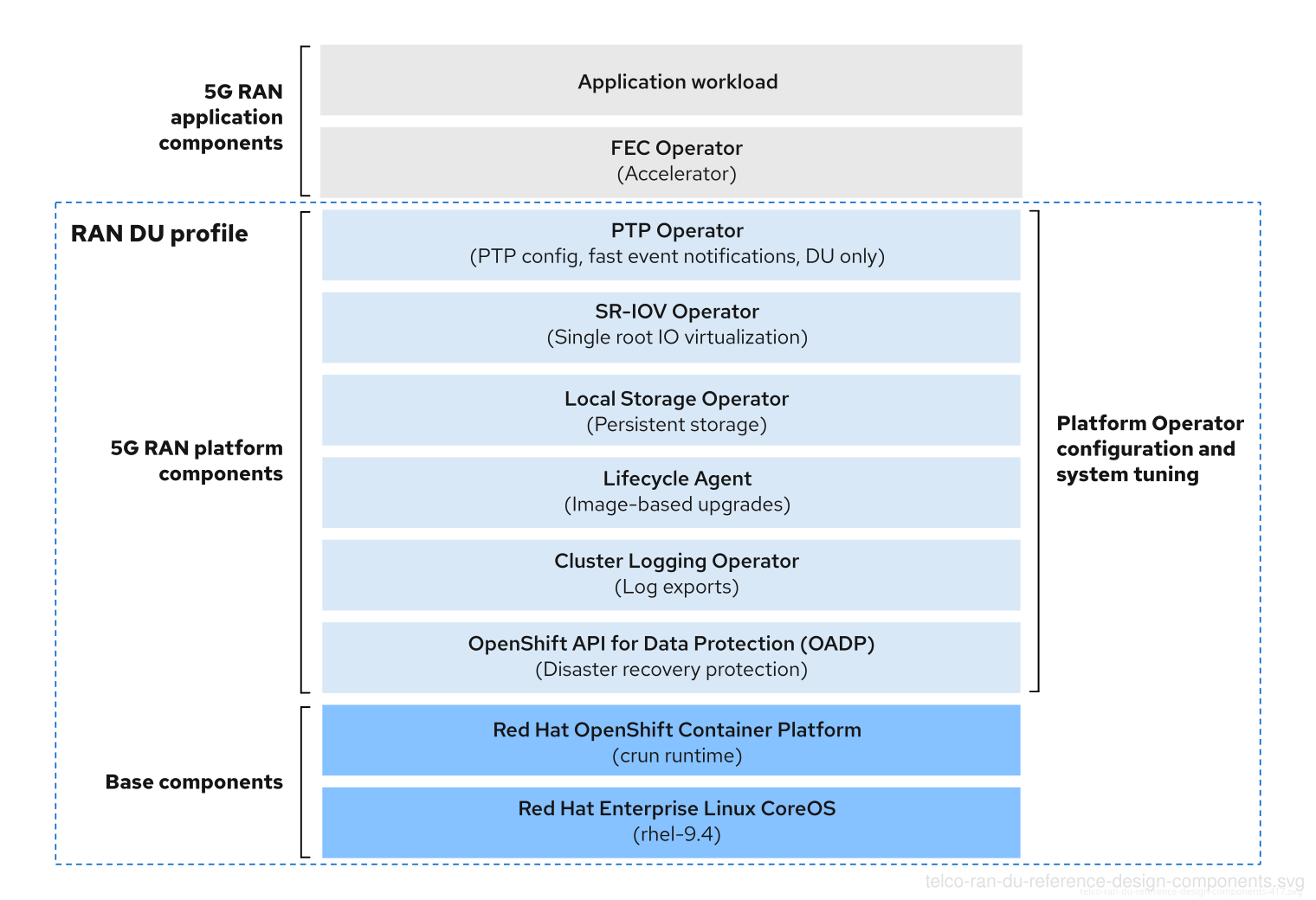
Ensure that additional components you include that are not specified in the telco RAN DU profile do not affect the CPU resources allocated to workload applications.
Out of tree drivers are not supported. 5G RAN application components are not included in the RAN DU profile and must be engineered against resources (CPU) allocated to applications.
4.6.1. Host firmware tuning
- New in this release
- No reference design updates in this release
- Description
Tune host firmware settings for optimal performance during initial cluster deployment. For more information, see "Recommended single-node OpenShift cluster configuration for vDU application workloads". Apply tuning settings in the host firmware during initial deployment. For more information, see "Managing host firmware settings with GitOps ZTP". The managed cluster host firmware settings are available on the hub cluster as individual
BareMetalHostcustom resources (CRs) that are created when you deploy the managed cluster with theClusterInstanceCR and GitOps ZTP.NoteCreate the
ClusterInstanceCR based on the provided referenceexample-sno.yamlCR.- Limits and requirements
- You must enable Hyper-Threading in the host firmware settings
- Engineering considerations
- Tune all firmware settings for maximum performance.
- All settings are expected to be for maximum performance unless tuned for power savings.
- You can tune host firmware for power savings at the expense of performance as required.
- Enable secure boot. When secure boot is enabled, only signed kernel modules are loaded by the kernel. Out-of-tree drivers are not supported.
4.6.2. Kubelet Settings
Some CNF workloads make use of sysctls which are not in the list of system-wide safe sysctls. Generally, network sysctls are namespaced and you can enable them using the kubeletconfig.experimental annotation in the PerformanceProfile Custom Resource (CR) as a string of JSON in the following form:
Example snippet showing allowedUnsafeSysctls
apiVersion: performance.openshift.io/v2
kind: PerformanceProfile
metadata:
name: {{ .metadata.name }}
annotations:kubeletconfig.experimental: |
{"allowedUnsafeSysctls":["net.ipv6.conf.all.accept_ra"]}
# ...Although these sysctls are namespaced, they may allow a pod to consume memory or other resources beyond any limits specified in the pod description. You must ensure that these sysctls do not exhaust platform resources.
For more information, see "Using sysctls in containers".
4.6.3. CPU partitioning and performance tuning
- New in this release
The
PerformanceProfileandTunedPerformancePatchobjects have been updated to fully support the aarch64 architecture.-
If you have previously applied additional patches to the
TunedPerformancePatchobject, you must convert those patches to a new performance profile that includes theran-du-performanceprofile instead. See the "Engineering considerations" section.
-
If you have previously applied additional patches to the
- Description
-
The RAN DU use model includes cluster performance tuning using
PerformanceProfileCRs for low-latency performance, and aTunedPerformancePatchCR that adds additional RAN-specific tuning. A referencePerformanceProfileis provided for both x86_64 and aarch64 CPU architectures. The singleTunedPerformancePatchobject provided automatically detects the CPU architecture and performs the required additional tuning. The RAN DU use case requires the cluster to be tuned for low-latency performance. The Node Tuning Operator reconciles thePerformanceProfileandTunedPerformancePatchCRs.
For more information about node tuning with the PerformanceProfile CR, see "Tuning nodes for low latency with the performance profile".
- Limits and requirements
You must configure the following settings in the telco RAN DU profile
PerformanceProfileCR:Set a reserved
cpusetof 4 or more, equating to 4 hyper-threads (2 cores) on x86_64, or 4 cores on aarch64 for any of the following CPUs:- Intel 3rd Generation Xeon (IceLake) 2.20 GHz, or newer, CPUs with host firmware tuned for maximum performance
- AMD EPYC Zen 4 CPUs (Genoa, Bergamo)
ARM CPUs (Neoverse)
NoteIt is recommended to evaluate features, such as per-pod power management, to determine any potential impact on performance.
x86_64:
-
Set the reserved
cpusetto include both hyper-thread siblings for each included core. Unreserved cores are available as allocatable CPU for scheduling workloads. - Ensure that hyper-thread siblings are not split across reserved and isolated cores.
- Ensure that reserved and isolated CPUs include all the threads for all cores in the CPU.
- Include Core 0 for each NUMA node in the reserved CPU set.
- Set the hugepage size to 1G.
-
Set the reserved
aarch64:
- Use the first 4 cores for the reserved CPU set (or more).
- Set the hugepage size to 512M.
- Only pin OpenShift Container Platform pods that are by default configured as part of the management workload partition to reserved cores.
-
When recommended by the hardware vendor, set the maximum CPU frequency for reserved and isolated CPUs using the
hardwareTuningsection.
- Engineering considerations
RealTime (RT) kernel
Under x86_64, to reach the full performance metrics, you must use the RT kernel, which is the default in the
x86_64/PerformanceProfile.yamlconfiguration.- If required, you can select the non-RT kernel with corresponding impact to performance.
-
Under aarch64, only the 64k-pagesize non-RT kernel is recommended for RAN DU use cases, which is the default in the
aarch64/PerformanceProfile.yamlconfiguration.
- The number of hugepages you configure depends on application workload requirements. Variation in this parameter is expected and allowed.
- Variation is expected in the configuration of reserved and isolated CPU sets based on selected hardware and additional components in use on the system. The variation must still meet the specified limits.
- Hardware without IRQ affinity support affects isolated CPUs. To ensure that pods with guaranteed whole CPU QoS have full use of allocated CPUs, all hardware in the server must support IRQ affinity.
-
To enable workload partitioning, set
cpuPartitioningModetoAllNodesduring deployment, and then use thePerformanceProfileCR to allocate enough CPUs to support the operating system, interrupts, and OpenShift Container Platform pods. -
Under x86_64, the
PerformanceProfileCR includes additional kernel arguments settings forvfio_pci. These arguments are included for support of devices such as the FEC accelerator. You can omit them if they are not required for your workload. Under aarch64, the
PerformanceProfilemust be adjusted depending on the needs of the platform:For Grace Hopper systems, the following kernel commandline arguments are required:
-
acpi_power_meter.force_cap_on=y -
module_blacklist=nouveau -
pci=realloc=off -
pci=pcie_bus_safe
-
-
For other ARM platforms, you may need to enable
iommu.passthrough=1orpci=realloc
Extending and augmenting
TunedPerformancePatch.yaml:-
TunedPerformancePatch.yamlintroduces a default top-level tuned profile namedran-du-performanceand an architecture-aware RAN tuning profile namedran-du-performance-architecture-common, and additional archichitecture-specific child policies that are automatically selected by the common policy. -
By default, the
ran-du-performanceprofile is set toprioritylevel18, and it includes both the PerformanceProfile-created profileopenshift-node-performance-openshift-node-performance-profileandran-du-performance-architecture-common If you have customized the name of the
PerformanceProfileobject, you must create a new tuned object that includes the name change of the tuned profile created by thePerformanceProfileCR, as well as theran-du-performance-architecture-commonRAN tuning profile. This must have apriorityless than 18. For example, if the PerformanceProfile object is namedchange-this-name:apiVersion: tuned.openshift.io/v1 kind: Tuned metadata: name: custom-performance-profile-override namespace: openshift-cluster-node-tuning-operator spec: profile: - name: custom-performance-profile-x data: | [main] summary=Override of the default ran-du performance tuning to adjust for our renamed PerformanceProfile include=openshift-node-performance-change-this-name,ran-du-performance-architecture-common recommend: - machineConfigLabels: machineconfiguration.openshift.io/role: "master" priority: 15 profile: custom-performance-profile-x-
To further override, the optional
TunedPowerCustom.yamlconfig file exemplifies how to extend the providedTunedPerformancePatch.yamlwithout needing to overlay or edit it directly. Creating an additional tuned profile which includes the top-level tuned profile namedran-du-performanceand has a lowerprioritynumber in therecommendsection allows adding additional settings easily. - For additional information on the Node Tuning Operator, see "Using the Node Tuning Operator".
-
4.6.4. PTP Operator
- New in this release
- No reference design updates in this release
- Description
- Configure Precision Time Protocol (PTP) in cluster nodes. PTP ensures precise timing and reliability in the RAN environment, compared to other clock synchronization protocols, like NTP.
- Support includes
- Grandmaster clock (T-GM): use GPS to sync the local clock and provide time synchronization to other devices
- Boundary clock (T-BC): receive time from another PTP source and redistribute it to other devices
- Ordinary clock (T-TSC): synchronize the local clock from another PTP time provider
Configuration variations allow for multiple NIC configurations for greater time distribution and high availability (HA), and optional fast event notification over HTTP.
- Limits and requirements
Supports the PTP G.8275.1 profile for the following telco use-cases:
T-GM use-case:
- Limited to a maximum of 3 Westport channel NICs
- Requires GNSS input to one NIC card, with SMA connections to synchronize additional NICs
- HA support N/A
T-BC use-case:
- Limited to a maximum of 2 NICs
- System clock HA support is optional in 2-NIC configuration.
T-TSC use-case:
- Limited to single NIC only
- System clock HA support is optional in active/standby 2-port configuration.
-
Log reduction must be enabled with
trueorenhanced.
- Engineering considerations
* Example RAN DU RDS configurations are provided for:
- T-GM, T-BC, and T-TSC
- Variations with and without HA
-
PTP fast event notifications use
ConfigMapCRs to persist subscriber details. - Hierarchical event subscription as described in the O-RAN specification is not supported for PTP events.
- The PTP fast events REST API v1 is end of life.
4.6.5. SR-IOV Operator
- New in this release
- No reference design updates in this release
- Description
-
The SR-IOV Operator provisions and configures the SR-IOV CNI and device plugins. Both
netdevice(kernel VFs) andvfio(DPDK) devices are supported and applicable to the RAN DU use models. - Limits and requirements
- Use devices that are supported for OpenShift Container Platform. For more information, see "Supported devices".
- SR-IOV and IOMMU enablement in host firmware settings: The SR-IOV Network Operator automatically enables IOMMU on the kernel command line.
- SR-IOV VFs do not receive link state updates from the PF. If link down detection is required you must configure this at the protocol level.
- Engineering considerations
-
SR-IOV interfaces with the
vfiodriver type are typically used to enable additional secondary networks for applications that require high throughput or low latency. -
Customer variation on the configuration and number of
SriovNetworkandSriovNetworkNodePolicycustom resources (CRs) is expected. -
IOMMU kernel command line settings are applied with a
MachineConfigCR at install time. This ensures that theSriovOperatorCR does not cause a reboot of the node when adding them. - SR-IOV support for draining nodes in parallel is not applicable in a single-node OpenShift cluster.
-
You must include the
SriovOperatorConfigCR in your deployment; the CR is not created automatically. This CR is included in the reference configuration policies which are applied during initial deployment. - In scenarios where you pin or restrict workloads to specific nodes, the SR-IOV parallel node drain feature will not result in the rescheduling of pods. In these scenarios, the SR-IOV Operator disables the parallel node drain functionality.
- You must pre-configure NICs which do not support firmware updates under secure boot or kernel lockdown with sufficient virtual functions (VFs) to support the number of VFs needed by the application workload. For Mellanox NICs, you must disable the Mellanox vendor plugin in the SR-IOV Network Operator. For more information, see "Configuring the SR-IOV Network Operator on Mellanox cards when Secure Boot is enabled".
To change the MTU value of a virtual function after the pod has started, do not configure the MTU field in the
SriovNetworkNodePolicyCR. Instead, configure the Network Manager or use a customsystemdscript to set the MTU of the physical function to an appropriate value. For example:# ip link set dev <physical_function> mtu 9000
-
SR-IOV interfaces with the
4.6.6. Logging
- New in this release
- No reference design updates in this release
- Description
- Use logging to collect logs from the far edge node for remote analysis. The recommended log collector is Vector.
- Engineering considerations
- Handling logs beyond the infrastructure and audit logs, for example, from the application workload requires additional CPU and network bandwidth based on additional logging rate.
- As of OpenShift Container Platform 4.14, Vector is the reference log collector. Use of fluentd in the RAN use models is deprecated.
4.6.7. SRIOV-FEC Operator
- New in this release
- No reference design updates in this release
- Description
- SRIOV-FEC Operator is an optional 3rd party Certified Operator supporting FEC accelerator hardware.
- Limits and requirements
Starting with FEC Operator v2.7.0:
- Secure boot is supported
-
vfiodrivers for PFs require the usage of avfio-tokenthat is injected into the pods. Applications in the pod can pass the VF token to DPDK by using EAL parameter--vfio-vf-token.
- Engineering considerations
- The SRIOV-FEC Operator uses CPU cores from the isolated CPU set.
- You can validate FEC readiness as part of the pre-checks for application deployment, for example, by extending the validation policy.
4.6.8. Lifecycle Agent
- New in this release
- No reference design updates in this release
- Description
- The Lifecycle Agent provides local lifecycle management services for image-based upgrade of single-node OpenShift clusters. Image-based upgrade is the recommended upgrade method for single-node OpenShift clusters.
- Limits and requirements
- The Lifecycle Agent is not applicable in multi-node clusters or single-node OpenShift clusters with an additional worker.
- The Lifecycle Agent requires a persistent volume that you create when installing the cluster.
For more information about partition requirements, see "Configuring a shared container directory between ostree stateroots when using GitOps ZTP".
4.6.9. Local Storage Operator
- New in this release
- No reference design updates in this release
- Description
-
You can create persistent volumes that can be used as
PVCresources by applications with the Local Storage Operator. The number and type ofPVresources that you create depends on your requirements. - Engineering considerations
-
Create backing storage for
PVCRs before creating thePV. This can be a partition, a local volume, LVM volume, or full disk. -
Refer to the device listing in
LocalVolumeCRs by the hardware path used to access each device to ensure correct allocation of disks and partitions, for example,/dev/disk/by-path/<id>. Logical names (for example,/dev/sda) are not guaranteed to be consistent across node reboots.
-
Create backing storage for
4.6.10. Logical Volume Manager Storage
- New in this release
- No reference design updates in this release
- Description
-
Logical Volume Manager (LVM) Storage is an optional component. It provides dynamic provisioning of both block and file storage by creating logical volumes from local devices that can be consumed as persistent volume claim (PVC) resources by applications. Volume expansion and snapshots are also possible. An example configuration is provided in the RDS with the
StorageLVMCluster.yamlfile. - Limits and requirements
- In single-node OpenShift clusters, persistent storage must be provided by either LVM Storage or local storage, not both.
- Volume snapshots are excluded from the reference configuration.
- Engineering considerations
- LVM Storage can be used as the local storage implementation for the RAN DU use case. When LVM Storage is used as the storage solution, it replaces the Local Storage Operator, and the CPU required is assigned to the management partition as platform overhead. The reference configuration must include one of these storage solutions but not both.
- Ensure that sufficient disks or partitions are available for storage requirements.
4.6.11. Workload partitioning
- New in this release
- No reference design updates in this release
- Description
-
Workload partitioning pins OpenShift Container Platform and Day 2 Operator pods that are part of the DU profile to the reserved CPU set and removes the reserved CPU from node accounting. This leaves all unreserved CPU cores available for user workloads. This leaves all non-reserved CPU cores available for user workloads. Workload partitioning is enabled through a capability set in installation parameters:
cpuPartitioningMode: AllNodes. The set of management partition cores are set with the reserved CPU set that you configure in thePerformanceProfileCR. - Limits and requirements
-
NamespaceandPodCRs must be annotated to allow the pod to be applied to the management partition - Pods with CPU limits cannot be allocated to the partition. This is because mutation can change the pod QoS.
- For more information about the minimum number of CPUs that can be allocated to the management partition, see "Node Tuning Operator".
-
- Engineering considerations
- Workload partitioning pins all management pods to reserved cores. A sufficient number of cores must be allocated to the reserved set to account for operating system, management pods, and expected spikes in CPU use that occur when the workload starts, the node reboots, or other system events happen.
4.6.12. Cluster tuning
- New in this release
- No reference design updates in this release
- Description
- For a full list of components that you can disable using the cluster capabilities feature, see "Cluster capabilities".
- Limits and requirements
- Cluster capabilities are not available for installer-provisioned installation methods.
The following table lists the required platform tuning configurations:
| Feature | Description |
|---|---|
| Remove optional cluster capabilities | Reduce the OpenShift Container Platform footprint by disabling optional cluster Operators on single-node OpenShift clusters only.
|
| Configure cluster monitoring | Configure the monitoring stack for reduced footprint by doing the following:
|
| Disable networking diagnostics | Disable networking diagnostics for single-node OpenShift because they are not required. |
| Configure a single OperatorHub catalog source |
Configure the cluster to use a single catalog source that contains only the Operators required for a RAN DU deployment. Each catalog source increases the CPU use on the cluster. Using a single |
| Disable the Console Operator |
If the cluster was deployed with the console disabled, the |
- Engineering considerations
- As of OpenShift Container Platform 4.19, cgroup v1 is no longer supported and has been removed. All workloads must now be compatible with cgroup v2. For more information, see Red Hat Enterprise Linux 9 changes in the context of Red Hat OpenShift workloads.
4.6.13. Machine configuration
- New in this release
- No reference design updates in this release
- Limits and requirements
-
The CRI-O wipe disable
MachineConfigCR assumes that images on disk are static other than during scheduled maintenance in defined maintenance windows. To ensure the images are static, do not set the podimagePullPolicyfield toAlways. - The configuration CRs in this table are required components unless otherwise noted.
-
The CRI-O wipe disable
| Feature | Description |
|---|---|
| Container Runtime |
Sets the container runtime to |
| Kubelet config and container mount namespace hiding | Reduces the frequency of kubelet housekeeping and eviction monitoring, which reduces CPU usage |
| SCTP | Optional configuration (enabled by default) |
| Kdump | Optional configuration (enabled by default) Enables kdump to capture debug information when a kernel panic occurs. The reference CRs that enable kdump have an increased memory reservation based on the set of drivers and kernel modules included in the reference configuration. |
| CRI-O wipe disable | Disables automatic wiping of the CRI-O image cache after unclean shutdown |
| SR-IOV-related kernel arguments | Include additional SR-IOV-related arguments in the kernel command line |
| Set RCU Normal |
Systemd service that sets |
| One-shot time sync | Runs a one-time NTP system time synchronization job for control plane or worker nodes. |
4.7. Telco RAN DU deployment components
The following sections describe the various OpenShift Container Platform components and configurations that you use to configure the hub cluster with RHACM.
4.7.1. Red Hat Advanced Cluster Management
- New in this release
- No reference design updates in this release
- Description
RHACM provides Multi Cluster Engine (MCE) installation and ongoing lifecycle management functionality for deployed clusters. You manage cluster configuration and upgrades declaratively by applying
Policycustom resources (CRs) to clusters during maintenance windows.RHACM provides the following functionality:
- Zero touch provisioning (ZTP) of clusters using the MCE component in RHACM.
- Configuration, upgrades, and cluster status through the RHACM policy controller.
-
During managed cluster installation, RHACM can apply labels to individual nodes as configured through the
ClusterInstanceCR.
The recommended method for single-node OpenShift cluster installation is the image-based installation approach, available in MCE, using the
ClusterInstanceCR for cluster definition.Image-based upgrade is the recommended method for single-node OpenShift cluster upgrade.
- Limits and requirements
-
A single hub cluster supports up to 3500 deployed single-node OpenShift clusters with 5
PolicyCRs bound to each cluster.
-
A single hub cluster supports up to 3500 deployed single-node OpenShift clusters with 5
- Engineering considerations
- Use RHACM policy hub-side templating to better scale cluster configuration. You can significantly reduce the number of policies by using a single group policy or small number of general group policies where the group and per-cluster values are substituted into templates.
-
Cluster specific configuration: managed clusters typically have some number of configuration values that are specific to the individual cluster. These configurations should be managed using RHACM policy hub-side templating with values pulled from
ConfigMapCRs based on the cluster name. - To save CPU resources on managed clusters, policies that apply static configurations should be unbound from managed clusters after GitOps ZTP installation of the cluster.
4.7.2. SiteConfig Operator
- New in this release
- No reference design updates in this release
- Description
The SiteConfig Operator is a template-driven solution designed to provision clusters through various installation methods. It introduces the unified
ClusterInstanceAPI, which replaces the deprecatedSiteConfigAPI. By leveraging theClusterInstanceAPI, the SiteConfig Operator improves cluster provisioning by providing the following:- Better isolation of definitions from installation methods
- Unification of Git and non-Git workflows
- Consistent APIs across installation methods
- Enhanced scalability
- Increased flexibility with custom installation templates
- Valuable insights for troubleshooting deployment issues
The SiteConfig Operator provides validated default installation templates to facilitate cluster deployment through both the Assisted Installer and Image-based Installer provisioning methods:
- Assisted Installer automates the deployment of OpenShift Container Platform clusters by leveraging predefined configurations and validated host setups. It ensures that the target infrastructure meets OpenShift Container Platform requirements. The Assisted Installer streamlines the installation process while minimizing time and complexity compared to manual setup.
- Image-based Installer expedites the deployment of single-node OpenShift clusters by utilizing preconfigured and validated OpenShift Container Platform seed images. Seed images are preinstalled on target hosts, enabling rapid reconfiguration and deployment. The Image-based Installer is particularly well-suited for remote or disconnected environments because it simplifies the cluster creation process and significantly reduces deployment time.
- Limits and requirements
- A single hub cluster supports up to 3500 deployed single-node OpenShift clusters.
4.7.3. Topology Aware Lifecycle Manager
- New in this release
- No reference design updates in this release
- Description
TALM is an Operator that runs only on the hub cluster for managing how changes like cluster upgrades, Operator upgrades, and cluster configuration are rolled out to the network. TALM supports the following features:
- Progressive rollout of policy updates to fleets of clusters in user configurable batches.
-
Per-cluster actions add
ztp-donelabels or other user-configurable labels following configuration changes to managed clusters. Precaching of single-node OpenShift clusters images: TALM supports optional pre-caching of OpenShift, OLM Operator, and additional user images to single-node OpenShift clusters before initiating an upgrade. The precaching feature is not applicable when using the recommended image-based upgrade method for upgrading single-node OpenShift clusters.
-
Specifying optional pre-caching configurations with
PreCachingConfigCRs. Review the sample referencePreCachingConfigCR for more information. - Excluding unused images with configurable filtering.
- Enabling before and after pre-caching storage space validations with configurable space-required parameters.
-
Specifying optional pre-caching configurations with
- Limits and requirements
- Supports concurrent cluster deployment in batches of 400
- Pre-caching and backup are limited to single-node OpenShift clusters only
- Engineering considerations
-
The
PreCachingConfigCR is optional and does not need to be created if you only need to precache platform-related OpenShift and OLM Operator images. -
The
PreCachingConfigCR must be applied before referencing it in theClusterGroupUpgradeCR. -
Only policies with the
ran.openshift.io/ztp-deploy-waveannotation are automatically applied by TALM during cluster installation. -
Any policy can be remediated by TALM under control of a user created
ClusterGroupUpgradeCR.
-
The
4.7.4. GitOps Operator and GitOps ZTP
- New in this release
- No reference design updates in this release
- Description
GitOps Operator and GitOps ZTP provide a GitOps-based infrastructure for managing cluster deployment and configuration. Cluster definitions and configurations are maintained as a declarative state in Git. You can apply
ClusterInstanceCRs to the hub cluster where theSiteConfigOperator renders them as installation CRs. In earlier releases, a GitOps ZTP plugin supported the generation of installation CRs fromSiteConfigCRs. This plugin is now deprecated. A separate GitOps ZTP plugin is available to enable automatic wrapping of configuration CRs into policies based on thePolicyGeneratororPolicyGenTemplateCR.You can deploy and manage multiple versions of OpenShift Container Platform on managed clusters using the baseline reference configuration CRs. You can use custom CRs alongside the baseline CRs. To maintain multiple per-version policies simultaneously, use Git to manage the versions of the source and policy CRs by using
PolicyGeneratororPolicyGenTemplateCRs. RHACMPolicyGeneratoris the recommended generator plugin starting from OpenShift Container Platform 4.19 release.- Limits and requirements
-
1000
ClusterInstanceCRs per ArgoCD application. Multiple applications can be used to achieve the maximum number of clusters supported by a single hub cluster -
Content in the
source-crs/directory in Git overrides content provided in the ZTP plugin container, as Git takes precedence in the search path. -
The
source-crs/directory must be located in the same directory as thekustomization.yamlfile, which includesPolicyGeneratorCRs as a generator. Alternative locations for thesource-crs/directory are not supported in this context.
-
1000
- Engineering considerations
-
For multi-node cluster upgrades, you can pause
MachineConfigPool(MCP) CRs during maintenance windows by setting thepausedfield totrue. You can increase the number of simultaneously updated nodes perMCPCR by configuring themaxUnavailablesetting in theMCPCR. TheMaxUnavailablefield defines the percentage of nodes in the pool that can be simultaneously unavailable during aMachineConfigupdate. SetmaxUnavailableto the maximum tolerable value. This reduces the number of reboots in a cluster during upgrades which results in shorter upgrade times. When you finally unpause theMCPCR, all the changed configurations are applied with a single reboot. -
During cluster installation, you can pause custom MCP CRs by setting the paused field to true and setting
maxUnavailableto 100% to improve installation times. Keep reference CRs and custom CRs under different directories. Doing this allows you to patch and update the reference CRs by simple replacement of all directory contents without touching the custom CRs. When managing multiple versions, the following best practices are recommended:
- Keep all source CRs and policy creation CRs in Git repositories to ensure consistent generation of policies for each OpenShift Container Platform version based solely on the contents in Git.
- Keep reference source CRs in a separate directory from custom CRs. This facilitates easy update of reference CRs as required.
-
To avoid confusion or unintentional overwrites when updating content, it is highly recommended to use unique and distinguishable names for custom CRs in the
source-crs/directory and extra manifests in Git. -
Extra installation manifests are referenced in the
ClusterInstanceCR through aConfigMapCR. TheConfigMapCR should be stored alongside theClusterInstanceCR in Git, serving as the single source of truth for the cluster. If needed, you can use aConfigMapgenerator to create theConfigMapCR.
-
For multi-node cluster upgrades, you can pause
4.7.5. Agent-based installer
- New in this release
- No reference design updates in this release
- Description
- The optional Agent-based Installer component provides installation capabilities without centralized infrastructure. The installation program creates an ISO image that you mount to the server. When the server boots it installs OpenShift Container Platform and supplied extra manifests. The Agent-based Installer allows you to install OpenShift Container Platform without a hub cluster. A container image registry is required for cluster installation.
- Limits and requirements
- You can supply a limited set of additional manifests at installation time.
-
You must include
MachineConfigurationCRs that are required by the RAN DU use case.
- Engineering considerations
- The Agent-based Installer provides a baseline OpenShift Container Platform installation.
- You install Day 2 Operators and the remainder of the RAN DU use case configurations after installation.
4.8. Telco RAN DU reference configuration CRs
Use the following custom resources (CRs) to configure and deploy OpenShift Container Platform clusters with the telco RAN DU profile. Use the CRs to form the common baseline used in all the specific use models unless otherwise indicated.
You can extract the complete set of RAN DU CRs from the ztp-site-generate container image. See Preparing the GitOps ZTP site configuration repository for more information.
4.8.1. Cluster tuning reference CRs
| Component | Reference CR | Description | Optional |
|---|---|---|---|
| Cluster capabilities |
| Representative SiteConfig CR to install single-node OpenShift with the RAN DU profile | No |
| Console disable |
| Disables the Console Operator. | No |
| Disconnected registry |
| Defines a dedicated namespace for managing the OpenShift Operator Marketplace. | No |
| Disconnected registry |
| Configures the catalog source for the disconnected registry. | No |
| Disconnected registry |
| Disables performance profiling for OLM. | No |
| Disconnected registry |
| Configures disconnected registry image content source policy. | No |
| Disconnected registry |
| Optional, for multi-node clusters only. Configures the OperatorHub in OpenShift, disabling all default Operator sources. Not required for single-node OpenShift installs with marketplace capability disabled. | No |
| Monitoring configuration |
| Reduces the monitoring footprint by disabling Alertmanager and Telemeter, and sets Prometheus retention to 24 hours | No |
| Network diagnostics disable |
| Configures the cluster network settings to disable built-in network troubleshooting and diagnostic features. | No |
4.8.2. Day 2 Operators reference CRs
| Component | Reference CR | Description | Optional |
|---|---|---|---|
| Cluster Logging Operator |
| Configures log forwarding for the cluster. | No |
| Cluster Logging Operator |
| Configures the namespace for cluster logging. | No |
| Cluster Logging Operator |
| Configures Operator group for cluster logging. | No |
| Cluster Logging Operator |
| New in 4.18. Configures the cluster logging service account. | No |
| Cluster Logging Operator |
| New in 4.18. Configures the cluster logging service account. | No |
| Cluster Logging Operator |
| New in 4.18. Configures the cluster logging service account. | No |
| Cluster Logging Operator |
| Manages installation and updates for the Cluster Logging Operator. | No |
| Lifecycle Agent |
| Manage the image-based upgrade process in OpenShift. | Yes |
| Lifecycle Agent |
| Manages installation and updates for the LCA Operator. | Yes |
| Lifecycle Agent |
| Configures namespace for LCA subscription. | Yes |
| Lifecycle Agent |
| Configures the Operator group for the LCA subscription. | Yes |
| Local Storage Operator |
| Defines a storage class with a Delete reclaim policy and no dynamic provisioning in the cluster. | No |
| Local Storage Operator |
| Configures local storage devices for the example-storage-class in the openshift-local-storage namespace, specifying device paths and filesystem type. | No |
| Local Storage Operator |
| Creates the namespace with annotations for workload management and the deployment wave for the Local Storage Operator. | No |
| Local Storage Operator |
| Creates the Operator group for the Local Storage Operator. | No |
| Local Storage Operator |
| Creates the namespace for the Local Storage Operator with annotations for workload management and deployment wave. | No |
| LVM Operator |
| Verifies the installation or upgrade of the LVM Storage Operator. | Yes |
| LVM Operator |
| Defines an LVM cluster configuration, with placeholders for storage device classes and volume group settings. Optional substitute for the Local Storage Operator. | No |
| LVM Operator |
| Manages installation and updates of the LVMS Operator. Optional substitute for the Local Storage Operator. | No |
| LVM Operator |
| Creates the namespace for the LVMS Operator with labels and annotations for cluster monitoring and workload management. Optional substitute for the Local Storage Operator. | No |
| LVM Operator |
| Defines the target namespace for the LVMS Operator. Optional substitute for the Local Storage Operator. | No |
| Node Tuning Operator |
| Configures node performance settings in an OpenShift cluster, optimizing for low latency and real-time workloads for aarch64 CPUs. | No |
| Node Tuning Operator |
| Configures node performance settings in an OpenShift cluster, optimizing for low latency and real-time workloads for x86_64 CPUs. | No |
| Node Tuning Operator |
| Applies performance tuning settings, including scheduler groups and service configurations for nodes in the specific namespace. | No |
| Node Tuning Operator |
| Applies additional powersave mode tuning as an overlay on top of TunedPerformancePatch. | No |
| PTP fast event notifications |
| Configures PTP settings for PTP boundary clocks with additional options for event synchronization. Dependent on cluster role. | No |
| PTP fast event notifications |
| Configures PTP for highly available boundary clocks with additional PTP fast event settings. Dependent on cluster role. | No |
| PTP fast event notifications |
| Configures PTP for PTP grandmaster clocks with additional PTP fast event settings. Dependent on cluster role. | No |
| PTP fast event notifications |
| Configures PTP for PTP ordinary clocks with additional PTP fast event settings. Dependent on cluster role. | No |
| PTP fast event notifications |
| Overrides the default OperatorConfig. Configures the PTP Operator specifying node selection criteria for running PTP daemons in the openshift-ptp namespace. | No |
| PTP Operator |
| Configures PTP settings for PTP boundary clocks. Dependent on cluster role. | No |
| PTP Operator |
| Configures PTP grandmaster clock settings for hosts that have dual NICs. Dependent on cluster role. | No |
| PTP Operator |
| Configures PTP grandmaster clock settings for hosts that have 3 NICs. Dependent on cluster role. | No |
| PTP Operator |
| Configures PTP grandmaster clock settings for hosts that have a single NIC. Dependent on cluster role. | No |
| PTP Operator |
| Configures PTP settings for a PTP ordinary clock. Dependent on cluster role. | No |
| PTP Operator |
| Configures PTP settings for a PTP ordinary clock with 2 interfaces in an active/standby configuration. Dependent on cluster role. | No |
| PTP Operator |
| Configures the PTP Operator settings, specifying node selection criteria for running PTP daemons in the openshift-ptp namespace. | No |
| PTP Operator |
| Manages installation and updates of the PTP Operator in the openshift-ptp namespace. | No |
| PTP Operator |
| Configures the namespace for the PTP Operator. | No |
| PTP Operator |
| Configures the Operator group for the PTP Operator. | No |
| PTP Operator (high availability) |
| Configures PTP settings for highly available PTP boundary clocks. | No |
| PTP Operator (high availability) |
| Configures PTP settings for highly available PTP boundary clocks. | No |
| SR-IOV FEC Operator |
| Configures namespace for the VRAN Acceleration Operator. Optional part of application workload. | Yes |
| SR-IOV FEC Operator |
| Configures the Operator group for the VRAN Acceleration Operator. Optional part of application workload. | Yes |
| SR-IOV FEC Operator |
| Manages installation and updates for the VRAN Acceleration Operator. Optional part of application workload. | Yes |
| SR-IOV FEC Operator |
| Configures SR-IOV FPGA Ethernet Controller (FEC) settings for nodes, specifying drivers, VF amount, and node selection. | Yes |
| SR-IOV Operator |
| Defines an SR-IOV network configuration, with placeholders for various network settings. | No |
| SR-IOV Operator |
| Configures SR-IOV network settings for specific nodes, including device type, RDMA support, physical function names, and the number of virtual functions. | No |
| SR-IOV Operator |
| Configures SR-IOV Network Operator settings, including node selection, injector, and webhook options. | No |
| SR-IOV Operator |
| Configures the SR-IOV Network Operator settings for Single Node OpenShift (SNO), including node selection, injector, webhook options, and disabling node drain, in the openshift-sriov-network-operator namespace. | No |
| SR-IOV Operator |
| Manages the installation and updates of the SR-IOV Network Operator. | No |
| SR-IOV Operator |
| Creates the namespace for the SR-IOV Network Operator with specific annotations for workload management and deployment waves. | No |
| SR-IOV Operator |
| Defines the target namespace for the SR-IOV Network Operators, enabling their management and deployment within this namespace. | No |
4.8.3. Machine configuration reference CRs
| Component | Reference CR | Description | Optional |
|---|---|---|---|
| Container runtime (crun) |
| Configures the container runtime (crun) for control plane nodes. | No |
| Container runtime (crun) |
| Configures the container runtime (crun) for worker nodes. | No |
| CRI-O wipe disable |
| Disables automatic CRI-O cache wipe following a reboot for on control plane nodes. | No |
| CRI-O wipe disable |
| Disables automatic CRI-O cache wipe following a reboot for on worker nodes. | No |
| Kdump enable |
| Configures kdump crash reporting on master nodes. | No |
| Kdump enable |
| Configures kdump crash reporting on worker nodes. | No |
| Kubelet configuration and container mount hiding |
| Configures a mount namespace for sharing container-specific mounts between kubelet and CRI-O on control plane nodes. | No |
| Kubelet configuration and container mount hiding |
| Configures a mount namespace for sharing container-specific mounts between kubelet and CRI-O on worker nodes. | No |
| One-shot time sync |
| Synchronizes time once on master nodes. | No |
| One-shot time sync |
| Synchronizes time once on worker nodes. | No |
| SCTP |
| Loads the SCTP kernel module on master nodes. | Yes |
| SCTP |
| Loads the SCTP kernel module on worker nodes. | Yes |
| Set RCU normal |
| Disables rcu_expedited by setting rcu_normal after the control plane node has booted. | No |
| Set RCU normal |
| Disables rcu_expedited by setting rcu_normal after the worker node has booted. | No |
| SRIOV-related kernel arguments |
| Enables SR-IOV support on master nodes. | No |
| SRIOV-related kernel arguments |
| Enables SR-IOV support on worker nodes. | No |
4.9. Comparing a cluster with the telco RAN DU reference configuration
After you deploy a telco RAN DU cluster, you can use the cluster-compare plugin to assess the cluster’s compliance with the telco RAN DU reference design specifications (RDS). The cluster-compare plugin is an OpenShift CLI (oc) plugin. The plugin uses a telco RAN DU reference configuration to validate the cluster with the telco RAN DU custom resources (CRs).
The plugin-specific reference configuration for telco RAN DU is packaged in a container image with the telco RAN DU CRs.
For further information about the cluster-compare plugin, see "Understanding the cluster-compare plugin".
Prerequisites
-
You have access to the cluster as a user with the
cluster-adminrole. -
You have credentials to access the
registry.redhat.iocontainer image registry. -
You installed the
cluster-compareplugin.
Procedure
Log on to the container image registry with your credentials by running the following command:
$ podman login registry.redhat.ioExtract the content from the
ztp-site-generate-rhel8container image by running the following commands::$ podman pull registry.redhat.io/openshift4/ztp-site-generate-rhel8:v4.20$ mkdir -p ./out$ podman run --log-driver=none --rm registry.redhat.io/openshift4/ztp-site-generate-rhel8:v4.20 extract /home/ztp --tar | tar x -C ./outCompare the configuration for your cluster to the reference configuration by running the following command:
$ oc cluster-compare -r out/reference/metadata.yamlExample output
... ********************************** Cluster CR: config.openshift.io/v1_OperatorHub_cluster1 Reference File: required/other/operator-hub.yaml2 Diff Output: diff -u -N /tmp/MERGED-2801470219/config-openshift-io-v1_operatorhub_cluster /tmp/LIVE-2569768241/config-openshift-io-v1_operatorhub_cluster --- /tmp/MERGED-2801470219/config-openshift-io-v1_operatorhub_cluster 2024-12-12 14:13:22.898756462 +0000 +++ /tmp/LIVE-2569768241/config-openshift-io-v1_operatorhub_cluster 2024-12-12 14:13:22.898756462 +0000 @@ -1,6 +1,6 @@ apiVersion: config.openshift.io/v1 kind: OperatorHub metadata: + annotations:3 + include.release.openshift.io/hypershift: "true" name: cluster -spec: - disableAllDefaultSources: true ********************************** Summary4 CRs with diffs: 11/125 CRs in reference missing from the cluster: 406 optional-image-registry: image-registry: Missing CRs:7 - optional/image-registry/ImageRegistryPV.yaml optional-ptp-config: ptp-config: One of the following is required: - optional/ptp-config/PtpConfigBoundary.yaml - optional/ptp-config/PtpConfigGmWpc.yaml - optional/ptp-config/PtpConfigDualCardGmWpc.yaml - optional/ptp-config/PtpConfigForHA.yaml - optional/ptp-config/PtpConfigMaster.yaml - optional/ptp-config/PtpConfigSlave.yaml - optional/ptp-config/PtpConfigSlaveForEvent.yaml - optional/ptp-config/PtpConfigForHAForEvent.yaml - optional/ptp-config/PtpConfigMasterForEvent.yaml - optional/ptp-config/PtpConfigBoundaryForEvent.yaml ptp-operator-config: One of the following is required: - optional/ptp-config/PtpOperatorConfig.yaml - optional/ptp-config/PtpOperatorConfigForEvent.yaml optional-storage: storage: Missing CRs: - optional/local-storage-operator/StorageLV.yaml ... No CRs are unmatched to reference CRs8 Metadata Hash: 09650c31212be9a44b99315ec14d2e7715ee194a5d68fb6d24f65fd5ddbe3c3c9 No patched CRs10 - 1
- The CR under comparison. The plugin displays each CR with a difference from the corresponding template.
- 2
- The template matching with the CR for comparison.
- 3
- The output in Linux diff format shows the difference between the template and the cluster CR.
- 4
- After the plugin reports the line diffs for each CR, the summary of differences are reported.
- 5
- The number of CRs in the comparison with differences from the corresponding templates.
- 6
- The number of CRs represented in the reference configuration, but missing from the live cluster.
- 7
- The list of CRs represented in the reference configuration, but missing from the live cluster.
- 8
- The CRs that did not match to a corresponding template in the reference configuration.
- 9
- The metadata hash identifies the reference configuration.
- 10
- The list of patched CRs.
4.10. Telco RAN DU 4.20 validated software components
The Red Hat telco RAN DU 4.20 solution has been validated using the following Red Hat software products for OpenShift Container Platform managed clusters.
| Component | Software version |
|---|---|
| Managed cluster version | 4.19 |
| Cluster Logging Operator | 6.2 |
| Local Storage Operator | 4.20 |
| OpenShift API for Data Protection (OADP) | 1.5 |
| PTP Operator | 4.20 |
| SR-IOV Operator | 4.20 |
| SRIOV-FEC Operator | 2.11 |
| Lifecycle Agent | 4.20 |
Chapter 5. Telco hub reference design specification
The telco hub reference design specification (RDS) describes the configuration for a hub cluster that deploys and operates fleets of OpenShift Container Platform clusters in a telco environment.
5.1. Reference design scope
The telco core, telco RAN and telco hub reference design specifications (RDS) capture the recommended, tested, and supported configurations to get reliable and repeatable performance for clusters running the telco core and telco RAN profiles.
Each RDS includes the released features and supported configurations that are engineered and validated for clusters to run the individual profiles. The configurations provide a baseline OpenShift Container Platform installation that meets feature and KPI targets. Each RDS also describes expected variations for each individual configuration. Validation of each RDS includes many long duration and at-scale tests.
The validated reference configurations are updated for each major Y-stream release of OpenShift Container Platform. Z-stream patch releases are periodically re-tested against the reference configurations.
5.2. Deviations from the reference design
Deviating from the validated telco core, telco RAN DU, and telco hub reference design specifications (RDS) can have significant impact beyond the specific component or feature that you change. Deviations require analysis and engineering in the context of the complete solution.
All deviations from the RDS should be analyzed and documented with clear action tracking information. Due diligence is expected from partners to understand how to bring deviations into line with the reference design. This might require partners to provide additional resources to engage with Red Hat to work towards enabling their use case to achieve a best in class outcome with the platform. This is critical for the supportability of the solution and ensuring alignment across Red Hat and with partners.
Deviation from the RDS can have some or all of the following consequences:
- It can take longer to resolve issues.
- There is a risk of missing project service-level agreements (SLAs), project deadlines, end provider performance requirements, and so on.
Unapproved deviations may require escalation at executive levels.
NoteRed Hat prioritizes the servicing of requests for deviations based on partner engagement priorities.
5.3. Hub cluster architecture overview
Use the features and components running on the management hub cluster to manage many other clusters in a hub-and-spoke topology. The hub cluster provides a highly available and centralized interface for managing the configuration, lifecycle, and observability of the fleet of deployed clusters.
All management hub functionality can be deployed on a dedicated OpenShift Container Platform cluster or as applications that are co-resident on an existing cluster.
- Managed cluster lifecycle
- Using a combination of Day 2 Operators, the hub cluster provides the necessary infrastructure to deploy and configure the fleet of clusters by using a GitOps methodology. Over the lifetime of the deployed clusters, further management of upgrades, scaling the number of clusters, node replacement, and other lifecycle management functions can be declaratively defined and rolled out. You can control the timing and progression of the rollout across the fleet.
- Monitoring
- The hub cluster provides monitoring and status reporting for the managed clusters through the Observability pillar of the RHACM Operator. This includes aggregated metrics, alerts, and compliance monitoring through the Governance policy framework.
The telco management hub reference design specification (RDS) and the associated reference custom resources (CRs) describe the telco engineering and QE validated method for deploying, configuring and managing the lifecycle of telco managed cluster infrastructure. The reference configuration includes the installation and configuration of the hub cluster components on top of OpenShift Container Platform.
Figure 5.1. Hub cluster reference design components
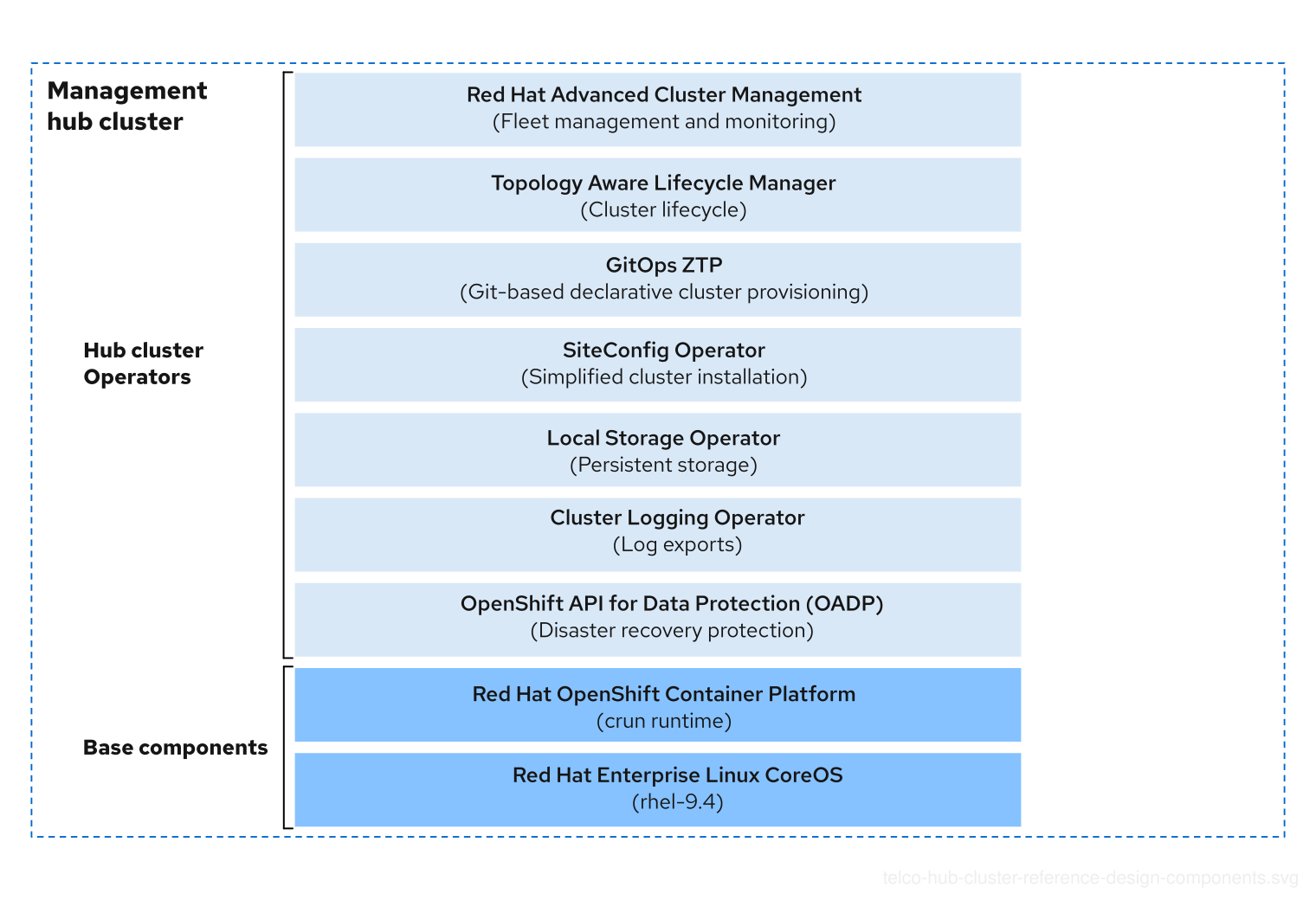
Figure 5.2. Hub cluster reference design architecture

5.4. Telco management hub cluster use model
The hub cluster provides managed cluster installation, configuration, observability and ongoing lifecycle management for telco application and workload clusters.
5.5. Hub cluster scaling target
The resource requirements for the hub cluster are directly dependent on the number of clusters being managed by the hub, the number of policies used for each managed cluster, and the set of features that are configured in Red Hat Advanced Cluster Management (RHACM).
The hub cluster reference configuration can support up to 3500 managed single-node OpenShift clusters under the following conditions:
- 5 policies for each cluster with hub-side templating configured with a 10 minute evaluation interval.
Only the following RHACM add-ons are enabled:
- Policy controller
- Observability with the default configuration
- You deploy managed clusters by using GitOps ZTP in batches of up to 500 clusters at a time.
The reference configuration is also validated for deployment and management of a mix of managed cluster topologies. The specific limits depend on the mix of cluster topologies, enabled RHACM features, and so on. In a mixed topology scenario, the reference hub configuration is validated with a combination of 1200 single-node OpenShift clusters, 400 compact clusters (3 nodes combined control plane and compute nodes), and 230 standard clusters (3 control plane and 2 worker nodes).
A hub cluster conforming to this reference specification can support synchronization of 1000 single-node ClusterInstance CRs for each ArgoCD application. You can use multiple applications to achieve the maximum number of clusters supported by a single hub cluster.
Specific dimensioning requirements are highly dependent on the cluster topology and workload. For more information, see "Storage requirements". Adjust cluster dimensions for the specific characteristics of your fleet of managed clusters.
5.6. Hub cluster resource utilization
Resource utilization was measured for deploying hub clusters in the following scenario:
- Under reference load managing 3500 single-node OpenShift clusters.
- 3-node compact cluster for management hub running on dual socket bare-metal servers.
- Network impairment of 50 ms round-trip latency, 100 Mbps bandwidth limit and 0.02% packet loss.
- Observability was not enabled.
- Only local storage was used.
| Metric | Peak Measurement |
|---|---|
| OpenShift Platform CPU | 106 cores (52 cores peak per node) |
| OpenShift Platform memory | 504 G (168 G peak per node) |
5.7. Hub cluster topology
In production environments, the OpenShift Container Platform hub cluster must be highly available to maintain high availability of the management functions.
- Limits and requirements
Use a highly available cluster topology for the hub cluster, for example:
- Compact (3 nodes combined control plane and compute nodes)
- Standard (3 control plane nodes + N compute nodes)
- Engineering considerations
- In non-production environments, a single-node OpenShift cluster can be used for limited hub cluster functionality.
- Certain capabilities, for example Red Hat OpenShift Data Foundation, are not supported on single-node OpenShift. In this configuration, some hub cluster features might not be available.
- The number of optional compute nodes can vary depending on the scale of the specific use case.
- Compute nodes can be added later as required.
5.8. Hub cluster networking
The reference hub cluster is designed to operate in a disconnected networking environment where direct access to the internet is not possible. As with all OpenShift Container Platform clusters, the hub cluster requires access to an image registry hosting all OpenShift and Day 2 Operator Lifecycle Manager (OLM) images.
The hub cluster supports dual-stack networking support for IPv6 and IPv4 networks. IPv6 is typical in edge or far-edge network segments, while IPv4 is more prevalent for use with legacy equipment in the data center.
- Limits and requirements
Regardless of the installation method, you must configure the following network types for the hub cluster:
-
clusterNetwork -
serviceNetwork -
machineNetwork
-
You must configure the following IP addresses for the hub cluster:
-
apiVIP -
ingressVIP
-
NoteFor the above networking configurations, some values are required, or can be auto-assigned, depending on the chosen architecture and DHCP configuration.
- You must use the default OpenShift Container Platform network provider OVN-Kubernetes.
Networking between the managed cluster and hub cluster must meet the networking requirements in the Red Hat Advanced Cluster Management (RHACM) documentation, for example:
- Hub cluster access to managed cluster API service, Ironic Python agent, and baseboard management controller (BMC) port.
- Managed cluster access to hub cluster API service, ingress IP and control plane node IP addresses.
- Managed cluster BMC access to hub cluster control plane node IP addresses.
An image registry must be accessible throughout the lifetime of the hub cluster.
-
All required container images must be mirrored to the disconnected registry. All OpenShift releases and OLM Operator release images needed in your deployment must be mirrored to the registry. Find an example of mirroring configuration in the reference as
imageset-config.yaml, which must be updated to include your required versions. OnlyClusterImageSetcustom resources that reference mirrored versions support cluster deployment. - The hub cluster must be configured to use a disconnected registry.
- The hub cluster cannot host its own image registry. For example, the registry must be available in a scenario where a power failure affects all cluster nodes.
-
All required container images must be mirrored to the disconnected registry. All OpenShift releases and OLM Operator release images needed in your deployment must be mirrored to the registry. Find an example of mirroring configuration in the reference as
- Engineering considerations
- When deploying a hub cluster, ensure you define appropriately sized CIDR range definitions.
5.9. Hub cluster memory and CPU requirements
The memory and CPU requirements of the hub cluster vary depending on the configuration of the hub cluster, the number of resources on the cluster, and the number of managed clusters.
- Limits and requirements
- Ensure that the hub cluster meets the underlying memory and CPU requirements for OpenShift Container Platform and Red Hat Advanced Cluster Management (RHACM).
- Engineering considerations
- Before deploying a telco hub cluster, ensure that your cluster host meets cluster requirements.
For more information about scaling the number of managed clusters, see "Hub cluster scaling target".
5.10. Hub cluster storage requirements
The total amount of storage required by the management hub cluster is dependant on the storage requirements for each of the applications deployed on the cluster. The main components that require storage through highly available PersistentVolume resources are described in the following sections.
The storage required for the underlying OpenShift Container Platform installation is separate to these requirements.
5.10.1. Assisted Service
The Assisted Service is deployed with the multicluster engine and Red Hat Advanced Cluster Management (RHACM).
The following numbers are estimated. Tune the values for more accurate results. Add an engineering margin, for example +20%, to the results to account for potential estimation inaccuracies.
| Persistent volume resource | Size (GB) |
|---|---|
|
| 30 |
|
| 709 |
|
| 0.7 |
-
imageStorageandfilesystemStorageare calculated as described in the about enabling central infrastructure management section of theMultiClusterEnginecustom resource documentation. -
dataBaseStorageis calculated only by empirical estimations based on different factors, such as the cluster topology, the number of events produced during the installation, and hardware and configuration characteristics. Each host will take less than 200KB.
5.10.2. RHACM Observability
Cluster Observability is provided by the multicluster engine and Red Hat Advanced Cluster Management (RHACM).
-
Observability storage needs several
PVresources and an S3 compatible bucket storage for long term retention of the metrics. -
Storage requirements calculation is complex and dependent on the specific workloads and characteristics of managed clusters. Requirements for
PVresources and the S3 bucket depend on many aspects including data retention, the number of managed clusters, managed cluster workloads, and so on. - Estimate the required storage for observability by using the observability sizing calculator in the RHACM capacity planning repository. See the Red Hat Knowledgebase article Calculating storage need for MultiClusterHub Observability on telco environments for an explanation of using the calculator to estimate observability storage requirements. The below table uses inputs derived from the telco RAN DU RDS and the hub cluster RDS as representative values.
The following numbers are estimates. Tune the values for more accurate results. Add an engineering margin, for example +20%, to the results to account for potential estimation inaccuracies.
Storage requirements strongly depend on the number of replicas per different components. The RHACM MultiClusterObservability custom resource allows sizing configuration for the observability stack, which corresponds to the number of replicas. The following sizing values are based on the default size.
| Capacity planner input | Data source | Example value |
|---|---|---|
| Number of control plane nodes | Hub cluster RDS (scale) and telco RAN DU RDS (topology) | 3500 |
| Number of additional worker nodes | Hub cluster RDS (scale) and telco RAN DU RDS (topology) | 0 |
| Days for storage of data | Hub cluster RDS | 15 |
| Total number of pods per cluster | Telco RAN DU RDS | 120 |
| Number of namespaces (excluding OpenShift Container Platform) | Telco RAN DU RDS | 4 |
| Number of metric samples per hour | Default value | 12 |
| Number of hours of retention in receiver persistent volume (PV) | Default value | 24 |
With these input values, the sizing calculator as described in the Red Hat Knowledgebase article Calculating storage need for MultiClusterHub Observability on telco environments indicates the following storage needs:
alertmanager PV | thanos receive PV | thanos compact PV | |||
|---|---|---|---|---|---|
| Per replica | Total | Per replica | Total | Total | |
| 10 GiB | 30 GiB | 10 GiB | 30 GiB | 100 GiB | |
thanos rule PV | thanos store PV | Object bucket | ||
|---|---|---|---|---|
| Per replica | Total | Per replica | Total | Total |
| 30 GiB | 90 GiB | 100 GiB | 300 GiB | 310 GiB |
-
It is not possible to set the
Object bucketsize in the MCO custom resource with downsampling enabled. This option may be available in the future.
5.10.3. Storage considerations
- Limits and requirements
- Minimum OpenShift Container Platform and Red Hat Advanced Cluster Management (RHACM) limits apply
- High availability should be provided through a storage backend. The hub cluster reference configuration provides storage through Red Hat OpenShift Data Foundation.
- Object bucket storage is provided through OpenShift Data Foundation.
- Engineering considerations
- Use SSD or NVMe disks with low latency and high throughput for etcd storage.
- To use OpenShift Data Foundation, ensure that storage disks are clean, especially before reinstallation. See Additional resources for more details.
The storage solution for telco hub clusters is OpenShift Data Foundation.
- Local Storage Operator supports the storage class used by OpenShift Data Foundation to provide block, file, and object storage as needed by other components on the hub cluster.
-
The Local Storage Operator
LocalVolumeconfiguration includes settingforceWipeDevicesAndDestroyAllData: trueto support the reinstallation of hub cluster nodes where OpenShift Data Foundation has previously been used.
5.10.4. Git repository
The telco management hub cluster supports a GitOps-driven methodology for installing and managing the configuration of OpenShift clusters for various telco applications. This methodology requires an accessible Git repository that serves as the authoritative source of truth for cluster definitions and configuration artifacts.
Red Hat does not offer a commercially supported Git server. An existing Git server provided in the production environment can be used. Gitea and Gogs are examples of self-hosted Git servers that you can use.
The Git repository is typically provided in the production network external to the hub cluster. In a large-scale deployment, multiple hub clusters can use the same Git repository for maintaining the definitions of managed clusters. Using this approach, you can easily review the state of the complete network. As the source of truth for cluster definitions, the Git repository should be highly available and recoverable in disaster scenarios.
For disaster recovery and multi-hub considerations, run the Git repository separately from the hub cluster.
- Limits and requirements
- A Git repository is required to support the GitOps ZTP functions of the hub cluster, including installation, configuration, and lifecycle management of the managed clusters.
- The Git repository must be accessible from the management cluster.
- Engineering considerations
- The Git repository is used by the GitOps Operator to ensure continuous deployment and a single source of truth for the applied configuration.
5.11. OpenShift Container Platform installation on the hub cluster
- Description
The reference method for installing OpenShift Container Platform for the hub cluster is through the Agent-based Installer.
Agent-based Installer provides installation capabilities without additional centralized infrastructure. The Agent-based Installer creates an ISO image, which you mount to the server to be installed. When you boot the server, OpenShift Container Platform is installed alongside optionally supplied extra manifests, such as the Red Hat OpenShift GitOps Operator.
NoteYou can also install OpenShift Container Platform in the hub cluster by using other installation methods.
If hub cluster functions are being applied to an existing OpenShift Container Platform cluster, the Agent-based Installer installation is not required. The remaining steps to install Day 2 Operators and configure the cluster for these functions remains the same. When OpenShift Container Platform installation is complete, the set of additional Operators and their configuration must be installed on the hub cluster.
The reference configuration includes all of these custom resources (CRs), which you can apply manually, for example:
$ oc apply -f <reference_cr>You can also add the reference configuration to the Git repository and apply it using ArgoCD.
NoteIf you apply the CRs manually, ensure you apply the CRs in the order of their dependencies. For example, apply namespaces before Operators and apply Operators before configurations.
- Limits and requirements
- Agent-based Installer requires an accessible image repository containing all required OpenShift Container Platform and Day 2 Operator images.
- Agent-based Installer builds ISO images based on a specific OpenShift releases and specific cluster details. Installation of a second hub requires a separate ISO image to be built.
- Engineering considerations
- Agent-based Installer provides a baseline OpenShift Container Platform installation. You apply Day 2 Operators and other configuration CRs after the cluster is installed.
- The reference configuration supports Agent-based Installer installation in a disconnected environment.
- A limited set of additional manifests can be supplied at installation time.
5.12. Day 2 Operators in the hub cluster
The management hub cluster relies on a set of Day 2 Operators to provide critical management services and infrastructure. Use Operator versions that match the set of managed cluster versions in your fleet.
Install Day 2 Operators using Operator Lifecycle Manager (OLM) and Subscription custom resources (CRs). Subscription CRs identify the specific Day 2 Operator to install, the catalog in which the Operator is found, and the appropriate version channel for the Operator. By default OLM installs and attempt to keep Operators updated with the latest z-stream version available in the channel. By default all Subscriptions are set with an installPlanApproval: Automatic value. In this mode, OLM automatically installs new Operator versions when they are available in the catalog and channel.
Setting installPlanApproval to automatic exposes the risk of the Operator being updated outside of defined maintenance windows if the catalog index is updated to include newer Operator versions. In a disconnected environment where you are building and maintaining a curated set of Operators and versions in the catalog, and if you follow a strategy of creating a new catalog index for updated versions, the risk of the Operators being inadvertently updated is largely removed. However, if you want to further close this risk, the Subscription CRs can be set to installPlanApproval: Manual which prevents Operators from being updated without explicit administrator approval.
- Limits and requirements
- When upgrading a telco hub cluster, the versions of OpenShift Container Platform and Operators must meet the requirements of all relevant compatibility matrixes.
5.13. Observability
The Red Hat Advanced Cluster Management (RHACM) multicluster engine Observability component provides centralized aggregation and visualization of metrics and alerts for all managed clusters. To balance performance and data analysis, the monitoring service maintains a subset list of aggregated metrics that are collected at a downsampled interval. The metrics can be accessed on the hub through a set of different preconfigured dashboards.
- Observability installation
The primary custom resource (CR) to enable and configure the observability service is the
MulticlusterObservabilityCR, which defines the following settings:- Configurable retention settings.
-
Storage for the different components:
thanos receive,thanos compact,thanos rule,thanos storesharding,alertmanager. The
metadata.annotations.mco-disable-alerting="true"annotation that enables tuning for the monitoring configuration on managed clusters.NoteWithout this setting the Observability component attempts to configure the managed cluster monitoring configuration. With this value set you can merge your desired configuration with the necessary Observability configuration of alert forwarding into the managed cluster monitoring
ConfigMapobject. When the Observability service is enabled RHACM will deploy to each managed cluster a workload to push metrics and alerts generated by local Monitoring to the hub cluster. The metrics and alerts to be forwarded from the managed cluster to the hub, are defined by aConfigMapCR in theopen-cluster-management-addon-observabilitynamespace. You can also specify custom metrics, for more information, see Adding custom metrics.
- Alertmananger configuration
- The hub cluster provides an Observability Alertmanager that can be configured to push alerts to external systems, for example, email. The Alertmanager is enabled by default.
- You must configure alert forwarding.
- When the Alertmanager is enabled but not configured, the hub Alertmanager does not forward alerts externally.
- When Observability is enabled, the managed clusters can be configured to send alerts to any endpoint including the hub Alertmanager.
- When a managed cluster is configured to forward alerts to external sources, alerts are not routed through the hub cluster Alertmanager.
- Alert state is available as a metric.
- When observability is enabled, the managed cluster alert states are included in the subset of metrics forwarded to the hub cluster and are available through Observability dashboards.
- Limits and requirements
- Observability requires persistent object storage for long-term metrics. For more information, see "Storage requirements".
- Engineering considerations
-
Forwarding of metrics is a subset of the full metric data. It includes only the metrics defined in the
observability-metrics-allowlistconfig map and any custom metrics added by the user. -
Metrics are forwarded at a downsampled rate. Metrics are forwarded by taking the latest datapoint at a 5 minute interval (or as defined by the
MultiClusterObservabilityCR configuration). - A network outage may lead to a loss of metrics forwarded to the hub cluster during that interval. This can be mitigated if metrics are also forwarded directly from managed clusters to an external metrics collector in the providers network. Full resolution metrics are available on the managed cluster.
- In addition to default metrics dashboards on the hub, users may define custom dashboards.
- The reference configuration is sized based on 15 days of metrics storage by the hub cluster for 3500 single-node OpenShift clusters. If longer retention or other managed cluster topology or sizing is required, the storage calculations must be updated and sufficient storage capacity be maintained. For more information about calculating new values, see "Storage requirements".
-
Forwarding of metrics is a subset of the full metric data. It includes only the metrics defined in the
5.14. Managed cluster lifecycle management
To provision and manage sites at the far edge of the network, use GitOps ZTP in a hub-and-spoke architecture, where a single hub cluster manages many managed clusters.
Lifecycle management for spoke clusters can be divided into two different stages: cluster deployment, including OpenShift Container Platform installation, and cluster configuration.
5.14.1. Managed cluster deployment
- Description
-
As of Red Hat Advanced Cluster Management (RHACM) 2.12, using the SiteConfig Operator is the recommended method for deploying managed clusters. The SiteConfig Operator introduces a unified ClusterInstance API that decouples the parameters that define the cluster from the manner in which it is deployed. The SiteConfig Operator uses a set of cluster templates that are instantiated using the data from a
ClusterInstancecustom resource (CR) to dynamically generate installation manifests. Following the GitOps methodology, theClusterInstanceCR is sourced from a Git repository through ArgoCD. TheClusterInstanceCR can be used to initiate cluster installation by using either Assisted Installer, or the image-based installation available in multicluster engine. - Limits and requirements
-
The SiteConfig ArgoCD plugin which handles
SiteConfigCRs is deprecated from OpenShift Container Platform 4.18. -
Cluster deployment requires an HTTP server hosting root filesystem and release specific RHCOS live ISO images. Each ISO image for each OpenShift release to be deployed must be reachable by the hub cluster and each deployed spoke cluster. Only include ISO images which exist on the HTTP server in the
AgentServiceConfigCR. - A container registry hosting all OpenShift and day-2 Operator Lifecycle Manager (OLM) operator images reachable from all deployed spoke clusters. The hub configuration includes Kustomize overlays. Use them to provide the TLS certificates and credentials for a disconnected container registry.
-
The SiteConfig ArgoCD plugin which handles
- Engineering considerations
-
You must create a
SecretCR with the login information for the cluster baseboard management controller (BMC). ThisSecretCR is then referenced in theSiteConfigCR. Integration with a secret store, such as Vault, can be used to manage the secrets. - Besides offering deployment method isolation and unification of Git and non-Git workflows, the SiteConfig Operator provides better scalability, greater flexibility with the use of custom templates, and an enhanced troubleshooting experience.
-
You must create a
5.14.2. Managed cluster updates
- Description
You can upgrade versions of OpenShift Container Platform, Day 2 Operators, and managed cluster configurations, by declaring the required version in the
Policycustom resources (CRs) that target the clusters to be upgraded.Policy controllers periodically check for policy compliance. If the result is negative, a violation report is created. If the policy remediation action is set to
enforcethe violations are remediated according to the updated policy. If the policy remediation action is set toinform, the process ends with a non-compliant status report and responsibility to initiate the upgrade is left to the user to perform during an appropriate maintenance window.The Topology Aware Lifecycle Manager (TALM) extends Red Hat Advanced Cluster Management (RHACM) with features to manage the rollout of upgrades or configuration throughout the lifecycle of the fleet of clusters. It operates in progressive, limited size batches of clusters. When upgrades to OpenShift Container Platform or the Day 2 Operators are required, TALM progressively rolls out the updates by stepping through the set of policies and switching them to an "enforce" policy to push the configuration to the managed cluster.
The custom resource (CR) that TALM uses to build the remediation plan is the
ClusterGroupUpgradeCR.You can use image-based upgrade (IBU) with the Lifecycle Agent as an alternative upgrade path for the single-node OpenShift cluster platform version. IBU uses an OCI image generated from a dedicated seed cluster to install single-node OpenShift on the target cluster.
TALM uses the
ImageBasedGroupUpgradeCR to roll out image-based upgrades to a set of identified clusters.- Limits and requirements
-
You can perform direct upgrades for single-node OpenShift clusters using image-based upgrade for OpenShift Container Platform
<4.y>to<4.y+2>, and<4.y.z>to<4.y.z+n>. - Image-based upgrade uses custom images that are specific to the hardware platform that the clusters are running on. Different hardware platforms require separate seed images.
-
You can perform direct upgrades for single-node OpenShift clusters using image-based upgrade for OpenShift Container Platform
- Engineering considerations
-
In edge deployments, you can minimize the disruption to managed clusters by managing the timing and rollout of changes. Set all policies to
informto monitor compliance without triggering automatic enforcement. Similarly, configure Day 2 Operator subscriptions to manual to prevent updates from occurring outside of scheduled maintenance windows. - The recommended upgrade aproach for single-node OpenShift clusters is the image-based upgrade.
For multi-node cluster upgrades, consider the following
MachineConfigPoolCR configurations to reduce upgrade times:-
Pause configuration deployments to nodes during a maintenance window by setting the
pausedfield totrue. -
Adjust the
maxUnavailablefield to control how many nodes in the pool can be updated simultaneously. TheMaxUnavailablefield defines the percentage of nodes in the pool that can be simultaneously unavailable during aMachineConfigobject update. SetmaxUnavailableto the maximum tolerable value. This reduces the number of reboots in a cluster during upgrades which results in shorter upgrade times. -
Resume configuration deployments by setting the
pausedfield tofalse. The configuration changes are applied in a single reboot.
-
Pause configuration deployments to nodes during a maintenance window by setting the
-
During cluster installation, you can pause
MachineConfigPoolCRs by setting thepausedfield totrueand settingmaxUnavailableto 100% to improve installation times.
-
In edge deployments, you can minimize the disruption to managed clusters by managing the timing and rollout of changes. Set all policies to
5.15. Hub cluster disaster recovery
Note that loss of the hub cluster does not typically create a service outage on the managed clusters. Functions provided by the hub cluster will be lost, such as observability, configuration, lifecycle management updates being driven through the hub cluster, and so on.
- Limits and requirements
- Backup,restore and disaster recovery are offered by the cluster backup and restore Operator, which depends on the OpenShift API for Data Protection (OADP) Operator.
- Engineering considerations
- You can extend the cluster backup and restore operator to third party resources of the hub cluster based on your configuration.
- The cluster backup and restore operator is not enabled by default in Red Hat Advanced Cluster Management (RHACM). The reference configuration enables this feature.
5.16. Hub cluster components
5.16.1. Red Hat Advanced Cluster Management (RHACM)
- New in this release
- No reference design updates in this release.
- Description
Red Hat Advanced Cluster Management (RHACM) provides multicluster engine installation and ongoing lifecycle management functionality for deployed clusters. You can manage cluster configuration and upgrades declaratively by applying
Policycustom resources (CRs) to clusters during maintenance windows.RHACM provides functionality such as the following:
- Zero touch provisioning (ZTP) and ongoing scaling of clusters using the multicluster engine component in RHACM.
- Configuration, upgrades, and cluster status through the RHACM policy controller.
-
During managed cluster installation, RHACM can apply labels to individual nodes as configured through the
ClusterInstanceCR. - The Topology Aware Lifecycle Manager component of RHACM provides phased rollout of configuration changes to managed clusters.
- The RHACM multicluster engine Observability component provides selective monitoring, dashboards, alerts, and metrics.
The recommended method for single-node OpenShift cluster installation is the image-based installation method in multicluster engine, which uses the
ClusterInstanceCR for cluster definition.The recommended method for single-node OpenShift upgrade is the image-based upgrade method.
NoteThe RHACM multicluster engine Observability component brings you a centralized view of the health and status of all the managed clusters. By default, every managed cluster is enabled to send metrics and alerts, created by their Cluster Monitoring Operator (CMO), back to Observability. For more information, see "Observability".
- Limits and requirements
- For more information about limits on number of clusters managed by a single hub cluster, see "Telco management hub cluster use model".
The number of managed clusters that can be effectively managed by the hub depends on various factors, including:
- Resource availability at each managed cluster
- Policy complexity and cluster size
- Network utilization
- Workload demands and distribution
- The hub and managed clusters must maintain sufficient bi-directional connectivity.
- Engineering considerations
- You can configure the cluster backup and restore Operator to include third-party resources.
- The use of RHACM hub side templating when defining configuration through policy is strongly recommended. This feature reduces the number of policies needed to manage the fleet by enabling for each cluster or for each group. For example, regional or hardware type content to be templated in a policy and substituted on cluster or group basis.
-
Managed clusters typically have some number of configuration values which are specific to an individual cluster. These should be managed using RHACM policy hub side templating with values pulled from
ConfigMapCRs based on the cluster name.
5.16.2. Topology Aware Lifecycle Manager
- New in this release
- No reference design updates in this release.
- Description
TALM is an Operator that runs only on the hub cluster for managing how changes like cluster upgrades, Operator upgrades, and cluster configuration are rolled out to the network. TALM supports the following features:
- Progressive rollout of policy updates to fleets of clusters in user configurable batches.
-
Per-cluster actions add
ztp-donelabels or other user-configurable labels following configuration changes to managed clusters. TALM supports optional pre-caching of OpenShift Container Platform, OLM Operator, and additional images to single-node OpenShift clusters before initiating an upgrade. The pre-caching feature is not applicable when using the recommended image-based upgrade method for upgrading single-node OpenShift clusters.
-
Specifying optional pre-caching configurations with
PreCachingConfigCRs. - Configurable image filtering to exclude unused content.
- Storage validation before and after pre-caching, using defined space requirement parameters.
-
Specifying optional pre-caching configurations with
- Limits and requirements
- TALM supports concurrent cluster upgrades in batches of 500.
- Pre-caching is limited to single-node OpenShift cluster topology.
- Engineering considerations
-
The
PreCachingConfigcustom resource (CR) is optional. You do not need to create it if you want to pre-cache platform-related images only, such as OpenShift Container Platform and OLM. - TALM supports the use of hub-side templating with Red Hat Advanced Cluster Management policies.
-
The
5.16.3. GitOps Operator and GitOps ZTP
- New in this release
- No reference design updates in this release
- Description
GitOps Operator and GitOps ZTP provide a GitOps-based infrastructure for managing cluster deployment and configuration. Cluster definitions and configurations are maintained as a declarative state in Git. You can apply
ClusterInstancecustom resources (CRs) to the hub cluster where theSiteConfigOperator renders them as installation CRs. In earlier releases, a GitOps ZTP plugin supported the generation of installation CRs fromSiteConfigCRs. This plugin is now deprecated. A separate GitOps ZTP plugin is available to enable automatic wrapping of configuration CRs into policies based on thePolicyGeneratoror thePolicyGenTemplateCRs.You can deploy and manage multiple versions of OpenShift Container Platform on managed clusters by using the baseline reference configuration CRs. You can use custom CRs alongside the baseline CRs. To maintain multiple per-version policies simultaneously, use Git to manage the versions of the source and policy CRs by using the
PolicyGeneratoror thePolicyGenTemplateCRs.- Limits and requirements
- To ensure consistent and complete cleanup of managed clusters and their associated resources during cluster or node deletion, you must configure ArgoCD to use background deletion mode.
- Engineering considerations
-
To avoid confusion or unintentional overwrite when updating content, use unique and distinguishable names for custom CRs in the
source-crsdirectory and extra manifests. - Keep reference source CRs in a separate directory from custom CRs. This facilitates easy update of reference CRs as required.
- To help with multiple versions, keep all source CRs and policy creation CRs in versioned Git repositories to ensure consistent generation of policies for each OpenShift Container Platform version.
-
To avoid confusion or unintentional overwrite when updating content, use unique and distinguishable names for custom CRs in the
5.16.4. Local Storage Operator
- New in this release
- No reference design updates in this release
- Description
-
You can create persistent volumes that can be used as
PVCresources by applications with the Local Storage Operator. The number and type ofPVresources that you create depends on your requirements. - Engineering considerations
-
Create backing storage for
PVCRs before creating the persistent volume. This can be a partition, a local volume, LVM volume, or full disk. -
Refer to the device listing in
LocalVolumeCRs by the hardware path used to access each device to ensure correct allocation of disks and partitions, for example,/dev/disk/by-path/<id>. Logical names (for example,/dev/sda) are not guaranteed to be consistent across node reboots.
-
Create backing storage for
5.16.5. Red Hat OpenShift Data Foundation
- New in this release
- No reference design updates in this release
- Description
- Red Hat OpenShift Data Foundation provides file, block, and object storage services to the hub cluster.
- Limits and requirements
- Red Hat OpenShift Data Foundation (ODF) in internal mode requires the Local Storage Operator to define a storage class which will provide the necessary underlying storage.
- When doing the planning for a telco management cluster, consider the ODF infrastructure and networking requirements.
- Dual stack support is limited. ODF IPv4 is supported on dual-stack clusters.
- Engineering considerations
- Address capacity warnings promptly as recovery can be difficult in case of storage capacity exhaustion, see Capacity planning.
5.16.6. Logging
- New in this release
- No reference design updates in this release
- Description
- Use the Cluster Logging Operator to collect and ship logs off the node for remote archival and analysis. The reference configuration uses Kafka to ship audit and infrastructure logs to a remote archive.
- Limits and requirements
- The reference configuration does not include local log storage.
- The reference configuration does not include aggregation of managed cluster logs at the hub cluster.
- Engineering considerations
- The impact of cluster CPU use is based on the number or size of logs generated and the amount of log filtering configured.
- The reference configuration does not include shipping of application logs. The inclusion of application logs in the configuration requires you to evaluate the application logging rate and have sufficient additional CPU resources allocated to the reserved set.
5.16.7. OpenShift API for Data Protection
- New in this release
- No reference design updates in this release
- Description
The OpenShift API for Data Protection (OADP) Operator is automatically installed and managed by Red Hat Advanced Cluster Management (RHACM) when the backup feature is enabled.
The OADP Operator facilitates the backup and restore of workloads in OpenShift Container Platform clusters. Based on the upstream open source project Velero, it allows you to backup and restore all Kubernetes resources for a given project, including persistent volumes.
While it is not mandatory to have it on the hub cluster, it is highly recommended for cluster backup, disaster recovery and high availability architecture for the hub cluster. The OADP Operator must be enabled to use the disaster recovery solutions for RHACM. The reference configuration enables backup (OADP) through the
MultiClusterHubcustom resource (CR) provided by the RHACM Operator.- Limits and requirements
- Only one version of OADP can be installed on a cluster. The version installed by RHACM must be used for RHACM disaster recovery features.
- Engineering considerations
- No engineering consideration updates in this release.
5.17. Extracting the telco hub reference design configuration CRs
You can extract the complete set of custom resources (CRs) for the telco hub profile from the openshift-telco-hub-rds-rhel9 container image. The container image has both the required CRs, and the optional CRs, for the telco hub profile.
Prerequisites
-
You have installed
podman.
Procedure
Log on to the container image registry with your credentials by running the following command:
$ podman login registry.redhat.ioExtract the content from the
openshift-telco-hub-rds-rhel9container image by running the following commands:$ mkdir -p ./out$ podman run -it registry.redhat.io/openshift4/openshift-telco-hub-rds-rhel9:v4.20 | base64 -d | tar xv -C out
Verification
The
outdirectory has the following directory structure. You can view the telco hub CRs in theout/telco-hub-rds/directory by running the following command:$ tree -L 4 out/telco-hub-rds/Example output
out/telco-hub-rds/ ├── configuration │ ├── example-overlays-config │ │ ├── acm │ │ │ ├── acmMirrorRegistryCM-patch.yaml │ │ │ ├── kustomization.yaml │ │ │ ├── options-agentserviceconfig-patch.yaml │ │ │ └── storage-mco-patch.yaml │ │ ├── gitops │ │ │ ├── argocd-tls-certs-cm-patch.yaml │ │ │ ├── init-argocd-app.yaml │ │ │ └── kustomization.yaml │ │ ├── logging │ │ │ ├── cluster-log-forwarder-patch.yaml │ │ │ ├── kustomization.yaml │ │ │ └── README.md │ │ ├── lso │ │ │ ├── kustomization.yaml │ │ │ └── local-storage-disks-patch.yaml │ │ ├── odf │ │ │ ├── kustomization.yaml │ │ │ └── options-storage-cluster.yaml │ │ └── registry │ │ ├── catalog-source-image-patch.yaml │ │ ├── idms-operator-mirrors-patch.yaml │ │ ├── idms-release-mirrors-patch.yaml │ │ ├── itms-generic-mirrors-patch.yaml │ │ ├── itms-release-mirrors-patch.yaml │ │ ├── kustomization.yaml │ │ └── registry-ca-patch.yaml │ ├── kustomization.yaml │ ├── README.md │ └── reference-crs │ ├── kustomization.yaml │ ├── optional │ │ ├── logging │ │ ├── lso │ │ └── odf-internal │ └── required │ ├── acm │ ├── gitops │ ├── registry │ └── talm ├── install │ ├── mirror-registry │ │ ├── imageset-config.yaml │ │ └── README.md │ └── openshift │ ├── agent-config.yaml │ └── install-config.yaml └── scripts └── check_current_versions.sh
5.18. Hub cluster reference configuration CRs
The following sections briefly describe each custom resource (CR) for the telco management hub reference configuration in 4.20.
5.19. Red Hat Advanced Cluster Management (RHACM) CRs
| Component | Reference CR | Description | Optional |
|---|---|---|---|
| RHACM |
| Creates a policy to manage copying data from an object bucket claim into a secret for Observability to connect to Thanos. | No |
| RHACM |
| Defines the MultiCluster Engine configuration required by ACM. | No |
| RHACM |
|
Configures | No |
| RHACM |
|
Defines the SSL certificates and mirror registry configuration for various Red Hat and OpenShift Container Platform registries used by the | No |
| RHACM |
|
Defines the | No |
| RHACM |
|
Defines | No |
| RHACM |
| Configures search for Open Cluster Management by defining various parameters and API settings. | No |
| RHACM |
| Configures a provisioning resource in the metal3.io/v1alpha1 API version to watch all namespaces. | No |
| RHACM |
| Subscribes to the RHACM Operator using automatic install plan approval. | No |
| RHACM |
|
Configures | No |
| RHACM |
|
Creates an | No |
| RHACM |
|
Creates an | No |
| RHACM |
|
Creates a | No |
| RHACM |
|
Creates | No |
| RHACM |
|
Creates the | No |
| RHACM |
| Creates the Placement against local cluster needed for the pull secret policy. | No |
| RHACM |
| Creates a policy to copy the global pull secret into observability namespaces. | No |
| RHACM |
|
Creates the | No |
| RHACM |
| Creates the Placement against local cluster needed for the Thanos secret policy. | No |
| RHACM |
| Creates a policy to copy data from an object bucket claim into a secret for observability to connect to Thanos. | No |
| TALM |
|
Creates a | No |
5.20. Storage reference CRs
| Component | Reference CR | Description | Optional |
|---|---|---|---|
| Local Storage Operator |
|
Defines a | Yes |
| Local Storage Operator |
|
Defines the | Yes |
| Local Storage Operator |
|
Defines an | Yes |
| Local Storage Operator |
|
Defines a | Yes |
| OpenShift Data Foundation |
|
Defines the | Yes |
| OpenShift Data Foundation |
|
Defines an | Yes |
| OpenShift Data Foundation |
| Defines a resource to verify readiness of the ODF deployment. | Yes |
| OpenShift Data Foundation |
| Configures an OpenShift Container Platform subscription to the OpenShift Data Foundation Operator, specifying installation details such as the Operator’s name, namespace, channel, and approval strategy. | Yes |
5.21. GitOps Zero Touch Provisioning (ZTP) reference CRs
| Component | Reference CR | Description | Optional |
|---|---|---|---|
| GitOps Operator |
|
Defines a | No |
| GitOps Operator |
|
Defines | No |
| GitOps Operator |
| Namespace for the GitOps plugin policy. | No |
| GitOps Operator |
|
Defines | No |
| GitOps Operator |
| Defines the Placement CR against local cluster for the GitOps plugin policy. | No |
| GitOps Operator |
| Defines a policy to add ArgoCD custom plugins to the GitOps controller. | No |
| GitOps Operator |
| Defines the ArgoCD Application for GitOps management. | No |
| GitOps Operator |
|
Defines a | No |
| GitOps Operator |
|
Defines the | No |
| GitOps Operator |
|
Binds the | No |
| GitOps Operator |
|
Defines an | No |
| GitOps Operator |
|
Defines an | No |
| GitOps Operator |
| Defines a subscription for the OpenShift Container Platform GitOps Operator, specifying automatic install plan approval and source details. | No |
| GitOps Operator |
| Defines the Git repository for ZTP manifests and configurations. | No |
| GitOps applications |
|
Defines an ArgoCD | No |
| GitOps applications |
| Defines a namespace and an ArgoCD application for managing the deployment of cluster configurations from the specified Git repository. | No |
| GitOps applications |
|
Defines a | No |
| GitOps applications |
|
Binds the | No |
| GitOps applications |
| Defines an Argo CD AppProject resource, specifying cluster and namespace resource whitelists and destinations. | No |
| GitOps applications |
| Defines a namespace and an ArgoCD application for policy management. | No |
5.22. Logging reference CRs
| Component | Reference CR | Description | Optional |
|---|---|---|---|
| Cluster Logging Operator |
|
Defines the | Yes |
| Cluster Logging Operator |
| Configures a namespace for the Cluster Logging Operator. | Yes |
| Cluster Logging Operator |
| Configures an Operator group for the Cluster Logging Operator. | Yes |
| Cluster Logging Operator |
|
Defines the | Yes |
| Cluster Logging Operator |
|
Binds the Cluster Logging | Yes |
| Cluster Logging Operator |
|
Binds the Cluster Logging | Yes |
| Cluster Logging Operator |
| Defines a subscription for installing and managing the Cluster Logging Operator. | Yes |
5.23. Container registry reference CRs
| Component | Reference CR | Description | Optional |
|---|---|---|---|
| Registry |
|
Defines a | No |
| Registry |
|
Defines an image digest | No |
| Registry |
|
Defines an image digest | No |
| Registry |
| Defines an image configuration CR to manage image registries and policies. | No |
| Registry |
|
Defines an image tag | No |
| Registry |
|
Defines an image tag | No |
| Registry |
|
Configures the | No |
| Registry |
|
Defines a | No |
5.24. Image mirroring reference CRs
| Component | Reference CR | Description | Optional |
|---|---|---|---|
| Mirroring configuration CRs |
|
Defines an | No |
5.25. Installation reference CRs
| Component | Reference CR | Description | Optional |
|---|---|---|---|
| Agent-based install |
|
Use this | No |
| Agent-based install |
|
Use this | No |
5.26. Telco hub reference configuration software specifications
The telco hub 4.20 solution has been validated using the following Red Hat software products for OpenShift Container Platform clusters.
| Component | Software version |
|---|---|
| OpenShift Container Platform | 4.20 |
| Red Hat Advanced Cluster Management (RHACM) | 2.15 |
| Local Storage Operator | 4.20 |
| Red Hat OpenShift Data Foundation (ODF) | 4.20 |
| Red Hat OpenShift GitOps | 1.18 |
| GitOps Zero Touch Provisioning (ZTP) plugins | 4.20 |
| multicluster engine Operator PolicyGenerator plugin | 2.10 |
| Topology Aware Lifecycle Manager (TALM) | 4.20 |
| Cluster Logging Operator | 6.2 |
| OpenShift API for Data Protection (OADP) | The version aligned with the RHACM release. |
Chapter 6. Comparing cluster configurations
6.1. Understanding the cluster-compare plugin
The cluster-compare plugin is an OpenShift CLI (oc) plugin that compares a cluster configuration with a reference configuration. The plugin reports configuration differences while suppressing expected variations by using configurable validation rules and templates.
Use the cluster-compare plugin in development, production, and support scenarios to ensure cluster compliance with a reference configuration, and to quickly identify and troubleshoot relevant configuration differences.
6.1.1. Overview of the cluster-compare plugin
Clusters deployed at scale typically use a validated set of baseline custom resources (CRs) to configure clusters to meet use-case requirements and ensure consistency when deploying across different environments.
In live clusters, some variation from the validated set of CRs is expected. For example, configurations might differ because of variable substitution, optional components, or hardware-specific fields. This variation makes it difficult to accurately assess if a cluster is compliant with the baseline configuration.
Using the cluster-compare plugin with the oc command, you can compare the configuration from a live cluster with a reference configuration. A reference configuration represents the baseline configuration but uses the various plugin features to suppresses expected variation during a comparison. For example, you can apply validation rules, specify optional and required resources, and define relationships between resources. By reducing irrelevant differences, the plugin makes it easier to assess cluster compliance with baseline configurations, and across environments.
The ability to intelligently compare a configuration from a cluster with a reference configuration has the following example use-cases:
Production: Ensure compliance with a reference configuration across service updates, upgrades and changes to the reference configuration.
Development: Ensure compliance with a reference configuration in test pipelines.
Design: Compare configurations with a partner lab reference configuration to ensure consistency.
Support: Compare the reference configuration to must-gather data from a live cluster to troubleshoot configuration issues.
Figure 6.1. Cluster-compare plugin overview

6.1.2. Understanding a reference configuration
The cluster-compare plugin uses a reference configuration to validate a configuration from a live cluster. The reference configuration consists of a YAML file called metadata.yaml, which references a set of templates that represent the baseline configuration.
Example directory structure for a reference configuration
├── metadata.yaml
├── optional
│ ├── optionalTemplate1.yaml
│ └── optionalTemplate2.yaml
├── required
│ ├── requiredTemplate3.yaml
│ └── requiredTemplate4.yaml
└── baselineClusterResources
├── clusterResource1.yaml
├── clusterResource2.yaml
├── clusterResource3.yaml
└── clusterResource4.yaml
During a comparison, the plugin matches each template to a configuration resource from the cluster. The plugin evaluates optional or required fields in the template using features such as Golang templating syntax and inline regular expression validation. The metadata.yaml file applies additional validation rules to decide whether a template is optional or required and assesses template dependency relationships.
Using these features, the plugin identifies relevant configuration differences between the cluster and the reference configuration. For example, the plugin can highlight mismatched field values, missing resources, extra resources, field type mismatches, or version discrepancies.
For further information about configuring a reference configuration, see "Creating a reference configuration".
6.2. Installing the cluster-compare plugin
You can extract the cluster-compare plugin from a container image in the Red Hat container catalog and use it as a plugin to the oc command.
6.2.1. Installing the cluster-compare plugin
Install the cluster-compare plugin to compare a reference configuration with a cluster configuration from a live cluster or must-gather data.
Prerequisites
-
You have installed the OpenShift CLI (
oc). -
You installed
podman. - You have access to the Red Hat container catalog.
Procedure
Log in to the Red Hat container catalog by running the following command:
$ podman login registry.redhat.ioCreate a container for the
cluster-compareimage by running the following command:$ podman create --name cca registry.redhat.io/openshift4/kube-compare-artifacts-rhel9:latestCopy the
cluster-compareplugin to a directory that is included in yourPATHenvironment variable by running the following command:$ podman cp cca:/usr/share/openshift/<arch>/kube-compare.<rhel_version> <directory_on_path>/kubectl-cluster_comparearchis the architecture for your machine. Valid values are:-
linux_amd64 -
linux_arm64 -
linux_ppc64le -
linux_s390x
-
-
<rhel_version>is the version of RHEL on your machine. Valid values arerhel8orrhel9. -
<directory_on_path>is the path to a directory included in yourPATHenvironment variable.
Verification
View the help for the plugin by running the following command:
$ oc cluster-compare -hExample output
Compare a known valid reference configuration and a set of specific cluster configuration CRs. ... Usage: compare -r <Reference File> Examples: # Compare a known valid reference configuration with a live cluster: kubectl cluster-compare -r ./reference/metadata.yaml ...
6.3. Using the cluster-compare plugin
You can use the cluster-compare plugin to compare a reference configuration with a configuration from a live cluster or must-gather data.
6.3.1. Using the cluster-compare plugin with a live cluster
You can use the cluster-compare plugin to compare a reference configuration with configuration custom resources (CRs) from a live cluster.
Validate live cluster configurations to ensure compliance with reference configurations during design, development, or testing scenarios.
Use the cluster-compare plugin with live clusters in non-production environments only. For production environments, use the plugin with must-gather data.
Prerequisites
-
You installed the OpenShift CLI (
oc). -
You have access to the cluster as a user with the
cluster-adminrole. -
You downloaded the
cluster-compareplugin and include it in yourPATHenvironment variable. - You have access to a reference configuration.
Procedure
Run the
cluster-compareplugin by using the following command:$ oc cluster-compare -r <path_to_reference_config>/metadata.yaml-rspecifies a path to themetadata.yamlfile of the reference configuration. You can specify a local directory or a URI.Example output
... ********************************** Cluster CR: operator.openshift.io/v1_Console_cluster1 Reference File: optional/console-disable/ConsoleOperatorDisable.yaml2 Diff Output: diff -u -N /tmp/MERGED-622469311/operator-openshift-io-v1_console_cluster /tmp/LIVE-2358803347/operator-openshift-io-v1_console_cluster /tmp/MERGED-622469311/operator-openshift-io-v1_console_cluster 2024-11-20 15:43:42.888633602 +0000 +++ /tmp/LIVE-2358803347/operator-openshift-io-v1_console_cluster 2024-11-20 15:43:42.888633602 +0000 @@ -4,5 +4,5 @@ name: cluster spec: logLevel: Normal - managementState: Removed3 + managementState: Managed operatorLogLevel: Normal ********************************** … Summary4 CRs with diffs: 5/495 CRs in reference missing from the cluster: 16 required-cluster-tuning: cluster-tuning: Missing CRs:7 - required/cluster-tuning/disabling-network-diagnostics/DisableSnoNetworkDiag.yaml No CRs are unmatched to reference CRs8 Metadata Hash: 512a9bf2e57fd5a5c44bbdea7abb3ffd7739d4a1f14ef9021f6793d5cdf868f09 No patched CRs10 - 1
- The CR under comparison. The plugin displays each CR with a difference from the corresponding template.
- 2
- The template matching with the CR for comparison.
- 3
- The output in Linux diff format shows the difference between the template and the cluster CR.
- 4
- After the plugin reports the line diffs for each CR, the summary of differences are reported.
- 5
- The number of CRs in the comparison with differences from the corresponding templates.
- 6
- The number of CRs represented in the reference configuration, but missing from the live cluster.
- 7
- The list of CRs represented in the reference configuration, but missing from the live cluster.
- 8
- The CRs that did not match to a corresponding template in the reference configuration.
- 9
- The metadata hash identifies the reference configuration.
- 10
- The list of patched CRs.
Get the output in the junit format by adding -o junit to the command. For example:
$ oc cluster-compare -r <path_to_reference_config>/metadata.yaml -o junit
The junit output includes the following result types:
- Passed results for each fully matched template.
- Failed results for differences found or missing required custom resources (CRs).
- Skipped results for differences patched using the user override mechanism.
6.3.2. Using the cluster-compare plugin with must-gather data
You can use the cluster-compare plugin to compare a reference configuration with configuration custom resources (CRs) from must-gather data.
Validate cluster configurations by using must-gather data to troubleshoot configuration issues in production environments.
For production environments, use the cluster-compare plugin with must-gather data only.
-
You have access to
must-gatherdata from a target cluster. -
You installed the OpenShift CLI (
oc). -
You have downloaded the
cluster-compareplugin and included it in yourPATHenvironment variable. - You have access to a reference configuration.
Procedure
Compare the
must-gatherdata to a reference configuration by running the following command:$ oc cluster-compare -r <path_to_reference_config>/metadata.yaml -f "must-gather*/*/cluster-scoped-resources","must-gather*/*/namespaces" -R-
-rspecifies a path to themetadata.yamlfile of the reference configuration. You can specify a local directory or a URI. -
-fspecifies the path to themust-gatherdata directory. You can specify a local directory or a URI. This example restricts the comparison to the relevant cluster configuration directories. -Rsearches the target directories recursively.Example output
... ********************************** Cluster CR: operator.openshift.io/v1_Console_cluster1 Reference File: optional/console-disable/ConsoleOperatorDisable.yaml2 Diff Output: diff -u -N /tmp/MERGED-622469311/operator-openshift-io-v1_console_cluster /tmp/LIVE-2358803347/operator-openshift-io-v1_console_cluster /tmp/MERGED-622469311/operator-openshift-io-v1_console_cluster 2024-11-20 15:43:42.888633602 +0000 +++ /tmp/LIVE-2358803347/operator-openshift-io-v1_console_cluster 2024-11-20 15:43:42.888633602 +0000 @@ -4,5 +4,5 @@ name: cluster spec: logLevel: Normal - managementState: Removed3 + managementState: Managed operatorLogLevel: Normal ********************************** … Summary4 CRs with diffs: 5/495 CRs in reference missing from the cluster: 16 required-cluster-tuning: cluster-tuning: Missing CRs:7 - required/cluster-tuning/disabling-network-diagnostics/DisableSnoNetworkDiag.yaml No CRs are unmatched to reference CRs8 Metadata Hash: 512a9bf2e57fd5a5c44bbdea7abb3ffd7739d4a1f14ef9021f6793d5cdf868f09 No patched CRs10 - 1
- The CR under comparison. The plugin displays each CR with a difference from the corresponding template.
- 2
- The template matching with the CR for comparison.
- 3
- The output in Linux diff format shows the difference between the template and the cluster CR.
- 4
- After the plugin reports the line diffs for each CR, the summary of differences are reported.
- 5
- The number of CRs in the comparison with differences from the corresponding templates.
- 6
- The number of CRs represented in the reference configuration, but missing from the live cluster.
- 7
- The list of CRs represented in the reference configuration, but missing from the live cluster.
- 8
- The CRs that did not match to a corresponding template in the reference configuration.
- 9
- The metadata hash identifies the reference configuration.
- 10
- The list of patched CRs.
-
Get the output in the junit format by adding -o junit to the command. For example:
$ oc cluster-compare -r <path_to_reference_config>/metadata.yaml -f "must-gather*/*/cluster-scoped-resources","must-gather*/*/namespaces" -R -o junit
The junit output includes the following result types:
- Passed results for each fully matched template.
- Failed results for differences found or missing required custom resources (CRs).
- Skipped results for differences patched using the user override mechanism.
6.3.3. Reference cluster-compare plugin options
The following content describes the options for the cluster-compare plugin.
| Option | Description |
|---|---|
|
| When used with a live cluster, attempts to match all resources in the cluster that match a type in the reference configuration. When used with local files, attempts to match all resources in the local files that match a type in the reference configuration. |
|
|
Specify an integer value for the number of templates to process in parallel when comparing with resources from the live version. A larger number increases speed but also memory, I/O, and CPU usage during that period. The default value is |
|
| Specify the path to the user configuration file. |
|
| Specify a filename, directory, or URL for the configuration custom resources that you want to use for a comparison with a reference configuration. |
|
| Specify the path for templates that requires a patch. |
|
| Displays the available template functions. Note
You must use a file path for the target template that is relative to the |
|
| Display help information. |
|
|
Specify a path to process the |
|
|
Specify the output format. Options include |
|
| Specify a reason for generating the override. |
|
| Specify a path to a patch override file for the reference configuration. |
|
|
Processes the directory specified in |
|
|
Specify the path to the reference configuration |
|
|
Specify |
|
| Increases the verbosity of the plugin output. |
6.3.4. Example: Comparing a cluster with the telco core reference configuration
You can use the cluster-compare plugin to compare a reference configuration with a configuration from a live cluster or must-gather data.
This example compares a configuration from a live cluster with the telco core reference configuration. The telco core reference configuration is derived from the telco core reference design specifications (RDS). The telco core RDS is designed for clusters to support large scale telco applications including control plane and some centralized data plane functions.
The reference configuration is packaged in a container image with the telco core RDS.
For further examples of using the cluster-compare plugin with the telco core and telco RAN distributed unit (DU) profiles, see the "Additional resources" section.
Prerequisites
-
You have access to the cluster as a user with the
cluster-adminrole. -
You have credentials to access the
registry.redhat.iocontainer image registry. -
You installed the
cluster-compareplugin.
Procedure
Log on to the container image registry with your credentials by running the following command:
$ podman login registry.redhat.ioExtract the content from the
telco-core-rds-rhel9container image by running the following commands:$ mkdir -p ./out$ podman run -it registry.redhat.io/openshift4/openshift-telco-core-rds-rhel9:v4.18 | base64 -d | tar xv -C outYou can view the reference configuration in the
reference-crs-kube-compare/directory.out/telco-core-rds/configuration/reference-crs-kube-compare/ ├── metadata.yaml1 ├── optional2 │ ├── logging │ ├── networking │ ├── other │ └── tuning └── required3 ├── networking ├── other ├── performance ├── scheduling └── storageCompare the configuration for your cluster to the telco core reference configuration by running the following command:
$ oc cluster-compare -r out/telco-core-rds/configuration/reference-crs-kube-compare/metadata.yamlExample output
W1212 14:13:06.281590 36629 compare.go:425] Reference Contains Templates With Types (kind) Not Supported By Cluster: BFDProfile, BGPAdvertisement, BGPPeer, ClusterLogForwarder, Community, IPAddressPool, MetalLB, MultiNetworkPolicy, NMState, NUMAResourcesOperator, NUMAResourcesScheduler, NodeNetworkConfigurationPolicy, SriovNetwork, SriovNetworkNodePolicy, SriovOperatorConfig, StorageCluster ... ********************************** Cluster CR: config.openshift.io/v1_OperatorHub_cluster1 Reference File: required/other/operator-hub.yaml2 Diff Output: diff -u -N /tmp/MERGED-2801470219/config-openshift-io-v1_operatorhub_cluster /tmp/LIVE-2569768241/config-openshift-io-v1_operatorhub_cluster --- /tmp/MERGED-2801470219/config-openshift-io-v1_operatorhub_cluster 2024-12-12 14:13:22.898756462 +0000 +++ /tmp/LIVE-2569768241/config-openshift-io-v1_operatorhub_cluster 2024-12-12 14:13:22.898756462 +0000 @@ -1,6 +1,6 @@ apiVersion: config.openshift.io/v1 kind: OperatorHub metadata: + annotations:3 + include.release.openshift.io/hypershift: "true" name: cluster -spec: - disableAllDefaultSources: true ********************************** Summary4 CRs with diffs: 3/45 CRs in reference missing from the cluster: 226 other: other: Missing CRs:7 - optional/other/control-plane-load-kernel-modules.yaml - optional/other/worker-load-kernel-modules.yaml required-networking: networking-root: Missing CRs: - required/networking/nodeNetworkConfigurationPolicy.yaml networking-sriov: Missing CRs: - required/networking/sriov/sriovNetwork.yaml - required/networking/sriov/sriovNetworkNodePolicy.yaml - required/networking/sriov/SriovOperatorConfig.yaml - required/networking/sriov/SriovSubscription.yaml - required/networking/sriov/SriovSubscriptionNS.yaml - required/networking/sriov/SriovSubscriptionOperGroup.yaml required-other: scheduling: Missing CRs: - required/other/catalog-source.yaml - required/other/icsp.yaml required-performance: performance: Missing CRs: - required/performance/PerformanceProfile.yaml required-scheduling: scheduling: Missing CRs: - required/scheduling/nrop.yaml - required/scheduling/NROPSubscription.yaml - required/scheduling/NROPSubscriptionNS.yaml - required/scheduling/NROPSubscriptionOperGroup.yaml - required/scheduling/sched.yaml required-storage: storage-odf: Missing CRs: - required/storage/odf-external/01-rook-ceph-external-cluster-details.secret.yaml - required/storage/odf-external/02-ocs-external-storagecluster.yaml - required/storage/odf-external/odfNS.yaml - required/storage/odf-external/odfOperGroup.yaml - required/storage/odf-external/odfSubscription.yaml No CRs are unmatched to reference CRs8 Metadata Hash: fe41066bac56517be02053d436c815661c9fa35eec5922af25a1be359818f2979 No patched CRs10 - 1
- The CR under comparison. The plugin displays each CR with a difference from the corresponding template.
- 2
- The template matching with the CR for comparison.
- 3
- The output in Linux diff format shows the difference between the template and the cluster CR.
- 4
- After the plugin reports the line diffs for each CR, the summary of differences are reported.
- 5
- The number of CRs in the comparison with differences from the corresponding templates.
- 6
- The number of CRs represented in the reference configuration, but missing from the live cluster.
- 7
- The list of CRs represented in the reference configuration, but missing from the live cluster.
- 8
- The CRs that did not match to a corresponding template in the reference configuration.
- 9
- The metadata hash identifies the reference configuration.
- 10
- The list of patched CRs.
Get the output in the junit format by adding -o junit to the command. For example:
$ oc cluster-compare -r out/telco-core-rds/configuration/reference-crs-kube-compare/metadata.yaml -o junit
The junit output includes the following result types:
- Passed results for each fully matched template.
- Failed results for differences found or missing required custom resources (CRs).
- Skipped results for differences patched using the user override mechanism.
6.4. Creating a reference configuration
Configure a reference configuration to validate configuration resources from a cluster.
6.4.1. Structure of the metadata.yaml file
The metadata.yaml file provides a central configuration point to define and configure the templates in a reference configuration. The file features a hierarchy of parts and components. parts are groups of components and components are groups of templates. Under each component, you can configure template dependencies, validation rules, and add descriptive metadata.
Example metadata.yaml file
apiVersion: v2
parts:
- name: Part1
components:
- name: Component1
<component1_configuration>
- name: Part2
- name: Component2
<component2_configuration>6.4.2. Configuring template relationships
By defining relationships between templates in your reference configuration, you can support use-cases with complex dependencies. For example, you can configure a component to require specific templates, require one template from a group, or allow any template from a group, and so on.
Procedure
Create a
metadata.yamlfile to match your use case. Use the following structure as an example:Example metadata.yaml file
apiVersion: v2 parts: - name: Part1 components: - name: Component1 allOf:1 - path: RequiredTemplate1.yaml - path: RequiredTemplate2.yaml - name: Component2 allOrNoneOf:2 - path: OptionalBlockTemplate1.yaml - path: OptionalBlockTemplate2.yaml - name: Component3 anyOf:3 - path: OptionalTemplate1.yaml - path: OptionalTemplate2.yaml - name: Component4 noneOf:4 - path: BannedTemplate1.yaml - path: BannedTemplate2.yaml - name: Component5 oneOf:5 - path: RequiredExclusiveTemplate1.yaml - path: RequiredExclusiveTemplate2.yaml - name: Component6 anyOneOf:6 - path: OptionalExclusiveTemplate1.yaml - path: OptionalExclusiveTemplate2.yaml #...- 1
- Specifies required templates.
- 2
- Specifies a group of templates that are either all required or all optional. If one corresponding custom resource (CR) is present in the cluster, then all corresponding CRs must be present in the cluster.
- 3
- Specifies optional templates.
- 4
- Specifies templates to exclude. If a corresponding CR is present in the cluster, the plugin returns a validation error.
- 5
- Specifies templates where only one can be present. If none, or more than one of the corresponding CRs are present in the cluster, the plugin returns a validation error .
- 6
- Specifies templates where only one can be present in the cluster. If more than one of the corresponding CRs are present in the cluster, the plugin returns a validation error.
6.4.3. Configuring expected variation in a template
You can handle variable content within a template by using Golang templating syntax. Using this syntax, you can configure validation logic that handles optional, required, and conditional content within the template.
-
The
cluster-compareplugin requires all templates to render as valid YAML. To avoid parsing errors for missing fields, use conditional templating syntax such as{{- if .spec.<optional_field> }}when implementing templating syntax. This conditional logic ensures templates process missing fields gracefully and maintains valid YAML formatting. - You can use the Golang templating syntax with custom and built-in functions for complex use cases. All Golang built-in functions are supported including the functions in the Sprig library.
Procedure
Create a
metadata.yamlfile to match your use case. Use the following structure as an example:apiVersion: v2 kind: Service metadata: name: frontend1 namespace: {{ .metadata.namespace }}2 labels: app: guestbook tier: frontend spec: {{- if and .spec.type (eq (.spec.type) "NodePort" "LoadBalancer") }} type: {{.spec.type }}3 {{- else }} type: should be NodePort or LoadBalancer {{- end }} ports: - port: 80 selector: app: guestbook {{- if .spec.selector.tier }}4 tier: frontend {{- end }}
6.4.3.1. Reference template functions
The cluster-compare plugin supports all sprig library functions, except for the env and expandenv functions. For the full list of sprig library functions, see "Sprig Function Documentation".
The following table describes the additional template functions for the cluster-compare plugin:
| Function | Description | Example |
|---|---|---|
|
| Parses the incoming string as a structured JSON object. |
|
|
| Parses the incoming string as a structured JSON array. |
|
|
| Parses the incoming string as a structured YAML object. |
|
|
| Parses the incoming string as a structured YAML array. |
|
|
| Renders incoming data as JSON while preserving object types. |
|
|
| Renders the incoming string as structured TOML data. |
|
|
| Renders incoming data as YAML while preserving object types. |
For simple scalar values:
For lists or dictionaries: |
|
|
Prevents a template from matching a cluster resource, even if it would normally match. You can use this function inside a template to conditionally exclude certain resources from correlation. The specified reason is logged when running with the
This function is especially useful when your template does not specify a fixed name or namespace. In these cases, you can use the |
|
|
|
Returns an array of objects that match the specified parameters. For example:
If the
If the | - |
|
|
Returns a single object that matches the parameters. If multiple objects match, the function returns nothing. This function takes the same arguments as the | - |
The following example shows how to use the lookupCRs function to retrieve and render values from multiple matching resources:
Config map example using lookupCRs
kind: ConfigMap
apiVersion: v1
metadata:
labels:
k8s-app: kubernetes-dashboard
name: kubernetes-dashboard-settings
namespace: kubernetes-dashboard
data:
dashboard: {{ index (lookupCR "apps/v1" "Deployment" "kubernetes-dashboard" "kubernetes-dashboard") "metadata" "name" \| toYaml }}
metrics: {{ (lookupCR "apps/v1" "Deployment" "kubernetes-dashboard" "dashboard-metrics-scraper").metadata.name \| toYaml }}
The following example shows how to use the lookupCR function to retrieve and use specific values from a single matching resource:
Config map example using lookupCR
kind: ConfigMap
apiVersion: v1
metadata:
labels:
k8s-app: kubernetes-dashboard
name: kubernetes-dashboard-settings
namespace: kubernetes-dashboard
data:
{{- $objlist := lookupCRs "apps/v1" "Deployment" "kubernetes-dashboard" "*" }}
{{- $dashboardName := "unknown" }}
{{- $metricsName := "unknown" }}
{{- range $obj := $objlist }}
{{- $appname := index $obj "metadata" "labels" "k8s-app" }}
{{- if contains "metrics" $appname }}
{{- $metricsName = $obj.metadata.name }}
{{- end }}
{{- if eq "kubernetes-dashboard" $appname }}
{{- $dashboardName = $obj.metadata.name }}
{{- end }}
{{- end }}
dashboard: {{ $dashboardName }}
metrics: {{ $metricsName }}6.4.4. Configuring the metadata.yaml file to exclude template fields
You can configure the metadata.yaml file to exclude fields from a comparison. Exclude fields that are irrelevant to a comparison, for example annotations or labels that are inconsequential to a cluster configuration.
You can configure exclusions in the metadata.yaml file in the following ways:
- Exclude all fields in a custom resource not specified in a template.
Exclude specific fields that you define using the
pathToKeyfield.NotepathToKeyis a dot separated path. Use quotes to escape key values featuring a period.
6.4.4.1. Excluding all fields not specified in a template
During the comparison process, the cluster-compare plugin renders a template by merging fields from the corresponding custom resource (CR). If you configure the ignore-unspecified-fields to true, all fields that are present in the CR, but not in the template, are excluded from the merge. Use this approach when you want to focus the comparison on the fields specified in the template only.
Procedure
Create a
metadata.yamlfile to match your use case. Use the following structure as an example:apiVersion: v2 parts: - name: Part1 components: - name: Namespace allOf: - path: namespace.yaml config: ignore-unspecified-fields: true1 #...- 1
- Specify
trueto exclude from the comparison all fields in a CR that are not explicitly configured in the correspondingnamespace.yamltemplate.
6.4.4.2. Excluding specific fields by setting default exclusion fields
You can exclude fields by defining a default value for fieldsToOmitRefs in the defaultOmitRef field. This default exclusion applies to all templates, unless overridden by the config.fieldsToOmitRefs field for a specific template.
Procedure
Create a
metadata.yamlfile to match your use case. Use the following structure as an example:Example metadata.yaml file
apiVersion: v2 parts: #... fieldsToOmit: defaultOmitRef: default1 items: default: - pathToKey: a.custom.default."k8s.io"2
6.4.4.3. Excluding specific fields
You can specify fields to exclude by defining the path to the field, and then referencing the definition in the config section for a template.
Procedure
Create a
metadata.yamlfile to match your use case. Use the following structure as an example:Example metadata.yaml file
apiVersion: v2 parts: - name: Part1 components: - name: Component1 - path: deployment.yaml config: fieldsToOmitRefs: - deployments1 #... fieldsToOmit: items: deployments: - pathToKey: spec.selector.matchLabels.k8s-app2 NoteSetting
fieldsToOmitRefsreplaces the default value.
6.4.4.4. Excluding specific fields by setting default exclusion groups
You can create default groups of fields to exclude. A group of exclusions can reference another group to avoid duplication when defining exclusions.
Procedure
Create a
metadata.yamlfile to match your use case. Use the following structure as an example:Example metadata.yaml file
apiVersion: v2 parts: #... fieldsToOmit: defaultOmitRef: default items: common: - pathToKey: metadata.annotations."kubernetes.io/metadata.name" - pathToKey: metadata.annotations."kubernetes.io/metadata.name" - pathToKey: metadata.annotations."kubectl.kubernetes.io/last-applied-configuration" - pathToKey: metadata.creationTimestamp - pathToKey: metadata.generation - pathToKey: spec.ownerReferences - pathToKey: metadata.ownerReferences default: - include: common1 - pathToKey: status- 1
- The
commongroup is included in the default group.
6.4.5. Configuring inline validation for template fields
You can enable inline regular expressions to validate template fields, especially in scenarios where Golang templating syntax is difficult to maintain or overly complex. Using inline regular expressions simplifies templates, improves readability, and allows for more advanced validation logic.
The cluster-compare plugin provides two functions for inline validation:
-
regex: Validates content in a field using a regular expression. -
capturegroups: Enhances multi-line text comparisons by processing non-capture group text as exact matches, applying regular expression matching only within named capture groups, and ensuring consistency for repeated capture groups.
When you use either the regex or capturegroups function for inline validation, the cluster-compare plugin enforces that identically named capture groups have the same values across multiple fields within a template. This means that if a named capture group, such as (?<username>[a-z0-9]+), appears in multiple fields, the values for that group must be consistent throughout the template.
6.4.5.1. Configuring inline validation with the regex function
Use the regex inline function to validate fields using regular expressions.
Procedure
Create a
metadata.yamlfile to match your use case. Use the following structure as an example:apiVersion: v2 parts: - name: Part1 components: - name: Example allOf: - path: example.yaml config: perField: - pathToKey: spec.bigTextBlock1 inlineDiffFunc: regex2 Use a regular expression to validate the field in the associated template:
apiVersion: v1 kind: ConfigMap metadata: namespace: dashboard data: username: "(?<username>[a-z0-9]+)" bigTextBlock: |- This is a big text block with some static content, like this line. It also has a place where (?<username>[a-z0-9]+) would put in their own name. (?<username>[a-z0-9]+) would put in their own name.
6.4.5.2. Configuring inline validation with the capturegroups function
Use the capturegroups inline function for more precise validation of fields featuring multi-line strings. This function also ensures that identically named capture groups have the same values across multiple fields.
Procedure
Create a
metadata.yamlfile to match your use case. Use the following structure as an example:apiVersion: v2 parts: - name: Part1 components: - name: Example allOf: - path: example.yaml config: perField: - pathToKey: data.username1 inlineDiffFunc: regex2 - pathToKey: spec.bigTextBlock3 inlineDiffFunc: capturegroups4 Use a regular expression to validate the field in the associated template:
apiVersion: v1 kind: ConfigMap metadata: namespace: dashboard data: username: "(?<username>[a-z0-9]+)"1 bigTextBlock: |- This static content outside of a capture group should match exactly. Here is a username capture group: (?<username>[a-z0-9]+). It should match this capture group: (?<username>[a-z0-9]+).- 1
- If the username value in the
data.usernamefield and the value captured inbigTextBlockdo not match, thecluster-compareplugin warns you about the inconsistent matching.
Example output with warning about the inconsistent matching:
WARNING: Capturegroup (?<username>…) matched multiple values: « mismatchuser | exampleuser »
6.4.6. Configuring descriptions for the output
Each part, component, or template can include descriptions to provide additional context, instructions, or documentation links. These descriptions are helpful to convey why a specific template or structure is required.
Procedure
Create a
metadata.yamlfile to match your use case. Use the following structure as an example:apiVersion: v2 parts: - name: Part1 description: |- General text for every template under this part, unless overridden. components: - name: Component1 # With no description set, this inherits the description from the part above. OneOf: - path: Template1.yaml # This inherits the component description, if set. - path: Template2.yaml - path: Template3.yaml description: |- This template has special instructions that don't apply to the others. - name: Component2 description: |- This overrides the part text with something more specific. Multi-line text is supported, at all levels. allOf: - path: RequiredTemplate1.yaml - path: RequiredTemplate2.yaml description: |- Required for important reasons. - path: RequiredTemplate3.yaml
6.5. Performing advanced reference configuration customization
For scenarios where you want to allow temporary deviations from the reference design, you can apply more advanced customizations.
These customizations override the default matching process that the cluster-compare plugin uses during a comparison. Use caution when applying these advanced customizations as it can lead to unintended consequences, such as excluding consequential information from a cluster comparison.
Some advanced tasks to dynamically customize your reference configuration include the following:
- Manual matching: Configure a user configuration file to manually match a custom resource from the cluster to a template in the reference configuration.
-
Patching the reference: Patch a reference to configure a reference configuration by using a patch option with the
cluster-comparecommand.
6.5.1. Configuring manual matching between CRs and templates
In some cases, the cluster-compare plugin’s default matching might not work as expected. You can manually define how a custom resource (CR) maps to a template by using a user configuration file.
By default, the plugin maps a CR to a template based on the apiversion, kind, name, and namespace fields. However, multiple templates might match a single CR. For example, this can occur in the following scenarios:
-
Multiple templates exist with the same
apiversion,kind,name, andnamespacefields. -
Templates match any CR with a specific
apiversionandkind, regardless of itsnamespaceorname.
When a CR matches multiple templates, the plugin uses a tie-breaking mechanism that selects the template with the fewest differences. To explicitly control which template the plugin chooses, you can create a user configuration YAML file that defines manual matching rules. You can pass this configuration file to the cluster-compare command to enforce the required template selection.
Procedure
Create a user configuration file to define the manual matching criteria:
Example
user-config.yamlfilecorrelationSettings:1 manualCorrelation:2 correlationPairs:3 ptp.openshift.io/v1_PtpConfig_openshift-ptp_grandmaster: optional/ptp-config/PtpOperatorConfig.yaml4 ptp.openshift.io/v1_PtpOperatorConfig_openshift-ptp_default: optional/ptp-config/PtpOperatorConfig.yaml- 1
- The
correlationSettingssection contains the manual correlation settings. - 2
- The
manualCorrelationsection specifies that manual correlation is enabled. - 3
- The
correlationPairssection lists the CR and template pairs to manually match. - 4
- Specifies the CR and template pair to match. The CR specification uses the following format:
<apiversion>_<kind>_<namespace>_<name>. For cluster-scoped CRs that do not have a namespace, use the following format:<apiversion>_<kind>_<name>. The path to the template must be relative to themetadata.yamlfile.
Reference the user configuration file in a
cluster-comparecommand by running the following command:$ oc cluster-compare -r <path_to_reference_config>/metadata.yaml -c <path_to_user_config>/user-config.yaml1 - 1
- Specify the
user-config.yamlfile by using the-coption.
6.5.2. Patching a reference configuration
In certain scenarios, you might need to patch the reference configuration to handle expected deviations in a cluster configuration. The plugin applies the patch during the comparison process, modifying the specified resource fields as defined in the patch file.
For example, you might need to temporarily patch a template because a cluster uses a deprecated field that is out-of-date with the latest reference configuration. Patched files are reported in the comparison output summary.
You can create a patch file in two ways:
-
Use the
cluster-compareplugin to generate a patch YAML file. - Create your own patch file.
6.5.2.1. Using the cluster-compare plugin to generate a patch
You can use the cluster-compare plugin to generate a patch for specific template files. The plugin adjusts the template to ensure it matches with the cluster custom resource (CR). Any previously valid differences in the patched template are not reported. The plugin highlights the patched files in the output.
Procedure
Generate patches for templates by running the following command:
$ oc cluster-compare -r <path_to_reference_config>/metadata.yaml -o 'generate-patches' --override-reason "A valid reason for the override" --generate-override-for "<template1_path>" --generate-override-for "<template2_path>" > <path_to_patches_file>-
-rspecifies the path to the metadata.yaml file of the reference configuration. -
-ospecifies the output format. To generate a patch output, you must use thegenerate-patchesvalue. -
--override-reasondescribes the reason for the patch. --generate-override-forspecifies a path to the template that requires a patch.NoteYou must use a file path for the target template that is relative to the
metadata.yamlfile. For example, if the file path for themetadata.yamlfile is./compare/metadata.yaml, a relative file path for the template might beoptional/my-template.yaml.-
<path_to_patches_file>specifies the filename and path for your patch.
-
Optional: Review the patch file before applying to the reference configuration:
Example
patch-configfile- apiVersion: storage.k8s.io/v1 kind: StorageClass name: crc-csi-hostpath-provisioner patch: '{"provisioner":"kubevirt.io.hostpath-provisioner"}'1 reason: A valid reason for the override templatePath: optional/local-storage-operator/StorageClass.yaml2 type: mergepatch3 Apply the patch to the reference configuration by running the following command:
$ oc cluster-compare -r <referenceConfigurationDirectory> -p <path_to_patches_file>-
-rspecifies the path to the metadata.yaml file of the reference configuration. -pspecifies the path to the patch file.Example output
... Cluster CR: storage.k8s.io/v1_StorageClass_crc-csi-hostpath-provisioner Reference File: optional/local-storage-operator/StorageClass.yaml Description: Component description Diff Output: None Patched with patch Patch Reasons: - A valid reason for the override ... No CRs are unmatched to reference CRs Metadata Hash: bb2165004c496b32e0c8509428fb99c653c3cf4fba41196ea6821bd05c3083ab Cluster CRs with patches applied: 1
-
6.5.2.2. Creating a patch file manually
You can write a patch file to handle expected deviations in a cluster configuration.
Patches have three possible values for the type field:
-
mergepatch- Merges the JSON into the target template. Unspecified fields remain unchanged. -
rfc6902- Merges the JSON in the target template usingadd,remove,replace,move, andcopyoperations. Each operation targets a specific path. -
go-template- Defines a Golang template. The plugin renders the template using the cluster custom resource (CR) as input and generates either amergepatchorrfc6902patch for the target template.
The following example shows the same patch using all three different formats.
Procedure
Create a patch file to match your use case. Use the following structure as an example:
Example
patch-config- apiVersion: v11 kind: Namespace name: openshift-storage reason: known deviation templatePath: namespace.yaml type: mergepatch patch: '{"metadata":{"annotations":{"openshift.io/sa.scc.mcs":"s0:c29,c14","openshift.io/sa.scc.supplemental-groups":"1000840000/10000","openshift.io/sa.scc.uid-range":"1000840000/10000","reclaimspace.csiaddons.openshift.io/schedule":"@weekly","workload.openshift.io/allowed":null},"labels":{"kubernetes.io/metadata.name":"openshift-storage","olm.operatorgroup.uid/ffcf3f2d-3e37-4772-97bc-983cdfce128b":"","openshift.io/cluster-monitoring":"false","pod-security.kubernetes.io/audit":"privileged","pod-security.kubernetes.io/audit-version":"v1.24","pod-security.kubernetes.io/warn":"privileged","pod-security.kubernetes.io/warn-version":"v1.24","security.openshift.io/scc.podSecurityLabelSync":"true"}},"spec":{"finalizers":["kubernetes"]}}' - name: openshift-storage apiVersion: v1 kind: Namespace templatePath: namespace.yaml type: rfc6902 reason: known deviation patch: '[ {"op": "add", "path": "/metadata/annotations/openshift.io~1sa.scc.mcs", "value": "s0:c29,c14"}, {"op": "add", "path": "/metadata/annotations/openshift.io~1sa.scc.supplemental-groups", "value": "1000840000/10000"}, {"op": "add", "path": "/metadata/annotations/openshift.io~1sa.scc.uid-range", "value": "1000840000/10000"}, {"op": "add", "path": "/metadata/annotations/reclaimspace.csiaddons.openshift.io~1schedule", "value": "@weekly"}, {"op": "remove", "path": "/metadata/annotations/workload.openshift.io~1allowed"}, {"op": "add", "path": "/metadata/labels/kubernetes.io~1metadata.name", "value": "openshift-storage"}, {"op": "add", "path": "/metadata/labels/olm.operatorgroup.uid~1ffcf3f2d-3e37-4772-97bc-983cdfce128b", "value": ""}, {"op": "add", "path": "/metadata/labels/openshift.io~1cluster-monitoring", "value": "false"}, {"op": "add", "path": "/metadata/labels/pod-security.kubernetes.io~1audit", "value": "privileged"}, {"op": "add", "path": "/metadata/labels/pod-security.kubernetes.io~1audit-version", "value": "v1.24"}, {"op": "add", "path": "/metadata/labels/pod-security.kubernetes.io~1warn", "value": "privileged"}, {"op": "add", "path": "/metadata/labels/pod-security.kubernetes.io~1warn-version", "value": "v1.24"}, {"op": "add", "path": "/metadata/labels/security.openshift.io~1scc.podSecurityLabelSync", "value": "true"}, {"op": "add", "path": "/spec", "value": {"finalizers": ["kubernetes"]}} ]' - apiVersion: v1 kind: Namespace name: openshift-storage reason: "known deviation" templatePath: namespace.yaml type: go-template patch: | { "type": "rfc6902", "patch": '[ {"op": "add", "path": "/metadata/annotations/openshift.io~1sa.scc.mcs", "value": "s0:c29,c14"}, {"op": "add", "path": "/metadata/annotations/openshift.io~1sa.scc.supplemental-groups", "value": "1000840000/10000"}, {"op": "add", "path": "/metadata/annotations/openshift.io~1sa.scc.uid-range", "value": "1000840000/10000"}, {"op": "add", "path": "/metadata/annotations/reclaimspace.csiaddons.openshift.io~1schedule", "value": "@weekly"}, {"op": "remove", "path": "/metadata/annotations/workload.openshift.io~1allowed"}, {"op": "add", "path": "/metadata/labels/kubernetes.io~1metadata.name", "value": "openshift-storage"}, {"op": "add", "path": "/metadata/labels/olm.operatorgroup.uid~1ffcf3f2d-3e37-4772-97bc-983cdfce128b", "value": ""}, {"op": "add", "path": "/metadata/labels/openshift.io~1cluster-monitoring", "value": "false"}, {"op": "add", "path": "/metadata/labels/pod-security.kubernetes.io~1audit", "value": "privileged"}, {"op": "add", "path": "/metadata/labels/pod-security.kubernetes.io~1audit-version", "value": "v1.24"}, {"op": "add", "path": "/metadata/labels/pod-security.kubernetes.io~1warn", "value": "privileged"}, {"op": "add", "path": "/metadata/labels/pod-security.kubernetes.io~1warn-version", "value": "v1.24"}, {"op": "add", "path": "/metadata/labels/security.openshift.io~1scc.podSecurityLabelSync", "value": "true"}, {"op": "add", "path": "/spec", "value": {"finalizers": {{ .spec.finalizers | toJson }} }} ]' }- 1
- The patches uses the
kind,apiVersion,name, andnamespacefields to match the patch with the correct cluster CR.
Apply the patch to the reference configuration by running the following command:
$ oc cluster-compare -r <referenceConfigurationDirectory> -p <path_to_patches_file>-
-rspecifies the path to the metadata.yaml file of the reference configuration. pspecifies the path to the patch file.Example output
... Cluster CR: storage.k8s.io/v1_StorageClass_crc-csi-hostpath-provisioner Reference File: namespace.yaml Description: Component description Diff Output: None Patched with patch Patch Reasons: - known deviation - known deviation - known deviation ... No CRs are unmatched to reference CRs Metadata Hash: bb2165004c496b32e0c8509428fb99c653c3cf4fba41196ea6821bd05c3083ab Cluster CRs with patches applied: 1
-
6.6. Troubleshooting cluster comparisons
When using the cluster-compare plugin, you might see unexpected results, such as false positives or conflicts when multiple cluster custom resources (CRs) exist.
6.6.1. Troubleshooting false positives for missing resources
The plugin might report a missing resource even though the cluster custom resource (CR) is present in the cluster.
Procedure
-
Ensure you are using the latest version of the
cluster-compareplugin. For more information, see "Installing the cluster-compare plugin". - Ensure you are using the most up-to-date version of the reference configuration.
-
Ensure that template has the same
apiVersion,kind,name, andnamespacefields as the cluster CR.
6.6.2. Troubleshooting multiple template matches for the same CR
In some cases, more than one cluster CR can match a template because they feature the same apiVersion, namespace, and kind. The plugin’s default matching compares the CR that features the least differences.
You can optionally configure your reference configuration to avoid this situation.
Procedure
-
Ensure the templates feature distinct
apiVersion,namespace, andkindvalues to ensure no duplicate template matching. - Use a user configuration file to manually match a template to a CR. For more information, see "Configuring manual matching between CRs and templates".
Chapter 7. Planning your environment according to object maximums
To ensure your cluster meets performance and scalability requirements, plan your environment according to tested object maximums. By reviewing these limits, you can design a OpenShift Container Platform deployment that operates reliably within supported boundaries.
The example guidelines are based on the largest possible cluster. For smaller clusters, the maximums are lower. There are many factors that influence the stated thresholds, including the etcd version or storage data format. In most cases, exceeding these numbers results in lower overall performance but might not cause your cluster to fail.
Clusters that experience rapid change, such as those with many starting and stopping pods, can have a lower practical maximum size than documented.
7.1. OpenShift Container Platform tested cluster maximums for major releases
To ensure your deployment remains supported, plan your cluster configuration by using tested cluster maximums. OpenShift Container Platform validates these specific limits for major releases rather than theoretical absolute cluster maximums, ensuring stability for your environment.
Red Hat does not provide direct guidance on sizing your OpenShift Container Platform cluster. This is because determining whether your cluster is within the supported bounds of OpenShift Container Platform requires careful consideration of all the multidimensional factors that limit the cluster scale.
OpenShift Container Platform supports tested cluster maximums rather than absolute cluster maximums. Not every combination of OpenShift Container Platform version, control plane workload, and network plugin are tested, so the following table does not represent an absolute expectation of scale for all deployments. Scaling to a maximum on all dimensions simultaneously might not be possible. The table contains tested maximums for specific workloads and deployments, and serves as a scale guide as to what can be expected with similar deployments.
| Maximum type | 4.x tested maximum | Notes |
|---|---|---|
| Number of nodes | 2,000 | Pause pods were deployed to stress the control plane components of OpenShift Container Platform at 2000 node scale. The ability to scale to similar numbers will vary depending upon specific deployment and workload parameters. |
| Number of pods | 150,000 | The pod count displayed here is the number of test pods. The actual number of pods depends on the application’s memory, CPU, and storage requirements. |
| Number of pods per node | 2,500 |
This was tested on a cluster with 31 servers: 3 control planes, 2 infrastructure nodes, and 26 compute nodes. If you need 2,500 user pods, you need both a |
| Number of namespaces | 10,000 | When there are a large number of active projects, etcd might suffer from poor performance if the keyspace grows excessively large and exceeds the space quota. Periodic maintenance of etcd, including defragmentation, is highly recommended to free etcd storage. |
| Number of builds | 10,000 (Default pod RAM 512 Mi) - Source-to-Image (S2I) build strategy | - |
| Number of pods per namespace | 25,000 | There are several control loops in the system that must iterate over all objects in a given namespace as a reaction to some changes in state. Having a large number of objects of a given type in a single namespace can make those loops expensive and slow down processing given state changes. The limit assumes that the system has enough CPU, memory, and disk to satisfy the application requirements. |
| Number of routes per default 2-router deployment | 9,000 | - |
| Number of secrets | 80,000 | - |
| Number of config maps | 90,000 | - |
| Number of services | 10,000 |
Each service port and each service back-end has a corresponding entry in |
| Number of services per namespace | 5,000 | - |
| Number of back-ends per service | 5,000 | - |
| Number of deployments per namespace | 2,000 | - |
| Number of build configs | 12,000 | - |
| Number of custom resource definitions (CRD) | 1,024 |
Tested on a cluster with 29 servers: 3 control planes, 2 infrastructure nodes, and 24 compute nodes. The cluster had 500 namespaces. OpenShift Container Platform has a limit of 1,024 total custom resource definitions (CRD), including those installed by OpenShift Container Platform, products integrating with OpenShift Container Platform, and user-created CRDs. If there are more than 1,024 CRDs created, then there is a possibility that |
- Example scenario
As an example, 500 compute nodes (m5.2xl) were tested, and are supported, by using OpenShift Container Platform 4.20, the OVN-Kubernetes network plugin, and the following workload objects:
- 200 namespaces, in addition to the defaults
- 60 pods per node; 30 server and 30 client pods (30k total)
- 57 image streams/ns (11.4k total)
- 15 services/ns backed by the server pods (3k total)
- 15 routes/ns backed by the previous services (3k total)
- 20 secrets/ns (4k total)
- 10 config maps/ns (2k total)
- 6 network policies/ns, including deny-all, allow-from ingress and intra-namespace rules
- 57 builds/ns
The following factors are known to affect cluster workload scaling, positively or negatively, and should be factored into the scale numbers when planning a deployment. For additional information and guidance, contact your sales representative or Red Hat support.
- Number of pods per node
- Number of containers per pod
- Type of probes used (for example, liveness/readiness, exec/http)
- Number of network policies
- Number of projects, or namespaces
- Number of image streams per project
- Number of builds per project
- Number of services/endpoints and type
- Number of routes
- Number of shards
- Number of secrets
- Number of config maps
Rate of API calls, or the cluster “churn”, which is an estimation of how quickly things change in the cluster configuration.
-
Prometheus query for pod creation requests per second over 5 minute windows:
sum(irate(apiserver_request_count{resource="pods",verb="POST"}[5m])) -
Prometheus query for all API requests per second over 5 minute windows:
sum(irate(apiserver_request_count{}[5m]))
-
Prometheus query for pod creation requests per second over 5 minute windows:
- Cluster node resource consumption of CPU
- Cluster node resource consumption of memory
7.2. OpenShift Container Platform environment and configuration on which the cluster maximums are tested
To validate your deployment limits, review the environment and configuration details for the cloud platforms on which OpenShift Container Platform cluster maximums are tested. This reference ensures your infrastructure aligns with the specific scenarios used to validate scalability limits.
7.2.1. AWS cloud platform cluster maximums
| Node | Flavor | vCPU | RAM (GiB) | Disk type | Disk size (GiB) or IOS | Count | Region |
|---|---|---|---|---|---|---|---|
| Control plane/etcd | r5.4xlarge | 16 | 128 | gp3 | 220 | 3 | us-west-2 |
| Infra | m5.12xlarge | 48 | 192 | gp3 | 100 | 3 | us-west-2 |
| Workload | m5.4xlarge | 16 | 64 | gp3 | 500 | 1 | us-west-2 |
| Compute | m5.2xlarge | 8 | 32 | gp3 | 100 | 3/25/250/500 | us-west-2 |
where:
- Control plane/etcd
- Control plane/etcd nodes use gp3 disks with a baseline performance of 3000 IOPS and 125 MiB per second because etcd is latency sensitive. The gp3 volumes do not use burst performance.
- Infra
- Infra nodes are used to host Monitoring, Ingress, and Registry components to ensure they have enough resources to run at large scale.
- Workload
The workload node is dedicated to run performance and scalability workload generators.
Using a larger disk size of 500 GiB ensures that there is enough space to store the large amounts of data that is collected during the performance and scalability test run.
- Compute
- The cluster is scaled in iterations of 3, 25, 250, and 500 compute nodes. Performance and scalability tests are executed at the specified node counts.
7.2.2. IBM Power platform cluster maximums
| Node | vCPU | RAM (GiB) | Disk type | Disk size (GiB) or IOS | Count |
|---|---|---|---|---|---|
| Control plane/etcd | 16 | 32 | io1 | 120 / 10 IOPS per GiB | 3 |
| Infra | 16 | 64 | gp2 | 120 | 2 |
| Workload | 16 | 256 | gp2 | 120 | 1 |
| Compute | 16 | 64 | gp2 | 120 | 2 to 100 |
where:
- Control plane/etcd
- io1 disks with 120 / 10 IOPS per GiB are used for control plane/etcd nodes as etcd is I/O intensive and latency sensitive.
- Infra
- Infra nodes are used to host Monitoring, Ingress, and Registry components to ensure they have enough resources to run at large scale.
- Workload
- Workload node is dedicated to run performance and scalability workload generators.
- Workload.120
- Larger disk size is used so that there is enough space to store the large amounts of data that is collected during the performance and scalability test run.
- Compute.2 to 100
- Cluster is scaled in iterations.
7.2.3. IBM Z platform cluster maximums
| Node | vCPU | RAM (GiB) | Disk type | Disk size (GiB) or IOS | Count |
|---|---|---|---|---|---|
| Control plane/etcd | 8 | 32 | ds8k | 300 / LCU 1 | 3 |
| Compute | 8 | 32 | ds8k | 150 / LCU 2 | 4 nodes (scaled to 100/250/500 pods per node) |
where:
- Control plane/etcd
- Nodes are distributed between two logical control units (LCUs) to optimize disk I/O load of the control plane/etcd nodes as etcd is I/O intensive and latency sensitive. Etcd I/O demand should not interfere with other workloads. Four compute nodes are used for the tests running several iterations with 100/250/500 pods at the same time. First, idling pods were used to evaluate if pods can be instanced. Next, a network and CPU demanding client/server workload were used to evaluate the stability of the system under stress. Client and server pods were pairwise deployed and each pair was spread over two compute nodes.
- Compute
- No separate workload node was used. The workload simulates a microservice workload between two compute nodes.
- vCPU
- Physical number of processors used is six Integrated Facilities for Linux (IFLs).
- RAM (GiB)
- Total physical memory used is 512 GiB.
7.3. How to plan your environment according to tested cluster maximums
To ensure your infrastructure meets operational requirements, plan your OpenShift Container Platform environment according to tested cluster maximums. Designing your cluster within these validated limits ensures that you can maintain stability and ensures your deployment remains supported
Oversubscribing the physical resources on a node affects resource guarantees the Kubernetes scheduler makes during pod placement. Learn what measures you can take to avoid memory swapping.
Some of the tested maximums are stretched only in a single dimension. They will vary when many objects are running on the cluster.
The numbers noted in this documentation are based on Red Hat’s test methodology, setup, configuration, and tunings. These numbers can vary based on your own individual setup and environments.
While planning your environment, determine how many pods are expected to fit per node by using the following formula:
required pods per cluster / pods per node = total number of nodes neededThe default maximum number of pods per node is 250. However, the number of pods that fit on a node is dependent on the application itself. Consider the application’s memory, CPU, and storage requirements, as described in "How to plan your environment according to application requirements".
- Example scenario
If you want to scope your cluster for 2200 pods per cluster, you would need at least five nodes, assuming that there are 500 maximum pods per node. The following formula shows the calculation:
2200 / 500 = 4.4If you increase the number of nodes to 20, then the pod distribution changes to 110 pods per node. The following formula shows the calculation:
2200 / 20 = 110Where:
required pods per cluster / total number of nodes = expected pods per nodeOpenShift Container Platform includes several system pods, such as OVN-Kubernetes, DNS, Operators, and others, which run across every compute node by default. Therefore, the result of the above formula can vary.
7.4. How to plan your environment according to application requirements
To ensure your infrastructure handles workload demands efficiently, plan your environment according to application requirements. By planning in this way, you can determine the necessary compute, storage, and networking resources to maintain performance and stability.
Consider an example application environment:
| Pod type | Pod quantity | Max memory | CPU cores | Persistent storage |
|---|---|---|---|---|
| apache | 100 | 500 MB | 0.5 | 1 GB |
| node.js | 200 | 1 GB | 1 | 1 GB |
| postgresql | 100 | 1 GB | 2 | 10 GB |
| JBoss EAP | 100 | 1 GB | 1 | 1 GB |
Extrapolated requirements: 550 CPU cores, 450GB RAM, and 1.4TB storage.
Instance size for nodes can be modulated up or down, depending on your preference. Nodes are often resource overcommitted. In this deployment scenario, you can choose to run additional smaller nodes or fewer larger nodes to provide the same amount of resources. Factors such as operational agility and cost-per-instance should be considered.
| Node type | Quantity | CPUs | RAM (GB) |
|---|---|---|---|
| Nodes (option 1) | 100 | 4 | 16 |
| Nodes (option 2) | 50 | 8 | 32 |
| Nodes (option 3) | 25 | 16 | 64 |
Some applications lend themselves well to overcommitted environments, and some do not. Most Java applications and applications that use huge pages are examples of applications that would not allow for overcommitment. That memory can not be used for other applications. In the example above, the environment would be roughly 30 percent overcommitted, a common ratio.
The application pods can access a service either by using environment variables or DNS. If using environment variables, for each active service the variables are injected by the kubelet when a pod is run on a node. A cluster-aware DNS server watches the Kubernetes API for new services and creates a set of DNS records for each one.
If DNS is enabled throughout your cluster, then all pods should automatically be able to resolve services by their DNS name. Service discovery using DNS can be used in case you must go beyond 5000 services. When using environment variables for service discovery, the argument list exceeds the allowed length after 5000 services in a namespace, then the pods and deployments will start failing. Disable the service links in the deployment’s service specification file to overcome this:
apiVersion: template.openshift.io/v1
kind: Template
metadata:
name: deployment-config-template
creationTimestamp:
annotations:
description: This template will create a deploymentConfig with 1 replica, 4 env vars and a service.
tags: ''
objects:
- apiVersion: apps.openshift.io/v1
kind: DeploymentConfig
metadata:
name: deploymentconfig${IDENTIFIER}
spec:
template:
metadata:
labels:
name: replicationcontroller${IDENTIFIER}
spec:
enableServiceLinks: false
containers:
- name: pause${IDENTIFIER}
image: "${IMAGE}"
ports:
- containerPort: 8080
protocol: TCP
env:
- name: ENVVAR1_${IDENTIFIER}
value: "${ENV_VALUE}"
- name: ENVVAR2_${IDENTIFIER}
value: "${ENV_VALUE}"
- name: ENVVAR3_${IDENTIFIER}
value: "${ENV_VALUE}"
- name: ENVVAR4_${IDENTIFIER}
value: "${ENV_VALUE}"
resources: {}
imagePullPolicy: IfNotPresent
capabilities: {}
securityContext:
capabilities: {}
privileged: false
restartPolicy: Always
serviceAccount: ''
replicas: 1
selector:
name: replicationcontroller${IDENTIFIER}
triggers:
- type: ConfigChange
strategy:
type: Rolling
- apiVersion: v1
kind: Service
metadata:
name: service${IDENTIFIER}
spec:
selector:
name: replicationcontroller${IDENTIFIER}
ports:
- name: serviceport${IDENTIFIER}
protocol: TCP
port: 80
targetPort: 8080
clusterIP: ''
type: ClusterIP
sessionAffinity: None
status:
loadBalancer: {}
parameters:
- name: IDENTIFIER
description: Number to append to the name of resources
value: '1'
required: true
- name: IMAGE
description: Image to use for deploymentConfig
value: gcr.io/google-containers/pause-amd64:3.0
required: false
- name: ENV_VALUE
description: Value to use for environment variables
generate: expression
from: "[A-Za-z0-9]{255}"
required: false
labels:
template: deployment-config-template
The number of application pods that can run in a namespace is dependent on the number of services and the length of the service name when the environment variables are used for service discovery. ARG_MAX on the system defines the maximum argument length for a new process and the variable is set to 2097152 bytes (2 MiB) by default. The Kubelet injects environment variables in to each pod scheduled to run in the namespace including the following variables:
-
<SERVICE_NAME>_SERVICE_HOST=<IP> -
<SERVICE_NAME>_SERVICE_PORT=<PORT> -
<SERVICE_NAME>_PORT=tcp://<IP>:<PORT> -
<SERVICE_NAME>_PORT_<PORT>_TCP=tcp://<IP>:<PORT> -
<SERVICE_NAME>_PORT_<PORT>_TCP_PROTO=tcp -
<SERVICE_NAME>_PORT_<PORT>_TCP_PORT=<PORT> -
<SERVICE_NAME>_PORT_<PORT>_TCP_ADDR=<ADDR>
The pods in the namespace will start to fail if the argument length exceeds the allowed value and the number of characters in a service name impacts it. For example, in a namespace with 5000 services, the limit on the service name is 33 characters, which enables you to run 5000 pods in the namespace.
Chapter 8. Using quotas and limit ranges
As a cluster administrator, you can use quotas and limit ranges to set constraints. These constraints limit the number of objects or the amount of compute resources that are used in your project.
By using quotes and limits, you can better manage and allocate resoures across all projects. You can also ensure that no projects use more resources than is appropriate for the cluster size.
A resource quota, defined by a ResourceQuota object, provides constraints that limit aggregate resource consumption per project. The quota can limit the quantity of objects that can be created in a project by type. Additinally, the quota can limit the total amount of compute resources and storage that might be consumed by resources in that project.
Quotas are set by cluster administrators and are scoped to a given project. OpenShift Container Platform project owners can change quotas for their project, but not limit ranges. OpenShift Container Platform users cannot modify quotas or limit ranges.
8.1. Resources managed by quota
To limit aggregate resource consumption per project, define a ResourceQuota object. By using this object, you can restrict the number of created objects by type. You can also restrict the total amount of compute resources and storage consumed within the project.
The following tables describe the set of compute resources and object types that a quota might manage.
A pod is in a terminal state if status.phase is Failed or Succeeded.
| Resource Name | Description |
|---|---|
|
|
The sum of CPU requests across all pods in a non-terminal state cannot exceed this value. |
|
|
The sum of memory requests across all pods in a non-terminal state cannot exceed this value. |
|
|
The sum of local ephemeral storage requests across all pods in a non-terminal state cannot exceed this value. |
|
|
The sum of CPU requests across all pods in a non-terminal state cannot exceed this value. |
|
|
The sum of memory requests across all pods in a non-terminal state cannot exceed this value. |
|
|
The sum of ephemeral storage requests across all pods in a non-terminal state cannot exceed this value. |
|
| The sum of CPU limits across all pods in a non-terminal state cannot exceed this value. |
|
| The sum of memory limits across all pods in a non-terminal state cannot exceed this value. |
|
| The sum of ephemeral storage limits across all pods in a non-terminal state cannot exceed this value. This resource is available only if you enabled the ephemeral storage technology preview. This feature is disabled by default. |
| Resource Name | Description |
|---|---|
|
| The sum of storage requests across all persistent volume claims in any state cannot exceed this value. |
|
| The total number of persistent volume claims that can exist in the project. |
|
| The sum of storage requests across all persistent volume claims in any state that have a matching storage class, cannot exceed this value. |
|
| The total number of persistent volume claims with a matching storage class that can exist in the project. |
| Resource Name | Description |
|---|---|
|
| The total number of pods in a non-terminal state that can exist in the project. |
|
| The total number of replication controllers that can exist in the project. |
|
| The total number of resource quotas that can exist in the project. |
|
| The total number of services that can exist in the project. |
|
| The total number of secrets that can exist in the project. |
|
|
The total number of |
|
| The total number of persistent volume claims that can exist in the project. |
|
| The total number of image streams that can exist in the project. |
You can configure an object count quota for these standard namespaced resource types using the count/<resource>.<group> syntax.
$ oc create quota <name> --hard=count/<resource>.<group>=<quota>where:
<resource>- Specifies the name of the resource.
<group>-
Specifies the API group, if applicable. You can use the
kubectl api-resourcescommand for a list of resources and their associated API groups.
8.2. Setting resource quota for extended resources
To manage the consumption of extended resources, such as nvidia.com/gpu, define a resource quota by using the requests prefix. Since overcommitment is prohibited for these resources, you must explicitly specify both requests and limits to ensure valid configuration.
Procedure
To determine how many GPUs are available on a node in your cluster, use the following command:
$ oc describe node ip-172-31-27-209.us-west-2.compute.internal | egrep 'Capacity|Allocatable|gpu'Example output
openshift.com/gpu-accelerator=true Capacity: nvidia.com/gpu: 2 Allocatable: nvidia.com/gpu: 2 nvidia.com/gpu: 0 0In this example, 2 GPUs are available.
Use this command to set a quota in the namespace
nvidia. In this example, the quota is1:$ cat gpu-quota.yamlExample output
apiVersion: v1 kind: ResourceQuota metadata: name: gpu-quota namespace: nvidia spec: hard: requests.nvidia.com/gpu: 1Create the quota with the following command:
$ oc create -f gpu-quota.yamlExample output
resourcequota/gpu-quota createdVerify that the namespace has the correct quota set using the following command:
$ oc describe quota gpu-quota -n nvidiaExample output
Name: gpu-quota Namespace: nvidia Resource Used Hard -------- ---- ---- requests.nvidia.com/gpu 0 1Run a pod that asks for a single GPU with the following command:
$ oc create pod gpu-pod.yamlExample output
apiVersion: v1 kind: Pod metadata: generateName: gpu-pod-s46h7 namespace: nvidia spec: restartPolicy: OnFailure containers: - name: rhel7-gpu-pod image: rhel7 env: - name: NVIDIA_VISIBLE_DEVICES value: all - name: NVIDIA_DRIVER_CAPABILITIES value: "compute,utility" - name: NVIDIA_REQUIRE_CUDA value: "cuda>=5.0" command: ["sleep"] args: ["infinity"] resources: limits: nvidia.com/gpu: 1Verify that the pod is running with the following command:
$ oc get podsExample output
NAME READY STATUS RESTARTS AGE gpu-pod-s46h7 1/1 Running 0 1mVerify that the quota
Usedcounter is correct by running the following command:$ oc describe quota gpu-quota -n nvidiaExample output
Name: gpu-quota Namespace: nvidia Resource Used Hard -------- ---- ---- requests.nvidia.com/gpu 1 1Using the following command, attempt to create a second GPU pod in the
nvidianamespace. This is technically available on the node because it has 2 GPUs:$ oc create -f gpu-pod.yamlExample output
Error from server (Forbidden): error when creating "gpu-pod.yaml": pods "gpu-pod-f7z2w" is forbidden: exceeded quota: gpu-quota, requested: requests.nvidia.com/gpu=1, used: requests.nvidia.com/gpu=1, limited: requests.nvidia.com/gpu=1You receive this
Forbiddenerror message because you have a quota of 1 GPU and the pod tried to allocate a second GPU, which exceeds the allowed quota.
8.3. Quota scopes
To restrict the set of resources that a quota applies to, add associated scopes. This configuration limits usage measurement to the intersection of the enumerated scopes, ensuring that specifying a resource outside the allowed set results in a validation error.
| Scope | Description |
|---|---|
|
|
Match pods where |
|
|
Match pods where |
|
|
Match pods that have best effort quality of service for either |
|
|
Match pods that do not have best effort quality of service for |
A BestEffort scope restricts a quota to limiting the following resources:
- pods
A Terminating, NotTerminating, and NotBestEffort scope restricts a quota to tracking the following resources:
-
pods -
memory -
requests.memory -
limits.memory -
cpu -
requests.cpu -
limits.cpu -
ephemeral-storage -
requests.ephemeral-storage -
limits.ephemeral-storage
Ephemeral storage requests and limits apply only if you enabled the ephemeral storage technology preview. This feature is disabled by default.
8.5. Admin quota usage
To ensure projects remain within defined constraints, monitor admin quota usage. After a resource quota for a project is first created, the project restricts the ability to create any new resources that can violate a quota constraint until it has calculated updated usage statistics.
- Quota enforcement
After a resource quota for a project is first created, the project restricts the ability to create any new resources that can violate a quota constraint until the quota has calculated updated usage statistics.
After a quota is created and usage statistics are updated, the project accepts the creation of new content. When you create or modify resources, your quota usage is incremented immediately upon the request to create or modify the resource.
When you delete a resource, your quota use is decremented during the next full recalculation of quota statistics for the project.
A configurable amount of time determines how long the quota takes to reduce quota usage statistics to their current observed system value.
If project modifications exceed a quota usage limit, the server denies the action and returns an appropriate error message to the user. The error message explains the quota constraint violated and what their currently observed usage statistics are in the system.
- Requests compared to limits
When allocating compute resources by quota, each container can specify a request and a limit value each for CPU, memory, and ephemeral storage. Quotas can restrict any of these values.
If the quota has a value specified for
requests.cpuorrequests.memory, then the quota requires that every incoming container makes an explicit request for those resources. If the quota has a value specified forlimits.cpuorlimits.memory, the quota requires that every incoming container specify an explicit limit for those resources.
8.5.1. Sample resource quota definitions
To properly structure your quota configurations, reference these sample ResourceQuota definitions. These YAML examples demonstrate how to specify hard limits for compute resources, storage, and object counts to ensure your project complies with cluster policies.
Example core-object-counts.yaml
apiVersion: v1
kind: ResourceQuota
metadata:
name: core-object-counts
spec:
hard:
configmaps: "10"
persistentvolumeclaims: "4"
replicationcontrollers: "20"
secrets: "10"
services: "10"
# ...where:
configmaps-
Specifies the total number of
ConfigMapobjects that can exist in the project. persistentvolumeclaims- Specifies the total number of persistent volume claims (PVCs) that can exist in the project.
replicationcontrollers- Specifies the total number of replication controllers that can exist in the project.
secrets- Specifies the total number of secrets that can exist in the project.
services- Specifies the total number of services that can exist in the project.
Example openshift-object-counts.yaml
apiVersion: v1
kind: ResourceQuota
metadata:
name: openshift-object-counts
spec:
hard:
openshift.io/imagestreams: "10"
# ...where:
openshift.io/imagestreams- Specifies the total number of image streams that can exist in the project.
Example compute-resources.yaml
apiVersion: v1
kind: ResourceQuota
metadata:
name: compute-resources
spec:
hard:
pods: "4"
requests.cpu: "1"
requests.memory: 1Gi
requests.ephemeral-storage: 2Gi
limits.cpu: "2"
limits.memory: 2Gi
limits.ephemeral-storage: 4Gi
# ...where:
pods- Specifies the total number of pods in a non-terminal state that can exist in the project.
requests.cpu- Specifies that across all pods in a non-terminal state, the sum of CPU requests cannot exceed 1 core.
requests.memory- Specifies that across all pods in a non-terminal state, the sum of memory requests cannot exceed 1 Gi.
requests.ephemeral-storage- Specifies that across all pods in a non-terminal state, the sum of ephemeral storage requests cannot exceed 2 Gi.
limits.cpu- Specifies that across all pods in a non-terminal state, the sum of CPU limits cannot exceed 2 cores.
limits.memory- Specifies that across all pods in a non-terminal state, the sum of memory limits cannot exceed 2 Gi.
limits.ephemeral-storage- Specifies that across all pods in a non-terminal state, the sum of ephemeral storage limits cannot exceed 4 Gi.
Example besteffort.yaml
apiVersion: v1
kind: ResourceQuota
metadata:
name: besteffort
spec:
hard:
pods: "1"
scopes:
- BestEffort
# ...where:
pods-
Specifies the total number of pods in a non-terminal state with
BestEffortquality of service that can exist in the project. scopes-
Specifies a restriction on the quota to only match pods that have
BestEffortquality of service for either memory or CPU.
Example compute-resources-long-running.yaml
apiVersion: v1
kind: ResourceQuota
metadata:
name: compute-resources-long-running
spec:
hard:
pods: "4"
limits.cpu: "4"
limits.memory: "2Gi"
limits.ephemeral-storage: "4Gi"
scopes:
- NotTerminating
# ...where:
pods- Specifies the total number of pods in a non-terminal state.
limits.cpu- Specifies that across all pods in a non-terminal state, the sum of CPU limits cannot exceed this value.
limits.memory- Specifies that across all pods in a non-terminal state, the sum of memory limits cannot exceed this value.
limits.ephemeral-storage- Specifies that across all pods in a non-terminal state, the sum of ephemeral storage limits cannot exceed this value.
scopes-
Specifies a restriction on the quota that only matches pods where
spec.activeDeadlineSecondsis set tonil. Build pods fall underNotTerminatingunless theRestartNeverpolicy is applied.
Example compute-resources-time-bound.yaml
apiVersion: v1
kind: ResourceQuota
metadata:
name: compute-resources-time-bound
spec:
hard:
pods: "2"
limits.cpu: "1"
limits.memory: "1Gi"
limits.ephemeral-storage: "1Gi"
scopes:
- Terminating
# ...where:
pods- Specifies the total number of pods in a non-terminal state.
limits.cpu- Specifies that across all pods in a non-terminal state, the sum of CPU limits cannot exceed this value.
limits.memory- Specifies that across all pods in a non-terminal state, the sum of memory limits cannot exceed this value.
limits.ephemeral-storage- Specifies that across all pods in a non-terminal state, the sum of ephemeral storage limits cannot exceed this value.
scopes-
Specifies a restriction on the quota that only matches pods where
spec.activeDeadlineSeconds>=0. For example, this quota would charge for build pods, but not long running pods such as a web server or database.
Example storage-consumption.yaml
apiVersion: v1
kind: ResourceQuota
metadata:
name: storage-consumption
spec:
hard:
persistentvolumeclaims: "10"
requests.storage: "50Gi"
gold.storageclass.storage.k8s.io/requests.storage: "10Gi"
silver.storageclass.storage.k8s.io/requests.storage: "20Gi"
silver.storageclass.storage.k8s.io/persistentvolumeclaims: "5"
bronze.storageclass.storage.k8s.io/requests.storage: "0"
bronze.storageclass.storage.k8s.io/persistentvolumeclaims: "0"
# ...where:
persistentvolumeclaims- Specifies the total number of PVCs in a project.
requests.storage- Specifies that across all PVCs in a project, the sum of storage requested cannot exceed this value.
gold.storageclass.storage.k8s.io/requests.storage- Specifies that across all PVCs in a project, the sum of storage requested in the gold storage class cannot exceed this value.
silver.storageclass.storage.k8s.io/requests.storage- Specifies that across all PVCs in a project, the sum of storage requested in the silver storage class cannot exceed this value.
silver.storageclass.storage.k8s.io/persistentvolumeclaims- Specifies that across PVCs in a project, the total number of claims in the silver storage class cannot exceed this value.
bronze.storageclass.storage.k8s.io/requests.storage-
Specifies that across all PVCs in a project, the sum of storage requested in the bronze storage class cannot exceed this value. When this is set to
0, the bronze storage class cannot request storage. bronze.storageclass.storage.k8s.io/persistentvolumeclaims-
Specifies that across all PVCs in a project, the sum of storage requested in the bronze storage class cannot exceed this value. When this is set to
0, the bronze storage class cannot create claims.
8.5.2. Creating a quota
To create a quota, define a ResourceQuota object in a file and apply the file to a project. By doing this task, you can restrict aggregate resource consumption and object counts within the project to ensure the project complies with cluster policies.
Procedure
To apply resource constraints to a specific project, create a
ResourceQuotaobject by using the OpenShift CLI (oc). Run the followingoc createcommand with your definition file to enforce the limits on aggregate resource consumption and object counts specified for that namespace:$ oc create -f <resource_quota_definition> [-n <project_name>]Example command to create a ResourceQuota object
$ oc create -f core-object-counts.yaml -n demoproject
8.5.3. Creating object count quotas
To manage the consumption of standard namespaced resource types, create an object count quota. By creating an object count quota within a OpenShift Container Platform project, you can set defined limits on the number of objects, such as BuildConfig and DeploymentConfig objects.
When you use a resource quota, OpenShift Container Platform charges an object against the quota if the object exists in server storage. These quotas protect against exhaustion of storage resources.
Procedure
To configure an object count quota for a resource, run the following command:
$ oc create quota <name> --hard=count/<resource>.<group>=<quota>,count/<resource>.<group>=<quota>Example showing object count quota
$ oc create quota test --hard=count/deployments.extensions=2,count/replicasets.extensions=4,count/pods=3,count/secrets=4 resourcequota "test" createdTo inspect the detailed status of the object count quota, use the following
oc describecommand:$ oc describe quota testExample output
Name: test Namespace: quota Resource Used Hard -------- ---- ---- count/deployments.extensions 0 2 count/pods 0 3 count/replicasets.extensions 0 4 count/secrets 0 4This example limits the listed resources to the hard limit in each project in the cluster.
8.5.4. Viewing a quota
To monitor usage statistics against defined hard limits, navigate to the Quota page in the web console. Alternatively, you can use the CLI to view detailed quota information for the project.
Procedure
Get the list of quotas defined in the project by entering the following commmand:
Example command with a project called demoproject
$ oc get quota -n demoprojectExample output
NAME AGE besteffort 11m compute-resources 2m core-object-counts 29mDescribe the target quota by entering the following command:
Example command for the core-object-counts quota
$ oc describe quota core-object-counts -n demoprojectExample output
Name: core-object-counts Namespace: demoproject Resource Used Hard -------- ---- ---- configmaps 3 10 persistentvolumeclaims 0 4 replicationcontrollers 3 20 secrets 9 10 services 2 10
8.5.5. Configuring quota synchronization period
When a set of resources are deleted, the synchronization time frame of resources is determined by the resource-quota-sync-period setting in the /etc/origin/master/master-config.yaml file. You can change the resource-quota-sync-period setting to have the set of resources regenerate in the needed amount of time (in seconds) for the resources to be once again available.
Before quota usage is restored, you might encounter problems when attempting to reuse the resources.
Adjusting the regeneration time can be helpful for creating resources and determining resource usage when automation is used.
The resource-quota-sync-period setting balances system performance. Reducing the sync period can result in a heavy load on the controller.
Procedure
To specify the time required for resources to regenerate and become available again, edit the
resource-quota-sync-periodsetting. With this configuration, you can set the synchronization interval in seconds.Example of the
resource-quota-sync-periodsettingkubernetesMasterConfig: apiLevels: - v1beta3 - v1 apiServerArguments: null controllerArguments: resource-quota-sync-period: - "10s" # ...Restart the controller services to apply them to your cluster by entering the following commands:
$ master-restart api$ master-restart controllers
8.5.6. Setting a quota to consume a resource
To restrict the amount of a resource that a user can consume, set a quota. By doing this task, you can prevent unbounded usage of resources, such as storage classes, ensuring that project consumption remains within defined limits.
If a quota does not manage a resource, a user has no restriction on the amount of that resource that can be consumed. For example, if there is no quota on storage related to the gold storage class, the amount of gold storage a project can create is unbounded.
For high-cost compute or storage resources, administrators can require an explicit quota be granted to consume a resource. For example, if a project was not explicitly given quota for storage related to the gold storage class, users of that project would not be able to create any storage of that type.
The example in the procedure shows how the quota system intercepts every operation that creates or updates a PersistentVolumeClaim resource. The quota system checks what resources controlled by quota would be consumed. If there is no covering quota for those resources in the project, the request is denied. In this example, if a user creates a PersistentVolumeClaim resource that uses storage associated with the gold storage class and there is no matching quota in the project, the request is denied.
Procedure
Add the following stanza to the
master-config.yamlfile. This stanza requires explicit quota to consume a particular resource.admissionConfig: pluginConfig: ResourceQuota: configuration: apiVersion: resourcequota.admission.k8s.io/v1alpha1 kind: Configuration limitedResources: - resource: persistentvolumeclaims matchContains: - gold.storageclass.storage.k8s.io/requests.storage # ...where:
configuration.resource- Specifies the group or resource whose consumption is limited by default.
configuration.matchContains- Specifies the name of the resource tracked by quota associated with the group or resource to limit by default.
8.7. Limit ranges in a LimitRange object
To define compute resource constraints at the object level, create a LimitRange object. By creating this object, you can specify the exact amount of resources that an individual pod, container, image, image stream, or persistent volume claim can consume.
All requests to create and modify resources are evaluated against each LimitRange object in the project. If the resource violates any of the enumerated constraints, the resource is rejected. If the resource does not set an explicit value, and if the constraint supports a default value, the default value is applied to the resource.
For CPU and memory limits, if you specify a maximum value but do not specify a minimum limit, the resource can consume more CPU and memory resources than the maximum value.
Core limit range object definition
apiVersion: "v1"
kind: "LimitRange"
metadata:
name: "core-resource-limits"
spec:
limits:
- type: "Pod"
max:
cpu: "2"
memory: "1Gi"
min:
cpu: "200m"
memory: "6Mi"
- type: "Container"
max:
cpu: "2"
memory: "1Gi"
min:
cpu: "100m"
memory: "4Mi"
default:
cpu: "300m"
memory: "200Mi"
defaultRequest:
cpu: "200m"
memory: "100Mi"
maxLimitRequestRatio:
cpu: "10"
# ...where:
metadata.name- Specifies the name of the limit range object.
max.cpu- Specifies the maximum amount of CPU that a pod can request on a node across all containers.
max.memory- Specifies the maximum amount of memory that a pod can request on a node across all containers.
min.cpu-
Specifies the minimum amount of CPU that a pod can request on a node across all containers. If you do not set a
minvalue or you setminto0, the result is no limit and the pod can consume more than themaxCPU value. min.memory-
Specifies the minimum amount of memory that a pod can request on a node across all containers. If you do not set a
minvalue or you setminto0, the result is no limit and the pod can consume more than themaxmemory value. max.cpu- Specifies the maximum amount of CPU that a single container in a pod can request.
max.memory- Specifies the maximum amount of memory that a single container in a pod can request.
min.cpu-
Specifies the minimum amount of CPU that a single container in a pod can request. If you do not set a
minvalue or you setminto0, the result is no limit and the pod can consume more than themaxCPU value. max.memory-
Specifies the minimum amount of memory that a single container in a pod can request. If you do not set a
minvalue or you setminto0, the result is no limit and the pod can consume more than themaxmemory value. default.cpu- Specifies the default CPU limit for a container if you do not specify a limit in the pod specification.
default.memory- Specifies the default memory limit for a container if you do not specify a limit in the pod specification.
defaultRequest.cpu- Specifies the default CPU request for a container if you do not specify a request in the pod specification.
defaultRequest.memory- Specifies the default memory request for a container if you do not specify a request in the pod specification.
maxLimitRequestRatio.cpu- Specifies the maximum limit-to-request ratio for a container.
OpenShift Container Platform Limit range object definition
apiVersion: "v1"
kind: "LimitRange"
metadata:
name: "openshift-resource-limits"
spec:
limits:
- type: openshift.io/Image
max:
storage: 1Gi
- type: openshift.io/ImageStream
max:
openshift.io/image-tags: 20
openshift.io/images: 30
- type: "Pod"
max:
cpu: "2"
memory: "1Gi"
ephemeral-storage: "1Gi"
min:
cpu: "1"
memory: "1Gi"
# ...where:
limits.max.storage- Specifies the maximum size of an image that can be pushed to an internal registry.
limits.max.openshift.io/image-tags- Specifies the maximum number of unique image tags as defined in the specification for the image stream.
limits.max.openshift.io/images- Specifies the maximum number of unique image references as defined in the specification for the image stream status.
type.max.cpu- Specifies the maximum amount of CPU that a pod can request on a node across all containers.
type.max.memory- Specifies the maximum amount of memory that a pod can request on a node across all containers.
type.max.ephemeral-storage- Specifies the maximum amount of ephemeral storage that a pod can request on a node across all containers.
min.cpu- Speciifes the minimum amount of CPU that a pod can request on a node across all containers. See the Supported Constraints table for important information.
min.memory-
Specifies the minimum amount of memory that a pod can request on a node across all containers. If you do not set a
minvalue or you setminto0, the result is no limit and the pod can consume more than themaxmemory value.
You can specify both core and OpenShift Container Platform resources in one limit range object.
8.7.1. Container limits
After you create the LimitRange object, you can specify the exact amount of resources that a container can consume.
The following list shows resources that a container can consume:
- CPU
- Memory
The following table shows the supported constraints for a container. If specified, the constraints must hold true for each container.
| Constraint | Behavior |
|---|---|
|
|
If the configuration defines a |
|
|
If the configuration defines a |
|
|
If the limit range defines a
For example, if a container has |
The following list shows default resources that a container can consume:
-
Default[<resource>]: Defaultscontainer.resources.limit[<resource>]to specified value if none. -
Default Requests[<resource>]: Defaultscontainer.resources.requests[<resource>]to specified value if none.
8.7.2. Pod limits
After you create the LimitRange object, you can specify the exact amount of resources that a pod can consume.
A pod can consume the following resources:
- CPU
- Memory
The following table shows the supported constraints for a pod. Across all pods, the following behavior must hold true:
| Constraint | Enforced behavior |
|---|---|
|
|
|
|
|
|
|
|
|
8.7.3. Image limits
After you create the LimitRange object, you can specify the exact amount of resources that an image can consume.
An image can consume the following resources:
- Storage
-
openshift.io/Image
The following table shows the supported constraints for an image. If specified, the constraints must hold true for each image.
| Constraint | Behavior |
|---|---|
|
|
|
To prevent blobs that exceed the limit from being uploaded to the registry, you must configure the registry to enforce quota. The REGISTRY_MIDDLEWARE_REPOSITORY_OPENSHIFT_ENFORCEQUOTA environment variable must be set to true. By default, the environment variable is set to true for new deployments.
8.7.4. Image stream limits
After you create the LimitRange object, you can specify the exact amount of resources that an image stream can consume.
An image stream can consume the following resources:
-
openshift.io/image-tags -
openshift.io/images -
openshift.io/ImageStream
The openshift.io/image-tags resource represents unique stream limits. Possible references are an ImageStreamTag, an ImageStreamImage, or a DockerImage. You can use the oc tag and oc import-image commands or use image stream to create tags. No distinction exists between internal and external references. However, each unique reference that is tagged in an image stream specification is counted only once. The reference does not restrict pushes to an internal container image registry in any way, but the reference is useful for tag restriction.
The openshift.io/images resource represents unique image names that are recorded in image stream status. The resource helps restrict the number of images that can be pushed to the internal registry. Internal and external references are not distinguished.
The following table shows the supported constraints for an image stream. If specified, the constraints must hold true for each image stream.
| Constraint | Behavior |
|---|---|
|
|
|
|
|
|
8.7.5. PersistentVolumeClaim limits
After you create the LimitRange object, you can specify the exact amount of resources that a PersistentVolumeClaim resource can consume.
A PersistentVolumeClaim resource can consume storage resources.
The following table shows the supported constraints for a persistent volume claim. If specified, the constraints must hold true for each persistent volume claim.
| Constraint | Enforced behavior |
|---|---|
|
| Min[<resource>] <= claim.spec.resources.requests[<resource>] (required) |
|
| claim.spec.resources.requests[<resource>] (required) <= Max[<resource>] |
Limit range object definition example
{
"apiVersion": "v1",
"kind": "LimitRange",
"metadata": {
"name": "pvcs"
},
"spec": {
"limits": [{
"type": "PersistentVolumeClaim",
"min": {
"storage": "2Gi"
},
"max": {
"storage": "50Gi"
}
}
]
}
}where:
metadata.name- Specifies the name of the limit range object.
limits.min.storage- Specifies the minimum amount of storage that can be requested in a persistent volume claim.
limits.max.storage- Specifies the maximum amount of storage that can be requested in a persistent volume claim.
8.9. Limit range operations
You can create, view, and delete limit ranges in a project.
You can view any limit ranges that are defined in a project by navigating in the web console to the Quota page for the project. You can also use the CLI to view limit range details.
Procedure
To create the object, enter the following command:
$ oc create -f <limit_range_file> -n <project>To view the list of limit range objects that exist in a project, enter the following command:
Example command with a project called
demoproject$ oc get limits -n demoprojectExample output
NAME AGE resource-limits 6dTo describe a limit range, enter the following command:
Example command with a limit range called
resource-limits$ oc describe limits resource-limits -n demoprojectExample output
Name: resource-limits Namespace: demoproject Type Resource Min Max Default Request Default Limit Max Limit/Request Ratio ---- -------- --- --- --------------- ------------- ----------------------- Pod cpu 200m 2 - - - Pod memory 6Mi 1Gi - - - Container cpu 100m 2 200m 300m 10 Container memory 4Mi 1Gi 100Mi 200Mi - openshift.io/Image storage - 1Gi - - - openshift.io/ImageStream openshift.io/image - 12 - - - openshift.io/ImageStream openshift.io/image-tags - 10 - - -To delete a limit range, enter the following command:
$ oc delete limits <limit_name>
Chapter 9. Host practices for IBM Z and IBM LinuxONE environments
You can apply host practices for IBM Z and IBM® LinuxONE environments to ensure your s390x architecture meets specific operational requirements.
The s390x architecture is unique in many aspects. Some host practice recommendations might not apply to other platforms.
Unless stated otherwise, the host practices apply to both z/VM and Red Hat Enterprise Linux (RHEL) KVM installations on IBM Z® and IBM® LinuxONE.
9.1. Managing CPU overcommitment
To optimize infrastructure sizing in a highly virtualized IBM Z environment, manage CPU overcommitment. By adopting this strategy, you can allocate more resources to virtual machines than are physically available at the hypervisor level. This capability requires that you plan carefully for specific workload dependencies.
Depending on your setup, consider the following best practices regarding CPU overcommitment:
- Avoid over-allocating physical cores, Integrated Facilities for Linux (IFLs), at the Logical Partition (LPAR) level (PR/SM hypervisor). If your system has 4 physical IFLs, do not configure multiple LPARs with 4 logical IFLs each.
- Check and understand LPAR shares and weights.
- An excessive number of virtual CPUs can adversely affect performance. Do not define more virtual processors to a guest than logical processors are defined to the LPAR.
- Configure the number of virtual processors per guest for peak workload.
- Start small and monitor the workload. If required, increase the vCPU number incrementally.
- Not all workloads are suitable for high overcommitment ratios. If the workload is CPU intensive, you might experience performance problems with high overcommitment ratios. Workloads that are more I/O intensive can keep consistent performance even with high overcommitment ratios.
9.2. Disable Transparent Huge Pages
To prevent the operating system from automatically managing memory segments, disable Transparent Huge Pages (THP).
Transparent Huge Pages (THP) tries to automate most aspects of creating, managing, and using huge pages. Since THP automatically manages the huge pages, THP does not always handle optimally for all types of workloads. THP can lead to performance regressions, since many applications handle huge pages on their own.
9.3. Boosting networking performance with RFS
To boost networking performance, activate Receive Flow Steering (RFS) by using the Machine Config Operator (MCO). This configuration improves packet processing efficiency.
RFS extends Receive Packet Steering (RPS) by further reducing network latency. RFS is technically based on RPS, and improves the efficiency of packet processing by increasing the CPU cache hit rate. RFS achieves this, while considering queue length, by determining the most convenient CPU for computation so that cache hits are more likely to occur within the CPU. This means that the CPU cache is invalidated less and requires fewer cycles to rebuild the cache, which reduces packet processing run time.
Procedure
Copy the following MCO sample profile into a YAML file. For example,
enable-rfs.yaml:apiVersion: machineconfiguration.openshift.io/v1 kind: MachineConfig metadata: labels: machineconfiguration.openshift.io/role: worker name: 50-enable-rfs spec: config: ignition: version: 2.2.0 storage: files: - contents: source: data:text/plain;charset=US-ASCII,%23%20turn%20on%20Receive%20Flow%20Steering%20%28RFS%29%20for%20all%20network%20interfaces%0ASUBSYSTEM%3D%3D%22net%22%2C%20ACTION%3D%3D%22add%22%2C%20RUN%7Bprogram%7D%2B%3D%22/bin/bash%20-c%20%27for%20x%20in%20/sys/%24DEVPATH/queues/rx-%2A%3B%20do%20echo%208192%20%3E%20%24x/rps_flow_cnt%3B%20%20done%27%22%0A filesystem: root mode: 0644 path: /etc/udev/rules.d/70-persistent-net.rules - contents: source: data:text/plain;charset=US-ASCII,%23%20define%20sock%20flow%20enbtried%20for%20%20Receive%20Flow%20Steering%20%28RFS%29%0Anet.core.rps_sock_flow_entries%3D8192%0A filesystem: root mode: 0644 path: /etc/sysctl.d/95-enable-rps.confCreate the MCO profile by entering the following command:
$ oc create -f enable-rfs.yamlVerify that an entry named
50-enable-rfsis listed by entering the following command:$ oc get mcTo deactivate the MCO profile, enter the following command:
$ oc delete mc 50-enable-rfs
9.4. Choose your networking setup
For IBM Z® setups, the networking setup depends on the hypervisor of your choice. Depending on the workload and the application, the best fit usually changes with the use case and the traffic pattern.
The networking stack is one of the most important components for a Kubernetes-based product like OpenShift Container Platform.
Depending on your setup, consider these best practices:
- Consider all options regarding networking devices to optimize your traffic pattern. Explore the advantages of OSA-Express, RoCE Express, HiperSockets, z/VM VSwitch, Linux Bridge (KVM), and others to decide which option leads to the greatest benefit for your setup.
- Always use the latest available NIC version. For example, OSA Express 7S 10 GbE shows great improvement compared to OSA Express 6S 10 GbE with transactional workload types, although both are 10 GbE adapters.
- Each virtual switch adds an additional layer of latency.
- The load balancer plays an important role for network communication outside the cluster. Consider using a production-grade hardware load balancer if this is critical for your application.
- OpenShift Container Platform OVN-Kubernetes network plugin introduces flows and rules, which impact the networking performance. Make sure to consider pod affinities and placements, to benefit from the locality of services where communication is critical.
- Balance the trade-off between performance and functionality.
9.5. Ensure high disk performance with HyperPAV on z/VM
To improve I/O performance for Direct Access Storage Devices (DASD) disks in z/VM environments, configure HyperPAV alias devices. To increase throughput for both control plane nodes and compute nodes, add YAML configurations with full-pack minidisks to the Machine Config Operator (MCO) profiles for IBM Z clusters.
DASD and Extended Count Key Data (ECKD) devices are commonly used disk types in IBM Z® environments. In a typical OpenShift Container Platform setup in z/VM environments, DASD disks are commonly used to support the local storage for the nodes. You can set up HyperPAV alias devices to provide more throughput and overall better I/O performance for the DASD disks that support the z/VM guests.
Using HyperPAV for the local storage devices leads to a significant performance benefit. However, be aware of the trade-off between throughput and CPU costs.
Procedure
Copy the following MCO sample profile into a YAML file for the control plane node. For example,
05-master-kernelarg-hpav.yaml:$ cat 05-master-kernelarg-hpav.yaml apiVersion: machineconfiguration.openshift.io/v1 kind: MachineConfig metadata: labels: machineconfiguration.openshift.io/role: master name: 05-master-kernelarg-hpav spec: config: ignition: version: 3.1.0 kernelArguments: - rd.dasd=800-805 # ...Copy the following MCO sample profile into a YAML file for the compute node. For example,
05-worker-kernelarg-hpav.yaml:$ cat 05-worker-kernelarg-hpav.yaml apiVersion: machineconfiguration.openshift.io/v1 kind: MachineConfig metadata: labels: machineconfiguration.openshift.io/role: worker name: 05-worker-kernelarg-hpav spec: config: ignition: version: 3.1.0 kernelArguments: - rd.dasd=800-805 # ...NoteYou must modify the
rd.dasdarguments to fit the device IDs.Create the MCO profiles by entering the following commands:
$ oc create -f 05-master-kernelarg-hpav.yaml$ oc create -f 05-worker-kernelarg-hpav.yamlTo deactivate the MCO profiles, enter the following commands:
$ oc delete -f 05-master-kernelarg-hpav.yaml$ oc delete -f 05-worker-kernelarg-hpav.yaml
9.6. RHEL KVM on IBM Z host recommendations
To optimize Kernel-based Virtual Machine (KVM) performance on IBM Z, apply host recommendations.
Optimizing a KVM virtual server environment strongly depends on the workloads of the virtual servers and on the available resources. The same action that enhances performance in one environment can have adverse effects in another. Finding the best balance for a particular setting can be a challenge and often involves experimentation.
The following sections introduces some best practices when using OpenShift Container Platform with RHEL KVM on IBM Z® and IBM® LinuxONE environments.
9.6.1. Use I/O threads for your virtual block devices
To make virtual block devices use I/O threads, you must configure one or more I/O threads for the virtual server and each virtual block device to use one of these I/O threads.
The following example specifies <iothreads>3</iothreads> to configure three I/O threads, with consecutive decimal thread IDs 1, 2, and 3. The iothread="2" parameter specifies the driver element of the disk device to use the I/O thread with ID 2.
Sample I/O thread specification
...
<domain>
<iothreads>3</iothreads>
...
<devices>
...
<disk type="block" device="disk">
<driver ... iothread="2"/>
</disk>
...
</devices>
...
</domain>where:
iothreads- Specifies the number of I/O threads.
disk- Specifies the driver element of the disk device.
Threads can increase the performance of I/O operations for disk devices, but they also use memory and CPU resources. You can configure multiple devices to use the same thread. The best mapping of threads to devices depends on the available resources and the workload.
Start with a small number of I/O threads. Often, a single I/O thread for all disk devices is sufficient. Do not configure more threads than the number of virtual CPUs, and do not configure idle threads.
You can use the virsh iothreadadd command to add I/O threads with specific thread IDs to a running virtual server.
9.6.2. Avoid virtual SCSI devices
Configure virtual SCSI devices only if you need to address the device through SCSI-specific interfaces. Configure disk space as virtual block devices rather than virtual SCSI devices, regardless of the backing on the host.
However, you might need SCSI-specific interfaces for:
- A logical unit number (LUN) for a SCSI-attached tape drive on the host.
- A DVD ISO file on the host file system that is mounted on a virtual DVD drive.
9.6.3. Configure guest caching for disk
To ensure that the guest manages caching instead of the host, configure your disk devices.
Ensure that the driver element of the disk device includes the cache="none" and io="native" parameters.
Example configuration
<disk type="block" device="disk">
<driver name="qemu" type="raw" cache="none" io="native" iothread="1"/>
...
</disk>9.6.4. Excluding the memory balloon device
Unless you need a dynamic memory size, do not define a memory balloon device and ensure that libvirt does not create one for you. Include the memballoon parameter as a child of the devices element in your domain configuration file.
Procedure
To disable the memory balloon driver, add the following configuration setting to your domain configuration file:
<memballoon model="none"/>
9.6.5. Tuning the CPU migration algorithm of the host scheduler
You can tune the CPU migration algorithm of the host scheduler to meet the demands of your production system.
Do not change the scheduler settings unless you are an expert who understands the implications. Do not apply changes to production systems without testing them and confirming that they have the intended effect.
The kernel.sched_migration_cost_ns parameter specifies a time interval in nanoseconds. After the last execution of a task, the CPU cache is considered to have useful content until this interval expires. Increasing this interval results in fewer task migrations. The default value is 500000 ns.
If the CPU idle time is higher than expected when there are runnable processes, try reducing this interval. If tasks bounce between CPUs or nodes too often, try increasing it.
Procedure
To dynamically set the interval to
60000ns, enter the following command:# sysctl kernel.sched_migration_cost_ns=60000To persistently change the value to
60000ns, add the following entry to/etc/sysctl.conf:kernel.sched_migration_cost_ns=60000
9.6.6. Disabling the cpuset cgroup controller
You can disable the cpuset cgroup controller. Disabling the controller requires a restart of the libvirtd daemon.
This setting applies only to KVM hosts with cgroups version 1. To enable CPU hotplug on the host, disable the cgroup controller.
Procedure
-
Open
/etc/libvirt/qemu.confwith an editor of your choice. -
Go to the
cgroup_controllersline. - Duplicate the entire line and remove the leading number sign (#) from the copy.
Remove the
cpusetentry, as follows:cgroup_controllers = [ "cpu", "devices", "memory", "blkio", "cpuacct" ]For the new setting to take effect, you must restart the libvirtd daemon:
- Stop all virtual machines.
Run the following command:
# systemctl restart libvirtdRestart the virtual machines.
This setting persists across host reboots.
9.6.7. Tuning the polling period for idle virtual CPUs
When a virtual CPU becomes idle, KVM polls for wakeup conditions for the virtual CPU before allocating the host resource. You can specify the time interval, during which polling takes place in sysfs at /sys/module/kvm/parameters/halt_poll_ns.
During the specified time, polling reduces the wakeup latency for the virtual CPU at the expense of resource usage. Depending on the workload, a longer or shorter time for polling can be beneficial. The time interval is specified in nanoseconds. The default is 50000 ns.
Procedure
To optimize for low CPU consumption, enter a small value or write
0to disable polling:# echo 0 > /sys/module/kvm/parameters/halt_poll_nsTo optimize for low latency, for example for transactional workloads, enter a large value:
# echo 80000 > /sys/module/kvm/parameters/halt_poll_ns
Chapter 10. Using the Node Tuning Operator
Learn about the Node Tuning Operator and how you can use it to manage node-level tuning by orchestrating the tuned daemon.
10.1. About the Node Tuning Operator
The Node Tuning Operator helps you manage node-level tuning by orchestrating the TuneD daemon and achieves low latency performance by using the Performance Profile controller. The majority of high-performance applications require some level of kernel tuning. The Node Tuning Operator provides a unified management interface to users of node-level sysctls and more flexibility to add custom tuning specified by user needs.
The Operator manages the containerized TuneD daemon for OpenShift Container Platform as a Kubernetes daemon set. It ensures the custom tuning specification is passed to all containerized TuneD daemons running in the cluster in the format that the daemons understand. The daemons run on all nodes in the cluster, one per node.
Node-level settings applied by the containerized TuneD daemon are rolled back on an event that triggers a profile change or when the containerized TuneD daemon is terminated gracefully by receiving and handling a termination signal.
The Node Tuning Operator uses the Performance Profile controller to implement automatic tuning to achieve low latency performance for OpenShift Container Platform applications.
The cluster administrator configures a performance profile to define node-level settings such as the following:
- Updating the kernel to kernel-rt.
- Choosing CPUs for housekeeping.
- Choosing CPUs for running workloads.
The Node Tuning Operator is part of a standard OpenShift Container Platform installation in version 4.1 and later.
In earlier versions of OpenShift Container Platform, the Performance Addon Operator was used to implement automatic tuning to achieve low latency performance for OpenShift applications. In OpenShift Container Platform 4.11 and later, this functionality is part of the Node Tuning Operator.
10.2. Accessing an example Node Tuning Operator specification
Use this process to access an example Node Tuning Operator specification.
Procedure
Run the following command to access an example Node Tuning Operator specification:
oc get tuned.tuned.openshift.io/default -o yaml -n openshift-cluster-node-tuning-operatorThe default CR is meant for delivering standard node-level tuning for the OpenShift Container Platform platform and it can only be modified to set the Operator Management state. Any other custom changes to the default CR will be overwritten by the Operator. For custom tuning, create your own Tuned CRs. Newly created CRs will be combined with the default CR and custom tuning applied to OpenShift Container Platform nodes based on node or pod labels and profile priorities.
WarningWhile in certain situations the support for pod labels can be a convenient way of automatically delivering required tuning, this practice is discouraged and strongly advised against, especially in large-scale clusters. The default Tuned CR ships without pod label matching. If a custom profile is created with pod label matching, then the functionality will be enabled at that time. The pod label functionality will be deprecated in future versions of the Node Tuning Operator.
10.3. Default profiles set on a cluster
The following are the default profiles set on a cluster.
apiVersion: tuned.openshift.io/v1
kind: Tuned
metadata:
name: default
namespace: openshift-cluster-node-tuning-operator
spec:
profile:
- data: |
[main]
summary=Optimize systems running OpenShift (provider specific parent profile)
include=-provider-${f:exec:cat:/var/lib/ocp-tuned/provider},openshift
name: openshift
recommend:
- profile: openshift-control-plane
priority: 30
match:
- label: node-role.kubernetes.io/master
- label: node-role.kubernetes.io/infra
- profile: openshift-node
priority: 40
Starting with OpenShift Container Platform 4.9, all OpenShift TuneD profiles are shipped with the TuneD package. You can use the oc exec command to view the contents of these profiles:
$ oc exec $tuned_pod -n openshift-cluster-node-tuning-operator -- find /usr/lib/tuned/openshift{,-control-plane,-node} -name tuned.conf -exec grep -H ^ {} \;10.4. Verifying that the TuneD profiles are applied
Verify the TuneD profiles that are applied to your cluster node.
Procedure
Run the following command to verify the TuneD profiles that are applied to your cluster node:
$ oc get profile.tuned.openshift.io -n openshift-cluster-node-tuning-operatorExample output
NAME TUNED APPLIED DEGRADED AGE master-0 openshift-control-plane True False 6h33m master-1 openshift-control-plane True False 6h33m master-2 openshift-control-plane True False 6h33m worker-a openshift-node True False 6h28m worker-b openshift-node True False 6h28mwhere:
-
NAME: Name of the Profile object. There is one Profile object per node and their names match. -
TUNED: Name of the desired TuneD profile to apply. -
APPLIED:Trueif the TuneD daemon applied the desired profile. (True/False/Unknown). -
DEGRADED:Trueif any errors were reported during application of the TuneD profile (True/False/Unknown). -
AGE: Time elapsed since the creation of Profile object.
-
Run the following command to get status information about the
ClusterOperator/node-tuningobject:$ oc get co/node-tuning -n openshift-cluster-node-tuning-operatorExample output
NAME VERSION AVAILABLE PROGRESSING DEGRADED SINCE MESSAGE node-tuning 4.20.1 True False True 60m 1/5 Profiles with bootcmdline conflictThe
ClusterOperator/node-tuningobject also contains useful information about the Operator and its node agents' health. For example, Operator misconfiguration is reported byClusterOperator/node-tuningstatus messages.If either the
ClusterOperator/node-tuningor a profile object’s status isDEGRADED, additional information is provided in the Operator or operand logs.
10.5. Custom tuning specification
The custom resource (CR) for the Operator has two major sections. The first section, profile:, is a list of TuneD profiles and their names. The second, recommend:, defines the profile selection logic.
Multiple custom tuning specifications can co-exist as multiple CRs in the Operator’s namespace. The existence of new CRs or the deletion of old CRs is detected by the Operator. All existing custom tuning specifications are merged and appropriate objects for the containerized TuneD daemons are updated.
Management state
The Operator Management state is set by adjusting the default Tuned CR. By default, the Operator is in the Managed state and the spec.managementState field is not present in the default Tuned CR. Valid values for the Operator Management state are as follows:
- Managed: the Operator will update its operands as configuration resources are updated
- Unmanaged: the Operator will ignore changes to the configuration resources
- Removed: the Operator will remove its operands and resources the Operator provisioned
Profile data
The profile: section lists TuneD profiles and their names.
profile:
- name: tuned_profile_1
data: |
# TuneD profile specification
[main]
summary=Description of tuned_profile_1 profile
[sysctl]
net.ipv4.ip_forward=1
# ... other sysctl's or other TuneD daemon plugins supported by the containerized TuneD
# ...
- name: tuned_profile_n
data: |
# TuneD profile specification
[main]
summary=Description of tuned_profile_n profile
# tuned_profile_n profile settingsRecommended profiles
The profile: selection logic is defined by the recommend: section of the CR. The recommend: section is a list of items to recommend the profiles based on a selection criteria.
recommend:
<recommend-item-1>
# ...
<recommend-item-n>The individual items of the list:
- machineConfigLabels:
<mcLabels>
match:
<match>
priority: <priority>
profile: <tuned_profile_name>
operand:
debug: <bool>
tunedConfig:
reapply_sysctl: <bool>where:
-
machineConfigLabels: Optional. -
<mcLabels>: A dictionary of key/valueMachineConfiglabels. The keys must be unique. -
match: If omitted, profile match is assumed unless a profile with a higher priority matches first ormachineConfigLabelsis set. -
<match>: An optional list. -
<priority>: Profile ordering priority. Lower numbers mean higher priority (0is the highest priority). -
<tuned_profile_name>: A TuneD profile to apply on a match. For exampletuned_profile_1. -
operand: Optional operand configuration. -
debug: Turn debugging on or off for the TuneD daemon. Options aretruefor on orfalsefor off. The default isfalse. -
reapply_sysctl: Turnreapply_sysctlfunctionality on or off for the TuneD daemon. Options aretruefor on andfalsefor off.
<match> is an optional list recursively defined as follows:
- label: <label_name>
value: <label_value>
type: <label_type>
<match>where:
-
<label_name>: Node or pod label name. -
<label_value>: Optional node or pod label value. If omitted, the presence of<label_name>is enough to match. -
<label_type>: Optional object type (nodeorpod). If omitted,nodeis assumed. -
<match>: An optional<match>list.
If <match> is not omitted, all nested <match> sections must also evaluate to true. Otherwise, false is assumed and the profile with the respective <match> section will not be applied or recommended. Therefore, the nesting (child <match> sections) works as logical AND operator. Conversely, if any item of the <match> list matches, the entire <match> list evaluates to true. Therefore, the list acts as logical OR operator.
If machineConfigLabels is defined, machine config pool based matching is turned on for the given recommend: list item. <mcLabels> specifies the labels for a machine config. The machine config is created automatically to apply host settings, such as kernel boot parameters, for the profile <tuned_profile_name>. This involves finding all machine config pools with machine config selector matching <mcLabels> and setting the profile <tuned_profile_name> on all nodes that are assigned the found machine config pools. To target nodes that have both master and worker roles, you must use the master role.
The list items match and machineConfigLabels are connected by the logical OR operator. The match item is evaluated first in a short-circuit manner. Therefore, if it evaluates to true, the machineConfigLabels item is not considered.
When using machine config pool based matching, it is advised to group nodes with the same hardware configuration into the same machine config pool. Not following this practice might result in TuneD operands calculating conflicting kernel parameters for two or more nodes sharing the same machine config pool.
Example: Node or pod label based matching
- match:
- label: tuned.openshift.io/elasticsearch
match:
- label: node-role.kubernetes.io/master
- label: node-role.kubernetes.io/infra
type: pod
priority: 10
profile: openshift-control-plane-es
- match:
- label: node-role.kubernetes.io/master
- label: node-role.kubernetes.io/infra
priority: 20
profile: openshift-control-plane
- priority: 30
profile: openshift-node
The CR above is translated for the containerized TuneD daemon into its recommend.conf file based on the profile priorities. The profile with the highest priority (10) is openshift-control-plane-es and, therefore, it is considered first. The containerized TuneD daemon running on a given node looks to see if there is a pod running on the same node with the tuned.openshift.io/elasticsearch label set. If not, the entire <match> section evaluates as false. If there is such a pod with the label, in order for the <match> section to evaluate to true, the node label also needs to be node-role.kubernetes.io/master or node-role.kubernetes.io/infra.
If the labels for the profile with priority 10 matched, openshift-control-plane-es profile is applied and no other profile is considered. If the node/pod label combination did not match, the second highest priority profile (openshift-control-plane) is considered. This profile is applied if the containerized TuneD pod runs on a node with labels node-role.kubernetes.io/master or node-role.kubernetes.io/infra.
Finally, the profile openshift-node has the lowest priority of 30. It lacks the <match> section and, therefore, will always match. It acts as a profile catch-all to set openshift-node profile, if no other profile with higher priority matches on a given node.

Example: Machine config pool based matching
apiVersion: tuned.openshift.io/v1
kind: Tuned
metadata:
name: openshift-node-custom
namespace: openshift-cluster-node-tuning-operator
spec:
profile:
- data: |
[main]
summary=Custom OpenShift node profile with an additional kernel parameter
include=openshift-node
[bootloader]
cmdline_openshift_node_custom=+skew_tick=1
name: openshift-node-custom
recommend:
- machineConfigLabels:
machineconfiguration.openshift.io/role: "worker-custom"
priority: 20
profile: openshift-node-customTo minimize node reboots, label the target nodes with a label the machine config pool’s node selector will match, then create the Tuned CR above and finally create the custom machine config pool itself.
Cloud provider-specific TuneD profiles
With this functionality, all Cloud provider-specific nodes can conveniently be assigned a TuneD profile specifically tailored to a given Cloud provider on a OpenShift Container Platform cluster. This can be accomplished without adding additional node labels or grouping nodes into machine config pools.
This functionality takes advantage of spec.providerID node object values in the form of <cloud-provider>://<cloud-provider-specific-id> and writes the file /var/lib/ocp-tuned/provider with the value <cloud-provider> in NTO operand containers. The content of this file is then used by TuneD to load provider-<cloud-provider> profile if such profile exists.
The openshift profile that both openshift-control-plane and openshift-node profiles inherit settings from is now updated to use this functionality through the use of conditional profile loading. Neither NTO nor TuneD currently include any Cloud provider-specific profiles. However, it is possible to create a custom profile provider-<cloud-provider> that will be applied to all Cloud provider-specific cluster nodes.
Example GCE Cloud provider profile
apiVersion: tuned.openshift.io/v1
kind: Tuned
metadata:
name: provider-gce
namespace: openshift-cluster-node-tuning-operator
spec:
profile:
- data: |
[main]
summary=GCE Cloud provider-specific profile
# Your tuning for GCE Cloud provider goes here.
name: provider-gce
Due to profile inheritance, any setting specified in the provider-<cloud-provider> profile will be overwritten by the openshift profile and its child profiles.
10.6. Custom tuning examples
The following examples demonstrate custom tuning configurations for OpenShift Container Platform nodes using the Node Tuning Operator.
Using TuneD profiles from the default CR
The following CR applies custom node-level tuning for OpenShift Container Platform nodes with label tuned.openshift.io/ingress-node-label set to any value.
Example: custom tuning using the openshift-control-plane TuneD profile
apiVersion: tuned.openshift.io/v1
kind: Tuned
metadata:
name: ingress
namespace: openshift-cluster-node-tuning-operator
spec:
profile:
- data: |
[main]
summary=A custom OpenShift ingress profile
include=openshift-control-plane
[sysctl]
net.ipv4.ip_local_port_range="1024 65535"
net.ipv4.tcp_tw_reuse=1
name: openshift-ingress
recommend:
- match:
- label: tuned.openshift.io/ingress-node-label
priority: 10
profile: openshift-ingress
Custom profile writers are strongly encouraged to include the default TuneD daemon profiles shipped within the default Tuned CR. The example above uses the default openshift-control-plane profile to accomplish this.
Using built-in TuneD profiles
Given the successful rollout of the NTO-managed daemon set, the TuneD operands all manage the same version of the TuneD daemon. To list the built-in TuneD profiles supported by the daemon, query any TuneD pod in the following way:
$ oc exec $tuned_pod -n openshift-cluster-node-tuning-operator -- find /usr/lib/tuned/ -name tuned.conf -printf '%h\n' | sed 's|^.*/||'You can use the profile names retrieved by this in your custom tuning specification.
Example: using built-in hpc-compute TuneD profile
apiVersion: tuned.openshift.io/v1
kind: Tuned
metadata:
name: openshift-node-hpc-compute
namespace: openshift-cluster-node-tuning-operator
spec:
profile:
- data: |
[main]
summary=Custom OpenShift node profile for HPC compute workloads
include=openshift-node,hpc-compute
name: openshift-node-hpc-compute
recommend:
- match:
- label: tuned.openshift.io/openshift-node-hpc-compute
priority: 20
profile: openshift-node-hpc-compute
In addition to the built-in hpc-compute profile, the example above includes the openshift-node TuneD daemon profile shipped within the default Tuned CR to use OpenShift-specific tuning for compute nodes.
Overriding host-level sysctls
Various kernel parameters can be changed at runtime by using /run/sysctl.d/, /etc/sysctl.d/, and /etc/sysctl.conf host configuration files. OpenShift Container Platform adds several host configuration files which set kernel parameters at runtime; for example, net.ipv[4-6]., fs.inotify., and vm.max_map_count. These runtime parameters provide basic functional tuning for the system prior to the kubelet and the Operator start.
The Operator does not override these settings unless the reapply_sysctl option is set to false. Setting this option to false results in TuneD not applying the settings from the host configuration files after it applies its custom profile.
Example: overriding host-level sysctls
apiVersion: tuned.openshift.io/v1
kind: Tuned
metadata:
name: openshift-no-reapply-sysctl
namespace: openshift-cluster-node-tuning-operator
spec:
profile:
- data: |
[main]
summary=Custom OpenShift profile
include=openshift-node
[sysctl]
vm.max_map_count=>524288
name: openshift-no-reapply-sysctl
recommend:
- match:
- label: tuned.openshift.io/openshift-no-reapply-sysctl
priority: 15
profile: openshift-no-reapply-sysctl
operand:
tunedConfig:
reapply_sysctl: false10.7. Deferring application of tuning changes
As an administrator, use the Node Tuning Operator (NTO) to update custom resources (CRs) on a running system and make tuning changes. For example, they can update or add a sysctl parameter to the [sysctl] section of the tuned object. When administrators apply a tuning change, the NTO prompts TuneD to reprocess all configurations, causing the tuned process to roll back all tuning and then reapply it.
Latency-sensitive applications may not tolerate the removal and reapplication of the tuned profile, as it can briefly disrupt performance. This is particularly critical for configurations that partition CPUs and manage process or interrupt affinity using the performance profile. To avoid this issue, OpenShift Container Platform introduced new methods for applying tuning changes. Before OpenShift Container Platform 4.17, the only available method, immediate, applied changes instantly, often triggering a tuned restart.
The following additional methods are supported:
-
always: Every change is applied at the next node restart. -
update: When a tuning change modifies a tuned profile, it is applied immediately by default and takes effect as soon as possible. When a tuning change does not cause a tuned profile to change and its values are modified in place, it is treated as always.
Enable this feature by adding the annotation tuned.openshift.io/deferred. The following table summarizes the possible values for the annotation:
| Annotation value | Description |
|---|---|
| missing | The change is applied immediately. |
| always | The change is applied at the next node restart. |
| update | The change is applied immediately if it causes a profile change, otherwise at the next node restart. |
The following example demonstrates how to apply a change to the kernel.shmmni sysctl parameter by using the always method:
Example
apiVersion: tuned.openshift.io/v1
kind: Tuned
metadata:
name: performance-patch
namespace: openshift-cluster-node-tuning-operator
annotations:
tuned.openshift.io/deferred: "always"
spec:
profile:
- name: performance-patch
data: |
[main]
summary=Configuration changes profile inherited from performance created tuned
include=openshift-node-performance-performance
[sysctl]
kernel.shmmni=8192
recommend:
- machineConfigLabels:
machineconfiguration.openshift.io/role: worker-cnf
priority: 19
profile: performance-patchwhere:
-
The
includedirective is used to inherit theopenshift-node-performance-performanceprofile. This is a best practice to ensure that the profile is not missing any required settings. -
The
kernel.shmmnisysctl parameter is being changed to8192. -
The
machineConfigLabelsfield is used to target theworker-cnfrole. Configure aMachineConfigPoolresource to ensure the profile is applied only to the correct nodes.
You can use Topology Aware Lifecycle Manager to perform a controlled reboot across a fleet of spoke clusters to apply a deferred tuning change. For more information about coordinated reboots, see "Coordinating reboots for configuration changes".
10.7.1. Deferring application of tuning changes: An example
The following worked example describes how to defer the application of tuning changes by using the Node Tuning Operator.
Prerequisites
-
You have
cluster-adminrole access. - You have applied a performance profile to your cluster.
-
A
MachineConfigPoolresource, for example,worker-cnfis configured to ensure that the profile is only applied to the designated nodes.
Procedure
Check what profiles are currently applied to your cluster by running the following command:
$ oc -n openshift-cluster-node-tuning-operator get tunedExample output
NAME AGE default 63m openshift-node-performance-performance 21mCheck the machine config pools in your cluster by running the following command:
$ oc get mcpExample output
NAME CONFIG UPDATED UPDATING DEGRADED MACHINECOUNT READYMACHINECOUNT UPDATEDMACHINECOUNT DEGRADEDMACHINECOUNT AGE master rendered-master-79a26af9f78ced61fa8ccd309d3c859c True False False 3 3 3 0 157m worker rendered-worker-d9352e91a1b14de7ef453fa54480ce0e True False False 2 2 2 0 157m worker-cnf rendered-worker-cnf-f398fc4fcb2b20104a51e744b8247272 True False False 1 1 1 0 92mDescribe the current applied performance profile by running the following command:
$ oc describe performanceprofile performance | grep TunedExample output
Tuned: openshift-cluster-node-tuning-operator/openshift-node-performance-performanceVerify the existing value of the
kernel.shmmnisysctl parameter:Run the following command to display the node names:
$ oc get nodesExample output
NAME STATUS ROLES AGE VERSION ip-10-0-26-151.ec2.internal Ready worker,worker-cnf 116m v1.30.6 ip-10-0-46-60.ec2.internal Ready worker 115m v1.30.6 ip-10-0-52-141.ec2.internal Ready control-plane,master 123m v1.30.6 ip-10-0-6-97.ec2.internal Ready control-plane,master 121m v1.30.6 ip-10-0-86-145.ec2.internal Ready worker 117m v1.30.6 ip-10-0-92-228.ec2.internal Ready control-plane,master 123m v1.30.6Run the following command to display the current value of the
kernel.shmmnisysctl parameters on the nodeip-10-0-32-74.ec2.internal:$ oc debug node/ip-10-0-26-151.ec2.internal -q -- chroot host sysctl kernel.shmmniExample output
kernel.shmmni = 4096
Create a profile patch, for example,
perf-patch.yamlthat changes thekernel.shmmnisysctl parameter to8192. Defer the application of the change to a new manual restart by using thealwaysmethod by applying the following configuration:apiVersion: tuned.openshift.io/v1 kind: Tuned metadata: name: performance-patch namespace: openshift-cluster-node-tuning-operator annotations: tuned.openshift.io/deferred: "always" spec: profile: - name: performance-patch data: | [main] summary=Configuration changes profile inherited from performance created tuned include=openshift-node-performance-performance [sysctl] kernel.shmmni=8192 recommend: - machineConfigLabels: machineconfiguration.openshift.io/role: worker-cnf priority: 19 profile: performance-patchwhere:
-
The
includedirective is used to inherit theopenshift-node-performance-performanceprofile. This is a best practice to ensure that the profile is not missing any required settings. -
The
kernel.shmmnisysctl parameter is being changed to8192. -
The
machineConfigLabelsfield is used to target theworker-cnfrole.
-
The
Apply the profile patch by running the following command:
$ oc apply -f perf-patch.yamlRun the following command to verify that the profile patch is waiting for the next node restart:
$ oc -n openshift-cluster-node-tuning-operator get profileExample output
NAME TUNED APPLIED DEGRADED MESSAGE AGE ip-10-0-26-151.ec2.internal performance-patch False True The TuneD daemon profile is waiting for the next node restart: performance-patch 126m ip-10-0-46-60.ec2.internal openshift-node True False TuneD profile applied. 125m ip-10-0-52-141.ec2.internal openshift-control-plane True False TuneD profile applied. 130m ip-10-0-6-97.ec2.internal openshift-control-plane True False TuneD profile applied. 130m ip-10-0-86-145.ec2.internal openshift-node True False TuneD profile applied. 126m ip-10-0-92-228.ec2.internal openshift-control-plane True False TuneD profile applied. 130mConfirm the value of the
kernel.shmmnisysctl parameter remain unchanged before a restart:Run the following command to confirm that the application of the
performance-patchchange to thekernel.shmmnisysctl parameter on the nodeip-10-0-26-151.ec2.internalis not applied:$ oc debug node/ip-10-0-26-151.ec2.internal -q -- chroot host sysctl kernel.shmmniExample output
kernel.shmmni = 4096
Restart the node
ip-10-0-26-151.ec2.internalto apply the required changes by running the following command:$ oc debug node/ip-10-0-26-151.ec2.internal -q -- chroot host reboot&In another terminal window, run the following command to verify that the node has restarted:
$ watch oc get nodesWait for the node
ip-10-0-26-151.ec2.internalto transition back to theReadystate.Run the following command to verify that the profile patch is waiting for the next node restart:
$ oc -n openshift-cluster-node-tuning-operator get profileExample output
NAME TUNED APPLIED DEGRADED MESSAGE AGE ip-10-0-20-251.ec2.internal performance-patch True False TuneD profile applied. 3h3m ip-10-0-30-148.ec2.internal openshift-control-plane True False TuneD profile applied. 3h8m ip-10-0-32-74.ec2.internal openshift-node True True TuneD profile applied. 179m ip-10-0-33-49.ec2.internal openshift-control-plane True False TuneD profile applied. 3h8m ip-10-0-84-72.ec2.internal openshift-control-plane True False TuneD profile applied. 3h8m ip-10-0-93-89.ec2.internal openshift-node True False TuneD profile applied. 179mCheck that the value of the
kernel.shmmnisysctl parameter have changed after the restart:Run the following command to verify that the
kernel.shmmnisysctl parameter change has been applied on the nodeip-10-0-32-74.ec2.internal:$ oc debug node/ip-10-0-32-74.ec2.internal -q -- chroot host sysctl kernel.shmmniExample output
kernel.shmmni = 8192NoteAn additional restart results in the restoration of the original value of the
kernel.shmmnisysctl parameter.
10.8. Supported TuneD daemon plugins
Excluding the [main] section, the following TuneD plugins are supported when using custom profiles defined in the profile: section of the Tuned CR:
- audio
- cpu
- disk
- eeepc_she
- modules
- mounts
- net
- scheduler
- scsi_host
- selinux
- sysctl
- sysfs
- usb
- video
- vm
- bootloader
There is some dynamic tuning functionality provided by some of these plugins that is not supported. The following TuneD plugins are currently not supported:
- script
- systemd
The TuneD bootloader plugin only supports Red Hat Enterprise Linux CoreOS (RHCOS) worker nodes.
Additional resources
10.9. Configuring node tuning in a hosted cluster
To set node-level tuning on the nodes in your hosted cluster, you can use the Node Tuning Operator. In hosted control planes, you can configure node tuning by creating config maps that contain Tuned objects and referencing those config maps in your node pools.
Procedure
Create a config map that contains a valid tuned manifest, and reference the manifest in a node pool. In the following example, a
Tunedmanifest defines a profile that setsvm.dirty_ratioto 55 on nodes that contain thetuned-1-node-labelnode label with any value. Save the followingConfigMapmanifest in a file namedtuned-1.yaml:apiVersion: v1 kind: ConfigMap metadata: name: tuned-1 namespace: clusters data: tuning: | apiVersion: tuned.openshift.io/v1 kind: Tuned metadata: name: tuned-1 namespace: openshift-cluster-node-tuning-operator spec: profile: - data: | [main] summary=Custom OpenShift profile include=openshift-node [sysctl] vm.dirty_ratio="55" name: tuned-1-profile recommend: - priority: 20 profile: tuned-1-profileNoteIf you do not add any labels to an entry in the
spec.recommendsection of the Tuned spec, node-pool-based matching is assumed, so the highest priority profile in thespec.recommendsection is applied to nodes in the pool. Although you can achieve more fine-grained node-label-based matching by setting a label value in the Tuned.spec.recommend.matchsection, node labels will not persist during an upgrade unless you set the.spec.management.upgradeTypevalue of the node pool toInPlace.Create the
ConfigMapobject in the management cluster:$ oc --kubeconfig="$MGMT_KUBECONFIG" create -f tuned-1.yamlReference the
ConfigMapobject in thespec.tuningConfigfield of the node pool, either by editing a node pool or creating one. In this example, assume that you have only oneNodePool, namednodepool-1, which contains 2 nodes.apiVersion: hypershift.openshift.io/v1alpha1 kind: NodePool metadata: ... name: nodepool-1 namespace: clusters ... spec: ... tuningConfig: - name: tuned-1 status: ...NoteYou can reference the same config map in multiple node pools. In hosted control planes, the Node Tuning Operator appends a hash of the node pool name and namespace to the name of the Tuned CRs to distinguish them. Outside of this case, do not create multiple TuneD profiles of the same name in different Tuned CRs for the same hosted cluster.
Verification
Now that you have created the ConfigMap object that contains a Tuned manifest and referenced it in a NodePool, the Node Tuning Operator syncs the Tuned objects into the hosted cluster. You can verify which Tuned objects are defined and which TuneD profiles are applied to each node.
List the
Tunedobjects in the hosted cluster:$ oc --kubeconfig="$HC_KUBECONFIG" get tuned.tuned.openshift.io \ -n openshift-cluster-node-tuning-operatorExample output
NAME AGE default 7m36s rendered 7m36s tuned-1 65sList the
Profileobjects in the hosted cluster:$ oc --kubeconfig="$HC_KUBECONFIG" get profile.tuned.openshift.io \ -n openshift-cluster-node-tuning-operatorExample output
NAME TUNED APPLIED DEGRADED AGE nodepool-1-worker-1 tuned-1-profile True False 7m43s nodepool-1-worker-2 tuned-1-profile True False 7m14sNoteIf no custom profiles are created, the
openshift-nodeprofile is applied by default.To confirm that the tuning was applied correctly, start a debug shell on a node and check the sysctl values:
$ oc --kubeconfig="$HC_KUBECONFIG" \ debug node/nodepool-1-worker-1 -- chroot /host sysctl vm.dirty_ratioExample output
vm.dirty_ratio = 55
10.10. Advanced node tuning for hosted clusters by setting kernel boot parameters
For more advanced tuning in hosted control planes, which requires setting kernel boot parameters, you can also use the Node Tuning Operator. The following example shows how you can create a node pool with huge pages reserved.
Procedure
Create a
ConfigMapobject that contains aTunedobject manifest for creating 10 huge pages that are 2 MB in size. Save thisConfigMapmanifest in a file namedtuned-hugepages.yaml:apiVersion: v1 kind: ConfigMap metadata: name: tuned-hugepages namespace: clusters data: tuning: | apiVersion: tuned.openshift.io/v1 kind: Tuned metadata: name: hugepages namespace: openshift-cluster-node-tuning-operator spec: profile: - data: | [main] summary=Boot time configuration for hugepages include=openshift-node [bootloader] cmdline_openshift_node_hugepages=hugepagesz=2M hugepages=50 name: openshift-node-hugepages recommend: - priority: 20 profile: openshift-node-hugepagesNoteThe
.spec.recommend.matchfield is intentionally left blank. In this case, thisTunedobject is applied to all nodes in the node pool where thisConfigMapobject is referenced. Group nodes with the same hardware configuration into the same node pool. Otherwise, TuneD operands can calculate conflicting kernel parameters for two or more nodes that share the same node pool.Create the
ConfigMapobject in the management cluster:$ oc --kubeconfig="<management_cluster_kubeconfig>" create -f tuned-hugepages.yamlReplace
<management_cluster_kubeconfig>with the name of your management clusterkubeconfigfile.Create a
NodePoolmanifest YAML file, customize the upgrade type of theNodePool, and reference theConfigMapobject that you created in thespec.tuningConfigsection. Create theNodePoolmanifest and save it in a file namedhugepages-nodepool.yamlby using thehcpCLI:$ hcp create nodepool aws \ --cluster-name <hosted_cluster_name> \ --name <nodepool_name> \ --node-count <nodepool_replicas> \ --instance-type <instance_type> \ --render > hugepages-nodepool.yamlwhere:
-
<hosted_cluster_name>: The name of your hosted cluster. -
<nodepool_name>: The name of your node pool. -
<nodepool_replicas>: The number of your node pool replicas, for example,2. -
<instance_type>: The instance type, for example,m5.2xlarge.
NoteThe
--renderflag in thehcp createcommand does not render the secrets. To render the secrets, you must use both the--renderand the--render-sensitiveflags in thehcp createcommand.-
In the
hugepages-nodepool.yamlfile, set.spec.management.upgradeTypetoInPlace, and set.spec.tuningConfigto reference thetuned-hugepagesConfigMapobject that you created.apiVersion: hypershift.openshift.io/v1alpha1 kind: NodePool metadata: name: hugepages-nodepool namespace: clusters ... spec: management: ... upgradeType: InPlace ... tuningConfig: - name: tuned-hugepagesNoteTo avoid the unnecessary re-creation of nodes when you apply the new
MachineConfigobjects, set.spec.management.upgradeTypetoInPlace. If you use theReplaceupgrade type, nodes are fully deleted and new nodes can replace them when you apply the new kernel boot parameters that the TuneD operand calculated.Create the
NodePoolin the management cluster:$ oc --kubeconfig="<management_cluster_kubeconfig>" create -f hugepages-nodepool.yaml
Verification
After the nodes are available, the containerized TuneD daemon calculates the required kernel boot parameters based on the applied TuneD profile. After the nodes are ready and reboot once to apply the generated MachineConfig object, you can verify that the TuneD profile is applied and that the kernel boot parameters are set.
List the
Tunedobjects in the hosted cluster:$ oc --kubeconfig="<hosted_cluster_kubeconfig>" get tuned.tuned.openshift.io \ -n openshift-cluster-node-tuning-operatorExample output
NAME AGE default 123m hugepages-8dfb1fed 1m23s rendered 123mList the
Profileobjects in the hosted cluster:$ oc --kubeconfig="<hosted_cluster_kubeconfig>" get profile.tuned.openshift.io \ -n openshift-cluster-node-tuning-operatorExample output
NAME TUNED APPLIED DEGRADED AGE nodepool-1-worker-1 openshift-node True False 132m nodepool-1-worker-2 openshift-node True False 131m hugepages-nodepool-worker-1 openshift-node-hugepages True False 4m8s hugepages-nodepool-worker-2 openshift-node-hugepages True False 3m57sBoth of the worker nodes in the new
NodePoolhave theopenshift-node-hugepagesprofile applied.To confirm that the tuning was applied correctly, start a debug shell on a node and check
/proc/cmdline.$ oc --kubeconfig="<hosted_cluster_kubeconfig>" \ debug node/nodepool-1-worker-1 -- chroot /host cat /proc/cmdlineExample output
BOOT_IMAGE=(hd0,gpt3)/ostree/rhcos-... hugepagesz=2M hugepages=50
Chapter 11. Using CPU Manager and Topology Manager
CPU Manager manages groups of CPUs and constrains workloads to specific CPUs.
CPU Manager is useful for workloads that have some of these attributes:
- Require as much CPU time as possible.
- Are sensitive to processor cache misses.
- Are low-latency network applications.
- Coordinate with other processes and benefit from sharing a single processor cache.
Topology Manager collects hints from the CPU Manager, Device Manager, and other Hint Providers to align pod resources, such as CPU, SR-IOV VFs, and other device resources, for all Quality of Service (QoS) classes on the same non-uniform memory access (NUMA) node.
Topology Manager uses topology information from the collected hints to decide if a pod can be accepted or rejected on a node, based on the configured Topology Manager policy and pod resources requested.
Topology Manager is useful for workloads that use hardware accelerators to support latency-critical execution and high throughput parallel computation.
To use Topology Manager you must configure CPU Manager with the static policy.
11.1. Setting up CPU Manager
To configure CPU manager, create a KubeletConfig custom resource (CR) and apply it to the required set of nodes.
Procedure
Label a node by running the following command:
# oc label node perf-node.example.com cpumanager=trueTo enable CPU Manager for all compute nodes, edit the CR by running the following command:
# oc edit machineconfigpool workerAdd the
custom-kubelet: cpumanager-enabledlabel tometadata.labelssection.metadata: creationTimestamp: 2020-xx-xxx generation: 3 labels: custom-kubelet: cpumanager-enabledCreate a
KubeletConfig,cpumanager-kubeletconfig.yaml, custom resource (CR). Refer to the label created in the previous step to have the correct nodes updated with the new kubelet config. See themachineConfigPoolSelectorsection:apiVersion: machineconfiguration.openshift.io/v1 kind: KubeletConfig metadata: name: cpumanager-enabled spec: machineConfigPoolSelector: matchLabels: custom-kubelet: cpumanager-enabled kubeletConfig: cpuManagerPolicy: static cpuManagerReconcilePeriod: 5scpuManagerPolicyspecifies a policy:-
none. This policy explicitly enables the existing default CPU affinity scheme, providing no affinity beyond what the scheduler does automatically. This is the default policy. -
static. This policy allows containers in guaranteed pods with integer CPU requests. It also limits access to exclusive CPUs on the node. Ifstatic, you must use a lowercases.
-
-
cpuManagerReconcilePeriodis optional. Specify the CPU Manager reconcile frequency. The default is5s.
Create the dynamic kubelet config by running the following command:
# oc create -f cpumanager-kubeletconfig.yamlThis adds the CPU Manager feature to the kubelet config and, if needed, the Machine Config Operator (MCO) reboots the node. To enable CPU Manager, a reboot is not needed.
Check for the merged kubelet config by running the following command:
# oc get machineconfig 99-worker-XXXXXX-XXXXX-XXXX-XXXXX-kubelet -o json | grep ownerReference -A7Example output
"ownerReferences": [ { "apiVersion": "machineconfiguration.openshift.io/v1", "kind": "KubeletConfig", "name": "cpumanager-enabled", "uid": "7ed5616d-6b72-11e9-aae1-021e1ce18878" } ]Check the compute node for the updated
kubelet.conffile by running the following command:# oc debug node/perf-node.example.com sh-4.2# cat /host/etc/kubernetes/kubelet.conf | grep cpuManagerThe following is example output:
cpuManagerPolicy: static cpuManagerReconcilePeriod: 5s-
cpuManagerPolicyis defined when you create theKubeletConfigCR. -
cpuManagerReconcilePeriodis defined when you create theKubeletConfigCR.
-
Create a project by running the following command:
$ oc new-project <project_name>Create a pod that requests a core or multiple cores. Both limits and requests must have their CPU value set to a whole integer. That is the number of cores that will be dedicated to this pod:
# cat cpumanager-pod.yamlExample output
apiVersion: v1 kind: Pod metadata: generateName: cpumanager- spec: securityContext: runAsNonRoot: true seccompProfile: type: RuntimeDefault containers: - name: cpumanager image: gcr.io/google_containers/pause:3.2 resources: requests: cpu: 1 memory: "1G" limits: cpu: 1 memory: "1G" securityContext: allowPrivilegeEscalation: false capabilities: drop: [ALL] nodeSelector: cpumanager: "true"Create the pod:
# oc create -f cpumanager-pod.yaml
Verification
Verify that the pod is scheduled to the node that you labeled by running the following command:
# oc describe pod cpumanagerExample output
Name: cpumanager-6cqz7 Namespace: default Priority: 0 PriorityClassName: <none> Node: perf-node.example.com/xxx.xx.xx.xxx ... Limits: cpu: 1 memory: 1G Requests: cpu: 1 memory: 1G ... QoS Class: Guaranteed Node-Selectors: cpumanager=trueVerify that a CPU has been exclusively assigned to the pod by running the following command:
# oc describe node --selector='cpumanager=true' | grep -i cpumanager- -B2Example output
NAMESPACE NAME CPU Requests CPU Limits Memory Requests Memory Limits Age cpuman cpumanager-mlrrz 1 (28%) 1 (28%) 1G (13%) 1G (13%) 27mVerify that the
cgroupsare set up correctly. Get the process ID (PID) of thepauseprocess by running the following commands:# oc debug node/perf-node.example.comsh-4.2# systemctl status | grep -B5 pauseNoteIf the output returns multiple pause process entries, you must identify the correct pause process.
Example output
# ├─init.scope │ └─1 /usr/lib/systemd/systemd --switched-root --system --deserialize 17 └─kubepods.slice ├─kubepods-pod69c01f8e_6b74_11e9_ac0f_0a2b62178a22.slice │ ├─crio-b5437308f1a574c542bdf08563b865c0345c8f8c0b0a655612c.scope │ └─32706 /pauseVerify that pods of quality of service (QoS) tier
Guaranteedare placed within thekubepods.slicesubdirectory by running the following commands:# cd /sys/fs/cgroup/kubepods.slice/kubepods-pod69c01f8e_6b74_11e9_ac0f_0a2b62178a22.slice/crio-b5437308f1ad1a7db0574c542bdf08563b865c0345c86e9585f8c0b0a655612c.scope# for i in `ls cpuset.cpus cgroup.procs` ; do echo -n "$i "; cat $i ; doneNotePods of other QoS tiers end up in child
cgroupsof the parentkubepods.Example output
cpuset.cpus 1 tasks 32706Check the allowed CPU list for the task by running the following command:
# grep ^Cpus_allowed_list /proc/32706/statusExample output
Cpus_allowed_list: 1Verify that another pod on the system cannot run on the core allocated for the
Guaranteedpod. For example, to verify the pod in thebesteffortQoS tier, run the following commands:# cat /sys/fs/cgroup/kubepods.slice/kubepods-besteffort.slice/kubepods-besteffort-podc494a073_6b77_11e9_98c0_06bba5c387ea.slice/crio-c56982f57b75a2420947f0afc6cafe7534c5734efc34157525fa9abbf99e3849.scope/cpuset.cpus# oc describe node perf-node.example.comExample output
... Capacity: attachable-volumes-aws-ebs: 39 cpu: 2 ephemeral-storage: 124768236Ki hugepages-1Gi: 0 hugepages-2Mi: 0 memory: 8162900Ki pods: 250 Allocatable: attachable-volumes-aws-ebs: 39 cpu: 1500m ephemeral-storage: 124768236Ki hugepages-1Gi: 0 hugepages-2Mi: 0 memory: 7548500Ki pods: 250 ------- ---- ------------ ---------- --------------- ------------- --- default cpumanager-6cqz7 1 (66%) 1 (66%) 1G (12%) 1G (12%) 29m Allocated resources: (Total limits may be over 100 percent, i.e., overcommitted.) Resource Requests Limits -------- -------- ------ cpu 1440m (96%) 1 (66%)This VM has two CPU cores. The
system-reservedsetting reserves 500 millicores, meaning that half of one core is subtracted from the total capacity of the node to arrive at theNode Allocatableamount. You can see thatAllocatable CPUis 1500 millicores. This means you can run one of the CPU Manager pods since each will take one whole core. A whole core is equivalent to 1000 millicores. If you try to schedule a second pod, the system will accept the pod, but it will never be scheduled:NAME READY STATUS RESTARTS AGE cpumanager-6cqz7 1/1 Running 0 33m cpumanager-7qc2t 0/1 Pending 0 11s
11.2. Topology Manager policies
Topology Manager aligns Pod resources of all Quality of Service (QoS) classes by collecting topology hints from Hint Providers, such as CPU Manager and Device Manager, and using the collected hints to align the Pod resources.
Topology Manager supports four allocation policies, which you assign in the KubeletConfig custom resource (CR) named cpumanager-enabled:
nonepolicy- This is the default policy and does not perform any topology alignment.
best-effortpolicy-
For each container in a pod with the
best-efforttopology management policy, kubelet tries to align all the required resources on a NUMA node according to the preferred NUMA node affinity for that container. Even if the allocation is not possible due to insufficient resources, the Topology Manager still admits the pod but the allocation is shared with other NUMA nodes. restrictedpolicy-
For each container in a pod with the
restrictedtopology management policy, kubelet determines the theoretical minimum number of NUMA nodes that can fulfill the request. If the actual allocation requires more than the that number of NUMA nodes, the Topology Manager rejects the admission, placing the pod in aTerminatedstate. If the number of NUMA nodes can fulfill the request, the Topology Manager admits the pod and the pod starts running. single-numa-nodepolicy-
For each container in a pod with the
single-numa-nodetopology management policy, kubelet admits the pod if all the resources required by the pod can be allocated on the same NUMA node. If a single NUMA node affinity is not possible, the Topology Manager rejects the pod from the node. This results in a pod in aTerminatedstate with a pod admission failure.
11.3. Setting up Topology Manager
To use Topology Manager, you must configure an allocation policy in the KubeletConfig custom resource (CR) named cpumanager-enabled. This file might exist if you have set up CPU Manager. If the file does not exist, you can create the file.
Prerequisites
-
Configure the CPU Manager policy to be
static.
Procedure
To activate Topology Manager, configure the Topology Manager allocation policy in the custom resource.
$ oc edit KubeletConfig cpumanager-enabledapiVersion: machineconfiguration.openshift.io/v1 kind: KubeletConfig metadata: name: cpumanager-enabled spec: machineConfigPoolSelector: matchLabels: custom-kubelet: cpumanager-enabled kubeletConfig: cpuManagerPolicy: static cpuManagerReconcilePeriod: 5s topologyManagerPolicy: single-numa-node-
cpuManagerPolicymust bestaticwith a lowercases. -
topologyManagerPolicyspecifies your selected Topology Manager allocation policy. In this example, the policy issingle-numa-node. Acceptable values are:default,best-effort,restricted,single-numa-node.
-
11.4. Pod interactions with Topology Manager policies
The example Pod specs illustrate pod interactions with Topology Manager.
The following pod runs in the BestEffort QoS class because no resource requests or limits are specified.
spec:
containers:
- name: nginx
image: nginx
The next pod runs in the Burstable QoS class because requests are less than limits.
spec:
containers:
- name: nginx
image: nginx
resources:
limits:
memory: "200Mi"
requests:
memory: "100Mi"
If the selected policy is anything other than none, Topology Manager would process all the pods and it enforces resource alignment only for the Guaranteed QoS Pod specification. When the Topology Manager policy is set to none, the relevant containers are pinned to any available CPU without considering NUMA affinity. This is the default behavior and it does not optimize for performance-sensitive workloads. Other values enable the use of topology awareness information from device plugins core resources, such as CPU and memory. The Topology Manager attempts to align the CPU, memory, and device allocations according to the topology of the node when the policy is set to other values than none. For more information about the available values, see Topology Manager policies.
The following example pod runs in the Guaranteed QoS class because requests are equal to limits.
spec:
containers:
- name: nginx
image: nginx
resources:
limits:
memory: "200Mi"
cpu: "2"
example.com/device: "1"
requests:
memory: "200Mi"
cpu: "2"
example.com/device: "1"Topology Manager would consider this pod. The Topology Manager would consult the Hint Providers, which are the CPU Manager, the Device Manager, and the Memory Manager, to get topology hints for the pod.
Topology Manager will use this information to store the best topology for this container. In the case of this pod, CPU Manager and Device Manager will use this stored information at the resource allocation stage.
Chapter 12. Scheduling NUMA-aware workloads
To deploy high performance workloads with optimal efficiency, use NUMA-aware scheduling. This feature aligns pods with the underlying hardware topology in your OpenShift Container Platform cluster, minimizing latency and maximizing resource utilization.
By using the NUMA Resources Operator, you can schedule high-performance workloads in the same NUMA zone. The Operator deploys a node resources exporting agent that reports on available cluster node NUMA resources, and a secondary scheduler that manages the workloads.
12.1. About NUMA
To reduce latency in multiprocessor systems, Non-Uniform Memory Access (NUMA) architecture allows CPUs to access local memory faster than remote memory. This design optimizes performance by prioritizing memory resources that are physically closer to the processor.
A CPU with multiple memory controllers can use any available memory across CPU complexes, regardless of where the memory is located. However, this increased flexibility comes at the expense of performance.
NUMA resource topology refers to the physical locations of CPUs, memory, and PCI devices relative to each other in a NUMA zone. In a NUMA architecture, a NUMA zone is a group of CPUs that has its own processors and memory. Colocated resources are said to be in the same NUMA zone, and CPUs in a zone have faster access to the same local memory than CPUs outside of that zone.
A CPU processing a workload using memory that is outside its NUMA zone is slower than a workload processed in a single NUMA zone. For I/O-constrained workloads, the network interface on a distant NUMA zone slows down how quickly information can reach the application.
Applications can achieve better performance by containing data and processing within the same NUMA zone. For high-performance workloads and applications, such as telecommunications workloads, the cluster must process pod workloads in a single NUMA zone so that the workload can operate to specification.
12.2. About NUMA-aware scheduling
To process latency-sensitive or high-performance workloads efficiently, use NUMA-aware scheduling. This feature aligns cluster compute resources, such as CPUs, memory, and devices, in the same NUMA zone, optimizing resource efficiency and improving pod density per compute node.
By integrating the performance profile of the Node Tuning Operator with NUMA-aware scheduling, you can further configure CPU affinity to optimize performance for latency-sensitive workloads.
The default OpenShift Container Platform pod scheduler scheduling logic considers the available resources of the entire compute node, not individual NUMA zones. If the most restrictive resource alignment is requested in the kubelet topology manager, error conditions can occur when admitting the pod to a node.
Conversely, if the most restrictive resource alignment is not requested, the pod can be admitted to the node without proper resource alignment, leading to worse or unpredictable performance. For example, runaway pod creation with Topology Affinity Error statuses can occur when the pod scheduler makes suboptimal scheduling decisions for guaranteed pod workloads without knowing if the pod’s requested resources are available. Scheduling mismatch decisions can cause indefinite pod startup delays. Also, depending on the cluster state and resource allocation, poor pod scheduling decisions can cause extra load on the cluster because of failed startup attempts.
The NUMA Resources Operator deploys a custom NUMA resources secondary scheduler and other resources to mitigate against the shortcomings of the default OpenShift Container Platform pod scheduler. The following diagram provides a high-level overview of NUMA-aware pod scheduling.
Figure 12.1. NUMA-aware scheduling overview

- NodeResourceTopology API
-
The
NodeResourceTopologyAPI describes the available NUMA zone resources in each compute node. - NUMA-aware scheduler
-
The NUMA-aware secondary scheduler receives information about the available NUMA zones from the
NodeResourceTopologyAPI and schedules high-performance workloads on a node where it can be optimally processed. - Node topology exporter
-
The node topology exporter exposes the available NUMA zone resources for each compute node to the
NodeResourceTopologyAPI. The node topology exporter daemon tracks the resource allocation from the kubelet by using thePodResourcesAPI. - PodResources API
-
The
PodResourcesAPI is local to each node and exposes the resource topology and available resources to the kubelet.
The List endpoint of the PodResources API exposes exclusive CPUs allocated to a particular container. The API does not expose CPUs that belong to a shared pool.
The GetAllocatableResources endpoint exposes allocatable resources available on a node.
12.3. NUMA resource scheduling strategies
To optimize the placement of high-performance workloads, the secondary scheduler uses NUMA-aware scoring strategies to select the most suitable compute nodes. This process assigns workloads based on resource availability while allowing local node managers to handle final resource pinning.
When scheduling high-performance workloads, the secondary scheduler determines which compute node is best suited for the task based on its internal NUMA resource distribution. While the scheduler uses NUMA-level data to score and select a compute node, the actual resource pinning within that node is managed by the local Topology Manager and CPU Manager.
When a high-performance workload is scheduled in a NUMA-aware cluster, the following steps occur:
- Node filtering: The scheduler first filters the entire cluster to find a shortlist of feasible nodes. A node is only kept if the node meets all requirements, such as matching labels, respecting taints and tolerations, and, importantly, having sufficient available resources within its specific NUMA zones. If a node cannot satisfy the NUMA affinity of the workload, the node is filtered out at this stage.
- Node selection: When a shortlist of suitable nodes is established, the scheduler evaluates them to find the best fit. The scheduler applies a NUMA-aware scoring strategy to rank these candidates based on their resource distribution. The node with the highest score is then selected for the workload.
- Local Allocation: When the pod is assigned to a compute node, the node-level components (CPU, memory, device, and topology managers) perform the authoritative allocation of specific CPUs and memory. The scheduler does not influence this final selection.
The following table summarizes the different OpenShift Container Platform strategies and their outcomes:
| Strategy | Description | Outcome |
|---|---|---|
|
| Favors compute nodes that contain NUMA zones with the most available resources. | Distributes workloads across the cluster to nodes with the highest available headroom. |
|
| Favors compute nodes where the requested resources fit into NUMA zones that are already highly utilized. | Consolidates workloads on already utilized nodes, potentially leaving other nodes idle. |
|
| Favors compute nodes with the most balanced CPU and memory usage across NUMA zones. | Prevents skewed usage patterns where one resource type, such as CPU, is exhausted while another, such as memory, remains idle. |
12.4. Installing the NUMA Resources Operator
NUMA Resources Operator deploys resources that allow you to schedule NUMA-aware workloads and deployments. You can install the NUMA Resources Operator using the OpenShift Container Platform CLI or the web console.
12.4.1. Installing the NUMA Resources Operator using the CLI
To enable NUMA-aware scheduling for high-performance workloads, install the NUMA Resources Operator by using the OpenShift CLI (oc). As a cluster administrator, you can deploy the Operator efficiently without using the web console.
Prerequisites
-
Installed the OpenShift CLI (
oc). -
Logged in as a user with
cluster-adminprivileges.
Procedure
Create a namespace for the NUMA Resources Operator:
Save the following YAML in the
nro-namespace.yamlfile:apiVersion: v1 kind: Namespace metadata: name: openshift-numaresources # ...Create the
NamespaceCR by running the following command:$ oc create -f nro-namespace.yaml
Create the Operator group for the NUMA Resources Operator:
Save the following YAML in the
nro-operatorgroup.yamlfile:apiVersion: operators.coreos.com/v1 kind: OperatorGroup metadata: name: numaresources-operator namespace: openshift-numaresources spec: targetNamespaces: - openshift-numaresources # ...Create the
OperatorGroupCR by running the following command:$ oc create -f nro-operatorgroup.yaml
Create the subscription for the NUMA Resources Operator:
Save the following YAML in the
nro-sub.yamlfile:apiVersion: operators.coreos.com/v1alpha1 kind: Subscription metadata: name: numaresources-operator namespace: openshift-numaresources spec: channel: "4.20" name: numaresources-operator source: redhat-operators sourceNamespace: openshift-marketplace # ...Create the
SubscriptionCR by running the following command:$ oc create -f nro-sub.yaml
Verification
Verify that the installation succeeded by inspecting the CSV resource in the
openshift-numaresourcesnamespace. Run the following command:$ oc get csv -n openshift-numaresourcesExample output
NAME DISPLAY VERSION REPLACES PHASE numaresources-operator.v4.20.2 numaresources-operator 4.20.2 Succeeded
12.4.2. Installing the NUMA Resources Operator using the web console
To enable NUMA-aware scheduling for high-performance workloads, install the NUMA Resources Operator by using the web console. As a cluster administrator, you can deploy the Operator through the graphical interface.
Procedure
Create a namespace for the NUMA Resources Operator:
- In the OpenShift Container Platform web console, click Administration → Namespaces.
-
Click Create Namespace, enter
openshift-numaresourcesin the Name field, and then click Create.
Install the NUMA Resources Operator:
- In the OpenShift Container Platform web console, click Ecosystem → Software Catalog.
- Choose numaresources-operator from the list of available Operators, and then click Install.
-
In the Installed Namespaces field, select the
openshift-numaresourcesnamespace, and then click Install.
Optional: Verify that the NUMA Resources Operator installed successfully:
- Switch to the Ecosystem → Installed Operators page.
Ensure that NUMA Resources Operator is listed in the
openshift-numaresourcesnamespace with a Status of InstallSucceeded.NoteDuring installation an Operator might display a Failed status. If the installation later succeeds with an InstallSucceeded message, you can ignore the Failed message.
If the Operator does not appear as installed, to troubleshoot further:
- Go to the Ecosystem → Installed Operators page and inspect the Operator Subscriptions and Install Plans tabs for any failure or errors under Status.
-
Go to the Workloads → Pods page and check the logs for pods in the
defaultproject.
12.5. Configuring a single NUMA node policy
To enable the NUMA Resources Operator, configure a single NUMA node policy on your cluster. You can implement this policy by creating a performance profile or by configuring a KubeletConfig custom resource (CR).
The preferred way to configure a single NUMA node policy is to apply a performance profile. You can use the Performance Profile Creator (PPC) tool to create the performance profile. If a performance profile is created on the cluster, the PPC tool automatically creates other tuning components like KubeletConfig and the tuned profile.
For more information about creating a performance profile, see "About the Performance Profile Creator" in the "Additional resources" section.
12.5.1. Managing high availability (HA) for the NUMA-aware scheduler
To ensure high availability for the NUMA-aware secondary scheduler, the NUMA Resources Operator automatically creates scheduler replicas on control plane nodes. The Operator manages this configuration by using the spec.replicas field in the NUMAResourcesScheduler custom resource (CR).
Managing high availability is a Technology Preview feature only. Technology Preview features are not supported with Red Hat production service level agreements (SLAs) and might not be functionally complete. Red Hat does not recommend using them in production. These features provide early access to upcoming product features, enabling customers to test functionality and provide feedback during the development process.
For more information about the support scope of Red Hat Technology Preview features, see Technology Preview Features Support Scope.
By default, the NUMA Resources Operator automatically enables HA mode by creating one scheduler replica for each control plane node, with a maximum of three replicas.
The following manifest demonstrates the default behavior. To automatically enable replica detection, omit the replicas field.
apiVersion: nodetopology.openshift.io/v1
kind: NUMAResourcesScheduler
metadata:
name: example-auto-ha
spec:
imageSpec: 'registry.redhat.io/openshift4/noderesourcetopology-scheduler-rhel9:v4.20'
# The 'replicas' field is not included, enabling auto-detection.You can control scheduler behavior by using one of the following options:
- Customizing the number of replicas.
- Disabling NUMA-aware scheduling.
12.5.1.1. Customizing scheduler replicas
You can set a specific number of scheduler replicas by updating the spec.replicas field in the NUMAResourcesScheduler custom resource. This configuration overrides the default HA behavior.
Procedure
Create the
NUMAResourcesSchedulerCR with the following YAML named for examplecustom-ha.yamlthat sets the number of replicas to 2:apiVersion: nodetopology.openshift.io/v1 kind: NUMAResourcesScheduler metadata: name: example-custom spec: imageSpec: 'registry.redhat.io/openshift4/noderesourcetopology-scheduler-rhel9:v4.20' replicas: 2 # ...Deploy the NUMA-aware pod scheduler by running the following command:
$ oc apply -f custom-ha.yaml
12.5.1.2. Disabling NUMA-aware scheduling
You can disable the NUMA-aware scheduler to stop all running scheduler pods and preventing new ones from starting.
Procedure
Save the following minimal required YAML in the
nro-disable-scheduler.yamlfile. Disable the scheduler by setting thespec.replicasfield to0.apiVersion: nodetopology.openshift.io/v1 kind: NUMAResourcesScheduler metadata: name: example-disable spec: imageSpec: 'registry.redhat.io/openshift4/noderesourcetopology-scheduler-rhel9:v4.20' replicas: 0 # ...Disable the NUMA-aware pod scheduler by running the following command:
$ oc apply -f nro-disable-scheduler.yaml
12.5.1.3. Verifying scheduler high availability (HA) status
You can verify the status of the NUMA-aware scheduler to ensure the scheduler is running with the expected number of replicas based on your configuration.
Procedure
List only the scheduler pods by running the following command:
$ oc get pods -n openshift-numaresources -l app=secondary-schedulerExpected output
NAME READY STATUS RESTARTS AGE secondary-scheduler-5b8c9d479d-2r4p5 1/1 Running 0 5m secondary-scheduler-5b8c9d479d-k2f3p 1/1 Running 0 5m secondary-scheduler-5b8c9d479d-q8c7b 1/1 Running 0 5mUsing the default HA mode, the number of pods equals the number of control-plane nodes. A standard HA OpenShift Container Platform cluster typically has three control-plane nodes, and therefore displays three pods. If you customized the replicas, the number of pods matches the value you set. If you disabled the scheduler, there are no running pods with this label.
NoteA limit of 3 replicas is enforced for the NUMA-aware scheduler. On a hosted control planes cluster, the scheduler pods run on the compute nodes of the hosted-cluster.
Verify the number of replicas and their status by running the following command:
$ oc get deployment secondary-scheduler -n openshift-numaresourcesExample output
NAME READY UP-TO-DATE AVAILABLE AGE secondary-scheduler 3/3 3 3 5mIn this output, 3/3 means 3 replicas are ready out of an expected 3 replicas.
For more detailed information run the following command:
$ oc describe deployment secondary-scheduler -n openshift-numaresourcesExample output
Replicas: 3 desired | 3 updated | 3 total | 3 available | 0 unavailableThe
Replicasline shows a deployment configured for 3 replicas, with all 3 updated and available.
12.5.2. Sample performance profile
Reference an example YAML to understand how to use the performance profile creator (PPC) tool to create a performance profile.
apiVersion: performance.openshift.io/v2
kind: PerformanceProfile
metadata:
name: performance
spec:
cpu:
isolated: "3"
reserved: 0-2
machineConfigPoolSelector:
pools.operator.machineconfiguration.openshift.io/worker: ""
nodeSelector:
node-role.kubernetes.io/worker: ""
numa:
topologyPolicy: single-numa-node
realTimeKernel:
enabled: true
workloadHints:
highPowerConsumption: true
perPodPowerManagement: false
realTime: truewhere:
spec.pools.operator.machineconfiguration.openshift.io/worker-
Specifies the value that must match the
MachineConfigPoolvalue that you want to configure the NUMA Resources Operator on. For example, you might create aMachineConfigPoolobject namedworker-cnfthat designates a set of nodes that run telecommunications workloads. The value forMachineConfigPoolmust match themachineConfigPoolSelectorvalue in theNUMAResourcesOperatorCR that you configure later in "Creating the NUMAResourcesOperator custom resource". spec.numa.topologyPolicySpecifies that the
topologyPolicyfield is set tosingle-numa-nodeby setting thetopology-manager-policyargument tosingle-numa-nodewhen you run the PPC tool.NoteFor hosted control plane clusters, the
machineConfigPoolSelectordoes not have any functional effect. Node association is instead determined by the specifiedNodePoolobject.
12.5.3. Creating a KubeletConfig CR
To configure a single NUMA node policy, create and apply a KubeletConfig custom resource (CR). While applying a performance profile is recommended, you can use the alternative method to manually manage the configuration on your cluster.
Procedure
Create the
KubeletConfigcustom resource (CR) that configures the pod admittance policy for the machine profile:Save the following YAML in the
nro-kubeletconfig.yamlfile:apiVersion: machineconfiguration.openshift.io/v1 kind: KubeletConfig metadata: name: worker-tuning spec: machineConfigPoolSelector: matchLabels: pools.operator.machineconfiguration.openshift.io/worker: "" kubeletConfig: cpuManagerPolicy: "static" cpuManagerReconcilePeriod: "5s" reservedSystemCPUs: "0,1" memoryManagerPolicy: "Static" evictionHard: memory.available: "100Mi" kubeReserved: memory: "512Mi" reservedMemory: - numaNode: 0 limits: memory: "1124Mi" systemReserved: memory: "512Mi" topologyManagerPolicy: "single-numa-node"where:
spec.machineConfigPoolSelector.matchLabels.pools.operator.machineconfiguration.openshift.io/worker-
Specifies that this label matches the
machineConfigPoolSelectorsetting in theNUMAResourcesOperatorCR that you configure later in "Creating the NUMAResourcesOperator custom resource". spec.kubeletConfig.cpuManagerPolicy-
Specifies the
staticvalue. You must use a lowercases. spec.kubeletConfig.reservedSystemCPUs- Adjust the field based on the CPU on your nodes.
spec.kubeletConfig.memoryManagerPolicy-
Specifies
Static. You must use an uppercaseS. spec.kubeletConfig.topologyManagerPolicySpecifies the value as
single-numa-node.NoteFor hosted control plane clusters, the
machineConfigPoolSelectorsetting does not have any functional effect. Node association is instead determined by the specifiedNodePoolobject. To apply aKubeletConfigfor hosted control plane clusters, you must create aConfigMapthat contains the configuration, and then reference thatConfigMapwithin thespec.configfield of aNodePool.
Create the
KubeletConfigCR by running the following command:$ oc create -f nro-kubeletconfig.yamlNoteApplying performance profile or
KubeletConfigautomatically triggers rebooting of the nodes. If no reboot is triggered, you can troubleshoot the issue by looking at the labels inKubeletConfigthat address the node group.
12.6. Scheduling NUMA-aware workloads
To process latency-sensitive and high-performance workloads efficiently, configure your OpenShift Container Platform cluster for NUMA-aware scheduling. This process aligns pods with specific NUMA zones to minimize network delays and maximize compute resource utilization.
Clusters running latency-sensitive workloads typically feature performance profiles that help to minimize workload latency and optimize performance. The NUMA-aware scheduler deploys workloads based on available node NUMA resources and with respect to any performance profile settings applied to the node. The combination of NUMA-aware deployments, and the performance profile of the workload, ensures that workloads are scheduled in a way that maximizes performance.
For the NUMA Resources Operator to be fully operational, you must deploy the NUMAResourcesOperator custom resource and the NUMA-aware secondary pod scheduler.
12.6.1. Creating the NUMAResourcesOperator custom resource
After you have installed the NUMA Resources Operator, you can create the NUMAResourcesOperator custom resource (CR). This CR instructs the NUMA Resources Operator to install all the cluster infrastructure that is needed to support the NUMA-aware scheduler, including daemon sets and APIs.
Prerequisites
-
Installed the OpenShift CLI (
oc). -
Logged in as a user with
cluster-adminprivileges. - Installed the NUMA Resources Operator.
Procedure
Create the
NUMAResourcesOperatorcustom resource:Save the following minimal required YAML file example as
nrop.yaml:apiVersion: nodetopology.openshift.io/v1 kind: NUMAResourcesOperator metadata: name: numaresourcesoperator spec: nodeGroups: - machineConfigPoolSelector: matchLabels: pools.operator.machineconfiguration.openshift.io/worker: "" # ...pools.operator.machineconfiguration.openshift.io/worker: Specifies a value that must match theMachineConfigPoolresource that you want to configure the NUMA Resources Operator on. For example, you might have created aMachineConfigPoolresource namedworker-cnfthat designates a set of nodes expected to run telecommunications workloads. When configuring thenodeGroupsspec, ensure that eachMachineConfigPoolresource you reference targets nodes with a uniquenodeSelectorlabel. ThisnodeSelectorlabel should be applied exclusively to that specific node set. A node you want to manage with topology-aware scheduling must be associated with a singleMachineConfigPoolresource. Consequently, eachnodeGroupshould match exactly oneMachineConfigPoolresource, as configurations matching multiple pools are not supported.Create the
NUMAResourcesOperatorCR by running the following command:$ oc create -f nrop.yaml
Optional: To enable NUMA-aware scheduling for multiple machine config pools (MCPs), define a separate
NodeGroupfor each pool. For example, define threeNodeGroupsforworker-cnf,worker-ht, andworker-other, in theNUMAResourcesOperatorCR as shown in the following example:Example YAML definition for a
NUMAResourcesOperatorCR with multipleNodeGroupsapiVersion: nodetopology.openshift.io/v1 kind: NUMAResourcesOperator metadata: name: numaresourcesoperator spec: logLevel: Normal nodeGroups: - machineConfigPoolSelector: matchLabels: machineconfiguration.openshift.io/role: worker-ht - machineConfigPoolSelector: matchLabels: machineconfiguration.openshift.io/role: worker-cnf - machineConfigPoolSelector: matchLabels: machineconfiguration.openshift.io/role: worker-other # ...
Verification
Verify that the NUMA Resources Operator deployed successfully by running the following command:
$ oc get numaresourcesoperators.nodetopology.openshift.ioExample output
NAME AGE numaresourcesoperator 27sAfter a few minutes, run the following command to verify that the required resources deployed successfully:
$ oc get all -n openshift-numaresourcesExample output
NAME READY STATUS RESTARTS AGE pod/numaresources-controller-manager-7d9d84c58d-qk2mr 1/1 Running 0 12m pod/numaresourcesoperator-worker-7d96r 2/2 Running 0 97s pod/numaresourcesoperator-worker-crsht 2/2 Running 0 97s pod/numaresourcesoperator-worker-jp9mw 2/2 Running 0 97s
12.6.2. Creating the NUMAResourcesOperator custom resource for hosted control planes
After you install the NUMA Resources Operator, create the NUMAResourcesOperator custom resource (CR). The CR instructs the NUMA Resources Operator to install all the cluster infrastructure that is needed to support the NUMA-aware scheduler on hosted control planes, including daemon sets and APIs.
Creating the NUMAResourcesOperator custom resource for hosted control planes is a Technology Preview feature only. Technology Preview features are not supported with Red Hat production service level agreements (SLAs) and might not be functionally complete. Red Hat does not recommend using them in production. These features provide early access to upcoming product features, enabling customers to test functionality and provide feedback during the development process.
For more information about the support scope of Red Hat Technology Preview features, see Technology Preview Features Support Scope.
Prerequisites
-
Installed the OpenShift CLI (
oc). -
Logged in as a user with
cluster-adminprivileges. - Installed the NUMA Resources Operator.
Procedure
Export the management cluster kubeconfig file by running the following command:
$ export KUBECONFIG=<path-to-management-cluster-kubeconfig>Find the
node-pool-namefor your cluster by running the following command:$ oc --kubeconfig="$MGMT_KUBECONFIG" get np -AExample output
NAMESPACE NAME CLUSTER DESIRED NODES CURRENT NODES AUTOSCALING AUTOREPAIR VERSION UPDATINGVERSION UPDATINGCONFIG MESSAGE clusters democluster-us-east-1a democluster 1 1 False False 4.20.0 False FalseThe
node-pool-nameis theNAMEfield in the output. In this example, thenode-pool-nameisdemocluster-us-east-1a.Create a YAML file named
nrop-hcp.yamlwith at least the following content:apiVersion: nodetopology.openshift.io/v1 kind: NUMAResourcesOperator metadata: name: numaresourcesoperator spec: nodeGroups: - poolName: democluster-us-east-1a # ...-
spec.nodeGroups.poolName: Specifies thepoolName. The example shows thenode-pool-namepool name that was retrieved from a previous step.
-
On the management cluster, run the following command to list the available secrets:
$ oc get secrets -n clustersExample output
NAME TYPE DATA AGE builder-dockercfg-25qpp kubernetes.io/dockercfg 1 128m default-dockercfg-mkvlz kubernetes.io/dockercfg 1 128m democluster-admin-kubeconfig Opaque 1 127m democluster-etcd-encryption-key Opaque 1 128m democluster-kubeadmin-password Opaque 1 126m democluster-pull-secret Opaque 1 128m deployer-dockercfg-8lfpd kubernetes.io/dockercfg 1 128mExtract the
kubeconfigfile for the hosted cluster by running the following command:$ oc get secret <SECRET_NAME> -n clusters -o jsonpath='{.data.kubeconfig}' | base64 -d > hosted-cluster-kubeconfigExample
$ oc get secret democluster-admin-kubeconfig -n clusters -o jsonpath='{.data.kubeconfig}' | base64 -d > hosted-cluster-kubeconfigExport the hosted cluster
kubeconfigfile by running the following command:$ export HC_KUBECONFIG=<path_to_hosted-cluster-kubeconfig>Create the
NUMAResourcesOperatorCR by running the following command on the hosted cluster:$ oc create -f nrop-hcp.yaml
Verification
Verify that the NUMA Resources Operator deployed successfully by running the following command:
$ oc get numaresourcesoperators.nodetopology.openshift.ioExample output
NAME AGE numaresourcesoperator 27sAfter a few minutes, run the following command to verify that the required resources deployed successfully:
$ oc get all -n openshift-numaresourcesExample output
NAME READY STATUS RESTARTS AGE pod/numaresources-controller-manager-7d9d84c58d-qk2mr 1/1 Running 0 12m pod/numaresourcesoperator-democluster-7d96r 2/2 Running 0 97s pod/numaresourcesoperator-democluster-crsht 2/2 Running 0 97s pod/numaresourcesoperator-democluster-jp9mw 2/2 Running 0 97s
12.6.3. Deploying the NUMA-aware secondary pod scheduler
To optimize the placement of high-performance workloads, deploy the NUMA-aware secondary pod scheduler. This component aligns pods with specific NUMA zones to ensure efficient resource utilization in your cluster.
Procedure
Create the
NUMAResourcesSchedulercustom resource that deploys the NUMA-aware custom pod scheduler:Save the following minimal required YAML in the
nro-scheduler.yamlfile:apiVersion: nodetopology.openshift.io/v1 kind: NUMAResourcesScheduler metadata: name: numaresourcesscheduler spec: imageSpec: "registry.redhat.io/openshift4/noderesourcetopology-scheduler-rhel9:v4.20" # ...-
spec.imageSpec: In a disconnected environment, make sure to configure the resolution of this image by either:
-
-
Create an
ImageTagMirrorSetcustom resource (CR). For more information, see "Configuring image registry repository mirroring" in the "Additional resources" section. - Set the URL to the disconnected registry.
Create the
NUMAResourcesSchedulerCR by running the following command:$ oc create -f nro-scheduler.yamlNoteIn a hosted control plane cluster, run this command on the hosted control plane node.
After a few seconds, run the following command to confirm the successful deployment of the required resources:
$ oc get all -n openshift-numaresourcesExample output
NAME READY STATUS RESTARTS AGE pod/numaresources-controller-manager-7d9d84c58d-qk2mr 1/1 Running 0 12m pod/numaresourcesoperator-worker-7d96r 2/2 Running 0 97s pod/numaresourcesoperator-worker-crsht 2/2 Running 0 97s pod/numaresourcesoperator-worker-jp9mw 2/2 Running 0 97s pod/secondary-scheduler-847cb74f84-9whlm 1/1 Running 0 10m NAME DESIRED CURRENT READY UP-TO-DATE AVAILABLE NODE SELECTOR AGE daemonset.apps/numaresourcesoperator-worker 3 3 3 3 3 node-role.kubernetes.io/worker= 98s NAME READY UP-TO-DATE AVAILABLE AGE deployment.apps/numaresources-controller-manager 1/1 1 1 12m deployment.apps/secondary-scheduler 1/1 1 1 10m NAME DESIRED CURRENT READY AGE replicaset.apps/numaresources-controller-manager-7d9d84c58d 1 1 1 12m replicaset.apps/secondary-scheduler-847cb74f84 1 1 1 10m
12.6.4. Scheduling workloads with the NUMA-aware scheduler
To schedule workloads with the NUMA-aware scheduler, use deployment CRs that specify the minimum required resources. This ensures your cluster processes the workloads efficiently.
Before you schedule workloads with the NUMA-aware scheduler, ensure that you previouslu installed the topo-aware-scheduler, you applied the NUMAResourcesOperator and NUMAResourcesScheduler CRs, and that your cluster has a matching performance profile or kubeletconfig.
The example in the procedure uses NUMA-aware scheduling for a sample workload.
Prerequisites
-
Installed the OpenShift CLI (
oc). -
Logged in as a user with
cluster-adminprivileges.
Procedure
Get the name of the NUMA-aware scheduler that is deployed in the cluster by running the following command:
$ oc get numaresourcesschedulers.nodetopology.openshift.io numaresourcesscheduler -o json | jq '.status.schedulerName'Example output
"topo-aware-scheduler"Create a
DeploymentCR that uses scheduler namedtopo-aware-scheduler, for example:Save the following YAML in the
nro-deployment.yamlfile:apiVersion: apps/v1 kind: Deployment metadata: name: numa-deployment-1 namespace: openshift-numaresources spec: replicas: 1 selector: matchLabels: app: test template: metadata: labels: app: test spec: schedulerName: topo-aware-scheduler containers: - name: ctnr image: quay.io/openshifttest/hello-openshift:openshift imagePullPolicy: IfNotPresent resources: limits: memory: "100Mi" cpu: "10" requests: memory: "100Mi" cpu: "10" - name: ctnr2 image: registry.access.redhat.com/rhel:latest imagePullPolicy: IfNotPresent command: ["/bin/sh", "-c"] args: [ "while true; do sleep 1h; done;" ] resources: limits: memory: "100Mi" cpu: "8" requests: memory: "100Mi" cpu: "8"spec.schedulerName: Specifies the scheduler name that must match the name of the NUMA-aware scheduler that is deployed in your cluster, such astopo-aware-scheduler.Create the
DeploymentCR by running the following command:$ oc create -f nro-deployment.yaml
Verification
Verify that the deployment was successful:
$ oc get pods -n openshift-numaresourcesExample output
NAME READY STATUS RESTARTS AGE numa-deployment-1-6c4f5bdb84-wgn6g 2/2 Running 0 5m2s numaresources-controller-manager-7d9d84c58d-4v65j 1/1 Running 0 18m numaresourcesoperator-worker-7d96r 2/2 Running 4 43m numaresourcesoperator-worker-crsht 2/2 Running 2 43m numaresourcesoperator-worker-jp9mw 2/2 Running 2 43m secondary-scheduler-847cb74f84-fpncj 1/1 Running 0 18mVerify that the
topo-aware-scheduleris scheduling the deployed pod by running the following command:$ oc describe pod numa-deployment-1-6c4f5bdb84-wgn6g -n openshift-numaresourcesExample output
Events: Type Reason Age From Message ---- ------ ---- ---- ------- Normal Scheduled 4m45s topo-aware-scheduler Successfully assigned openshift-numaresources/numa-deployment-1-6c4f5bdb84-wgn6g to worker-1NoteDeployments that request more resources than is available for scheduling will fail with a
MinimumReplicasUnavailableerror. The deployment succeeds when the required resources become available. Pods remain in thePendingstate until the required resources are available.Verify that the expected allocated resources are listed for the node.
Identify the node that is running the deployment pod by running the following command:
$ oc get pods -n openshift-numaresources -o wideExample output
NAME READY STATUS RESTARTS AGE IP NODE NOMINATED NODE READINESS GATES numa-deployment-1-6c4f5bdb84-wgn6g 0/2 Running 0 82m 10.128.2.50 worker-1 <none> <none>Run the following command with the name of that node that is running the deployment pod.
$ oc describe noderesourcetopologies.topology.node.k8s.io worker-1Example output
... Zones: Costs: Name: node-0 Value: 10 Name: node-1 Value: 21 Name: node-0 Resources: Allocatable: 39 Available: 21 Capacity: 40 Name: cpu Allocatable: 6442450944 Available: 6442450944 Capacity: 6442450944 Name: hugepages-1Gi Allocatable: 134217728 Available: 134217728 Capacity: 134217728 Name: hugepages-2Mi Allocatable: 262415904768 Available: 262206189568 Capacity: 270146007040 Name: memory Type: NodeResources.Available: Specifies theAvailablecapacity that is reduced because of the resources that have been allocated to the guaranteed pod. Resources consumed by guaranteed pods are subtracted from the available node resources listed undernoderesourcetopologies.topology.node.k8s.io.
Resource allocations for pods with a
Best-effortorBurstablequality of service (qosClass) are not reflected in the NUMA node resources undernoderesourcetopologies.topology.node.k8s.io. If a pod’s consumed resources are not reflected in the node resource calculation, verify that the pod hasqosClassofGuaranteedand the CPU request is an integer value, not a decimal value. You can verify the that the pod has aqosClassofGuaranteedby running the following command:$ oc get pod numa-deployment-1-6c4f5bdb84-wgn6g -n openshift-numaresources -o jsonpath="{ .status.qosClass }"Example output
Guaranteed
12.7. NUMA Resources Operator support for schedulable control-plane nodes
You can enable schedulable control plane nodes to run user-defined pods, effectively turning the nodes into hybrid control plane and compute nodes. This configuration is especially beneficial in resource-constrained environments, such as compact clusters.
When enabled, the NUMA Resources Operator can apply its topology-aware scheduling to the nodes for guaranteed workloads, ensuring pods are placed according to the best NUMA affinity.
Traditionally, control plane nodes in OpenShift Container Platform are dedicated to running critical cluster services. Enabling schedulable control plane nodes allows user-defined Pods to be scheduled on the nodes.
You can make control plane nodes schedulable by setting the mastersSchedulable field to true in the schedulers.config.openshift.io resource.
When you enable schedulable control plane nodes, enabling workload partitioning is strongly recommended to safeguard critical infrastructure pods from resource starvation. This process restricts infrastructure components, like the ovnkube-node process, to dedicated, reserved CPUs. However, the OVS dynamic pinning feature relies on ovnkube-node having access to the CPUs designated for bustable/best-effort pods to correctly identify and use non-pinned CPUs. When workload partitioning configures the ovnkube-node process with CPU affinity for reserved CPUs, this dynamic pinning mechanism breaks.
The NUMA Resources Operator provides topology-aware scheduling for workloads that need a specific NUMA affinity. When control plane nodes are made schedulable, the management capabilities of the Operator can be applied to them, just as they are to compute nodes. This ensures that NUMA-aware pods are placed on a node with the best NUMA topology, whether it is a control plane or compute node.
When configuring the NUMA Resources Operator, its management scope is determined by the nodeGroups field in its custom resource (CR). This principle applies to both compact and multi-node clusters.
- Compact clusters
- In a compact cluster, all nodes are configured as schedulable control plane nodes. The NUMA Resources Operator can be configured to manage all nodes in the cluster. Follow the deployment instructions for more details on the process.
- Multi-Node OpenShift (MNO) clusters
-
In a Multi-Node OpenShift Container Platform cluster, control plane nodes are made schedulable in addition to existing compute nodes. To manage these nodes, you can configure the NUMA Resources Operator by defining separate
nodeGroupsin theNUMAResourcesOperatorCR for the control plane and compute nodes. This ensures that the NUMA Resources Operator correctly schedules pods on both sets of nodes based on resource availability and NUMA topology.
Modifying a performance profile often triggers control plane node reboots. Due to stricter Pod Disruption Budgets (PDBs) on control plane nodes, the cluster’s resilience mechanisms are activated. These mechanisms prevent the forced eviction of protected but unhealthy pods such as those in CrashLoopBackOff, which causes the Machine Config Pool (MCP) to stall during the reboot process.
If the MCP becomes stuck due to this behavior, intervention is required to resolve the issue and allow the control plane upgrade to complete.
To resolve this, administrators have two options:
- Temporarily relax the PDB restrictions to allow the required eviction.
- Manually delete the unhealthy pods to force the MCP to reconcile and continue the drain process.
12.7.1. Configuring NUMA Resources Operator on schedulable control plane nodes
To run workloads on control plane nodes, configure the NUMA Resources Operator (NROP) to manage them as schedulable. This configuration is ideal for compact clusters and multi-node OpenShift (MNO) environments where control plane nodes also function as compute nodes.
Prerequisites
-
Install the OpenShift CLI (
oc). -
Log in as a user with
cluster-adminprivileges. - Install the NUMA Resources Operator.
Procedure
To enable Topology Aware Scheduling (TAS) on control plane nodes, configure the nodes to be schedulable first. This allows the NUMA Resources Operator to deploy and manage pods on them. Without this action, the operator cannot deploy the pods required to gather NUMA topology information from these nodes. Follow these steps to make the control plane nodes schedulable:
Edit the
schedulers.config.openshift.ioresource by running the following command:$ oc edit schedulers.config.openshift.io clusterIn the editor, set the
mastersSchedulablefield totrue, then save and exit the editor.apiVersion: config.openshift.io/v1 kind: Scheduler metadata: creationTimestamp: "2019-09-10T03:04:05Z" generation: 1 name: cluster resourceVersion: "433" selfLink: /apis/config.openshift.io/v1/schedulers/cluster uid: a636d30a-d377-11e9-88d4-0a60097bee62 spec: mastersSchedulable: true status: {} #...
To configure the NUMA Resources Operator, you must create a single NUMAResourcesOperator custom resource (CR) on the cluster. The
nodeGroupsconfiguration within this CR specifies the node pools the Operator must manage.NoteBefore configuring
nodeGroups, ensure the specified node pool meets all prerequisites detailed in Section 12.5, "Configuring a single NUMA node policy." The NUMA Resources Operator requires all nodes within a group to be identical. Non-compliant nodes prevent the NUMA Resources Operator from performing the expected topology-aware scheduling for the entire pool.You can specify multiple non-overlapping node sets for the NUMA Resources Operator to manage. Each of these sets should correspond to a different machine config pool (MCP). The NUMA Resources Operator then manages the schedulable control plane nodes within these specified node groups.
For a compact cluster, the compact cluster’s master nodes are also the schedulable nodes, so specify only the master pool. Create the following
nodeGroupsconfiguration in theNUMAResourcesOperatorCR:apiVersion: nodetopology.openshift.io/v1 kind: NUMAResourcesOperator metadata: name: numaresourcesoperator spec: nodeGroups: - poolName: master # ...NoteConfiguring a compact cluster with a worker pool in addition to the
masterpool should be avoided. While this setup does not break the cluster or affect operator functionality, it can lead to redundant or duplicate pods and create unnecessary noise in the system. The worker pool is essentially a pointless, empty MCP in this context and serves no purpose.For an MNO cluster where both control plane and compute nodes are schedulable, you have the option to configure the NUMA Resources Operator to manage multiple
nodeGroups. You can specify which nodes to include by adding their corresponding MCPs to thenodeGroupslist in theNUMAResourcesOperatorCR. The configuration depends entirely on your specific requirements. For example, to manage both themasterandworker-cnfpools, create the followingnodeGroupsconfiguration in the NUMAResourcesOperator CR:apiVersion: nodetopology.openshift.io/v1 kind: NUMAResourcesOperator metadata: name: numaresourcesoperator spec: nodeGroups: - poolName: master - poolName: worker-cnf # ...NoteYou can customize this list to include any combination of nodeGroups for management with Topology-Aware Scheduling. To prevent duplicate, pending pods, you must ensure that each
poolNamein the configuration corresponds to a MachineConfigPool (MCP) with a unique node selector label. The label must be applied only to the nodes within that specific pool and must not overlap with labels on any other nodes in the cluster. Theworker-cnfMCP designates a set of nodes that run telecommunications workloads.After you update the
nodeGroupsfield in theNUMAResourcesOperatorCR to reflect your cluster’s configuration, apply the changes by running the following command:$ oc apply -f <filename>.yamlNoteReplace
<filename>.yamlwith the name of your configuration file.
Verification
After applying the configuration, verify that the NUMA Resources Operator is correctly managing the schedulable control plane nodes by performing the following checks:
Confirm that the control plane nodes have the worker role and are schedulable by running the following command:
$ oc get nodesExample output:
NAME STATUS ROLES AGE VERSION worker-0 Ready worker,worker-cnf 100m v1.33.3 worker-1 Ready worker 93m v1.33.3 master-0 Ready control-plane,master,worker 108m v1.33.3 master-1 Ready control-plane,master,worker 107m v1.33.3 master-2 Ready control-plane,master,worker 107m v1.33.3 worker-2 Ready worker 100m v1.33.3Verify that the NUMA Resources Operator’s pods are running on the intended nodes by running the following command. You should see a numaresourcesoperator pod for each node group you specified in the CR:
$ oc get pods -n openshift-numaresources -o wideExample output:
NAME READY STATUS RESTARTS AGE IP NODE NOMINATED NODE READINESS GATES numaresources-controller-manager-bdbdd574-xx6bw 1/1 Running 0 49m 10.130.0.17 master-0 <none> <none> numaresourcesoperator-master-lprrh 2/2 Running 0 20m 10.130.0.20 master-0 <none> 2/2 numaresourcesoperator-master-qk6k4 2/2 Running 0 20m 10.129.0.50 master-2 <none> 2/2 numaresourcesoperator-master-zm79n 2/2 Running 0 20m 10.128.0.44 master-1 <none> 2/2 numaresourcesoperator-worker-cnf-gqlmd 2/2 Running 0 4m27s 10.128.2.21 worker-0 <none> 2/2Confirm that the NUMA Resources Operator has collected and reported the NUMA topology data for all nodes in the specified groups by running the following command:
$ oc get noderesourcetopologies.topology.node.k8s.ioExample output:
NAME AGE worker-0 6m11s master-0 22m master-1 21m master-2 21mThe presence of a
NodeResourceTopologyresource for a node confirms that the NUMA Resources Operator was able to schedule a pod on it to collect the data, enabling topology-aware scheduling.Inspect a single Node Resource Topology by running the following command:
$ oc get noderesourcetopologies <master_node_name> -o yamlExample output:
apiVersion: topology.node.k8s.io/v1alpha2 attributes: - name: nodeTopologyPodsFingerprint value: pfp0v001ef46db3751d8e999 - name: nodeTopologyPodsFingerprintMethod value: with-exclusive-resources - name: topologyManagerScope value: container - name: topologyManagerPolicy value: single-numa-node kind: NodeResourceTopology metadata: annotations: k8stopoawareschedwg/rte-update: periodic topology.node.k8s.io/fingerprint: pfp0v001ef46db3751d8e999 creationTimestamp: "2025-09-23T10:18:34Z" generation: 1 name: master-0 resourceVersion: "58173" uid: 35c0d27e-7d9f-43d3-bab9-2ebc0d385861 zones: - costs: - name: node-0 value: 10 name: node-0 resources: - allocatable: "3" available: "2" capacity: "4" name: cpu - allocatable: "1476189952" available: "1378189952" capacity: "1576189952" name: memory type: Node # ...The presence of this resource for a node with a master role proves that the NUMA Resources Operator was able to deploy its discovery pods onto that node. These pods are what gather the NUMA topology data, and they can only be scheduled on nodes that are considered schedulable.
The output confirms that the procedure to make the master nodes schedulable was successful, as the NUMA Resources Operator has now collected and reported the NUMA-related information for that specific control plane node.
12.8. Configuring polling operations for NUMA resources updates
As an optional task, you can improve scheduling behavior and troubleshoot suboptimal scheduling decisions by configuring the spec.nodeGroups specification in the NUMAResourcesOperator custom resource (CR). This configuration fine-tunes how daemons poll for available NUMA resources, providing advanced control over your polling operations.
The configuration options are listed as follows:
-
infoRefreshMode: Determines the trigger condition for polling the kubelet. The NUMA Resources Operator reports the resulting information to the API server. -
infoRefreshPeriod: Determines the duration between polling updates. -
podsFingerprinting: Determines if point-in-time information for the current set of pods running on a node is exposed in polling updates.
The default value for podsFingerprinting is EnabledExclusiveResources. To optimize scheduler performance, set podsFingerprinting to either EnabledExclusiveResources or Enabled. Additionally, configure the cacheResyncPeriod in the NUMAResourcesScheduler custom resource (CR) to a value greater than 0. The cacheResyncPeriod specification helps to report more exact resource availability by monitoring pending resources on nodes.
Prerequisites
-
Installed the OpenShift CLI (
oc). -
Logged in as a user with
cluster-adminprivileges. - Installed the NUMA Resources Operator.
Procedure
Configure the
spec.nodeGroupsspecification in yourNUMAResourcesOperatorCR:apiVersion: nodetopology.openshift.io/v1 kind: NUMAResourcesOperator metadata: name: numaresourcesoperator spec: nodeGroups: - config: infoRefreshMode: Periodic infoRefreshPeriod: 10s podsFingerprinting: Enabled name: worker # ...where:
spec.nodeGroups.config.infoRefreshMode-
Valid values are
Periodic,Events,PeriodicAndEvents. UsePeriodicto poll the kubelet at intervals that you define ininfoRefreshPeriod. UseEventsto poll the kubelet at every pod lifecycle event. UsePeriodicAndEventsto enable both methods. spec.nodeGroups.config.infoRefreshPeriod-
Specifies the polling interval for
PeriodicorPeriodicAndEventsrefresh modes. The field is ignored if the refresh mode isEvents. spec.nodeGroups.config.podsFingerprinting-
Valid values are
Enabled,Disabled, andEnabledExclusiveResources. Setting toEnabledorEnabledExclusiveResourcesis a requirement for thecacheResyncPeriodspecification in theNUMAResourcesScheduler.
Verification
After you deploy the NUMA Resources Operator, verify that the node group configurations were applied by running the following command:
$ oc get numaresop numaresourcesoperator -o json | jq '.status'Example output
... "config": { "infoRefreshMode": "Periodic", "infoRefreshPeriod": "10s", "podsFingerprinting": "Enabled" }, "name": "worker" ...
12.9. Troubleshooting NUMA-aware scheduling
To resolve common problems with NUMA-aware pod scheduling, troubleshoot your cluster configuration. Identifying and fixing these issues ensures that your pods are optimally aligned with underlying hardware for high-performance workloads.
Prerequisites
-
Installed the OpenShift CLI (
oc). - Logged in as a user with cluster-admin privileges.
- Installed the NUMA Resources Operator and deploy the NUMA-aware secondary scheduler.
Procedure
Verify that the
noderesourcetopologiesCRD is deployed in the cluster by running the following command:$ oc get crd | grep noderesourcetopologiesExample output
NAME CREATED AT noderesourcetopologies.topology.node.k8s.io 2022-01-18T08:28:06ZCheck that the NUMA-aware scheduler name matches the name specified in your NUMA-aware workloads by running the following command:
$ oc get numaresourcesschedulers.nodetopology.openshift.io numaresourcesscheduler -o json | jq '.status.schedulerName'Example output
topo-aware-schedulerVerify that NUMA-aware schedulable nodes have the
noderesourcetopologiesCR applied to them. Run the following command:$ oc get noderesourcetopologies.topology.node.k8s.ioExample output
NAME AGE compute-0.example.com 17h compute-1.example.com 17hNoteThe number of nodes should equal the number of worker nodes that are configured by the machine config pool (
mcp) worker definition.Verify the NUMA zone granularity for all schedulable nodes by running the following command:
$ oc get noderesourcetopologies.topology.node.k8s.io -o yamlExample output
apiVersion: v1 items: - apiVersion: topology.node.k8s.io/v1 kind: NodeResourceTopology metadata: annotations: k8stopoawareschedwg/rte-update: periodic creationTimestamp: "2022-06-16T08:55:38Z" generation: 63760 name: worker-0 resourceVersion: "8450223" uid: 8b77be46-08c0-4074-927b-d49361471590 topologyPolicies: - SingleNUMANodeContainerLevel zones: - costs: - name: node-0 value: 10 - name: node-1 value: 21 name: node-0 resources: - allocatable: "38" available: "38" capacity: "40" name: cpu - allocatable: "134217728" available: "134217728" capacity: "134217728" name: hugepages-2Mi - allocatable: "262352048128" available: "262352048128" capacity: "270107316224" name: memory - allocatable: "6442450944" available: "6442450944" capacity: "6442450944" name: hugepages-1Gi type: Node - costs: - name: node-0 value: 21 - name: node-1 value: 10 name: node-1 resources: - allocatable: "268435456" available: "268435456" capacity: "268435456" name: hugepages-2Mi - allocatable: "269231067136" available: "269231067136" capacity: "270573244416" name: memory - allocatable: "40" available: "40" capacity: "40" name: cpu - allocatable: "1073741824" available: "1073741824" capacity: "1073741824" name: hugepages-1Gi type: Node - apiVersion: topology.node.k8s.io/v1 kind: NodeResourceTopology metadata: annotations: k8stopoawareschedwg/rte-update: periodic creationTimestamp: "2022-06-16T08:55:37Z" generation: 62061 name: worker-1 resourceVersion: "8450129" uid: e8659390-6f8d-4e67-9a51-1ea34bba1cc3 topologyPolicies: - SingleNUMANodeContainerLevel zones: - costs: - name: node-0 value: 10 - name: node-1 value: 21 name: node-0 resources: - allocatable: "38" available: "38" capacity: "40" name: cpu - allocatable: "6442450944" available: "6442450944" capacity: "6442450944" name: hugepages-1Gi - allocatable: "134217728" available: "134217728" capacity: "134217728" name: hugepages-2Mi - allocatable: "262391033856" available: "262391033856" capacity: "270146301952" name: memory type: Node - costs: - name: node-0 value: 21 - name: node-1 value: 10 name: node-1 resources: - allocatable: "40" available: "40" capacity: "40" name: cpu - allocatable: "1073741824" available: "1073741824" capacity: "1073741824" name: hugepages-1Gi - allocatable: "268435456" available: "268435456" capacity: "268435456" name: hugepages-2Mi - allocatable: "269192085504" available: "269192085504" capacity: "270534262784" name: memory type: Node kind: List metadata: resourceVersion: "" selfLink: "" # ...-
zones: Each stanza underzonesdescribes the resources for a single NUMA zone. -
costs.resources: Specifies the current state of the NUMA zone resources. Check that resources listed underitems.zones.resources.availablecorrespond to the exclusive NUMA zone resources allocated to each guaranteed pod.
-
12.9.1. Reporting more exact resource availability
To report more exact resource availability and minimize Topology Affinity Errors, enable the cacheResyncPeriod specification for the NUMA Resources Operator. This configuration monitors pending resources on nodes and synchronizes them in the scheduler cache, though lower intervals increase network load.
The lower the interval, the greater the network load. The cacheResyncPeriod specification is disabled by default.
Prerequisites
-
Installed the OpenShift CLI (
oc). -
You are logged in as a user with
cluster-adminprivileges.
Procedure
Delete the currently running
NUMAResourcesSchedulerresource:Get the active
NUMAResourcesSchedulerby running the following command:$ oc get NUMAResourcesSchedulerExample output
NAME AGE numaresourcesscheduler 92mDelete the secondary scheduler resource by running the following command:
$ oc delete NUMAResourcesScheduler numaresourcesschedulerExample output
numaresourcesscheduler.nodetopology.openshift.io "numaresourcesscheduler" deleted
Save the following YAML in the file
nro-scheduler-cacheresync.yaml. This example changes the log level toDebug:apiVersion: nodetopology.openshift.io/v1 kind: NUMAResourcesScheduler metadata: name: numaresourcesscheduler spec: imageSpec: "registry.redhat.io/openshift4/noderesourcetopology-scheduler-container-rhel8:v4.20" cacheResyncPeriod: "5s"-
spec.cacheResyncPeriod: Enter an interval value in seconds for synchronization of the scheduler cache. A value of5sis typical for most implementations.
-
Create the updated
NUMAResourcesSchedulerresource by running the following command:$ oc create -f nro-scheduler-cacheresync.yamlExample output
numaresourcesscheduler.nodetopology.openshift.io/numaresourcesscheduler created
Verification
Check that the NUMA-aware scheduler was successfully deployed:
Run the following command to check that the CRD is created successfully:
$ oc get crd | grep numaresourcesschedulersExample output
NAME CREATED AT numaresourcesschedulers.nodetopology.openshift.io 2022-02-25T11:57:03ZCheck that the new custom scheduler is available by running the following command:
$ oc get numaresourcesschedulers.nodetopology.openshift.ioExample output
NAME AGE numaresourcesscheduler 3h26m
Check that the logs for the scheduler show the increased log level:
Get the list of pods running in the
openshift-numaresourcesnamespace by running the following command:$ oc get pods -n openshift-numaresourcesExample output
NAME READY STATUS RESTARTS AGE numaresources-controller-manager-d87d79587-76mrm 1/1 Running 0 46h numaresourcesoperator-worker-5wm2k 2/2 Running 0 45h numaresourcesoperator-worker-pb75c 2/2 Running 0 45h secondary-scheduler-7976c4d466-qm4sc 1/1 Running 0 21mGet the logs for the secondary scheduler pod by running the following command:
$ oc logs secondary-scheduler-7976c4d466-qm4sc -n openshift-numaresourcesExample output
... I0223 11:04:55.614788 1 reflector.go:535] k8s.io/client-go/informers/factory.go:134: Watch close - *v1.Namespace total 11 items received I0223 11:04:56.609114 1 reflector.go:535] k8s.io/client-go/informers/factory.go:134: Watch close - *v1.ReplicationController total 10 items received I0223 11:05:22.626818 1 reflector.go:535] k8s.io/client-go/informers/factory.go:134: Watch close - *v1.StorageClass total 7 items received I0223 11:05:31.610356 1 reflector.go:535] k8s.io/client-go/informers/factory.go:134: Watch close - *v1.PodDisruptionBudget total 7 items received I0223 11:05:31.713032 1 eventhandlers.go:186] "Add event for scheduled pod" pod="openshift-marketplace/certified-operators-thtvq" I0223 11:05:53.461016 1 eventhandlers.go:244] "Delete event for scheduled pod" pod="openshift-marketplace/certified-operators-thtvq"
12.9.2. Changing where high-performance workloads run
To optimize the processing of high-performance workloads, change the default placement behavior of the NUMA-aware secondary scheduler. With this configuration, you can assign workloads to a specific NUMA node within a compute node instead of relying on default resource availability.
If you want to change where the workloads run, you can add the scoringStrategy setting to the NUMAResourcesScheduler custom resource and set its value to either MostAllocated or BalancedAllocation.
Prerequisites
-
Installed the OpenShift CLI (
oc). -
Logged in as a user with
cluster-adminprivileges.
Procedure
Delete the currently running
NUMAResourcesSchedulerresource by using the following steps:Get the active
NUMAResourcesSchedulerby running the following command:$ oc get NUMAResourcesSchedulerExample output
NAME AGE numaresourcesscheduler 92mDelete the secondary scheduler resource by running the following command:
$ oc delete NUMAResourcesScheduler numaresourcesschedulerExample output
numaresourcesscheduler.nodetopology.openshift.io "numaresourcesscheduler" deleted
Save the following YAML in the file
nro-scheduler-mostallocated.yaml. This example changes thescoringStrategytoMostAllocated:apiVersion: nodetopology.openshift.io/v1 kind: NUMAResourcesScheduler metadata: name: numaresourcesscheduler spec: imageSpec: "registry.redhat.io/openshift4/noderesourcetopology-scheduler-container-rhel8:v{product-version}" scoringStrategy: type: "MostAllocated" # ...spec.imageSpec.scoringStrategy: If thescoringStrategyconfiguration is omitted, the default ofLeastAllocatedapplies.Create the updated
NUMAResourcesSchedulerresource by running the following command:$ oc create -f nro-scheduler-mostallocated.yamlExample output
numaresourcesscheduler.nodetopology.openshift.io/numaresourcesscheduler created
Verification
Check that the NUMA-aware scheduler was successfully deployed by using the following steps:
Run the following command to check that the custom resource definition (CRD) is created successfully:
$ oc get crd | grep numaresourcesschedulersExample output
NAME CREATED AT numaresourcesschedulers.nodetopology.openshift.io 2022-02-25T11:57:03ZCheck that the new custom scheduler is available by running the following command:
$ oc get numaresourcesschedulers.nodetopology.openshift.ioExample output
NAME AGE numaresourcesscheduler 3h26m
Verify that the
ScoringStrategyhas been applied correctly by running the following command to check the relevantConfigMapresource for the scheduler:$ oc get -n openshift-numaresources cm topo-aware-scheduler-config -o yaml | grep scoring -A 1Example output
scoringStrategy: type: MostAllocated
12.9.3. Checking the NUMA-aware scheduler logs
To troubleshoot problems with the NUMA-aware scheduler, review the scheduler logs. If necessary, increase the log level in the NUMAResourcesScheduler custom resource (CR) to capture more detailed diagnostic data.
Acceptable values are Normal, Debug, and Trace, with Trace being the most verbose option.
To change the log level of the secondary scheduler, delete the running scheduler resource and re-deploy it with the changed log level. The scheduler is unavailable for scheduling new workloads during this downtime.
Prerequisites
-
Installed the OpenShift CLI (
oc). -
You are logged in as a user with
cluster-adminprivileges.
Procedure
Delete the currently running
NUMAResourcesSchedulerresource:Get the active
NUMAResourcesSchedulerby running the following command:$ oc get NUMAResourcesSchedulerExample output
NAME AGE numaresourcesscheduler 90mDelete the secondary scheduler resource by running the following command:
$ oc delete NUMAResourcesScheduler numaresourcesschedulerExample output
numaresourcesscheduler.nodetopology.openshift.io "numaresourcesscheduler" deleted
Save the following YAML in the file
nro-scheduler-debug.yaml. This example changes the log level toDebug:apiVersion: nodetopology.openshift.io/v1 kind: NUMAResourcesScheduler metadata: name: numaresourcesscheduler spec: imageSpec: "registry.redhat.io/openshift4/noderesourcetopology-scheduler-container-rhel8:v4.20" logLevel: Debug # ...Create the updated
DebugloggingNUMAResourcesSchedulerresource by running the following command:$ oc create -f nro-scheduler-debug.yamlExample output
numaresourcesscheduler.nodetopology.openshift.io/numaresourcesscheduler created
Verification
Check that the NUMA-aware scheduler was successfully deployed:
Run the following command to check that the CRD is created successfully:
$ oc get crd | grep numaresourcesschedulersExample output
NAME CREATED AT numaresourcesschedulers.nodetopology.openshift.io 2022-02-25T11:57:03ZCheck that the new custom scheduler is available by running the following command:
$ oc get numaresourcesschedulers.nodetopology.openshift.ioExample output
NAME AGE numaresourcesscheduler 3h26m
Check that the logs for the scheduler shows the increased log level:
Get the list of pods running in the
openshift-numaresourcesnamespace by running the following command:$ oc get pods -n openshift-numaresourcesExample output
NAME READY STATUS RESTARTS AGE numaresources-controller-manager-d87d79587-76mrm 1/1 Running 0 46h numaresourcesoperator-worker-5wm2k 2/2 Running 0 45h numaresourcesoperator-worker-pb75c 2/2 Running 0 45h secondary-scheduler-7976c4d466-qm4sc 1/1 Running 0 21mGet the logs for the secondary scheduler pod by running the following command:
$ oc logs secondary-scheduler-7976c4d466-qm4sc -n openshift-numaresourcesExample output
... I0223 11:04:55.614788 1 reflector.go:535] k8s.io/client-go/informers/factory.go:134: Watch close - *v1.Namespace total 11 items received I0223 11:04:56.609114 1 reflector.go:535] k8s.io/client-go/informers/factory.go:134: Watch close - *v1.ReplicationController total 10 items received I0223 11:05:22.626818 1 reflector.go:535] k8s.io/client-go/informers/factory.go:134: Watch close - *v1.StorageClass total 7 items received I0223 11:05:31.610356 1 reflector.go:535] k8s.io/client-go/informers/factory.go:134: Watch close - *v1.PodDisruptionBudget total 7 items received I0223 11:05:31.713032 1 eventhandlers.go:186] "Add event for scheduled pod" pod="openshift-marketplace/certified-operators-thtvq" I0223 11:05:53.461016 1 eventhandlers.go:244] "Delete event for scheduled pod" pod="openshift-marketplace/certified-operators-thtvq"
12.9.4. Troubleshooting the resource topology exporter
To resolve unexpected results in noderesourcetopologies objects, inspect the resource-topology-exporter logs. Reviewing this diagnostic data helps you identify and fix configuration issues within your cluster.
Ensure that the NUMA resource topology exporter instances in the cluster are named for nodes they refer to. For example, a compute node with the name worker should have a corresponding noderesourcetopologies object called worker.
Prerequisites
-
Install the OpenShift CLI (
oc). -
Log in as a user with
cluster-adminprivileges.
Procedure
Get the daemonsets managed by the NUMA Resources Operator. Each daemonset has a corresponding
nodeGroupin theNUMAResourcesOperatorCR. Run the following command:$ oc get numaresourcesoperators.nodetopology.openshift.io numaresourcesoperator -o jsonpath="{.status.daemonsets[0]}"Example output
{"name":"numaresourcesoperator-worker","namespace":"openshift-numaresources"}Get the label for the daemonset of interest using the value for
namefrom the previous step:$ oc get ds -n openshift-numaresources numaresourcesoperator-worker -o jsonpath="{.spec.selector.matchLabels}"Example output
{"name":"resource-topology"}Get the pods using the
resource-topologylabel by running the following command:$ oc get pods -n openshift-numaresources -l name=resource-topology -o wideExample output
NAME READY STATUS RESTARTS AGE IP NODE numaresourcesoperator-worker-5wm2k 2/2 Running 0 2d1h 10.135.0.64 compute-0.example.com numaresourcesoperator-worker-pb75c 2/2 Running 0 2d1h 10.132.2.33 compute-1.example.comExamine the logs of the
resource-topology-exportercontainer running on the worker pod that corresponds to the node you are troubleshooting. Run the following command:$ oc logs -n openshift-numaresources -c resource-topology-exporter numaresourcesoperator-worker-pb75cExample output
I0221 13:38:18.334140 1 main.go:206] using sysinfo: reservedCpus: 0,1 reservedMemory: "0": 1178599424 I0221 13:38:18.334370 1 main.go:67] === System information === I0221 13:38:18.334381 1 sysinfo.go:231] cpus: reserved "0-1" I0221 13:38:18.334493 1 sysinfo.go:237] cpus: online "0-103" I0221 13:38:18.546750 1 main.go:72] cpus: allocatable "2-103" hugepages-1Gi: numa cell 0 -> 6 numa cell 1 -> 1 hugepages-2Mi: numa cell 0 -> 64 numa cell 1 -> 128 memory: numa cell 0 -> 45758Mi numa cell 1 -> 48372Mi
12.9.5. Correcting a missing resource topology exporter config map
To correct a missing config map for the resource topology exporter (RTE), resolve misconfigured settings in your cluster. Fixing this issue ensures the NUMA Resources Operator functions properly when the logs of the RTE daemon set pods indicate missing configurations.
The following example log message indicates a missing configuration:
Info: couldn't find configuration in "/etc/resource-topology-exporter/config.yaml"
The previous log message indicates that the kubeletconfig with the required configuration was not properly applied in the cluster, resulting in a missing RTE configmap. For example, the following cluster is missing a numaresourcesoperator-worker configmap custom resource (CR):
$ oc get configmapExample output:
NAME DATA AGE
0e2a6bd3.openshift-kni.io 0 6d21h
kube-root-ca.crt 1 6d21h
openshift-service-ca.crt 1 6d21h
topo-aware-scheduler-config 1 6d18h
In a correctly configured cluster, oc get configmap also returns a numaresourcesoperator-worker configmap CR.
Prerequisites
-
Installed the OpenShift CLI (
oc). - Logged in as a user with cluster-admin privileges.
- Installed the NUMA Resources Operator and deploy the NUMA-aware secondary scheduler.
Procedure
Compare the values for
spec.machineConfigPoolSelector.matchLabelsinkubeletconfigandmetadata.labelsin theMachineConfigPool(mcp) worker CR using the following commands:Check the
kubeletconfiglabels by running the following command:$ oc get kubeletconfig -o yamlExample output
machineConfigPoolSelector: matchLabels: cnf-worker-tuning: enabledCheck the
mcplabels by running the following command:$ oc get mcp worker -o yamlExample output
labels: machineconfiguration.openshift.io/mco-built-in: "" pools.operator.machineconfiguration.openshift.io/worker: ""The
cnf-worker-tuning: enabledlabel is not present in theMachineConfigPoolobject.
Edit the
MachineConfigPoolCR to include the missing label, for example:$ oc edit mcp worker -o yamlExample output
labels: machineconfiguration.openshift.io/mco-built-in: "" pools.operator.machineconfiguration.openshift.io/worker: "" cnf-worker-tuning: enabled- Apply the label changes and wait for the cluster to apply the updated configuration.
Verification
Check that the missing
numaresourcesoperator-workerconfigmapCR is applied:$ oc get configmapExample output
NAME DATA AGE 0e2a6bd3.openshift-kni.io 0 6d21h kube-root-ca.crt 1 6d21h numaresourcesoperator-worker 1 5m openshift-service-ca.crt 1 6d21h topo-aware-scheduler-config 1 6d18h
12.9.6. Collecting NUMA Resources Operator data
You can use the oc adm must-gather CLI command to collect information about your cluster, including features and objects associated with the NUMA Resources Operator.
Prerequisites
-
You have access to the cluster as a user with the
cluster-adminrole. -
You have installed the OpenShift CLI (
oc).
Procedure
To collect NUMA Resources Operator data with
must-gather, you must specify the NUMA Resources Operatormust-gatherimage.$ oc adm must-gather --image=registry.redhat.io/openshift4/numaresources-must-gather-rhel9:v4.20
Chapter 13. Scalability and performance optimization
13.1. Optimizing storage
Optimizing storage helps to minimize storage use across all resources. As an administrator, you can optimize storage to ensure that existing storage resources are working in an efficient manner.
13.1.1. Available persistent storage options
To optimize your OpenShift Container Platform environment, review the available persistent storage options. By understanding these choices, you can select the appropriate storage configuration to meet your specific workload requirements.
| Storage type | Description | Examples |
|---|---|---|
| Block |
| AWS EBS and VMware vSphere support dynamic persistent volume (PV) provisioning natively in OpenShift Container Platform. |
| File |
| RHEL NFS, NetApp NFS, and Vendor NFS. |
| Object |
| AWS S3. |
-
File: NetApp NFS supports dynamic PV provisioning when using the Trident plugin.
13.1.2. Recommended configurable storage technology
Review the recommended and configurable storage technologies for the given OpenShift Container Platform cluster application.
| Storage type | Block | File | Object |
|---|---|---|---|
| ROX | Yes | Yes | Yes |
| RWX | No | Yes | Yes |
| Registry | Configurable | Configurable | Recommended |
| Scaled registry | Not configurable | Configurable | Recommended |
| Metrics | Recommended | Configurable | Not configurable |
| Elasticsearch Logging | Recommended | Configurable | Not supported |
| Loki Logging | Not configurable | Not configurable | Recommended |
| Apps | Recommended | Recommended | Not configurable |
where:
ROX-
Specifies
ReadOnlyManyaccess mode. ROX.Yes- Specifies that this access mode
RWX-
Specifies
ReadWriteManyaccess mode. Metrics- Specifies Prometheus as the underlying technology used for metrics.
Metrics.Configurable-
For metrics, using file storage with the
ReadWriteMany(RWX) access mode is unreliable. If you use file storage, do not configure the RWX access mode on any persistent volume claims (PVCs) that are configured for use with metrics. Elasticsearch Logging.Configurable- For logging, review the recommended storage solution in Configuring persistent storage for the log store section. Using NFS storage as a persistent volume or through NAS, such as Gluster, can corrupt the data. Therefore, NFS is not supported for Elasticsearch storage and LokiStack log store in OpenShift Container Platform Logging. You must use one persistent volume type per log store.
Apps.Not configurable- Specifies that object storage is not consumed through PVs or PVCs of OpenShift Container Platform. Apps must integrate with the object storage REST API.
A scaled registry is an OpenShift image registry where two or more pod replicas are running.
13.1.2.1. Specific application storage recommendations
Review the specific storage recommendations for registries, scaled registries, metrics, logs, and applications to better understand the storage requirements for each of these entities.
Testing shows issues with using the NFS server on Red Hat Enterprise Linux (RHEL) as a storage backend for core services. This includes the OpenShift Container Registry and Quay, Prometheus for monitoring storage, and Elasticsearch for logging storage. Therefore, using RHEL NFS to back PVs used by core services is not recommended.
Other NFS implementations in the marketplace might not have these issues. Contact the individual NFS implementation vendor for more information on any testing that was possibly completed against these OpenShift Container Platform core components.
- Registry
In a non-scaled/high-availability (HA) OpenShift image registry cluster deployment:
- The storage technology does not have to support RWX access mode.
- The storage technology must ensure read-after-write consistency.
- The preferred storage technology is object storage followed by block storage.
- File storage is not recommended for OpenShift image registry cluster deployment with production workloads.
- Scaled registry
In a scaled/HA OpenShift image registry cluster deployment:
- The storage technology must support RWX access mode.
- The storage technology must ensure read-after-write consistency.
- The preferred storage technology is object storage.
- Red Hat OpenShift Data Foundation, Amazon Simple Storage Service (Amazon S3), Google Cloud Storage (GCS), Microsoft Azure Blob Storage, and OpenStack Swift are supported.
- Object storage should be S3 or Swift compliant.
- For non-cloud platforms, such as vSphere and bare-metal installations, the only configurable technology is file storage.
- Block storage is not configurable.
- The use of Network File System (NFS) storage with OpenShift Container Platform is supported. However, the use of NFS storage with a scaled registry can cause known issues. For more information, see the "Is NFS supported for OpenShift cluster internal components in Production?" Red Hat Knowledgebase solution.
- Metrics
In an OpenShift Container Platform hosted metrics cluster deployment:
- The preferred storage technology is block storage.
- Object storage is not configurable.
It is not recommended to use file storage for a hosted metrics cluster deployment with production workloads.
- Logging
In an OpenShift Container Platform hosted logging cluster deployment:
Loki Operator:
- The preferred storage technology is S3 compatible Object storage.
- Block storage is not configurable.
OpenShift Elasticsearch Operator:
- The preferred storage technology is block storage.
- Object storage is not supported.
As of logging version 5.4.3 the OpenShift Elasticsearch Operator is deprecated and is planned to be removed in a future release. Red Hat will provide bug fixes and support for this feature during the current release lifecycle, but this feature will no longer receive enhancements and will be removed. As an alternative to using the OpenShift Elasticsearch Operator to manage the default log storage, you can use the Loki Operator.
- Applications
Application use cases vary from application to application, as described in the following examples:
- Storage technologies that support dynamic PV provisioning have low mount time latencies, and are not tied to nodes to support a healthy cluster.
- Application developers are responsible for knowing and understanding the storage requirements for their application, and how it works with the provided storage to ensure that issues do not occur when an application scales or interacts with the storage layer.
- Other specific application storage recommendations
Red Hat does not recommend using RAID configurations on Write intensive workloads, such as etcd. If you are running etcd with a RAID configuration, you might be at risk of encountering performance issues with your workloads.
- Red Hat OpenStack Platform (RHOSP) Cinder: RHOSP Cinder tends to be adept at ROX access mode use cases.
- Databases: Databases (RDBMSs, NoSQL DBs, etc.) tend to perform best with dedicated block storage.
- The etcd database must have enough storage and adequate performance capacity to enable a large cluster. Information about monitoring and benchmarking tools to establish ample storage and a high-performance environment is described in Recommended etcd practices.
13.1.4. Data storage management
To effectively manage data storage in OpenShift Container Platform, review the main directories where components write data.
The following table summarizes the main directories that OpenShift Container Platform components write data to.
| Directory | Notes | Sizing | Expected growth |
|---|---|---|---|
| /var/lib/etcd | Used for etcd storage when storing the database. | Less than 20 GB. Database can grow up to 8 GB. | Will grow slowly with the environment. Only storing metadata. Additional 20-25 GB for every additional 8 GB of memory. |
| /var/lib/containers | This is the mount point for the CRI-O runtime. Storage used for active container runtimes, including pods, and storage of local images. Not used for registry storage. | 50 GB for a node with 16 GB memory. Note that this sizing should not be used to determine minimum cluster requirements. Additional 20-25 GB for every additional 8 GB of memory. | Growth is limited by capacity for running containers. |
| /var/lib/kubelet | Ephemeral volume storage for pods. This includes anything external that is mounted into a container at runtime. Includes environment variables, kube secrets, and data volumes not backed by persistent volumes. | Varies | Minimal if pods requiring storage are using persistent volumes. If using ephemeral storage, this can grow quickly. |
| /var/log | Log files for all components. | 10 to 30 GB. | Log files can grow quickly; size can be managed by growing disks or by using log rotate. |
13.1.5. Optimizing storage performance for Microsoft Azure
To ensure optimal cluster performance on Microsoft Azure, configure faster storage for OpenShift Container Platform and Kubernetes. Red Hat recommends faster storage, particularly for etcd on the control plane nodes.
For production Azure clusters and clusters with intensive workloads, the virtual machine operating system disk for control plane machines should be able to sustain a tested and recommended minimum throughput of 5000 IOPS / 200 MBps. This throughput can be provided by having a minimum of 1 TiB Premium SSD (P30). In Azure and Azure Stack Hub, disk performance is directly dependent on SSD disk sizes. To achieve the throughput supported by a Standard_D8s_v3 virtual machine, or other similar machine types, and the target of 5000 IOPS, at least a P30 disk is required.
Host caching must be set to ReadOnly for low latency and high IOPS and throughput when reading data. Reading data from the cache, which is present either in the VM memory or in the local SSD disk, is much faster than reading from the disk, which is in the blob storage.
13.2. Optimizing routing
You can scale or configure the OpenShift Container Platform HAProxy router to optimize routing performance.
13.2.1. Baseline Ingress Controller (router) performance
You can use the OpenShift Container Platform Ingress Controller, or router, as the ingress point for ingress traffic for applications and services that are configured by using routes and ingresses.
When evaluating a single HAProxy router performance in terms of HTTP requests handled per second, the performance varies depending on many factors. In particular:
- HTTP keep-alive/close mode
- Route type
- TLS session resumption client support
- Number of concurrent connections per target route
- Number of target routes
- Back end server page size
- Underlying infrastructure (network, CPU, and so on)
While performance in your specific environment will vary, Red Hat lab tests on a public cloud instance of size 4 vCPU/16GB RAM. A single HAProxy router handling 100 routes terminated by backends serving 1kB static pages is able to handle the following number of transactions per second.
In HTTP keep-alive mode scenarios:
| Encryption | LoadBalancerService | HostNetwork |
|---|---|---|
| none | 21515 | 29622 |
| edge | 16743 | 22913 |
| passthrough | 36786 | 53295 |
| re-encrypt | 21583 | 25198 |
In HTTP close (no keep-alive) scenarios:
| Encryption | LoadBalancerService | HostNetwork |
|---|---|---|
| none | 5719 | 8273 |
| edge | 2729 | 4069 |
| passthrough | 4121 | 5344 |
| re-encrypt | 2320 | 2941 |
The default Ingress Controller configuration was used with the spec.tuningOptions.threadCount field set to 4. Two different endpoint publishing strategies were tested: Load Balancer Service and Host Network. TLS session resumption was used for encrypted routes. With HTTP keep-alive, a single HAProxy router is capable of saturating a 1 Gbit NIC at page sizes as small as 8 kB.
When running on bare metal with modern processors, you can expect roughly twice the performance of the public cloud instance above. This overhead is introduced by the virtualization layer in place on public clouds and holds mostly true for private cloud-based virtualization as well. The following table is a guide to how many applications to use behind the router:
| Number of applications | Application type |
|---|---|
| 5-10 | static file/web server or caching proxy |
| 100-1000 | applications generating dynamic content |
In general, HAProxy can support routes for up to 1000 applications, depending on the technology in use. Ingress Controller performance might be limited by the capabilities and performance of the applications behind it, such as language or static versus dynamic content.
Ingress, or router, sharding should be used to serve more routes towards applications and help horizontally scale the routing tier.
13.2.3. Configuring Ingress Controller liveness, readiness, and startup probes
As a cluster administrator, you can configure the timeout values for the kubelet liveness, readiness, and startup probes for router deployments that are managed by the OpenShift Container Platform Ingress Controller (router). The ability to set larger timeout values can reduce the risk of unnecessary and unwanted restarts.
The liveness and readiness probes of the router use the default timeout value of 1 second, which is too brief when networking or runtime performance is severely degraded. Probe timeouts can cause unwanted router restarts that interrupt application connections.
You can update the timeoutSeconds value on the livenessProbe, readinessProbe, and startupProbe parameters of the router container.
| Parameter | Description |
|---|---|
|
|
The |
|
|
The |
|
|
The |
The timeout configuration option is an advanced tuning technique that can be used to work around issues. However, these issues should eventually be diagnosed and possibly a support case or Jira issue opened for any issues that cause probes to time out.
The following example demonstrates how you can directly patch the default router deployment to set a 5-second timeout for the liveness and readiness probes:
$ oc -n openshift-ingress patch deploy/router-default --type=strategic --patch='{"spec":{"template":{"spec":{"containers":[{"name":"router","livenessProbe":{"timeoutSeconds":5},"readinessProbe":{"timeoutSeconds":5}}]}}}}'Verification
$ oc -n openshift-ingress describe deploy/router-default | grep -e Liveness: -e Readiness:
Liveness: http-get http://:1936/healthz delay=0s timeout=5s period=10s #success=1 #failure=3
Readiness: http-get http://:1936/healthz/ready delay=0s timeout=5s period=10s #success=1 #failure=313.2.4. Configuring HAProxy reload interval
You can configure the HAProxy reload interval, so that when HAProxy reloads it generates a new process that handles new connections by using the updated configuration.
When you update a route or an endpoint associated with a route, the OpenShift Container Platform router updates the configuration for HAProxy. The HAProxy then reloads the updated configuration for those changes to take effect.
HAProxy keeps the old process running to handle existing connections until those connections are all closed. When old processes have long-lived connections, these processes can accumulate and consume resources.
The default minimum HAProxy reload interval is 5 seconds. You can configure an Ingress Controller using its spec.tuningOptions.reloadInterval field to set a longer minimum reload interval.
Setting a large value for the minimum HAProxy reload interval can cause latency in observing updates to routes and their endpoints. To lessen the risk, avoid setting a value larger than the tolerable latency for updates.
Procedure
Change the minimum HAProxy reload interval of the default Ingress Controller to 15 seconds by running the following command:
$ oc -n openshift-ingress-operator patch ingresscontrollers/default --type=merge --patch='{"spec":{"tuningOptions":{"reloadInterval":"15s"}}}'
13.3. Optimizing networking
To tunnel traffic between nodes, use Generic Network Virtualization Encapsulation (Geneve). You can tune the network by using network interface controller (NIC) offloads.
Geneve provides benefits over VLANs, such as an increase in networks from 4096 to over 16 million, and layer 2 connectivity across physical networks. This allows for all pods behind a service to communicate with each other, even if they are running on different systems.
Cloud, virtual, and bare-metal environments running OpenShift Container Platform can use a high percentage of the capabilities of a network interface card (NIC) with minimal tuning. Production clusters using OVN-Kubernetes with Geneve tunneling can handle high-throughput traffic effectively and scale up (for example, utilizing 100 Gbps NICs) and scale out (for example, adding more NICs) without requiring special configuration.
In some high-performance scenarios where maximum efficiency is critical, targeted performance tuning can help optimize CPU usage, reduce overhead, and ensure that you are making full use of the NIC’s capabilities.
For environments where maximum throughput and CPU efficiency are critical, you can further optimize performance with the following strategies:
-
Validate network performance by using tools such as
iPerf3andk8s-netperf. By using these tools, you can benchmark throughput, latency, and packets-per-second (PPS) across pod and node interfaces. - Evaluate OVN-Kubernetes User Defined Networking (UDN) routing techniques, such as border gateway protocol (BGP).
- Use Geneve-offload capable network adapters. Geneve-offload moves the packet checksum calculation and associated CPU overhead off of the system CPU and onto dedicated hardware on the network adapter. This frees up CPU cycles for use by pods and applications, so that users can use the full bandwidth of their network infrastructure.
13.3.2. Optimizing the MTU for your network
You can optimize the MTU value of your network so that your network is optimized for throughput or low latency.
There are two important maximum transmission units (MTUs): the network interface controller (NIC) MTU and the cluster network MTU.
The NIC MTU is configured at the time of OpenShift Container Platform installation, and you can also change the MTU of a cluster as a postinstallation task. For more information, see "Changing cluster network MTU".
For a cluster that uses the OVN-Kubernetes plugin, the MTU must be at least 100 bytes less than the maximum supported value of the NIC of your network. If you are optimizing for throughput, choose the largest possible value, such as 8900. If you are optimizing for lowest latency, choose a lower value.
If your cluster uses the OVN-Kubernetes plugin and the network uses a NIC to send and receive unfragmented jumbo frame packets over the network, you must specify 9000 bytes as the MTU value for the NIC so that pods do not fail.
13.3.3. Recommended practices for installing large-scale clusters
When installing large clusters or scaling the cluster to larger node counts, set the cluster network cidr accordingly in your install-config.yaml file before you install the cluster.
Example install-config.yaml file with a network configuration for a cluster with a large node count
apiVersion: v1
metadata:
name: cluster-name
# ...
networking:
clusterNetwork:
- cidr: 10.128.0.0/14
hostPrefix: 23
machineNetwork:
- cidr: 10.0.0.0/16
networkType: OVNKubernetes
serviceNetwork:
- 172.30.0.0/16
# ...-
The default cluster network
cidr10.128.0.0/14cannot be used if the cluster size is more than 500 nodes. Thecidrmust be set to10.128.0.0/12or10.128.0.0/10to support larger node counts beyond 500 nodes.
13.3.4. Impact of IPsec
Encrypting and decrypting node hosts uses CPU power so performance is affected both in throughput and CPU usage on the nodes when encryption is enabled, regardless of the IP security system being used. To account for performance overhead, review the impact of enabling IPsec.
IPSec encrypts traffic at the IP payload level, before it hits the NIC, protecting fields that would otherwise be used for NIC offloading. This means that some NIC acceleration features might not be usable when IPSec is enabled. This situation leads to decreased throughput and increased CPU usage.
13.4. Optimizing CPU usage with mount namespace encapsulation
You can optimize CPU usage in OpenShift Container Platform clusters by using mount namespace encapsulation to provide a private namespace for kubelet and CRI-O processes. This reduces the cluster CPU resources used by systemd with no difference in functionality.
Mount namespace encapsulation is a Technology Preview feature only. Technology Preview features are not supported with Red Hat production service level agreements (SLAs) and might not be functionally complete. Red Hat does not recommend using them in production. These features provide early access to upcoming product features, enabling customers to test functionality and provide feedback during the development process.
For more information about the support scope of Red Hat Technology Preview features, see Technology Preview Features Support Scope.
13.4.1. Encapsulating mount namespaces
You can encapsulate mount namespaces to isolate mount points so that processes in different namespaces cannot view each others' files. Encapsulation is the process of moving Kubernetes mount namespaces to an alternative location where they do not get constantly scanned by the host operating system.
The host operating system uses systemd to constantly scan all mount namespaces: both the standard Linux mounts and the numerous mounts that Kubernetes uses to operate. The current implementation of kubelet and CRI-O both use the top-level namespace for all container runtime and kubelet mount points. However, encapsulating these container-specific mount points in a private namespace reduces systemd overhead with no difference in functionality. Using a separate mount namespace for both CRI-O and kubelet can encapsulate container-specific mounts from any systemd or other host operating system interaction.
This ability to potentially achieve major CPU optimization is now available to all OpenShift Container Platform administrators. Encapsulation can also improve security by storing Kubernetes-specific mount points in a location safe from inspection by unprivileged users.
The following diagrams illustrate a Kubernetes installation before and after encapsulation. Both scenarios show example containers which have mount propagation settings of bidirectional, host-to-container, and none.
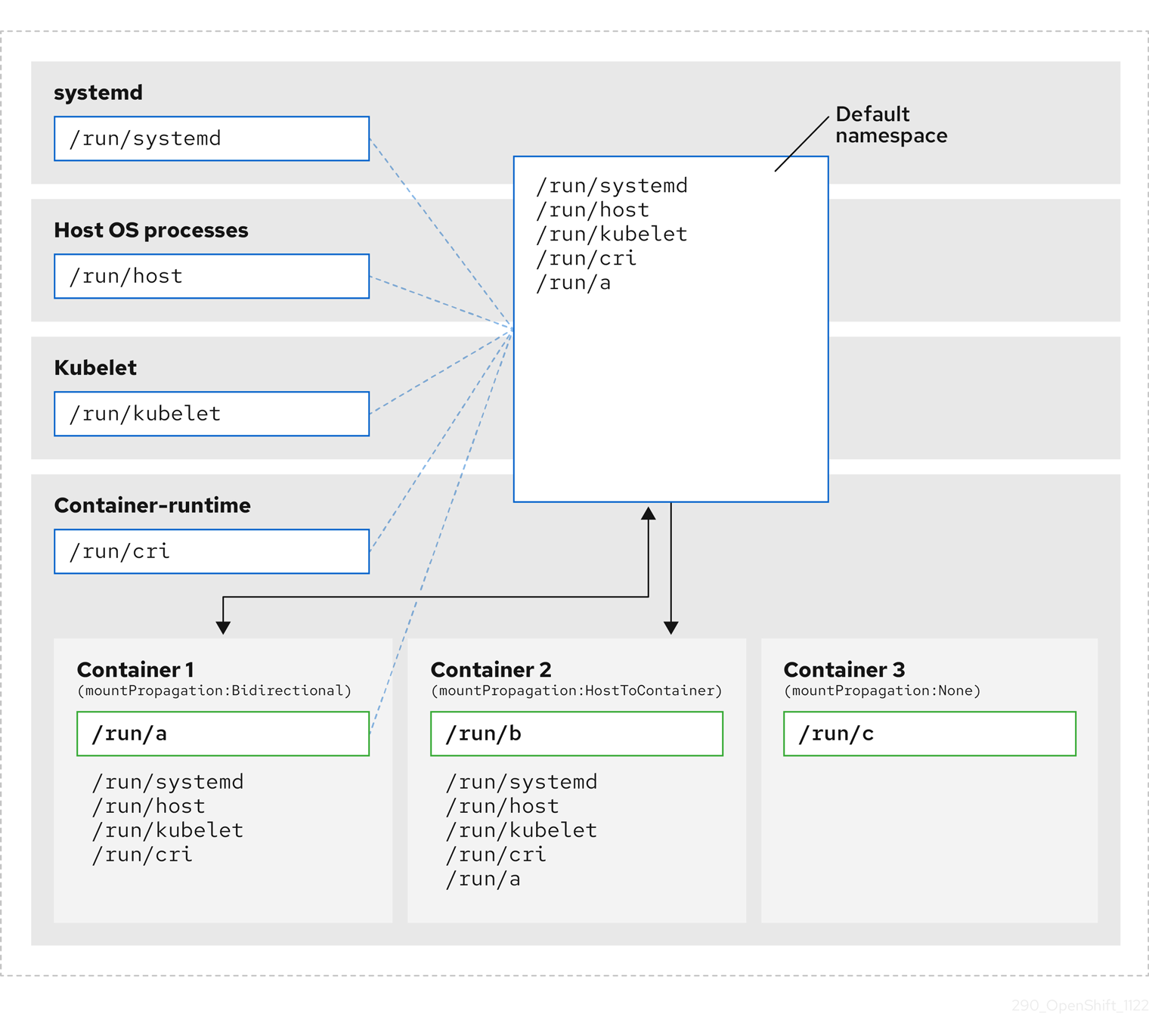
The diagram shows systemd, host operating system processes, kubelet, and the container runtime sharing a single mount namespace.
- systemd, host operating system processes, kubelet, and the container runtime each have access to and visibility of all mount points.
-
Container 1, configured with bidirectional mount propagation, can access systemd and host mounts, kubelet and CRI-O mounts. A mount originating in Container 1, such as
/run/ais visible to systemd, host operating system processes, kubelet, container runtime, and other containers with host-to-container or bidirectional mount propagation configured (as in Container 2). -
Container 2, configured with host-to-container mount propagation, can access systemd and host mounts, kubelet and CRI-O mounts. A mount originating in Container 2, such as
/run/b, is not visible to any other context. -
Container 3, configured with no mount propagation, has no visibility of external mount points. A mount originating in Container 3, such as
/run/c, is not visible to any other context.
The following diagram illustrates the system state after encapsulation.
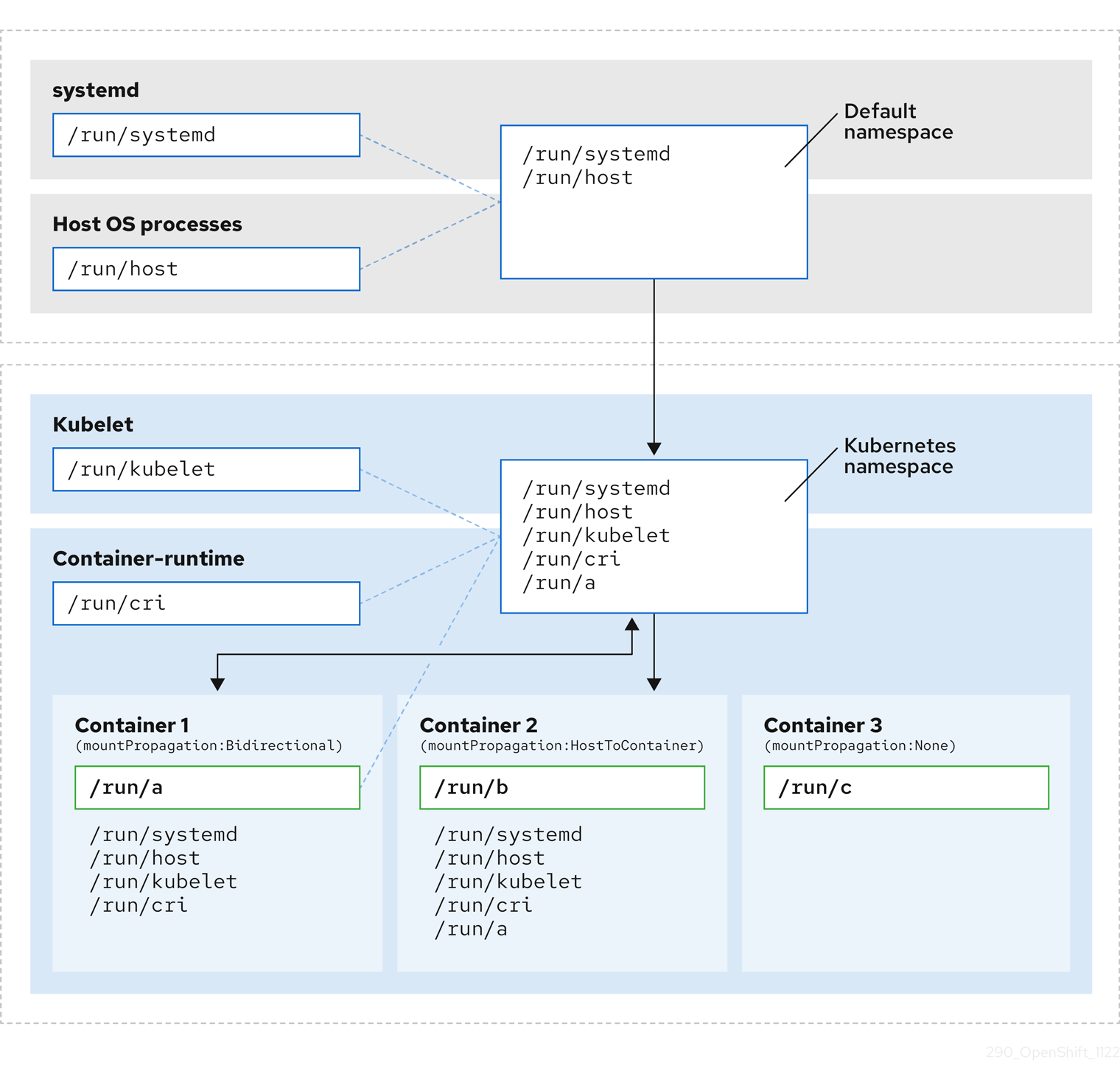
- The main systemd process is no longer devoted to unnecessary scanning of Kubernetes-specific mount points. It only monitors systemd-specific and host mount points.
- The host operating system processes can access only the systemd and host mount points.
- Using a separate mount namespace for both CRI-O and kubelet completely separates all container-specific mounts away from any systemd or other host operating system interaction whatsoever.
-
The behavior of Container 1 is unchanged, except a mount it creates such as
/run/ais no longer visible to systemd or host operating system processes. It is still visible to kubelet, CRI-O, and other containers with host-to-container or bidirectional mount propagation configured (like Container 2). - The behavior of Container 2 and Container 3 is unchanged.
13.4.2. Configuring mount namespace encapsulation
You can configure mount namespace encapsulation so that a cluster runs with less resource overhead.
Mount namespace encapsulation is a Technology Preview feature and the feature is disabled by default. To use the feature, you must enable the feature manually.
Prerequisites
-
You have installed the OpenShift CLI (
oc). -
You have logged in as a user with
cluster-adminprivileges.
Procedure
Create a file called
mount_namespace_config.yamlwith the following YAML:apiVersion: machineconfiguration.openshift.io/v1 kind: MachineConfig metadata: labels: machineconfiguration.openshift.io/role: master name: 99-kubens-master spec: config: ignition: version: 3.2.0 systemd: units: - enabled: true name: kubens.service --- apiVersion: machineconfiguration.openshift.io/v1 kind: MachineConfig metadata: labels: machineconfiguration.openshift.io/role: worker name: 99-kubens-worker spec: config: ignition: version: 3.2.0 systemd: units: - enabled: true name: kubens.serviceApply the mount namespace
MachineConfigCR by running the following command:$ oc apply -f mount_namespace_config.yamlExample output
machineconfig.machineconfiguration.openshift.io/99-kubens-master created machineconfig.machineconfiguration.openshift.io/99-kubens-worker createdThe
MachineConfigCR can take up to thirty minutes to finish being applied in the cluster. You can check the status of theMachineConfigCR by running the following command:$ oc get mcpExample output
NAME CONFIG UPDATED UPDATING DEGRADED MACHINECOUNT READYMACHINECOUNT UPDATEDMACHINECOUNT DEGRADEDMACHINECOUNT AGE master rendered-master-03d4bc4befb0f4ed3566a2c8f7636751 False True False 3 0 0 0 45m worker rendered-worker-10577f6ab0117ed1825f8af2ac687ddf False True False 3 1 1Wait for the
MachineConfigCR to be applied successfully across all control plane and worker nodes after running the following command:$ oc wait --for=condition=Updated mcp --all --timeout=30mExample output
machineconfigpool.machineconfiguration.openshift.io/master condition met machineconfigpool.machineconfiguration.openshift.io/worker condition met
Verification
Open a debug shell to the cluster host:
$ oc debug node/<node_name>Open a
chrootsession:sh-4.4# chroot /hostCheck the systemd mount namespace:
sh-4.4# readlink /proc/1/ns/mntExample output
mnt:[4026531953]Check kubelet mount namespace:
sh-4.4# readlink /proc/$(pgrep kubelet)/ns/mntExample output
mnt:[4026531840]Check the CRI-O mount namespace:
sh-4.4# readlink /proc/$(pgrep crio)/ns/mntExample output
mnt:[4026531840]These commands return the mount namespaces associated with systemd, kubelet, and the container runtime. In OpenShift Container Platform, the container runtime is CRI-O.
Encapsulation is in effect if systemd is in a different mount namespace from kubelet and CRI-O as in the previous output example. Encapsulation is not in effect if all three processes are in the same mount namespace.
13.4.3. Inspecting encapsulated namespaces
You can inspect Kubernetes-specific mount points in the cluster host operating system for debugging or auditing purposes by using the kubensenter script that is available in Red Hat Enterprise Linux CoreOS (RHCOS).
SSH shell sessions to the cluster host are in the default namespace. To inspect Kubernetes-specific mount points in an SSH shell prompt, you need to run the kubensenter script as root. The kubensenter script is aware of the state of the mount encapsulation, and the script is safe to run even if encapsulation is not enabled.
oc debug remote shell sessions start inside the Kubernetes namespace by default. You do not need to run kubensenter to inspect mount points when you use oc debug.
If the encapsulation feature is not enabled, the kubensenter findmnt and findmnt commands return the same output, regardless of whether they are run in an oc debug session or in an SSH shell prompt.
Prerequisites
-
You have installed the OpenShift CLI (
oc). -
You have logged in as a user with
cluster-adminprivileges. - You have configured SSH access to the cluster host.
Procedure
Open a remote SSH shell to the cluster host. For example:
$ ssh core@<node_name>Run commands using the provided
kubensenterscript as the root user. To run a single command inside the Kubernetes namespace, provide the command and any arguments to thekubensenterscript. For example, to run thefindmntcommand inside the Kubernetes namespace, run the following command:[core@control-plane-1 ~]$ sudo kubensenter findmntExample output
kubensenter: Autodetect: kubens.service namespace found at /run/kubens/mnt TARGET SOURCE FSTYPE OPTIONS / /dev/sda4[/ostree/deploy/rhcos/deploy/32074f0e8e5ec453e56f5a8a7bc9347eaa4172349ceab9c22b709d9d71a3f4b0.0] | xfs rw,relatime,seclabel,attr2,inode64,logbufs=8,logbsize=32k,prjquota shm tmpfs ...To start a new interactive shell inside the Kubernetes namespace, run the
kubensenterscript without any arguments:[core@control-plane-1 ~]$ sudo kubensenterExample output
kubensenter: Autodetect: kubens.service namespace found at /run/kubens/mnt
13.4.4. Running additional services in the encapsulated namespace
You can adapt any existing tools by using the kubensenter script that is provided with OpenShift Container Platform to execute an additional command inside the Kubernetes mount point.
Any monitoring tool that relies on the ability to run in the host operating system and have visibility of mount points created by kubelet, CRI-O, or containers themselves, must enter the container mount namespace to see these mount points.
The kubensenter script is aware of the state of the mount encapsulation feature status, and is safe to run even if encapsulation is not enabled. In that case the script executes the provided command in the default mount namespace.
For example, if a systemd service needs to run inside the new Kubernetes mount namespace, edit the service file and use the ExecStart= command line with kubensenter.
[Unit]
Description=Example service
[Service]
ExecStart=/usr/bin/kubensenter /path/to/original/command arg1 arg2Chapter 14. Managing bare-metal hosts
You can configure bare-metal hosts directly within OpenShift Container Platform. To provision and manage nodes in a bare-metal cluster, use Machine and MachineSet custom resources (CRs).
14.1. About bare metal hosts and nodes
To provision a Red Hat Enterprise Linux CoreOS (RHCOS) bare-metal host as a node in your cluster, first create a MachineSet custom resource (CR) object that corresponds to bare-metal host hardware.
Bare-metal host compute machine sets describe infrastructure components specific to your configuration. You apply specific Kubernetes labels to these compute machine sets and then update the infrastructure components to run on only those machines.
When you scale up the relevant MachineSet CR that contains a metal3.io/autoscale-to-hosts annotation, Machine CRs are created automatically. OpenShift Container Platform uses Machine CRs to provision the bare-metal node that corresponds to the host as specified in the MachineSet CR.
14.2. Maintaining bare metal hosts
You can maintain the details of the bare metal hosts in your cluster from the OpenShift Container Platform web console.
Procedure
From the web console, comlete the following steps:
- Navigate to Compute → Bare Metal Hosts.
- Select a task from the Actions drop-down menu.
- Manage items such as baseboard management controller (BMC) details, boot MAC address for the host, enable power management, and so on. You can also review the details of the network interfaces and drives for the host.
- Move a bare-metal host into maintenance mode. When you move a host into maintenance mode, the scheduler moves all managed workloads off the corresponding bare-metal node. No new workloads are scheduled while in maintenance mode.
Deprovision a bare-metal host in the web console. Deprovisioning a host does the following actions:
-
Annotates the bare-metal host CR with
cluster.k8s.io/delete-machine: true. Scales down the related compute machine set.
NotePowering off the host without first moving the daemon set and unmanaged static pods to another node can cause service disruption and loss of data.
-
Annotates the bare-metal host CR with
14.2.1. Adding a bare metal host to the cluster using the web console
You can add bare-metal hosts to the cluster by using the web console.
Prerequisites
- Install an RHCOS cluster on bare metal.
-
Log in as a user with
cluster-adminprivileges.
Procedure
- In the web console, navigate to Compute → Bare Metal Hosts.
- Select Add Host → New with Dialog.
- Specify a unique name for the new bare-metal host.
- Set the Boot MAC address.
- Set the Baseboard Management Console (BMC) Address.
- Enter the user credentials for the baseboard management controller (BMC) of the host.
- Select to power on the host after creation, and select Create.
Scale up the number of replicas to match the number of available bare metal hosts. Navigate to Compute → MachineSets, and increase the number of machine replicas in the cluster by selecting Edit Machine count from the Actions drop-down menu.
NoteYou can also manage the number of bare-metal nodes by using the
oc scalecommand and the appropriate bare-metal compute machine set.
14.2.2. Adding a bare-metal host to the cluster using YAML in the web console
You can add bare-metal hosts to the cluster in the web console by using a YAML file that describes the bare-metal host.
Prerequisites
- Install a RHCOS compute machine on bare-metal infrastructure for use in the cluster.
-
Log in as a user with
cluster-adminprivileges. -
Create a
SecretCR for the bare-metal host.
Procedure
- In the web console, navigate to Compute → Bare Metal Hosts.
- Select Add Host → New from YAML.
Copy and paste the below YAML, modifying the relevant fields with the details of your host:
apiVersion: metal3.io/v1alpha1 kind: BareMetalHost metadata: name: <bare_metal_host_name> spec: online: true bmc: address: <bmc_address> credentialsName: <secret_credentials_name> disableCertificateVerification: True bootMACAddress: <host_boot_mac_address> # ...where:
spec.bmc.credentialsName-
Specifies a reference to a valid
SecretCR. The Bare Metal Operator cannot manage the bare-metal host without a validSecretreferenced in thecredentialsName. For more information about secrets and how to create them, see "Understanding secrets". spec.bmc.disableCertificateVerification-
Specifies whether to require TLS host validation between the cluster and the baseboard management controller (BMC). When this field is set to
true, TLS host validation is disabled.
- Select Create to save the YAML and create the new bare-metal host.
Scale up the number of replicas to match the number of available bare-metal hosts. Navigate to Compute → MachineSets, and increase the number of machines in the cluster by selecting Edit Machine count from the Actions drop-down menu.
NoteYou can also manage the number of bare-metal nodes by using the
oc scalecommand and the appropriate bare-metal compute machine set.
14.2.3. Automatically scaling machines to the number of available bare-metal hosts
To automatically create the number of Machine objects that matches the number of available BareMetalHost objects, add a metal3.io/autoscale-to-hosts annotation to the MachineSet object.
Prerequisites
-
Install RHCOS bare-metal compute machines for use in the cluster, and create corresponding
BareMetalHostobjects. -
Install the OpenShift CLI (
oc). -
Log in as a user with
cluster-adminprivileges.
Procedure
To configure automatic scaling for a compute machine set, annotate the compute machine set by running the following command:
$ oc annotate machineset <machineset> -n openshift-machine-api 'metal3.io/autoscale-to-hosts=<any_value>'-
<machineset>: Specifies the name of the compute machine set that you want to configure for automatic scaling. -
<any_value>Specifies is a value, such astrueor"".
-
Wait for the new scaled machines to start.
NoteThe
BareMetalHostobject continues to be counted against theMachineSetthat theMachineobject was created from when the following conditions are met:-
You use a
BareMetalHostobject to create a machine in the cluster. -
You subsequently change labels or selectors on the
BareMetalHost.
-
You use a
14.2.4. Removing bare-metal hosts from the provisioner node
In certain circumstances, you might want to temporarily remove bare-metal hosts from the provisioner node. For example, to prevent the management of the number of Machine objects that matches the number of available BareMetalHost objects, add a baremetalhost.metal3.io/detached annotation to the MachineSet object.
Consider an example during provisioning when a bare-metal host reboot is triggered by using the OpenShift Container Platform administration console or as a result of a Machine Config Pool update. In this case, OpenShift Container Platform logs into the integrated Dell Remote Access Controller (iDRAC) and issues a delete of the job queue.
This annotation has an effect for only BareMetalHost objects that are in either Provisioned, ExternallyProvisioned, or Ready/Available states.
Prerequisites
-
Install RHCOS bare-metal compute machines for use in the cluster and create corresponding
BareMetalHostobjects. -
Install the OpenShift CLI (
oc). -
Log in as a user with
cluster-adminprivileges.
Procedure
To configure automatic scaling for a compute machine set, annotate the compute machine set by running the following command:
$ oc annotate machineset <machineset> -n openshift-machine-api 'baremetalhost.metal3.io/detached'Wait for the new machines to start.
NoteWhen you use a
BareMetalHostobject to create a machine in the cluster and labels or selectors are subsequently changed on theBareMetalHost, theBareMetalHostobject continues to be counted against theMachineSetthat theMachineobject was created from.In the provisioning use case, remove the annotation after the reboot is complete by using the following command:
$ oc annotate machineset <machineset> -n openshift-machine-api 'baremetalhost.metal3.io/detached-'
14.2.5. Powering off bare-metal hosts by using the web console
You can power off bare-metal cluster hosts in the web console. Before you power off a host, mark the node as unschedulable and drain all pods and workloads from the node.
Prerequisites
- You have installed a RHCOS compute machine on bare-metal infrastructure for use in the cluster.
-
You have logged in as a user with
cluster-adminprivileges. -
You have configured the host to be managed and have added Baseboard Management Console credentials for the cluster host. You can add BMC credentials by applying a
Secretcustom resource (CR) in the cluster or by logging in to the web console and configuring the bare-metal host to be managed.
Procedure
- Navigate to Nodes and select the node that you want to power off. Expand the Actions menu and select Mark as unschedulable.
- Manually delete or relocate running pods on the node by adjusting the pod deployments or scaling down workloads on the node to zero. Wait for the drain process to complete.
- Navigate to Compute → Bare Metal Hosts.
- Expand the Options menu for the bare-metal host that you want to power off, and select Power Off.
- Select Immediate power off.
14.2.6. Powering off bare-metal hosts by using the CLI
You can power off bare-metal cluster hosts by applying a patch in the cluster by using the OpenShift CLI (oc). Before you power off a host, mark the node as unschedulable and drain all pods and workloads from the node.
Prerequisites
- You have installed a RHCOS compute machine on bare-metal infrastructure for use in the cluster.
-
You have logged in as a user with
cluster-adminprivileges. -
You have configured the host to be managed and have added Baseboard Management Console credentials for the cluster host. You can add BMC credentials by applying a
Secretcustom resource (CR) in the cluster or by logging in to the web console and configuring the bare-metal host to be managed.
Procedure
Get the name of the managed bare-metal host by entering the following command:
$ oc get baremetalhosts -n openshift-machine-api -o jsonpath='{range .items[*]}{.metadata.name}{"\t"}{.status.provisioning.state}{"\n"}{end}'Example output
master-0.example.com managed master-1.example.com managed master-2.example.com managed worker-0.example.com managed worker-1.example.com managed worker-2.example.com managedMark the node as unschedulable by entering the following command:
$ oc adm cordon <bare_metal_host>-
<bare_metal_host>: Specifies the name of the host that you want to shut down. For example,worker-2.example.com.
-
Drain all pods on the node by entering the following command:
$ oc adm drain <bare_metal_host> --force=truePods that are backed by replication controllers are rescheduled to other available nodes in the cluster.
Safely power off the bare-metal host by entering the following command:
$ oc patch <bare_metal_host> --type json -p '[{"op": "replace", "path": "/spec/online", "value": false}]'After you power on the host, make the node schedulable for workloads by entering the following command:
$ oc adm uncordon <bare_metal_host>
Chapter 15. Optimizing memory management for workloads by using huge pages
To optimize memory management for specific workloads, configure huge pages.
15.1. What huge pages do
To optimize memory mapping efficiency, understand the function of huge pages. Unlike standard 4Ki blocks, huge pages are larger memory segments that reduce the tracking load on the translation lookaside buffer (TLB) hardware cache.
Memory is managed in blocks known as pages. On most systems, a page is 4Ki; 1Mi of memory is equal to 256 pages; 1Gi of memory is 256,000 pages, and so on. CPUs have a built-in memory management unit that manages a list of these pages in hardware. The translation lookaside buffer (TLB) is a small hardware cache of virtual-to-physical page mappings. If the virtual address passed in a hardware instruction can be found in the TLB, the mapping can be determined quickly. If not, a TLB miss occurs, and the system falls back to slower, software-based address translation, resulting in performance issues. Since the size of the TLB is fixed, the only way to reduce the chance of a TLB miss is to increase the page size.
A huge page is a memory page that is larger than 4Ki. On x86_64 architectures, there are two common huge page sizes: 2Mi and 1Gi. Sizes vary on other architectures. To use huge pages, code must be written so that applications are aware of them. Transparent huge pages (THP) attempt to automate the management of huge pages without application knowledge, but they have limitations. In particular, they are limited to 2Mi page sizes. THP can lead to performance degradation on nodes with high memory utilization or fragmentation because of defragmenting efforts of THP, which can lock memory pages. For this reason, some applications might be designed to or recommend usage of pre-allocated huge pages instead of THP.
In OpenShift Container Platform, applications in a pod can allocate and consume pre-allocated huge pages.
15.2. How huge pages are consumed by apps
You must ensure that nodes pre-allocate huge pages in order for the node to report its huge page capacity. A node can only pre-allocate huge pages for a single size.
Huge pages can be consumed through container-level resource requirements by using the resource name hugepages-<size>, where size is the most compact binary notation by using integer values supported on a particular node. For example, if a node supports 2048 KiB page sizes, the node exposes a schedulable resource hugepages-2Mi. Unlike CPU or memory, huge pages do not support over-commitment.
apiVersion: v1
kind: Pod
metadata:
generateName: hugepages-volume-
spec:
containers:
- securityContext:
privileged: true
image: rhel7:latest
command:
- sleep
- inf
name: example
volumeMounts:
- mountPath: /dev/hugepages
name: hugepage
resources:
limits:
hugepages-2Mi: 100Mi
memory: "1Gi"
cpu: "1"
volumes:
- name: hugepage
emptyDir:
medium: HugePagesspec.containers.resources.limits.hugepages-2Mi: Specifies the amount of memory forhugepagesas the exact amount to be allocated.ImportantDo not specify this value as the amount of memory for
hugepagesmultiplied by the size of the page. For example, given a huge page size of 2 MB, if you want to use 100 MB of huge-page-backed RAM for your application, then you would allocate 50 huge pages. OpenShift Container Platform handles the math for you. As in the above example, you can specify100MBdirectly.
15.2.1. Allocating huge pages of a specific size
Some platforms support multiple huge page sizes. To allocate huge pages of a specific size, precede the huge pages boot command parameters with a huge page size selection parameter hugepagesz=<size>. The <size> value must be specified in bytes with an optional scale suffix [kKmMgG]. The default huge page size can be defined with the default_hugepagesz=<size> boot parameter.
15.2.2. Huge page requirements
- Huge page requests must equal the limits. This is the default if limits are specified, but requests are not.
- Huge pages are isolated at a pod scope. Container isolation is planned in a future iteration.
-
EmptyDirvolumes backed by huge pages must not consume more huge page memory than the pod request. -
Applications that consume huge pages via
shmget()withSHM_HUGETLBmust run with a supplemental group that matches proc/sys/vm/hugetlb_shm_group.
15.3. Consuming huge pages resources using the Downward API
To inject information about the huge pages resources consumed by a container, use the Downward API.
You can inject the resource allocation as environment variables, a volume plugin, or both. Applications that you develop and run in the container can determine the resources that are available by reading the environment variables or files in the specified volumes.
Procedure
Create a
hugepages-volume-pod.yamlfile that is similar to the following example:apiVersion: v1 kind: Pod metadata: generateName: hugepages-volume- labels: app: hugepages-example spec: containers: - securityContext: capabilities: add: [ "IPC_LOCK" ] image: rhel7:latest command: - sleep - inf name: example volumeMounts: - mountPath: /dev/hugepages name: hugepage - mountPath: /etc/podinfo name: podinfo resources: limits: hugepages-1Gi: 2Gi memory: "1Gi" cpu: "1" requests: hugepages-1Gi: 2Gi env: - name: REQUESTS_HUGEPAGES_1GI valueFrom: resourceFieldRef: containerName: example resource: requests.hugepages-1Gi volumes: - name: hugepage emptyDir: medium: HugePages - name: podinfo downwardAPI: items: - path: "hugepages_1G_request" resourceFieldRef: containerName: example resource: requests.hugepages-1Gi divisor: 1Giwhere:
spec.containers.securityContext.env.name-
Specifies what resource to read and use from
requests.hugepages-1Giand expose the value as theREQUESTS_HUGEPAGES_1GIenvironment variable. spec.volumes.name.items.path-
Specifies what resource to read and use from
requests.hugepages-1Giand expose the value as the file/etc/podinfo/hugepages_1G_request.
Create the pod from the
hugepages-volume-pod.yamlfile by entering the following command:$ oc create -f hugepages-volume-pod.yaml
Verification
Check the value of the
REQUESTS_HUGEPAGES_1GIenvironment variable:$ oc exec -it $(oc get pods -l app=hugepages-example -o jsonpath='{.items[0].metadata.name}') \ -- env | grep REQUESTS_HUGEPAGES_1GIExample output
REQUESTS_HUGEPAGES_1GI=2147483648Check the value of the
/etc/podinfo/hugepages_1G_requestfile:$ oc exec -it $(oc get pods -l app=hugepages-example -o jsonpath='{.items[0].metadata.name}') \ -- cat /etc/podinfo/hugepages_1G_requestExample output
2
15.4. Configuring huge pages at boot time
To ensure nodes in your OpenShift Container Platform cluster pre-allocate memory for specific workloads, reserve huge pages at boot time.
There are two ways of reserving huge pages: at boot time and at run time. Reserving at boot time increases the possibility of success because the memory has not yet been significantly fragmented. The Node Tuning Operator currently supports boot-time allocation of huge pages on specific nodes.
The TuneD boot-loader plugin only supports Red Hat Enterprise Linux CoreOS (RHCOS) compute nodes.
Procedure
Label all nodes that need the same huge pages setting by a label by entering the following command:
$ oc label node <node_using_hugepages> node-role.kubernetes.io/worker-hp=Create a file with the following content and name it
hugepages-tuned-boottime.yaml:apiVersion: tuned.openshift.io/v1 kind: Tuned metadata: name: hugepages namespace: openshift-cluster-node-tuning-operator spec: profile: - data: | [main] summary=Boot time configuration for hugepages include=openshift-node [bootloader] cmdline_openshift_node_hugepages=hugepagesz=2M hugepages=50 name: openshift-node-hugepages recommend: - machineConfigLabels: machineconfiguration.openshift.io/role: "worker-hp" priority: 30 profile: openshift-node-hugepages # ...where:
metadata.name-
Specifies the
nameof the Tuned resource tohugepages. spec.profile-
Specifies the
profilesection to allocate huge pages. spec.profile.data- Specifies the order of parameters. The order is important as some platforms support huge pages of various sizes.
spec.recommend.machineConfigLabels- Specifies the enablement of a machine config pool based matching.
Create the Tuned
hugepagesobject by entering the following command:$ oc create -f hugepages-tuned-boottime.yamlCreate a file with the following content and name it
hugepages-mcp.yaml:apiVersion: machineconfiguration.openshift.io/v1 kind: MachineConfigPool metadata: name: worker-hp labels: worker-hp: "" spec: machineConfigSelector: matchExpressions: - {key: machineconfiguration.openshift.io/role, operator: In, values: [worker,worker-hp]} nodeSelector: matchLabels: node-role.kubernetes.io/worker-hp: ""Create the machine config pool by entering the following command:
$ oc create -f hugepages-mcp.yaml
Verification
To check that enough non-fragmented memory exists and that all the nodes in the
worker-hpmachine config pool now have 50 2Mi huge pages allocated, enter the following command:$ oc get node <node_using_hugepages> -o jsonpath="{.status.allocatable.hugepages-2Mi}" 100Mi
15.5. Disabling transparent huge pages
If your application can handle huge pages on its own, you can disable transparent huge pages (THP) to optimally handle huge pages for all types of workloads and avoid the performance regressions that THP can cause.
Disabling THP prevents them from attempting to automate most aspects of creating, managing, and using huge pages. You can disable THP by using the Node Tuning Operator (NTO).
Procedure
Create a file with the following content and name it
thp-disable-tuned.yaml:apiVersion: tuned.openshift.io/v1 kind: Tuned metadata: name: thp-workers-profile namespace: openshift-cluster-node-tuning-operator spec: profile: - data: | [main] summary=Custom tuned profile for OpenShift to turn off THP on worker nodes include=openshift-node [vm] transparent_hugepages=never name: openshift-thp-never-worker recommend: - match: - label: node-role.kubernetes.io/worker priority: 25 profile: openshift-thp-never-worker # ...Create the Tuned object by entering the following command:
$ oc create -f thp-disable-tuned.yamlCheck the list of active profiles by entering the following command::
$ oc get profile -n openshift-cluster-node-tuning-operator
Verification
Log in to one of the nodes and do a regular THP check to verify if the nodes applied the profile successfully:
$ cat /sys/kernel/mm/transparent_hugepage/enabledExample output
always madvise [never]
Chapter 16. Understanding low latency tuning for cluster nodes
By first understanding low latency tuning for cluster nodes, you can then use edge computing as a key role in reducing latency and congestion problems and improving application performance for telco and 5G network applications.
Maintaining a network architecture with the lowest possible latency is key for meeting the network performance requirements of 5G. Compared to 4G technology, with an average latency of 50 ms, 5G is targeted to reach latency of 1 ms or less. This reduction in latency boosts wireless throughput by a factor of 10.
16.1. About low latency
You can tune for zero packet loss so to mitigate the inherent issues that degrade network performance.
For example, many of the deployed applications in the Telco space require low latency that can only tolerate zero packet loss. For more information, see "Tuning for Zero Packet Loss in Red Hat OpenStack Platform (RHOSP)".
The Edge computing initiative also comes in to play for reducing latency rates. Think of it as being on the edge of the cloud and closer to the user. This greatly reduces the distance between the user and distant data centers, resulting in reduced application response times and performance latency.
Administrators must be able to manage their many Edge sites and local services in a centralized way so that all of the deployments can run at the lowest possible management cost. They also need an easy way to deploy and configure certain nodes of their cluster for real-time low latency and high-performance purposes. Low latency nodes are useful for applications such as Cloud-native Network Functions (CNF) and Data Plane Development Kit (DPDK).
OpenShift Container Platform currently provides mechanisms to tune software on an OpenShift Container Platform cluster for real-time running and low latency (around <20 microseconds reaction time). This includes tuning the kernel and OpenShift Container Platform set values, installing a kernel, and reconfiguring the machine. But this method requires setting up four different Operators and performing many configurations that, when done manually, is complex and could be prone to mistakes.
OpenShift Container Platform uses the Node Tuning Operator to implement automatic tuning to achieve low latency performance for OpenShift Container Platform applications. The cluster administrator uses this performance profile configuration that makes it easier to make these changes in a more reliable way. The administrator can specify whether to update the kernel to kernel-rt, reserve CPUs for cluster and operating system housekeeping duties, including pod infra containers, and isolate CPUs for application containers to run the workloads.
OpenShift Container Platform also supports workload hints for the Node Tuning Operator that can tune the PerformanceProfile to meet the demands of different industry environments. Workload hints are available for highPowerConsumption (very low latency at the cost of increased power consumption) and realTime (priority given to optimum latency). A combination of true/false settings for these hints can be used to deal with application-specific workload profiles and requirements.
Workload hints simplify the fine-tuning of performance to industry sector settings. Instead of a “one size fits all” approach, workload hints can cater to usage patterns such as placing priority on:
- Low latency
- Real-time capability
- Efficient use of power
Ideally, all of the previously listed items are prioritized. Some of these items come at the expense of others however. The Node Tuning Operator is now aware of the workload expectations and better able to meet the demands of the workload. The cluster admin can now specify into which use case that workload falls. The Node Tuning Operator uses the PerformanceProfile to fine tune the performance settings for the workload.
The environment in which an application is operating influences its behavior. For a typical data center with no strict latency requirements, only minimal default tuning is needed that enables CPU partitioning for some high performance workload pods. For data centers and workloads where latency is a higher priority, measures are still taken to optimize power consumption. The most complicated cases are clusters close to latency-sensitive equipment such as manufacturing machinery and software-defined radios. This last class of deployment is often referred to as Far edge. For Far edge deployments, ultra-low latency is the ultimate priority, and is achieved at the expense of power management.
16.2. About Hyper-Threading for low latency and real-time applications
You can use Hyper-Threading, an Intel processor technology, to allow a physical CPU processor core to function as two logical cores, executing two independent threads simultaneously.
Hyper-Threading allows for better system throughput for certain workload types where parallel processing is beneficial. The default OpenShift Container Platform configuration expects Hyper-Threading to be enabled.
For telecommunications applications, design your application infrastructure to minimize latency as much as possible. Hyper-Threading can slow performance times and negatively affect throughput for compute-intensive workloads that require low latency. Disabling Hyper-Threading ensures predictable performance and can decrease processing times for these workloads.
Hyper-Threading implementation and configuration differs depending on the hardware you are running OpenShift Container Platform on. Consult the relevant host hardware tuning information for more details of the Hyper-Threading implementation specific to that hardware. Disabling Hyper-Threading can increase the cost per core of the cluster.
Chapter 17. Tuning nodes for low latency with the performance profile
Tune nodes for low latency by using the cluster performance profile. You can restrict CPUs for infra and application containers, configure huge pages, Hyper-Threading, and configure CPU partitions for latency-sensitive processes.
17.1. Creating a performance profile
You can create a cluster performance profile by using the Performance Profile Creator (PPC) tool. The PPC is a function of the Node Tuning Operator.
The PPC combines information about your cluster with user-supplied configurations to generate a performance profile that is appropriate to your hardware, topology and use-case.
Performance profiles are applicable only to bare-metal environments where the cluster has direct access to the underlying hardware resources. You can configure performances profiles for both single-node OpenShift and multi-node clusters.
The following is a high-level workflow for creating and applying a performance profile in your cluster:
-
Create a machine config pool (MCP) for nodes that you want to target with performance configurations. In single-node OpenShift clusters, you must use the
masterMCP because there is only one node in the cluster. -
Gather information about your cluster using the
must-gathercommand. Use the PPC tool to create a performance profile by using either of the following methods:
- Run the PPC tool by using Podman as described in Running the Performance Profile Creator using Podman. .
- Run the PPC tool by using a wrapper script as described in Running the Performance Profile Creator wrapper script..
- Configure the performance profile for your use case and apply the performance profile to your cluster.
17.1.1. About the Performance Profile Creator
The Performance Profile Creator (PPC) is a command-line tool and is delivered with the Node Tuning Operator. You can use the PPC CLI to create a performance profile for your cluster.
Initially, you can use the PPC tool to process the must-gather data to display key performance configurations for your cluster, including the following information:
- NUMA cell partitioning with the allocated CPU IDs
- Hyper-Threading node configuration
You can use this information to help you configure the performance profile.
Specify performance configuration arguments to the PPC tool to generate a proposed performance profile that is appropriate for your hardware, topology, and use-case.
You can run the PPC by using one of the following methods:
- Run the PPC by using Podman
- Run the PPC by using the wrapper script
Using the wrapper script abstracts some of the more granular Podman tasks into an executable script. For example, the wrapper script handles tasks such as pulling and running the required container image, mounting directories into the container, and providing parameters directly to the container through Podman. Both methods achieve the same result.
17.1.2. Creating a machine config pool to target nodes for performance tuning
For multi-node clusters, you can define a machine config pool (MCP) to identify the target nodes that you want to configure with a performance profile.
In single-node OpenShift clusters, you must use the master MCP because there is only one node in the cluster. You do not need to create a separate MCP for single-node OpenShift clusters.
Prerequisites
-
You have
cluster-adminrole access. -
You installed the OpenShift CLI (
oc).
Procedure
Label the target nodes for configuration by running the following command:
$ oc label node <node_name> node-role.kubernetes.io/worker-cnf=""-
<node_name>: Specifies the name of your node. This example applies theworker-cnflabel.
-
Create a
MachineConfigPoolresource containing the target nodes:Create a YAML file that defines the
MachineConfigPoolresource:Example
mcp-worker-cnf.yamlfileapiVersion: machineconfiguration.openshift.io/v1 kind: MachineConfigPool metadata: name: worker-cnf labels: machineconfiguration.openshift.io/role: worker-cnf spec: machineConfigSelector: matchExpressions: - { key: machineconfiguration.openshift.io/role, operator: In, values: [worker, worker-cnf], } paused: false nodeSelector: matchLabels: node-role.kubernetes.io/worker-cnf: ""where:
metadata.name-
Specifies a name for the
MachineConfigPoolresource. machineconfiguration.openshift.io/role- Specifes a unique label for the machine config pool.
node-role.kubernetes.io/worker-cnf- Specifies the nodes with the target label that you defined.
Apply the
MachineConfigPoolresource by running the following command:$ oc apply -f mcp-worker-cnf.yamlExample output
machineconfigpool.machineconfiguration.openshift.io/worker-cnf created
Verification
Check the machine config pools in your cluster by running the following command:
$ oc get mcpExample output
NAME CONFIG UPDATED UPDATING DEGRADED MACHINECOUNT READYMACHINECOUNT UPDATEDMACHINECOUNT DEGRADEDMACHINECOUNT AGE master rendered-master-58433c7c3c1b4ed5ffef95234d451490 True False False 3 3 3 0 6h46m worker rendered-worker-168f52b168f151e4f853259729b6azc4 True False False 2 2 2 0 6h46m worker-cnf rendered-worker-cnf-168f52b168f151e4f853259729b6azc4 True False False 1 1 1 0 73s
17.1.3. Gathering data about your cluster for the PPC
The Performance Profile Creator (PPC) tool requires must-gather data. As a cluster administrator, run the must-gather command to capture information about your cluster.
Prerequisites
-
Access to the cluster as a user with the
cluster-adminrole. -
You installed the OpenShift CLI (
oc). - You identified a target MCP that you want to configure with a performance profile.
Procedure
-
Navigate to the directory where you want to store the
must-gatherdata. Collect cluster information by running the following command:
$ oc adm must-gatherThe command creates a folder with the
must-gatherdata in your local directory with a naming format similar to the following:must-gather.local.1971646453781853027.Optional: Create a compressed file from the
must-gatherdirectory:$ tar cvaf must-gather.tar.gz <must_gather_folder><must_gather_folder>: Specifies the name of themust-gatherdata folder.NoteCompressed output is required if you are running the Performance Profile Creator wrapper script.
17.1.4. Running the Performance Profile Creator using Podman
As a cluster administrator, you can use Podman with the Performance Profile Creator (PPC) to create a performance profile.
For more information about the PPC arguments, see the section "Performance Profile Creator arguments".
The PPC uses the must-gather data from your cluster to create the performance profile. If you make any changes to your cluster, such as relabeling a node targeted for performance configuration, you must re-create the must-gather data before running PPC again.
Prerequisites
-
Access to the cluster as a user with the
cluster-adminrole. - A cluster installed on bare-metal hardware.
-
You installed
podmanand the OpenShift CLI (oc). - Access to the Node Tuning Operator image.
- You identified a machine config pool containing target nodes for configuration.
-
You have access to the
must-gatherdata for your cluster.
Procedure
Check the machine config pool by running the following command:
$ oc get mcpExample output
NAME CONFIG UPDATED UPDATING DEGRADED MACHINECOUNT READYMACHINECOUNT UPDATEDMACHINECOUNT DEGRADEDMACHINECOUNT AGE master rendered-master-58433c8c3c0b4ed5feef95434d455490 True False False 3 3 3 0 8h worker rendered-worker-668f56a164f151e4a853229729b6adc4 True False False 2 2 2 0 8h worker-cnf rendered-worker-cnf-668f56a164f151e4a853229729b6adc4 True False False 1 1 1 0 79mUse Podman to authenticate to
registry.redhat.ioby running the following command:$ podman login registry.redhat.ioUsername: <user_name> Password: <password>Optional: Display help for the PPC tool by running the following command:
$ podman run --rm --entrypoint performance-profile-creator registry.redhat.io/openshift4/ose-cluster-node-tuning-rhel9-operator:v4.20 -hExample output
A tool that automates creation of Performance Profiles Available Commands: completion Generate the autocompletion script for the specified shell help Help about any command info requires --must-gather-dir-path, ignores other arguments. [Valid values: log,json] Usage: performance-profile-creator [flags] performance-profile-creator [command] Flags: --disable-ht Disable Hyperthreading --enable-hardware-tuning Enable setting maximum cpu frequencies -h, --help help for performance-profile-creator --mcp-name string MCP name corresponding to the target machines (required) --must-gather-dir-path string Must gather directory path (default "must-gather") --offlined-cpu-count int Number of offlined CPUs --per-pod-power-management Enable Per Pod Power Management --power-consumption-mode string The power consumption mode. [Valid values: default, low-latency, ultra-low-latency] (default "default") --profile-name string Name of the performance profile to be created (default "performance") --reserved-cpu-count int Number of reserved CPUs (required) --rt-kernel Enable Real Time Kernel (required) --split-reserved-cpus-across-numa Split the Reserved CPUs across NUMA nodes --topology-manager-policy string Kubelet Topology Manager Policy of the performance profile to be created. [Valid values: single-numa-node, best-effort, restricted] (default "restricted") --user-level-networking Run with User level Networking(DPDK) enabled Use "performance-profile-creator [command] --help" for more information about a command.To display information about the cluster, run the PPC tool with the
logargument by running the following command:$ podman run --entrypoint performance-profile-creator -v <path_to_must_gather>:/must-gather:z registry.redhat.io/openshift4/ose-cluster-node-tuning-rhel9-operator:v4.20 info --must-gather-dir-path /must-gather-
--entrypoint performance-profile-creatordefines the performance profile creator as a new entry point topodman. -v <path_to_must_gather>specifies the path to either of the following components:-
The directory containing the
must-gatherdata. An existing directory containing the
must-gatherdecompressed .tar file.Example output
level=info msg="Nodes names targeted by master pool are: " level=info msg="Nodes names targeted by worker-cnf pool are: host2.example.com " level=info msg="Nodes names targeted by worker pool are: host.example.com host1.example.com " level=info msg="Cluster info:" level=info msg="MCP 'master' nodes:" level=info msg=--- level=info msg="MCP 'worker' nodes:" level=info msg="Node: host.example.com (NUMA cells: 1, HT: true)" level=info msg="NUMA cell 0 : [0 1 2 3]" level=info msg="CPU(s): 4" level=info msg="Node: host1.example.com (NUMA cells: 1, HT: true)" level=info msg="NUMA cell 0 : [0 1 2 3]" level=info msg="CPU(s): 4" level=info msg=--- level=info msg="MCP 'worker-cnf' nodes:" level=info msg="Node: host2.example.com (NUMA cells: 1, HT: true)" level=info msg="NUMA cell 0 : [0 1 2 3]" level=info msg="CPU(s): 4" level=info msg=---
-
The directory containing the
-
Create a performance profile by running the following command. The example uses sample PPC arguments and values:
$ podman run --entrypoint performance-profile-creator -v <path_to_must_gather>:/must-gather:z registry.redhat.io/openshift4/ose-cluster-node-tuning-rhel9-operator:v4.20 --mcp-name=worker-cnf --reserved-cpu-count=1 --rt-kernel=true --split-reserved-cpus-across-numa=false --must-gather-dir-path /must-gather --power-consumption-mode=ultra-low-latency --offlined-cpu-count=1 > my-performance-profile.yaml-v <path_to_must_gather>specifies the path to either of the following components:-
The directory containing the
must-gatherdata. -
The directory containing the
must-gatherdecompressed .tar file.
-
The directory containing the
-
--mcp-name=worker-cnfspecifies theworker-cnfmachine config pool. -
--reserved-cpu-count=1specifies one reserved CPU. -
--rt-kernel=trueenables the real-time kernel. -
--split-reserved-cpus-across-numa=falsedisables reserved CPUs splitting across NUMA nodes. -
--power-consumption-mode=ultra-low-latencyspecifies minimal latency at the cost of increased power consumption. --offlined-cpu-count=1specifies one offlined CPU.NoteThe
mcp-nameargument in this example is set toworker-cnfbased on the output of the commandoc get mcp. For single-node OpenShift use--mcp-name=master.Example output
level=info msg="Nodes targeted by worker-cnf MCP are: [worker-2]" level=info msg="NUMA cell(s): 1" level=info msg="NUMA cell 0 : [0 1 2 3]" level=info msg="CPU(s): 4" level=info msg="1 reserved CPUs allocated: 0 " level=info msg="2 isolated CPUs allocated: 2-3" level=info msg="Additional Kernel Args based on configuration: []"
Review the created YAML file by running the following command:
$ cat my-performance-profile.yamlExample output
--- apiVersion: performance.openshift.io/v2 kind: PerformanceProfile metadata: name: performance spec: cpu: isolated: 2-3 offlined: "1" reserved: "0" machineConfigPoolSelector: machineconfiguration.openshift.io/role: worker-cnf net: userLevelNetworking: false nodeSelector: node-role.kubernetes.io/worker-cnf: "" numa: topologyPolicy: restricted realTimeKernel: enabled: true workloadHints: highPowerConsumption: true perPodPowerManagement: false realTime: trueApply the generated profile:
$ oc apply -f my-performance-profile.yamlExample output
performanceprofile.performance.openshift.io/performance created
17.1.5. Running the Performance Profile Creator wrapper script
The wrapper script simplifies the process of creating a performance profile with the Performance Profile Creator (PPC) tool. The script handles tasks such as pulling and running the required container image, mounting directories into the container, and providing parameters directly to the container through Podman.
For more information about the Performance Profile Creator arguments, see the section "Performance Profile Creator arguments".
The PPC uses the must-gather data from your cluster to create the performance profile. If you make any changes to your cluster, such as relabeling a node targeted for performance configuration, you must re-create the must-gather data before running PPC again.
Prerequisites
-
Access to the cluster as a user with the
cluster-adminrole. - A cluster installed on bare-metal hardware.
-
You installed
podmanand the OpenShift CLI (oc). - Access to the Node Tuning Operator image.
- You identified a machine config pool containing target nodes for configuration.
-
Access to the
must-gathertarball.
Procedure
Create a file on your local machine named, for example,
run-perf-profile-creator.sh:$ vi run-perf-profile-creator.shPaste the following code into the file:
#!/bin/bash readonly CONTAINER_RUNTIME=${CONTAINER_RUNTIME:-podman} readonly CURRENT_SCRIPT=$(basename "$0") readonly CMD="${CONTAINER_RUNTIME} run --entrypoint performance-profile-creator" readonly IMG_EXISTS_CMD="${CONTAINER_RUNTIME} image exists" readonly IMG_PULL_CMD="${CONTAINER_RUNTIME} image pull" readonly MUST_GATHER_VOL="/must-gather" NTO_IMG="registry.redhat.io/openshift4/ose-cluster-node-tuning-rhel9-operator:v4.20" MG_TARBALL="" DATA_DIR="" usage() { print "Wrapper usage:" print " ${CURRENT_SCRIPT} [-h] [-p image][-t path] -- [performance-profile-creator flags]" print "" print "Options:" print " -h help for ${CURRENT_SCRIPT}" print " -p Node Tuning Operator image" print " -t path to a must-gather tarball" ${IMG_EXISTS_CMD} "${NTO_IMG}" && ${CMD} "${NTO_IMG}" -h } function cleanup { [ -d "${DATA_DIR}" ] && rm -rf "${DATA_DIR}" } trap cleanup EXIT exit_error() { print "error: $*" usage exit 1 } print() { echo "$*" >&2 } check_requirements() { ${IMG_EXISTS_CMD} "${NTO_IMG}" || ${IMG_PULL_CMD} "${NTO_IMG}" || \ exit_error "Node Tuning Operator image not found" [ -n "${MG_TARBALL}" ] || exit_error "Must-gather tarball file path is mandatory" [ -f "${MG_TARBALL}" ] || exit_error "Must-gather tarball file not found" DATA_DIR=$(mktemp -d -t "${CURRENT_SCRIPT}XXXX") || exit_error "Cannot create the data directory" tar -zxf "${MG_TARBALL}" --directory "${DATA_DIR}" || exit_error "Cannot decompress the must-gather tarball" chmod a+rx "${DATA_DIR}" return 0 } main() { while getopts ':hp:t:' OPT; do case "${OPT}" in h) usage exit 0 ;; p) NTO_IMG="${OPTARG}" ;; t) MG_TARBALL="${OPTARG}" ;; ?) exit_error "invalid argument: ${OPTARG}" ;; esac done shift $((OPTIND - 1)) check_requirements || exit 1 ${CMD} -v "${DATA_DIR}:${MUST_GATHER_VOL}:z" "${NTO_IMG}" "$@" --must-gather-dir-path "${MUST_GATHER_VOL}" echo "" 1>&2 } main "$@"Add execute permissions for everyone on this script:
$ chmod a+x run-perf-profile-creator.shUse Podman to authenticate to
registry.redhat.ioby running the following command:$ podman login registry.redhat.ioUsername: <user_name> Password: <password>Optional: Display help for the PPC tool by running the following command:
$ ./run-perf-profile-creator.sh -hWrapper usage: run-perf-profile-creator.sh [-h] [-p image][-t path] -- [performance-profile-creator flags] Options: -h help for run-perf-profile-creator.sh -p Node Tuning Operator image -t path to a must-gather tarball A tool that automates creation of Performance Profiles Usage: performance-profile-creator [flags] Flags: --disable-ht Disable Hyperthreading -h, --help help for performance-profile-creator --info string Show cluster information; requires --must-gather-dir-path, ignore the other arguments. [Valid values: log, json] (default "log") --mcp-name string MCP name corresponding to the target machines (required) --must-gather-dir-path string Must gather directory path (default "must-gather") --offlined-cpu-count int Number of offlined CPUs --per-pod-power-management Enable Per Pod Power Management --power-consumption-mode string The power consumption mode. [Valid values: default, low-latency, ultra-low-latency] (default "default") --profile-name string Name of the performance profile to be created (default "performance") --reserved-cpu-count int Number of reserved CPUs (required) --rt-kernel Enable Real Time Kernel (required) --split-reserved-cpus-across-numa Split the Reserved CPUs across NUMA nodes --topology-manager-policy string Kubelet Topology Manager Policy of the performance profile to be created. [Valid values: single-numa-node, best-effort, restricted] (default "restricted") --user-level-networking Run with User level Networking(DPDK) enabled --enable-hardware-tuning Enable setting maximum CPU frequenciesNoteYou can optionally set a path for the Node Tuning Operator image using the
-poption. If you do not set a path, the wrapper script uses the default image:registry.redhat.io/openshift4/ose-cluster-node-tuning-rhel9-operator:v4.20.To display information about the cluster, run the PPC tool with the
logargument by running the following command:$ ./run-perf-profile-creator.sh -t /<path_to_must_gather_dir>/must-gather.tar.gz -- --info=log-t /<path_to_must_gather_dir>/must-gather.tar.gz: Specifies the path to directory containing the must-gather tarball. This is a required argument for the wrapper script.Example output
level=info msg="Cluster info:" level=info msg="MCP 'master' nodes:" level=info msg=--- level=info msg="MCP 'worker' nodes:" level=info msg="Node: host.example.com (NUMA cells: 1, HT: true)" level=info msg="NUMA cell 0 : [0 1 2 3]" level=info msg="CPU(s): 4" level=info msg="Node: host1.example.com (NUMA cells: 1, HT: true)" level=info msg="NUMA cell 0 : [0 1 2 3]" level=info msg="CPU(s): 4" level=info msg=--- level=info msg="MCP 'worker-cnf' nodes:" level=info msg="Node: host2.example.com (NUMA cells: 1, HT: true)" level=info msg="NUMA cell 0 : [0 1 2 3]" level=info msg="CPU(s): 4" level=info msg=---
Create a performance profile by running the following command. The example command uses sample PPC arguments and values.
$ ./run-perf-profile-creator.sh -t /path-to-must-gather/must-gather.tar.gz -- --mcp-name=worker-cnf --reserved-cpu-count=1 --rt-kernel=true --split-reserved-cpus-across-numa=false --power-consumption-mode=ultra-low-latency --offlined-cpu-count=1 > my-performance-profile.yaml-
--mcp-name=worker-cnfspecifies theworker-cnfmachine config pool. -
--reserved-cpu-count=1specifies one reserved CPU. -
--rt-kernel=trueenables the real-time kernel. -
--split-reserved-cpus-across-numa=falsedisables reserved CPUs splitting across NUMA nodes. -
--power-consumption-mode=ultra-low-latencyspecifies minimal latency at the cost of increased power consumption. --offlined-cpu-count=1specifies one offlined CPUs.NoteThe
mcp-nameargument in this example is set toworker-cnfbased on the output of the commandoc get mcp. For single-node OpenShift use--mcp-name=master.
-
Review the created YAML file by running the following command:
$ cat my-performance-profile.yamlExample output
apiVersion: performance.openshift.io/v2 kind: PerformanceProfile metadata: name: performance spec: cpu: isolated: 2-3 offlined: "1" reserved: "0" machineConfigPoolSelector: machineconfiguration.openshift.io/role: worker-cnf nodeSelector: node-role.kubernetes.io/worker-cnf: "" numa: topologyPolicy: restricted realTimeKernel: enabled: true workloadHints: highPowerConsumption: true perPodPowerManagement: false realTime: trueApply the generated profile:
$ oc apply -f my-performance-profile.yamlExample output
performanceprofile.performance.openshift.io/performance created
17.1.6. Performance Profile Creator arguments
To customize the generation of performance profiles, review the arguments for the Performance Profile Creator.
| Argument | Description |
|---|---|
|
|
Name for MCP; for example, |
|
| The path of the must gather directory.
This argument is only required if you run the PPC tool by using Podman. If you use the PPC with the wrapper script, do not use this argument. Instead, specify the directory path to the |
|
| Number of reserved CPUs. Use a natural number greater than zero. |
|
| Enables real-time kernel.
Possible values: |
| Argument | Description |
|---|---|
|
| Disable Hyper-Threading.
Possible values:
Default: Warning
If this argument is set to |
| enable-hardware-tuning | Enable the setting of maximum CPU frequencies. To enable this feature, set the maximum frequency for applications running on isolated and reserved CPUs for both of the following fields:
This is an advanced feature. If you configure hardware tuning, the generated |
|
|
This captures cluster information. This argument also requires the Possible values:
Default: |
|
| Number of offlined CPUs. Note Use a natural number greater than zero. If not enough logical processors are offlined, then error messages are logged. The messages are: |
|
| The power consumption mode. Possible values:
Default: |
|
|
Enable per pod power management. You cannot use this argument if you configured
Possible values:
Default: |
|
| Name of the performance profile to create.
Default: |
|
| Split the reserved CPUs across NUMA nodes.
Possible values:
Default: |
|
| Kubelet Topology Manager policy of the performance profile to be created. Possible values:
Default: |
|
| Run with user level networking (DPDK) enabled.
Possible values:
Default: |
17.2. Reference performance profiles
Use the following reference performance profiles as the basis to develop your own custom profiles.
17.2.1. Performance profile template for clusters that use OVS-DPDK on OpenStack
To maximize machine performance in a cluster that uses Open vSwitch with the Data Plane Development Kit (OVS-DPDK) on Red Hat OpenStack Platform (RHOSP), you can use a performance profile.
You can use the following performance profile template to create a profile for your deployment.
Performance profile template for clusters that use OVS-DPDK
apiVersion: performance.openshift.io/v2
kind: PerformanceProfile
metadata:
name: cnf-performanceprofile
spec:
additionalKernelArgs:
- nmi_watchdog=0
- audit=0
- mce=off
- processor.max_cstate=1
- idle=poll
- intel_idle.max_cstate=0
- default_hugepagesz=1GB
- hugepagesz=1G
- intel_iommu=on
cpu:
isolated: <CPU_ISOLATED>
reserved: <CPU_RESERVED>
hugepages:
defaultHugepagesSize: 1G
pages:
- count: <HUGEPAGES_COUNT>
node: 0
size: 1G
nodeSelector:
node-role.kubernetes.io/worker: ''
realTimeKernel:
enabled: false
globallyDisableIrqLoadBalancing: true
Insert values that are appropriate for your configuration for the CPU_ISOLATED, CPU_RESERVED, and HUGEPAGES_COUNT keys.
17.2.2. Telco RAN DU reference design performance profile
You can use a pre-configured design performance profile that configures node-level performance settings for OpenShift Container Platform clusters on commodity hardware to host telco RAN DU workloads.
Telco RAN DU reference design performance profile
apiVersion: performance.openshift.io/v2
kind: PerformanceProfile
metadata:
# if you change this name make sure the 'include' line in TunedPerformancePatch.yaml
# matches this name: include=openshift-node-performance-${PerformanceProfile.metadata.name}
# Also in file 'validatorCRs/informDuValidator.yaml':
# name: 50-performance-${PerformanceProfile.metadata.name}
name: openshift-node-performance-profile
annotations:
ran.openshift.io/reference-configuration: "ran-du.redhat.com"
spec:
additionalKernelArgs:
- "rcupdate.rcu_normal_after_boot=0"
- "efi=runtime"
- "vfio_pci.enable_sriov=1"
- "vfio_pci.disable_idle_d3=1"
- "module_blacklist=irdma"
cpu:
isolated: $isolated
reserved: $reserved
hugepages:
defaultHugepagesSize: $defaultHugepagesSize
pages:
- size: $size
count: $count
node: $node
machineConfigPoolSelector:
pools.operator.machineconfiguration.openshift.io/$mcp: ""
nodeSelector:
node-role.kubernetes.io/$mcp: ''
numa:
topologyPolicy: "restricted"
# To use the standard (non-realtime) kernel, set enabled to false
realTimeKernel:
enabled: true
workloadHints:
# WorkloadHints defines the set of upper level flags for different type of workloads.
# See https://github.com/openshift/cluster-node-tuning-operator/blob/master/docs/performanceprofile/performance_profile.md#workloadhints
# for detailed descriptions of each item.
# The configuration below is set for a low latency, performance mode.
realTime: true
highPowerConsumption: false
perPodPowerManagement: false17.2.3. Telco core reference design performance profile
You can use a pre-configured design performance profile that configures node-level performance settings for OpenShift Container Platform clusters on commodity hardware to host telco core workloads.
Telco core reference design performance profile
# required
# count: 1
apiVersion: performance.openshift.io/v2
kind: PerformanceProfile
metadata:
name: $name
annotations:
# Some pods want the kernel stack to ignore IPv6 router Advertisement.
kubeletconfig.experimental: |
{"allowedUnsafeSysctls":["net.ipv6.conf.all.accept_ra"]}
spec:
cpu:
# node0 CPUs: 0-17,36-53
# node1 CPUs: 18-34,54-71
# siblings: (0,36), (1,37)...
# we want to reserve the first Core of each NUMA socket
#
# no CPU left behind! all-cpus == isolated + reserved
isolated: $isolated # eg 1-17,19-35,37-53,55-71
reserved: $reserved # eg 0,18,36,54
# Guaranteed QoS pods will disable IRQ balancing for cores allocated to the pod.
# default value of globallyDisableIrqLoadBalancing is false
globallyDisableIrqLoadBalancing: false
hugepages:
defaultHugepagesSize: 1G
pages:
# 32GB per numa node
- count: $count # eg 64
size: 1G
#machineConfigPoolSelector: {}
# pools.operator.machineconfiguration.openshift.io/worker: ''
nodeSelector: {}
#node-role.kubernetes.io/worker: ""
workloadHints:
realTime: false
highPowerConsumption: false
perPodPowerManagement: true
realTimeKernel:
enabled: false
numa:
# All guaranteed QoS containers get resources from a single NUMA node
topologyPolicy: "single-numa-node"
net:
userLevelNetworking: false17.3. Supported performance profile API versions
The Node Tuning Operator supports v2, v1, and v1alpha1 for the performance profile apiVersion field. The v1 and v1alpha1 APIs are identical. The v2 API includes an optional boolean field globallyDisableIrqLoadBalancing with a default value of false.
- Upgrading the performance profile to use device interrupt processing
When you upgrade the Node Tuning Operator performance profile custom resource definition (CRD) from v1 or v1alpha1 to v2,
globallyDisableIrqLoadBalancingis set totrueon existing profiles.NotegloballyDisableIrqLoadBalancingtoggles whether IRQ load balancing will be disabled for the Isolated CPU set. When the option is set totrueit disables IRQ load balancing for the Isolated CPU set. Setting the option tofalseallows the IRQs to be balanced across all CPUs.- Upgrading Node Tuning Operator API from v1alpha1 to v1
- When upgrading Node Tuning Operator API version from v1alpha1 to v1, the v1alpha1 performance profiles are converted on-the-fly using a "None" Conversion strategy and served to the Node Tuning Operator with API version v1.
- Upgrading Node Tuning Operator API from v1alpha1 or v1 to v2
-
When upgrading from an older Node Tuning Operator API version, the existing v1 and v1alpha1 performance profiles are converted using a conversion webhook that injects the
globallyDisableIrqLoadBalancingfield with a value oftrue.
17.4. Node power consumption and realtime processing with workload hints
You can create a performance profile appropriate for the hardware and topology of an environment by using the Performance Profile Creator (PPC) tool.
The following table describes the possible values set for the power-consumption-mode flag associated with the PPC tool and the workload hint that is applied.
| Performance Profile creator setting | Hint | Environment | Description |
|---|---|---|---|
| Default |
| High throughput cluster without latency requirements | Performance achieved through CPU partitioning only. |
| Low-latency |
| Regional data-centers | Both energy savings and low-latency are desirable: compromise between power management, latency and throughput. |
| Ultra-low-latency |
| Far edge clusters, latency critical workloads | Optimized for absolute minimal latency and maximum determinism at the cost of increased power consumption. |
| Per-pod power management |
| Critical and non-critical workloads | Allows for power management per pod. |
The following configuration is commonly used in a telco RAN DU deployment:
apiVersion: performance.openshift.io/v2
kind: PerformanceProfile
metadata:
name: workload-hints
spec:
...
workloadHints:
realTime: true
highPowerConsumption: false
perPodPowerManagement: falseperPodPowerManagement- Specifies to disable some debugging and monitoring features that can affect system latency.
When the realTime workload hint flag is set to true in a performance profile, add the cpu-quota.crio.io: disable annotation to every guaranteed pod with pinned CPUs. This annotation is necessary to prevent the degradation of the process performance within the pod. If the realTime workload hint is not explicitly set, it defaults to true.
For more information how combinations of power consumption and real-time settings impact latency, see "Understanding workload hints".
17.5. Configuring power saving for nodes that run colocated high and low priority workloads
You can enable power savings for a node that has low priority workloads that are colocated with high priority workloads without impacting the latency or throughput of the high priority workloads. Power saving is possible without modifications to the workloads themselves.
The feature is supported on Intel Ice Lake and later generations of Intel CPUs. The capabilities of the processor might impact the latency and throughput of the high priority workloads.
Prerequisites
- You enabled C-states and operating system controlled P-states in the BIOS
Procedure
Generate a
PerformanceProfilewith theper-pod-power-managementargument set totrue:$ podman run --entrypoint performance-profile-creator -v \ /must-gather:/must-gather:z registry.redhat.io/openshift4/ose-cluster-node-tuning-rhel9-operator:v4.20 \ --mcp-name=worker-cnf --reserved-cpu-count=20 --rt-kernel=true \ --split-reserved-cpus-across-numa=false --topology-manager-policy=single-numa-node \ --must-gather-dir-path /must-gather --power-consumption-mode=low-latency \ --per-pod-power-management=true > my-performance-profile.yamlThe
power-consumption-modeargument must bedefaultorlow-latencywhen theper-pod-power-managementargument is set totrue.Example
PerformanceProfilewithperPodPowerManagementapiVersion: performance.openshift.io/v2 kind: PerformanceProfile metadata: name: performance spec: [.....] workloadHints: realTime: true highPowerConsumption: false perPodPowerManagement: true # ...Set the default
cpufreqgovernor as an additional kernel argument in thePerformanceProfilecustom resource (CR):apiVersion: performance.openshift.io/v2 kind: PerformanceProfile metadata: name: performance spec: ... additionalKernelArgs: - cpufreq.default_governor=schedutil # ...where:
cpufreq.default_governor=schedutil-
Specifies using the
schedutilgovernor. You can use other governors, such as theondemandorpowersavegovernors.
Set the maximum CPU frequency in the
TunedPerformancePatchCR:spec: profile: - data: | [sysfs] /sys/devices/system/cpu/intel_pstate/max_perf_pct = <x>where:
/sys/devices/system/cpu/intel_pstate/max_perf_pct-
Specifies the
max_perf_pctthat controls the maximum frequency that thecpufreqdriver is allowed to set as a percentage of the maximum supported cpu frequency. This value applies to all CPUs. You can check the maximum supported frequency in/sys/devices/system/cpu/cpu0/cpufreq/cpuinfo_max_freq. As a starting point, you can use a percentage that caps all CPUs at theAll Cores Turbofrequency. TheAll Cores Turbofrequency is the frequency that all cores will run at when the cores are all fully occupied.
17.6. CPUs for infra and application containers
Generic housekeeping and workload tasks use CPUs in a way that might impact latency-sensitive processes. By default, the container runtime uses all online CPUs to run all containers together, which can result in context switches and spikes in latency.
Partitioning the CPUs prevents noisy processes from interfering with latency-sensitive processes by separating them from each other. The following table describes how processes run on a CPU after you have tuned the node using the Node Tuning Operator:
| Process type | Details |
|---|---|
|
| Runs on any CPU except where low latency workload is running |
| Infrastructure pods | Runs on any CPU except where low latency workload is running |
| Interrupts | Redirects to reserved CPUs (optional in OpenShift Container Platform 4.7 and later) |
| Kernel processes | Pins to reserved CPUs |
| Latency-sensitive workload pods | Pins to a specific set of exclusive CPUs from the isolated pool |
| OS processes/systemd services | Pins to reserved CPUs |
The allocatable capacity of cores on a node for pods of all QoS process types, Burstable, BestEffort, or Guaranteed, is equal to the capacity of the isolated pool. The capacity of the reserved pool is removed from the node’s total core capacity for use by the cluster and operating system housekeeping duties.
- Example 1
-
A node features a capacity of 100 cores. Using a performance profile, the cluster administrator allocates 50 cores to the isolated pool and 50 cores to the reserved pool. The cluster administrator assigns 25 cores to QoS
Guaranteedpods and 25 cores forBestEffortorBurstablepods. This matches the capacity of the isolated pool. - Example 2
-
A node features a capacity of 100 cores. Using a performance profile, the cluster administrator allocates 50 cores to the isolated pool and 50 cores to the reserved pool. The cluster administrator assigns 50 cores to QoS
Guaranteedpods and one core forBestEffortorBurstablepods. This exceeds the capacity of the isolated pool by one core. Pod scheduling fails because of insufficient CPU capacity.
The exact partitioning pattern to use depends on many factors like hardware, workload characteristics and the expected system load. Some sample use cases are as follows:
- If the latency-sensitive workload uses specific hardware, such as a network interface controller (NIC), ensure that the CPUs in the isolated pool are as close as possible to this hardware. At a minimum, you should place the workload in the same Non-Uniform Memory Access (NUMA) node.
- The reserved pool is used for handling all interrupts. When depending on system networking, allocate a sufficiently-sized reserve pool to handle all the incoming packet interrupts. In 4.20 and later versions, workloads can optionally be labeled as sensitive.
The decision regarding which specific CPUs should be used for reserved and isolated partitions requires detailed analysis and measurements. Factors like NUMA affinity of devices and memory play a role. The selection also depends on the workload architecture and the specific use case.
The reserved and isolated CPU pools must not overlap and together must span all available cores in the worker node.
To ensure that housekeeping tasks and workloads do not interfere with each other, specify two groups of CPUs in the spec section of the performance profile.
-
isolated- Specifies the CPUs for the application container workloads. These CPUs have the lowest latency. Processes in this group have no interruptions and can, for example, reach much higher DPDK zero packet loss bandwidth. -
reserved- Specifies the CPUs for the cluster and operating system housekeeping duties. Threads in thereservedgroup are often busy. Do not run latency-sensitive applications in thereservedgroup. Latency-sensitive applications run in theisolatedgroup.
17.7. Partitioning CPUs for infra and application containers
By partitioning CPUs, you can prevent noisy processes from interfering with latency-sensitive processes by separating the processes from each other.
Procedure
Create a performance profile appropriate for the environment’s hardware and topology. The following example adds the
reservedandisolatedparameters with the CPUs you want reserved and isolated for the infra and application containers:apiVersion: performance.openshift.io/v2 kind: PerformanceProfile metadata: name: infra-cpus spec: cpu: reserved: "0-4,9" isolated: "5-8" nodeSelector: node-role.kubernetes.io/worker: "" # ...where:
spec.cpu.reserved- Specifies which CPUs are for infra containers to perform cluster and operating system housekeeping duties.
spec.cpu.isolated- Specifies which CPUs are for application containers to run workloads.
spec.nodeSelector- Specifies a node selector to apply the performance profile to specific nodes. Optional parameter.
17.8. Configuring Hyper-Threading for a cluster
To configure Hyper-Threading for an OpenShift Container Platform cluster, set the CPU threads in the performance profile to the same cores that are configured for the reserved or isolated CPU pools.
If you configure a performance profile, and subsequently change the Hyper-Threading configuration for the host, ensure that you update the CPU isolated and reserved fields in the PerformanceProfile YAML to match the new configuration.
Disabling a previously enabled host Hyper-Threading configuration can cause the CPU core IDs listed in the PerformanceProfile YAML to be incorrect. This incorrect configuration can cause the node to become unavailable because the listed CPUs can no longer be found.
Prerequisites
-
Access to the cluster as a user with the
cluster-adminrole. -
Install the OpenShift CLI (
oc).
Procedure
Ascertain which threads are running on what CPUs for the host you want to configure.
You can view which threads are running on the host CPUs by logging in to the cluster and running the following command:
$ lscpu --all --extendedExample output
CPU NODE SOCKET CORE L1d:L1i:L2:L3 ONLINE MAXMHZ MINMHZ 0 0 0 0 0:0:0:0 yes 4800.0000 400.0000 1 0 0 1 1:1:1:0 yes 4800.0000 400.0000 2 0 0 2 2:2:2:0 yes 4800.0000 400.0000 3 0 0 3 3:3:3:0 yes 4800.0000 400.0000 4 0 0 0 0:0:0:0 yes 4800.0000 400.0000 5 0 0 1 1:1:1:0 yes 4800.0000 400.0000 6 0 0 2 2:2:2:0 yes 4800.0000 400.0000 7 0 0 3 3:3:3:0 yes 4800.0000 400.0000In this example, there are eight logical CPU cores running on four physical CPU cores. CPU0 and CPU4 are running on physical Core0, CPU1 and CPU5 are running on physical Core 1, and so on. Alternatively, to view the threads that are set for a particular physical CPU core (
cpu0in the example below), open a shell prompt and run the following:$ cat /sys/devices/system/cpu/cpu0/topology/thread_siblings_listExample output
0-4Apply the isolated and reserved CPUs in the
PerformanceProfileYAML. For example, you can set logical cores CPU0 and CPU4 asisolated, and logical cores CPU1 to CPU3 and CPU5 to CPU7 asreserved. When you configure reserved and isolated CPUs, the infra containers in pods use the reserved CPUs and the application containers use the isolated CPUs.... cpu: isolated: 0,4 reserved: 1-3,5-7 ...NoteThe reserved and isolated CPU pools must not overlap and together must span all available cores in the worker node.
ImportantHyper-Threading is enabled by default on most Intel processors. If you enable Hyper-Threading, all threads processed by a particular core must be isolated or processed on the same core.
When Hyper-Threading is enabled, all guaranteed pods must use multiples of the simultaneous multi-threading (SMT) level to avoid a "noisy neighbor" situation that can cause the pod to fail. See Static policy options for more information.
17.9. Disabling Hyper-Threading for low latency applications
When configuring clusters for low latency processing, consider whether you want to disable Hyper-Threading before you deploy the cluster.
To disable Hyper-Threading, perform the following steps:
Procedure
Create a performance profile that is appropriate for your hardware and topology. The following example sets
nosmtas an additional kernel argument:Example performance profile
apiVersion: performance.openshift.io/v2 kind: PerformanceProfile metadata: name: example-performanceprofile spec: additionalKernelArgs: - nmi_watchdog=0 - audit=0 - mce=off - processor.max_cstate=1 - idle=poll - intel_idle.max_cstate=0 - nosmt cpu: isolated: 2-3 reserved: 0-1 hugepages: defaultHugepagesSize: 1G pages: - count: 2 node: 0 size: 1G nodeSelector: node-role.kubernetes.io/performance: '' realTimeKernel: enabled: trueNoteWhen you configure reserved and isolated CPUs, the infra containers in pods use the reserved CPUs and the application containers use the isolated CPUs.
17.10. Managing device interrupt processing for guaranteed pod isolated CPUs
The Node Tuning Operator can manage host CPUs by dividing them into reserved CPUs for cluster and operating system housekeeping duties, including pod infra containers, and isolated CPUs for application containers to run the workloads. By completing these tasks, you can set CPUs for low-latency workloads as isolated workloads.
Device interrupts are load balanced between all isolated and reserved CPUs to avoid CPUs being overloaded, with the exception of CPUs where there is a guaranteed pod running. Guaranteed pod CPUs are prevented from processing device interrupts when the relevant annotations are set for the pod.
In the performance profile, globallyDisableIrqLoadBalancing is used to manage whether device interrupts are processed or not. For certain workloads, the reserved CPUs are not always sufficient for dealing with device interrupts, and for this reason, device interrupts are not globally disabled on the isolated CPUs. By default, Node Tuning Operator does not disable device interrupts on isolated CPUs.
17.10.1. Finding the effective IRQ affinity setting for a node
Some IRQ controllers lack support for an IRQ affinity setting and might always expose all online CPUs as the IRQ mask. Because these IRQ controllers effectively run on CPU 0, you must find the effective IRQ affinity setting for a node.
The following are examples of drivers and hardware that Red Hat are aware lack support for IRQ affinity setting. The list is, by no means, exhaustive:
-
Some RAID controller drivers, such as
megaraid_sas - Many non-volatile memory express (NVMe) drivers
- Some LAN on motherboard (LOM) network controllers
-
The driver uses
managed_irqs
The reason they do not support IRQ affinity setting might be associated with factors such as the type of processor, the IRQ controller, or the circuitry connections in the motherboard.
If the effective affinity of any IRQ is set to an isolated CPU, it might be a sign of some hardware or driver not supporting IRQ affinity setting. To find the effective affinity, log in to the host and run the following command:
$ find /proc/irq -name effective_affinity -printf "%p: " -exec cat {} \;Example output
/proc/irq/0/effective_affinity: 1
/proc/irq/1/effective_affinity: 8
/proc/irq/2/effective_affinity: 0
/proc/irq/3/effective_affinity: 1
/proc/irq/4/effective_affinity: 2
/proc/irq/5/effective_affinity: 1
/proc/irq/6/effective_affinity: 1
/proc/irq/7/effective_affinity: 1
/proc/irq/8/effective_affinity: 1
/proc/irq/9/effective_affinity: 2
/proc/irq/10/effective_affinity: 1
/proc/irq/11/effective_affinity: 1
/proc/irq/12/effective_affinity: 4
/proc/irq/13/effective_affinity: 1
/proc/irq/14/effective_affinity: 1
/proc/irq/15/effective_affinity: 1
/proc/irq/24/effective_affinity: 2
/proc/irq/25/effective_affinity: 4
/proc/irq/26/effective_affinity: 2
/proc/irq/27/effective_affinity: 1
/proc/irq/28/effective_affinity: 8
/proc/irq/29/effective_affinity: 4
/proc/irq/30/effective_affinity: 4
/proc/irq/31/effective_affinity: 8
/proc/irq/32/effective_affinity: 8
/proc/irq/33/effective_affinity: 1
/proc/irq/34/effective_affinity: 2
Some drivers use managed_irqs, whose affinity is managed internally by the kernel and userspace cannot change the affinity. In some cases, these IRQs might be assigned to isolated CPUs. For more information about managed_irqs, see "Affinity of managed interrupts cannot be changed even if they target isolated CPU".
17.10.2. Configuring node interrupt affinity
Configure a cluster node for IRQ dynamic load balancing to control which cores can receive device interrupt requests (IRQ).
Prerequisites
- For core isolation, all server hardware components must support IRQ affinity. To check if the hardware components of your server support IRQ affinity, view the hardware specifications of the server or contact your hardware provider.
Procedure
- Log in to the OpenShift Container Platform cluster as a user with cluster-admin privileges.
-
Set the performance profile
apiVersionto useperformance.openshift.io/v2. -
Remove the
globallyDisableIrqLoadBalancingfield or set it tofalse. Set the appropriate isolated and reserved CPUs. The following snippet illustrates a profile that reserves 2 CPUs. IRQ load-balancing is enabled for pods running on the
isolatedCPU set:apiVersion: performance.openshift.io/v2 kind: PerformanceProfile metadata: name: dynamic-irq-profile spec: cpu: isolated: 2-5 reserved: 0-1 ...NoteWhen you configure reserved and isolated CPUs, operating system processes, kernel processes, and systemd services run on reserved CPUs. Infrastructure pods run on any CPU except where the low latency workload is running. Low latency workload pods run on exclusive CPUs from the isolated pool. For more information, see "Partitioning CPUs for infra and application containers".
17.11. Configuring memory page sizes
By configuring memory page sizes, system administrators can implement more efficient memory management on a specific node to suit workload requirements. The Node Tuning Operator provides a method for configuring huge pages and kernel page sizes by using a performance profile.
17.11.1. Configuring kernel page sizes
Use the kernelPageSize specification in a performance profile to configure the kernel page size on a specific node. Specify larger kernel page sizes for memory-intensive, high-performance workloads.
For nodes with an x86_64 or AMD64 architecture, you can only specify 4k for the kernelPageSize specification. For nodes with an AArch64 architecture, you can specify 4k or 64k for the kernelPageSize specification. You must disable the realtime kernel before you can use the 64k option. The default value is 4k.
Prerequisites
-
Access to the cluster as a user with the
cluster-adminrole. -
Install the OpenShift CLI (
oc).
Procedure
Create a performance profile to target nodes where you want to configure the kernel page size by creating a YAML file that defines the
PerformanceProfileresource:Example
pp-kernel-pages.yamlfileapiVersion: performance.openshift.io/v2 kind: PerformanceProfile metadata: name: example-performance-profile #... spec: kernelPageSize: "64k" realTimeKernel: enabled: false nodeSelector: node-role.kubernetes.io/worker: ""where:
spec.kernelPageSize-
Specifies a kernel page size of
64k. You can only specify64kfor nodes with an AArch64 architecture. The default value is4k. spec.realTimeKernel.enabled:false-
Specifies whether to disable the realtime kernel. A setting of
falsedisables the kernel. You must disable the realtime kernel to use the64kkernel page size option. spec.nodeSelector.node-role.kubernetes.io/worker-
Specifies targets nodes with the
workerrole.
Apply the performance profile to the cluster:
$ oc create -f pp-kernel-pages.yamlExample output
performanceprofile.performance.openshift.io/example-performance-profile created
Verification
Start a debug session on the node where you applied the performance profile by running the following command:
$ oc debug node/<node_name>-
<node_name>: Replace<node_name>with the name of the node with the performance profile applied.
-
Verify that the kernel page size is set to the value you specified in the performance profile by running the following command:
$ getconf PAGESIZEExample output
65536
17.11.2. Configuring huge pages
Because nodes must pre-allocate huge pages used in an OpenShift Container Platform cluster, use the Node Tuning Operator to allocate huge pages on a specific node.
OpenShift Container Platform provides a method for creating and allocating huge pages. Node Tuning Operator provides an easier method for doing this using the performance profile.
Procedure
In the
hugepages.pagessection of the performance profile, specify multiple blocks ofsize,count, and, optionally,node:Example configuration
hugepages: defaultHugepagesSize: "1G" pages: - size: "1G" count: 4 node: 0 # ...where:
hugepages.pages.nodeSpecifies the
nodethat is the NUMA node in which the huge pages are allocated. If you omitnode, the pages are evenly spread across all NUMA nodes.NoteWait for the relevant machine config pool status that indicates the update is finished.
These are the only configuration steps you need to do to allocate huge pages.
Verification
To verify the configuration, see the
/proc/meminfofile on the node:$ oc debug node/ip-10-0-141-105.ec2.internal# grep -i huge /proc/meminfoExample output
AnonHugePages: ###### ## ShmemHugePages: 0 kB HugePages_Total: 2 HugePages_Free: 2 HugePages_Rsvd: 0 HugePages_Surp: 0 Hugepagesize: #### ## Hugetlb: #### ##Use
oc describeto report the new size:$ oc describe node worker-0.ocp4poc.example.com | grep -i hugeExample output
hugepages-1g=true hugepages-###: ### hugepages-###: ###
17.11.3. Allocating multiple huge page sizes
You can request huge pages with different sizes under the same container. By doing this task, you can define more complicated pods consisting of containers with different huge page size needs.
The following example, shows you how to define sizes 1G and 2M. The Node Tuning Operator configures both sizes on the node.
Procedure
Edit the
PerformanceProfileobject to define1Gand2Msizes for the huge pages. The Node Tuning Operator configues both sizes on the node.apiVersion: performance.openshift.io/v2 kind: PerformanceProfile metadata: name: example-performance-profile #... spec: hugepages: defaultHugepagesSize: 1G pages: - count: 1024 node: 0 size: 2M - count: 4 node: 1 size: 1G # ...
17.12. Reducing NIC queues using the Node Tuning Operator
The Node Tuning Operator facilitates reducing NIC queues for enhanced performance. Adjustments are made using the performance profile, allowing customization of queues for different network devices.
17.12.1. Adjusting the NIC queues with the performance profile
You can use a performance profile to adjust the queue count for each network device. By using the Node Tuning Operator, you can reduce NIC queues for enhanced performance.
Supported network devices:
- Non-virtual network devices
- Network devices that support multiple queues (channels)
Unsupported network devices:
- Pure software network interfaces
- Block devices
- Intel DPDK virtual functions
Prerequisites
-
Access to the cluster as a user with the
cluster-adminrole. -
Install the OpenShift CLI (
oc).
Procedure
-
Log in to the OpenShift Container Platform cluster running the Node Tuning Operator as a user with
cluster-adminprivileges. - Create and apply a performance profile appropriate for your hardware and topology. For guidance on creating a profile, see the "Creating a performance profile" section.
Edit this created performance profile:
$ oc edit -f <your_profile_name>.yamlPopulate the
specfield with thenetobject. The object list can contain two fields:-
userLevelNetworkingis a required field specified as a boolean flag. IfuserLevelNetworkingistrue, the queue count is set to the reserved CPU count for all supported devices. The default isfalse. devicesis an optional field specifying a list of devices that will have the queues set to the reserved CPU count. If the device list is empty, the configuration applies to all network devices. The configuration is as follows:interfaceName: This field specifies the interface name, and it supports shell-style wildcards, which can be positive or negative.-
Example wildcard syntax is as follows:
<string> .* -
Negative rules are prefixed with an exclamation mark. To apply the net queue changes to all devices other than the excluded list, use
!<device>, for example,!eno1.
-
Example wildcard syntax is as follows:
-
vendorID: The network device vendor ID represented as a 16-bit hexadecimal number with a0xprefix. deviceID: The network device ID (model) represented as a 16-bit hexadecimal number with a0xprefix.NoteWhen a
deviceIDis specified, thevendorIDmust also be defined. A device that matches all of the device identifiers specified in a device entryinterfaceName,vendorID, or a pair ofvendorIDplusdeviceIDqualifies as a network device. This network device then has its net queues count set to the reserved CPU count.When two or more devices are specified, the net queues count is set to any net device that matches one of them.
-
Set the queue count to the reserved CPU count for all devices by using this example performance profile:
apiVersion: performance.openshift.io/v2 kind: PerformanceProfile metadata: name: manual spec: cpu: isolated: 3-51,55-103 reserved: 0-2,52-54 net: userLevelNetworking: true nodeSelector: node-role.kubernetes.io/worker-cnf: "" # ...Set the queue count to the reserved CPU count for all devices matching any of the defined device identifiers by using this example performance profile:
apiVersion: performance.openshift.io/v2 kind: PerformanceProfile metadata: name: manual spec: cpu: isolated: 3-51,55-103 reserved: 0-2,52-54 net: userLevelNetworking: true devices: - interfaceName: "eth0" - interfaceName: "eth1" - vendorID: "0x1af4" deviceID: "0x1000" nodeSelector: node-role.kubernetes.io/worker-cnf: "" # ...Set the queue count to the reserved CPU count for all devices starting with the interface name
ethby using this example performance profile:apiVersion: performance.openshift.io/v2 kind: PerformanceProfile metadata: name: manual spec: cpu: isolated: 3-51,55-103 reserved: 0-2,52-54 net: userLevelNetworking: true devices: - interfaceName: "eth*" nodeSelector: node-role.kubernetes.io/worker-cnf: "" # ...Set the queue count to the reserved CPU count for all devices with an interface named anything other than
eno1by using this example performance profile:apiVersion: performance.openshift.io/v2 kind: PerformanceProfile metadata: name: manual spec: cpu: isolated: 3-51,55-103 reserved: 0-2,52-54 net: userLevelNetworking: true devices: - interfaceName: "!eno1" nodeSelector: node-role.kubernetes.io/worker-cnf: "" # ...Set the queue count to the reserved CPU count for all devices that have an interface name
eth0,vendorIDof0x1af4, anddeviceIDof0x1000by using this example performance profile:apiVersion: performance.openshift.io/v2 kind: PerformanceProfile metadata: name: manual spec: cpu: isolated: 3-51,55-103 reserved: 0-2,52-54 net: userLevelNetworking: true devices: - interfaceName: "eth0" - vendorID: "0x1af4" deviceID: "0x1000" nodeSelector: node-role.kubernetes.io/worker-cnf: "" # ...Apply the updated performance profile:
$ oc apply -f <your_profile_name>.yaml
17.12.2. Verifying the queue status
To ensure that your performance profile changes are active, verify the queue status.
By reviewing the provided examples, you can confirm that specific tuning configurations are successfully applied to your environment.
In this section, several examples illustrate different performance profiles and how to verify the changes are applied.
- Example 1
Example 1 demonstrates that the net queue count that is set to the reserved CPU count (2) for all supported devices.
The relevant section from the performance profile is:
apiVersion: performance.openshift.io/v2 metadata: name: performance spec: kind: PerformanceProfile spec: cpu: reserved: 0-1 #total = 2 isolated: 2-8 net: userLevelNetworking: true # ...The following command displays the status of the queues associated with a device:
NoteRun this command on the node where the performance profile was applied.
$ ethtool -l <device>The following command verifies the queue status before the profile is applied:
$ ethtool -l ens4Example output
Channel parameters for ens4: Pre-set maximums: RX: 0 TX: 0 Other: 0 Combined: 4 Current hardware settings: RX: 0 TX: 0 Other: 0 Combined: 4The following command verifies the queue status after the profile is applied:
$ ethtool -l ens4Example output
Channel parameters for ens4: Pre-set maximums: RX: 0 TX: 0 Other: 0 Combined: 4 Current hardware settings: RX: 0 TX: 0 Other: 0 Combined: 2-
Combined: Specifies the combined channel that shows the total count of reserved CPUs for all supported devices is 2. This matches what is configured in the performance profile.
-
- Example 2
Example 2 demonstrates that the net queue count is set to the reserved CPU count (2) for all supported network devices with a specific
vendorID.The relevant section from the performance profile is:
apiVersion: performance.openshift.io/v2 metadata: name: performance spec: kind: PerformanceProfile spec: cpu: reserved: 0-1 isolated: 2-8 net: userLevelNetworking: true devices: - vendorID = 0x1af4 # ...The following command displays the status of the queues associated with a device:
NoteRun this command on the node where the performance profile was applied.
$ ethtool -l <device>The following command verifies the queue status after the profile is applied:
$ ethtool -l ens4Example output
Channel parameters for ens4: Pre-set maximums: RX: 0 TX: 0 Other: 0 Combined: 4 Current hardware settings: RX: 0 TX: 0 Other: 0 Combined: 2-
Combined: Specifies that the total count of reserved CPUs for all supported devices withvendorID=0x1af4is 2. For example, if there is another network deviceens2withvendorID=0x1af4it will also have total net queues of 2. This matches what is configured in the performance profile.
-
- Example 3
Example 3 shows that the net queue count is set to the reserved CPU count (2) for all supported network devices that match any of the defined device identifiers. The command
udevadm infoprovides a detailed report on a device. In this example the devices are:# udevadm info -p /sys/class/net/ens4 ... E: ID_MODEL_ID=0x1000 E: ID_VENDOR_ID=0x1af4 E: INTERFACE=ens4 ...# udevadm info -p /sys/class/net/eth0 ... E: ID_MODEL_ID=0x1002 E: ID_VENDOR_ID=0x1001 E: INTERFACE=eth0 ...Set the net queues to 2 for a device with
interfaceNameequal toeth0and any devices that have avendorID=0x1af4with the following performance profile:apiVersion: performance.openshift.io/v2 metadata: name: performance spec: kind: PerformanceProfile spec: cpu: reserved: 0-1 #total = 2 isolated: 2-8 net: userLevelNetworking: true devices: - interfaceName = eth0 - vendorID = 0x1af4 # ...The following command verifies the queue status after the profile is applied:
$ ethtool -l ens4Example output
Channel parameters for ens4: Pre-set maximums: RX: 0 TX: 0 Other: 0 Combined: 4 Current hardware settings: RX: 0 TX: 0 Other: 0 Combined: 2Combined: Specifies that the total count of reserved CPUs for all supported devices withvendorID=0x1af4is set to 2.For example, if there is another network device
ens2withvendorID=0x1af4, it will also have the total net queues set to 2. Similarly, a device withinterfaceNameequal toeth0will have total net queues set to 2.
17.12.3. Logging associated with adjusting NIC queues
To verify NIC queue adjustments, review the Tuned daemon logs. These log messages detail the assigned devices that are recorded in the respective Tuned daemon logs.
The following messages might be recorded to the /var/log/tuned/tuned.log file:
An
INFOmessage is recorded detailing the successfully assigned devices:INFO tuned.plugins.base: instance net_test (net): assigning devices ens1, ens2, ens3A
WARNINGmessage is recorded if none of the devices can be assigned:WARNING tuned.plugins.base: instance net_test: no matching devices available
Chapter 18. Tuning hosted control planes for low latency with the performance profile
Tune hosted control planes for low latency by applying a performance profile. With the performance profile, you can restrict CPUs for infrastructure and application containers and configure huge pages, Hyper-Threading, and CPU partitions for latency-sensitive processes.
18.1. Creating a performance profile for hosted control planes
You can create a cluster performance profile by using the Performance Profile Creator (PPC) tool. The PPC is a function of the Node Tuning Operator.
The PPC combines information about your cluster with user-supplied configurations to generate a performance profile that is appropriate to your hardware, topology, and use-case. The following high-level workflow creates and applys a performance profile in your cluster:
-
Gather information about your cluster by using the
must-gathercommand. - Use the PPC tool to create a performance profile.
- Apply the performance profile to your cluster.
18.1.1. Gathering data about your hosted control planes cluster for the PPC
The Performance Profile Creator (PPC) tool requires must-gather data. As a cluster administrator, run the must-gather command to capture information about your cluster.
Prerequisites
-
You have
cluster-adminrole access to the management cluster. -
You installed the OpenShift CLI (
oc).
Procedure
Export the management cluster
kubeconfigfile by running the following command:$ export MGMT_KUBECONFIG=<path_to_mgmt_kubeconfig>List all node pools across all namespaces by running the following command:
$ oc --kubeconfig="$MGMT_KUBECONFIG" get np -AExample output
NAMESPACE NAME CLUSTER DESIRED NODES CURRENT NODES AUTOSCALING AUTOREPAIR VERSION UPDATINGVERSION UPDATINGCONFIG MESSAGE clusters democluster-us-east-1a democluster 1 1 False False 4.17.0 False True-
The output shows the namespace
clustersin the management cluster where theNodePoolresource is defined. -
The name of the
NodePoolresource, for exampledemocluster-us-east-1a. -
The
HostedClusterthisNodePoolbelongs to. For example,democluster.
-
The output shows the namespace
On the management cluster, run the following command to list available secrets:
$ oc get secrets -n clustersExample output
NAME TYPE DATA AGE builder-dockercfg-25qpp kubernetes.io/dockercfg 1 128m default-dockercfg-mkvlz kubernetes.io/dockercfg 1 128m democluster-admin-kubeconfig Opaque 1 127m democluster-etcd-encryption-key Opaque 1 128m democluster-kubeadmin-password Opaque 1 126m democluster-pull-secret Opaque 1 128m deployer-dockercfg-8lfpd kubernetes.io/dockercfg 1 128mExtract the
kubeconfigfile for the hosted cluster by running the following command:$ oc get secret <secret_name> -n <cluster_namespace> -o jsonpath='{.data.kubeconfig}' | base64 -d > hosted-cluster-kubeconfigExample
$ oc get secret democluster-admin-kubeconfig -n clusters -o jsonpath='{.data.kubeconfig}' | base64 -d > hosted-cluster-kubeconfigTo create a
must-gatherbundle for the hosted cluster, open a separate terminal window and run the following commands:Export the hosted cluster
kubeconfigfile:$ export HC_KUBECONFIG=<path_to_hosted_cluster_kubeconfig>Example
$ export HC_KUBECONFIG=~/hostedcpkube/hosted-cluster-kubeconfig-
Navigate to the directory where you want to store the
must-gatherdata. Gather the troubleshooting data for your hosted cluster:
$ oc --kubeconfig="$HC_KUBECONFIG" adm must-gatherCreate a compressed file from the
must-gatherdirectory that was just created in your working directory. For example, on a computer that uses a Linux operating system, run the following command:$ tar -czvf must-gather.tar.gz must-gather.local.1203869488012141147
18.1.2. Running the Performance Profile Creator on a hosted cluster using Podman
As a cluster administrator, you can use Podman with the Performance Profile Creator (PPC) tool to create a performance profile.
For more information about PPC arguments, see "Performance Profile Creator arguments".
The PPC tool is designed to be hosted-cluster aware. When it detects a hosted cluster from the must-gather data it automatically takes the following actions:
- Recognizes that there is no machine config pool (MCP).
- Uses node pools as the source of truth for compute node configurations instead of MCPs.
-
Does not require you to specify the
node-pool-namevalue explicitly unless you want to target a specific pool.
The PPC uses the must-gather data from your hosted cluster to create the performance profile. If you make any changes to your cluster, such as relabeling a node targeted for performance configuration, you must re-create the must-gather data before running PPC again.
Prerequisites
-
Access to the cluster as a user with the
cluster-adminrole. - A hosted cluster is installed.
-
Installation of Podman and the OpenShift CLI (
oc). - Access to the Node Tuning Operator image.
-
Access to the
must-gatherdata for your cluster.
Procedure
On the hosted cluster, use Podman to authenticate to
registry.redhat.ioby running the following command:$ podman login registry.redhat.ioUsername: <user_name> Password: <password>Create a performance profile on the hosted cluster, by running the following command. The example uses sample PPC arguments and values:
$ podman run --entrypoint performance-profile-creator \ -v /path/to/must-gather:/must-gather:z \ registry.redhat.io/openshift4/ose-cluster-node-tuning-rhel9-operator:v4.20 \ --must-gather-dir-path /must-gather \ --reserved-cpu-count=2 \ --rt-kernel=false \ --split-reserved-cpus-across-numa=false \ --topology-manager-policy=single-numa-node \ --node-pool-name=democluster-us-east-1a \ --power-consumption-mode=ultra-low-latency \ --offlined-cpu-count=1 \ > my-hosted-cp-performance-profile.yamlwhere:
/path/to/must-gather:/must-gather:z-
Specifies the local directory to mount where the output of an
oc adm must-gatherwas created into the container. reserved-cpu-count=2- Specifies two reserved CPUs.
rt-kernel=false-
Specifies whether to disable the real-time kernel. A setting of
falsedisables the kernel. split-reserved-cpus-across-numa=false-
Specifies whether to split CPUs across NUMA nodes. A setting of
falsedisables the CPU-splitting. topology-manager-policy=single-numa-node-
Specifies the NUMA topology policy. If installing the NUMA Resources Operator, this must be set to
single-numa-node. power-consumption-mode=ultra-low-latency- Specifies minimal latency at the cost of increased power consumption.
offlined-cpu-count=1- Specifies one offlined CPU.
Example output
level=info msg="Nodes names targeted by democluster-us-east-1a pool are: ip-10-0-129-110.ec2.internal " level=info msg="NUMA cell(s): 1" level=info msg="NUMA cell 0 : [0 2 1 3]" level=info msg="CPU(s): 4" level=info msg="2 reserved CPUs allocated: 0,2 " level=info msg="1 isolated CPUs allocated: 1" level=info msg="Additional Kernel Args based on configuration: []Review the created YAML file by running the following command:
$ cat my-hosted-cp-performance-profileExample output
--- apiVersion: v1 data: tuning: | apiVersion: performance.openshift.io/v2 kind: PerformanceProfile metadata: creationTimestamp: null name: performance spec: cpu: isolated: "1" offlined: "3" reserved: 0,2 net: userLevelNetworking: false nodeSelector: node-role.kubernetes.io/worker: "" numa: topologyPolicy: single-numa-node realTimeKernel: enabled: false workloadHints: highPowerConsumption: true perPodPowerManagement: false realTime: true status: {} kind: ConfigMap metadata: name: performance namespace: clusters
18.1.3. Configuring low-latency tuning in a hosted cluster
To set low latency with the performance profile on the nodes in your hosted cluster, you can use the Node Tuning Operator. In hosted control planes, you can configure low-latency tuning by creating config maps that contain Tuned objects and referencing those config maps in your node pools.
The tuned object in this case is a PerformanceProfile object that defines the performance profile you want to apply to the nodes in a node pool.
Procedure
Export the management cluster
kubeconfigfile by running the following command:$ export MGMT_KUBECONFIG=<path_to_mgmt_kubeconfig>Create the
ConfigMapobject in the management cluster by running the following command:$ oc --kubeconfig="$MGMT_KUBECONFIG" apply -f my-hosted-cp-performance-profile.yamlEdit the
NodePoolobject in theclustersnamespace adding thespec.tuningConfigfield and the name of the created performance profile in that field by running the following command:$ oc edit np -n clustersapiVersion: hypershift.openshift.io/v1beta1 kind: NodePool metadata: annotations: hypershift.openshift.io/nodePoolCurrentConfig: 2f752a2c hypershift.openshift.io/nodePoolCurrentConfigVersion: 998aa3ce hypershift.openshift.io/nodePoolPlatformMachineTemplate: democluster-us-east-1a-3dff55ec creationTimestamp: "2025-04-09T09:41:55Z" finalizers: - hypershift.openshift.io/finalizer generation: 1 labels: hypershift.openshift.io/auto-created-for-infra: democluster name: democluster-us-east-1a namespace: clusters ownerReferences: - apiVersion: hypershift.openshift.io/v1beta1 kind: HostedCluster name: democluster uid: af77e390-c289-433c-9d29-3aee8e5dc76f resourceVersion: "53056" uid: 11efa47c-5a7b-476c-85cf-a274f748a868 spec: tuningConfig: - name: performance arch: amd64 clusterName: democluster management:NoteYou can reference the same profile in multiple node pools. In hosted control planes, the Node Tuning Operator appends a hash of the node pool name and namespace to the name of the
Tunedcustom resources to distinguish them. After you make the changes, the system detects that a configuration change is required and starts a rolling update of the nodes in that pool to apply the new configuration.
Verification
List all node pools across all namespaces by running the following command:
$ oc --kubeconfig="$MGMT_KUBECONFIG" get np -AExample output
NAMESPACE NAME CLUSTER DESIRED NODES CURRENT NODES AUTOSCALING AUTOREPAIR VERSION UPDATINGVERSION UPDATINGCONFIG MESSAGE clusters democluster-us-east-1a democluster 1 1 False False 4.17.0 False TrueNoteThe
UPDATINGCONFIGfield indicates whether the node pool is in the process of updating its configuration. During this update, theUPDATINGCONFIGfield in the node pool’s status becomesTrue. The new configuration is considered fully applied only when theUPDATINGCONFIGfield returns toFalse.List all config maps in the
clusters-democlusternamespace by running the following command:$ oc --kubeconfig="$MGMT_KUBECONFIG" get cm -n clusters-democlusterExample output
NAME DATA AGE aggregator-client-ca 1 69m auth-config 1 68m aws-cloud-config 1 68m aws-ebs-csi-driver-trusted-ca-bundle 1 66m ... 1 67m kubelet-client-ca 1 69m kubeletconfig-performance-democluster-us-east-1a 1 22m ... ovnkube-identity-cm 2 66m performance-democluster-us-east-1a 1 22m ... tuned-performance-democluster-us-east-1a 1 22mThe output shows a kubeletconfig
kubeletconfig-performance-democluster-us-east-1aand a performance profileperformance-democluster-us-east-1ahas been created. The Node Tuning Operator syncs theTunedobjects into the hosted cluster. You can verify whichTunedobjects are defined and which profiles are applied to each node.List available secrets on the management cluster by running the following command:
$ oc get secrets -n clustersExample output
NAME TYPE DATA AGE builder-dockercfg-25qpp kubernetes.io/dockercfg 1 128m default-dockercfg-mkvlz kubernetes.io/dockercfg 1 128m democluster-admin-kubeconfig Opaque 1 127m democluster-etcd-encryption-key Opaque 1 128m democluster-kubeadmin-password Opaque 1 126m democluster-pull-secret Opaque 1 128m deployer-dockercfg-8lfpd kubernetes.io/dockercfg 1 128mExtract the
kubeconfigfile for the hosted cluster by running the following command:$ oc get secret <secret_name> -n clusters -o jsonpath='{.data.kubeconfig}' | base64 -d > hosted-cluster-kubeconfigExample
$ oc get secret democluster-admin-kubeconfig -n clusters -o jsonpath='{.data.kubeconfig}' | base64 -d > hosted-cluster-kubeconfigExport the hosted cluster kubeconfig by running the following command:
$ export HC_KUBECONFIG=<path_to_hosted-cluster-kubeconfig>Verify that the kubeletconfig is mirrored in the hosted cluster by running the following command:
$ oc --kubeconfig="$HC_KUBECONFIG" get cm -n openshift-config-managed | grep kubeletExample output
kubelet-serving-ca 1 79m kubeletconfig-performance-democluster-us-east-1a 1 15mVerify that the
single-numa-nodepolicy is set on the hosted cluster by running the following command:$ oc --kubeconfig="$HC_KUBECONFIG" get cm kubeletconfig-performance-democluster-us-east-1a -o yaml -n openshift-config-managed | grep singleExample output
topologyManagerPolicy: single-numa-node
Chapter 19. Provisioning real-time and low latency workloads
If your organization needs high performance computing and low, predictable latency, especially in the financial and telecommunications industries, you can use the Node Tuning Operator to implement automatic tuning to achieve low latency performance and consistent response time for OpenShift Container Platform applications.
You use the performance profile configuration to make these changes.
You can update the kernel to kernel-rt, reserve CPUs for cluster and operating system housekeeping duties, including pod infra containers, isolate CPUs for application containers to run the workloads, and disable unused CPUs to reduce power consumption.
When writing your applications, follow the general recommendations described in RHEL for Real Time processes and threads.
19.1. Scheduling a low latency workload onto a compute node
You can schedule low latency workloads onto a compute node where a performance profile that configures real-time capabilities is applied.
To schedule a workload on specific nodes, use label selectors in the Pod custom resource (CR). The label selectors must match the nodes that are attached to the machine config pool that was configured for low latency by the Node Tuning Operator.
Prerequisites
-
You have installed the OpenShift CLI (
oc). -
You have logged in as a user with
cluster-adminprivileges. - You have applied a performance profile in the cluster that tunes compute nodes for low latency workloads.
Procedure
Create a
PodCR for the low latency workload and apply it in the cluster, for example:Example
Podspec configured to use real-time processingapiVersion: v1 kind: Pod metadata: name: dynamic-low-latency-pod annotations: cpu-quota.crio.io: "disable" cpu-load-balancing.crio.io: "disable" irq-load-balancing.crio.io: "disable" spec: securityContext: runAsNonRoot: true seccompProfile: type: RuntimeDefault containers: - name: dynamic-low-latency-pod image: "registry.redhat.io/openshift4/cnf-tests-rhel8:v4.20" command: ["sleep", "10h"] resources: requests: cpu: 2 memory: "200M" limits: cpu: 2 memory: "200M" securityContext: allowPrivilegeEscalation: false capabilities: drop: [ALL] nodeSelector: node-role.kubernetes.io/worker-cnf: "" runtimeClassName: performance-dynamic-low-latency-profile1 # ...where
metadata.annotations.cpu-quota.crio.io- Disables the CPU completely fair scheduler (CFS) quota at the pod run time.
metadata.annotations.cpu-load-balancing.crio.io- Disables CPU load balancing.
metadata.annotations.irq-load-balancing.crio.io- Opts the pod out of interrupt handling on the node.
spec.nodeSelector.node-role.kubernetes.io/worker-cnf-
The
nodeSelectorlabel must match the label that you specify in theNodeCR. spec.runtimeClassName-
runtimeClassNamemust match the name of the performance profile configured in the cluster.
-
Enter the pod
runtimeClassNamein the form performance-<profile_name>, where <profile_name> is thenamefrom thePerformanceProfileYAML. In the previous YAML example, thenameisperformance-dynamic-low-latency-profile. Ensure the pod is running correctly. Status should be
running, and the correctcnf-workernode should be set.$ oc get pod -o wideExpected output
NAME READY STATUS RESTARTS AGE IP NODE dynamic-low-latency-pod 1/1 Running 0 5h33m 10.131.0.10 cnf-worker.example.comGet the CPUs that the pod configured for IRQ dynamic load balancing runs on:
$ oc exec -it dynamic-low-latency-pod -- /bin/bash -c "grep Cpus_allowed_list /proc/self/status | awk '{print $2}'"Expected output
Cpus_allowed_list: 2-3
Verification
Log in to the node to verify the configuration.
$ oc debug node/<node-name>Verify that you can use the node file system:
sh-4.4# chroot /hostExpected output
sh-4.4#Ensure the default system CPU affinity mask does not include the
dynamic-low-latency-podCPUs, for example, CPUs 2 and 3.sh-4.4# cat /proc/irq/default_smp_affinityExample output
33Ensure the system IRQs are not configured to run on the
dynamic-low-latency-podCPUs:sh-4.4# find /proc/irq/ -name smp_affinity_list -exec sh -c 'i="$1"; mask=$(cat $i); file=$(echo $i); echo $file: $mask' _ {} \;Example output
/proc/irq/0/smp_affinity_list: 0-5 /proc/irq/1/smp_affinity_list: 5 /proc/irq/2/smp_affinity_list: 0-5 /proc/irq/3/smp_affinity_list: 0-5 /proc/irq/4/smp_affinity_list: 0 /proc/irq/5/smp_affinity_list: 0-5 /proc/irq/6/smp_affinity_list: 0-5 /proc/irq/7/smp_affinity_list: 0-5 /proc/irq/8/smp_affinity_list: 4 /proc/irq/9/smp_affinity_list: 4 /proc/irq/10/smp_affinity_list: 0-5 /proc/irq/11/smp_affinity_list: 0 /proc/irq/12/smp_affinity_list: 1 /proc/irq/13/smp_affinity_list: 0-5 /proc/irq/14/smp_affinity_list: 1 /proc/irq/15/smp_affinity_list: 0 /proc/irq/24/smp_affinity_list: 1 /proc/irq/25/smp_affinity_list: 1 /proc/irq/26/smp_affinity_list: 1 /proc/irq/27/smp_affinity_list: 5 /proc/irq/28/smp_affinity_list: 1 /proc/irq/29/smp_affinity_list: 0 /proc/irq/30/smp_affinity_list: 0-5WarningWhen you tune nodes for low latency, the usage of execution probes in conjunction with applications that require guaranteed CPUs can cause latency spikes. Use other probes, such as a properly configured set of network probes, as an alternative.
19.2. Creating a pod with a guaranteed QoS class
You can create a pod with a quality of service (QoS) class of Guaranteed for high-performance workloads. Configuring a pod with a QoS class of Guaranteed ensures that the pod has priority access to the specified CPU and memory resources.
To create a pod with a QoS class of Guaranteed, you must apply the following specifications:
- Set identical values for the memory limit and memory request fields for each container in the pod.
- Set identical values for CPU limit and CPU request fields for each container in the pod.
In general, a pod with a QoS class of Guaranteed will not be evicted from a node. One exception is during resource contention caused by system daemons exceeding reserved resources. In this scenario, the kubelet might evict pods to preserve node stability, starting with the lowest priority pods.
Prerequisites
-
Access to the cluster as a user with the
cluster-adminrole. -
The OpenShift CLI (
oc).
Procedure
Create a namespace for the pod by running the following command:
$ oc create namespace qos-exampleqos-example: Specifies a
qos-exampleexample namespace.Example output
namespace/qos-example created
Create the
Podresource:Create a YAML file that defines the
Podresource:Example
qos-example.yamlfileapiVersion: v1 kind: Pod metadata: name: qos-demo namespace: qos-example spec: securityContext: runAsNonRoot: true seccompProfile: type: RuntimeDefault containers: - name: qos-demo-ctr image: quay.io/openshifttest/hello-openshift:openshift resources: limits: memory: "200Mi" cpu: "1" requests: memory: "200Mi" cpu: "1" securityContext: allowPrivilegeEscalation: false capabilities: drop: [ALL]where:
spec.containers.image-
Specifies public image, such as the
hello-openshiftimage. spec.containers.resources.limits.memory- Specifies a memory limit of 200 MB.
spec.containers.resources.limits.cpu- Specifies a CPU limit of 1 CPU.
spec.containers.resources.requests.memory- Specifies a memory request of 200 MB.
spec.containers.resources.requests.cpuSpecifies a CPU request of 1 CPU.
NoteIf you specify a memory limit for a container, but do not specify a memory request, OpenShift Container Platform automatically assigns a memory request that matches the limit. Similarly, if you specify a CPU limit for a container, but do not specify a CPU request, OpenShift Container Platform automatically assigns a CPU request that matches the limit.
Create the
Podresource by running the following command:$ oc apply -f qos-example.yaml --namespace=qos-exampleExample output
pod/qos-demo created
Verification
View the
qosClassvalue for the pod by running the following command:$ oc get pod qos-demo --namespace=qos-example --output=yaml | grep qosClassExample output
qosClass: Guaranteed
19.3. Disabling CPU load balancing in a Pod
Functionality to disable or enable CPU load balancing is implemented on the CRI-O level. Before CRI-O disables or enables CPU load balancing, you must ensure certain prerequisites are met.
The pod must use the performance-<profile-name> runtime class. You can get the proper name by looking at the status of the performance profile, as shown here:
apiVersion: performance.openshift.io/v2
kind: PerformanceProfile
...
status:
...
runtimeClass: performance-manualThe Node Tuning Operator is responsible for the creation of the high-performance runtime handler config snippet under relevant nodes and for creation of the high-performance runtime class under the cluster. It will have the same content as the default runtime handler except that it enables the CPU load balancing configuration functionality.
To disable the CPU load balancing for the pod, the Pod specification must include the following fields:
apiVersion: v1
kind: Pod
metadata:
#...
annotations:
#...
cpu-load-balancing.crio.io: "disable"
#...
#...
spec:
#...
runtimeClassName: performance-<profile_name>
#...Only disable CPU load balancing when the CPU manager static policy is enabled and for pods with guaranteed QoS that use whole CPUs. Otherwise, disabling CPU load balancing can affect the performance of other containers in the cluster.
19.4. Disabling power saving mode for high priority pods
To protect high priority workloads when using power saving configurations on a node, apply performance settings at the pod level. This ensures that the configuration applies to all cores used by the pod, maintaining performance stability.
By disabling P-states and C-states at the pod level, you can configure high priority workloads for best performance and lowest latency.
| Annotation | Possible Values | Description |
|---|---|---|
|
|
|
This annotation allows you to enable or disable C-states for each CPU. Alternatively, you can also specify a maximum latency in microseconds for the C-states. For example, enable C-states with a maximum latency of 10 microseconds with the setting |
|
|
Any supported |
Sets the |
Prerequisites
- You have configured power saving in the performance profile for the node where the high priority workload pods are scheduled.
Procedure
Add the required annotations to your high priority workload pods. The annotations override the
defaultsettings.Example high priority workload annotation
apiVersion: v1 kind: Pod metadata: #... annotations: #... cpu-c-states.crio.io: "disable" cpu-freq-governor.crio.io: "performance" #... #... spec: #... runtimeClassName: performance-<profile_name> #...- Restart the pods to apply the annotation.
19.5. Disabling CPU CFS quota
To eliminate CPU throttling for pinned pods, create a pod with the cpu-quota.crio.io: "disable" annotation. This annotation disables the CPU completely fair scheduler (CFS) quota when the pod runs.
Procedure
To eliminate CPU throttling for pinned pods, create a pod with the
cpu-quota.crio.io: "disable"annotation. This annotation disables the CPU completely fair scheduler (CFS) quota when the pod runs.Example pod specification with
cpu-quota.crio.iodisabledapiVersion: v1 kind: Pod metadata: annotations: cpu-quota.crio.io: "disable" spec: runtimeClassName: performance-<profile_name> #...NoteOnly disable CPU CFS quota when the CPU manager static policy is enabled and for pods with guaranteed QoS that use whole CPUs. For example, pods that contain CPU-pinned containers. Otherwise, disabling CPU CFS quota can affect the performance of other containers in the cluster.
19.6. Disabling interrupt processing for CPUs where pinned containers are running
To achieve low latency for workloads, some containers require that the CPUs they are pinned to do not process device interrupts. You can use the irq-load-balancing.crio.io pod annotation to control whether device interrupts are processed on CPUs where the pinned containers are running.
To disable interrupt processing for CPUs where containers belonging to individual pods are pinned, ensure that globallyDisableIrqLoadBalancing is set to false in the performance profile. In the pod specification, set the irq-load-balancing.crio.io pod annotation to disable, as demonstrated in the following example:
apiVersion: performance.openshift.io/v2
kind: Pod
metadata:
annotations:
irq-load-balancing.crio.io: "disable"
spec:
runtimeClassName: performance-<profile_name>
...Chapter 20. Debugging low latency node tuning status
Use the PerformanceProfile custom resource (CR) status fields for reporting tuning status and debugging latency issues in a cluster node.
20.1. Debugging low latency CNF tuning status
To report tuning status and debug latency degradation issues, use the status fields in the PerformanceProfile custom resource (CR). These fields describe the conditions of the reconciliation functionality of an Operator, helping you verify the state of your configuration.
A typical issue can arise when the status of machine config pools that are attached to the performance profile are in a degraded state, causing the PerformanceProfile status to degrade. In this case, the machine config pool issues a failure message.
The Node Tuning Operator contains the performanceProfile.spec.status.Conditions status field:
Status:
Conditions:
Last Heartbeat Time: 2020-06-02T10:01:24Z
Last Transition Time: 2020-06-02T10:01:24Z
Status: True
Type: Available
Last Heartbeat Time: 2020-06-02T10:01:24Z
Last Transition Time: 2020-06-02T10:01:24Z
Status: True
Type: Upgradeable
Last Heartbeat Time: 2020-06-02T10:01:24Z
Last Transition Time: 2020-06-02T10:01:24Z
Status: False
Type: Progressing
Last Heartbeat Time: 2020-06-02T10:01:24Z
Last Transition Time: 2020-06-02T10:01:24Z
Status: False
Type: Degraded
The Status field contains Conditions that specify Type values that indicate the status of the performance profile:
Available- All machine configs and Tuned profiles have been created successfully and are available for cluster components, such as NTO, MCO, Kubelet, that are responsible to process them.
Upgradeable- Indicates whether the resources maintained by the Operator are in a state that is safe to upgrade.
Progressing- Indicates that the deployment process from the performance profile has started.
DegradedIndicates an error if:
- Validation of the performance profile has failed.
- Creation of all relevant components did not complete successfully.
Each of these types contain the following fields:
Status-
The state for the specific type (
trueorfalse). Timestamp- The transaction timestamp.
Reason string- The machine readable reason.
Message string- The human readable reason describing the state and error details, if any.
20.2. Machine config pools
To apply performance profiles to specific nodes, associate them with a machine config pool (MCP). The MCP tracks the status of tuning updates, such as kernel arguments, huge pages, and real-time kernels, ensuring your cluster configurations are applied correctly.
The Performance Profile controller monitors changes in the MCP and updates the performance profile status accordingly.
The only conditions returned by the MCP to the performance profile status is when the MCP is Degraded, which leads to performanceProfile.status.condition.Degraded = true.
Procedure
Check the state of the associated machine config pool by entering the following command. The output example shows a performance profile with an associated machine config pool (
worker-cnf) that is in a degraded state.# oc get mcpExample output
NAME CONFIG UPDATED UPDATING DEGRADED MACHINECOUNT READYMACHINECOUNT UPDATEDMACHINECOUNT DEGRADEDMACHINECOUNT AGE master rendered-master-2ee57a93fa6c9181b546ca46e1571d2d True False False 3 3 3 0 2d21h worker rendered-worker-d6b2bdc07d9f5a59a6b68950acf25e5f True False False 2 2 2 0 2d21h worker-cnf rendered-worker-cnf-6c838641b8a08fff08dbd8b02fb63f7c False True True 2 1 1 1 2d20hTo check the reason for the degraded state, enter the following command, ensuring that you change the example machine config pool with your machine config pool. The
describesection of the MCP shows the reason.# oc describe mcp worker-cnfExample output
Message: Node node-worker-cnf is reporting: "prepping update: machineconfig.machineconfiguration.openshift.io \"rendered-worker-cnf-40b9996919c08e335f3ff230ce1d170\" not found" Reason: 1 nodes are reporting degraded status on syncOptional: You can also run the
oc describecommand against the performance profile to check the degraded state status. The example output shows the performance profilestatusfield marked asdegraded = true:# oc describe performanceprofiles performanceExample output
Message: Machine config pool worker-cnf Degraded Reason: 1 nodes are reporting degraded status on sync. Machine config pool worker-cnf Degraded Message: Node yquinn-q8s5v-w-b-z5lqn.c.openshift-gce-devel.internal is reporting: "prepping update: machineconfig.machineconfiguration.openshift.io \"rendered-worker-cnf-40b9996919c08e335f3ff230ce1d170\" not found". Reason: MCPDegraded Status: True Type: Degraded
20.3. About the must-gather tool
To debug issues in your cluster, use the oc adm must-gather CLI command. This tool collects the diagnostic information most likely needed for troubleshooting, ensuring that you have the necessary data for analysis.
The oc adm must-gather CLI command collects the following information from your cluster:
- Resource definitions
- Audit logs
- Service logs
You can specify one or more images when you run the command by including the --image argument. When you specify an image, the tool collects data related to that feature or product. When you run oc adm must-gather, a new pod is created on the cluster. The data is collected on that pod and saved in a new directory that starts with must-gather.local. This directory is created in your current working directory.
20.4. Collecting low latency tuning debugging data for Red Hat Support
To debug low latency setup issues when opening a support case, collect diagnostic information for Red Hat Support using the must-gather tool. This command gathers essential data, such as node tuning and NUMA topology, from your OpenShift Container Platform cluster.
For prompt support, supply diagnostic information for both OpenShift Container Platform and low latency tuning.
Use the oc adm must-gather CLI command to collect the following information about your cluster, including features and objects associated with low latency tuning:
- The Node Tuning Operator namespaces and child objects.
-
MachineConfigPooland associatedMachineConfigobjects. - The Node Tuning Operator and associated Tuned objects.
- Linux kernel command-line options.
- CPU and NUMA topology
- Basic PCI device information and NUMA locality.
Prerequisites
-
Access to the cluster as a user with the
cluster-adminrole. -
The OpenShift Container Platform OpenShift CLI (
oc) installed.
Procedure
-
Navigate to the directory where you want to store the
must-gatherdata. Collect debugging information by running the following command:
$ oc adm must-gatherExample output
[must-gather ] OUT Using must-gather plug-in image: quay.io/openshift-release When opening a support case, bugzilla, or issue please include the following summary data along with any other requested information: ClusterID: 829er0fa-1ad8-4e59-a46e-2644921b7eb6 ClusterVersion: Stable at "<cluster_version>" ClusterOperators: All healthy and stable [must-gather ] OUT namespace/openshift-must-gather-8fh4x created [must-gather ] OUT clusterrolebinding.rbac.authorization.k8s.io/must-gather-rhlgc created [must-gather-5564g] POD 2023-07-17T10:17:37.610340849Z Gathering data for ns/openshift-cluster-version... [must-gather-5564g] POD 2023-07-17T10:17:38.786591298Z Gathering data for ns/default... [must-gather-5564g] POD 2023-07-17T10:17:39.117418660Z Gathering data for ns/openshift... [must-gather-5564g] POD 2023-07-17T10:17:39.447592859Z Gathering data for ns/kube-system... [must-gather-5564g] POD 2023-07-17T10:17:39.803381143Z Gathering data for ns/openshift-etcd... ... Reprinting Cluster State: When opening a support case, bugzilla, or issue please include the following summary data along with any other requested information: ClusterID: 829er0fa-1ad8-4e59-a46e-2644921b7eb6 ClusterVersion: Stable at "<cluster_version>" ClusterOperators: All healthy and stableCreate a compressed file from the
must-gatherdirectory that was created in your working directory. For example, on a computer that uses a Linux operating system, run the following command:$ tar cvaf must-gather.tar.gz must-gather-local.5421342344627712289//must-gather-local.5421342344627712289//: Replace this value with the directory name created by themust-gathertool.NoteCreate a compressed file to attach the data to a support case or to use with the Performance Profile Creator wrapper script when you create a performance profile.
- Attach the compressed file to your support case on the Red Hat Customer Portal.
Chapter 21. Performing latency tests for platform verification
You can use the Cloud-native Network Functions (CNF) tests image to run latency tests on a CNF-enabled OpenShift Container Platform cluster, where all the components required for running CNF workloads are installed. Run the latency tests to validate node tuning for your workload.
The cnf-tests container image is available at registry.redhat.io/openshift4/cnf-tests-rhel9:v4.20.
21.1. Prerequisites for running latency tests
Your cluster must meet the following requirements before you can run the latency tests:
-
You have applied all the required CNF configurations. This includes the
PerformanceProfilecluster and other configuration according to the reference design specifications (RDS) or your specific requirements. -
You have logged in to
registry.redhat.iowith your Customer Portal credentials by using thepodman logincommand.
21.2. Measuring latency
To accurately measure system latency, use the hwlatdetect, cyclictest, and oslat tools provided in the cnf-tests image. Evaluating these metrics helps you identify and resolve performance delays in your environment.
Each tool has a specific use. Use the tools in sequence to achieve reliable test results.
- hwlatdetect
-
Measures the baseline that the bare-metal hardware can achieve. Before proceeding with the next latency test, ensure that the latency reported by
hwlatdetectmeets the required threshold because you cannot fix hardware latency spikes by operating system tuning. - cyclictest
-
Verifies the real-time kernel scheduler latency after
hwlatdetectpasses validation. Thecyclictesttool schedules a repeated timer and measures the difference between the desired and the actual trigger times. The difference can uncover basic issues with the tuning caused by interrupts or process priorities. The tool must run on a real-time kernel. - oslat
- Behaves similarly to a CPU-intensive DPDK application and measures all the interruptions and disruptions to the busy loop that simulates CPU heavy data processing.
The tests introduce the following environment variables:
| Environment variables | Description |
|---|---|
|
| Specifies the amount of time in seconds after which the test starts running. You can use the variable to allow the CPU manager reconcile loop to update the default CPU pool. The default value is 0. |
|
| Specifies the number of CPUs that the pod running the latency tests uses. If you do not set the variable, the default configuration includes all isolated CPUs. |
|
| Specifies the amount of time in seconds that the latency test must run. The default value is 300 seconds. Note
To prevent the Ginkgo 2.0 test suite from timing out before the latency tests complete, set the |
|
|
Specifies the maximum acceptable hardware latency in microseconds for the workload and operating system. If you do not set the value of |
|
|
Specifies the maximum latency in microseconds that all threads expect before waking up during the |
|
|
Specifies the maximum acceptable latency in microseconds for the |
|
| Unified variable that specifies the maximum acceptable latency in microseconds. Applicable for all available latency tools. |
Variables that are specific to a latency tool take precedence over unified variables. For example, if OSLAT_MAXIMUM_LATENCY is set to 30 microseconds and MAXIMUM_LATENCY is set to 10 microseconds, the oslat test will run with maximum acceptable latency of 30 microseconds.
21.3. Running the latency tests
Run the cluster latency tests to validate node tuning for your Cloud-native Network Functions (CNF) workload.
When executing podman commands as a non-root or non-privileged user, mounting paths can fail with permission denied errors. Depending on your local operating system and SELinux configuration, you might also experience issues running these commands from your home directory. To make the podman commands work, run the commands from a folder that is not your home/<username> directory, and append :Z to the volumes creation. For example, -v $(pwd)/:/kubeconfig:Z. This allows podman to do the proper SELinux relabeling.
The procedure runs the three individual tests hwlatdetect, cyclictest, and oslat. For details on these individual tests, see their individual sections.
Procedure
Open a shell prompt in the directory containing the
kubeconfigfile.You provide the test image with a
kubeconfigfile in current directory and its related$KUBECONFIGenvironment variable, mounted through a volume. This allows the running container to use thekubeconfigfile from inside the container.NoteIn the following command, your local
kubeconfigis mounted to kubeconfig/kubeconfig in the cnf-tests container, which allows access to the cluster.To run the latency tests, run the following command, substituting variable values as appropriate:
$ podman run -v $(pwd)/:/kubeconfig:Z -e KUBECONFIG=/kubeconfig/kubeconfig \ -e LATENCY_TEST_RUNTIME=600\ -e MAXIMUM_LATENCY=20 \ registry.redhat.io/openshift4/cnf-tests-rhel9:v4.20 /usr/bin/test-run.sh \ --ginkgo.v --ginkgo.timeout="24h"The LATENCY_TEST_RUNTIME is shown in seconds, in this case 600 seconds (10 minutes). The test runs successfully when the maximum observed latency is lower than MAXIMUM_LATENCY (20 μs).
If the results exceed the latency threshold, the test fails.
-
Optional: Append
--ginkgo.dry-runflag to run the latency tests in dry-run mode. This is useful for checking what commands the tests run. -
Optional: Append
--ginkgo.vflag to run the tests with increased verbosity. Optional: Append
--ginkgo.timeout="24h"flag to ensure the Ginkgo 2.0 test suite does not timeout before the latency tests complete.ImportantDuring testing shorter time periods, as shown, can be used to run the tests. However, for final verification and valid results, the test should run for at least 12 hours (43200 seconds).
21.3.1. Running hwlatdetect
To measure hardware latency, run the hwlatdetect tool. This diagnostic utility is available in the rt-kernel package through your Red Hat Enterprise Linux (RHEL) 9.x subscription.
When executing podman commands as a non-root or non-privileged user, mounting paths can fail with permission denied errors. Depending on your local operating system and SELinux configuration, you might also experience issues running these commands from your home directory. To make the podman commands work, run the commands from a folder that is not your home/<username> directory, and append :Z to the volumes creation. For example, -v $(pwd)/:/kubeconfig:Z. This allows podman to do the proper SELinux relabeling.
Prerequisites
- You have reviewed the prerequisites for running latency tests.
Procedure
To run the
hwlatdetecttests, run the following command, substituting variable values as appropriate:$ podman run -v $(pwd)/:/kubeconfig:Z -e KUBECONFIG=/kubeconfig/kubeconfig \ -e LATENCY_TEST_RUNTIME=600 -e MAXIMUM_LATENCY=20 \ registry.redhat.io/openshift4/cnf-tests-rhel9:v4.20 \ /usr/bin/test-run.sh --ginkgo.focus="hwlatdetect" --ginkgo.v --ginkgo.timeout="24h"The
hwlatdetecttest runs for 10 minutes (600 seconds). The test runs successfully when the maximum observed latency is lower thanMAXIMUM_LATENCY(20 μs).If the results exceed the latency threshold, the test fails.
ImportantDuring testing shorter time periods, as shown, can be used to run the tests. However, for final verification and valid results, the test should run for at least 12 hours (43200 seconds).
Example failure output
running /usr/bin/cnftests -ginkgo.v -ginkgo.focus=hwlatdetect I0908 15:25:20.023712 27 request.go:601] Waited for 1.046586367s due to client-side throttling, not priority and fairness, request: GET:https://api.hlxcl6.lab.eng.tlv2.redhat.com:6443/apis/imageregistry.operator.openshift.io/v1?timeout=32s Running Suite: CNF Features e2e integration tests ================================================= Random Seed: 1662650718 Will run 1 of 3 specs [...] • Failure [283.574 seconds] [performance] Latency Test /remote-source/app/vendor/github.com/openshift/cluster-node-tuning-operator/test/e2e/performanceprofile/functests/4_latency/latency.go:62 with the hwlatdetect image /remote-source/app/vendor/github.com/openshift/cluster-node-tuning-operator/test/e2e/performanceprofile/functests/4_latency/latency.go:228 should succeed [It] /remote-source/app/vendor/github.com/openshift/cluster-node-tuning-operator/test/e2e/performanceprofile/functests/4_latency/latency.go:236 Log file created at: 2022/09/08 15:25:27 Running on machine: hwlatdetect-b6n4n Binary: Built with gc go1.17.12 for linux/amd64 Log line format: [IWEF]mmdd hh:mm:ss.uuuuuu threadid file:line] msg I0908 15:25:27.160620 1 node.go:39] Environment information: /proc/cmdline: BOOT_IMAGE=(hd1,gpt3)/ostree/rhcos-c6491e1eedf6c1f12ef7b95e14ee720bf48359750ac900b7863c625769ef5fb9/vmlinuz-4.18.0-372.19.1.el8_6.x86_64 random.trust_cpu=on console=tty0 console=ttyS0,115200n8 ignition.platform.id=metal ostree=/ostree/boot.1/rhcos/c6491e1eedf6c1f12ef7b95e14ee720bf48359750ac900b7863c625769ef5fb9/0 ip=dhcp root=UUID=5f80c283-f6e6-4a27-9b47-a287157483b2 rw rootflags=prjquota boot=UUID=773bf59a-bafd-48fc-9a87-f62252d739d3 skew_tick=1 nohz=on rcu_nocbs=0-3 tuned.non_isolcpus=0000ffff,ffffffff,fffffff0 systemd.cpu_affinity=4,5,6,7,8,9,10,11,12,13,14,15,16,17,18,19,20,21,22,23,24,25,26,27,28,29,30,31,32,33,34,35,36,37,38,39,40,41,42,43,44,45,46,47,48,49,50,51,52,53,54,55,56,57,58,59,60,61,62,63,64,65,66,67,68,69,70,71,72,73,74,75,76,77,78,79 intel_iommu=on iommu=pt isolcpus=managed_irq,0-3 nohz_full=0-3 tsc=nowatchdog nosoftlockup nmi_watchdog=0 mce=off skew_tick=1 rcutree.kthread_prio=11 + + I0908 15:25:27.160830 1 node.go:46] Environment information: kernel version 4.18.0-372.19.1.el8_6.x86_64 I0908 15:25:27.160857 1 main.go:50] running the hwlatdetect command with arguments [/usr/bin/hwlatdetect --threshold 1 --hardlimit 1 --duration 100 --window 10000000us --width 950000us] F0908 15:27:10.603523 1 main.go:53] failed to run hwlatdetect command; out: hwlatdetect: test duration 100 seconds detector: tracer parameters: Latency threshold: 1us Sample window: 10000000us Sample width: 950000us Non-sampling period: 9050000us Output File: None Starting test test finished Max Latency: 326us Samples recorded: 5 Samples exceeding threshold: 5 ts: 1662650739.017274507, inner:6, outer:6 ts: 1662650749.257272414, inner:14, outer:326 ts: 1662650779.977272835, inner:314, outer:12 ts: 1662650800.457272384, inner:3, outer:9 ts: 1662650810.697273520, inner:3, outer:2 [...] JUnit report was created: /junit.xml/cnftests-junit.xml Summarizing 1 Failure: [Fail] [performance] Latency Test with the hwlatdetect image [It] should succeed /remote-source/app/vendor/github.com/openshift/cluster-node-tuning-operator/test/e2e/performanceprofile/functests/4_latency/latency.go:476 Ran 1 of 194 Specs in 365.797 seconds FAIL! -- 0 Passed | 1 Failed | 0 Pending | 2 Skipped --- FAIL: TestTest (366.08s) FAIL-
Latency threshold: You can configure the latency threshold by using theMAXIMUM_LATENCYor theHWLATDETECT_MAXIMUM_LATENCYenvironment variables. -
Max Latency: The maximum latency value measured during the test.
-
21.3.2. Example hwlatdetect test results
To track the impact of changes made during testing, capture the raw data from each run along with a combined set of your optimal configuration settings. Retaining these metrics provides a comprehensive history of your test results.
You can capture the following types of results:
- Rough results that are gathered after each run to create a history of impact on any changes made throughout the test.
- The combined set of the rough tests with the best results and configuration settings.
Example of good results
hwlatdetect: test duration 3600 seconds
detector: tracer
parameters:
Latency threshold: 10us
Sample window: 1000000us
Sample width: 950000us
Non-sampling period: 50000us
Output File: None
Starting test
test finished
Max Latency: Below threshold
Samples recorded: 0
The hwlatdetect tool only provides output if the sample exceeds the specified threshold.
Example of bad results
hwlatdetect: test duration 3600 seconds
detector: tracer
parameters:Latency threshold: 10usSample window: 1000000us
Sample width: 950000usNon-sampling period: 50000usOutput File: None
Starting tests:1610542421.275784439, inner:78, outer:81
ts: 1610542444.330561619, inner:27, outer:28
ts: 1610542445.332549975, inner:39, outer:38
ts: 1610542541.568546097, inner:47, outer:32
ts: 1610542590.681548531, inner:13, outer:17
ts: 1610543033.818801482, inner:29, outer:30
ts: 1610543080.938801990, inner:90, outer:76
ts: 1610543129.065549639, inner:28, outer:39
ts: 1610543474.859552115, inner:28, outer:35
ts: 1610543523.973856571, inner:52, outer:49
ts: 1610543572.089799738, inner:27, outer:30
ts: 1610543573.091550771, inner:34, outer:28
ts: 1610543574.093555202, inner:116, outer:63
The output of hwlatdetect shows that multiple samples exceed the threshold. However, the same output can indicate different results based on the following factors:
- The duration of the test
- The number of CPU cores
- The host firmware settings
Before proceeding with the next latency test, ensure that the latency reported by hwlatdetect meets the required threshold. Fixing latencies introduced by hardware might require you to contact the system vendor support.
Not all latency spikes are hardware related. Ensure that you tune the host firmware to meet your workload requirements. For more information, see "Setting firmware parameters for system tuning".
21.3.3. Running cyclictest
To measure real-time kernel scheduler latency on specified CPUs, run the cyclictest tool. Evaluating these metrics helps you identify execution delays and optimize your system for high-performance operations.
When executing podman commands as a non-root or non-privileged user, mounting paths can fail with permission denied errors. Depending on your local operating system and SELinux configuration, you might also experience issues running these commands from your home directory. To make the podman commands work, run the commands from a folder that is not your home/<username> directory, and append :Z to the volumes creation. For example, -v $(pwd)/:/kubeconfig:Z. This allows podman to do the proper SELinux relabeling.
Prerequisites
- You have reviewed the prerequisites for running latency tests.
Procedure
To perform the
cyclictest, run the following command, substituting variable values as appropriate:$ podman run -v $(pwd)/:/kubeconfig:Z -e KUBECONFIG=/kubeconfig/kubeconfig \ -e LATENCY_TEST_CPUS=10 -e LATENCY_TEST_RUNTIME=600 -e MAXIMUM_LATENCY=20 \ registry.redhat.io/openshift4/cnf-tests-rhel9:v4.20 \ /usr/bin/test-run.sh --ginkgo.focus="cyclictest" --ginkgo.v --ginkgo.timeout="24h"The command runs the
cyclictesttool for 10 minutes (600 seconds). The test runs successfully when the maximum observed latency is lower thanMAXIMUM_LATENCY(in this example, 20 μs). Latency spikes of 20 μs and above are generally not acceptable for telco RAN workloads.If the results exceed the latency threshold, the test fails.
ImportantDuring testing shorter time periods, as shown, can be used to run the tests. However, for final verification and valid results, the test should run for at least 12 hours (43200 seconds).
Example failure output
running /usr/bin/cnftests -ginkgo.v -ginkgo.focus=cyclictest I0908 13:01:59.193776 27 request.go:601] Waited for 1.046228824s due to client-side throttling, not priority and fairness, request: GET:https://api.compute-1.example.com:6443/apis/packages.operators.coreos.com/v1?timeout=32s Running Suite: CNF Features e2e integration tests ================================================= Random Seed: 1662642118 Will run 1 of 3 specs [...] Summarizing 1 Failure: [Fail] [performance] Latency Test with the cyclictest image [It] should succeed /remote-source/app/vendor/github.com/openshift/cluster-node-tuning-operator/test/e2e/performanceprofile/functests/4_latency/latency.go:220 Ran 1 of 194 Specs in 161.151 seconds FAIL! -- 0 Passed | 1 Failed | 0 Pending | 2 Skipped --- FAIL: TestTest (161.48s) FAIL
21.3.4. Example cyclictest results
To accurately interpret latency test results, evaluate the metrics against your specific workload requirements. Acceptable performance thresholds differ significantly depending on whether you are running 4G DU or 5G DU workloads.
The following example shows a spike up to 18μs that is acceptable for 4G DU workloads, but not for 5G DU workloads:
Example of good results
running cmd: cyclictest -q -D 10m -p 1 -t 16 -a 2,4,6,8,10,12,14,16,54,56,58,60,62,64,66,68 -h 30 -i 1000 -m
# Histogram
000000 000000 000000 000000 000000 000000 000000 000000 000000 000000 000000 000000 000000 000000 000000 000000 000000
000001 000000 000000 000000 000000 000000 000000 000000 000000 000000 000000 000000 000000 000000 000000 000000 000000
000002 579506 535967 418614 573648 532870 529897 489306 558076 582350 585188 583793 223781 532480 569130 472250 576043
More histogram entries ...
# Total: 000600000 000600000 000600000 000599999 000599999 000599999 000599998 000599998 000599998 000599997 000599997 000599996 000599996 000599995 000599995 000599995
# Min Latencies: 00002 00002 00002 00002 00002 00002 00002 00002 00002 00002 00002 00002 00002 00002 00002 00002
# Avg Latencies: 00002 00002 00002 00002 00002 00002 00002 00002 00002 00002 00002 00002 00002 00002 00002 00002
# Max Latencies: 00005 00005 00004 00005 00004 00004 00005 00005 00006 00005 00004 00005 00004 00004 00005 00004
# Histogram Overflows: 00000 00000 00000 00000 00000 00000 00000 00000 00000 00000 00000 00000 00000 00000 00000 00000
# Histogram Overflow at cycle number:
# Thread 0:
# Thread 1:
# Thread 2:
# Thread 3:
# Thread 4:
# Thread 5:
# Thread 6:
# Thread 7:
# Thread 8:
# Thread 9:
# Thread 10:
# Thread 11:
# Thread 12:
# Thread 13:
# Thread 14:
# Thread 15:Example of bad results
running cmd: cyclictest -q -D 10m -p 1 -t 16 -a 2,4,6,8,10,12,14,16,54,56,58,60,62,64,66,68 -h 30 -i 1000 -m
# Histogram
000000 000000 000000 000000 000000 000000 000000 000000 000000 000000 000000 000000 000000 000000 000000 000000 000000
000001 000000 000000 000000 000000 000000 000000 000000 000000 000000 000000 000000 000000 000000 000000 000000 000000
000002 564632 579686 354911 563036 492543 521983 515884 378266 592621 463547 482764 591976 590409 588145 589556 353518
More histogram entries ...
# Total: 000599999 000599999 000599999 000599997 000599997 000599998 000599998 000599997 000599997 000599996 000599995 000599996 000599995 000599995 000599995 000599993
# Min Latencies: 00002 00002 00002 00002 00002 00002 00002 00002 00002 00002 00002 00002 00002 00002 00002 00002
# Avg Latencies: 00002 00002 00002 00002 00002 00002 00002 00002 00002 00002 00002 00002 00002 00002 00002 00002
# Max Latencies: 00493 00387 00271 00619 00541 00513 00009 00389 00252 00215 00539 00498 00363 00204 00068 00520
# Histogram Overflows: 00001 00001 00001 00002 00002 00001 00000 00001 00001 00001 00002 00001 00001 00001 00001 00002
# Histogram Overflow at cycle number:
# Thread 0: 155922
# Thread 1: 110064
# Thread 2: 110064
# Thread 3: 110063 155921
# Thread 4: 110063 155921
# Thread 5: 155920
# Thread 6:
# Thread 7: 110062
# Thread 8: 110062
# Thread 9: 155919
# Thread 10: 110061 155919
# Thread 11: 155918
# Thread 12: 155918
# Thread 13: 110060
# Thread 14: 110060
# Thread 15: 110059 15591721.3.5. Running oslat
To evaluate how your cluster handles CPU-heavy data processing, run the oslat test. This diagnostic tool simulates a CPU-intensive DPDK application to measure system interruptions and performance disruptions.
When executing podman commands as a non-root or non-privileged user, mounting paths can fail with permission denied errors. Depending on your local operating system and SELinux configuration, you might also experience issues running these commands from your home directory. To make the podman commands work, run the commands from a folder that is not your home/<username> directory, and append :Z to the volumes creation. For example, -v $(pwd)/:/kubeconfig:Z. This allows podman to do the proper SELinux relabeling.
Prerequisites
- You have reviewed the prerequisites for running latency tests.
Procedure
To perform the
oslattest, run the following command, substituting variable values as appropriate:$ podman run -v $(pwd)/:/kubeconfig:Z -e KUBECONFIG=/kubeconfig/kubeconfig \ -e LATENCY_TEST_CPUS=10 -e LATENCY_TEST_RUNTIME=600 -e MAXIMUM_LATENCY=20 \ registry.redhat.io/openshift4/cnf-tests-rhel9:v4.20 \ /usr/bin/test-run.sh --ginkgo.focus="oslat" --ginkgo.v --ginkgo.timeout="24h"LATENCY_TEST_CPUSspecifies the number of CPUs to test with theoslatcommand.The command runs the
oslattool for 10 minutes (600 seconds). The test runs successfully when the maximum observed latency is lower thanMAXIMUM_LATENCY(20 μs).If the results exceed the latency threshold, the test fails.
ImportantDuring testing shorter time periods, as shown, can be used to run the tests. However, for final verification and valid results, the test should run for at least 12 hours (43200 seconds).
Example failure output
running /usr/bin/cnftests -ginkgo.v -ginkgo.focus=oslat I0908 12:51:55.999393 27 request.go:601] Waited for 1.044848101s due to client-side throttling, not priority and fairness, request: GET:https://compute-1.example.com:6443/apis/machineconfiguration.openshift.io/v1?timeout=32s Running Suite: CNF Features e2e integration tests ================================================= Random Seed: 1662641514 Will run 1 of 3 specs [...] • Failure [77.833 seconds] [performance] Latency Test /remote-source/app/vendor/github.com/openshift/cluster-node-tuning-operator/test/e2e/performanceprofile/functests/4_latency/latency.go:62 with the oslat image /remote-source/app/vendor/github.com/openshift/cluster-node-tuning-operator/test/e2e/performanceprofile/functests/4_latency/latency.go:128 should succeed [It] /remote-source/app/vendor/github.com/openshift/cluster-node-tuning-operator/test/e2e/performanceprofile/functests/4_latency/latency.go:153 The current latency 304 is bigger than the expected one 1 :1 [...] Summarizing 1 Failure: [Fail] [performance] Latency Test with the oslat image [It] should succeed /remote-source/app/vendor/github.com/openshift/cluster-node-tuning-operator/test/e2e/performanceprofile/functests/4_latency/latency.go:177 Ran 1 of 194 Specs in 161.091 seconds FAIL! -- 0 Passed | 1 Failed | 0 Pending | 2 Skipped --- FAIL: TestTest (161.42s) FAIL- 1
- In this example, the measured latency is outside the maximum allowed value.
21.4. Generating a latency test failure report
To analyze test failures and troubleshoot performance issues, generate a JUnit latency test output and test failure report. Reviewing this diagnostic data helps you pinpoint exactly where your system is experiencing delays.
Prerequisites
-
You have installed the OpenShift CLI (
oc). -
You have logged in as a user with
cluster-adminprivileges.
Procedure
Create a test failure report with information about the cluster state and resources for troubleshooting by passing the
--reportparameter with the path to where the report is dumped:$ podman run -v $(pwd)/:/kubeconfig:Z -v $(pwd)/reportdest:<report_folder_path> \ -e KUBECONFIG=/kubeconfig/kubeconfig registry.redhat.io/openshift4/cnf-tests-rhel9:v4.20 \ /usr/bin/test-run.sh --report <report_folder_path> --ginkgo.v-
<report_folder_path>: Specifies the path to the folder where the report is generated.
-
21.5. Generating a JUnit latency test report
To analyze system performance and track execution delays, generate a JUnit latency test report. Reviewing this diagnostic output helps you identify configuration issues and performance bottlenecks within your cluster.
Prerequisites
-
You have installed the OpenShift CLI (
oc). -
You have logged in as a user with
cluster-adminprivileges.
Procedure
Create a JUnit-compliant XML report by passing the
--junitparameter together with the path to where the report is dumped:NoteYou must create the
junitfolder before running this command.$ podman run -v $(pwd)/:/kubeconfig:Z -v $(pwd)/junit:/junit \ -e KUBECONFIG=/kubeconfig/kubeconfig registry.redhat.io/openshift4/cnf-tests-rhel9:v4.20 \ /usr/bin/test-run.sh --ginkgo.junit-report junit/<file_name>.xml --ginkgo.vwhere:
file_name- The name of the XML report file.
21.6. Running latency tests on a single-node OpenShift cluster
To validate node tuning and identify performance delays, run latency tests on your single-node OpenShift clusters. Evaluating these metrics ensures your environment is optimized for high-performance workloads.
When executing podman commands as a non-root or non-privileged user, mounting paths can fail with permission denied errors. To make the podman command work, append :Z to the volumes creation; for example, -v $(pwd)/:/kubeconfig:Z. This allows podman to do the proper SELinux relabeling.
Prerequisites
-
You have installed the OpenShift CLI (
oc). -
You have logged in as a user with
cluster-adminprivileges. - You have applied a cluster performance profile by using the Node Tuning Operator.
Procedure
To run the latency tests on a single-node OpenShift cluster, run the following command:
$ podman run -v $(pwd)/:/kubeconfig:Z -e KUBECONFIG=/kubeconfig/kubeconfig \ -e LATENCY_TEST_RUNTIME=<time_in_seconds> registry.redhat.io/openshift4/cnf-tests-rhel9:v4.20 \ /usr/bin/test-run.sh --ginkgo.v --ginkgo.timeout="24h"NoteThe default runtime for each test is 300 seconds. For valid latency test results, run the tests for at least 12 hours by updating the
LATENCY_TEST_RUNTIMEvariable.To run the buckets latency validation step, you must specify a maximum latency. For details on maximum latency variables, see the table in the "Measuring latency" section.
After running the test suite, all the dangling resources are cleaned up.
21.7. Running latency tests in a disconnected cluster
The CNF tests image can run tests in a disconnected cluster that is not able to reach external registries. This requires two steps:
-
Mirroring the
cnf-testsimage to the custom disconnected registry. - Instructing the tests to consume the images from the custom disconnected registry.
21.7.1. Mirroring the images to a custom registry accessible from the cluster
To make required images accessible from your cluster, mirror them to a custom registry. Performing this synchronization ensures that your deployment has the necessary container files, which is particularly useful in restricted or disconnected network environments.
A mirror executable is shipped in the image to provide the input required by oc to mirror the test image to a local registry.
Procedure
Run the following command from an intermediate machine that has access to the cluster and registry.redhat.io:
$ podman run -v $(pwd)/:/kubeconfig:Z -e KUBECONFIG=/kubeconfig/kubeconfig \ registry.redhat.io/openshift4/cnf-tests-rhel9:v4.20 \ /usr/bin/mirror -registry <disconnected_registry> | oc image mirror -f -where:
<disconnected_registry>-
Specifies the disconnected mirror registry you have configured, such as
my.local.registry:5000/.
When you have mirrored the
cnf-testsimage into the disconnected registry, you must override the original registry used to fetch the images when running the tests by a command similar to the following example:$ podman run -v $(pwd)/:/kubeconfig:Z -e KUBECONFIG=/kubeconfig/kubeconfig \ -e IMAGE_REGISTRY="<disconnected_registry>" \ -e CNF_TESTS_IMAGE="cnf-tests-rhel9:v4.20" \ -e LATENCY_TEST_RUNTIME=<time_in_seconds> \ <disconnected_registry>/cnf-tests-rhel9:v4.20 /usr/bin/test-run.sh --ginkgo.v --ginkgo.timeout="24h"
21.7.2. Configuring the tests to consume images from a custom registry
You can run the latency tests by using a custom test image and image registry using CNF_TESTS_IMAGE and IMAGE_REGISTRY variables.
Procedure
To configure the latency tests to use a custom test image and image registry, run a command similar to the following example:
$ podman run -v $(pwd)/:/kubeconfig:Z -e KUBECONFIG=/kubeconfig/kubeconfig \ -e IMAGE_REGISTRY="<custom_image_registry>" \ -e CNF_TESTS_IMAGE="<custom_cnf-tests_image>" \ -e LATENCY_TEST_RUNTIME=<time_in_seconds> \ registry.redhat.io/openshift4/cnf-tests-rhel9:v4.20 /usr/bin/test-run.sh --ginkgo.v --ginkgo.timeout="24h"where:
<custom_image_registry>-
Specifies the custom image registry, for example,
custom.registry:5000/. <custom_cnf-tests_image>-
Specifies the custom cnf-tests image, for example,
custom-cnf-tests-image:latest.
21.7.3. Mirroring images to the cluster OpenShift image registry
To make container images locally available for your deployment, mirror them to the built-in OpenShift image registry. This integrated component runs as a standard workload on your OpenShift Container Platform cluster to ensure continuous access to required files.
Procedure
Gain external access to the registry by exposing the registry with a route. You can do this task by running a command similar to the following example:
$ oc patch configs.imageregistry.operator.openshift.io/cluster --patch '{"spec":{"defaultRoute":true}}' --type=mergeFetch the registry endpoint by running a command similar to the following example:
$ REGISTRY=$(oc get route default-route -n openshift-image-registry --template='{{ .spec.host }}')Create a namespace for exposing the images by running a command similar to the following example:
$ oc create ns cnftestsMake the image stream available to all the namespaces used for tests. This is required to allow the tests namespaces to fetch the images from the
cnf-testsimage stream. Run commands similar to the following examples:$ oc policy add-role-to-user system:image-puller system:serviceaccount:cnf-features-testing:default --namespace=cnftests$ oc policy add-role-to-user system:image-puller system:serviceaccount:performance-addon-operators-testing:default --namespace=cnftestsRetrieve the docker secret name by running a command similar to the following example:
$ SECRET=$(oc -n cnftests get secret | grep builder-docker | awk {'print $1'}Retrieve the docker auth token by running a command similar to the following example:
$ TOKEN=$(oc -n cnftests get secret $SECRET -o jsonpath="{.data['\.dockercfg']}" | base64 --decode | jq '.["image-registry.openshift-image-registry.svc:5000"].auth')Create a
dockerauth.jsonfile, for example:$ echo "{\"auths\": { \"$REGISTRY\": { \"auth\": $TOKEN } }}" > dockerauth.jsonMirror the image by running a command similar to the following example:
$ podman run -v $(pwd)/:/kubeconfig:Z -e KUBECONFIG=/kubeconfig/kubeconfig \ registry.redhat.io/openshift4/cnf-tests-rhel9:v4.20 \ /usr/bin/mirror -registry $REGISTRY/cnftests | oc image mirror --insecure=true \ -a=$(pwd)/dockerauth.json -f -Run the tests by running a command similar to the following example:
$ podman run -v $(pwd)/:/kubeconfig:Z -e KUBECONFIG=/kubeconfig/kubeconfig \ -e LATENCY_TEST_RUNTIME=<time_in_seconds> \ -e IMAGE_REGISTRY=image-registry.openshift-image-registry.svc:5000/cnftests cnf-tests-local:latest /usr/bin/test-run.sh --ginkgo.v --ginkgo.timeout="24h"
21.7.4. Mirroring a different set of test images
You can optionally change the default upstream images that are mirrored for the latency tests.
Procedure
The
mirrorcommand tries to mirror the upstream images by default. This can be overridden by passing a file with the following format to the image:[ { "registry": "public.registry.io:5000", "image": "imageforcnftests:4.20" } ]Pass the file to the
mirrorcommand, for example saving it locally asimages.json. With the following command, the local path is mounted in/kubeconfiginside the container and that can be passed to the mirror command.$ podman run -v $(pwd)/:/kubeconfig:Z -e KUBECONFIG=/kubeconfig/kubeconfig \ registry.redhat.io/openshift4/cnf-tests-rhel9:v4.20 /usr/bin/mirror \ --registry "my.local.registry:5000/" --images "/kubeconfig/images.json" \ | oc image mirror -f -
21.8. Troubleshooting errors with the cnf-tests container
To troubleshoot errors when running latency tests, verify that your cluster is accessible from within the cnf-tests container. Ensuring this connectivity resolves common test execution failures.
Prerequisites
-
You have installed the OpenShift CLI (
oc). -
You have logged in as a user with
cluster-adminprivileges.
Procedure
Verify that the cluster is accessible from inside the
cnf-testscontainer by running the following command:$ podman run -v $(pwd)/:/kubeconfig:Z -e KUBECONFIG=/kubeconfig/kubeconfig \ registry.redhat.io/openshift4/cnf-tests-rhel9:v4.20 \ oc get nodesIf this command does not work, an error related to spanning across DNS, MTU size, or firewall access might be occurring.
Chapter 22. Improving cluster stability in high latency environments using worker latency profiles
To improve cluster stability in high latency environments, apply worker latency profiles.
If as a cluster administrator, you performed latency tests for platform verification, you might discover the need to adjust the operation of the cluster to ensure stability in cases of high latency.
As a cluster administrator, you need to change only one parameter, recorded in a file, which controls four parameters affecting how supervisory processes read status and interpret the health of the cluster. Changing only the one parameter provides cluster tuning in an easy, supportable manner.
The Kubelet process provides the starting point for monitoring cluster health. The Kubelet sets status values for all nodes in the OpenShift Container Platform cluster. The Kubernetes Controller Manager (kube controller) reads the status values every 10 seconds, by default. If the kube controller cannot read a node status value, it loses contact with that node after a configured period. The default behavior is:
-
The node controller on the control plane updates the node health to
Unhealthyand marks the nodeReadyconditionUnknown. - In response, the scheduler stops scheduling pods to that node.
-
The Node Lifecycle Controller adds a
node.kubernetes.io/unreachabletaint with aNoExecuteeffect to the node and schedules any pods on the node for eviction after five minutes, by default.
This behavior can cause problems if your network is prone to latency issues, especially if you have nodes at the network edge. In some cases, the Kubernetes Controller Manager might not receive an update from a healthy node due to network latency. The Kubelet evicts pods from the node even though the node is healthy.
To avoid this problem, you can use worker latency profiles to adjust the frequency that the Kubelet and the Kubernetes Controller Manager wait for status updates before taking action. These adjustments help to ensure that your cluster runs properly if network latency between the control plane and the worker nodes is not optimal.
These worker latency profiles contain three sets of parameters that are predefined with carefully tuned values to control the reaction of the cluster to increased latency. There is no need to experimentally find the best values manually.
You can configure worker latency profiles when installing a cluster or at any time you notice increased latency in your cluster network.
22.1. Understanding worker latency profiles
Review the following information to learn about worker latency profiles, which allow you to control the reaction of the cluster to latency issues without needing to determine the best values by using manual methods.
Worker latency profiles are four different categories of carefully-tuned parameters. The four parameters which implement these values are node-status-update-frequency, node-monitor-grace-period, default-not-ready-toleration-seconds and default-unreachable-toleration-seconds.
Setting these parameters manually is not supported. Incorrect parameter settings adversely affect cluster stability.
All worker latency profiles configure the following parameters:
- node-status-update-frequency
- Specifies how often the kubelet posts node status to the API server.
- node-monitor-grace-period
-
Specifies the amount of time in seconds that the Kubernetes Controller Manager waits for an update from a kubelet before marking the node unhealthy and adding the
node.kubernetes.io/not-readyornode.kubernetes.io/unreachabletaint to the node. - default-not-ready-toleration-seconds
- Specifies the amount of time in seconds after marking a node unhealthy that the Kube API Server Operator waits before evicting pods from that node.
- default-unreachable-toleration-seconds
- Specifies the amount of time in seconds after marking a node unreachable that the Kube API Server Operator waits before evicting pods from that node.
The following Operators monitor the changes to the worker latency profiles and respond accordingly:
-
The Machine Config Operator (MCO) updates the
node-status-update-frequencyparameter on the compute nodes. -
The Kubernetes Controller Manager updates the
node-monitor-grace-periodparameter on the control plane nodes. -
The Kubernetes API Server Operator updates the
default-not-ready-toleration-secondsanddefault-unreachable-toleration-secondsparameters on the control plane nodes.
Although the default configuration works in most cases, OpenShift Container Platform offers two other worker latency profiles for situations where the network is experiencing higher latency than usual. The three worker latency profiles are described in the following sections:
- Default worker latency profile
With the
Defaultprofile, eachKubeletupdates its status every 10 seconds (node-status-update-frequency). TheKube Controller Managerchecks the statuses ofKubeletevery 5 seconds.The Kubernetes Controller Manager waits 40 seconds (
node-monitor-grace-period) for a status update fromKubeletbefore considering theKubeletunhealthy. If no status is made available to the Kubernetes Controller Manager, it then marks the node with thenode.kubernetes.io/not-readyornode.kubernetes.io/unreachabletaint and evicts the pods on that node.If a pod is on a node that has the
NoExecutetaint, the pod runs according totolerationSeconds. If the node has no taint, it will be evicted in 300 seconds (default-not-ready-toleration-secondsanddefault-unreachable-toleration-secondssettings of theKube API Server).Expand Profile Component Parameter Value Default
kubelet
node-status-update-frequency10s
Kubelet Controller Manager
node-monitor-grace-period40s
Kubernetes API Server Operator
default-not-ready-toleration-seconds300s
Kubernetes API Server Operator
default-unreachable-toleration-seconds300s
- Medium worker latency profile
Use the
MediumUpdateAverageReactionprofile if the network latency is slightly higher than usual.The
MediumUpdateAverageReactionprofile reduces the frequency of kubelet updates to 20 seconds and changes the period that the Kubernetes Controller Manager waits for those updates to 2 minutes. The pod eviction period for a pod on that node is reduced to 60 seconds. If the pod has thetolerationSecondsparameter, the eviction waits for the period specified by that parameter.The Kubernetes Controller Manager waits for 2 minutes to consider a node unhealthy. In another minute, the eviction process starts.
Expand Profile Component Parameter Value MediumUpdateAverageReaction
kubelet
node-status-update-frequency20s
Kubelet Controller Manager
node-monitor-grace-period2m
Kubernetes API Server Operator
default-not-ready-toleration-seconds60s
Kubernetes API Server Operator
default-unreachable-toleration-seconds60s
- Low worker latency profile
Use the
LowUpdateSlowReactionprofile if the network latency is extremely high.The
LowUpdateSlowReactionprofile reduces the frequency of kubelet updates to 1 minute and changes the period that the Kubernetes Controller Manager waits for those updates to 5 minutes. The pod eviction period for a pod on that node is reduced to 60 seconds. If the pod has thetolerationSecondsparameter, the eviction waits for the period specified by that parameter.The Kubernetes Controller Manager waits for 5 minutes to consider a node unhealthy. In another minute, the eviction process starts.
Expand Profile Component Parameter Value LowUpdateSlowReaction
kubelet
node-status-update-frequency1m
Kubelet Controller Manager
node-monitor-grace-period5m
Kubernetes API Server Operator
default-not-ready-toleration-seconds60s
Kubernetes API Server Operator
default-unreachable-toleration-seconds60s
The latency profiles do not support custom machine config pools, only the default worker machine config pools.
22.2. Implementing worker latency profiles at cluster creation
During cluster creation, you can implement worker latency profiles so that you can control the reaction of the cluster to latency issues without relying on manual methods to determine the best values.
To edit the configuration of the installation program, first use the command openshift-install create manifests to create the default node manifest and other manifest YAML files. This file structure must exist before you can add workerLatencyProfile. The platform on which you are installing might have varying requirements. Refer to the Installing section of the documentation for your specific platform.
Procedure
- Create the manifest that is needed to build the cluster by using a folder name appropriate for your installation.
-
Create a YAML file to define
config.node. The file must be in themanifestsdirectory. -
When defining
workerLatencyProfilein the manifest for the first time, specify any of the profiles at cluster creation time:Default,MediumUpdateAverageReactionorLowUpdateSlowReaction.
Verification
View the manifest file by running the following command. The output of the command should show the creation of the
spec.workerLatencyProfileDefaultvalue in the manifest file.$ openshift-install create manifests --dir=<cluster_install_dir>-
<cluster_install_dir>: Specifies the directory where you installed your cluster. Edit the manifest and add the value by entering the following command. The following example command uses the
vieditor to show an example manifest file with the "Default"workerLatencyProfilevalue added.$ vi <cluster_install_dir>/manifests/config-node-default-profile.yaml<cluster_install_dir>: Specifies the directory where you installed your cluster.Example output
apiVersion: config.openshift.io/v1 kind: Node metadata: name: cluster spec: workerLatencyProfile: "Default" # ...
22.3. Using and changing worker latency profiles
You can change a worker latency profile to deal with network latency at any time by editing the node.config object. With this configuration, you can ensure that your cluster runs properly if network latency between the control plane and the compute nodes fluctuates.
You must move one worker latency profile at a time. For example, you cannot move directly from the Default profile to the LowUpdateSlowReaction worker latency profile. You must move from the Default worker latency profile to the MediumUpdateAverageReaction profile and then to the LowUpdateSlowReaction profile. Similarly, when returning to the Default profile, you must move from the low profile to the medium profile first, then to Default.
You can also configure worker latency profiles upon installing an OpenShift Container Platform cluster.
Procedure
Move to the medium worker latency profile:
Edit the
node.configobject:$ oc edit nodes.config/clusterAdd
spec.workerLatencyProfile: MediumUpdateAverageReaction:Example
node.configobjectapiVersion: config.openshift.io/v1 kind: Node metadata: annotations: include.release.openshift.io/ibm-cloud-managed: "true" include.release.openshift.io/self-managed-high-availability: "true" include.release.openshift.io/single-node-developer: "true" release.openshift.io/create-only: "true" creationTimestamp: "2022-07-08T16:02:51Z" generation: 1 name: cluster ownerReferences: - apiVersion: config.openshift.io/v1 kind: ClusterVersion name: version uid: 36282574-bf9f-409e-a6cd-3032939293eb resourceVersion: "1865" uid: 0c0f7a4c-4307-4187-b591-6155695ac85b spec: workerLatencyProfile: MediumUpdateAverageReaction # ...where:
spec.workerLatencyProfile.MediumUpdateAverageReaction- Specifies that the medium worker latency policy should be used.
Scheduling on each compute node is disabled as the change is being applied.
Optional: Move to the low worker latency profile:
Edit the
node.configobject:$ oc edit nodes.config/clusterChange the
spec.workerLatencyProfilevalue toLowUpdateSlowReaction:Example
node.configobjectapiVersion: config.openshift.io/v1 kind: Node metadata: annotations: include.release.openshift.io/ibm-cloud-managed: "true" include.release.openshift.io/self-managed-high-availability: "true" include.release.openshift.io/single-node-developer: "true" release.openshift.io/create-only: "true" creationTimestamp: "2022-07-08T16:02:51Z" generation: 1 name: cluster ownerReferences: - apiVersion: config.openshift.io/v1 kind: ClusterVersion name: version uid: 36282574-bf9f-409e-a6cd-3032939293eb resourceVersion: "1865" uid: 0c0f7a4c-4307-4187-b591-6155695ac85b spec: workerLatencyProfile: LowUpdateSlowReaction # ...where:
spec.workerLatencyProfile.LowUpdateSlowReaction- Specifies that the low worker latency policy should be used.
Scheduling on each compute node is disabled as the change is being applied.
Verification
When all nodes return to the
Readycondition, you can use the following command to look in the Kubernetes Controller Manager to ensure it was applied:$ oc get KubeControllerManager -o yaml | grep -i workerlatency -A 5 -B 5Example output
# ... - lastTransitionTime: "2022-07-11T19:47:10Z" reason: ProfileUpdated status: "False" type: WorkerLatencyProfileProgressing - lastTransitionTime: "2022-07-11T19:47:10Z" message: all static pod revision(s) have updated latency profile reason: ProfileUpdated status: "True" type: WorkerLatencyProfileComplete - lastTransitionTime: "2022-07-11T19:20:11Z" reason: AsExpected status: "False" type: WorkerLatencyProfileDegraded - lastTransitionTime: "2022-07-11T19:20:36Z" status: "False" # ...where:
status.message: all static pod revision(s) have updated latency profile- Specifies that the profile is applied and active.
To change the medium profile to default or change the default to medium, edit the
node.configobject and set thespec.workerLatencyProfileparameter to the appropriate value.
22.4. Displaying resulting values of worker latency profile
You can run specific commands to display the values for the worker latency profile. You can then check the displayed values for information accuracy.
Procedure
Check the
default-not-ready-toleration-secondsanddefault-unreachable-toleration-secondsfields output by the Kube API Server:$ oc get KubeAPIServer -o yaml | grep -A 1 default-Example output
default-not-ready-toleration-seconds: - "300" default-unreachable-toleration-seconds: - "300"Check the values of the
node-monitor-grace-periodfield from the Kube Controller Manager:$ oc get KubeControllerManager -o yaml | grep -A 1 node-monitorExample output
node-monitor-grace-period: - 40sCheck the
nodeStatusUpdateFrequencyvalue from the Kubelet by entering the following command. Set the directory/hostas the root directory within the debug shell. By changing the root directory to/host, you can run binaries contained in the executable paths of the host.$ oc debug node/<compute_node_name>$ chroot /host# cat /etc/kubernetes/kubelet.conf|grep nodeStatusUpdateFrequencyExample output
“nodeStatusUpdateFrequency”: “10s”These outputs validate the set of timing variables for the Worker Latency Profile.
Chapter 23. Workload partitioning
Workload partitioning separates compute node CPU resources into distinct CPU sets. Ensure that you keep platform pods on the specified cores to avoid interrupting the CPUs the customer workloads are running on.
The minimum number of reserved CPUs required for the cluster management is four CPU Hyper-Threads (HTs).
In the context of enabling workload partitioning and managing CPU resources effectively, the cluster might not permit incorrectly configured nodes to join the cluster through a node admission webhook. When the workload partitioning feature is enabled, the machine config pools for control plane nodes and compute nodes get supplied with configurations for nodes to use. Adding new nodes to these pools ensures the pools correctly get configured before joining the cluster.
Currently, nodes must have uniform configurations per machine config pool to ensure that correct CPU affinity is set across all nodes within that pool. After admission, nodes within the cluster identify themselves as supporting a new resource type called management.workload.openshift.io/cores and accurately report their CPU capacity. Workload partitioning can be enabled during cluster installation only by adding the additional field cpuPartitioningMode to the install-config.yaml file.
When workload partitioning is enabled, the management.workload.openshift.io/cores resource allows the scheduler to correctly assign pods based on the cpushares capacity of the host, not just the default cpuset. This ensures more precise allocation of resources for workload partitioning scenarios.
Workload partitioning ensures that CPU requests and limits specified in the pod’s configuration are respected. In OpenShift Container Platform 4.16 or later, accurate CPU usage limits are set for platform pods through CPU partitioning. As workload partitioning uses the custom resource type of management.workload.openshift.io/cores, the values for requests and limits are the same due to a requirement by Kubernetes for extended resources. However, the annotations modified by workload partitioning correctly reflect the desired limits.
Extended resources cannot be overcommitted, so request and limit must be equal if both are present in a container spec.
23.1. Enabling workload partitioning
To partition cluster management pods into a specified CPU affinity, enable workload partitioning. This configuration ensures that management pods operate within the reserved CPU limits defined in your Performance Profile.
Consider additional post-installation Operators that use workload partitioning when calculating how many reserved CPU cores to set aside for the platform.
Workload partitioning isolates user workloads from platform workloads using standard Kubernetes scheduling capabilities.
You can enable workload partitioning only during cluster installation. You cannot disable workload partitioning post-installation. However, you can change the CPU configuration for reserved and isolated CPUs post-installation.
The procedure demonstrates enabling workload partitioning cluster-wide.
Procedure
In the
install-config.yamlfile, add the additional fieldcpuPartitioningModeand set it toAllNodes.apiVersion: v1 baseDomain: devcluster.openshift.com cpuPartitioningMode: AllNodes compute: - architecture: amd64 hyperthreading: Enabled name: worker platform: {} replicas: 3 controlPlane: architecture: amd64 hyperthreading: Enabled name: master platform: {} replicas: 3-
cpuPartitioningMode: Specifies the cluster to set up for CPU partitioning at install time. The default value isNone, which ensures that no CPU partitioning is enabled at install time.
-
23.2. Performance profiles and workload partitioning
To enable workload partitioning, apply a performance profile.
An appropriately configured performance profile specifies the isolated and reserved CPUs. Create a performance profile by using the Performance Profile Creator (PPC) tool.
Sample performance profile configuration
apiVersion: performance.openshift.io/v2
kind: PerformanceProfile
metadata:
# if you change this name make sure the 'include' line in TunedPerformancePatch.yaml
# matches this name: include=openshift-node-performance-${PerformanceProfile.metadata.name}
# Also in file 'validatorCRs/informDuValidator.yaml':
# name: 50-performance-${PerformanceProfile.metadata.name}
name: openshift-node-performance-profile
annotations:
ran.openshift.io/reference-configuration: "ran-du.redhat.com"
spec:
additionalKernelArgs:
- "rcupdate.rcu_normal_after_boot=0"
- "efi=runtime"
- "vfio_pci.enable_sriov=1"
- "vfio_pci.disable_idle_d3=1"
- "module_blacklist=irdma"
cpu:
isolated: $isolated
reserved: $reserved
hugepages:
defaultHugepagesSize: $defaultHugepagesSize
pages:
- size: $size
count: $count
node: $node
machineConfigPoolSelector:
pools.operator.machineconfiguration.openshift.io/$mcp: ""
nodeSelector:
node-role.kubernetes.io/$mcp: ''
numa:
topologyPolicy: "restricted"
# To use the standard (non-realtime) kernel, set enabled to false
realTimeKernel:
enabled: true
workloadHints:
# WorkloadHints defines the set of upper level flags for different type of workloads.
# See https://github.com/openshift/cluster-node-tuning-operator/blob/master/docs/performanceprofile/performance_profile.md#workloadhints
# for detailed descriptions of each item.
# The configuration below is set for a low latency, performance mode.
realTime: true
highPowerConsumption: false
perPodPowerManagement: false| PerformanceProfile CR field | Description |
|---|---|
|
|
Ensure that
|
|
|
|
|
| Set the isolated CPUs. Ensure all of the Hyper-Threading pairs match. Important The reserved and isolated CPU pools must not overlap and together must span all available cores. CPU cores that are not accounted for cause an undefined behaviour in the system. |
|
| Set the reserved CPUs. When workload partitioning is enabled, system processes, kernel threads, and system container threads are restricted to these CPUs. All CPUs that are not isolated should be reserved. |
|
|
|
|
|
Set |
|
|
Use |
Chapter 24. Using the Node Observability Operator
The Node Observability Operator collects and stores CRI-O and Kubelet profiling or metrics from scripts of compute nodes.
With the Node Observability Operator, you can query the profiling data, enabling analysis of performance trends in CRI-O and Kubelet. It supports debugging performance-related issues and executing embedded scripts for network metrics by using the run field in the custom resource definition. To enable CRI-O and Kubelet profiling or scripting, you can configure the type field in the custom resource definition.
The Node Observability Operator is a Technology Preview feature only. Technology Preview features are not supported with Red Hat production service level agreements (SLAs) and might not be functionally complete. Red Hat does not recommend using them in production. These features provide early access to upcoming product features, enabling customers to test functionality and provide feedback during the development process.
For more information about the support scope of Red Hat Technology Preview features, see Technology Preview Features Support Scope.
24.1. Workflow of the Node Observability Operator
The following workflow outlines on how to query the profiling data using the Node Observability Operator:
- Install the Node Observability Operator in the OpenShift Container Platform cluster.
- Create a NodeObservability custom resource to enable the CRI-O profiling on the worker nodes of your choice.
- Run the profiling query to generate the profiling data.
24.2. Installing the Node Observability Operator
The Node Observability Operator is not installed in OpenShift Container Platform by default. You can install the Node Observability Operator by using the OpenShift Container Platform CLI or the web console.
24.2.1. Installing the Node Observability Operator using the CLI
You can install the Node Observability Operator by using the OpenShift CLI (oc).
Prerequisites
- You have installed the OpenShift CLI (oc).
-
You have access to the cluster with
cluster-adminprivileges.
Procedure
Confirm that the Node Observability Operator is available by running the following command:
$ oc get packagemanifests -n openshift-marketplace node-observability-operatorExample output
NAME CATALOG AGE node-observability-operator Red Hat Operators 9hCreate the
node-observability-operatornamespace by running the following command:$ oc new-project node-observability-operatorCreate an
OperatorGroupobject YAML file:cat <<EOF | oc apply -f - apiVersion: operators.coreos.com/v1 kind: OperatorGroup metadata: name: node-observability-operator namespace: node-observability-operator spec: targetNamespaces: [] EOFCreate a
Subscriptionobject YAML file to subscribe a namespace to an Operator:cat <<EOF | oc apply -f - apiVersion: operators.coreos.com/v1alpha1 kind: Subscription metadata: name: node-observability-operator namespace: node-observability-operator spec: channel: alpha name: node-observability-operator source: redhat-operators sourceNamespace: openshift-marketplace EOF
Verification
View the install plan name by running the following command:
$ oc -n node-observability-operator get sub node-observability-operator -o yaml | yq '.status.installplan.name'Example output
install-dt54wVerify the install plan status by running the following command:
$ oc -n node-observability-operator get ip <install_plan_name> -o yaml | yq '.status.phase'<install_plan_name>is the install plan name that you obtained from the output of the previous command.Example output
COMPLETEVerify that the Node Observability Operator is up and running:
$ oc get deploy -n node-observability-operatorExample output
NAME READY UP-TO-DATE AVAILABLE AGE node-observability-operator-controller-manager 1/1 1 1 40h
24.2.2. Installing the Node Observability Operator using the web console
You can install the Node Observability Operator from the OpenShift Container Platform web console.
Prerequisites
-
You have access to the cluster with
cluster-adminprivileges. - You have access to the OpenShift Container Platform web console.
Procedure
- Log in to the OpenShift Container Platform web console.
- In the Administrator’s navigation panel, select Ecosystem → Software Catalog.
- In the All items field, enter Node Observability Operator and select the Node Observability Operator tile.
- Click Install.
On the Install Operator page, configure the following settings:
- In the Update channel area, click alpha.
- In the Installation mode area, click A specific namespace on the cluster.
- From the Installed Namespace list, select node-observability-operator from the list.
- In the Update approval area, select Automatic.
- Click Install.
Verification
- In the Administrator’s navigation panel, expand Ecosystem → Installed Operators.
- Verify that the Node Observability Operator is listed in the Operators list.
24.3. Requesting CRI-O and Kubelet profiling data using the Node Observability Operator
Creating a Node Observability custom resource to collect CRI-O and Kubelet profiling data.
24.3.1. Creating the Node Observability custom resource
You must create and run the NodeObservability custom resource (CR) before you run the profiling query. When you run the NodeObservability CR, it creates the necessary machine config and machine config pool CRs to enable the CRI-O profiling on the worker nodes matching the nodeSelector.
If CRI-O profiling is not enabled on the worker nodes, the NodeObservabilityMachineConfig resource gets created. Worker nodes matching the nodeSelector specified in NodeObservability CR restarts. This might take 10 or more minutes to complete.
Kubelet profiling is enabled by default.
The CRI-O unix socket of the node is mounted on the agent pod, which allows the agent to communicate with CRI-O to run the pprof request. Similarly, the kubelet-serving-ca certificate chain is mounted on the agent pod, which allows secure communication between the agent and node’s kubelet endpoint.
Prerequisites
- You have installed the Node Observability Operator.
- You have installed the OpenShift CLI (oc).
-
You have access to the cluster with
cluster-adminprivileges.
Procedure
Log in to the OpenShift Container Platform CLI by running the following command:
$ oc login -u kubeadmin https://<HOSTNAME>:6443Switch back to the
node-observability-operatornamespace by running the following command:$ oc project node-observability-operatorCreate a CR file named
nodeobservability.yamlthat contains the following text:apiVersion: nodeobservability.olm.openshift.io/v1alpha2 kind: NodeObservability metadata: name: cluster spec: nodeSelector: kubernetes.io/hostname: <node_hostname> type: crio-kubeletwhere:
cluster-
You must specify the name as
clusterbecause there should be only oneNodeObservabilityCR per cluster. <node_hostname>- Specify the nodes on which the Node Observability agent must be deployed.
Run the
NodeObservabilityCR:oc apply -f nodeobservability.yamlExample output
nodeobservability.olm.openshift.io/cluster createdReview the status of the
NodeObservabilityCR by running the following command:$ oc get nob/cluster -o yaml | yq '.status.conditions'Example output
conditions: conditions: - lastTransitionTime: "2022-07-05T07:33:54Z" message: 'DaemonSet node-observability-ds ready: true NodeObservabilityMachineConfig ready: true' reason: Ready status: "True" type: ReadyNodeObservabilityCR run is completed when the reason isReadyand the status isTrue.
24.3.2. Running the profiling query
To run the profiling query, you must create a NodeObservabilityRun resource. The profiling query is a blocking operation that fetches CRI-O and Kubelet profiling data for a duration of 30 seconds. After the profiling query is complete, you must retrieve the profiling data inside the container file system /run/node-observability directory. The lifetime of data is bound to the agent pod through the emptyDir volume, so you can access the profiling data while the agent pod is in the running status.
You can request only one profiling query at any point of time.
Prerequisites
- You have installed the Node Observability Operator.
-
You have created the
NodeObservabilitycustom resource (CR). -
You have access to the cluster with
cluster-adminprivileges.
Procedure
Create a
NodeObservabilityRunresource file namednodeobservabilityrun.yamlthat contains the following text:apiVersion: nodeobservability.olm.openshift.io/v1alpha2 kind: NodeObservabilityRun metadata: name: nodeobservabilityrun spec: nodeObservabilityRef: name: clusterTrigger the profiling query by running the
NodeObservabilityRunresource:$ oc apply -f nodeobservabilityrun.yamlReview the status of the
NodeObservabilityRunby running the following command:$ oc get nodeobservabilityrun nodeobservabilityrun -o yaml | yq '.status.conditions'Example output
conditions: - lastTransitionTime: "2022-07-07T14:57:34Z" message: Ready to start profiling reason: Ready status: "True" type: Ready - lastTransitionTime: "2022-07-07T14:58:10Z" message: Profiling query done reason: Finished status: "True" type: FinishedThe profiling query is complete once the status is
Trueand type isFinished.Retrieve the profiling data from the container’s
/run/node-observabilitypath by running the following bash script:for a in $(oc get nodeobservabilityrun nodeobservabilityrun -o yaml | yq .status.agents[].name); do echo "agent ${a}" mkdir -p "/tmp/${a}" for p in $(oc exec "${a}" -c node-observability-agent -- bash -c "ls /run/node-observability/*.pprof"); do f="$(basename ${p})" echo "copying ${f} to /tmp/${a}/${f}" oc exec "${a}" -c node-observability-agent -- cat "${p}" > "/tmp/${a}/${f}" done done
24.4. Node Observability Operator scripting
Scripting allows you to run pre-configured bash scripts, using the current Node Observability Operator and Node Observability Agent.
These scripts monitor key metrics like CPU load, memory pressure, and worker node issues. They also collect sar reports and custom performance metrics.
24.4.1. Creating the Node Observability custom resource for scripting
You must create and run the NodeObservability custom resource (CR) before you run the scripting. When you run the NodeObservability CR, it enables the agent in scripting mode on the compute nodes matching the nodeSelector label.
Prerequisites
- You have installed the Node Observability Operator.
-
You have installed the OpenShift CLI (
oc). -
You have access to the cluster with
cluster-adminprivileges.
Procedure
Log in to the OpenShift Container Platform cluster by running the following command:
$ oc login -u kubeadmin https://<host_name>:6443Switch to the
node-observability-operatornamespace by running the following command:$ oc project node-observability-operatorCreate a file named
nodeobservability.yamlthat contains the following content:apiVersion: nodeobservability.olm.openshift.io/v1alpha2 kind: NodeObservability metadata: name: cluster spec: nodeSelector: kubernetes.io/hostname: <node_hostname> type: scriptingwhere:
cluster-
You must specify the name as
clusterbecause there should be only oneNodeObservabilityCR per cluster. <node_hostname>- Specify the nodes on which the Node Observability agent must be deployed.
scripting-
To deploy the agent in scripting mode, you must set the type to
scripting.
Create the
NodeObservabilityCR by running the following command:$ oc apply -f nodeobservability.yamlExample output
nodeobservability.olm.openshift.io/cluster createdReview the status of the
NodeObservabilityCR by running the following command:$ oc get nob/cluster -o yaml | yq '.status.conditions'Example output
conditions: conditions: - lastTransitionTime: "2022-07-05T07:33:54Z" message: 'DaemonSet node-observability-ds ready: true NodeObservabilityScripting ready: true' reason: Ready status: "True" type: ReadyThe
NodeObservabilityCR run is completed when thereasonisReadyandstatusis"True".
24.4.2. Configuring Node Observability Operator scripting
You can configure the Node Observability Operator to run pre-configured scripts for collecting metrics data from compute nodes.
Prerequisites
- You have installed the Node Observability Operator.
-
You have created the
NodeObservabilitycustom resource (CR). -
You have access to the cluster with
cluster-adminprivileges.
Procedure
Create a file named
nodeobservabilityrun-script.yamlthat contains the following content:apiVersion: nodeobservability.olm.openshift.io/v1alpha2 kind: NodeObservabilityRun metadata: name: nodeobservabilityrun-script namespace: node-observability-operator spec: nodeObservabilityRef: name: cluster type: scriptingImportantYou can request only the following scripts:
-
metrics.sh -
network-metrics.sh(usesmonitor.sh)
-
Trigger the scripting by creating the
NodeObservabilityRunresource with the following command:$ oc apply -f nodeobservabilityrun-script.yamlReview the status of the
NodeObservabilityRunscripting by running the following command:$ oc get nodeobservabilityrun nodeobservabilityrun-script -o yaml | yq '.status.conditions'Example output
Status: Agents: Ip: 10.128.2.252 Name: node-observability-agent-n2fpm Port: 8443 Ip: 10.131.0.186 Name: node-observability-agent-wcc8p Port: 8443 Conditions: Conditions: Last Transition Time: 2023-12-19T15:10:51Z Message: Ready to start profiling Reason: Ready Status: True Type: Ready Last Transition Time: 2023-12-19T15:11:01Z Message: Profiling query done Reason: Finished Status: True Type: Finished Finished Timestamp: 2023-12-19T15:11:01Z Start Timestamp: 2023-12-19T15:10:51ZThe scripting is complete once
StatusisTrueandTypeisFinished.Retrieve the scripting data from the root path of the container by running the following bash script:
#!/bin/bash RUN=$(oc get nodeobservabilityrun --no-headers | awk '{print $1}') for a in $(oc get nodeobservabilityruns.nodeobservability.olm.openshift.io/${RUN} -o json | jq .status.agents[].name); do echo "agent ${a}" agent=$(echo ${a} | tr -d "\"\'\`") base_dir=$(oc exec "${agent}" -c node-observability-agent -- bash -c "ls -t | grep node-observability-agent" | head -1) echo "${base_dir}" mkdir -p "/tmp/${agent}" for p in $(oc exec "${agent}" -c node-observability-agent -- bash -c "ls ${base_dir}"); do f="/${base_dir}/${p}" echo "copying ${f} to /tmp/${agent}/${p}" oc exec "${agent}" -c node-observability-agent -- cat ${f} > "/tmp/${agent}/${p}" done done
Legal Notice
Copyright © Red Hat
OpenShift documentation is licensed under the Apache License 2.0 (https://www.apache.org/licenses/LICENSE-2.0).
Modified versions must remove all Red Hat trademarks.
Portions adapted from https://github.com/kubernetes-incubator/service-catalog/ with modifications by Red Hat.
Red Hat, Red Hat Enterprise Linux, the Red Hat logo, the Shadowman logo, JBoss, OpenShift, Fedora, the Infinity logo, and RHCE are trademarks of Red Hat, Inc., registered in the United States and other countries.
Linux® is the registered trademark of Linus Torvalds in the United States and other countries.
Java® is a registered trademark of Oracle and/or its affiliates.
XFS® is a trademark of Silicon Graphics International Corp. or its subsidiaries in the United States and/or other countries.
MySQL® is a registered trademark of MySQL AB in the United States, the European Union and other countries.
Node.js® is an official trademark of the OpenJS Foundation.
The OpenStack® Word Mark and OpenStack logo are either registered trademarks/service marks or trademarks/service marks of the OpenStack Foundation, in the United States and other countries and are used with the OpenStack Foundation’s permission. We are not affiliated with, endorsed or sponsored by the OpenStack Foundation, or the OpenStack community.
All other trademarks are the property of their respective owners.

'%20d='M201.5%20305.5c-13.8%200-24.9-11.1-24.9-24.6%200-13.8%2011.1-24.9%2024.9-24.9%2013.6%200%2024.6%2011.1%2024.6%2024.9%200%2013.6-11.1%2024.6-24.6%2024.6zM504%20256c0%20137-111%20248-248%20248S8%20393%208%20256%20119%208%20256%208s248%20111%20248%20248zm-132.3-41.2c-9.4%200-17.7%203.9-23.8%2010-22.4-15.5-52.6-25.5-86.1-26.6l17.4-78.3%2055.4%2012.5c0%2013.6%2011.1%2024.6%2024.6%2024.6%2013.8%200%2024.9-11.3%2024.9-24.9s-11.1-24.9-24.9-24.9c-9.7%200-18%205.8-22.1%2013.8l-61.2-13.6c-3-.8-6.1%201.4-6.9%204.4l-19.1%2086.4c-33.2%201.4-63.1%2011.3-85.5%2026.8-6.1-6.4-14.7-10.2-24.1-10.2-34.9%200-46.3%2046.9-14.4%2062.8-1.1%205-1.7%2010.2-1.7%2015.5%200%2052.6%2059.2%2095.2%20132%2095.2%2073.1%200%20132.3-42.6%20132.3-95.2%200-5.3-.6-10.8-1.9-15.8%2031.3-16%2019.8-62.5-14.9-62.5zM302.8%20331c-18.2%2018.2-76.1%2017.9-93.6%200-2.2-2.2-6.1-2.2-8.3%200-2.5%202.5-2.5%206.4%200%208.6%2022.8%2022.8%2087.3%2022.8%20110.2%200%202.5-2.2%202.5-6.1%200-8.6-2.2-2.2-6.1-2.2-8.3%200zm7.7-75c-13.6%200-24.6%2011.1-24.6%2024.9%200%2013.6%2011.1%2024.6%2024.6%2024.6%2013.8%200%2024.9-11.1%2024.9-24.6%200-13.8-11-24.9-24.9-24.9z'/%3e%3c/svg%3e)