 Red Hat Summit
Ce contenu n'est pas disponible dans la langue sélectionnée.
10.5. Using KVM virtio Drivers for New Devices
This procedure covers creating new devices using the KVM virtio drivers with
virt-manager.
Alternatively, the
virsh attach-disk or virsh attach-interface commands can be used to attach devices using the virtio drivers.
Important
Ensure the drivers have been installed on the Windows guest before proceeding to install new devices. If the drivers are unavailable the device will not be recognized and will not work.
Procedure 10.5. Adding a storage device using the virtio storage driver
- Open the guest virtual machine by double clicking on the name of the guest in
virt-manager. - Open the Show virtual hardware details tab by clicking the button.
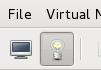
Figure 10.27. The Show virtual hardware details tab
- In the Show virtual hardware details tab, click on the Add Hardware button.
Select hardware type
Select Storage as the Hardware type.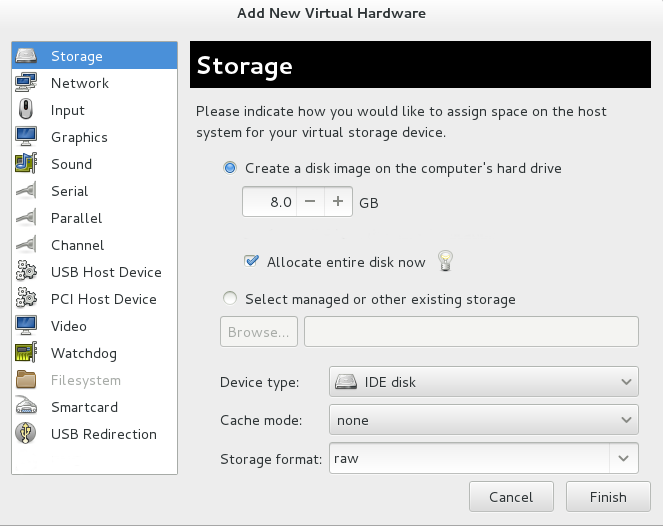
Figure 10.28. The Add new virtual hardware wizard
Select the storage device and driver
Create a new disk image or select a storage pool volume.Set the Device type to Virtio disk to use the virtio drivers.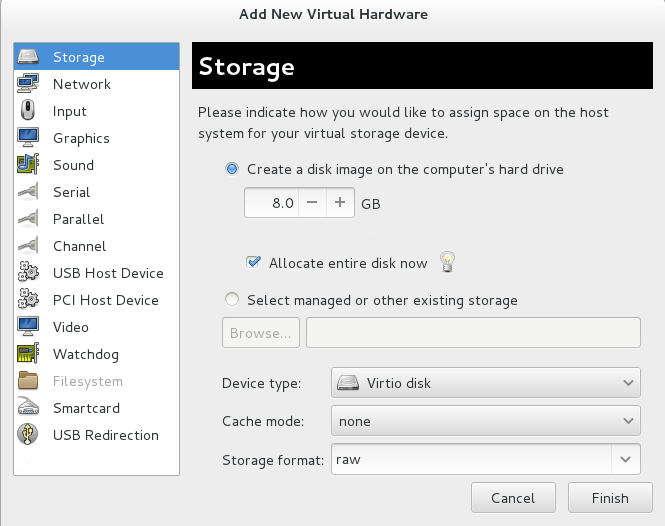
Figure 10.29. The Add new virtual hardware wizard
Click Finish to complete the procedure.
Procedure 10.6. Adding a network device using the virtio network driver
- Open the guest virtual machine by double clicking on the name of the guest in
virt-manager. - Open the Show virtual hardware details tab by clicking the button.
Figure 10.30. The Show virtual hardware details tab
- In the Show virtual hardware details tab, click on the Add Hardware button.
Select hardware type
Select Network as the Hardware type.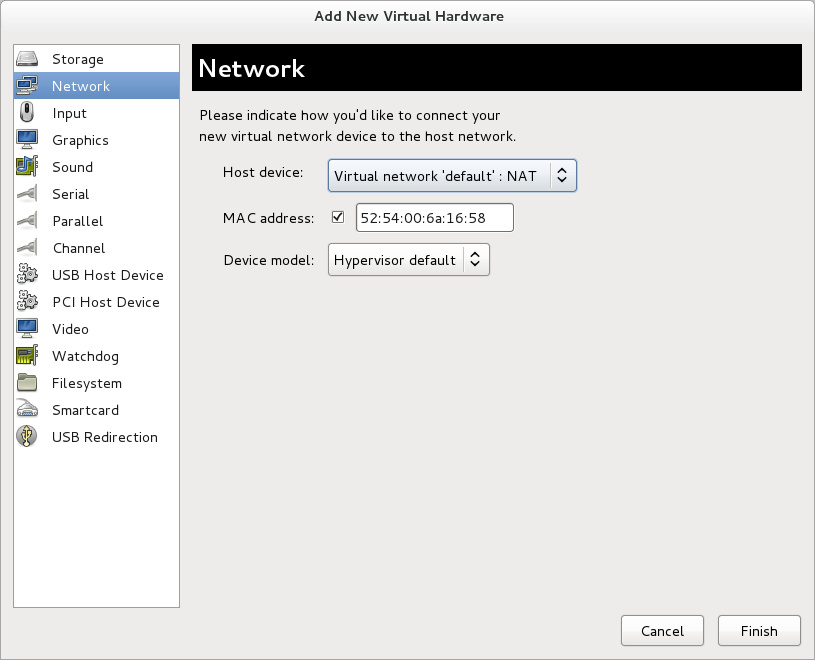
Figure 10.31. The Add new virtual hardware wizard
Select the network device and driver
Set the Device model to virtio to use the virtio drivers. Choose the desired Host device.
Figure 10.32. The Add new virtual hardware wizard
Click Finish to complete the procedure.
Once all new devices are added, reboot the virtual machine. Windows virtual machines may not recognize the devices until the guest is rebooted.

'%20d='M201.5%20305.5c-13.8%200-24.9-11.1-24.9-24.6%200-13.8%2011.1-24.9%2024.9-24.9%2013.6%200%2024.6%2011.1%2024.6%2024.9%200%2013.6-11.1%2024.6-24.6%2024.6zM504%20256c0%20137-111%20248-248%20248S8%20393%208%20256%20119%208%20256%208s248%20111%20248%20248zm-132.3-41.2c-9.4%200-17.7%203.9-23.8%2010-22.4-15.5-52.6-25.5-86.1-26.6l17.4-78.3%2055.4%2012.5c0%2013.6%2011.1%2024.6%2024.6%2024.6%2013.8%200%2024.9-11.3%2024.9-24.9s-11.1-24.9-24.9-24.9c-9.7%200-18%205.8-22.1%2013.8l-61.2-13.6c-3-.8-6.1%201.4-6.9%204.4l-19.1%2086.4c-33.2%201.4-63.1%2011.3-85.5%2026.8-6.1-6.4-14.7-10.2-24.1-10.2-34.9%200-46.3%2046.9-14.4%2062.8-1.1%205-1.7%2010.2-1.7%2015.5%200%2052.6%2059.2%2095.2%20132%2095.2%2073.1%200%20132.3-42.6%20132.3-95.2%200-5.3-.6-10.8-1.9-15.8%2031.3-16%2019.8-62.5-14.9-62.5zM302.8%20331c-18.2%2018.2-76.1%2017.9-93.6%200-2.2-2.2-6.1-2.2-8.3%200-2.5%202.5-2.5%206.4%200%208.6%2022.8%2022.8%2087.3%2022.8%20110.2%200%202.5-2.2%202.5-6.1%200-8.6-2.2-2.2-6.1-2.2-8.3%200zm7.7-75c-13.6%200-24.6%2011.1-24.6%2024.9%200%2013.6%2011.1%2024.6%2024.6%2024.6%2013.8%200%2024.9-11.1%2024.9-24.6%200-13.8-11-24.9-24.9-24.9z'/%3e%3c/svg%3e)