GNOME Classic
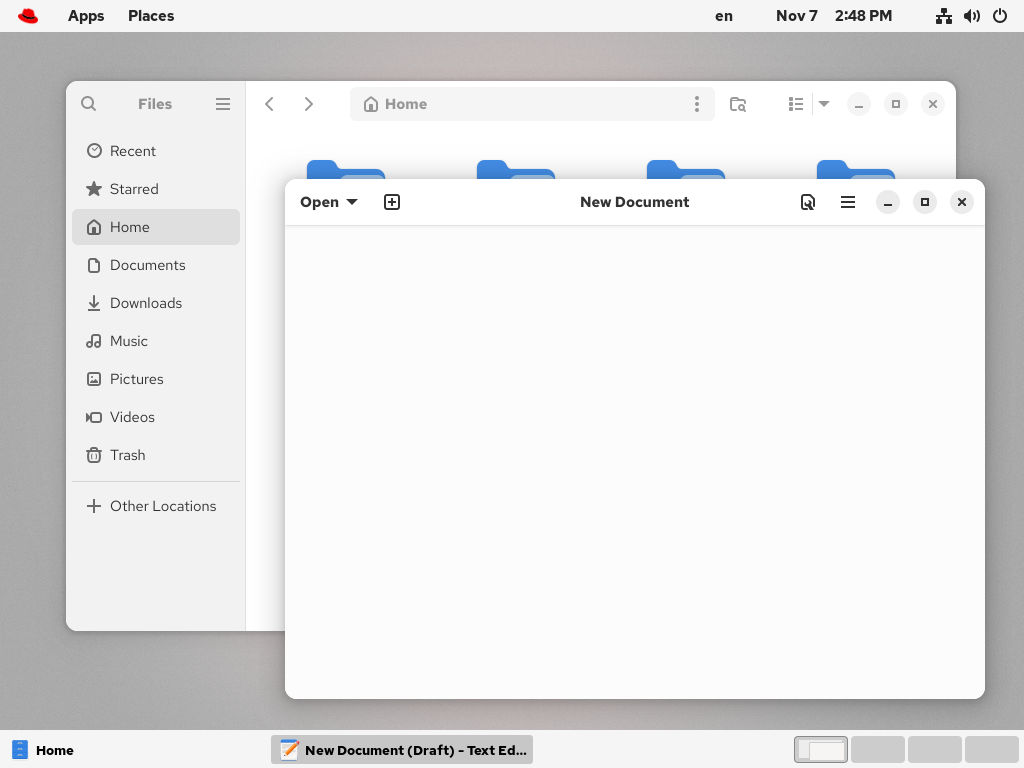
GNOME Classic is a mode suitable for users who prefer a more traditional desktop experience that is similar to the GNOME 2 environment used with RHEL 6. It is based on GNOME 3 technologies but includes multiple features similar to GNOME 2.
The GNOME Classic user interface consists of these major components:
- Applications and Places
-
The Apps menu is displayed at the upper-left corner of the screen. It gives you access to applications organized into categories.
The Places menu is displayed next to the Apps menu in the top bar. It gives you quick access to important folders, for example, Downloads or Pictures.
- Taskbar
- Displayed at the bottom of the screen. The taskbar includes a list of open windows and a workspace indicator. In the workspace indicator, you can see the current workspace and move between available workspaces.
- Four available workspaces
- In GNOME Classic, the number of available workspaces is set to four by default.
- Minimize and maximize buttons
- Window title bars in GNOME Classic feature the minimize and maximize buttons.
- A traditional Super+Tab window switcher
- In GNOME Classic, windows in the Super+Tab window switcher are not grouped by application.
- System menu
-
Located in the upper-right corner. Just as in the GNOME Standard session, you can perform the following actions with it:
- Opening the GNOME Screenshot and GNOME Screen Recording apps
- Opening the Settings app
- Controlling the sound volume
- Accessing your network connections
- Turning off the computer, locking the computer, and switching the user