 红帽全球峰会
16.4. Configuring a browser to enable certificate authentication
To be able to authenticate with a certificate when using the WebUI to log into Identity Management (IdM), you need to import the user and the relevant certificate authority (CA) certificates into the Mozilla Firefox or Google Chrome browser. The host itself on which the browser is running does not have to be part of the IdM domain.
IdM supports the following browsers for connecting to the WebUI:
- Mozilla Firefox 38 and later
- Google Chrome 46 and later
The following procedure shows how to configure the Mozilla Firefox 57.0.1 browser.
Prerequisites
- You have the user certificate that you want to import to the browser at your disposal in the PKCS#12 format.
Procedure
Open Firefox, then navigate to
PreferencesPrivacy & Security.Privacy and Security section in Preferences

Click .
View Certificates in Privacy and Security
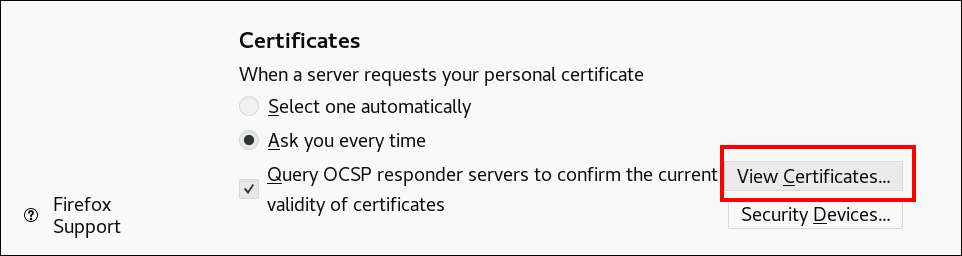
-
In the
Your Certificatestab, click . Locate and open the certificate of the user in the PKCS12 format, then click and . Make sure that the Identity Management Certificate Authority is recognized by Firefox as a trusted authority:
Save the IdM CA certificate locally:
Navigate to the IdM web UI by writing the name of your IdM server in the Firefox address bar. Click
Advancedon the Insecure Connection warning page.Insecure Connection

Add Exception. ClickView.View the Details of a Certificate
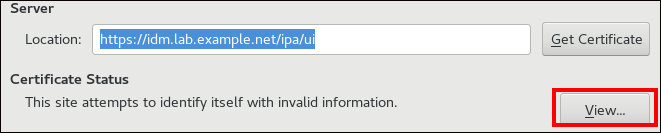
In the
Detailstab, highlight theCertificate Authorityfields.Exporting the CA Certificate
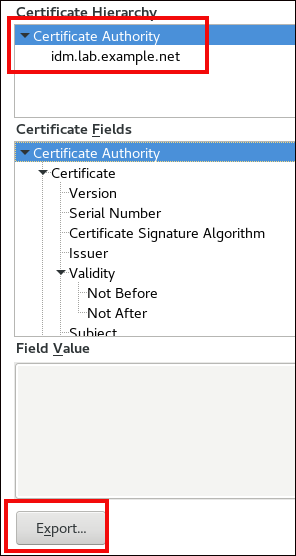
-
Click . Save the CA certificate, for example as the
CertificateAuthority.crtfile, then click , and .
Import the IdM CA certificate to Firefox as a trusted certificate authority certificate:
Open Firefox, navigate to Preferences and click .
Privacy and Security section in Preferences
Click .
View Certificates in Privacy and Security
-
In the
Authoritiestab, click . Locate and open the CA certificate that you saved in the previous step in theCertificateAuthority.crtfile. Trust the certificate to identify websites, then click and .
- Continue to Authenticating to the Identity Management Web UI with a Certificate as an Identity Management User.

'%20d='M201.5%20305.5c-13.8%200-24.9-11.1-24.9-24.6%200-13.8%2011.1-24.9%2024.9-24.9%2013.6%200%2024.6%2011.1%2024.6%2024.9%200%2013.6-11.1%2024.6-24.6%2024.6zM504%20256c0%20137-111%20248-248%20248S8%20393%208%20256%20119%208%20256%208s248%20111%20248%20248zm-132.3-41.2c-9.4%200-17.7%203.9-23.8%2010-22.4-15.5-52.6-25.5-86.1-26.6l17.4-78.3%2055.4%2012.5c0%2013.6%2011.1%2024.6%2024.6%2024.6%2013.8%200%2024.9-11.3%2024.9-24.9s-11.1-24.9-24.9-24.9c-9.7%200-18%205.8-22.1%2013.8l-61.2-13.6c-3-.8-6.1%201.4-6.9%204.4l-19.1%2086.4c-33.2%201.4-63.1%2011.3-85.5%2026.8-6.1-6.4-14.7-10.2-24.1-10.2-34.9%200-46.3%2046.9-14.4%2062.8-1.1%205-1.7%2010.2-1.7%2015.5%200%2052.6%2059.2%2095.2%20132%2095.2%2073.1%200%20132.3-42.6%20132.3-95.2%200-5.3-.6-10.8-1.9-15.8%2031.3-16%2019.8-62.5-14.9-62.5zM302.8%20331c-18.2%2018.2-76.1%2017.9-93.6%200-2.2-2.2-6.1-2.2-8.3%200-2.5%202.5-2.5%206.4%200%208.6%2022.8%2022.8%2087.3%2022.8%20110.2%200%202.5-2.2%202.5-6.1%200-8.6-2.2-2.2-6.1-2.2-8.3%200zm7.7-75c-13.6%200-24.6%2011.1-24.6%2024.9%200%2013.6%2011.1%2024.6%2024.6%2024.6%2013.8%200%2024.9-11.1%2024.9-24.6%200-13.8-11-24.9-24.9-24.9z'/%3e%3c/svg%3e)