 Red Hat Summit
Este contenido no está disponible en el idioma seleccionado.
Chapter 18. Validating an installation
You can check the status of an OpenShift Container Platform cluster after an installation by following the procedures in this document.
18.1. Reviewing the installation log
You can review a summary of an installation in the OpenShift Container Platform installation log. If an installation succeeds, the information required to access the cluster is included in the log.
Prerequisites
- You have access to the installation host.
Procedure
Review the
.openshift_install.loglog file in the installation directory on your installation host:$ cat <install_dir>/.openshift_install.logExample output
Cluster credentials are included at the end of the log if the installation is successful, as outlined in the following example:
...
time="2020-12-03T09:50:47Z" level=info msg="Install complete!"
time="2020-12-03T09:50:47Z" level=info msg="To access the cluster as the system:admin user when using 'oc', run 'export KUBECONFIG=/home/myuser/install_dir/auth/kubeconfig'"
time="2020-12-03T09:50:47Z" level=info msg="Access the OpenShift web-console here: https://console-openshift-console.apps.mycluster.example.com"
time="2020-12-03T09:50:47Z" level=info msg="Login to the console with user: \"kubeadmin\", and password: \"6zYIx-ckbW3-4d2Ne-IWvDF\""
time="2020-12-03T09:50:47Z" level=debug msg="Time elapsed per stage:"
time="2020-12-03T09:50:47Z" level=debug msg="    Infrastructure: 6m45s"
time="2020-12-03T09:50:47Z" level=debug msg="Bootstrap Complete: 11m30s"
time="2020-12-03T09:50:47Z" level=debug msg=" Bootstrap Destroy: 1m5s"
time="2020-12-03T09:50:47Z" level=debug msg=" Cluster Operators: 17m31s"
time="2020-12-03T09:50:47Z" level=info msg="Time elapsed: 37m26s"
18.2. Viewing the image pull source
For clusters with unrestricted network connectivity, you can view the source of your pulled images by using a command on a node, such as crictl images.
However, for disconnected installations, to view the source of pulled images, you must review the CRI-O logs to locate the Trying to access log entry, as shown in the following procedure. Other methods to view the image pull source, such as the crictl images command, show the non-mirrored image name, even though the image is pulled from the mirrored location.
Prerequisites
-
You have access to the cluster as a user with the
cluster-adminrole.
Procedure
Review the CRI-O logs for a master or worker node:
$ oc adm node-logs <node_name> -u crioExample output
The
Trying to accesslog entry indicates where the image is being pulled from.... Mar 17 02:52:50 ip-10-0-138-140.ec2.internal crio[1366]: time="2021-08-05 10:33:21.594930907Z" level=info msg="Pulling image: quay.io/openshift-release-dev/ocp-release:4.8.4-ppc64le" id=abcd713b-d0e1-4844-ac1c-474c5b60c07c name=/runtime.v1alpha2.ImageService/PullImage Mar 17 02:52:50 ip-10-0-138-140.ec2.internal crio[1484]: time="2021-03-17 02:52:50.194341109Z" level=info msg="Trying to access \"li0317gcp1.mirror-registry.qe.gcp.devcluster.openshift.com:5000/ocp/release@sha256:1926eae7cacb9c00f142ec98b00628970e974284b6ddaf9a6a086cb9af7a6c31\"" Mar 17 02:52:50 ip-10-0-138-140.ec2.internal crio[1484]: time="2021-03-17 02:52:50.226788351Z" level=info msg="Trying to access \"li0317gcp1.mirror-registry.qe.gcp.devcluster.openshift.com:5000/ocp/release@sha256:1926eae7cacb9c00f142ec98b00628970e974284b6ddaf9a6a086cb9af7a6c31\"" ...The log might show the image pull source twice, as shown in the preceding example.
If your
ImageContentSourcePolicyobject lists multiple mirrors, OpenShift Container Platform attempts to pull the images in the order listed in the configuration, for example:Trying to access \"li0317gcp1.mirror-registry.qe.gcp.devcluster.openshift.com:5000/ocp/release@sha256:1926eae7cacb9c00f142ec98b00628970e974284b6ddaf9a6a086cb9af7a6c31\" Trying to access \"li0317gcp2.mirror-registry.qe.gcp.devcluster.openshift.com:5000/ocp/release@sha256:1926eae7cacb9c00f142ec98b00628970e974284b6ddaf9a6a086cb9af7a6c31\"
18.3. Getting cluster version, status, and update details
You can view the cluster version and status by running the oc get clusterversion command. If the status shows that the installation is still progressing, you can review the status of the Operators for more information.
You can also list the current update channel and review the available cluster updates.
Prerequisites
-
You have access to the cluster as a user with the
cluster-adminrole. -
You have installed the OpenShift CLI (
oc).
Procedure
Obtain the cluster version and overall status:
$ oc get clusterversionExample output
NAME      VERSION   AVAILABLE   PROGRESSING   SINCE   STATUS
version   4.6.4     True        False         6m25s   Cluster version is 4.6.4
The example output indicates that the cluster has been installed successfully.
If the cluster status indicates that the installation is still progressing, you can obtain more detailed progress information by checking the status of the Operators:
$ oc get clusteroperators.config.openshift.ioView a detailed summary of cluster specifications, update availability, and update history:
$ oc describe clusterversionList the current update channel:
$ oc get clusterversion -o jsonpath='{.items[0].spec}{"\n"}'Example output
{"channel":"stable-4.6","clusterID":"245539c1-72a3-41aa-9cec-72ed8cf25c5c"}Review the available cluster updates:
$ oc adm upgradeExample output
Cluster version is 4.6.4

Updates:

VERSION IMAGE
4.6.6   quay.io/openshift-release-dev/ocp-release@sha256:c7e8f18e8116356701bd23ae3a23fb9892dd5ea66c8300662ef30563d7104f39
18.4. Querying the status of the cluster nodes by using the CLI
You can verify the status of the cluster nodes after an installation.
Prerequisites
-
You have access to the cluster as a user with the
cluster-adminrole. -
You have installed the OpenShift CLI (
oc).
Procedure
List the status of the cluster nodes. Verify that the output lists all of the expected control plane and compute nodes and that each node has a
Readystatus:$ oc get nodesExample output
NAME                          STATUS   ROLES    AGE   VERSION
compute-1.example.com         Ready    worker   33m   v1.19.0+9f84db3
control-plane-1.example.com   Ready    master   41m   v1.19.0+9f84db3
control-plane-2.example.com   Ready    master   45m   v1.19.0+9f84db3
compute-2.example.com         Ready    worker   38m   v1.19.0+9f84db3
compute-3.example.com         Ready    worker   33m   v1.19.0+9f84db3
control-plane-3.example.com   Ready    master   41m   v1.19.0+9f84db3
Review CPU and memory resource availability for each cluster node:
$ oc adm top nodesExample output
NAME                          CPU(cores)   CPU%   MEMORY(bytes)   MEMORY%
compute-1.example.com         128m         8%     1132Mi          16%
control-plane-1.example.com   801m         22%    3471Mi          23%
control-plane-2.example.com   1718m        49%    6085Mi          40%
compute-2.example.com         935m         62%    5178Mi          75%
compute-3.example.com         111m         7%     1131Mi          16%
control-plane-3.example.com   942m         26%    4100Mi          27%
18.5. Reviewing the cluster status from the OpenShift Container Platform web console
You can review the following information in the Overview page in the OpenShift Container Platform web console:
- The general status of your cluster
- The status of the control plane, cluster Operators, and storage
- CPU, memory, file system, network transfer, and pod availability
- The API address of the cluster, the cluster ID, and the name of the provider
- Cluster version information
- Cluster update status, including details of the current update channel and available updates
- A cluster inventory detailing node, pod, storage class, and persistent volume claim (PVC) information
- A list of ongoing cluster activities and recent events
Prerequisites
-
You have access to the cluster as a user with the
cluster-adminrole.
Procedure
-
In the Administrator perspective, navigate to Home
Overview.
18.6. Reviewing the cluster status from Red Hat OpenShift Cluster Manager
You can review detailed information about the status of your cluster in the OpenShift Cluster Manager.
Prerequisites
-
You have access to the cluster as a user with the
cluster-adminrole.
Procedure
In the Administrator perspective, navigate to Home
Overview Details OpenShift Cluster Manager to open the Overview page for the cluster in OpenShift Cluster Manager. NoteAlternatively, you can navigate to OpenShift Cluster Manager directly and select your cluster ID from the list of available clusters.
In the Overview page, review the following information about your cluster:
- vCPU and memory availability and resource usage
- The cluster ID, status, type, location, and the provider name
- Node counts by node type
- Cluster version details, the creation date of the cluster, and the name of the cluster owner
- The life cycle support status of the cluster
- Subscription information, including the service level agreement (SLA) status, the subscription unit type, the production status of the cluster, the subscription obligation, and the service level
- A cluster history
Navigate to the Monitoring page to review the following information:
- A list of any issues that have been detected
- A list of alerts that are firing
- The cluster Operator status and version
- Cluster resource usage
Navigate to the Insights page to review the following information provided by Red Hat Insights:
- Potential issues that your cluster might be exposed to, categorized by risk level
- Health-check status by category
18.7. Checking cluster resource availability and utilization
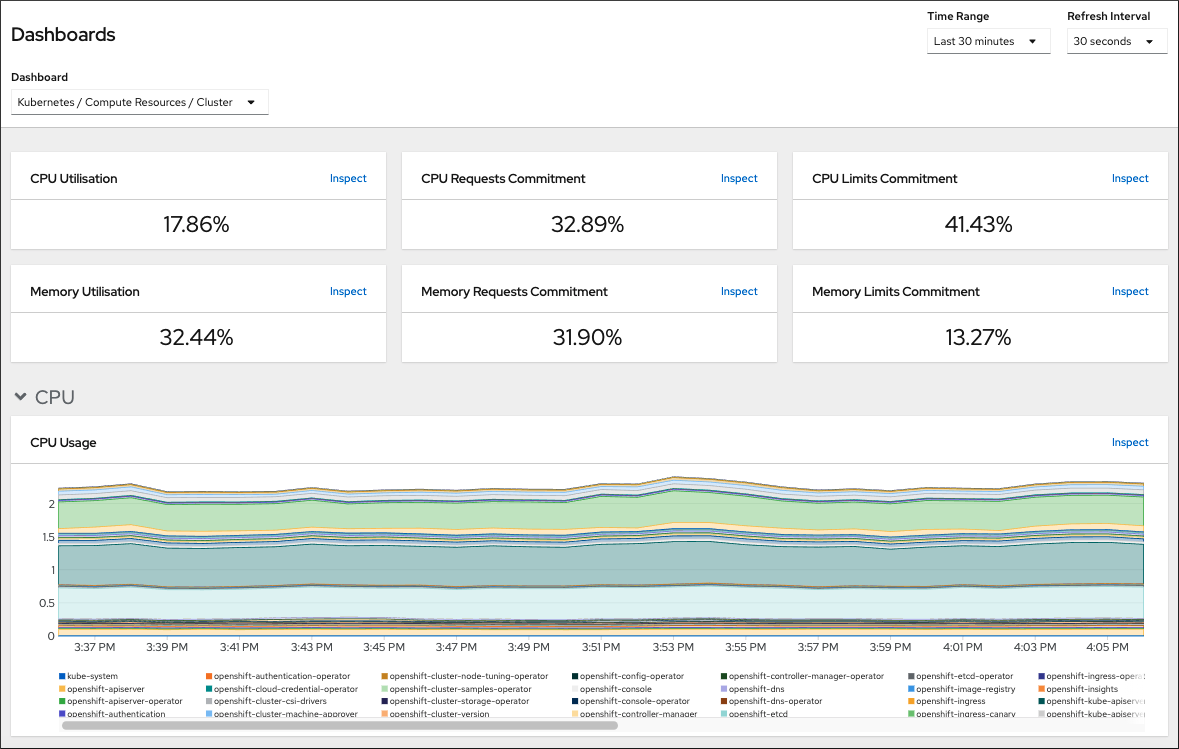
OpenShift Container Platform provides a comprehensive set of monitoring dashboards that help you understand the state of cluster components.
In the Administrator perspective, you can access dashboards for core OpenShift Container Platform components, including:
- etcd
- Kubernetes compute resources
- Kubernetes network resources
- Prometheus
- Dashboards relating to cluster and node performance
Figure 18.1. Example compute resources dashboard
Prerequisites
-
You have access to the cluster as a user with the
cluster-adminrole.
Procedure
-
In the Administrator perspective in the OpenShift Container Platform web console, navigate to Monitoring
Dashboards. - Choose a dashboard in the Dashboard list. Some dashboards, such as the etcd dashboard, produce additional sub-menus when selected.
Optional: Select a time range for the graphs in the Time Range list.
- Select a pre-defined time period.
Set a custom time range by selecting Custom time range in the Time Range list.
- Input or select the From and To dates and times.
- Click Save to save the custom time range.
- Optional: Select a Refresh Interval.
- Hover over each of the graphs within a dashboard to display detailed information about specific items.
18.8. Listing alerts that are firing
Alerts provide notifications when a set of defined conditions are true in an OpenShift Container Platform cluster. You can review the alerts that are firing in your cluster by using the Alerting UI in the OpenShift Container Platform web console.
Prerequisites
-
You have access to the cluster as a user with the
cluster-adminrole.
Procedure
-
In the Administrator perspective, navigate to the Monitoring
Alerting Alerts page. - Review the alerts that are firing, including their Severity, State, and Source.
- Select an alert to view more detailed information in the Alert Details page.
18.9. Next steps
- See Troubleshooting installations if you experience issues when installing your cluster.
- After installing OpenShift Container Platform, you can further expand and customize your cluster.

'%20d='M201.5%20305.5c-13.8%200-24.9-11.1-24.9-24.6%200-13.8%2011.1-24.9%2024.9-24.9%2013.6%200%2024.6%2011.1%2024.6%2024.9%200%2013.6-11.1%2024.6-24.6%2024.6zM504%20256c0%20137-111%20248-248%20248S8%20393%208%20256%20119%208%20256%208s248%20111%20248%20248zm-132.3-41.2c-9.4%200-17.7%203.9-23.8%2010-22.4-15.5-52.6-25.5-86.1-26.6l17.4-78.3%2055.4%2012.5c0%2013.6%2011.1%2024.6%2024.6%2024.6%2013.8%200%2024.9-11.3%2024.9-24.9s-11.1-24.9-24.9-24.9c-9.7%200-18%205.8-22.1%2013.8l-61.2-13.6c-3-.8-6.1%201.4-6.9%204.4l-19.1%2086.4c-33.2%201.4-63.1%2011.3-85.5%2026.8-6.1-6.4-14.7-10.2-24.1-10.2-34.9%200-46.3%2046.9-14.4%2062.8-1.1%205-1.7%2010.2-1.7%2015.5%200%2052.6%2059.2%2095.2%20132%2095.2%2073.1%200%20132.3-42.6%20132.3-95.2%200-5.3-.6-10.8-1.9-15.8%2031.3-16%2019.8-62.5-14.9-62.5zM302.8%20331c-18.2%2018.2-76.1%2017.9-93.6%200-2.2-2.2-6.1-2.2-8.3%200-2.5%202.5-2.5%206.4%200%208.6%2022.8%2022.8%2087.3%2022.8%20110.2%200%202.5-2.2%202.5-6.1%200-8.6-2.2-2.2-6.1-2.2-8.3%200zm7.7-75c-13.6%200-24.6%2011.1-24.6%2024.9%200%2013.6%2011.1%2024.6%2024.6%2024.6%2013.8%200%2024.9-11.1%2024.9-24.6%200-13.8-11-24.9-24.9-24.9z'/%3e%3c/svg%3e)