 Red Hat Summit
Este contenido no está disponible en el idioma seleccionado.
Chapter 5. Develop
5.1. Serverless applications
Serverless applications are created and deployed as Kubernetes services, defined by a route and a configuration, and contained in a YAML file. To deploy a serverless application using OpenShift Serverless, you must create a Knative Service object.
Example Knative Service object YAML file
apiVersion: serving.knative.dev/v1
kind: Service
metadata:
  name: hello
namespace: default
spec:
  template:
    spec:
      containers:
        - image: docker.io/openshift/hello-openshift
          env:
            - name: RESPONSE
value: "Hello Serverless!"You can create a serverless application by using one of the following methods:
- Create a Knative service from the OpenShift Container Platform web console. See the documentation about Creating applications using the Developer perspective.
-
Create a Knative service by using the Knative (
kn) CLI. -
Create and apply a Knative
Serviceobject as a YAML file, by using theocCLI.
5.1.1. Creating serverless applications by using the Knative CLI
Using the Knative (kn) CLI to create serverless applications provides a more streamlined and intuitive user interface over modifying YAML files directly. You can use the kn service create command to create a basic serverless application.
Prerequisites
- OpenShift Serverless Operator and Knative Serving are installed on your cluster.
-
You have installed the Knative (
kn) CLI. - You have created a project or have access to a project with the appropriate roles and permissions to create applications and other workloads in OpenShift Container Platform.
Procedure
Create a Knative service:
$ kn service create <service-name> --image <image> --tag <tag-value>Where:
-
--imageis the URI of the image for the application. --tagis an optional flag that can be used to add a tag to the initial revision that is created with the service.Example command
$ kn service create event-display \
    --image quay.io/openshift-knative/knative-eventing-sources-event-display:latest
Example output
Creating service 'event-display' in namespace 'default':

  0.271s The Route is still working to reflect the latest desired specification.
  0.580s Configuration "event-display" is waiting for a Revision to become ready.
  3.857s ...
  3.861s Ingress has not yet been reconciled.
  4.270s Ready to serve.

Service 'event-display' created with latest revision 'event-display-bxshg-1' and URL:
http://event-display-default.apps-crc.testing
-
5.1.2. Creating a service using offline mode
You can execute kn service commands in offline mode, so that no changes happen on the cluster, and instead the service descriptor file is created on your local machine. After the descriptor file is created, you can modify the file before propagating changes to the cluster.
The offline mode of the Knative CLI is a Technology Preview feature only. Technology Preview features are not supported with Red Hat production service level agreements (SLAs) and might not be functionally complete. Red Hat does not recommend using them in production. These features provide early access to upcoming product features, enabling customers to test functionality and provide feedback during the development process.
For more information about the support scope of Red Hat Technology Preview features, see https://access.redhat.com/support/offerings/techpreview/.
Prerequisites
- OpenShift Serverless Operator and Knative Serving are installed on your cluster.
-
You have installed the Knative (
kn) CLI.
Procedure
In offline mode, create a local Knative service descriptor file:
$ kn service create event-display \
    --image quay.io/openshift-knative/knative-eventing-sources-event-display:latest \
    --target ./ \
    --namespace test
Example output
Service 'event-display' created in namespace 'test'.The
--target ./flag enables offline mode and specifies./as the directory for storing the new directory tree.If you do not specify an existing directory, but use a filename, such as
--target my-service.yaml, then no directory tree is created. Instead, only the service descriptor filemy-service.yamlis created in the current directory.The filename can have the
.yaml,.yml, or.jsonextension. Choosing.jsoncreates the service descriptor file in the JSON format.The
--namespace testoption places the new service in thetestnamespace.If you do not use
--namespace, and you are logged in to an OpenShift Container Platform cluster, the descriptor file is created in the current namespace. Otherwise, the descriptor file is created in thedefaultnamespace.
Examine the created directory structure:
$ tree ./Example output
./ └── test └── ksvc └── event-display.yaml 2 directories, 1 file-
The current
./directory specified with--targetcontains the newtest/directory that is named after the specified namespace. -
The
test/directory contains theksvcdirectory, named after the resource type. -
The
ksvcdirectory contains the descriptor fileevent-display.yaml, named according to the specified service name.
-
The current
Examine the generated service descriptor file:
$ cat test/ksvc/event-display.yamlExample output
apiVersion: serving.knative.dev/v1
kind: Service
metadata:
  creationTimestamp: null
  name: event-display
  namespace: test
spec:
  template:
    metadata:
      annotations:
        client.knative.dev/user-image: quay.io/openshift-knative/knative-eventing-sources-event-display:latest
      creationTimestamp: null
    spec:
      containers:
      - image: quay.io/openshift-knative/knative-eventing-sources-event-display:latest
        name: ""
        resources: {}
status: {}
List information about the new service:
$ kn service describe event-display --target ./ --namespace testExample output
Name:       event-display
Namespace:  test
Age:
URL:

Revisions:

Conditions:
  OK TYPE    AGE REASON
The
--target ./option specifies the root directory for the directory structure containing namespace subdirectories.Alternatively, you can directly specify a YAML or JSON filename with the
--targetoption. The accepted file extensions are.yaml,.yml, and.json.The
--namespaceoption specifies the namespace, which communicates toknthe subdirectory that contains the necessary service descriptor file.If you do not use
--namespace, and you are logged in to an OpenShift Container Platform cluster,knsearches for the service in the subdirectory that is named after the current namespace. Otherwise,knsearches in thedefault/subdirectory.
Use the service descriptor file to create the service on the cluster:
$ kn service create -f test/ksvc/event-display.yamlExample output
Creating service 'event-display' in namespace 'test':

  0.058s The Route is still working to reflect the latest desired specification.
  0.098s ...
  0.168s Configuration "event-display" is waiting for a Revision to become ready.
 23.377s ...
 23.419s Ingress has not yet been reconciled.
 23.534s Waiting for load balancer to be ready
 23.723s Ready to serve.

Service 'event-display' created to latest revision 'event-display-00001' is available at URL:
http://event-display-test.apps.example.com
5.1.3. Creating serverless applications using YAML
Creating Knative resources by using YAML files uses a declarative API, which enables you to describe applications declaratively and in a reproducible manner. To create a serverless application by using YAML, you must create a YAML file that defines a Knative Service object, then apply it by using oc apply.
After the service is created and the application is deployed, Knative creates an immutable revision for this version of the application. Knative also performs network programming to create a route, ingress, service, and load balancer for your application and automatically scales your pods up and down based on traffic.
Prerequisites
- OpenShift Serverless Operator and Knative Serving are installed on your cluster.
- You have created a project or have access to a project with the appropriate roles and permissions to create applications and other workloads in OpenShift Container Platform.
-
Install the OpenShift CLI (
oc).
Procedure
Create a YAML file containing the following sample code:
apiVersion: serving.knative.dev/v1
kind: Service
metadata:
  name: event-delivery
  namespace: default
spec:
  template:
    spec:
      containers:
        - image: quay.io/openshift-knative/knative-eventing-sources-event-display:latest
          env:
            - name: RESPONSE
              value: "Hello Serverless!"
Navigate to the directory where the YAML file is contained, and deploy the application by applying the YAML file:
$ oc apply -f <filename>
5.1.4. Verifying your serverless application deployment
To verify that your serverless application has been deployed successfully, you must get the application URL created by Knative, and then send a request to that URL and observe the output. OpenShift Serverless supports the use of both HTTP and HTTPS URLs, however the output from oc get ksvc always prints URLs using the http:// format.
Prerequisites
- OpenShift Serverless Operator and Knative Serving are installed on your cluster.
-
You have installed the
ocCLI. - You have created a Knative service.
Prerequisites
-
Install the OpenShift CLI (
oc).
Procedure
Find the application URL:
$ oc get ksvc <service_name>Example output
NAME            URL                                        LATESTCREATED         LATESTREADY           READY   REASON
event-delivery   http://event-delivery-default.example.com   event-delivery-4wsd2   event-delivery-4wsd2   True
Make a request to your cluster and observe the output.
Example HTTP request
$ curl http://event-delivery-default.example.comExample HTTPS request
$ curl https://event-delivery-default.example.comExample output
Hello Serverless!Optional. If you receive an error relating to a self-signed certificate in the certificate chain, you can add the
--insecureflag to the curl command to ignore the error:$ curl https://event-delivery-default.example.com --insecureExample output
Hello Serverless!ImportantSelf-signed certificates must not be used in a production deployment. This method is only for testing purposes.
Optional. If your OpenShift Container Platform cluster is configured with a certificate that is signed by a certificate authority (CA) but not yet globally configured for your system, you can specify this with the
curlcommand. The path to the certificate can be passed to the curl command by using the--cacertflag:$ curl https://event-delivery-default.example.com --cacert <file>Example output
Hello Serverless!
5.1.5. Interacting with a serverless application using HTTP2 and gRPC
OpenShift Serverless supports only insecure or edge-terminated routes. Insecure or edge-terminated routes do not support HTTP2 on OpenShift Container Platform. These routes also do not support gRPC because gRPC is transported by HTTP2. If you use these protocols in your application, you must call the application using the ingress gateway directly. To do this you must find the ingress gateway’s public address and the application’s specific host.
This method needs to expose Kourier Gateway using the LoadBalancer service type. You can configure this by adding the following YAML to your KnativeServing custom resource definition (CRD):
...
spec:
  ingress:
    kourier:
      service-type: LoadBalancer
...
Prerequisites
- OpenShift Serverless Operator and Knative Serving are installed on your cluster.
-
Install the OpenShift CLI (
oc). - You have created a Knative service.
Procedure
- Find the application host. See the instructions in Verifying your serverless application deployment.
Find the ingress gateway’s public address:
$ oc -n knative-serving-ingress get svc kourierExample output
NAME                   TYPE           CLUSTER-IP      EXTERNAL-IP                                                             PORT(S)                                                                                                                                      AGE
kourier   LoadBalancer   172.30.51.103   a83e86291bcdd11e993af02b7a65e514-33544245.us-east-1.elb.amazonaws.com   80:31380/TCP,443:31390/TCP   67m
The public address is surfaced in the
EXTERNAL-IPfield, and in this case isa83e86291bcdd11e993af02b7a65e514-33544245.us-east-1.elb.amazonaws.com.Manually set the host header of your HTTP request to the application’s host, but direct the request itself against the public address of the ingress gateway.
$ curl -H "Host: hello-default.example.com" a83e86291bcdd11e993af02b7a65e514-33544245.us-east-1.elb.amazonaws.comExample output
Hello Serverless!You can also make a gRPC request by setting the authority to the application’s host, while directing the request against the ingress gateway directly:
grpc.Dial( "a83e86291bcdd11e993af02b7a65e514-33544245.us-east-1.elb.amazonaws.com:80", grpc.WithAuthority("hello-default.example.com:80"), grpc.WithInsecure(), )NoteEnsure that you append the respective port, 80 by default, to both hosts as shown in the previous example.
5.1.6. Enabling communication with Knative applications on a cluster with restrictive network policies
If you are using a cluster that multiple users have access to, your cluster might use network policies to control which pods, services, and namespaces can communicate with each other over the network. If your cluster uses restrictive network policies, it is possible that Knative system pods are not able to access your Knative application. For example, if your namespace has the following network policy, which denies all requests, Knative system pods cannot access your Knative application:
Example NetworkPolicy object that denies all requests to the namespace
kind: NetworkPolicy
apiVersion: networking.k8s.io/v1
metadata:
  name: deny-by-default
  namespace: example-namespace
spec:
  podSelector:
  ingress: []
To allow access to your applications from Knative system pods, you must add a label to each of the Knative system namespaces, and then create a NetworkPolicy object in your application namespace that allows access to the namespace for other namespaces that have this label.
A network policy that denies requests to non-Knative services on your cluster still prevents access to these services. However, by allowing access from Knative system namespaces to your Knative application, you are allowing access to your Knative application from all namespaces in the cluster.
If you do not want to allow access to your Knative application from all namespaces on the cluster, you might want to use JSON Web Token authentication for Knative services instead. JSON Web Token authentication for Knative services requires Service Mesh.
Prerequisites
-
Install the OpenShift CLI (
oc). - OpenShift Serverless Operator and Knative Serving are installed on your cluster.
Procedure
Add the
knative.openshift.io/system-namespace=truelabel to each Knative system namespace that requires access to your application:Label the
knative-servingnamespace:$ oc label namespace knative-serving knative.openshift.io/system-namespace=trueLabel the
knative-serving-ingressnamespace:$ oc label namespace knative-serving-ingress knative.openshift.io/system-namespace=trueLabel the
knative-eventingnamespace:$ oc label namespace knative-eventing knative.openshift.io/system-namespace=trueLabel the
knative-kafkanamespace:$ oc label namespace knative-kafka knative.openshift.io/system-namespace=true
Create a
NetworkPolicyobject in your application namespace to allow access from namespaces with theknative.openshift.io/system-namespacelabel:Example
NetworkPolicyobjectapiVersion: networking.k8s.io/v1 kind: NetworkPolicy metadata: name: <network_policy_name>1 namespace: <namespace>2 spec: ingress: - from: - namespaceSelector: matchLabels: knative.openshift.io/system-namespace: "true" podSelector: {} policyTypes: - Ingress
5.1.7. Configuring init containers
Init containers are specialized containers that are run before application containers in a pod. They are generally used to implement initialization logic for an application, which may include running setup scripts or downloading required configurations.
Init containers may cause longer application start-up times and should be used with caution for serverless applications, which are expected to scale up and down frequently.
Multiple init containers are supported in a single Knative service spec. Knative provides a default, configurable naming template if a template name is not provided. The init containers template can be set by adding an appropriate value in a Knative Service object spec.
Prerequisites
- OpenShift Serverless Operator and Knative Serving are installed on your cluster.
-
Before you can use init containers for Knative services, an administrator must add the
kubernetes.podspec-init-containersflag to theKnativeServingcustom resource (CR). See the OpenShift Serverless "Global configuration" documentation for more information.
Procedure
Add the
initContainersspec to a KnativeServiceobject:Example service spec
apiVersion: serving.knative.dev/v1
kind: Service
...
spec:
  template:
    spec:
      initContainers:
        - imagePullPolicy: IfNotPresent
1 image: <image_uri>2 volumeMounts:3 - name: data mountPath: /data ...- 1
- The image pull policy when the image is downloaded.
- 2
- The URI for the init container image.
- 3
- The location where volumes are mounted within the container file system.
5.1.8. HTTPS redirection per service
You can enable or disable HTTPS redirection for a service by configuring the networking.knative.dev/http-option annotation. The following example shows how you can use this annotation in a Knative Service YAML object:
apiVersion: serving.knative.dev/v1
kind: Service
metadata:
  name: example
  namespace: default
  annotations:
    networking.knative.dev/http-option: "redirected"
spec:
...5.2. Autoscaling
Knative Serving provides automatic scaling, or autoscaling, for applications to match incoming demand. For example, if an application is receiving no traffic, and scale-to-zero is enabled, Knative Serving scales the application down to zero replicas. If scale-to-zero is disabled, the application is scaled down to the minimum number of replicas configured for applications on the cluster. Replicas can also be scaled up to meet demand if traffic to the application increases.
Autoscaling settings for Knative services can be global settings that are configured by cluster administrators, or per-revision settings that are configured for individual services. You can modify per-revision settings for your services by using the OpenShift Container Platform web console, by modifying the YAML file for your service, or by using the Knative (kn) CLI.
Any limits or targets that you set for a service are measured against a single instance of your application. For example, setting the target annotation to 50 configures the autoscaler to scale the application so that each revision handles 50 requests at a time.
5.2.1. Scale bounds
Scale bounds determine the minimum and maximum numbers of replicas that can serve an application at any given time. You can set scale bounds for an application to help prevent cold starts or control computing costs.
5.2.1.1. Minimum scale bounds
The minimum number of replicas that can serve an application is determined by the min-scale annotation. If scale to zero is not enabled, the min-scale value defaults to 1.
The min-scale value defaults to 0 replicas if the following conditions are met:
-
The
min-scaleannotation is not set - Scaling to zero is enabled
-
The class
KPAis used
Example service spec with min-scale annotation
apiVersion: serving.knative.dev/v1
kind: Service
metadata:
  name: example-service
  namespace: default
spec:
  template:
    metadata:
      annotations:
        autoscaling.knative.dev/min-scale: "0"
...
5.2.1.1.1. Setting the min-scale annotation by using the Knative CLI
Using the Knative (kn) CLI to set the min-scale annotation provides a more streamlined and intuitive user interface over modifying YAML files directly. You can use the kn service command with the --scale-min flag to create or modify the min-scale value for a service.
Prerequisites
- Knative Serving is installed on the cluster.
-
You have installed the Knative (
kn) CLI.
Procedure
Set the minimum number of replicas for the service by using the
--scale-minflag:$ kn service create <service_name> --image <image_uri> --scale-min <integer>Example command
$ kn service create example-service --image quay.io/openshift-knative/knative-eventing-sources-event-display:latest --scale-min 2
5.2.1.2. Maximum scale bounds
The maximum number of replicas that can serve an application is determined by the max-scale annotation. If the max-scale annotation is not set, there is no upper limit for the number of replicas created.
Example service spec with max-scale annotation
apiVersion: serving.knative.dev/v1
kind: Service
metadata:
  name: example-service
  namespace: default
spec:
  template:
    metadata:
      annotations:
        autoscaling.knative.dev/max-scale: "10"
...
5.2.1.2.1. Setting the max-scale annotation by using the Knative CLI
Using the Knative (kn) CLI to set the max-scale annotation provides a more streamlined and intuitive user interface over modifying YAML files directly. You can use the kn service command with the --scale-max flag to create or modify the max-scale value for a service.
Prerequisites
- Knative Serving is installed on the cluster.
-
You have installed the Knative (
kn) CLI.
Procedure
Set the maximum number of replicas for the service by using the
--scale-maxflag:$ kn service create <service_name> --image <image_uri> --scale-max <integer>Example command
$ kn service create example-service --image quay.io/openshift-knative/knative-eventing-sources-event-display:latest --scale-max 10
5.2.2. Concurrency
Concurrency determines the number of simultaneous requests that can be processed by each replica of an application at any given time. Concurrency can be configured as a soft limit or a hard limit:
- A soft limit is a targeted requests limit, rather than a strictly enforced bound. For example, if there is a sudden burst of traffic, the soft limit target can be exceeded.
A hard limit is a strictly enforced upper bound requests limit. If concurrency reaches the hard limit, surplus requests are buffered and must wait until there is enough free capacity to execute the requests.
ImportantUsing a hard limit configuration is only recommended if there is a clear use case for it with your application. Having a low, hard limit specified may have a negative impact on the throughput and latency of an application, and might cause cold starts.
Adding a soft target and a hard limit means that the autoscaler targets the soft target number of concurrent requests, but imposes a hard limit of the hard limit value for the maximum number of requests.
If the hard limit value is less than the soft limit value, the soft limit value is tuned down, because there is no need to target more requests than the number that can actually be handled.
5.2.2.1. Configuring a soft concurrency target
A soft limit is a targeted requests limit, rather than a strictly enforced bound. For example, if there is a sudden burst of traffic, the soft limit target can be exceeded. You can specify a soft concurrency target for your Knative service by setting the autoscaling.knative.dev/target annotation in the spec, or by using the kn service command with the correct flags.
Procedure
Optional: Set the
autoscaling.knative.dev/targetannotation for your Knative service in the spec of theServicecustom resource:Example service spec
apiVersion: serving.knative.dev/v1
kind: Service
metadata:
  name: example-service
  namespace: default
spec:
  template:
    metadata:
      annotations:
        autoscaling.knative.dev/target: "200"
Optional: Use the
kn servicecommand to specify the--concurrency-targetflag:$ kn service create <service_name> --image <image_uri> --concurrency-target <integer>Example command to create a service with a concurrency target of 50 requests
$ kn service create example-service --image quay.io/openshift-knative/knative-eventing-sources-event-display:latest --concurrency-target 50
5.2.2.2. Configuring a hard concurrency limit
A hard concurrency limit is a strictly enforced upper bound requests limit. If concurrency reaches the hard limit, surplus requests are buffered and must wait until there is enough free capacity to execute the requests. You can specify a hard concurrency limit for your Knative service by modifying the containerConcurrency spec, or by using the kn service command with the correct flags.
Procedure
Optional: Set the
containerConcurrencyspec for your Knative service in the spec of theServicecustom resource:Example service spec
apiVersion: serving.knative.dev/v1
kind: Service
metadata:
  name: example-service
  namespace: default
spec:
  template:
    spec:
      containerConcurrency: 50
The default value is
0, which means that there is no limit on the number of simultaneous requests that are permitted to flow into one replica of the service at a time.A value greater than
0specifies the exact number of requests that are permitted to flow into one replica of the service at a time. This example would enable a hard concurrency limit of 50 requests.Optional: Use the
kn servicecommand to specify the--concurrency-limitflag:$ kn service create <service_name> --image <image_uri> --concurrency-limit <integer>Example command to create a service with a concurrency limit of 50 requests
$ kn service create example-service --image quay.io/openshift-knative/knative-eventing-sources-event-display:latest --concurrency-limit 50
5.2.2.3. Concurrency target utilization
This value specifies the percentage of the concurrency limit that is actually targeted by the autoscaler. This is also known as specifying the hotness at which a replica runs, which enables the autoscaler to scale up before the defined hard limit is reached.
For example, if the containerConcurrency value is set to 10, and the target-utilization-percentage value is set to 70 percent, the autoscaler creates a new replica when the average number of concurrent requests across all existing replicas reaches 7. Requests numbered 7 to 10 are still sent to the existing replicas, but additional replicas are started in anticipation of being required after the containerConcurrency value is reached.
Example service configured using the target-utilization-percentage annotation
apiVersion: serving.knative.dev/v1
kind: Service
metadata:
  name: example-service
  namespace: default
spec:
  template:
    metadata:
      annotations:
        autoscaling.knative.dev/target-utilization-percentage: "70"
...
5.3. Traffic management
In a Knative application, traffic can be managed by creating a traffic split. A traffic split is configured as part of a route, which is managed by a Knative service.
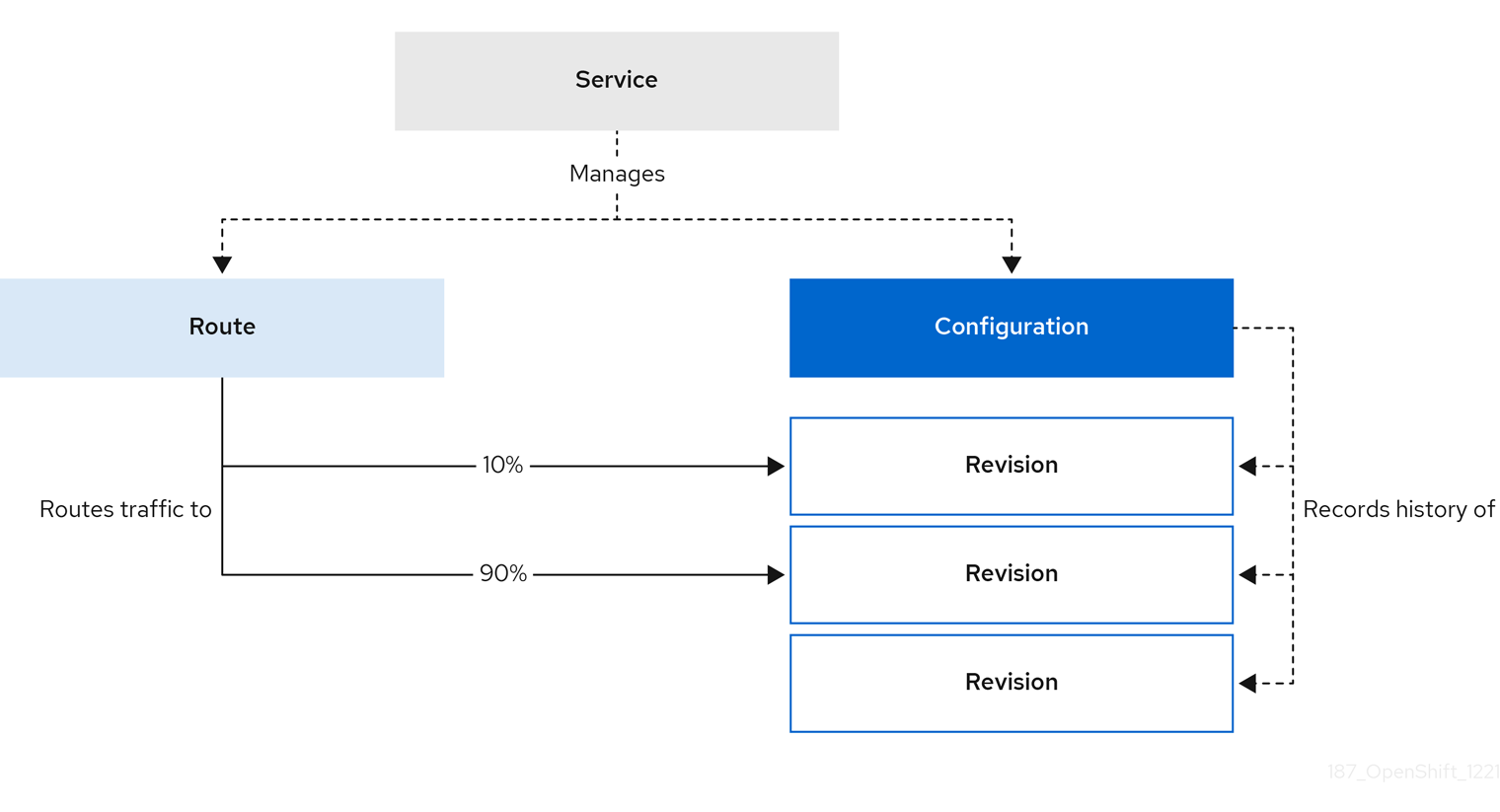
Configuring a route allows requests to be sent to different revisions of a service. This routing is determined by the traffic spec of the Service object.
A traffic spec declaration consists of one or more revisions, each responsible for handling a portion of the overall traffic. The percentages of traffic routed to each revision must add up to 100%, which is ensured by a Knative validation.
The revisions specified in a traffic spec can either be a fixed, named revision, or can point to the “latest” revision, which tracks the head of the list of all revisions for the service. The "latest" revision is a type of floating reference that updates if a new revision is created. Each revision can have a tag attached that creates an additional access URL for that revision.
The traffic spec can be modified by:
-
Editing the YAML of a
Serviceobject directly. -
Using the Knative (
kn) CLI--trafficflag. - Using the OpenShift Container Platform web console.
When you create a Knative service, it does not have any default traffic spec settings.
5.3.1. Traffic spec examples
The following example shows a traffic spec where 100% of traffic is routed to the latest revision of the service. Under status, you can see the name of the latest revision that latestRevision resolves to:
apiVersion: serving.knative.dev/v1
kind: Service
metadata:
  name: example-service
  namespace: default
spec:
...
  traffic:
  - latestRevision: true
    percent: 100
status:
  ...
  traffic:
  - percent: 100
    revisionName: example-service
The following example shows a traffic spec where 100% of traffic is routed to the revision tagged as current, and the name of that revision is specified as example-service. The revision tagged as latest is kept available, even though no traffic is routed to it:
apiVersion: serving.knative.dev/v1
kind: Service
metadata:
  name: example-service
  namespace: default
spec:
...
  traffic:
  - tag: current
    revisionName: example-service
    percent: 100
  - tag: latest
    latestRevision: true
    percent: 0
The following example shows how the list of revisions in the traffic spec can be extended so that traffic is split between multiple revisions. This example sends 50% of traffic to the revision tagged as current, and 50% of traffic to the revision tagged as candidate. The revision tagged as latest is kept available, even though no traffic is routed to it:
apiVersion: serving.knative.dev/v1
kind: Service
metadata:
  name: example-service
  namespace: default
spec:
...
  traffic:
  - tag: current
    revisionName: example-service-1
    percent: 50
  - tag: candidate
    revisionName: example-service-2
    percent: 50
  - tag: latest
    latestRevision: true
    percent: 0
5.3.2. Knative CLI traffic management flags
The Knative (kn) CLI supports traffic operations on the traffic block of a service as part of the kn service update command.
The following table displays a summary of traffic splitting flags, value formats, and the operation the flag performs. The Repetition column denotes whether repeating the particular value of flag is allowed in a kn service update command.
| Flag | Value(s) | Operation | Repetition |
|---|---|---|---|
|
|
|
Gives | Yes |
|
|
|
Gives | Yes |
|
|
|
Gives | No |
|
|
|
Gives | Yes |
|
|
|
Gives | No |
|
|
|
Removes | Yes |
5.3.2.1. Multiple flags and order precedence
All traffic-related flags can be specified using a single kn service update command. kn defines the precedence of these flags. The order of the flags specified when using the command is not taken into account.
The precedence of the flags as they are evaluated by kn are:
-
--untag: All the referenced revisions with this flag are removed from the traffic block. -
--tag: Revisions are tagged as specified in the traffic block. -
--traffic: The referenced revisions are assigned a portion of the traffic split.
You can add tags to revisions and then split traffic according to the tags you have set.
5.3.2.2. Custom URLs for revisions
Assigning a --tag flag to a service by using the kn service update command creates a custom URL for the revision that is created when you update the service. The custom URL follows the pattern https://<tag>-<service_name>-<namespace>.<domain> or http://<tag>-<service_name>-<namespace>.<domain>.
The --tag and --untag flags use the following syntax:
- Require one value.
- Denote a unique tag in the traffic block of the service.
- Can be specified multiple times in one command.
5.3.2.2.1. Example: Assign a tag to a revision
The following example assigns the tag latest to a revision named example-revision:
$ kn service update <service_name> --tag @latest=example-tag5.3.2.2.2. Example: Remove a tag from a revision
You can remove a tag to remove the custom URL, by using the --untag flag.
If a revision has its tags removed, and it is assigned 0% of the traffic, the revision is removed from the traffic block entirely.
The following command removes all tags from the revision named example-revision:
$ kn service update <service_name> --untag example-tag5.3.3. Creating a traffic split by using the Knative CLI
Using the Knative (kn) CLI to create traffic splits provides a more streamlined and intuitive user interface over modifying YAML files directly. You can use the kn service update command to split traffic between revisions of a service.
Prerequisites
- The OpenShift Serverless Operator and Knative Serving are installed on your cluster.
-
You have installed the Knative (
kn) CLI. - You have created a Knative service.
Procedure
Specify the revision of your service and what percentage of traffic you want to route to it by using the
--traffictag with a standardkn service updatecommand:Example command
$ kn service update <service_name> --traffic <revision>=<percentage>Where:
-
<service_name>is the name of the Knative service that you are configuring traffic routing for. -
<revision>is the revision that you want to configure to receive a percentage of traffic. You can either specify the name of the revision, or a tag that you assigned to the revision by using the--tagflag. -
<percentage>is the percentage of traffic that you want to send to the specified revision.
-
Optional: The
--trafficflag can be specified multiple times in one command. For example, if you have a revision tagged as@latestand a revision namedstable, you can specify the percentage of traffic that you want to split to each revision as follows:Example command
$ kn service update example-service --traffic @latest=20,stable=80If you have multiple revisions and do not specify the percentage of traffic that should be split to the last revision, the
--trafficflag can calculate this automatically. For example, if you have a third revision namedexample, and you use the following command:Example command
$ kn service update example-service --traffic @latest=10,stable=60The remaining 30% of traffic is split to the
examplerevision, even though it was not specified.
5.3.4. Managing traffic between revisions by using the OpenShift Container Platform web console
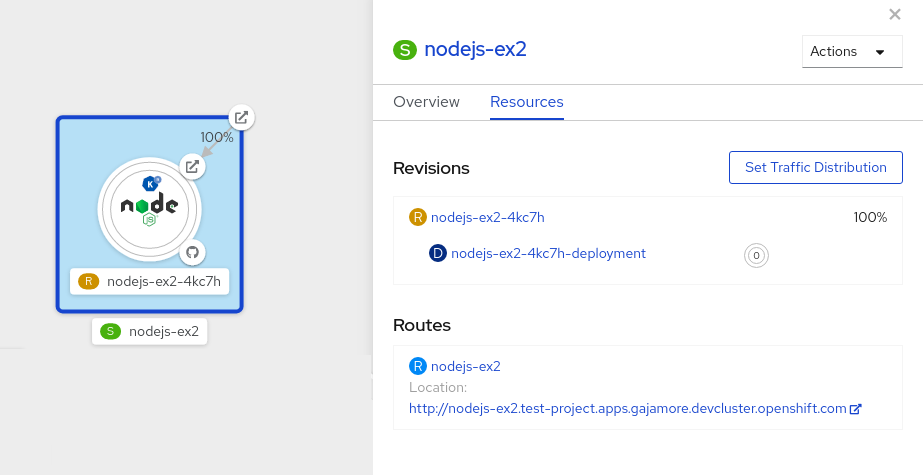
After you create a serverless application, the application is displayed in the Topology view of the Developer perspective in the OpenShift Container Platform web console. The application revision is represented by the node, and the Knative service is indicated by a quadrilateral around the node.
Any new change in the code or the service configuration creates a new revision, which is a snapshot of the code at a given time. For a service, you can manage the traffic between the revisions of the service by splitting and routing it to the different revisions as required.
Prerequisites
- The OpenShift Serverless Operator and Knative Serving are installed on your cluster.
- You have logged in to the OpenShift Container Platform web console.
Procedure
To split traffic between multiple revisions of an application in the Topology view:
- Click the Knative service to see its overview in the side panel.
Click the Resources tab, to see a list of Revisions and Routes for the service.
Figure 5.1. Serverless application
- Click the service, indicated by the S icon at the top of the side panel, to see an overview of the service details.
-
Click the YAML tab and modify the service configuration in the YAML editor, and click Save. For example, change the
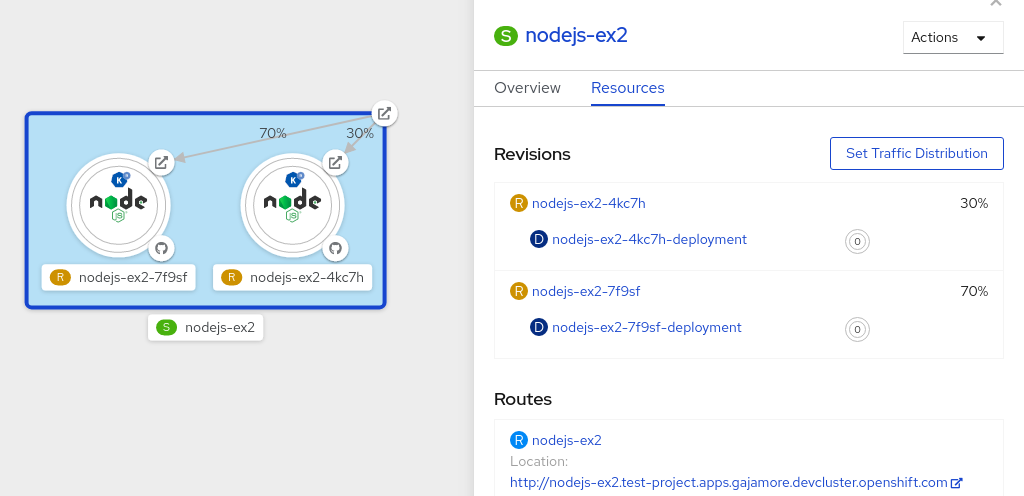
timeoutsecondsfrom 300 to 301 . This change in the configuration triggers a new revision. In the Topology view, the latest revision is displayed and the Resources tab for the service now displays the two revisions. In the Resources tab, click to see the traffic distribution dialog box:
- Add the split traffic percentage portion for the two revisions in the Splits field.
- Add tags to create custom URLs for the two revisions.
Click Save to see two nodes representing the two revisions in the Topology view.
Figure 5.2. Serverless application revisions
5.3.5. Routing and managing traffic by using a blue-green deployment strategy
You can safely reroute traffic from a production version of an app to a new version, by using a blue-green deployment strategy.
Prerequisites
- The OpenShift Serverless Operator and Knative Serving are installed on the cluster.
-
Install the OpenShift CLI (
oc).
Procedure
- Create and deploy an app as a Knative service.
Find the name of the first revision that was created when you deployed the service, by viewing the output from the following command:
$ oc get ksvc <service_name> -o=jsonpath='{.status.latestCreatedRevisionName}'Example command
$ oc get ksvc example-service -o=jsonpath='{.status.latestCreatedRevisionName}'Example output
$ example-service-00001Add the following YAML to the service
specto send inbound traffic to the revision:... spec: traffic: - revisionName: <first_revision_name> percent: 100 # All traffic goes to this revision ...Verify that you can view your app at the URL output you get from running the following command:
$ oc get ksvc <service_name>-
Deploy a second revision of your app by modifying at least one field in the
templatespec of the service and redeploying it. For example, you can modify theimageof the service, or anenvenvironment variable. You can redeploy the service by applying the service YAML file, or by using thekn service updatecommand if you have installed the Knative (kn) CLI. Find the name of the second, latest revision that was created when you redeployed the service, by running the command:
$ oc get ksvc <service_name> -o=jsonpath='{.status.latestCreatedRevisionName}'At this point, both the first and second revisions of the service are deployed and running.
Update your existing service to create a new, test endpoint for the second revision, while still sending all other traffic to the first revision:
Example of updated service spec with test endpoint
...
spec:
  traffic:
    - revisionName: <first_revision_name>
      percent: 100 # All traffic is still being routed to the first revision
    - revisionName: <second_revision_name>
      percent: 0 # No traffic is routed to the second revision
      tag: v2 # A named route
...
After you redeploy this service by reapplying the YAML resource, the second revision of the app is now staged. No traffic is routed to the second revision at the main URL, and Knative creates a new service named
v2for testing the newly deployed revision.Get the URL of the new service for the second revision, by running the following command:
$ oc get ksvc <service_name> --output jsonpath="{.status.traffic[*].url}"You can use this URL to validate that the new version of the app is behaving as expected before you route any traffic to it.
Update your existing service again, so that 50% of traffic is sent to the first revision, and 50% is sent to the second revision:
Example of updated service spec splitting traffic 50/50 between revisions
...
spec:
  traffic:
    - revisionName: <first_revision_name>
      percent: 50
    - revisionName: <second_revision_name>
      percent: 50
      tag: v2
...
When you are ready to route all traffic to the new version of the app, update the service again to send 100% of traffic to the second revision:
Example of updated service spec sending all traffic to the second revision
... spec: traffic: - revisionName: <first_revision_name> percent: 0 - revisionName: <second_revision_name> percent: 100 tag: v2 ...TipYou can remove the first revision instead of setting it to 0% of traffic if you do not plan to roll back the revision. Non-routeable revision objects are then garbage-collected.
- Visit the URL of the first revision to verify that no more traffic is being sent to the old version of the app.
5.4. Routing
Knative leverages OpenShift Container Platform TLS termination to provide routing for Knative services. When a Knative service is created, a OpenShift Container Platform route is automatically created for the service. This route is managed by the OpenShift Serverless Operator. The OpenShift Container Platform route exposes the Knative service through the same domain as the OpenShift Container Platform cluster.
You can disable Operator control of OpenShift Container Platform routing so that you can configure a Knative route to directly use your TLS certificates instead.
Knative routes can also be used alongside the OpenShift Container Platform route to provide additional fine-grained routing capabilities, such as traffic splitting.
5.4.1. Customizing labels and annotations for OpenShift Container Platform routes
OpenShift Container Platform routes support the use of custom labels and annotations, which you can configure by modifying the metadata spec of a Knative service. Custom labels and annotations are propagated from the service to the Knative route, then to the Knative ingress, and finally to the OpenShift Container Platform route.
Prerequisites
- You must have the OpenShift Serverless Operator and Knative Serving installed on your OpenShift Container Platform cluster.
-
Install the OpenShift CLI (
oc).
Procedure
Create a Knative service that contains the label or annotation that you want to propagate to the OpenShift Container Platform route:
To create a service by using YAML:
Example service created by using YAML
apiVersion: serving.knative.dev/v1
kind: Service
metadata:
  name: <service_name>
  labels:
    <label_name>: <label_value>
  annotations:
    <annotation_name>: <annotation_value>
...
To create a service by using the Knative (
kn) CLI, enter:Example service created by using a
kncommand$ kn service create <service_name> \ --image=<image> \ --annotation <annotation_name>=<annotation_value> \ --label <label_value>=<label_value>
Verify that the OpenShift Container Platform route has been created with the annotation or label that you added by inspecting the output from the following command:
Example command for verification
$ oc get routes.route.openshift.io \
     -l serving.knative.openshift.io/ingressName=<service_name> \
1 -l serving.knative.openshift.io/ingressNamespace=<service_namespace> \2 -n knative-serving-ingress -o yaml \ | grep -e "<label_name>: \"<label_value>\"" -e "<annotation_name>: <annotation_value>"3
5.4.2. Configuring OpenShift Container Platform routes for Knative services
If you want to configure a Knative service to use your TLS certificate on OpenShift Container Platform, you must disable the automatic creation of a route for the service by the OpenShift Serverless Operator and instead manually create a route for the service.
When you complete the following procedure, the default OpenShift Container Platform route in the knative-serving-ingress namespace is not created. However, the Knative route for the application is still created in this namespace.
Prerequisites
- The OpenShift Serverless Operator and Knative Serving component must be installed on your OpenShift Container Platform cluster.
-
Install the OpenShift CLI (
oc).
Procedure
Create a Knative service that includes the
serving.knative.openshift.io/disableRoute=trueannotation:ImportantThe
serving.knative.openshift.io/disableRoute=trueannotation instructs OpenShift Serverless to not automatically create a route for you. However, the service still shows a URL and reaches a status ofReady. This URL does not work externally until you create your own route with the same hostname as the hostname in the URL.Create a Knative
Serviceresource:Example resource
apiVersion: serving.knative.dev/v1
kind: Service
metadata:
  name: <service_name>
  annotations:
    serving.knative.openshift.io/disableRoute: "true"
spec:
  template:
    spec:
      containers:
      - image: <image>
...
Apply the
Serviceresource:$ oc apply -f <filename>Optional. Create a Knative service by using the
kn service createcommand:Example
kncommand$ kn service create <service_name> \ --image=gcr.io/knative-samples/helloworld-go \ --annotation serving.knative.openshift.io/disableRoute=true
Verify that no OpenShift Container Platform route has been created for the service:
Example command
$ $ oc get routes.route.openshift.io \
  -l serving.knative.openshift.io/ingressName=$KSERVICE_NAME \
  -l serving.knative.openshift.io/ingressNamespace=$KSERVICE_NAMESPACE \
  -n knative-serving-ingress
You will see the following output:
No resources found in knative-serving-ingress namespace.Create a
Routeresource in theknative-serving-ingressnamespace:apiVersion: route.openshift.io/v1 kind: Route metadata: annotations: haproxy.router.openshift.io/timeout: 600s1 name: <route_name>2 namespace: knative-serving-ingress3 spec: host: <service_host>4 port: targetPort: http2 to: kind: Service name: kourier weight: 100 tls: insecureEdgeTerminationPolicy: Allow termination: edge5 key: |- -----BEGIN PRIVATE KEY----- [...] -----END PRIVATE KEY----- certificate: |- -----BEGIN CERTIFICATE----- [...] -----END CERTIFICATE----- caCertificate: |- -----BEGIN CERTIFICATE----- [...] -----END CERTIFICATE---- wildcardPolicy: None- 1
- The timeout value for the OpenShift Container Platform route. You must set the same value as the
max-revision-timeout-secondssetting (600sby default). - 2
- The name of the OpenShift Container Platform route.
- 3
- The namespace for the OpenShift Container Platform route. This must be
knative-serving-ingress. - 4
- The hostname for external access. You can set this to
<service_name>-<service_namespace>.<domain>. - 5
- The certificates you want to use. Currently, only
edgetermination is supported.
Apply the
Routeresource:$ oc apply -f <filename>
5.4.3. Setting cluster availability to cluster local
By default, Knative services are published to a public IP address. Being published to a public IP address means that Knative services are public applications, and have a publicly accessible URL.
Publicly accessible URLs are accessible from outside of the cluster. However, developers may need to build back-end services that are only be accessible from inside the cluster, known as private services. Developers can label individual services in the cluster with the networking.knative.dev/visibility=cluster-local label to make them private.
For OpenShift Serverless 1.15.0 and newer versions, the serving.knative.dev/visibility label is no longer available. You must update existing services to use the networking.knative.dev/visibility label instead.
Prerequisites
- The OpenShift Serverless Operator and Knative Serving are installed on the cluster.
- You have created a Knative service.
Procedure
Set the visibility for your service by adding the
networking.knative.dev/visibility=cluster-locallabel:$ oc label ksvc <service_name> networking.knative.dev/visibility=cluster-local
Verification
Check that the URL for your service is now in the format
http://<service_name>.<namespace>.svc.cluster.local, by entering the following command and reviewing the output:$ oc get ksvcExample output
NAME            URL                                                                         LATESTCREATED     LATESTREADY       READY   REASON
hello           http://hello.default.svc.cluster.local                                      hello-tx2g7       hello-tx2g7       True
5.5. Event sinks
When you create an event source, you can specify a sink where events are sent to from the source. A sink is an addressable or a callable resource that can receive incoming events from other resources. Knative services, channels and brokers are all examples of sinks.
Addressable objects receive and acknowledge an event delivered over HTTP to an address defined in their status.address.url field. As a special case, the core Kubernetes Service object also fulfills the addressable interface.
Callable objects are able to receive an event delivered over HTTP and transform the event, returning 0 or 1 new events in the HTTP response. These returned events may be further processed in the same way that events from an external event source are processed.
5.5.1. Knative CLI sink flag
When you create an event source by using the Knative (kn) CLI, you can specify a sink where events are sent to from that resource by using the --sink flag. The sink can be any addressable or callable resource that can receive incoming events from other resources.
The following example creates a sink binding that uses a service, http://event-display.svc.cluster.local, as the sink:
Example command using the sink flag
$ kn source binding create bind-heartbeat \
  --namespace sinkbinding-example \
  --subject "Job:batch/v1:app=heartbeat-cron" \
  --sink http://event-display.svc.cluster.local \
--ce-override "sink=bound"- 1
svcinhttp://event-display.svc.cluster.localdetermines that the sink is a Knative service. Other default sink prefixes includechannel, andbroker.
You can configure which CRs can be used with the --sink flag for Knative (kn) CLI commands by Customizing kn.
5.5.2. Connect an event source to a sink using the Developer perspective
When you create an event source by using the OpenShift Container Platform web console, you can specify a sink that events are sent to from that source. The sink can be any addressable or callable resource that can receive incoming events from other resources.
Prerequisites
- The OpenShift Serverless Operator, Knative Serving, and Knative Eventing are installed on your OpenShift Container Platform cluster.
- You have logged in to the web console and are in the Developer perspective.
- You have created a project or have access to a project with the appropriate roles and permissions to create applications and other workloads in OpenShift Container Platform.
- You have created a sink, such as a Knative service, channel or broker.
Procedure
-
Create an event source of any type, by navigating to +Add
Event Source and selecting the event source type that you want to create. - In the Sink section of the Create Event Source form view, select your sink in the Resource list.
- Click Create.
Verification
You can verify that the event source was created and is connected to the sink by viewing the Topology page.
- In the Developer perspective, navigate to Topology.
- View the event source and click the connected sink to see the sink details in the right panel.
5.5.3. Connecting a trigger to a sink
You can connect a trigger to a sink, so that events from a broker are filtered before they are sent to the sink. A sink that is connected to a trigger is configured as a subscriber in the Trigger object’s resource spec.
Example of a Trigger object connected to a Kafka sink
apiVersion: eventing.knative.dev/v1
kind: Trigger
metadata:
  name: <trigger_name>
spec:
...
  subscriber:
    ref:
      apiVersion: eventing.knative.dev/v1alpha1
      kind: KafkaSink
name: <kafka_sink_name> 5.6. Event delivery
You can configure event delivery parameters that are applied in cases where an event fails to be delivered to an event sink. Configuring event delivery parameters, including a dead letter sink, ensures that any events that fail to be delivered to an event sink are retried. Otherwise, undelivered events are dropped.
5.6.1. Event delivery behavior patterns for channels and brokers
Different channel and broker types have their own behavior patterns that are followed for event delivery.
5.6.1.1. Knative Kafka channels and brokers
If an event is successfully delivered to a Kafka channel or broker receiver, the receiver responds with a 202 status code, which means that the event has been safely stored inside a Kafka topic and is not lost.
If the receiver responds with any other status code, the event is not safely stored, and steps must be taken by the user to resolve the issue.
5.6.2. Configurable event delivery parameters
The following parameters can be configured for event delivery:
- Dead letter sink
-
You can configure the
deadLetterSinkdelivery parameter so that if an event fails to be delivered, it is stored in the specified event sink. Undelivered events that are not stored in a dead letter sink are dropped. The dead letter sink be any addressable object that conforms to the Knative Eventing sink contract, such as a Knative service, a Kubernetes service, or a URI. - Retries
-
You can set a minimum number of times that the delivery must be retried before the event is sent to the dead letter sink, by configuring the
retrydelivery parameter with an integer value. - Back off delay
-
You can set the
backoffDelaydelivery parameter to specify the time delay before an event delivery retry is attempted after a failure. The duration of thebackoffDelayparameter is specified using the ISO 8601 format. For example,PT1Sspecifies a 1 second delay. - Back off policy
-
The
backoffPolicydelivery parameter can be used to specify the retry back off policy. The policy can be specified as eitherlinearorexponential. When using thelinearback off policy, the back off delay is equal tobackoffDelay * <numberOfRetries>. When using theexponentialbackoff policy, the back off delay is equal tobackoffDelay*2^<numberOfRetries>.
5.6.3. Examples of configuring event delivery parameters
You can configure event delivery parameters for Broker, Trigger, Channel, and Subscription objects. If you configure event delivery parameters for a broker or channel, these parameters are propagated to triggers or subscriptions created for those objects. You can also set event delivery parameters for triggers or subscriptions to override the settings for the broker or channel.
Example Broker object
apiVersion: eventing.knative.dev/v1
kind: Broker
metadata:
...
spec:
  delivery:
    deadLetterSink:
      ref:
        apiVersion: eventing.knative.dev/v1alpha1
        kind: KafkaSink
        name: <sink_name>
    backoffDelay: <duration>
    backoffPolicy: <policy_type>
    retry: <integer>
...
Example Trigger object
apiVersion: eventing.knative.dev/v1
kind: Trigger
metadata:
...
spec:
  broker: <broker_name>
  delivery:
    deadLetterSink:
      ref:
        apiVersion: serving.knative.dev/v1
        kind: Service
        name: <sink_name>
    backoffDelay: <duration>
    backoffPolicy: <policy_type>
    retry: <integer>
...
Example Channel object
apiVersion: messaging.knative.dev/v1
kind: Channel
metadata:
...
spec:
  delivery:
    deadLetterSink:
      ref:
        apiVersion: serving.knative.dev/v1
        kind: Service
        name: <sink_name>
    backoffDelay: <duration>
    backoffPolicy: <policy_type>
    retry: <integer>
...
Example Subscription object
apiVersion: messaging.knative.dev/v1
kind: Subscription
metadata:
...
spec:
  channel:
    apiVersion: messaging.knative.dev/v1
    kind: Channel
    name: <channel_name>
  delivery:
    deadLetterSink:
      ref:
        apiVersion: serving.knative.dev/v1
        kind: Service
        name: <sink_name>
    backoffDelay: <duration>
    backoffPolicy: <policy_type>
    retry: <integer>
...
5.6.4. Configuring event delivery ordering for triggers
If you are using a Kafka broker, you can configure the delivery order of events from triggers to event sinks.
Prerequisites
- The OpenShift Serverless Operator, Knative Eventing, and Knative Kafka are installed on your OpenShift Container Platform cluster.
- Kafka broker is enabled for use on your cluster, and you have created a Kafka broker.
- You have created a project or have access to a project with the appropriate roles and permissions to create applications and other workloads in OpenShift Container Platform.
-
You have installed the OpenShift (
oc) CLI.
Procedure
Create or modify a
Triggerobject and set thekafka.eventing.knative.dev/delivery.orderannotation:apiVersion: eventing.knative.dev/v1 kind: Trigger metadata: name: <trigger_name> annotations: kafka.eventing.knative.dev/delivery.order: ordered ...The supported consumer delivery guarantees are:
unordered- An unordered consumer is a non-blocking consumer that delivers messages unordered, while preserving proper offset management.
orderedAn ordered consumer is a per-partition blocking consumer that waits for a successful response from the CloudEvent subscriber before it delivers the next message of the partition.
The default ordering guarantee is
unordered.
Apply the
Triggerobject:$ oc apply -f <filename>
5.7. Listing event sources and event source types
It is possible to view a list of all event sources or event source types that exist or are available for use on your OpenShift Container Platform cluster. You can use the Knative (kn) CLI or the Developer perspective in the OpenShift Container Platform web console to list available event sources or event source types.
5.7.1. Listing available event source types by using the Knative CLI
Using the Knative (kn) CLI provides a streamlined and intuitive user interface to view available event source types on your cluster. You can list event source types that can be created and used on your cluster by using the kn source list-types CLI command.
Prerequisites
- The OpenShift Serverless Operator and Knative Eventing are installed on the cluster.
-
You have installed the Knative (
kn) CLI.
Procedure
List the available event source types in the terminal:
$ kn source list-typesExample output
TYPE              NAME                                            DESCRIPTION
ApiServerSource   apiserversources.sources.knative.dev            Watch and send Kubernetes API events to a sink
PingSource        pingsources.sources.knative.dev                 Periodically send ping events to a sink
SinkBinding       sinkbindings.sources.knative.dev                Binding for connecting a PodSpecable to a sink
Optional: You can also list the available event source types in YAML format:
$ kn source list-types -o yaml
5.7.2. Viewing available event source types within the Developer perspective
It is possible to view a list of all available event source types on your cluster. Using the OpenShift Container Platform web console provides a streamlined and intuitive user interface to view available event source types.
Prerequisites
- You have logged in to the OpenShift Container Platform web console.
- The OpenShift Serverless Operator and Knative Eventing are installed on your OpenShift Container Platform cluster.
- You have created a project or have access to a project with the appropriate roles and permissions to create applications and other workloads in OpenShift Container Platform.
Procedure
- Access the Developer perspective.
- Click +Add.
- Click Event Source.
- View the available event source types.
5.7.3. Listing available event sources by using the Knative CLI
Using the Knative (kn) CLI provides a streamlined and intuitive user interface to view existing event sources on your cluster. You can list existing event sources by using the kn source list command.
Prerequisites
- The OpenShift Serverless Operator and Knative Eventing are installed on the cluster.
-
You have installed the Knative (
kn) CLI.
Procedure
List the existing event sources in the terminal:
$ kn source listExample output
NAME   TYPE              RESOURCE                               SINK         READY
a1     ApiServerSource   apiserversources.sources.knative.dev   ksvc:eshow2   True
b1     SinkBinding       sinkbindings.sources.knative.dev       ksvc:eshow3   False
p1     PingSource        pingsources.sources.knative.dev        ksvc:eshow1   True
Optional: You can list event sources of a specific type only, by using the
--typeflag:$ kn source list --type <event_source_type>Example command
$ kn source list --type PingSourceExample output
NAME   TYPE              RESOURCE                               SINK         READY
p1     PingSource        pingsources.sources.knative.dev        ksvc:eshow1   True
5.8. Creating an API server source
The API server source is an event source that can be used to connect an event sink, such as a Knative service, to the Kubernetes API server. The API server source watches for Kubernetes events and forwards them to the Knative Eventing broker.
5.8.1. Creating an API server source by using the web console
After Knative Eventing is installed on your cluster, you can create an API server source by using the web console. Using the OpenShift Container Platform web console provides a streamlined and intuitive user interface to create an event source.
Prerequisites
- You have logged in to the OpenShift Container Platform web console.
- The OpenShift Serverless Operator and Knative Eventing are installed on the cluster.
- You have created a project or have access to a project with the appropriate roles and permissions to create applications and other workloads in OpenShift Container Platform.
-
You have installed the OpenShift CLI (
oc).
If you want to re-use an existing service account, you can modify your existing ServiceAccount resource to include the required permissions instead of creating a new resource.
Create a service account, role, and role binding for the event source as a YAML file:
apiVersion: v1
kind: ServiceAccount
metadata:
  name: events-sa
  namespace: default
1 --- apiVersion: rbac.authorization.k8s.io/v1 kind: Role metadata: name: event-watcher namespace: default2 rules: - apiGroups: - "" resources: - events verbs: - get - list - watch --- apiVersion: rbac.authorization.k8s.io/v1 kind: RoleBinding metadata: name: k8s-ra-event-watcher namespace: default3 roleRef: apiGroup: rbac.authorization.k8s.io kind: Role name: event-watcher subjects: - kind: ServiceAccount name: events-sa namespace: default4 Apply the YAML file:
$ oc apply -f <filename>-
In the Developer perspective, navigate to +Add
Event Source. The Event Sources page is displayed. - Optional: If you have multiple providers for your event sources, select the required provider from the Providers list to filter the available event sources from the provider.
- Select ApiServerSource and then click Create Event Source. The Create Event Source page is displayed.
Configure the ApiServerSource settings by using the Form view or YAML view:
NoteYou can switch between the Form view and YAML view. The data is persisted when switching between the views.
-
Enter
v1as the APIVERSION andEventas the KIND. - Select the Service Account Name for the service account that you created.
- Select the Sink for the event source. A Sink can be either a Resource, such as a channel, broker, or service, or a URI.
-
Enter
- Click Create.
Verification
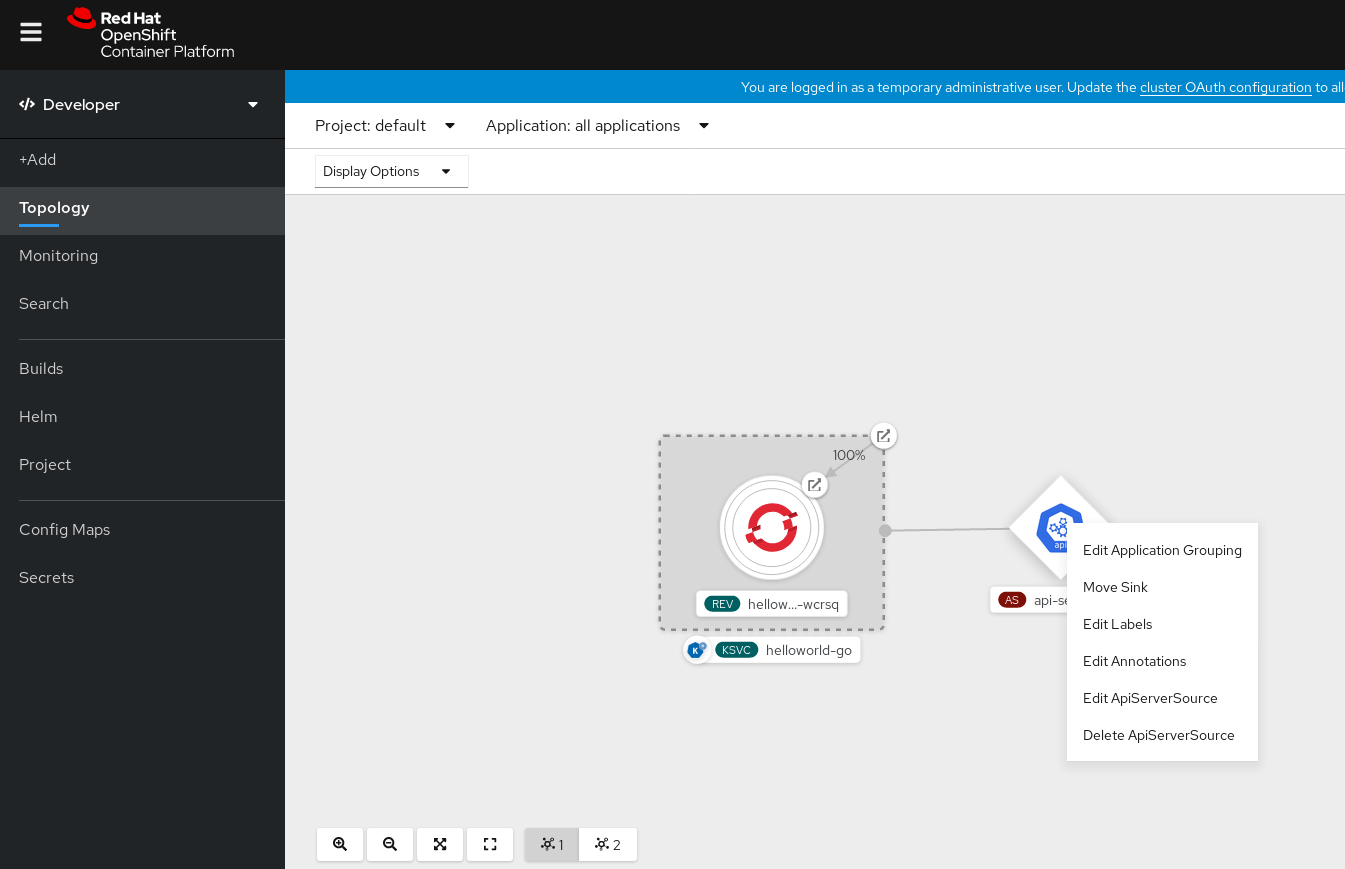
After you have created the API server source, you will see it connected to the service it is sinked to in the Topology view.
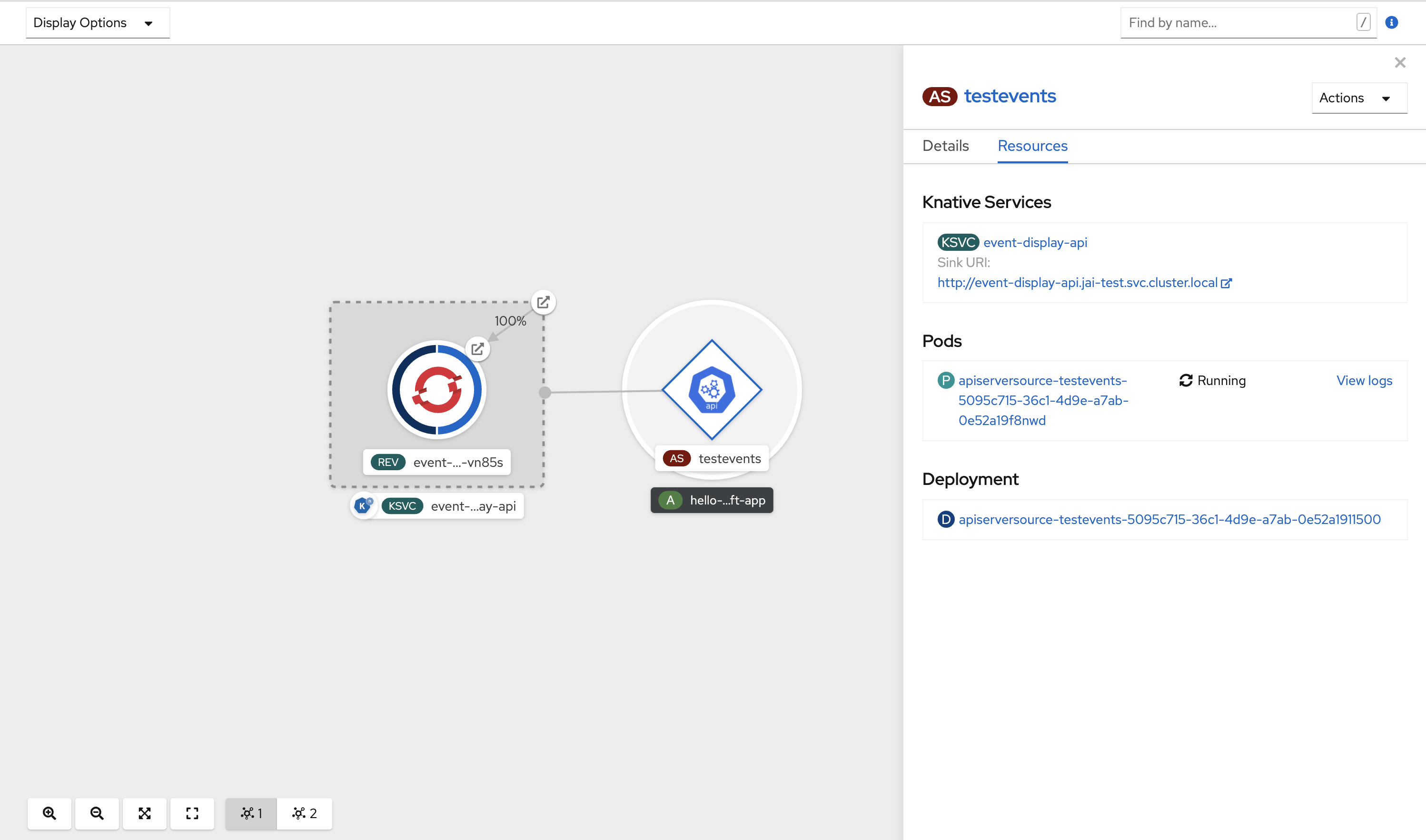
If a URI sink is used, modify the URI by right-clicking on URI sink
Deleting the API server source
- Navigate to the Topology view.
Right-click the API server source and select Delete ApiServerSource.
5.8.2. Creating an API server source by using the Knative CLI
You can use the kn source apiserver create command to create an API server source by using the kn CLI. Using the kn CLI to create an API server source provides a more streamlined and intuitive user interface than modifying YAML files directly.
Prerequisites
- The OpenShift Serverless Operator and Knative Eventing are installed on the cluster.
- You have created a project or have access to a project with the appropriate roles and permissions to create applications and other workloads in OpenShift Container Platform.
-
You have installed the OpenShift CLI (
oc). -
You have installed the Knative (
kn) CLI.
If you want to re-use an existing service account, you can modify your existing ServiceAccount resource to include the required permissions instead of creating a new resource.
Create a service account, role, and role binding for the event source as a YAML file:
apiVersion: v1
kind: ServiceAccount
metadata:
  name: events-sa
  namespace: default
1 --- apiVersion: rbac.authorization.k8s.io/v1 kind: Role metadata: name: event-watcher namespace: default2 rules: - apiGroups: - "" resources: - events verbs: - get - list - watch --- apiVersion: rbac.authorization.k8s.io/v1 kind: RoleBinding metadata: name: k8s-ra-event-watcher namespace: default3 roleRef: apiGroup: rbac.authorization.k8s.io kind: Role name: event-watcher subjects: - kind: ServiceAccount name: events-sa namespace: default4 Apply the YAML file:
$ oc apply -f <filename>Create an API server source that has an event sink. In the following example, the sink is a broker:
$ kn source apiserver create <event_source_name> --sink broker:<broker_name> --resource "event:v1" --service-account <service_account_name> --mode ResourceTo check that the API server source is set up correctly, create a Knative service that dumps incoming messages to its log:
$ kn service create <service_name> --image quay.io/openshift-knative/knative-eventing-sources-event-display:latestIf you used a broker as an event sink, create a trigger to filter events from the
defaultbroker to the service:$ kn trigger create <trigger_name> --sink ksvc:<service_name>Create events by launching a pod in the default namespace:
$ oc create deployment hello-node --image quay.io/openshift-knative/knative-eventing-sources-event-display:latestCheck that the controller is mapped correctly by inspecting the output generated by the following command:
$ kn source apiserver describe <source_name>Example output
Name:                mysource
Namespace:           default
Annotations:         sources.knative.dev/creator=developer, sources.knative.dev/lastModifier=developer
Age:                 3m
ServiceAccountName:  events-sa
Mode:                Resource
Sink:
  Name:       default
  Namespace:  default
  Kind:       Broker (eventing.knative.dev/v1)
Resources:
  Kind:        event (v1)
  Controller:  false
Conditions:
  OK TYPE                     AGE REASON
  ++ Ready                     3m
  ++ Deployed                  3m
  ++ SinkProvided              3m
  ++ SufficientPermissions     3m
  ++ EventTypesProvided        3m
Verification
You can verify that the Kubernetes events were sent to Knative by looking at the message dumper function logs.
Get the pods:
$ oc get podsView the message dumper function logs for the pods:
$ oc logs $(oc get pod -o name | grep event-display) -c user-containerExample output
☁️  cloudevents.Event
Validation: valid
Context Attributes,
  specversion: 1.0
  type: dev.knative.apiserver.resource.update
  datacontenttype: application/json
  ...
Data,
  {
    "apiVersion": "v1",
    "involvedObject": {
      "apiVersion": "v1",
      "fieldPath": "spec.containers{hello-node}",
      "kind": "Pod",
      "name": "hello-node",
      "namespace": "default",
       .....
    },
    "kind": "Event",
    "message": "Started container",
    "metadata": {
      "name": "hello-node.159d7608e3a3572c",
      "namespace": "default",
      ....
    },
    "reason": "Started",
    ...
  }
Deleting the API server source
Delete the trigger:
$ kn trigger delete <trigger_name>Delete the event source:
$ kn source apiserver delete <source_name>Delete the service account, cluster role, and cluster binding:
$ oc delete -f authentication.yaml
5.8.2.1. Knative CLI sink flag
When you create an event source by using the Knative (kn) CLI, you can specify a sink where events are sent to from that resource by using the --sink flag. The sink can be any addressable or callable resource that can receive incoming events from other resources.
The following example creates a sink binding that uses a service, http://event-display.svc.cluster.local, as the sink:
Example command using the sink flag
$ kn source binding create bind-heartbeat \
  --namespace sinkbinding-example \
  --subject "Job:batch/v1:app=heartbeat-cron" \
  --sink http://event-display.svc.cluster.local \
--ce-override "sink=bound"- 1
svcinhttp://event-display.svc.cluster.localdetermines that the sink is a Knative service. Other default sink prefixes includechannel, andbroker.
5.8.3. Creating an API server source by using YAML files
Creating Knative resources by using YAML files uses a declarative API, which enables you to describe event sources declaratively and in a reproducible manner. To create an API server source by using YAML, you must create a YAML file that defines an ApiServerSource object, then apply it by using the oc apply command.
Prerequisites
- The OpenShift Serverless Operator and Knative Eventing are installed on the cluster.
- You have created a project or have access to a project with the appropriate roles and permissions to create applications and other workloads in OpenShift Container Platform.
-
You have created the
defaultbroker in the same namespace as the one defined in the API server source YAML file. -
Install the OpenShift CLI (
oc).
If you want to re-use an existing service account, you can modify your existing ServiceAccount resource to include the required permissions instead of creating a new resource.
Create a service account, role, and role binding for the event source as a YAML file:
apiVersion: v1
kind: ServiceAccount
metadata:
  name: events-sa
  namespace: default
1 --- apiVersion: rbac.authorization.k8s.io/v1 kind: Role metadata: name: event-watcher namespace: default2 rules: - apiGroups: - "" resources: - events verbs: - get - list - watch --- apiVersion: rbac.authorization.k8s.io/v1 kind: RoleBinding metadata: name: k8s-ra-event-watcher namespace: default3 roleRef: apiGroup: rbac.authorization.k8s.io kind: Role name: event-watcher subjects: - kind: ServiceAccount name: events-sa namespace: default4 Apply the YAML file:
$ oc apply -f <filename>Create an API server source as a YAML file:
apiVersion: sources.knative.dev/v1alpha1
kind: ApiServerSource
metadata:
  name: testevents
spec:
  serviceAccountName: events-sa
  mode: Resource
  resources:
    - apiVersion: v1
      kind: Event
  sink:
    ref:
      apiVersion: eventing.knative.dev/v1
      kind: Broker
      name: default
Apply the
ApiServerSourceYAML file:$ oc apply -f <filename>To check that the API server source is set up correctly, create a Knative service as a YAML file that dumps incoming messages to its log:
apiVersion: serving.knative.dev/v1
kind: Service
metadata:
  name: event-display
  namespace: default
spec:
  template:
    spec:
      containers:
        - image: quay.io/openshift-knative/knative-eventing-sources-event-display:latest
Apply the
ServiceYAML file:$ oc apply -f <filename>Create a
Triggerobject as a YAML file that filters events from thedefaultbroker to the service created in the previous step:apiVersion: eventing.knative.dev/v1 kind: Trigger metadata: name: event-display-trigger namespace: default spec: broker: default subscriber: ref: apiVersion: serving.knative.dev/v1 kind: Service name: event-displayApply the
TriggerYAML file:$ oc apply -f <filename>Create events by launching a pod in the default namespace:
$ oc create deployment hello-node --image=quay.io/openshift-knative/knative-eventing-sources-event-displayCheck that the controller is mapped correctly, by entering the following command and inspecting the output:
$ oc get apiserversource.sources.knative.dev testevents -o yamlExample output
apiVersion: sources.knative.dev/v1alpha1
kind: ApiServerSource
metadata:
  annotations:
  creationTimestamp: "2020-04-07T17:24:54Z"
  generation: 1
  name: testevents
  namespace: default
  resourceVersion: "62868"
  selfLink: /apis/sources.knative.dev/v1alpha1/namespaces/default/apiserversources/testevents2
  uid: 1603d863-bb06-4d1c-b371-f580b4db99fa
spec:
  mode: Resource
  resources:
  - apiVersion: v1
    controller: false
    controllerSelector:
      apiVersion: ""
      kind: ""
      name: ""
      uid: ""
    kind: Event
    labelSelector: {}
  serviceAccountName: events-sa
  sink:
    ref:
      apiVersion: eventing.knative.dev/v1
      kind: Broker
      name: default
Verification
To verify that the Kubernetes events were sent to Knative, you can look at the message dumper function logs.
Get the pods by entering the following command:
$ oc get podsView the message dumper function logs for the pods by entering the following command:
$ oc logs $(oc get pod -o name | grep event-display) -c user-containerExample output
☁️  cloudevents.Event
Validation: valid
Context Attributes,
  specversion: 1.0
  type: dev.knative.apiserver.resource.update
  datacontenttype: application/json
  ...
Data,
  {
    "apiVersion": "v1",
    "involvedObject": {
      "apiVersion": "v1",
      "fieldPath": "spec.containers{hello-node}",
      "kind": "Pod",
      "name": "hello-node",
      "namespace": "default",
       .....
    },
    "kind": "Event",
    "message": "Started container",
    "metadata": {
      "name": "hello-node.159d7608e3a3572c",
      "namespace": "default",
      ....
    },
    "reason": "Started",
    ...
  }
Deleting the API server source
Delete the trigger:
$ oc delete -f trigger.yamlDelete the event source:
$ oc delete -f k8s-events.yamlDelete the service account, cluster role, and cluster binding:
$ oc delete -f authentication.yaml
5.9. Creating a ping source
A ping source is an event source that can be used to periodically send ping events with a constant payload to an event consumer. A ping source can be used to schedule sending events, similar to a timer.
5.9.1. Creating a ping source by using the web console
After Knative Eventing is installed on your cluster, you can create a ping source by using the web console. Using the OpenShift Container Platform web console provides a streamlined and intuitive user interface to create an event source.
Prerequisites
- You have logged in to the OpenShift Container Platform web console.
- The OpenShift Serverless Operator, Knative Serving and Knative Eventing are installed on the cluster.
- You have created a project or have access to a project with the appropriate roles and permissions to create applications and other workloads in OpenShift Container Platform.
Procedure
To verify that the ping source is working, create a simple Knative service that dumps incoming messages to the logs of the service.
-
In the Developer perspective, navigate to +Add
YAML. Copy the example YAML:
apiVersion: serving.knative.dev/v1 kind: Service metadata: name: event-display spec: template: spec: containers: - image: quay.io/openshift-knative/knative-eventing-sources-event-display:latest- Click Create.
-
In the Developer perspective, navigate to +Add
Create a ping source in the same namespace as the service created in the previous step, or any other sink that you want to send events to.
-
In the Developer perspective, navigate to +Add
Event Source. The Event Sources page is displayed. - Optional: If you have multiple providers for your event sources, select the required provider from the Providers list to filter the available event sources from the provider.
Select Ping Source and then click Create Event Source. The Create Event Source page is displayed.
NoteYou can configure the PingSource settings by using the Form view or YAML view and can switch between the views. The data is persisted when switching between the views.
-
Enter a value for Schedule. In this example, the value is
*/2 * * * *, which creates a PingSource that sends a message every two minutes. - Optional: You can enter a value for Data, which is the message payload.
-
Select a Sink. This can be either a Resource or a URI. In this example, the
event-displayservice created in the previous step is used as the Resource sink. - Click Create.
-
In the Developer perspective, navigate to +Add
Verification
You can verify that the ping source was created and is connected to the sink by viewing the Topology page.
- In the Developer perspective, navigate to Topology.
View the ping source and sink.
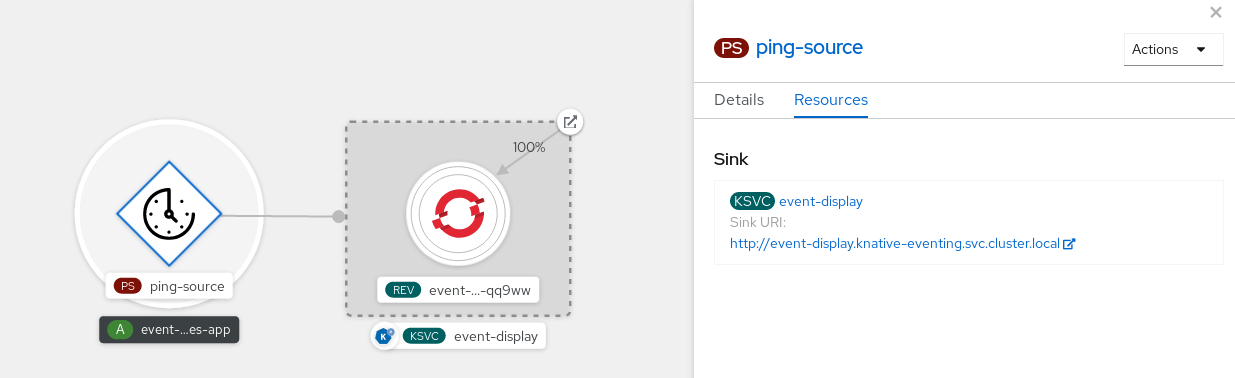
Deleting the ping source
- Navigate to the Topology view.
- Right-click the API server source and select Delete Ping Source.
5.9.2. Creating a ping source by using the Knative CLI
You can use the kn source ping create command to create a ping source by using the Knative (kn) CLI. Using the Knative CLI to create event sources provides a more streamlined and intuitive user interface than modifying YAML files directly.
Prerequisites
- The OpenShift Serverless Operator, Knative Serving and Knative Eventing are installed on the cluster.
-
You have installed the Knative (
kn) CLI. - You have created a project or have access to a project with the appropriate roles and permissions to create applications and other workloads in OpenShift Container Platform.
-
Optional: If you want to use the verification steps for this procedure, install the OpenShift CLI (
oc).
Procedure
To verify that the ping source is working, create a simple Knative service that dumps incoming messages to the service logs:
$ kn service create event-display \
    --image quay.io/openshift-knative/knative-eventing-sources-event-display:latest
For each set of ping events that you want to request, create a ping source in the same namespace as the event consumer:
$ kn source ping create test-ping-source \
    --schedule "*/2 * * * *" \
    --data '{"message": "Hello world!"}' \
    --sink ksvc:event-display
Check that the controller is mapped correctly by entering the following command and inspecting the output:
$ kn source ping describe test-ping-sourceExample output
Name:         test-ping-source
Namespace:    default
Annotations:  sources.knative.dev/creator=developer, sources.knative.dev/lastModifier=developer
Age:          15s
Schedule:     */2 * * * *
Data:         {"message": "Hello world!"}

Sink:
  Name:       event-display
  Namespace:  default
  Resource:   Service (serving.knative.dev/v1)

Conditions:
  OK TYPE                 AGE REASON
  ++ Ready                 8s
  ++ Deployed              8s
  ++ SinkProvided         15s
  ++ ValidSchedule        15s
  ++ EventTypeProvided    15s
  ++ ResourcesCorrect     15s
Verification
You can verify that the Kubernetes events were sent to the Knative event sink by looking at the logs of the sink pod.
By default, Knative services terminate their pods if no traffic is received within a 60 second period. The example shown in this guide creates a ping source that sends a message every 2 minutes, so each message should be observed in a newly created pod.
Watch for new pods created:
$ watch oc get podsCancel watching the pods using Ctrl+C, then look at the logs of the created pod:
$ oc logs $(oc get pod -o name | grep event-display) -c user-containerExample output
☁️  cloudevents.Event
Validation: valid
Context Attributes,
  specversion: 1.0
  type: dev.knative.sources.ping
  source: /apis/v1/namespaces/default/pingsources/test-ping-source
  id: 99e4f4f6-08ff-4bff-acf1-47f61ded68c9
  time: 2020-04-07T16:16:00.000601161Z
  datacontenttype: application/json
Data,
  {
    "message": "Hello world!"
  }
Deleting the ping source
Delete the ping source:
$ kn delete pingsources.sources.knative.dev <ping_source_name>
5.9.2.1. Knative CLI sink flag
When you create an event source by using the Knative (kn) CLI, you can specify a sink where events are sent to from that resource by using the --sink flag. The sink can be any addressable or callable resource that can receive incoming events from other resources.
The following example creates a sink binding that uses a service, http://event-display.svc.cluster.local, as the sink:
Example command using the sink flag
$ kn source binding create bind-heartbeat \
  --namespace sinkbinding-example \
  --subject "Job:batch/v1:app=heartbeat-cron" \
  --sink http://event-display.svc.cluster.local \
--ce-override "sink=bound"- 1
svcinhttp://event-display.svc.cluster.localdetermines that the sink is a Knative service. Other default sink prefixes includechannel, andbroker.
5.9.3. Creating a ping source by using YAML
Creating Knative resources by using YAML files uses a declarative API, which enables you to describe event sources declaratively and in a reproducible manner. To create a serverless ping source by using YAML, you must create a YAML file that defines a PingSource object, then apply it by using oc apply.
Example PingSource object
apiVersion: sources.knative.dev/v1
kind: PingSource
metadata:
  name: test-ping-source
spec:
  schedule: "*/2 * * * *"
data: '{"message": "Hello world!"}'
sink:
    ref:
      apiVersion: serving.knative.dev/v1
      kind: Service
name: event-display- 1
- The schedule of the event specified using CRON expression.
- 2
- The event message body expressed as a JSON encoded data string.
- 3
- These are the details of the event consumer. In this example, we are using a Knative service named
event-display.
Prerequisites
- The OpenShift Serverless Operator, Knative Serving and Knative Eventing are installed on the cluster.
-
Install the OpenShift CLI (
oc). - You have created a project or have access to a project with the appropriate roles and permissions to create applications and other workloads in OpenShift Container Platform.
Procedure
To verify that the ping source is working, create a simple Knative service that dumps incoming messages to the service’s logs.
Create a service YAML file:
apiVersion: serving.knative.dev/v1
kind: Service
metadata:
  name: event-display
spec:
  template:
    spec:
      containers:
        - image: quay.io/openshift-knative/knative-eventing-sources-event-display:latest
Create the service:
$ oc apply -f <filename>
For each set of ping events that you want to request, create a ping source in the same namespace as the event consumer.
Create a YAML file for the ping source:
apiVersion: sources.knative.dev/v1
kind: PingSource
metadata:
  name: test-ping-source
spec:
  schedule: "*/2 * * * *"
  data: '{"message": "Hello world!"}'
  sink:
    ref:
      apiVersion: serving.knative.dev/v1
      kind: Service
      name: event-display
Create the ping source:
$ oc apply -f <filename>
Check that the controller is mapped correctly by entering the following command:
$ oc get pingsource.sources.knative.dev <ping_source_name> -oyamlExample output
apiVersion: sources.knative.dev/v1
kind: PingSource
metadata:
  annotations:
    sources.knative.dev/creator: developer
    sources.knative.dev/lastModifier: developer
  creationTimestamp: "2020-04-07T16:11:14Z"
  generation: 1
  name: test-ping-source
  namespace: default
  resourceVersion: "55257"
  selfLink: /apis/sources.knative.dev/v1/namespaces/default/pingsources/test-ping-source
  uid: 3d80d50b-f8c7-4c1b-99f7-3ec00e0a8164
spec:
  data: '{ value: "hello" }'
  schedule: '*/2 * * * *'
  sink:
    ref:
      apiVersion: serving.knative.dev/v1
      kind: Service
      name: event-display
      namespace: default
Verification
You can verify that the Kubernetes events were sent to the Knative event sink by looking at the sink pod’s logs.
By default, Knative services terminate their pods if no traffic is received within a 60 second period. The example shown in this guide creates a PingSource that sends a message every 2 minutes, so each message should be observed in a newly created pod.
Watch for new pods created:
$ watch oc get podsCancel watching the pods using Ctrl+C, then look at the logs of the created pod:
$ oc logs $(oc get pod -o name | grep event-display) -c user-containerExample output
☁️  cloudevents.Event
Validation: valid
Context Attributes,
  specversion: 1.0
  type: dev.knative.sources.ping
  source: /apis/v1/namespaces/default/pingsources/test-ping-source
  id: 042ff529-240e-45ee-b40c-3a908129853e
  time: 2020-04-07T16:22:00.000791674Z
  datacontenttype: application/json
Data,
  {
    "message": "Hello world!"
  }
Deleting the ping source
Delete the ping source:
$ oc delete -f <filename>Example command
$ oc delete -f ping-source.yaml
5.10. Custom event sources
If you need to ingress events from an event producer that is not included in Knative, or from a producer that emits events which are not in the CloudEvent format, you can do this by creating a custom event source. You can create a custom event source by using one of the following methods:
-
Use a
PodSpecableobject as an event source, by creating a sink binding. - Use a container as an event source, by creating a container source.
5.10.1. Sink binding
The SinkBinding object supports decoupling event production from delivery addressing. Sink binding is used to connect event producers to an event consumer, or sink. An event producer is a Kubernetes resource that embeds a PodSpec template and produces events. A sink is an addressable Kubernetes object that can receive events.
The SinkBinding object injects environment variables into the PodTemplateSpec of the sink, which means that the application code does not need to interact directly with the Kubernetes API to locate the event destination. These environment variables are as follows:
K_SINK- The URL of the resolved sink.
K_CE_OVERRIDES- A JSON object that specifies overrides to the outbound event.
The SinkBinding object currently does not support custom revision names for services.
5.10.1.1. Creating a sink binding by using YAML
Creating Knative resources by using YAML files uses a declarative API, which enables you to describe event sources declaratively and in a reproducible manner. To create a sink binding by using YAML, you must create a YAML file that defines an SinkBinding object, then apply it by using the oc apply command.
Prerequisites
- The OpenShift Serverless Operator, Knative Serving and Knative Eventing are installed on the cluster.
-
Install the OpenShift CLI (
oc). - You have created a project or have access to a project with the appropriate roles and permissions to create applications and other workloads in OpenShift Container Platform.
Procedure
To check that sink binding is set up correctly, create a Knative event display service, or event sink, that dumps incoming messages to its log.
Create a service YAML file:
Example service YAML file
apiVersion: serving.knative.dev/v1
kind: Service
metadata:
  name: event-display
spec:
  template:
    spec:
      containers:
        - image: quay.io/openshift-knative/knative-eventing-sources-event-display:latest
Create the service:
$ oc apply -f <filename>
Create a sink binding instance that directs events to the service.
Create a sink binding YAML file:
Example service YAML file
apiVersion: sources.knative.dev/v1alpha1
kind: SinkBinding
metadata:
  name: bind-heartbeat
spec:
  subject:
    apiVersion: batch/v1
    kind: Job
1 selector: matchLabels: app: heartbeat-cron sink: ref: apiVersion: serving.knative.dev/v1 kind: Service name: event-display- 1
- In this example, any Job with the label
app: heartbeat-cronwill be bound to the event sink.
Create the sink binding:
$ oc apply -f <filename>
Create a
CronJobobject.Create a cron job YAML file:
Example cron job YAML file
apiVersion: batch/v1 kind: CronJob metadata: name: heartbeat-cron spec: # Run every minute schedule: "* * * * *" jobTemplate: metadata: labels: app: heartbeat-cron bindings.knative.dev/include: "true" spec: template: spec: restartPolicy: Never containers: - name: single-heartbeat image: quay.io/openshift-knative/heartbeats:latest args: - --period=1 env: - name: ONE_SHOT value: "true" - name: POD_NAME valueFrom: fieldRef: fieldPath: metadata.name - name: POD_NAMESPACE valueFrom: fieldRef: fieldPath: metadata.namespaceImportantTo use sink binding, you must manually add a
bindings.knative.dev/include=truelabel to your Knative resources.For example, to add this label to a
CronJobresource, add the following lines to theJobresource YAML definition:jobTemplate: metadata: labels: app: heartbeat-cron bindings.knative.dev/include: "true"Create the cron job:
$ oc apply -f <filename>
Check that the controller is mapped correctly by entering the following command and inspecting the output:
$ oc get sinkbindings.sources.knative.dev bind-heartbeat -oyamlExample output
spec:
  sink:
    ref:
      apiVersion: serving.knative.dev/v1
      kind: Service
      name: event-display
      namespace: default
  subject:
    apiVersion: batch/v1
    kind: Job
    namespace: default
    selector:
      matchLabels:
        app: heartbeat-cron
Verification
You can verify that the Kubernetes events were sent to the Knative event sink by looking at the message dumper function logs.
Enter the command:
$ oc get podsEnter the command:
$ oc logs $(oc get pod -o name | grep event-display) -c user-containerExample output
☁️  cloudevents.Event
Validation: valid
Context Attributes,
  specversion: 1.0
  type: dev.knative.eventing.samples.heartbeat
  source: https://knative.dev/eventing-contrib/cmd/heartbeats/#event-test/mypod
  id: 2b72d7bf-c38f-4a98-a433-608fbcdd2596
  time: 2019-10-18T15:23:20.809775386Z
  contenttype: application/json
Extensions,
  beats: true
  heart: yes
  the: 42
Data,
  {
    "id": 1,
    "label": ""
  }
5.10.1.2. Creating a sink binding by using the Knative CLI
You can use the kn source binding create command to create a sink binding by using the Knative (kn) CLI. Using the Knative CLI to create event sources provides a more streamlined and intuitive user interface than modifying YAML files directly.
Prerequisites
- The OpenShift Serverless Operator, Knative Serving and Knative Eventing are installed on the cluster.
- You have created a project or have access to a project with the appropriate roles and permissions to create applications and other workloads in OpenShift Container Platform.
-
Install the Knative (
kn) CLI. -
Install the OpenShift CLI (
oc).
The following procedure requires you to create YAML files.
If you change the names of the YAML files from those used in the examples, you must ensure that you also update the corresponding CLI commands.
Procedure
To check that sink binding is set up correctly, create a Knative event display service, or event sink, that dumps incoming messages to its log:
$ kn service create event-display --image quay.io/openshift-knative/knative-eventing-sources-event-display:latestCreate a sink binding instance that directs events to the service:
$ kn source binding create bind-heartbeat --subject Job:batch/v1:app=heartbeat-cron --sink ksvc:event-displayCreate a
CronJobobject.Create a cron job YAML file:
Example cron job YAML file
apiVersion: batch/v1 kind: CronJob metadata: name: heartbeat-cron spec: # Run every minute schedule: "* * * * *" jobTemplate: metadata: labels: app: heartbeat-cron bindings.knative.dev/include: "true" spec: template: spec: restartPolicy: Never containers: - name: single-heartbeat image: quay.io/openshift-knative/heartbeats:latest args: - --period=1 env: - name: ONE_SHOT value: "true" - name: POD_NAME valueFrom: fieldRef: fieldPath: metadata.name - name: POD_NAMESPACE valueFrom: fieldRef: fieldPath: metadata.namespaceImportantTo use sink binding, you must manually add a
bindings.knative.dev/include=truelabel to your Knative CRs.For example, to add this label to a
CronJobCR, add the following lines to theJobCR YAML definition:jobTemplate: metadata: labels: app: heartbeat-cron bindings.knative.dev/include: "true"Create the cron job:
$ oc apply -f <filename>
Check that the controller is mapped correctly by entering the following command and inspecting the output:
$ kn source binding describe bind-heartbeatExample output
Name:         bind-heartbeat
Namespace:    demo-2
Annotations:  sources.knative.dev/creator=minikube-user, sources.knative.dev/lastModifier=minikub ...
Age:          2m
Subject:
  Resource:   job (batch/v1)
  Selector:
    app:      heartbeat-cron
Sink:
  Name:       event-display
  Resource:   Service (serving.knative.dev/v1)

Conditions:
  OK TYPE     AGE REASON
  ++ Ready     2m
Verification
You can verify that the Kubernetes events were sent to the Knative event sink by looking at the message dumper function logs.
View the message dumper function logs by entering the following commands:
$ oc get pods$ oc logs $(oc get pod -o name | grep event-display) -c user-containerExample output
☁️  cloudevents.Event
Validation: valid
Context Attributes,
  specversion: 1.0
  type: dev.knative.eventing.samples.heartbeat
  source: https://knative.dev/eventing-contrib/cmd/heartbeats/#event-test/mypod
  id: 2b72d7bf-c38f-4a98-a433-608fbcdd2596
  time: 2019-10-18T15:23:20.809775386Z
  contenttype: application/json
Extensions,
  beats: true
  heart: yes
  the: 42
Data,
  {
    "id": 1,
    "label": ""
  }
5.10.1.2.1. Knative CLI sink flag
When you create an event source by using the Knative (kn) CLI, you can specify a sink where events are sent to from that resource by using the --sink flag. The sink can be any addressable or callable resource that can receive incoming events from other resources.
The following example creates a sink binding that uses a service, http://event-display.svc.cluster.local, as the sink:
Example command using the sink flag
$ kn source binding create bind-heartbeat \
  --namespace sinkbinding-example \
  --subject "Job:batch/v1:app=heartbeat-cron" \
  --sink http://event-display.svc.cluster.local \
--ce-override "sink=bound"- 1
svcinhttp://event-display.svc.cluster.localdetermines that the sink is a Knative service. Other default sink prefixes includechannel, andbroker.
5.10.1.3. Creating a sink binding by using the web console
After Knative Eventing is installed on your cluster, you can create a sink binding by using the web console. Using the OpenShift Container Platform web console provides a streamlined and intuitive user interface to create an event source.
Prerequisites
- You have logged in to the OpenShift Container Platform web console.
- The OpenShift Serverless Operator, Knative Serving, and Knative Eventing are installed on your OpenShift Container Platform cluster.
- You have created a project or have access to a project with the appropriate roles and permissions to create applications and other workloads in OpenShift Container Platform.
Procedure
Create a Knative service to use as a sink:
-
In the Developer perspective, navigate to +Add
YAML. Copy the example YAML:
apiVersion: serving.knative.dev/v1 kind: Service metadata: name: event-display spec: template: spec: containers: - image: quay.io/openshift-knative/knative-eventing-sources-event-display:latest- Click Create.
-
In the Developer perspective, navigate to +Add
Create a
CronJobresource that is used as an event source and sends an event every minute.-
In the Developer perspective, navigate to +Add
YAML. Copy the example YAML:
apiVersion: batch/v1
kind: CronJob
metadata:
  name: heartbeat-cron
spec:
  # Run every minute
  schedule: "*/1 * * * *"
  jobTemplate:
    metadata:
      labels:
        app: heartbeat-cron
        bindings.knative.dev/include: true
1 spec: template: spec: restartPolicy: Never containers: - name: single-heartbeat image: quay.io/openshift-knative/heartbeats args: - --period=1 env: - name: ONE_SHOT value: "true" - name: POD_NAME valueFrom: fieldRef: fieldPath: metadata.name - name: POD_NAMESPACE valueFrom: fieldRef: fieldPath: metadata.namespace- 1
- Ensure that you include the
bindings.knative.dev/include: truelabel. The default namespace selection behavior of OpenShift Serverless uses inclusion mode.
- Click Create.
-
In the Developer perspective, navigate to +Add
Create a sink binding in the same namespace as the service created in the previous step, or any other sink that you want to send events to.
-
In the Developer perspective, navigate to +Add
Event Source. The Event Sources page is displayed. - Optional: If you have multiple providers for your event sources, select the required provider from the Providers list to filter the available event sources from the provider.
Select Sink Binding and then click Create Event Source. The Create Event Source page is displayed.
NoteYou can configure the Sink Binding settings by using the Form view or YAML view and can switch between the views. The data is persisted when switching between the views.
-
In the apiVersion field enter
batch/v1. In the Kind field enter
Job.NoteThe
CronJobkind is not supported directly by OpenShift Serverless sink binding, so the Kind field must target theJobobjects created by the cron job, rather than the cron job object itself.-
Select a Sink. This can be either a Resource or a URI. In this example, the
event-displayservice created in the previous step is used as the Resource sink. In the Match labels section:
-
Enter
appin the Name field. Enter
heartbeat-cronin the Value field.NoteThe label selector is required when using cron jobs with sink binding, rather than the resource name. This is because jobs created by a cron job do not have a predictable name, and contain a randomly generated string in their name. For example,
hearthbeat-cron-1cc23f.
-
Enter
- Click Create.
-
In the Developer perspective, navigate to +Add
Verification
You can verify that the sink binding, sink, and cron job have been created and are working correctly by viewing the Topology page and pod logs.
- In the Developer perspective, navigate to Topology.
View the sink binding, sink, and heartbeats cron job.
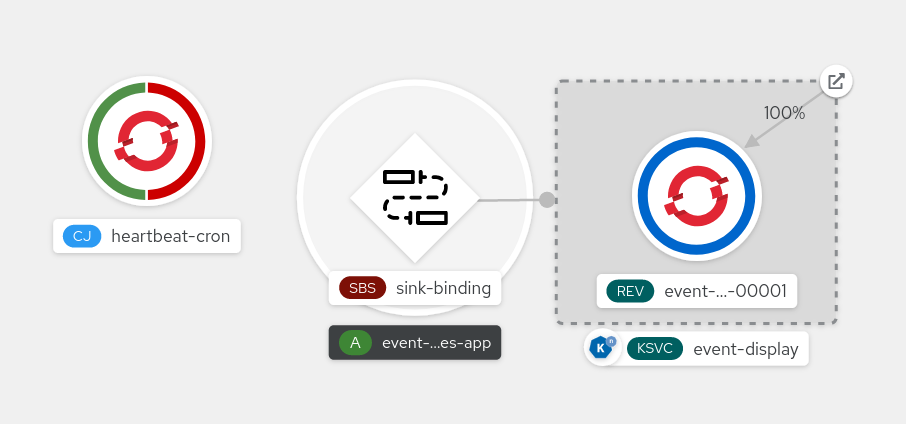
- Observe that successful jobs are being registered by the cron job once the sink binding is added. This means that the sink binding is successfully reconfiguring the jobs created by the cron job.
-
Browse the logs of the
event-displayservice pod to see events produced by the heartbeats cron job.
5.10.1.4. Sink binding reference
You can use a PodSpecable object as an event source by creating a sink binding. You can configure multiple parameters when creating a SinkBinding object.
SinkBinding objects support the following parameters:
| Field | Description | Required or optional |
|---|---|---|
|
|
Specifies the API version, for example | Required |
|
|
Identifies this resource object as a | Required |
|
|
Specifies metadata that uniquely identifies the | Required |
|
|
Specifies the configuration information for this | Required |
|
| A reference to an object that resolves to a URI to use as the sink. | Required |
|
| References the resources for which the runtime contract is augmented by binding implementations. | Required |
|
| Defines overrides to control the output format and modifications to the event sent to the sink. | Optional |
5.10.1.4.1. Subject parameter
The Subject parameter references the resources for which the runtime contract is augmented by binding implementations. You can configure multiple fields for a Subject definition.
The Subject definition supports the following fields:
| Field | Description | Required or optional |
|---|---|---|
|
| API version of the referent. | Required |
|
| Kind of the referent. | Required |
|
| Namespace of the referent. If omitted, this defaults to the namespace of the object. | Optional |
|
| Name of the referent. |
Do not use if you configure |
|
| Selector of the referents. |
Do not use if you configure |
|
| A list of label selector requirements. |
Only use one of either |
|
| The label key that the selector applies to. |
Required if using |
|
|
Represents a key’s relationship to a set of values. Valid operators are |
Required if using |
|
|
An array of string values. If the |
Required if using |
|
|
A map of key-value pairs. Each key-value pair in the |
Only use one of either |
Subject parameter examples
Given the following YAML, the Deployment object named mysubject in the default namespace is selected:
apiVersion: sources.knative.dev/v1
kind: SinkBinding
metadata:
  name: bind-heartbeat
spec:
  subject:
    apiVersion: apps/v1
    kind: Deployment
    namespace: default
    name: mysubject
  ...
Given the following YAML, any Job object with the label working=example in the default namespace is selected:
apiVersion: sources.knative.dev/v1
kind: SinkBinding
metadata:
  name: bind-heartbeat
spec:
  subject:
    apiVersion: batch/v1
    kind: Job
    namespace: default
    selector:
      matchLabels:
        working: example
  ...
Given the following YAML, any Pod object with the label working=example or working=sample in the default namespace is selected:
apiVersion: sources.knative.dev/v1
kind: SinkBinding
metadata:
  name: bind-heartbeat
spec:
  subject:
    apiVersion: v1
    kind: Pod
    namespace: default
    selector:
      - matchExpression:
        key: working
        operator: In
        values:
          - example
          - sample
  ...
5.10.1.4.2. CloudEvent overrides
A ceOverrides definition provides overrides that control the CloudEvent’s output format and modifications sent to the sink. You can configure multiple fields for the ceOverrides definition.
A ceOverrides definition supports the following fields:
| Field | Description | Required or optional |
|---|---|---|
|
|
Specifies which attributes are added or overridden on the outbound event. Each | Optional |
Only valid CloudEvent attribute names are allowed as extensions. You cannot set the spec defined attributes from the extensions override configuration. For example, you can not modify the type attribute.
CloudEvent Overrides example
apiVersion: sources.knative.dev/v1
kind: SinkBinding
metadata:
  name: bind-heartbeat
spec:
  ...
  ceOverrides:
    extensions:
      extra: this is an extra attribute
      additional: 42
This sets the K_CE_OVERRIDES environment variable on the subject:
Example output
{ "extensions": { "extra": "this is an extra attribute", "additional": "42" } }5.10.1.4.3. The include label
To use a sink binding, you need to do assign the bindings.knative.dev/include: "true" label to either the resource or the namespace that the resource is included in. If the resource definition does not include the label, a cluster administrator can attach it to the namespace by running:
$ oc label namespace <namespace> bindings.knative.dev/include=true5.10.2. Container source
Container sources create a container image that generates events and sends events to a sink. You can use a container source to create a custom event source, by creating a container image and a ContainerSource object that uses your image URI.
5.10.2.1. Guidelines for creating a container image
Two environment variables are injected by the container source controller: K_SINK and K_CE_OVERRIDES. These variables are resolved from the sink and ceOverrides spec, respectively. Events are sent to the sink URI specified in the K_SINK environment variable. The message must be sent as a POST using the CloudEvent HTTP format.
Example container images
The following is an example of a heartbeats container image:
package main

import (
	"context"
	"encoding/json"
	"flag"
	"fmt"
	"log"
	"os"
	"strconv"
	"time"

	duckv1 "knative.dev/pkg/apis/duck/v1"

	cloudevents "github.com/cloudevents/sdk-go/v2"
	"github.com/kelseyhightower/envconfig"
)

type Heartbeat struct {
	Sequence int    `json:"id"`
	Label    string `json:"label"`
}

var (
	eventSource string
	eventType   string
	sink        string
	label       string
	periodStr   string
)

func init() {
	flag.StringVar(&eventSource, "eventSource", "", "the event-source (CloudEvents)")
	flag.StringVar(&eventType, "eventType", "dev.knative.eventing.samples.heartbeat", "the event-type (CloudEvents)")
	flag.StringVar(&sink, "sink", "", "the host url to heartbeat to")
	flag.StringVar(&label, "label", "", "a special label")
	flag.StringVar(&periodStr, "period", "5", "the number of seconds between heartbeats")
}

type envConfig struct {
	// Sink URL where to send heartbeat cloud events
	Sink string `envconfig:"K_SINK"`

	// CEOverrides are the CloudEvents overrides to be applied to the outbound event.
	CEOverrides string `envconfig:"K_CE_OVERRIDES"`

	// Name of this pod.
	Name string `envconfig:"POD_NAME" required:"true"`

	// Namespace this pod exists in.
	Namespace string `envconfig:"POD_NAMESPACE" required:"true"`

	// Whether to run continuously or exit.
	OneShot bool `envconfig:"ONE_SHOT" default:"false"`
}

func main() {
	flag.Parse()

	var env envConfig
	if err := envconfig.Process("", &env); err != nil {
		log.Printf("[ERROR] Failed to process env var: %s", err)
		os.Exit(1)
	}

	if env.Sink != "" {
		sink = env.Sink
	}

	var ceOverrides *duckv1.CloudEventOverrides
	if len(env.CEOverrides) > 0 {
		overrides := duckv1.CloudEventOverrides{}
		err := json.Unmarshal([]byte(env.CEOverrides), &overrides)
		if err != nil {
			log.Printf("[ERROR] Unparseable CloudEvents overrides %s: %v", env.CEOverrides, err)
			os.Exit(1)
		}
		ceOverrides = &overrides
	}

	p, err := cloudevents.NewHTTP(cloudevents.WithTarget(sink))
	if err != nil {
		log.Fatalf("failed to create http protocol: %s", err.Error())
	}

	c, err := cloudevents.NewClient(p, cloudevents.WithUUIDs(), cloudevents.WithTimeNow())
	if err != nil {
		log.Fatalf("failed to create client: %s", err.Error())
	}

	var period time.Duration
	if p, err := strconv.Atoi(periodStr); err != nil {
		period = time.Duration(5) * time.Second
	} else {
		period = time.Duration(p) * time.Second
	}

	if eventSource == "" {
		eventSource = fmt.Sprintf("https://knative.dev/eventing-contrib/cmd/heartbeats/#%s/%s", env.Namespace, env.Name)
		log.Printf("Heartbeats Source: %s", eventSource)
	}

	if len(label) > 0 && label[0] == '"' {
		label, _ = strconv.Unquote(label)
	}
	hb := &Heartbeat{
		Sequence: 0,
		Label:    label,
	}
	ticker := time.NewTicker(period)
	for {
		hb.Sequence++

		event := cloudevents.NewEvent("1.0")
		event.SetType(eventType)
		event.SetSource(eventSource)
		event.SetExtension("the", 42)
		event.SetExtension("heart", "yes")
		event.SetExtension("beats", true)

		if ceOverrides != nil && ceOverrides.Extensions != nil {
			for n, v := range ceOverrides.Extensions {
				event.SetExtension(n, v)
			}
		}

		if err := event.SetData(cloudevents.ApplicationJSON, hb); err != nil {
			log.Printf("failed to set cloudevents data: %s", err.Error())
		}

		log.Printf("sending cloudevent to %s", sink)
		if res := c.Send(context.Background(), event); !cloudevents.IsACK(res) {
			log.Printf("failed to send cloudevent: %v", res)
		}

		if env.OneShot {
			return
		}

		// Wait for next tick
		<-ticker.C
	}
}
The following is an example of a container source that references the previous heartbeats container image:
apiVersion: sources.knative.dev/v1
kind: ContainerSource
metadata:
  name: test-heartbeats
spec:
  template:
    spec:
      containers:
        # This corresponds to a heartbeats image URI that you have built and published
        - image: gcr.io/knative-releases/knative.dev/eventing/cmd/heartbeats
          name: heartbeats
          args:
            - --period=1
          env:
            - name: POD_NAME
              value: "example-pod"
            - name: POD_NAMESPACE
              value: "event-test"
  sink:
    ref:
      apiVersion: serving.knative.dev/v1
      kind: Service
      name: example-service
...
5.10.2.2. Creating and managing container sources by using the Knative CLI
You can use the kn source container commands to create and manage container sources by using the Knative (kn) CLI. Using the Knative CLI to create event sources provides a more streamlined and intuitive user interface than modifying YAML files directly.
Create a container source
$ kn source container create <container_source_name> --image <image_uri> --sink <sink>Delete a container source
$ kn source container delete <container_source_name>Describe a container source
$ kn source container describe <container_source_name>List existing container sources
$ kn source container listList existing container sources in YAML format
$ kn source container list -o yamlUpdate a container source
This command updates the image URI for an existing container source:
$ kn source container update <container_source_name> --image <image_uri>5.10.2.3. Creating a container source by using the web console
After Knative Eventing is installed on your cluster, you can create a container source by using the web console. Using the OpenShift Container Platform web console provides a streamlined and intuitive user interface to create an event source.
Prerequisites
- You have logged in to the OpenShift Container Platform web console.
- The OpenShift Serverless Operator, Knative Serving, and Knative Eventing are installed on your OpenShift Container Platform cluster.
- You have created a project or have access to a project with the appropriate roles and permissions to create applications and other workloads in OpenShift Container Platform.
Procedure
-
In the Developer perspective, navigate to +Add
Event Source. The Event Sources page is displayed. - Select Container Source and then click Create Event Source. The Create Event Source page is displayed.
Configure the Container Source settings by using the Form view or YAML view:
NoteYou can switch between the Form view and YAML view. The data is persisted when switching between the views.
- In the Image field, enter the URI of the image that you want to run in the container created by the container source.
- In the Name field, enter the name of the image.
- Optional: In the Arguments field, enter any arguments to be passed to the container.
- Optional: In the Environment variables field, add any environment variables to set in the container.
In the Sink section, add a sink where events from the container source are routed to. If you are using the Form view, you can choose from the following options:
- Select Resource to use a channel, broker, or service as a sink for the event source.
- Select URI to specify where the events from the container source are routed to.
- After you have finished configuring the container source, click Create.
5.10.2.4. Container source reference
You can use a container as an event source, by creating a ContainerSource object. You can configure multiple parameters when creating a ContainerSource object.
ContainerSource objects support the following fields:
| Field | Description | Required or optional |
|---|---|---|
|
|
Specifies the API version, for example | Required |
|
|
Identifies this resource object as a | Required |
|
|
Specifies metadata that uniquely identifies the | Required |
|
|
Specifies the configuration information for this | Required |
|
| A reference to an object that resolves to a URI to use as the sink. | Required |
|
|
A | Required |
|
| Defines overrides to control the output format and modifications to the event sent to the sink. | Optional |
Template parameter example
apiVersion: sources.knative.dev/v1
kind: ContainerSource
metadata:
  name: test-heartbeats
spec:
  template:
    spec:
      containers:
        - image: quay.io/openshift-knative/heartbeats:latest
          name: heartbeats
          args:
            - --period=1
          env:
            - name: POD_NAME
              value: "mypod"
            - name: POD_NAMESPACE
              value: "event-test"
  ...
5.10.2.4.1. CloudEvent overrides
A ceOverrides definition provides overrides that control the CloudEvent’s output format and modifications sent to the sink. You can configure multiple fields for the ceOverrides definition.
A ceOverrides definition supports the following fields:
| Field | Description | Required or optional |
|---|---|---|
|
|
Specifies which attributes are added or overridden on the outbound event. Each | Optional |
Only valid CloudEvent attribute names are allowed as extensions. You cannot set the spec defined attributes from the extensions override configuration. For example, you can not modify the type attribute.
CloudEvent Overrides example
apiVersion: sources.knative.dev/v1
kind: ContainerSource
metadata:
  name: test-heartbeats
spec:
  ...
  ceOverrides:
    extensions:
      extra: this is an extra attribute
      additional: 42
This sets the K_CE_OVERRIDES environment variable on the subject:
Example output
{ "extensions": { "extra": "this is an extra attribute", "additional": "42" } }5.11. Creating channels
Channels are custom resources that define a single event-forwarding and persistence layer. After events have been sent to a channel from an event source or producer, these events can be sent to multiple Knative services or other sinks by using a subscription.
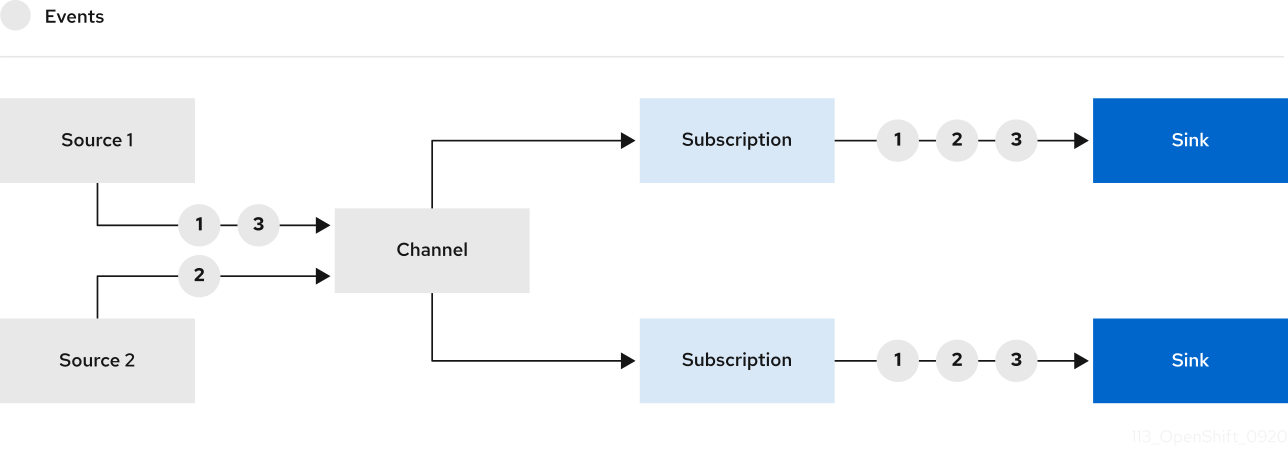
You can create channels by instantiating a supported Channel object, and configure re-delivery attempts by modifying the delivery spec in a Subscription object.
5.11.1. Creating a channel by using the web console
Using the OpenShift Container Platform web console provides a streamlined and intuitive user interface to create a channel. After Knative Eventing is installed on your cluster, you can create a channel by using the web console.
Prerequisites
- You have logged in to the OpenShift Container Platform web console.
- The OpenShift Serverless Operator and Knative Eventing are installed on your OpenShift Container Platform cluster.
- You have created a project or have access to a project with the appropriate roles and permissions to create applications and other workloads in OpenShift Container Platform.
Procedure
-
In the Developer perspective, navigate to +Add
Channel. -
Select the type of
Channelobject that you want to create in the Type list. - Click Create.
Verification
Confirm that the channel now exists by navigating to the Topology page.
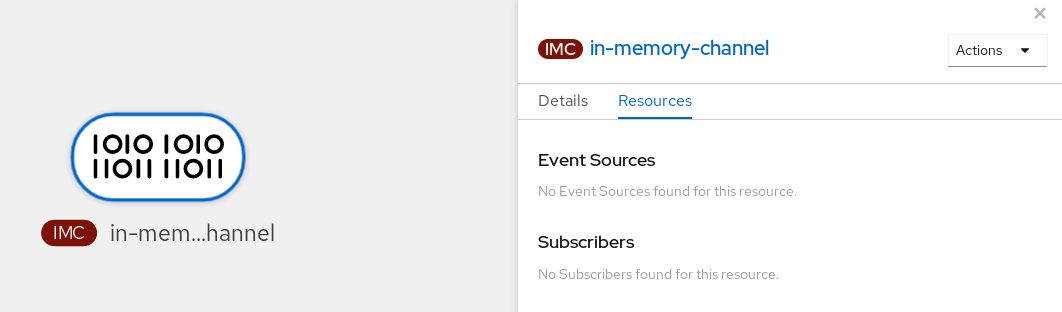
5.11.2. Creating a channel by using the Knative CLI
Using the Knative (kn) CLI to create channels provides a more streamlined and intuitive user interface than modifying YAML files directly. You can use the kn channel create command to create a channel.
Prerequisites
- The OpenShift Serverless Operator and Knative Eventing are installed on the cluster.
-
You have installed the Knative (
kn) CLI. - You have created a project or have access to a project with the appropriate roles and permissions to create applications and other workloads in OpenShift Container Platform.
Procedure
Create a channel:
$ kn channel create <channel_name> --type <channel_type>The channel type is optional, but where specified, must be given in the format
Group:Version:Kind. For example, you can create anInMemoryChannelobject:$ kn channel create mychannel --type messaging.knative.dev:v1:InMemoryChannelExample output
Channel 'mychannel' created in namespace 'default'.
Verification
To confirm that the channel now exists, list the existing channels and inspect the output:
$ kn channel listExample output
kn channel list
NAME        TYPE              URL                                                     AGE   READY   REASON
mychannel   InMemoryChannel   http://mychannel-kn-channel.default.svc.cluster.local   93s   True
Deleting a channel
Delete a channel:
$ kn channel delete <channel_name>
5.11.3. Creating a default implementation channel by using YAML
Creating Knative resources by using YAML files uses a declarative API, which enables you to describe channels declaratively and in a reproducible manner. To create a serverless channel by using YAML, you must create a YAML file that defines a Channel object, then apply it by using the oc apply command.
Prerequisites
- The OpenShift Serverless Operator and Knative Eventing are installed on the cluster.
-
Install the OpenShift CLI (
oc). - You have created a project or have access to a project with the appropriate roles and permissions to create applications and other workloads in OpenShift Container Platform.
Procedure
Create a
Channelobject as a YAML file:apiVersion: messaging.knative.dev/v1 kind: Channel metadata: name: example-channel namespace: defaultApply the YAML file:
$ oc apply -f <filename>
5.11.4. Creating a Kafka channel by using YAML
Creating Knative resources by using YAML files uses a declarative API, which enables you to describe channels declaratively and in a reproducible manner. You can create a Knative Eventing channel that is backed by Kafka topics by creating a Kafka channel. To create a Kafka channel by using YAML, you must create a YAML file that defines a KafkaChannel object, then apply it by using the oc apply command.
Prerequisites
-
The OpenShift Serverless Operator, Knative Eventing, and the
KnativeKafkacustom resource are installed on your OpenShift Container Platform cluster. -
Install the OpenShift CLI (
oc). - You have created a project or have access to a project with the appropriate roles and permissions to create applications and other workloads in OpenShift Container Platform.
Procedure
Create a
KafkaChannelobject as a YAML file:apiVersion: messaging.knative.dev/v1beta1 kind: KafkaChannel metadata: name: example-channel namespace: default spec: numPartitions: 3 replicationFactor: 1ImportantOnly the
v1beta1version of the API forKafkaChannelobjects on OpenShift Serverless is supported. Do not use thev1alpha1version of this API, as this version is now deprecated.Apply the
KafkaChannelYAML file:$ oc apply -f <filename>
5.11.5. Next steps
- After you have created a channel, create a subscription that allows event sinks to subscribe to channels and receive events.
- Configure event delivery parameters that are applied in cases where an event fails to be delivered to an event sink. See Examples of configuring event delivery parameters.
5.12. Creating and managing subscriptions
After you have created a channel and an event sink, you can create a subscription to enable event delivery. Subscriptions are created by configuring a Subscription object, which specifies the channel and the sink (also known as a subscriber) to deliver events to.
5.12.1. Creating a subscription by using the web console
After you have created a channel and an event sink, you can create a subscription to enable event delivery. Using the OpenShift Container Platform web console provides a streamlined and intuitive user interface to create a subscription.
Prerequisites
- The OpenShift Serverless Operator, Knative Serving, and Knative Eventing are installed on your OpenShift Container Platform cluster.
- You have logged in to the web console.
- You have created an event sink, such as a Knative service, and a channel.
- You have created a project or have access to a project with the appropriate roles and permissions to create applications and other workloads in OpenShift Container Platform.
Procedure
- In the Developer perspective, navigate to the Topology page.
Create a subscription using one of the following methods:
Hover over the channel that you want to create a subscription for, and drag the arrow. The Add Subscription option is displayed.
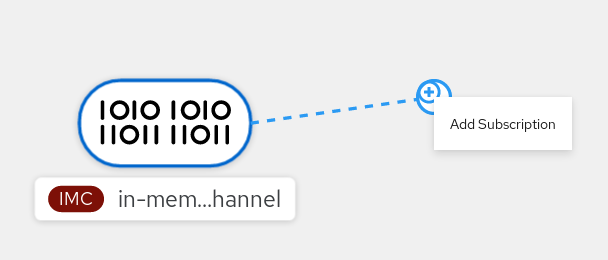
- Select your sink in the Subscriber list.
- Click Add.
- If the service is available in the Topology view under the same namespace or project as the channel, click on the channel that you want to create a subscription for, and drag the arrow directly to a service to immediately create a subscription from the channel to that service.
Verification
After the subscription has been created, you can see it represented as a line that connects the channel to the service in the Topology view:
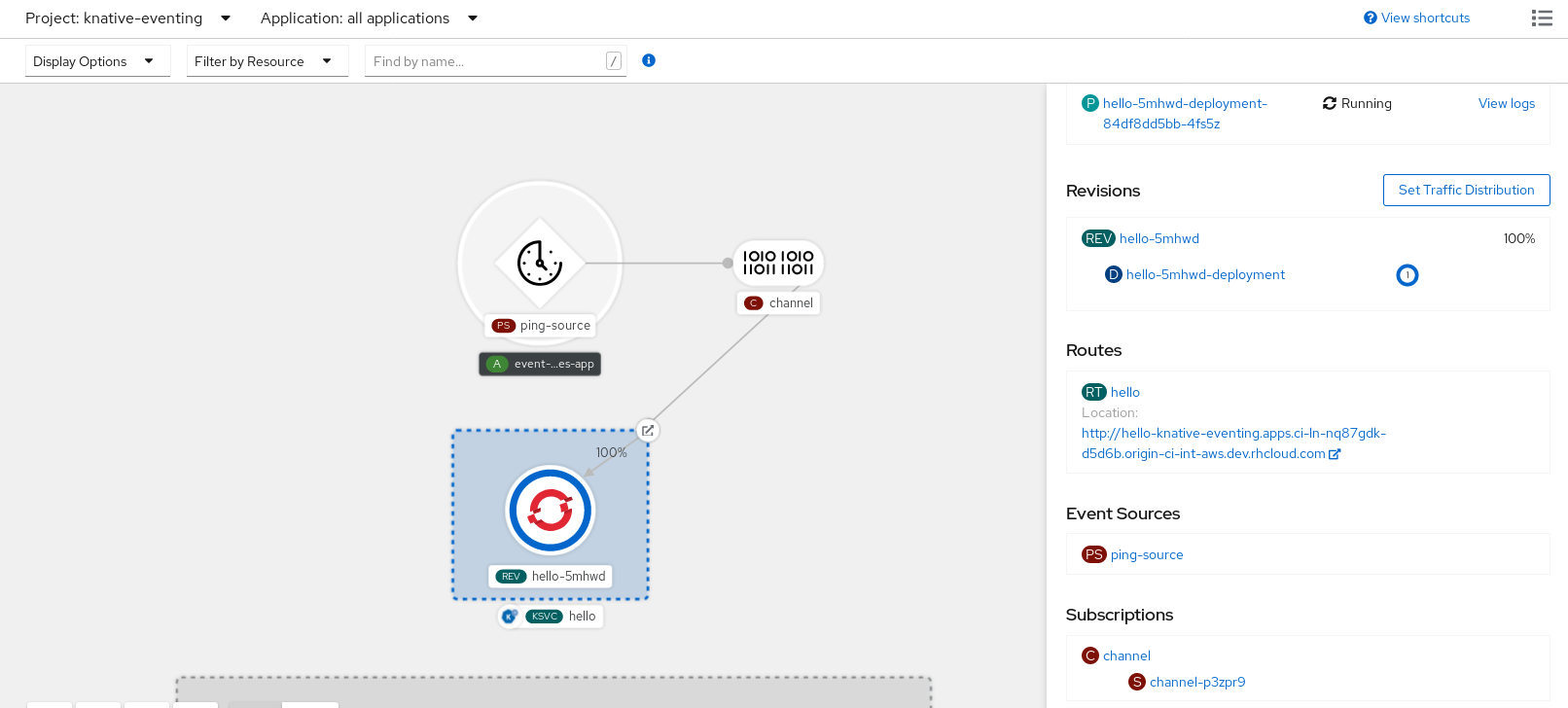
5.12.2. Creating a subscription by using YAML
After you have created a channel and an event sink, you can create a subscription to enable event delivery. Creating Knative resources by using YAML files uses a declarative API, which enables you to describe subscriptions declaratively and in a reproducible manner. To create a subscription by using YAML, you must create a YAML file that defines a Subscription object, then apply it by using the oc apply command.
Prerequisites
- The OpenShift Serverless Operator and Knative Eventing are installed on the cluster.
-
Install the OpenShift CLI (
oc). - You have created a project or have access to a project with the appropriate roles and permissions to create applications and other workloads in OpenShift Container Platform.
Procedure
Create a
Subscriptionobject:Create a YAML file and copy the following sample code into it:
apiVersion: messaging.knative.dev/v1beta1
kind: Subscription
metadata:
  name: my-subscription
1 namespace: default spec: channel:2 apiVersion: messaging.knative.dev/v1beta1 kind: Channel name: example-channel delivery:3 deadLetterSink: ref: apiVersion: serving.knative.dev/v1 kind: Service name: error-handler subscriber:4 ref: apiVersion: serving.knative.dev/v1 kind: Service name: event-display- 1
- Name of the subscription.
- 2
- Configuration settings for the channel that the subscription connects to.
- 3
- Configuration settings for event delivery. This tells the subscription what happens to events that cannot be delivered to the subscriber. When this is configured, events that failed to be consumed are sent to the
deadLetterSink. The event is dropped, no re-delivery of the event is attempted, and an error is logged in the system. ThedeadLetterSinkvalue must be a Destination. - 4
- Configuration settings for the subscriber. This is the event sink that events are delivered to from the channel.
Apply the YAML file:
$ oc apply -f <filename>
5.12.3. Creating a subscription by using the Knative CLI
After you have created a channel and an event sink, you can create a subscription to enable event delivery. Using the Knative (kn) CLI to create subscriptions provides a more streamlined and intuitive user interface than modifying YAML files directly. You can use the kn subscription create command with the appropriate flags to create a subscription.
Prerequisites
- The OpenShift Serverless Operator and Knative Eventing are installed on your OpenShift Container Platform cluster.
-
You have installed the Knative (
kn) CLI. - You have created a project or have access to a project with the appropriate roles and permissions to create applications and other workloads in OpenShift Container Platform.
Procedure
Create a subscription to connect a sink to a channel:
$ kn subscription create <subscription_name> \
  --channel <group:version:kind>:<channel_name> \
1 --sink <sink_prefix>:<sink_name> \2 --sink-dead-letter <sink_prefix>:<sink_name>3 - 1
--channelspecifies the source for cloud events that should be processed. You must provide the channel name. If you are not using the defaultInMemoryChannelchannel that is backed by theChannelcustom resource, you must prefix the channel name with the<group:version:kind>for the specified channel type. For example, this will bemessaging.knative.dev:v1beta1:KafkaChannelfor a Kafka backed channel.- 2
--sinkspecifies the target destination to which the event should be delivered. By default, the<sink_name>is interpreted as a Knative service of this name, in the same namespace as the subscription. You can specify the type of the sink by using one of the following prefixes:ksvc- A Knative service.
channel- A channel that should be used as destination. Only default channel types can be referenced here.
broker- An Eventing broker.
- 3
- Optional:
--sink-dead-letteris an optional flag that can be used to specify a sink which events should be sent to in cases where events fail to be delivered. For more information, see the OpenShift Serverless Event delivery documentation.Example command
$ kn subscription create mysubscription --channel mychannel --sink ksvc:event-displayExample output
Subscription 'mysubscription' created in namespace 'default'.
Verification
To confirm that the channel is connected to the event sink, or subscriber, by a subscription, list the existing subscriptions and inspect the output:
$ kn subscription listExample output
NAME            CHANNEL             SUBSCRIBER           REPLY   DEAD LETTER SINK   READY   REASON
mysubscription   Channel:mychannel   ksvc:event-display                              True
Deleting a subscription
Delete a subscription:
$ kn subscription delete <subscription_name>
5.12.4. Describing subscriptions by using the Knative CLI
You can use the kn subscription describe command to print information about a subscription in the terminal by using the Knative (kn) CLI. Using the Knative CLI to describe subscriptions provides a more streamlined and intuitive user interface than viewing YAML files directly.
Prerequisites
-
You have installed the Knative (
kn) CLI. - You have created a subscription in your cluster.
Procedure
Describe a subscription:
$ kn subscription describe <subscription_name>Example output
Name:            my-subscription
Namespace:       default
Annotations:     messaging.knative.dev/creator=openshift-user, messaging.knative.dev/lastModifier=min ...
Age:             43s
Channel:         Channel:my-channel (messaging.knative.dev/v1)
Subscriber:
  URI:           http://edisplay.default.example.com
Reply:
  Name:          default
  Resource:      Broker (eventing.knative.dev/v1)
DeadLetterSink:
  Name:          my-sink
  Resource:      Service (serving.knative.dev/v1)

Conditions:
  OK TYPE                  AGE REASON
  ++ Ready                 43s
  ++ AddedToChannel        43s
  ++ ChannelReady          43s
  ++ ReferencesResolved    43s
5.12.5. Listing subscriptions by using the Knative CLI
You can use the kn subscription list command to list existing subscriptions on your cluster by using the Knative (kn) CLI. Using the Knative CLI to list subscriptions provides a streamlined and intuitive user interface.
Prerequisites
-
You have installed the Knative (
kn) CLI.
Procedure
List subscriptions on your cluster:
$ kn subscription listExample output
NAME             CHANNEL             SUBSCRIBER           REPLY   DEAD LETTER SINK   READY   REASON
mysubscription   Channel:mychannel   ksvc:event-display                              True
5.12.6. Updating subscriptions by using the Knative CLI
You can use the kn subscription update command as well as the appropriate flags to update a subscription from the terminal by using the Knative (kn) CLI. Using the Knative CLI to update subscriptions provides a more streamlined and intuitive user interface than updating YAML files directly.
Prerequisites
-
You have installed the Knative (
kn) CLI. - You have created a subscription.
Procedure
Update a subscription:
$ kn subscription update <subscription_name> \
  --sink <sink_prefix>:<sink_name> \
1 --sink-dead-letter <sink_prefix>:<sink_name>2 - 1
--sinkspecifies the updated target destination to which the event should be delivered. You can specify the type of the sink by using one of the following prefixes:ksvc- A Knative service.
channel- A channel that should be used as destination. Only default channel types can be referenced here.
broker- An Eventing broker.
- 2
- Optional:
--sink-dead-letteris an optional flag that can be used to specify a sink which events should be sent to in cases where events fail to be delivered. For more information, see the OpenShift Serverless Event delivery documentation.Example command
$ kn subscription update mysubscription --sink ksvc:event-display
5.12.7. Next steps
- Configure event delivery parameters that are applied in cases where an event fails to be delivered to an event sink. See Examples of configuring event delivery parameters.
5.13. Creating brokers
Knative provides a default, channel-based broker implementation. This channel-based broker can be used for development and testing purposes, but does not provide adequate event delivery guarantees for production environments.
If a cluster administrator has configured your OpenShift Serverless deployment to use Kafka as the default broker type, creating a broker by using the default settings creates a Kafka-based broker.
If your OpenShift Serverless deployment is not configured to use Kafka broker as the default broker type, the channel-based broker is created when you use the default settings in the following procedures.
5.13.1. Creating a broker by using the Knative CLI
Brokers can be used in combination with triggers to deliver events from an event source to an event sink. Using the Knative (kn) CLI to create brokers provides a more streamlined and intuitive user interface over modifying YAML files directly. You can use the kn broker create command to create a broker.
Prerequisites
- The OpenShift Serverless Operator and Knative Eventing are installed on your OpenShift Container Platform cluster.
-
You have installed the Knative (
kn) CLI. - You have created a project or have access to a project with the appropriate roles and permissions to create applications and other workloads in OpenShift Container Platform.
Procedure
Create a broker:
$ kn broker create <broker_name>
Verification
Use the
kncommand to list all existing brokers:$ kn broker listExample output
NAME      URL                                                                     AGE   CONDITIONS   READY   REASON
default   http://broker-ingress.knative-eventing.svc.cluster.local/test/default   45s   5 OK / 5     True
Optional: If you are using the OpenShift Container Platform web console, you can navigate to the Topology view in the Developer perspective, and observe that the broker exists:
5.13.2. Creating a broker by annotating a trigger
Brokers can be used in combination with triggers to deliver events from an event source to an event sink. You can create a broker by adding the eventing.knative.dev/injection: enabled annotation to a Trigger object.
If you create a broker by using the eventing.knative.dev/injection: enabled annotation, you cannot delete this broker without cluster administrator permissions. If you delete the broker without having a cluster administrator remove this annotation first, the broker is created again after deletion.
Prerequisites
- The OpenShift Serverless Operator and Knative Eventing are installed on your OpenShift Container Platform cluster.
-
Install the OpenShift CLI (
oc). - You have created a project or have access to a project with the appropriate roles and permissions to create applications and other workloads in OpenShift Container Platform.
Procedure
Create a
Triggerobject as a YAML file that has theeventing.knative.dev/injection: enabledannotation:apiVersion: eventing.knative.dev/v1 kind: Trigger metadata: annotations: eventing.knative.dev/injection: enabled name: <trigger_name> spec: broker: default subscriber:1 ref: apiVersion: serving.knative.dev/v1 kind: Service name: <service_name>- 1
- Specify details about the event sink, or subscriber, that the trigger sends events to.
Apply the
TriggerYAML file:$ oc apply -f <filename>
Verification
You can verify that the broker has been created successfully by using the oc CLI, or by observing it in the Topology view in the web console.
Enter the following
occommand to get the broker:$ oc -n <namespace> get broker defaultExample output
NAME      READY     REASON    URL                                                                     AGE
default   True                http://broker-ingress.knative-eventing.svc.cluster.local/test/default   3m56s
Optional: If you are using the OpenShift Container Platform web console, you can navigate to the Topology view in the Developer perspective, and observe that the broker exists:
5.13.3. Creating a broker by labeling a namespace
Brokers can be used in combination with triggers to deliver events from an event source to an event sink. You can create the default broker automatically by labelling a namespace that you own or have write permissions for.
Brokers created using this method are not removed if you remove the label. You must manually delete them.
Prerequisites
- The OpenShift Serverless Operator and Knative Eventing are installed on your OpenShift Container Platform cluster.
-
Install the OpenShift CLI (
oc). - You have created a project or have access to a project with the appropriate roles and permissions to create applications and other workloads in OpenShift Container Platform.
Procedure
Label a namespace with
eventing.knative.dev/injection=enabled:$ oc label namespace <namespace> eventing.knative.dev/injection=enabled
Verification
You can verify that the broker has been created successfully by using the oc CLI, or by observing it in the Topology view in the web console.
Use the
occommand to get the broker:$ oc -n <namespace> get broker <broker_name>Example command
$ oc -n default get broker defaultExample output
NAME      READY     REASON    URL                                                                     AGE
default   True                http://broker-ingress.knative-eventing.svc.cluster.local/test/default   3m56s
Optional: If you are using the OpenShift Container Platform web console, you can navigate to the Topology view in the Developer perspective, and observe that the broker exists:
5.13.4. Deleting a broker that was created by injection
If you create a broker by injection and later want to delete it, you must delete it manually. Brokers created by using a namespace label or trigger annotation are not deleted permanently if you remove the label or annotation.
Prerequisites
-
Install the OpenShift CLI (
oc).
Procedure
Remove the
eventing.knative.dev/injection=enabledlabel from the namespace:$ oc label namespace <namespace> eventing.knative.dev/injection-Removing the annotation prevents Knative from recreating the broker after you delete it.
Delete the broker from the selected namespace:
$ oc -n <namespace> delete broker <broker_name>
Verification
Use the
occommand to get the broker:$ oc -n <namespace> get broker <broker_name>Example command
$ oc -n default get broker defaultExample output
No resources found.
Error from server (NotFound): brokers.eventing.knative.dev "default" not found
5.13.5. Creating a Kafka broker when it is not configured as the default broker type
If your OpenShift Serverless deployment is not configured to use Kafka broker as the default broker type, you can use one of the following procedures to create a Kafka-based broker.
5.13.5.1. Creating a Kafka broker by using YAML
Creating Knative resources by using YAML files uses a declarative API, which enables you to describe applications declaratively and in a reproducible manner. To create a Kafka broker by using YAML, you must create a YAML file that defines a Broker object, then apply it by using the oc apply command.
Prerequisites
-
The OpenShift Serverless Operator, Knative Eventing, and the
KnativeKafkacustom resource are installed on your OpenShift Container Platform cluster. - You have created a project or have access to a project with the appropriate roles and permissions to create applications and other workloads in OpenShift Container Platform.
-
You have installed the OpenShift CLI (
oc).
Procedure
Create a Kafka-based broker as a YAML file:
apiVersion: eventing.knative.dev/v1
kind: Broker
metadata:
  annotations:
    eventing.knative.dev/broker.class: Kafka
1 name: example-kafka-broker spec: config: apiVersion: v1 kind: ConfigMap name: kafka-broker-config2 namespace: knative-eventing- 1
- The broker class. If not specified, brokers use the default class as configured by cluster administrators. To use the Kafka broker, this value must be
Kafka. - 2
- The default config map for Knative Kafka brokers. This config map is created when the Kafka broker functionality is enabled on the cluster by a cluster administrator.
Apply the Kafka-based broker YAML file:
$ oc apply -f <filename>
5.13.5.2. Creating a Kafka broker that uses an externally managed Kafka topic
If you want to use a Kafka broker without allowing it to create its own internal topic, you can use an externally managed Kafka topic instead. To do this, you must create a Kafka Broker object that uses the kafka.eventing.knative.dev/external.topic annotation.
Prerequisites
-
The OpenShift Serverless Operator, Knative Eventing, and the
KnativeKafkacustom resource are installed on your OpenShift Container Platform cluster. - You have access to a Kafka instance such as Red Hat AMQ Streams, and have created a Kafka topic.
- You have created a project or have access to a project with the appropriate roles and permissions to create applications and other workloads in OpenShift Container Platform.
-
You have installed the OpenShift CLI (
oc).
Procedure
Create a Kafka-based broker as a YAML file:
apiVersion: eventing.knative.dev/v1
kind: Broker
metadata:
  annotations:
    eventing.knative.dev/broker.class: Kafka
1 kafka.eventing.knative.dev/external.topic: <topic_name>2 ...Apply the Kafka-based broker YAML file:
$ oc apply -f <filename>
5.13.6. Managing brokers
The Knative (kn) CLI provides commands that can be used to describe and list existing brokers.
5.13.6.1. Listing existing brokers by using the Knative CLI
Using the Knative (kn) CLI to list brokers provides a streamlined and intuitive user interface. You can use the kn broker list command to list existing brokers in your cluster by using the Knative CLI.
Prerequisites
- The OpenShift Serverless Operator and Knative Eventing are installed on your OpenShift Container Platform cluster.
-
You have installed the Knative (
kn) CLI.
Procedure
List all existing brokers:
$ kn broker listExample output
NAME      URL                                                                     AGE   CONDITIONS   READY   REASON
default   http://broker-ingress.knative-eventing.svc.cluster.local/test/default   45s   5 OK / 5     True
5.13.6.2. Describing an existing broker by using the Knative CLI
Using the Knative (kn) CLI to describe brokers provides a streamlined and intuitive user interface. You can use the kn broker describe command to print information about existing brokers in your cluster by using the Knative CLI.
Prerequisites
- The OpenShift Serverless Operator and Knative Eventing are installed on your OpenShift Container Platform cluster.
-
You have installed the Knative (
kn) CLI.
Procedure
Describe an existing broker:
$ kn broker describe <broker_name>Example command using default broker
$ kn broker describe defaultExample output
Name:         default
Namespace:    default
Annotations:  eventing.knative.dev/broker.class=MTChannelBasedBroker, eventing.knative.dev/creato ...
Age:          22s

Address:
  URL:    http://broker-ingress.knative-eventing.svc.cluster.local/default/default

Conditions:
  OK TYPE                   AGE REASON
  ++ Ready                  22s
  ++ Addressable            22s
  ++ FilterReady            22s
  ++ IngressReady           22s
  ++ TriggerChannelReady    22s
5.13.7. Next steps
- Configure event delivery parameters that are applied in cases where an event fails to be delivered to an event sink. See Examples of configuring event delivery parameters.
5.14. Triggers
Brokers can be used in combination with triggers to deliver events from an event source to an event sink. Events are sent from an event source to a broker as an HTTP POST request. After events have entered the broker, they can be filtered by CloudEvent attributes using triggers, and sent as an HTTP POST request to an event sink.
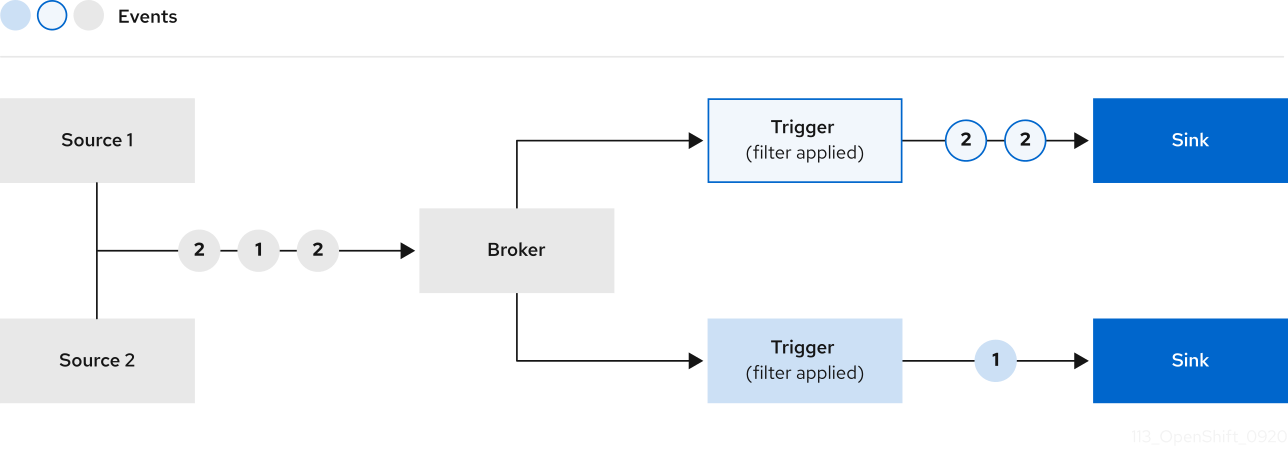
If you are using a Kafka broker, you can configure the delivery order of events from triggers to event sinks. See Configuring event delivery ordering for triggers.
5.14.1. Creating a trigger by using the web console
Using the OpenShift Container Platform web console provides a streamlined and intuitive user interface to create a trigger. After Knative Eventing is installed on your cluster and you have created a broker, you can create a trigger by using the web console.
Prerequisites
- The OpenShift Serverless Operator, Knative Serving, and Knative Eventing are installed on your OpenShift Container Platform cluster.
- You have logged in to the web console.
- You have created a project or have access to a project with the appropriate roles and permissions to create applications and other workloads in OpenShift Container Platform.
- You have created a broker and a Knative service or other event sink to connect to the trigger.
Procedure
- In the Developer perspective, navigate to the Topology page.
- Hover over the broker that you want to create a trigger for, and drag the arrow. The Add Trigger option is displayed.
- Click Add Trigger.
- Select your sink in the Subscriber list.
- Click Add.
Verification
- After the subscription has been created, you can view it in the Topology page, where it is represented as a line that connects the broker to the event sink.
Deleting a trigger
- In the Developer perspective, navigate to the Topology page.
- Click on the trigger that you want to delete.
- In the Actions context menu, select Delete Trigger.
5.14.2. Creating a trigger by using the Knative CLI
Using the Knative (kn) CLI to create triggers provides a more streamlined and intuitive user interface over modifying YAML files directly. You can use the kn trigger create command to create a trigger.
Prerequisites
- The OpenShift Serverless Operator and Knative Eventing are installed on your OpenShift Container Platform cluster.
-
You have installed the Knative (
kn) CLI. - You have created a project or have access to a project with the appropriate roles and permissions to create applications and other workloads in OpenShift Container Platform.
Procedure
Create a trigger:
$ kn trigger create <trigger_name> --broker <broker_name> --filter <key=value> --sink <sink_name>Alternatively, you can create a trigger and simultaneously create the
defaultbroker using broker injection:$ kn trigger create <trigger_name> --inject-broker --filter <key=value> --sink <sink_name>By default, triggers forward all events sent to a broker to sinks that are subscribed to that broker. Using the
--filterattribute for triggers allows you to filter events from a broker, so that subscribers will only receive a subset of events based on your defined criteria.
5.14.3. Listing triggers by using the Knative CLI
Using the Knative (kn) CLI to list triggers provides a streamlined and intuitive user interface. You can use the kn trigger list command to list existing triggers in your cluster.
Prerequisites
- The OpenShift Serverless Operator and Knative Eventing are installed on your OpenShift Container Platform cluster.
-
You have installed the Knative (
kn) CLI.
Procedure
Print a list of available triggers:
$ kn trigger listExample output
NAME    BROKER    SINK           AGE   CONDITIONS   READY   REASON
email   default   ksvc:edisplay   4s    5 OK / 5     True
ping    default   ksvc:edisplay   32s   5 OK / 5     True
Optional: Print a list of triggers in JSON format:
$ kn trigger list -o json
5.14.4. Describing a trigger by using the Knative CLI
Using the Knative (kn) CLI to describe triggers provides a streamlined and intuitive user interface. You can use the kn trigger describe command to print information about existing triggers in your cluster by using the Knative CLI.
Prerequisites
- The OpenShift Serverless Operator and Knative Eventing are installed on your OpenShift Container Platform cluster.
-
You have installed the Knative (
kn) CLI. - You have created a trigger.
Procedure
Enter the command:
$ kn trigger describe <trigger_name>Example output
Name:         ping
Namespace:    default
Labels:       eventing.knative.dev/broker=default
Annotations:  eventing.knative.dev/creator=kube:admin, eventing.knative.dev/lastModifier=kube:admin
Age:          2m
Broker:       default
Filter:
  type:       dev.knative.event

Sink:
  Name:       edisplay
  Namespace:  default
  Resource:   Service (serving.knative.dev/v1)

Conditions:
  OK TYPE                  AGE REASON
  ++ Ready                  2m
  ++ BrokerReady            2m
  ++ DependencyReady        2m
  ++ Subscribed             2m
  ++ SubscriberResolved     2m
5.14.5. Filtering events with triggers by using the Knative CLI
Using the Knative (kn) CLI to filter events by using triggers provides a streamlined and intuitive user interface. You can use the kn trigger create command, along with the appropriate flags, to filter events by using triggers.
In the following trigger example, only events with the attribute type: dev.knative.samples.helloworld are sent to the event sink:
$ kn trigger create <trigger_name> --broker <broker_name> --filter type=dev.knative.samples.helloworld --sink ksvc:<service_name>You can also filter events by using multiple attributes. The following example shows how to filter events using the type, source, and extension attributes:
$ kn trigger create <trigger_name> --broker <broker_name> --sink ksvc:<service_name> \
--filter type=dev.knative.samples.helloworld \
--filter source=dev.knative.samples/helloworldsource \
--filter myextension=my-extension-value
5.14.6. Updating a trigger by using the Knative CLI
Using the Knative (kn) CLI to update triggers provides a streamlined and intuitive user interface. You can use the kn trigger update command with certain flags to update attributes for a trigger.
Prerequisites
- The OpenShift Serverless Operator and Knative Eventing are installed on your OpenShift Container Platform cluster.
-
You have installed the Knative (
kn) CLI. - You have created a project or have access to a project with the appropriate roles and permissions to create applications and other workloads in OpenShift Container Platform.
Procedure
Update a trigger:
$ kn trigger update <trigger_name> --filter <key=value> --sink <sink_name> [flags]You can update a trigger to filter exact event attributes that match incoming events. For example, using the
typeattribute:$ kn trigger update <trigger_name> --filter type=knative.dev.eventYou can remove a filter attribute from a trigger. For example, you can remove the filter attribute with key
type:$ kn trigger update <trigger_name> --filter type-You can use the
--sinkparameter to change the event sink of a trigger:$ kn trigger update <trigger_name> --sink ksvc:my-event-sink
5.14.7. Deleting a trigger by using the Knative CLI
Using the Knative (kn) CLI to delete a trigger provides a streamlined and intuitive user interface. You can use the kn trigger delete command to delete a trigger.
Prerequisites
- The OpenShift Serverless Operator and Knative Eventing are installed on your OpenShift Container Platform cluster.
-
You have installed the Knative (
kn) CLI. - You have created a project or have access to a project with the appropriate roles and permissions to create applications and other workloads in OpenShift Container Platform.
Procedure
Delete a trigger:
$ kn trigger delete <trigger_name>
Verification
List existing triggers:
$ kn trigger listVerify that the trigger no longer exists:
Example output
No triggers found.
5.14.8. Configuring event delivery ordering for triggers
If you are using a Kafka broker, you can configure the delivery order of events from triggers to event sinks.
Prerequisites
- The OpenShift Serverless Operator, Knative Eventing, and Knative Kafka are installed on your OpenShift Container Platform cluster.
- Kafka broker is enabled for use on your cluster, and you have created a Kafka broker.
- You have created a project or have access to a project with the appropriate roles and permissions to create applications and other workloads in OpenShift Container Platform.
-
You have installed the OpenShift (
oc) CLI.
Procedure
Create or modify a
Triggerobject and set thekafka.eventing.knative.dev/delivery.orderannotation:apiVersion: eventing.knative.dev/v1 kind: Trigger metadata: name: <trigger_name> annotations: kafka.eventing.knative.dev/delivery.order: ordered ...The supported consumer delivery guarantees are:
unordered- An unordered consumer is a non-blocking consumer that delivers messages unordered, while preserving proper offset management.
orderedAn ordered consumer is a per-partition blocking consumer that waits for a successful response from the CloudEvent subscriber before it delivers the next message of the partition.
The default ordering guarantee is
unordered.
Apply the
Triggerobject:$ oc apply -f <filename>
5.14.9. Next steps
- Configure event delivery parameters that are applied in cases where an event fails to be delivered to an event sink. See Examples of configuring event delivery parameters.
5.15. Using Knative Kafka
Knative Kafka provides integration options for you to use supported versions of the Apache Kafka message streaming platform with OpenShift Serverless. Kafka provides options for event source, channel, broker, and event sink capabilities.
Knative Kafka functionality is available in an OpenShift Serverless installation if a cluster administrator has installed the KnativeKafka custom resource.
Knative Kafka is not currently supported for IBM Z and IBM Power Systems.
Knative Kafka provides additional options, such as:
- Kafka source
- Kafka channel
- Kafka broker
- Kafka sink
5.15.1. Kafka event delivery and retries
Using Kafka components in an event-driven architecture provides "at least once" event delivery. This means that operations are retried until a return code value is received. This makes applications more resilient to lost events; however, it might result in duplicate events being sent.
For the Kafka event source, there is a fixed number of retries for event delivery by default. For Kafka channels, retries are only performed if they are configured in the Kafka channel Delivery spec.
See the Event delivery documentation for more information about delivery guarantees.
5.15.2. Kafka source
You can create a Kafka source that reads events from an Apache Kafka cluster and passes these events to a sink. You can create a Kafka source by using the OpenShift Container Platform web console, the Knative (kn) CLI, or by creating a KafkaSource object directly as a YAML file and using the OpenShift CLI (oc) to apply it.
5.15.2.1. Creating a Kafka event source by using the web console
After Knative Kafka is installed on your cluster, you can create a Kafka source by using the web console. Using the OpenShift Container Platform web console provides a streamlined and intuitive user interface to create a Kafka source.
Prerequisites
-
The OpenShift Serverless Operator, Knative Eventing, and the
KnativeKafkacustom resource are installed on your cluster. - You have logged in to the web console.
- You have access to a Red Hat AMQ Streams (Kafka) cluster that produces the Kafka messages you want to import.
- You have created a project or have access to a project with the appropriate roles and permissions to create applications and other workloads in OpenShift Container Platform.
Procedure
- In the Developer perspective, navigate to the +Add page and select Event Source.
- In the Event Sources page, select Kafka Source in the Type section.
Configure the Kafka Source settings:
- Add a comma-separated list of Bootstrap Servers.
- Add a comma-separated list of Topics.
- Add a Consumer Group.
- Select the Service Account Name for the service account that you created.
- Select the Sink for the event source. A Sink can be either a Resource, such as a channel, broker, or service, or a URI.
- Enter a Name for the Kafka event source.
- Click Create.
Verification
You can verify that the Kafka event source was created and is connected to the sink by viewing the Topology page.
- In the Developer perspective, navigate to Topology.
View the Kafka event source and sink.
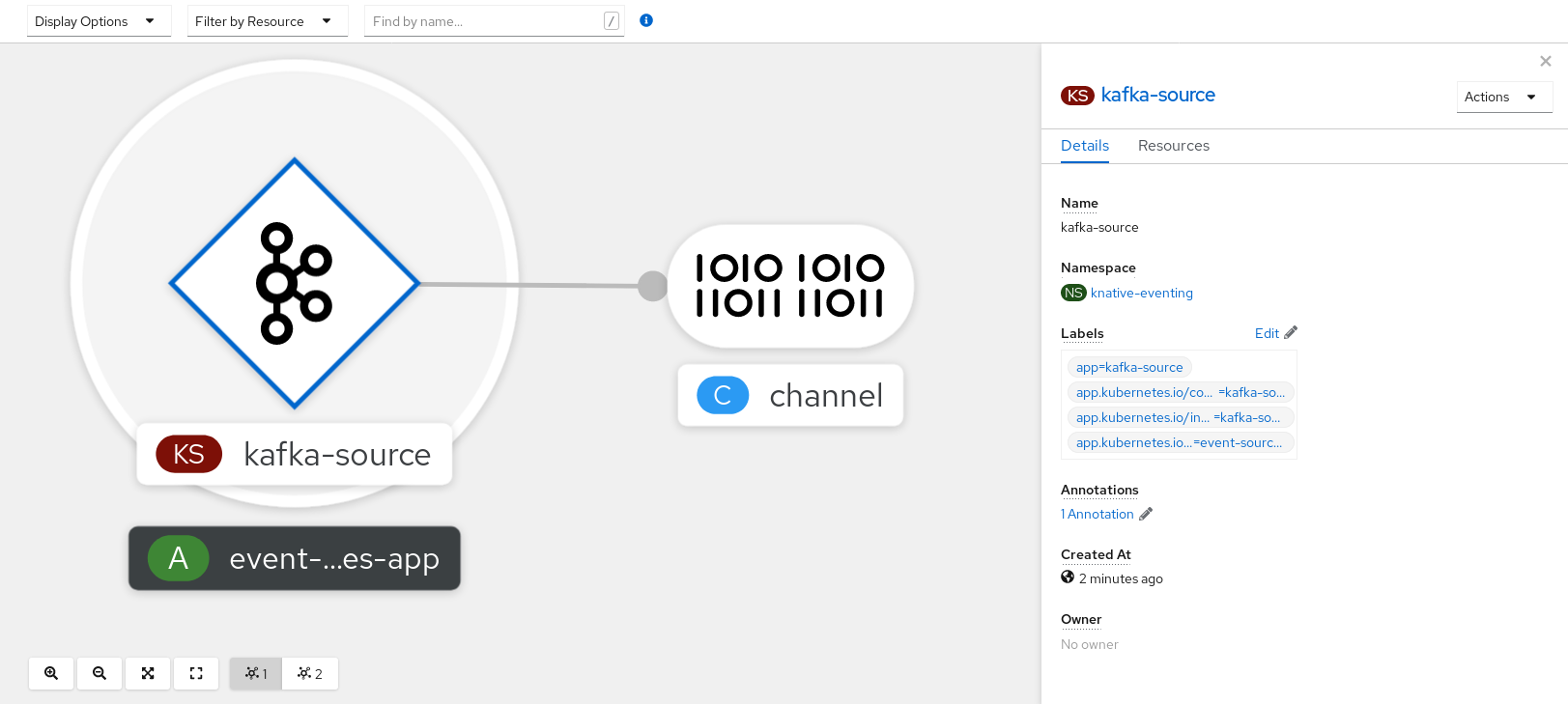
5.15.2.2. Creating a Kafka event source by using the Knative CLI
You can use the kn source kafka create command to create a Kafka source by using the Knative (kn) CLI. Using the Knative CLI to create event sources provides a more streamlined and intuitive user interface than modifying YAML files directly.
Prerequisites
-
The OpenShift Serverless Operator, Knative Eventing, Knative Serving, and the
KnativeKafkacustom resource (CR) are installed on your cluster. - You have created a project or have access to a project with the appropriate roles and permissions to create applications and other workloads in OpenShift Container Platform.
- You have access to a Red Hat AMQ Streams (Kafka) cluster that produces the Kafka messages you want to import.
-
You have installed the Knative (
kn) CLI. -
Optional: You have installed the OpenShift CLI (
oc) if you want to use the verification steps in this procedure.
Procedure
To verify that the Kafka event source is working, create a Knative service that dumps incoming events into the service logs:
$ kn service create event-display \
    --image quay.io/openshift-knative/knative-eventing-sources-event-display
Create a
KafkaSourceCR:$ kn source kafka create <kafka_source_name> \ --servers <cluster_kafka_bootstrap>.kafka.svc:9092 \ --topics <topic_name> --consumergroup my-consumer-group \ --sink event-displayNoteReplace the placeholder values in this command with values for your source name, bootstrap servers, and topics.
The
--servers,--topics, and--consumergroupoptions specify the connection parameters to the Kafka cluster. The--consumergroupoption is optional.Optional: View details about the
KafkaSourceCR you created:$ kn source kafka describe <kafka_source_name>Example output
Name:              example-kafka-source
Namespace:         kafka
Age:               1h
BootstrapServers:  example-cluster-kafka-bootstrap.kafka.svc:9092
Topics:            example-topic
ConsumerGroup:     example-consumer-group

Sink:
  Name:       event-display
  Namespace:  default
  Resource:   Service (serving.knative.dev/v1)

Conditions:
  OK TYPE            AGE REASON
  ++ Ready            1h
  ++ Deployed         1h
  ++ SinkProvided     1h
Verification steps
Trigger the Kafka instance to send a message to the topic:
$ oc -n kafka run kafka-producer \
    -ti --image=quay.io/strimzi/kafka:latest-kafka-2.7.0 --rm=true \
    --restart=Never -- bin/kafka-console-producer.sh \
    --broker-list <cluster_kafka_bootstrap>:9092 --topic my-topic
Enter the message in the prompt. This command assumes that:
-
The Kafka cluster is installed in the
kafkanamespace. -
The
KafkaSourceobject has been configured to use themy-topictopic.
-
The Kafka cluster is installed in the
Verify that the message arrived by viewing the logs:
$ oc logs $(oc get pod -o name | grep event-display) -c user-containerExample output
☁️  cloudevents.Event
Validation: valid
Context Attributes,
  specversion: 1.0
  type: dev.knative.kafka.event
  source: /apis/v1/namespaces/default/kafkasources/example-kafka-source#example-topic
  subject: partition:46#0
  id: partition:46/offset:0
  time: 2021-03-10T11:21:49.4Z
Extensions,
  traceparent: 00-161ff3815727d8755848ec01c866d1cd-7ff3916c44334678-00
Data,
  Hello!
5.15.2.2.1. Knative CLI sink flag
When you create an event source by using the Knative (kn) CLI, you can specify a sink where events are sent to from that resource by using the --sink flag. The sink can be any addressable or callable resource that can receive incoming events from other resources.
The following example creates a sink binding that uses a service, http://event-display.svc.cluster.local, as the sink:
Example command using the sink flag
$ kn source binding create bind-heartbeat \
  --namespace sinkbinding-example \
  --subject "Job:batch/v1:app=heartbeat-cron" \
  --sink http://event-display.svc.cluster.local \
--ce-override "sink=bound"- 1
svcinhttp://event-display.svc.cluster.localdetermines that the sink is a Knative service. Other default sink prefixes includechannel, andbroker.
5.15.2.3. Creating a Kafka event source by using YAML
Creating Knative resources by using YAML files uses a declarative API, which enables you to describe applications declaratively and in a reproducible manner. To create a Kafka source by using YAML, you must create a YAML file that defines a KafkaSource object, then apply it by using the oc apply command.
Prerequisites
-
The OpenShift Serverless Operator, Knative Eventing, and the
KnativeKafkacustom resource are installed on your cluster. - You have created a project or have access to a project with the appropriate roles and permissions to create applications and other workloads in OpenShift Container Platform.
- You have access to a Red Hat AMQ Streams (Kafka) cluster that produces the Kafka messages you want to import.
-
Install the OpenShift CLI (
oc).
Procedure
Create a
KafkaSourceobject as a YAML file:apiVersion: sources.knative.dev/v1beta1 kind: KafkaSource metadata: name: <source_name> spec: consumerGroup: <group_name>1 bootstrapServers: - <list_of_bootstrap_servers> topics: - <list_of_topics>2 sink: - <list_of_sinks>3 ImportantOnly the
v1beta1version of the API forKafkaSourceobjects on OpenShift Serverless is supported. Do not use thev1alpha1version of this API, as this version is now deprecated.Example
KafkaSourceobjectapiVersion: sources.knative.dev/v1beta1 kind: KafkaSource metadata: name: kafka-source spec: consumerGroup: knative-group bootstrapServers: - my-cluster-kafka-bootstrap.kafka:9092 topics: - knative-demo-topic sink: ref: apiVersion: serving.knative.dev/v1 kind: Service name: event-displayApply the
KafkaSourceYAML file:$ oc apply -f <filename>
Verification
Verify that the Kafka event source was created by entering the following command:
$ oc get podsExample output
NAME                                    READY     STATUS    RESTARTS   AGE
kafkasource-kafka-source-5ca0248f-...   1/1       Running   0          13m
5.15.3. Kafka broker
For production-ready Knative Eventing deployments, Red Hat recommends using the Knative Kafka broker implementation. The Kafka broker is an Apache Kafka native implementation of the Knative broker, which sends CloudEvents directly to the Kafka instance.
The Federal Information Processing Standards (FIPS) mode is disabled for Kafka broker.
The Kafka broker has a native integration with Kafka for storing and routing events. This allows better integration with Kafka for the broker and trigger model over other broker types, and reduces network hops. Other benefits of the Kafka broker implementation include:
- At-least-once delivery guarantees
- Ordered delivery of events, based on the CloudEvents partitioning extension
- Control plane high availability
- A horizontally scalable data plane
The Knative Kafka broker stores incoming CloudEvents as Kafka records, using the binary content mode. This means that all CloudEvent attributes and extensions are mapped as headers on the Kafka record, while the data spec of the CloudEvent corresponds to the value of the Kafka record.
For information about using Kafka brokers, see Creating brokers.
5.15.4. Creating a Kafka channel by using YAML
Creating Knative resources by using YAML files uses a declarative API, which enables you to describe channels declaratively and in a reproducible manner. You can create a Knative Eventing channel that is backed by Kafka topics by creating a Kafka channel. To create a Kafka channel by using YAML, you must create a YAML file that defines a KafkaChannel object, then apply it by using the oc apply command.
Prerequisites
-
The OpenShift Serverless Operator, Knative Eventing, and the
KnativeKafkacustom resource are installed on your OpenShift Container Platform cluster. -
Install the OpenShift CLI (
oc). - You have created a project or have access to a project with the appropriate roles and permissions to create applications and other workloads in OpenShift Container Platform.
Procedure
Create a
KafkaChannelobject as a YAML file:apiVersion: messaging.knative.dev/v1beta1 kind: KafkaChannel metadata: name: example-channel namespace: default spec: numPartitions: 3 replicationFactor: 1ImportantOnly the
v1beta1version of the API forKafkaChannelobjects on OpenShift Serverless is supported. Do not use thev1alpha1version of this API, as this version is now deprecated.Apply the
KafkaChannelYAML file:$ oc apply -f <filename>
5.15.5. Kafka sink
Kafka sinks are a type of event sink that are available if a cluster administrator has enabled Kafka on your cluster. You can send events directly from an event source to a Kafka topic by using a Kafka sink.
5.15.5.1. Using a Kafka sink
You can create an event sink called a Kafka sink that sends events to a Kafka topic. Creating Knative resources by using YAML files uses a declarative API, which enables you to describe applications declaratively and in a reproducible manner. By default, a Kafka sink uses the binary content mode, which is more efficient than the structured mode. To create a Kafka sink by using YAML, you must create a YAML file that defines a KafkaSink object, then apply it by using the oc apply command.
Prerequisites
-
The OpenShift Serverless Operator, Knative Eventing, and the
KnativeKafkacustom resource (CR) are installed on your cluster. - You have created a project or have access to a project with the appropriate roles and permissions to create applications and other workloads in OpenShift Container Platform.
- You have access to a Red Hat AMQ Streams (Kafka) cluster that produces the Kafka messages you want to import.
-
Install the OpenShift CLI (
oc).
Procedure
Create a
KafkaSinkobject definition as a YAML file:Kafka sink YAML
apiVersion: eventing.knative.dev/v1alpha1
kind: KafkaSink
metadata:
  name: <sink-name>
  namespace: <namespace>
spec:
  topic: <topic-name>
  bootstrapServers:
   - <bootstrap-server>
To create the Kafka sink, apply the
KafkaSinkYAML file:$ oc apply -f <filename>Configure an event source so that the sink is specified in its spec:
Example of a Kafka sink connected to an API server source
apiVersion: sources.knative.dev/v1alpha2
kind: ApiServerSource
metadata:
  name: <source-name>
1 namespace: <namespace>2 spec: serviceAccountName: <service-account-name>3 mode: Resource resources: - apiVersion: v1 kind: Event sink: ref: apiVersion: eventing.knative.dev/v1alpha1 kind: KafkaSink name: <sink-name>4

'%20d='M201.5%20305.5c-13.8%200-24.9-11.1-24.9-24.6%200-13.8%2011.1-24.9%2024.9-24.9%2013.6%200%2024.6%2011.1%2024.6%2024.9%200%2013.6-11.1%2024.6-24.6%2024.6zM504%20256c0%20137-111%20248-248%20248S8%20393%208%20256%20119%208%20256%208s248%20111%20248%20248zm-132.3-41.2c-9.4%200-17.7%203.9-23.8%2010-22.4-15.5-52.6-25.5-86.1-26.6l17.4-78.3%2055.4%2012.5c0%2013.6%2011.1%2024.6%2024.6%2024.6%2013.8%200%2024.9-11.3%2024.9-24.9s-11.1-24.9-24.9-24.9c-9.7%200-18%205.8-22.1%2013.8l-61.2-13.6c-3-.8-6.1%201.4-6.9%204.4l-19.1%2086.4c-33.2%201.4-63.1%2011.3-85.5%2026.8-6.1-6.4-14.7-10.2-24.1-10.2-34.9%200-46.3%2046.9-14.4%2062.8-1.1%205-1.7%2010.2-1.7%2015.5%200%2052.6%2059.2%2095.2%20132%2095.2%2073.1%200%20132.3-42.6%20132.3-95.2%200-5.3-.6-10.8-1.9-15.8%2031.3-16%2019.8-62.5-14.9-62.5zM302.8%20331c-18.2%2018.2-76.1%2017.9-93.6%200-2.2-2.2-6.1-2.2-8.3%200-2.5%202.5-2.5%206.4%200%208.6%2022.8%2022.8%2087.3%2022.8%20110.2%200%202.5-2.2%202.5-6.1%200-8.6-2.2-2.2-6.1-2.2-8.3%200zm7.7-75c-13.6%200-24.6%2011.1-24.6%2024.9%200%2013.6%2011.1%2024.6%2024.6%2024.6%2013.8%200%2024.9-11.1%2024.9-24.6%200-13.8-11-24.9-24.9-24.9z'/%3e%3c/svg%3e)