 Red Hat Summit
Dieser Inhalt ist in der von Ihnen ausgewählten Sprache nicht verfügbar.
Chapter 6. Using Container Storage Interface (CSI)
6.1. Configuring CSI volumes
The Container Storage Interface (CSI) allows OpenShift Container Platform to consume storage from storage back ends that implement the CSI interface as persistent storage.
OpenShift Container Platform 4.14 supports version 1.6.0 of the CSI specification.
6.1.1. CSI architecture
CSI drivers are typically shipped as container images. These containers are not aware of OpenShift Container Platform where they run. To use CSI-compatible storage back end in OpenShift Container Platform, the cluster administrator must deploy several components that serve as a bridge between OpenShift Container Platform and the storage driver.
The following diagram provides a high-level overview about the components running in pods in the OpenShift Container Platform cluster.
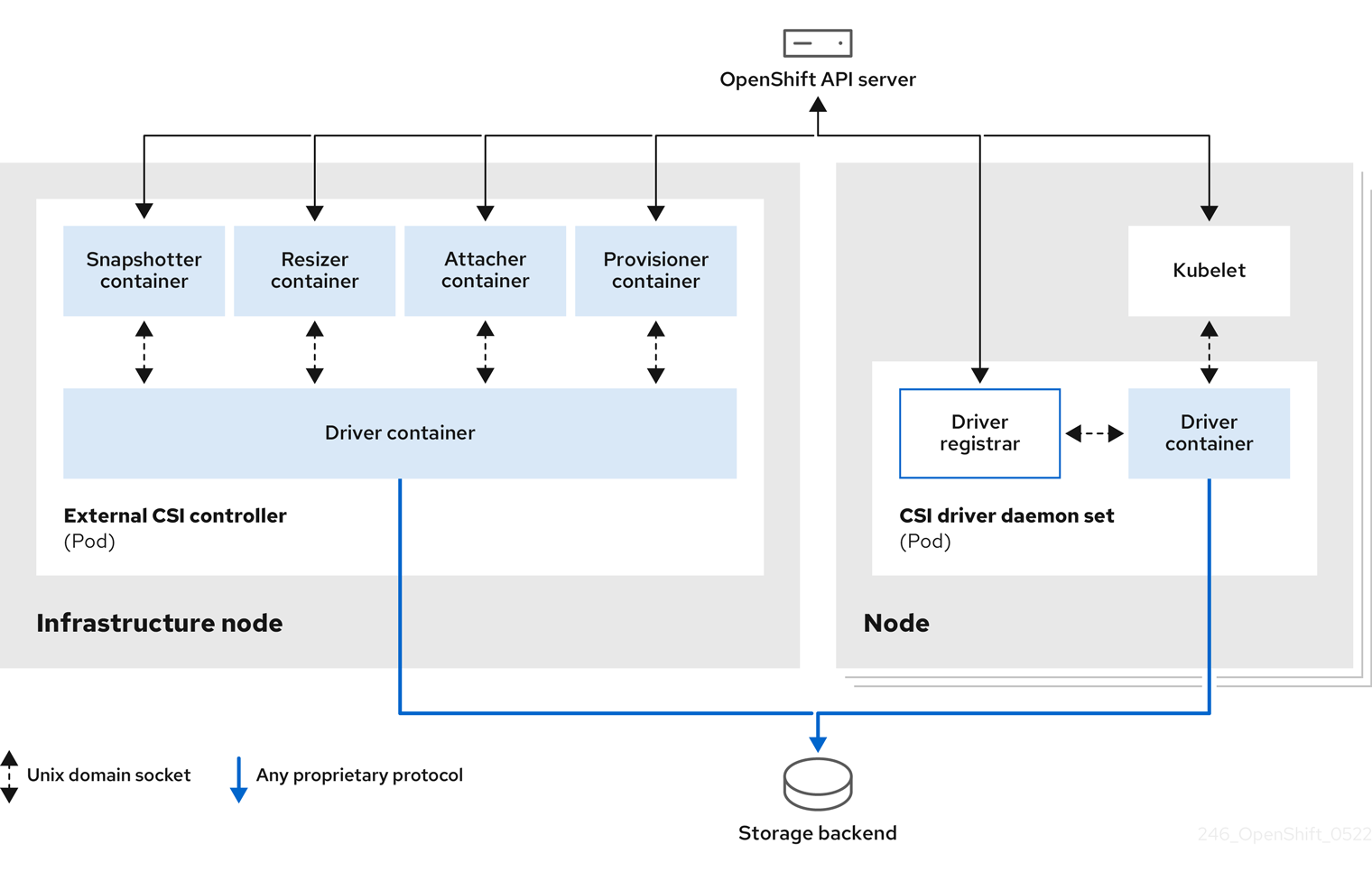
It is possible to run multiple CSI drivers for different storage back ends. Each driver needs its own external controllers deployment and daemon set with the driver and CSI registrar.
6.1.1.1. External CSI controllers
External CSI controllers is a deployment that deploys one or more pods with five containers:
-
The snapshotter container watches
VolumeSnapshotandVolumeSnapshotContentobjects and is responsible for the creation and deletion ofVolumeSnapshotContentobject. -
The resizer container is a sidecar container that watches for
PersistentVolumeClaimupdates and triggersControllerExpandVolumeoperations against a CSI endpoint if you request more storage onPersistentVolumeClaimobject. -
An external CSI attacher container translates
attachanddetachcalls from OpenShift Container Platform to respectiveControllerPublishandControllerUnpublishcalls to the CSI driver. -
An external CSI provisioner container that translates
provisionanddeletecalls from OpenShift Container Platform to respectiveCreateVolumeandDeleteVolumecalls to the CSI driver. - A CSI driver container.
The CSI attacher and CSI provisioner containers communicate with the CSI driver container using UNIX Domain Sockets, ensuring that no CSI communication leaves the pod. The CSI driver is not accessible from outside of the pod.
The attach, detach, provision, and delete operations typically require the CSI driver to use credentials to the storage backend. Run the CSI controller pods on infrastructure nodes so the credentials are never leaked to user processes, even in the event of a catastrophic security breach on a compute node.
The external attacher must also run for CSI drivers that do not support third-party attach or detach operations. The external attacher will not issue any ControllerPublish or ControllerUnpublish operations to the CSI driver. However, it still must run to implement the necessary OpenShift Container Platform attachment API.
6.1.1.2. CSI driver daemon set
The CSI driver daemon set runs a pod on every node that allows OpenShift Container Platform to mount storage provided by the CSI driver to the node and use it in user workloads (pods) as persistent volumes (PVs). The pod with the CSI driver installed contains the following containers:
-
A CSI driver registrar, which registers the CSI driver into the
openshift-nodeservice running on the node. Theopenshift-nodeprocess running on the node then directly connects with the CSI driver using the UNIX Domain Socket available on the node. - A CSI driver.
The CSI driver deployed on the node should have as few credentials to the storage back end as possible. OpenShift Container Platform will only use the node plugin set of CSI calls such as NodePublish/NodeUnpublish and NodeStage/NodeUnstage, if these calls are implemented.
6.1.2. CSI drivers supported by OpenShift Container Platform
OpenShift Container Platform installs certain CSI drivers by default, giving users storage options that are not possible with in-tree volume plugins.
To create CSI-provisioned persistent volumes that mount to these supported storage assets, OpenShift Container Platform installs the necessary CSI driver Operator, the CSI driver, and the required storage class by default. For more details about the default namespace of the Operator and driver, see the documentation for the specific CSI Driver Operator.
The AWS EFS and GCP Filestore CSI drivers are not installed by default, and must be installed manually. For instructions on installing the AWS EFS CSI driver, see Setting up AWS Elastic File Service CSI Driver Operator. For instructions on installing the GCP Filestore CSI driver, see Google Compute Platform Filestore CSI Driver Operator.
The following table describes the CSI drivers that are supported by OpenShift Container Platform and which CSI features they support, such as volume snapshots and resize.
If your CSI driver is not listed in the following table, you must follow the installation instructions provided by your CSI storage vendor to use their supported CSI features.
For a list of third-party-certified CSI drivers, see the Red Hat ecosystem portal under Additional resources.
| CSI driver | CSI volume snapshots | CSI cloning | CSI resize | Inline ephemeral volumes |
|---|---|---|---|---|
| AliCloud Disk |
✅ |
- |
✅ |
- |
| AWS EBS |
✅ |
- |
✅ |
- |
| AWS EFS |
- |
- |
- |
- |
| Google Compute Platform (GCP) persistent disk (PD) |
✅ |
✅ |
✅ |
- |
| GCP Filestore |
✅ |
- |
✅ |
- |
| IBM Power® Virtual Server Block |
- |
- |
✅ |
- |
| IBM Cloud® Block |
✅[3] |
- |
✅[3] |
- |
| LVM Storage |
✅ |
✅ |
✅ |
- |
| Microsoft Azure Disk |
✅ |
✅ |
✅ |
- |
| Microsoft Azure Stack Hub |
✅ |
✅ |
✅ |
- |
| Microsoft Azure File |
- |
- |
✅ |
✅ |
| OpenStack Cinder |
✅ |
✅ |
✅ |
- |
| OpenShift Data Foundation |
✅ |
✅ |
✅ |
- |
| OpenStack Manila |
✅ |
- |
- |
- |
| Shared Resource |
- |
- |
- |
✅ |
| VMware vSphere |
✅[1] |
- |
✅[2] |
- |
1.
- Requires vSphere version 7.0 Update 3 or later for both vCenter Server and ESXi.
- Does not support fileshare volumes.
2.
- Offline volume expansion: minimum required vSphere version is 6.7 Update 3 P06
- Online volume expansion: minimum required vSphere version is 7.0 Update 2.
3.
- Does not support offline snapshots or resize. Volume must be attached to a running pod.
If your CSI driver is not listed in the preceding table, you must follow the installation instructions provided by your CSI storage vendor to use their supported CSI features.
6.1.3. Dynamic provisioning
Dynamic provisioning of persistent storage depends on the capabilities of the CSI driver and underlying storage back end. The provider of the CSI driver should document how to create a storage class in OpenShift Container Platform and the parameters available for configuration.
The created storage class can be configured to enable dynamic provisioning.
Procedure
Create a default storage class that ensures all PVCs that do not require any special storage class are provisioned by the installed CSI driver.
# oc create -f - << EOF
apiVersion: storage.k8s.io/v1
kind: StorageClass
metadata:
  name: <storage-class>
1 annotations: storageclass.kubernetes.io/is-default-class: "true" provisioner: <provisioner-name>2 parameters: csi.storage.k8s.io/fstype: xfs3 EOF
6.1.4. Example using the CSI driver
The following example installs a default MySQL template without any changes to the template.
Prerequisites
- The CSI driver has been deployed.
- A storage class has been created for dynamic provisioning.
Procedure
Create the MySQL template:
# oc new-app mysql-persistentExample output
--> Deploying template "openshift/mysql-persistent" to project default
...
# oc get pvcExample output
NAME              STATUS    VOLUME                                   CAPACITY
ACCESS MODES   STORAGECLASS   AGE
mysql             Bound     kubernetes-dynamic-pv-3271ffcb4e1811e8   1Gi
RWO            cinder         3s
6.1.5. Volume populators
Volume populators use the datasource field in a persistent volume claim (PVC) spec to create pre-populated volumes.
Volume population is currently enabled, and supported as a Technology Preview feature. However, OpenShift Container Platform does not ship with any volume populators.
Volume populators is a Technology Preview feature only. Technology Preview features are not supported with Red Hat production service level agreements (SLAs) and might not be functionally complete. Red Hat does not recommend using them in production. These features provide early access to upcoming product features, enabling customers to test functionality and provide feedback during the development process.
For more information about the support scope of Red Hat Technology Preview features, see Technology Preview Features Support Scope.
For more information about volume populators, see Kubernetes volume populators.
6.2. CSI inline ephemeral volumes
Container Storage Interface (CSI) inline ephemeral volumes allow you to define a Pod spec that creates inline ephemeral volumes when a pod is deployed and delete them when a pod is destroyed.
This feature is only available with supported Container Storage Interface (CSI) drivers:
- Shared Resource CSI driver
- Azure File CSI driver
- Secrets Store CSI driver
6.2.1. Overview of CSI inline ephemeral volumes
Traditionally, volumes that are backed by Container Storage Interface (CSI) drivers can only be used with a PersistentVolume and PersistentVolumeClaim object combination.
This feature allows you to specify CSI volumes directly in the Pod specification, rather than in a PersistentVolume object. Inline volumes are ephemeral and do not persist across pod restarts.
6.2.1.1. Support limitations
By default, OpenShift Container Platform supports CSI inline ephemeral volumes with these limitations:
- Support is only available for CSI drivers. In-tree and FlexVolumes are not supported.
-
The Shared Resource CSI Driver supports using inline ephemeral volumes only to access
SecretsorConfigMapsacross multiple namespaces as a Technology Preview feature. - Community or storage vendors provide other CSI drivers that support these volumes. Follow the installation instructions provided by the CSI driver provider.
CSI drivers might not have implemented the inline volume functionality, including Ephemeral capacity. For details, see the CSI driver documentation.
Shared Resource CSI Driver is a Technology Preview feature only. Technology Preview features are not supported with Red Hat production service level agreements (SLAs) and might not be functionally complete. Red Hat does not recommend using them in production. These features provide early access to upcoming product features, enabling customers to test functionality and provide feedback during the development process.
For more information about the support scope of Red Hat Technology Preview features, see Technology Preview Features Support Scope.
6.2.2. CSI Volume Admission plugin
The Container Storage Interface (CSI) Volume Admission plugin allows you to restrict the use of an individual CSI driver capable of provisioning CSI ephemeral volumes on pod admission. Administrators can add a csi-ephemeral-volume-profile label, and this label is then inspected by the Admission plugin and used in enforcement, warning, and audit decisions.
6.2.2.1. Overview
To use the CSI Volume Admission plugin, administrators add the security.openshift.io/csi-ephemeral-volume-profile label to a CSIDriver object, which declares the CSI driver’s effective pod security profile when it is used to provide CSI ephemeral volumes, as shown in the following example:
kind: CSIDriver
metadata:
  name: csi.mydriver.company.org
  labels:
security.openshift.io/csi-ephemeral-volume-profile: restricted - 1
- CSI driver object YAML file with the
csi-ephemeral-volume-profilelabel set to "restricted"
This “effective profile” communicates that a pod can use the CSI driver to mount CSI ephemeral volumes when the pod’s namespace is governed by a pod security standard.
The CSI Volume Admission plugin inspects pod volumes when pods are created; existing pods that use CSI volumes are not affected. If a pod uses a container storage interface (CSI) volume, the plugin looks up the CSIDriver object and inspects the csi-ephemeral-volume-profile label, and then use the label’s value in its enforcement, warning, and audit decisions.
6.2.2.2. Pod security profile enforcement
When a CSI driver has the csi-ephemeral-volume-profile label, pods using the CSI driver to mount CSI ephemeral volumes must run in a namespace that enforces a pod security standard of equal or greater permission. If the namespace enforces a more restrictive standard, the CSI Volume Admission plugin denies admission. The following table describes the enforcement behavior for different pod security profiles for given label values.
| Pod security profile | Driver label: restricted | Driver label: baseline | Driver label: privileged |
|---|---|---|---|
| Restricted |
Allowed |
Denied |
Denied |
| Baseline |
Allowed |
Allowed |
Denied |
| Privileged |
Allowed |
Allowed |
Allowed |
6.2.2.3. Pod security profile warning
The CSI Volume Admission plugin can warn you if the CSI driver’s effective profile is more permissive than the pod security warning profile for the pod namespace. The following table shows when a warning occurs for different pod security profiles for given label values.
| Pod security profile | Driver label: restricted | Driver label: baseline | Driver label: privileged |
|---|---|---|---|
| Restricted |
No warning |
Warning |
Warning |
| Baseline |
No warning |
No warning |
Warning |
| Privileged |
No warning |
No warning |
No warning |
6.2.2.4. Pod security profile audit
The CSI Volume Admission plugin can apply audit annotations to the pod if the CSI driver’s effective profile is more permissive than the pod security audit profile for the pod namespace. The following table shows the audit annotation applied for different pod security profiles for given label values.
| Pod security profile | Driver label: restricted | Driver label: baseline | Driver label: privileged |
|---|---|---|---|
| Restricted |
No audit |
Audit |
Audit |
| Baseline |
No audit |
No audit |
Audit |
| Privileged |
No audit |
No audit |
No audit |
6.2.2.5. Default behavior for the CSI Volume Admission plugin
If the referenced CSI driver for a CSI ephemeral volume does not have the csi-ephemeral-volume-profile label, the CSI Volume Admission plugin considers the driver to have the privileged profile for enforcement, warning, and audit behaviors. Likewise, if the pod’s namespace does not have the pod security admission label set, the Admission plugin assumes the restricted profile is allowed for enforcement, warning, and audit decisions. Therefore, if no labels are set, CSI ephemeral volumes using that CSI driver are only usable in privileged namespaces by default.
The CSI drivers that ship with OpenShift Container Platform and support ephemeral volumes have a reasonable default set for the csi-ephemeral-volume-profile label:
- Shared Resource CSI driver: restricted
- Azure File CSI driver: privileged
An admin can change the default value of the label if desired.
6.2.3. Embedding a CSI inline ephemeral volume in the pod specification
You can embed a CSI inline ephemeral volume in the Pod specification in OpenShift Container Platform. At runtime, nested inline volumes follow the ephemeral lifecycle of their associated pods so that the CSI driver handles all phases of volume operations as pods are created and destroyed.
Procedure
-
Create the
Podobject definition and save it to a file. Embed the CSI inline ephemeral volume in the file.
my-csi-app.yaml
kind: Pod
apiVersion: v1
metadata:
  name: my-csi-app
spec:
  containers:
    - name: my-frontend
      image: busybox
      volumeMounts:
      - mountPath: "/data"
        name: my-csi-inline-vol
      command: [ "sleep", "1000000" ]
  volumes:
1 - name: my-csi-inline-vol csi: driver: inline.storage.kubernetes.io volumeAttributes: foo: bar- 1
- The name of the volume that is used by pods.
Create the object definition file that you saved in the previous step.
$ oc create -f my-csi-app.yaml
6.4. CSI volume snapshots
This document describes how to use volume snapshots with supported Container Storage Interface (CSI) drivers to help protect against data loss in OpenShift Container Platform. Familiarity with persistent volumes is suggested.
6.4.1. Overview of CSI volume snapshots
A snapshot represents the state of the storage volume in a cluster at a particular point in time. Volume snapshots can be used to provision a new volume.
OpenShift Container Platform supports Container Storage Interface (CSI) volume snapshots by default. However, a specific CSI driver is required.
With CSI volume snapshots, a cluster administrator can:
- Deploy a third-party CSI driver that supports snapshots.
- Create a new persistent volume claim (PVC) from an existing volume snapshot.
- Take a snapshot of an existing PVC.
- Restore a snapshot as a different PVC.
- Delete an existing volume snapshot.
With CSI volume snapshots, an app developer can:
- Use volume snapshots as building blocks for developing application- or cluster-level storage backup solutions.
- Rapidly rollback to a previous development version.
- Use storage more efficiently by not having to make a full copy each time.
Be aware of the following when using volume snapshots:
- Support is only available for CSI drivers. In-tree and FlexVolumes are not supported.
- OpenShift Container Platform only ships with select CSI drivers. For CSI drivers that are not provided by an OpenShift Container Platform Driver Operator, it is recommended to use the CSI drivers provided by community or storage vendors. Follow the installation instructions furnished by the CSI driver provider.
-
CSI drivers may or may not have implemented the volume snapshot functionality. CSI drivers that have provided support for volume snapshots will likely use the
csi-external-snapshottersidecar. See documentation provided by the CSI driver for details.
6.4.2. CSI snapshot controller and sidecar
OpenShift Container Platform provides a snapshot controller that is deployed into the control plane. In addition, your CSI driver vendor provides the CSI snapshot sidecar as a helper container that is installed during the CSI driver installation.
The CSI snapshot controller and sidecar provide volume snapshotting through the OpenShift Container Platform API. These external components run in the cluster.
The external controller is deployed by the CSI Snapshot Controller Operator.
6.4.2.1. External controller
The CSI snapshot controller binds VolumeSnapshot and VolumeSnapshotContent objects. The controller manages dynamic provisioning by creating and deleting VolumeSnapshotContent objects.
6.4.2.2. External sidecar
Your CSI driver vendor provides the csi-external-snapshotter sidecar. This is a separate helper container that is deployed with the CSI driver. The sidecar manages snapshots by triggering CreateSnapshot and DeleteSnapshot operations. Follow the installation instructions provided by your vendor.
6.4.3. About the CSI Snapshot Controller Operator
The CSI Snapshot Controller Operator runs in the openshift-cluster-storage-operator namespace. It is installed by the Cluster Version Operator (CVO) in all clusters by default.
The CSI Snapshot Controller Operator installs the CSI snapshot controller, which runs in the openshift-cluster-storage-operator namespace.
6.4.3.1. Volume snapshot CRDs
During OpenShift Container Platform installation, the CSI Snapshot Controller Operator creates the following snapshot custom resource definitions (CRDs) in the snapshot.storage.k8s.io/v1 API group:
VolumeSnapshotContentA snapshot taken of a volume in the cluster that has been provisioned by a cluster administrator.
Similar to the
PersistentVolumeobject, theVolumeSnapshotContentCRD is a cluster resource that points to a real snapshot in the storage back end.For manually pre-provisioned snapshots, a cluster administrator creates a number of
VolumeSnapshotContentCRDs. These carry the details of the real volume snapshot in the storage system.The
VolumeSnapshotContentCRD is not namespaced and is for use by a cluster administrator.VolumeSnapshotSimilar to the
PersistentVolumeClaimobject, theVolumeSnapshotCRD defines a developer request for a snapshot. The CSI Snapshot Controller Operator runs the CSI snapshot controller, which handles the binding of aVolumeSnapshotCRD with an appropriateVolumeSnapshotContentCRD. The binding is a one-to-one mapping.The
VolumeSnapshotCRD is namespaced. A developer uses the CRD as a distinct request for a snapshot.VolumeSnapshotClassAllows a cluster administrator to specify different attributes belonging to a
VolumeSnapshotobject. These attributes may differ among snapshots taken of the same volume on the storage system, in which case they would not be expressed by using the same storage class of a persistent volume claim.The
VolumeSnapshotClassCRD defines the parameters for thecsi-external-snapshottersidecar to use when creating a snapshot. This allows the storage back end to know what kind of snapshot to dynamically create if multiple options are supported.Dynamically provisioned snapshots use the
VolumeSnapshotClassCRD to specify storage-provider-specific parameters to use when creating a snapshot.The
VolumeSnapshotContentClassCRD is not namespaced and is for use by a cluster administrator to enable global configuration options for their storage back end.
6.4.4. Volume snapshot provisioning
There are two ways to provision snapshots: dynamically and manually.
6.4.4.1. Dynamic provisioning
Instead of using a preexisting snapshot, you can request that a snapshot be taken dynamically from a persistent volume claim. Parameters are specified using a VolumeSnapshotClass CRD.
6.4.4.2. Manual provisioning
As a cluster administrator, you can manually pre-provision a number of VolumeSnapshotContent objects. These carry the real volume snapshot details available to cluster users.
6.4.5. Creating a volume snapshot
When you create a VolumeSnapshot object, OpenShift Container Platform creates a volume snapshot.
Prerequisites
- Logged in to a running OpenShift Container Platform cluster.
-
A PVC created using a CSI driver that supports
VolumeSnapshotobjects. - A storage class to provision the storage back end.
No pods are using the persistent volume claim (PVC) that you want to take a snapshot of.
WarningCreating a volume snapshot of a PVC that is in use by a pod can cause unwritten data and cached data to be excluded from the snapshot. To ensure that all data is written to the disk, delete the pod that is using the PVC before creating the snapshot.
Procedure
To dynamically create a volume snapshot:
Create a file with the
VolumeSnapshotClassobject described by the following YAML:volumesnapshotclass.yaml
apiVersion: snapshot.storage.k8s.io/v1
kind: VolumeSnapshotClass
metadata:
  name: csi-hostpath-snap
driver: hostpath.csi.k8s.io
1 deletionPolicy: Delete- 1
- The name of the CSI driver that is used to create snapshots of this
VolumeSnapshotClassobject. The name must be the same as theProvisionerfield of the storage class that is responsible for the PVC that is being snapshotted.
NoteDepending on the driver that you used to configure persistent storage, additional parameters might be required. You can also use an existing
VolumeSnapshotClassobject.Create the object you saved in the previous step by entering the following command:
$ oc create -f volumesnapshotclass.yamlCreate a
VolumeSnapshotobject:volumesnapshot-dynamic.yaml
apiVersion: snapshot.storage.k8s.io/v1
kind: VolumeSnapshot
metadata:
  name: mysnap
spec:
  volumeSnapshotClassName: csi-hostpath-snap
1 source: persistentVolumeClaimName: myclaim2 - 1
- The request for a particular class by the volume snapshot. If the
volumeSnapshotClassNamesetting is absent and there is a default volume snapshot class, a snapshot is created with the default volume snapshot class name. But if the field is absent and no default volume snapshot class exists, then no snapshot is created. - 2
- The name of the
PersistentVolumeClaimobject bound to a persistent volume. This defines what you want to create a snapshot of. Required for dynamically provisioning a snapshot.
Create the object you saved in the previous step by entering the following command:
$ oc create -f volumesnapshot-dynamic.yaml
To manually provision a snapshot:
Provide a value for the
volumeSnapshotContentNameparameter as the source for the snapshot, in addition to defining volume snapshot class as shown above.volumesnapshot-manual.yaml
apiVersion: snapshot.storage.k8s.io/v1
kind: VolumeSnapshot
metadata:
  name: snapshot-demo
spec:
  source:
    volumeSnapshotContentName: mycontent
1 - 1
- The
volumeSnapshotContentNameparameter is required for pre-provisioned snapshots.
Create the object you saved in the previous step by entering the following command:
$ oc create -f volumesnapshot-manual.yaml
Verification
After the snapshot has been created in the cluster, additional details about the snapshot are available.
To display details about the volume snapshot that was created, enter the following command:
$ oc describe volumesnapshot mysnapThe following example displays details about the
mysnapvolume snapshot:volumesnapshot.yaml
apiVersion: snapshot.storage.k8s.io/v1
kind: VolumeSnapshot
metadata:
  name: mysnap
spec:
  source:
    persistentVolumeClaimName: myclaim
  volumeSnapshotClassName: csi-hostpath-snap
status:
  boundVolumeSnapshotContentName: snapcontent-1af4989e-a365-4286-96f8-d5dcd65d78d6
1 creationTime: "2020-01-29T12:24:30Z"2 readyToUse: true3 restoreSize: 500Mi- 1
- The pointer to the actual storage content that was created by the controller.
- 2
- The time when the snapshot was created. The snapshot contains the volume content that was available at this indicated time.
- 3
- If the value is set to
true, the snapshot can be used to restore as a new PVC.
If the value is set tofalse, the snapshot was created. However, the storage back end needs to perform additional tasks to make the snapshot usable so that it can be restored as a new volume. For example, Amazon Elastic Block Store data might be moved to a different, less expensive location, which can take several minutes.
To verify that the volume snapshot was created, enter the following command:
$ oc get volumesnapshotcontentThe pointer to the actual content is displayed. If the
boundVolumeSnapshotContentNamefield is populated, aVolumeSnapshotContentobject exists and the snapshot was created.-
To verify that the snapshot is ready, confirm that the
VolumeSnapshotobject hasreadyToUse: true.
6.4.6. Deleting a volume snapshot
You can configure how OpenShift Container Platform deletes volume snapshots.
Procedure
Specify the deletion policy that you require in the
VolumeSnapshotClassobject, as shown in the following example:volumesnapshotclass.yaml
apiVersion: snapshot.storage.k8s.io/v1
kind: VolumeSnapshotClass
metadata:
  name: csi-hostpath-snap
driver: hostpath.csi.k8s.io
deletionPolicy: Delete
1 - 1
- When deleting the volume snapshot, if the
Deletevalue is set, the underlying snapshot is deleted along with theVolumeSnapshotContentobject. If theRetainvalue is set, both the underlying snapshot andVolumeSnapshotContentobject remain.
If theRetainvalue is set and theVolumeSnapshotobject is deleted without deleting the correspondingVolumeSnapshotContentobject, the content remains. The snapshot itself is also retained in the storage back end.
Delete the volume snapshot by entering the following command:
$ oc delete volumesnapshot <volumesnapshot_name>Example output
volumesnapshot.snapshot.storage.k8s.io "mysnapshot" deletedIf the deletion policy is set to
Retain, delete the volume snapshot content by entering the following command:$ oc delete volumesnapshotcontent <volumesnapshotcontent_name>Optional: If the
VolumeSnapshotobject is not successfully deleted, enter the following command to remove any finalizers for the leftover resource so that the delete operation can continue:ImportantOnly remove the finalizers if you are confident that there are no existing references from either persistent volume claims or volume snapshot contents to the
VolumeSnapshotobject. Even with the--forceoption, the delete operation does not delete snapshot objects until all finalizers are removed.$ oc patch -n $PROJECT volumesnapshot/$NAME --type=merge -p '{"metadata": {"finalizers":null}}'Example output
volumesnapshotclass.snapshot.storage.k8s.io "csi-ocs-rbd-snapclass" deletedThe finalizers are removed and the volume snapshot is deleted.
6.4.7. Restoring a volume snapshot
The VolumeSnapshot CRD content can be used to restore the existing volume to a previous state.
After your VolumeSnapshot CRD is bound and the readyToUse value is set to true, you can use that resource to provision a new volume that is pre-populated with data from the snapshot.
Prerequisites
- Logged in to a running OpenShift Container Platform cluster.
- A persistent volume claim (PVC) created using a Container Storage Interface (CSI) driver that supports volume snapshots.
- A storage class to provision the storage back end.
- A volume snapshot has been created and is ready to use.
Procedure
Specify a
VolumeSnapshotdata source on a PVC as shown in the following:pvc-restore.yaml
apiVersion: v1
kind: PersistentVolumeClaim
metadata:
  name: myclaim-restore
spec:
  storageClassName: csi-hostpath-sc
  dataSource:
    name: mysnap
1 kind: VolumeSnapshot2 apiGroup: snapshot.storage.k8s.io3 accessModes: - ReadWriteOnce resources: requests: storage: 1GiCreate a PVC by entering the following command:
$ oc create -f pvc-restore.yamlVerify that the restored PVC has been created by entering the following command:
$ oc get pvcA new PVC such as
myclaim-restoreis displayed.
6.5. CSI volume cloning
Volume cloning duplicates an existing persistent volume to help protect against data loss in OpenShift Container Platform. This feature is only available with supported Container Storage Interface (CSI) drivers. You should be familiar with persistent volumes before you provision a CSI volume clone.
6.5.1. Overview of CSI volume cloning
A Container Storage Interface (CSI) volume clone is a duplicate of an existing persistent volume at a particular point in time.
Volume cloning is similar to volume snapshots, although it is more efficient. For example, a cluster administrator can duplicate a cluster volume by creating another instance of the existing cluster volume.
Cloning creates an exact duplicate of the specified volume on the back-end device, rather than creating a new empty volume. After dynamic provisioning, you can use a volume clone just as you would use any standard volume.
No new API objects are required for cloning. The existing dataSource field in the PersistentVolumeClaim object is expanded so that it can accept the name of an existing PersistentVolumeClaim in the same namespace.
6.5.1.1. Support limitations
By default, OpenShift Container Platform supports CSI volume cloning with these limitations:
- The destination persistent volume claim (PVC) must exist in the same namespace as the source PVC.
Cloning is supported with a different Storage Class.
- Destination volume can be the same for a different storage class as the source.
-
You can use the default storage class and omit
storageClassNamein thespec.
- Support is only available for CSI drivers. In-tree and FlexVolumes are not supported.
- CSI drivers might not have implemented the volume cloning functionality. For details, see the CSI driver documentation.
6.5.2. Provisioning a CSI volume clone
When you create a cloned persistent volume claim (PVC) API object, you trigger the provisioning of a CSI volume clone. The clone pre-populates with the contents of another PVC, adhering to the same rules as any other persistent volume. The one exception is that you must add a dataSource that references an existing PVC in the same namespace.
Prerequisites
- You are logged in to a running OpenShift Container Platform cluster.
- Your PVC is created using a CSI driver that supports volume cloning.
- Your storage back end is configured for dynamic provisioning. Cloning support is not available for static provisioners.
Procedure
To clone a PVC from an existing PVC:
Create and save a file with the
PersistentVolumeClaimobject described by the following YAML:pvc-clone.yaml
apiVersion: v1
kind: PersistentVolumeClaim
metadata:
  name: pvc-1-clone
  namespace: mynamespace
spec:
  storageClassName: csi-cloning
1 accessModes: - ReadWriteOnce resources: requests: storage: 5Gi dataSource: kind: PersistentVolumeClaim name: pvc-1- 1
- The name of the storage class that provisions the storage back end. The default storage class can be used and
storageClassNamecan be omitted in the spec.
Create the object you saved in the previous step by running the following command:
$ oc create -f pvc-clone.yamlA new PVC
pvc-1-cloneis created.Verify that the volume clone was created and is ready by running the following command:
$ oc get pvc pvc-1-cloneThe
pvc-1-cloneshows that it isBound.You are now ready to use the newly cloned PVC to configure a pod.
Create and save a file with the
Podobject described by the YAML. For example:kind: Pod apiVersion: v1 metadata: name: mypod spec: containers: - name: myfrontend image: dockerfile/nginx volumeMounts: - mountPath: "/var/www/html" name: mypd volumes: - name: mypd persistentVolumeClaim: claimName: pvc-1-clone1 - 1
- The cloned PVC created during the CSI volume cloning operation.
The created
Podobject is now ready to consume, clone, snapshot, or delete your cloned PVC independently of its originaldataSourcePVC.
6.6. Managing the default storage class
6.6.1. Overview
Managing the default storage class allows you to accomplish several different objectives:
- Enforcing static provisioning by disabling dynamic provisioning.
- When you have other preferred storage classes, preventing the storage operator from re-creating the initial default storage class.
- Renaming, or otherwise changing, the default storage class
To accomplish these objectives, you change the setting for the spec.storageClassState field in the ClusterCSIDriver object. The possible settings for this field are:
- Managed: (Default) The Container Storage Interface (CSI) operator is actively managing its default storage class, so that most manual changes made by a cluster administrator to the default storage class are removed, and the default storage class is continuously re-created if you attempt to manually delete it.
- Unmanaged: You can modify the default storage class. The CSI operator is not actively managing storage classes, so that it is not reconciling the default storage class it creates automatically.
- Removed: The CSI operators deletes the default storage class.
Managing the default storage classes is supported by the following Container Storage Interface (CSI) driver operators:
6.6.2. Managing the default storage class using the web console
Prerequisites
- Access to the OpenShift Container Platform web console.
- Access to the cluster with cluster-admin privileges.
Procedure
To manage the default storage class using the web console:
- Log in to the web console.
- Click Administration > CustomResourceDefinitions.
-
On the CustomResourceDefinitions page, type
clustercsidriverto find theClusterCSIDriverobject. - Click ClusterCSIDriver, and then click the Instances tab.
- Click the name of the desired instance, and then click the YAML tab.
Add the
spec.storageClassStatefield with a value ofManaged,Unmanaged, orRemoved.Example
...
spec:
  driverConfig:
    driverType: ''
  logLevel: Normal
  managementState: Managed
  observedConfig: null
  operatorLogLevel: Normal
  storageClassState: Unmanaged
1 ...- 1
spec.storageClassStatefield set to "Unmanaged"
- Click Save.
6.6.3. Managing the default storage class using the CLI
Prerequisites
- Access to the cluster with cluster-admin privileges.
Procedure
To manage the storage class using the CLI, run the following command:
$ oc patch clustercsidriver $DRIVERNAME --type=merge -p "{\"spec\":{\"storageClassState\":\"${STATE}\"}}" - 1
- Where
${STATE}is "Removed" or "Managed" or "Unmanaged".Where
$DRIVERNAMEis the provisioner name. You can find the provisioner name by running the commandoc get sc.
6.6.4. Absent or multiple default storage classes
6.6.4.1. Multiple default storage classes
Multiple default storage classes can occur if you mark a non-default storage class as default and do not unset the existing default storage class, or you create a default storage class when a default storage class is already present. With multiple default storage classes present, any persistent volume claim (PVC) requesting the default storage class (pvc.spec.storageClassName=nil) gets the most recently created default storage class, regardless of the default status of that storage class, and the administrator receives an alert in the alerts dashboard that there are multiple default storage classes, MultipleDefaultStorageClasses.
6.6.4.2. Absent default storage class
There are two possible scenarios where PVCs can attempt to use a non-existent default storage class:
- An administrator removes the default storage class or marks it as non-default, and then a user creates a PVC requesting the default storage class.
- During installation, the installer creates a PVC requesting the default storage class, which has not yet been created.
In the preceding scenarios, the PVCs remain in pending state indefinitely.
OpenShift Container Platform provides a feature to retroactively assign the default storage class to PVCs, so that they do not remain in the pending state. With this feature enabled, PVCs requesting the default storage class that are created when no default storage classes exists, remain in the pending state until a default storage class is created, or one of the existing storage classes is declared the default. As soon as the default storage class is created or declared, the PVC gets the new default storage class.
Retroactive default storage class assignment is a Technology Preview feature only. Technology Preview features are not supported with Red Hat production service level agreements (SLAs) and might not be functionally complete. Red Hat does not recommend using them in production. These features provide early access to upcoming product features, enabling customers to test functionality and provide feedback during the development process.
For more information about the support scope of Red Hat Technology Preview features, see Technology Preview Features Support Scope.
6.6.4.2.1. Procedure
To enable retroactive default storage class assignment:
Enable feature gates (see Nodes
Working with clusters Enabling features using feature gates). ImportantAfter turning on Technology Preview features using feature gates, they cannot be turned off. As a result, cluster upgrades are prevented.
The following configuration example enables retroactive default storage class assignment, and all other Technology Preview features:
apiVersion: config.openshift.io/v1
kind: FeatureGate
metadata:
  name: cluster
spec:
  featureSet: TechPreviewNoUpgrade
1 ...- 1
- Enables retroactive default storage class assignment.
6.6.5. Changing the default storage class
Use the following procedure to change the default storage class.
For example, if you have two defined storage classes, gp3 and standard, and you want to change the default storage class from gp3 to standard.
Prerequisites
- Access to the cluster with cluster-admin privileges.
Procedure
To change the default storage class:
List the storage classes:
$ oc get storageclassExample output
NAME                 TYPE
gp3 (default)        kubernetes.io/aws-ebs
1 standard kubernetes.io/aws-ebs- 1
(default)indicates the default storage class.
Make the desired storage class the default.
For the desired storage class, set the
storageclass.kubernetes.io/is-default-classannotation totrueby running the following command:$ oc patch storageclass standard -p '{"metadata": {"annotations": {"storageclass.kubernetes.io/is-default-class": "true"}}}'NoteYou can have multiple default storage classes for a short time. However, you should ensure that only one default storage class exists eventually.
With multiple default storage classes present, any persistent volume claim (PVC) requesting the default storage class (
pvc.spec.storageClassName=nil) gets the most recently created default storage class, regardless of the default status of that storage class, and the administrator receives an alert in the alerts dashboard that there are multiple default storage classes,MultipleDefaultStorageClasses.Remove the default storage class setting from the old default storage class.
For the old default storage class, change the value of the
storageclass.kubernetes.io/is-default-classannotation tofalseby running the following command:$ oc patch storageclass gp3 -p '{"metadata": {"annotations": {"storageclass.kubernetes.io/is-default-class": "false"}}}'Verify the changes:
$ oc get storageclassExample output
NAME                 TYPE
gp3                  kubernetes.io/aws-ebs
standard (default)   kubernetes.io/aws-ebs
6.7. CSI automatic migration
In-tree storage drivers that are traditionally shipped with OpenShift Container Platform are being deprecated and replaced by their equivalent Container Storage Interface (CSI) drivers. OpenShift Container Platform provides automatic migration for in-tree volume plugins to their equivalent CSI drivers.
6.7.1. Overview of CSI automatic migration
This feature automatically migrates volumes that were provisioned using in-tree storage plugins to their counterpart Container Storage Interface (CSI) drivers.
This process does not perform any data migration; OpenShift Container Platform only translates the persistent volume object in memory. As a result, the translated persistent volume object is not stored on disk, nor is its contents changed. CSI automatic migration should be seamless. This feature does not change how you use all existing API objects: for example, PersistentVolumes, PersistentVolumeClaims, and StorageClasses.
The following in-tree to CSI drivers are automatically migrated:
- Azure Disk
- OpenStack Cinder
- Amazon Web Services (AWS) Elastic Block Storage (EBS)
- Google Compute Engine Persistent Disk (GCP PD)
- Azure File
- VMware vSphere (see information below for specific migration behavior for vSphere)
CSI migration for these volume types is considered generally available (GA), and requires no manual intervention.
CSI automatic migration of in-tree persistent volumes (PVs) or persistent volume claims (PVCs) does not enable any new CSI driver features, such as snapshots or expansion, if the original in-tree storage plugin did not support it.
6.7.2. Storage class implications
For new OpenShift Container Platform 4.13, and later, installations, the default storage class is the CSI storage class. All volumes provisioned using this storage class are CSI persistent volumes (PVs).
For clusters upgraded from 4.12, and earlier, to 4.13, and later, the CSI storage class is created, and is set as the default if no default storage class was set prior to the upgrade. In the very unlikely case that there is a storage class with the same name, the existing storage class remains unchanged. Any existing in-tree storage classes remain, and might be necessary for certain features, such as volume expansion to work for existing in-tree PVs. While storage class referencing to the in-tree storage plugin will continue working, we recommend that you switch the default storage class to the CSI storage class.
To change the default storage class, see Changing the default storage class.
6.7.3. vSphere CSI automatic migration
6.7.3.1. New installations of OpenShift Container Platform
For new installations of OpenShift Container Platform 4.13, or later, automatic migration is enabled by default.
6.7.3.2. Updating from OpenShift Container Platform 4.13 to 4.14
If you are using vSphere in-tree persistent volumes (PVs) and want to update from OpenShift Container Platform 4.13 to 4.14, update vSphere vCenter and ESXI host to 7.0 Update 3L or 8.0 Update 2, otherwise the OpenShift Container Platform update is blocked. After updating vSphere, your OpenShift Container Platform update can occur and automatic migration is enabled by default.
Alternatively, if you do not want to update vSphere, you can proceed with an OpenShift Container Platform update by performing an administrator acknowledgment:
oc -n openshift-config patch cm admin-acks --patch '{"data":{"ack-4.13-kube-127-vsphere-migration-in-4.14":"true"}}' --type=mergeIf you do not update to vSphere 7.0 Update 3L or 8.0 Update 2 and use an administrator acknowledgment to update to OpenShift Container Platform 4.14, known issues can occur due to CSI migration being enabled by default in OpenShift Container Platform 4.14. Before proceeding with the administrator acknowledgement, carefully read this knowledge base article.
6.7.3.3. Updating from OpenShift Container Platform 4.12 to 4.14
If you are using vSphere in-tree persistent volumes (PVs) and want to update from OpenShift Container Platform 4.12 to 4.14, update vSphere vCenter and ESXI host to 7.0 Update 3L or 8.0 Update 2, otherwise the OpenShift Container Platform update is blocked. After updating vSphere, your OpenShift Container Platform update can occur and automatic migration is enabled by default.
Alternatively, if you do not want to update vSphere, you can proceed with an OpenShift Container Platform update by performing an administrator acknowledgment by running both of the following commands:
oc -n openshift-config patch cm admin-acks --patch '{"data":{"ack-4.12-kube-126-vsphere-migration-in-4.14":"true"}}' --type=mergeoc -n openshift-config patch cm admin-acks --patch '{"data":{"ack-4.13-kube-127-vsphere-migration-in-4.14":"true"}}' --type=mergeIf you do not update to vSphere 7.0 Update 3L or 8.0 Update 2 and use an administrator acknowledgment to update to OpenShift Container Platform 4.14, known issues can occur due to CSI migration being enabled by default in OpenShift Container Platform 4.14. Before proceeding with the administrator acknowledgement, carefully read this knowledge base article.
Updating from OpenShift Container Platform 4.12 to 4.14 is an Extended Update Support (EUS)-to-EUS update. To understand the ramifications for this type of update and how to perform it, see the Control Plane Only update link in the Additional resources section below.
6.8. AliCloud Disk CSI Driver Operator
6.8.1. Overview
OpenShift Container Platform is capable of provisioning persistent volumes (PVs) using the Container Storage Interface (CSI) driver for Alibaba AliCloud Disk Storage.
Familiarity with persistent storage and configuring CSI volumes is recommended when working with a CSI Operator and driver.
To create CSI-provisioned PVs that mount to AliCloud Disk storage assets, OpenShift Container Platform installs the AliCloud Disk CSI Driver Operator and the AliCloud Disk CSI driver, by default, in the openshift-cluster-csi-drivers namespace.
-
The AliCloud Disk CSI Driver Operator provides a storage class (
alicloud-disk) that you can use to create persistent volume claims (PVCs). The AliCloud Disk CSI Driver Operator supports dynamic volume provisioning by allowing storage volumes to be created on demand, eliminating the need for cluster administrators to pre-provision storage. You can disable this default storage class if desired (see Managing the default storage class). - The AliCloud Disk CSI driver enables you to create and mount AliCloud Disk PVs.
6.8.2. About CSI
Storage vendors have traditionally provided storage drivers as part of Kubernetes. With the implementation of the Container Storage Interface (CSI), third-party providers can instead deliver storage plugins using a standard interface without ever having to change the core Kubernetes code.
CSI Operators give OpenShift Container Platform users storage options, such as volume snapshots, that are not possible with in-tree volume plugins.
Additional resources
6.9. AWS Elastic Block Store CSI Driver Operator
6.9.1. Overview
OpenShift Container Platform is capable of provisioning persistent volumes (PVs) using the AWS EBS CSI driver.
Familiarity with persistent storage and configuring CSI volumes is recommended when working with a Container Storage Interface (CSI) Operator and driver.
To create CSI-provisioned PVs that mount to AWS EBS storage assets, OpenShift Container Platform installs the AWS EBS CSI Driver Operator (a Red Hat operator) and the AWS EBS CSI driver by default in the openshift-cluster-csi-drivers namespace.
- The AWS EBS CSI Driver Operator provides a StorageClass by default that you can use to create PVCs. You can disable this default storage class if desired (see Managing the default storage class). You also have the option to create the AWS EBS StorageClass as described in Persistent storage using Amazon Elastic Block Store.
- The AWS EBS CSI driver enables you to create and mount AWS EBS PVs.
If you installed the AWS EBS CSI Operator and driver on an OpenShift Container Platform 4.5 cluster, you must uninstall the 4.5 Operator and driver before you update to OpenShift Container Platform 4.14.
6.9.2. About CSI
Storage vendors have traditionally provided storage drivers as part of Kubernetes. With the implementation of the Container Storage Interface (CSI), third-party providers can instead deliver storage plugins using a standard interface without ever having to change the core Kubernetes code.
CSI Operators give OpenShift Container Platform users storage options, such as volume snapshots, that are not possible with in-tree volume plugins.
OpenShift Container Platform defaults to using the CSI plugin to provision Amazon Elastic Block Store (Amazon EBS) storage.
For information about dynamically provisioning AWS EBS persistent volumes in OpenShift Container Platform, see Persistent storage using Amazon Elastic Block Store.
6.9.3. User-managed encryption
The user-managed encryption feature allows you to provide keys during installation that encrypt OpenShift Container Platform node root volumes, and enables all managed storage classes to use these keys to encrypt provisioned storage volumes. You must specify the custom key in the platform.<cloud_type>.defaultMachinePlatform field in the install-config YAML file.
This features supports the following storage types:
- Amazon Web Services (AWS) Elastic Block storage (EBS)
- Microsoft Azure Disk storage
- Google Cloud Platform (GCP) persistent disk (PD) storage
If there is no encrypted key defined in the storage class, only set encrypted: "true" in the storage class. The AWS EBS CSI driver uses the AWS managed alias/aws/ebs, which is created by Amazon EBS automatically in each region by default to encrypt provisioned storage volumes. In addition, the managed storage classes all have the encrypted: "true" setting.
For information about installing with user-managed encryption for Amazon EBS, see Installation configuration parameters.
6.10. AWS Elastic File Service CSI Driver Operator
6.10.1. Overview
OpenShift Container Platform is capable of provisioning persistent volumes (PVs) using the Container Storage Interface (CSI) driver for AWS Elastic File Service (EFS).
Familiarity with persistent storage and configuring CSI volumes is recommended when working with a CSI Operator and driver.
After installing the AWS EFS CSI Driver Operator, OpenShift Container Platform installs the AWS EFS CSI Operator and the AWS EFS CSI driver by default in the openshift-cluster-csi-drivers namespace. This allows the AWS EFS CSI Driver Operator to create CSI-provisioned PVs that mount to AWS EFS assets.
-
The AWS EFS CSI Driver Operator, after being installed, does not create a storage class by default to use to create persistent volume claims (PVCs). However, you can manually create the AWS EFS
StorageClass. The AWS EFS CSI Driver Operator supports dynamic volume provisioning by allowing storage volumes to be created on-demand. This eliminates the need for cluster administrators to pre-provision storage. - The AWS EFS CSI driver enables you to create and mount AWS EFS PVs.
AWS EFS only supports regional volumes, not zonal volumes.
6.10.2. About CSI
Storage vendors have traditionally provided storage drivers as part of Kubernetes. With the implementation of the Container Storage Interface (CSI), third-party providers can instead deliver storage plugins using a standard interface without ever having to change the core Kubernetes code.
CSI Operators give OpenShift Container Platform users storage options, such as volume snapshots, that are not possible with in-tree volume plugins.
6.10.3. Setting up the AWS EFS CSI Driver Operator
- If you are using AWS EFS with AWS Secure Token Service (STS), obtain a role Amazon Resource Name (ARN) for STS. This is required for installing the AWS EFS CSI Driver Operator.
- Install the AWS EFS CSI Driver Operator.
- Install the AWS EFS CSI Driver.
6.10.3.1. Obtaining a role Amazon Resource Name for Security Token Service
This procedure explains how to obtain a role Amazon Resource Name (ARN) to configure the AWS EFS CSI Driver Operator with OpenShift Container Platform on AWS Security Token Service (STS).
Perform this procedure before you install the AWS EFS CSI Driver Operator (see Installing the AWS EFS CSI Driver Operator procedure).
Prerequisites
- Access to the cluster as a user with the cluster-admin role.
- AWS account credentials
Procedure
You can obtain the ARN role in multiple ways. The following procedure shows one method that uses the same concept and CCO utility (ccoctl) binary tool as cluster installation.
To obtain a role ARN for configuring AWS EFS CSI Driver Operator using STS:
-
Extract the
ccoctlfrom the OpenShift Container Platform release image, which you used to install the cluster with STS. For more information, see "Configuring the Cloud Credential Operator utility". Create and save an EFS
CredentialsRequestYAML file, such as shown in the following example, and then place it in thecredrequestsdirectory:Example
apiVersion: cloudcredential.openshift.io/v1
kind: CredentialsRequest
metadata:
  name: openshift-aws-efs-csi-driver
  namespace: openshift-cloud-credential-operator
spec:
  providerSpec:
    apiVersion: cloudcredential.openshift.io/v1
    kind: AWSProviderSpec
    statementEntries:
    - action:
      - elasticfilesystem:*
      effect: Allow
      resource: '*'
  secretRef:
    name: aws-efs-cloud-credentials
    namespace: openshift-cluster-csi-drivers
  serviceAccountNames:
  - aws-efs-csi-driver-operator
  - aws-efs-csi-driver-controller-sa
Run the
ccoctltool to generate a new IAM role in AWS, and create a YAML file for it in the local file system (<path_to_ccoctl_output_dir>/manifests/openshift-cluster-csi-drivers-aws-efs-cloud-credentials-credentials.yaml).$ ccoctl aws create-iam-roles --name=<name> --region=<aws_region> --credentials-requests-dir=<path_to_directory_with_list_of_credentials_requests>/credrequests --identity-provider-arn=arn:aws:iam::<aws_account_id>:oidc-provider/<name>-oidc.s3.<aws_region>.amazonaws.com-
name=<name>is the name used to tag any cloud resources that are created for tracking. -
region=<aws_region>is the AWS region where cloud resources are created. -
dir=<path_to_directory_with_list_of_credentials_requests>/credrequestsis the directory containing the EFS CredentialsRequest file in previous step. <aws_account_id>is the AWS account ID.Example
$ ccoctl aws create-iam-roles --name my-aws-efs --credentials-requests-dir credrequests --identity-provider-arn arn:aws:iam::123456789012:oidc-provider/my-aws-efs-oidc.s3.us-east-2.amazonaws.comExample output
2022/03/21 06:24:44 Role arn:aws:iam::123456789012:role/my-aws-efs -openshift-cluster-csi-drivers-aws-efs-cloud- created
2022/03/21 06:24:44 Saved credentials configuration to: /manifests/openshift-cluster-csi-drivers-aws-efs-cloud-credentials-credentials.yaml
2022/03/21 06:24:45 Updated Role policy for Role my-aws-efs-openshift-cluster-csi-drivers-aws-efs-cloud-
-
Copy the role ARN from the first line of the Example output in the preceding step. The role ARN is between "Role" and "created". In this example, the role ARN is "arn:aws:iam::123456789012:role/my-aws-efs -openshift-cluster-csi-drivers-aws-efs-cloud".
You will need the role ARN when you install the AWS EFS CSI Driver Operator.
Next steps
6.10.3.2. Installing the AWS EFS CSI Driver Operator
The AWS EFS CSI Driver Operator (a Red Hat operator) is not installed in OpenShift Container Platform by default. Use the following procedure to install and configure the AWS EFS CSI Driver Operator in your cluster.
Prerequisites
- Access to the OpenShift Container Platform web console.
Procedure
To install the AWS EFS CSI Driver Operator from the web console:
- Log in to the web console.
Install the AWS EFS CSI Operator:
-
Click Operators
OperatorHub. - Locate the AWS EFS CSI Operator by typing AWS EFS CSI in the filter box.
Click the AWS EFS CSI Driver Operator button.
ImportantBe sure to select the AWS EFS CSI Driver Operator and not the AWS EFS Operator. The AWS EFS Operator is a community Operator and is not supported by Red Hat.
- On the AWS EFS CSI Driver Operator page, click Install.
On the Install Operator page, ensure that:
- If you are using AWS EFS with AWS Secure Token Service (STS), in the role ARN field, enter the ARN role copied from the last step of the Obtaining a role Amazon Resource Name for Security Token Service procedure.
- All namespaces on the cluster (default) is selected.
- Installed Namespace is set to openshift-cluster-csi-drivers.
Click Install.
After the installation finishes, the AWS EFS CSI Operator is listed in the Installed Operators section of the web console.
-
Click Operators
Next steps
6.10.3.3. Installing the AWS EFS CSI Driver
Prerequisites
- Access to the OpenShift Container Platform web console.
Procedure
-
Click Administration
CustomResourceDefinitions ClusterCSIDriver. - On the Instances tab, click Create ClusterCSIDriver.
Use the following YAML file:
apiVersion: operator.openshift.io/v1 kind: ClusterCSIDriver metadata: name: efs.csi.aws.com spec: managementState: Managed- Click Create.
Wait for the following Conditions to change to a "True" status:
- AWSEFSDriverNodeServiceControllerAvailable
- AWSEFSDriverControllerServiceControllerAvailable
6.10.4. Creating the AWS EFS storage class
Storage classes are used to differentiate and delineate storage levels and usages. By defining a storage class, users can obtain dynamically provisioned persistent volumes.
The AWS EFS CSI Driver Operator (a Red Hat operator), after being installed, does not create a storage class by default. However, you can manually create the AWS EFS storage class.
6.10.4.1. Creating the AWS EFS storage class using the console
Procedure
-
In the OpenShift Container Platform console, click Storage
StorageClasses. - On the StorageClasses page, click Create StorageClass.
On the StorageClass page, perform the following steps:
- Enter a name to reference the storage class.
- Optional: Enter the description.
- Select the reclaim policy.
-
Select
efs.csi.aws.comfrom the Provisioner drop-down list. - Optional: Set the configuration parameters for the selected provisioner.
- Click Create.
6.10.4.2. Creating the AWS EFS storage class using the CLI
Procedure
Create a
StorageClassobject:kind: StorageClass apiVersion: storage.k8s.io/v1 metadata: name: efs-sc provisioner: efs.csi.aws.com parameters: provisioningMode: efs-ap1 fileSystemId: fs-a53249112 directoryPerms: "700"3 gidRangeStart: "1000"4 gidRangeEnd: "2000"5 basePath: "/dynamic_provisioning"6 - 1
provisioningModemust beefs-apto enable dynamic provisioning.- 2
fileSystemIdmust be the ID of the EFS volume created manually.- 3
directoryPermsis the default permission of the root directory of the volume. In this example, the volume is accessible only by the owner.- 4 5
gidRangeStartandgidRangeEndset the range of POSIX Group IDs (GIDs) that are used to set the GID of the AWS access point. If not specified, the default range is 50000-7000000. Each provisioned volume, and thus AWS access point, is assigned a unique GID from this range.- 6
basePathis the directory on the EFS volume that is used to create dynamically provisioned volumes. In this case, a PV is provisioned as “/dynamic_provisioning/<random uuid>” on the EFS volume. Only the subdirectory is mounted to pods that use the PV.
NoteA cluster admin can create several
StorageClassobjects, each using a different EFS volume.
6.10.5. AWS EFS CSI cross account support
Cross account support allows you to have an OpenShift Container Platform cluster in one AWS account and mount your file system in another AWS account using the AWS Elastic File System (EFS) Container Storage Interface (CSI) driver.
Prerequisites
- Access to an OpenShift Container Platform cluster with administrator rights
- Two valid AWS accounts
- The EFS CSI Operator has been installed. For information about installing the EFS CSI Operator, see the Installing the AWS EFS CSI Driver Operator section.
- Both the OpenShift Container Platform cluster and EFS file system must be located in the same AWS region.
- Ensure that the two virtual private clouds (VPCs) used in the following procedure use different network Classless Inter-Domain Routing (CIDR) ranges.
-
Access to OpenShift Container Platform CLI (
oc). - Access to AWS CLI.
-
Access to
jqcommand-line JSON processor.
Procedure
The following procedure explains how to set up:
- OpenShift Container Platform AWS Account A: Contains a Red Hat OpenShift Container Platform cluster v4.16, or later, deployed within a VPC
- AWS Account B: Contains a VPC (including subnets, route tables, and network connectivity). The EFS filesystem will be created in this VPC.
To use AWS EFS across accounts:
Set up the environment:
Configure environment variables by running the following commands:
export CLUSTER_NAME="<CLUSTER_NAME>"1 export AWS_REGION="<AWS_REGION>"2 export AWS_ACCOUNT_A_ID="<ACCOUNT_A_ID>"3 export AWS_ACCOUNT_B_ID="<ACCOUNT_B_ID>"4 export AWS_ACCOUNT_A_VPC_CIDR="<VPC_A_CIDR>"5 export AWS_ACCOUNT_B_VPC_CIDR="<VPC_B_CIDR>"6 export AWS_ACCOUNT_A_VPC_ID="<VPC_A_ID>"7 export AWS_ACCOUNT_B_VPC_ID="<VPC_B_ID>"8 export SCRATCH_DIR="<WORKING_DIRECTORY>"9 export CSI_DRIVER_NAMESPACE="openshift-cluster-csi-drivers"10 export AWS_PAGER=""11 - 1
- Cluster name of choice.
- 2
- AWS region of choice.
- 3
- AWS Account A ID.
- 4
- AWS Account B ID.
- 5
- CIDR range of VPC in Account A.
- 6
- CIDR range of VPC in Account B.
- 7
- VPC ID in Account A (cluster)
- 8
- VPC ID in Account B (EFS cross account)
- 9
- Any writeable directory of choice to use to store temporary files.
- 10
- If your driver is installed in a non-default namespace, change this value.
- 11
- Makes AWS CLI output everything directly to stdout.
Create the working directory by running the following command:
mkdir -p $SCRATCH_DIRVerify cluster connectivity by running the following command in the OpenShift Container Platform CLI:
$ oc whoamiDetermine the OpenShift Container Platform cluster type and set node selector:
The EFS cross account feature requires assigning AWS IAM policies to nodes running EFS CSI controller pods. However, this is not consistent for every OpenShift Container Platform type.
If your cluster is deployed as a Hosted Control Plane (HyperShift), set the
NODE_SELECTORenvironment variable to hold the worker node label by running the following command:export NODE_SELECTOR=node-role.kubernetes.io/workerFor all other OpenShift Container Platform types, set the
NODE_SELECTORenvironment variable to hold the master node label by running the following command:export NODE_SELECTOR=node-role.kubernetes.io/master
Configure AWS CLI profiles as environment variables for account switching by running the following commands:
export AWS_ACCOUNT_A="<ACCOUNT_A_NAME>"
export AWS_ACCOUNT_B="<ACCOUNT_B_NAME>"
Ensure that your AWS CLI is configured with JSON output format as the default for both accounts by running the following commands:
export AWS_DEFAULT_PROFILE=${AWS_ACCOUNT_A}
aws configure get output
export AWS_DEFAULT_PROFILE=${AWS_ACCOUNT_B}
aws configure get output
If the preceding commands return:
- No value: The default output format is already set to JSON and no changes are required.
- Any value: Reconfigure your AWS CLI to use JSON format. For information about changing output formats, see Setting the output format in the AWS CLI in the AWS documentation.
Unset
AWS_PROFILEin your shell to prevent conflicts withAWS_DEFAULT_PROFILEby running the following command:unset AWS_PROFILE
Configure the AWS Account B IAM roles and policies:
Switch to your Account B profile by running the following command:
export AWS_DEFAULT_PROFILE=${AWS_ACCOUNT_B}Define the IAM role name for the EFS CSI Driver Operator by running the following command:
export ACCOUNT_B_ROLE_NAME=${CLUSTER_NAME}-cross-account-aws-efs-csi-operatorCreate the IAM trust policy file by running the following command:
cat <<EOF > $SCRATCH_DIR/AssumeRolePolicyInAccountB.json
{
    "Version": "2012-10-17",
    "Statement": [
        {
            "Effect": "Allow",
            "Principal": {
                "AWS": "arn:aws:iam::${AWS_ACCOUNT_A_ID}:root"
            },
            "Action": "sts:AssumeRole",
            "Condition": {}
        }
    ]
}
EOF
Create the IAM role for the EFS CSI Driver Operator by running the following command:
ACCOUNT_B_ROLE_ARN=$(aws iam create-role \
  --role-name "${ACCOUNT_B_ROLE_NAME}" \
  --assume-role-policy-document file://$SCRATCH_DIR/AssumeRolePolicyInAccountB.json \
  --query "Role.Arn" --output text) \
&& echo $ACCOUNT_B_ROLE_ARN
Create the IAM policy file by running the following command:
cat << EOF > $SCRATCH_DIR/EfsPolicyInAccountB.json
{
    "Version": "2012-10-17",
    "Statement": [
        {
            "Sid": "VisualEditor0",
            "Effect": "Allow",
            "Action": [
                "ec2:DescribeNetworkInterfaces",
                "ec2:DescribeSubnets"
            ],
            "Resource": "*"
        },
        {
            "Sid": "VisualEditor1",
            "Effect": "Allow",
            "Action": [
                "elasticfilesystem:DescribeMountTargets",
                "elasticfilesystem:DeleteAccessPoint",
                "elasticfilesystem:ClientMount",
                "elasticfilesystem:DescribeAccessPoints",
                "elasticfilesystem:ClientWrite",
                "elasticfilesystem:ClientRootAccess",
                "elasticfilesystem:DescribeFileSystems",
                "elasticfilesystem:CreateAccessPoint",
                "elasticfilesystem:TagResource"
            ],
            "Resource": "*"
        }
    ]
}
EOF
Create the IAM policy by running the following command:
ACCOUNT_B_POLICY_ARN=$(aws iam create-policy --policy-name "${CLUSTER_NAME}-efs-csi-policy" \
   --policy-document file://$SCRATCH_DIR/EfsPolicyInAccountB.json \
   --query 'Policy.Arn' --output text) \
&& echo ${ACCOUNT_B_POLICY_ARN}
Attach the policy to the role by running the following command:
aws iam attach-role-policy \
   --role-name "${ACCOUNT_B_ROLE_NAME}" \
   --policy-arn "${ACCOUNT_B_POLICY_ARN}"
Configure the AWS Account A IAM roles and policies:
Switch to your Account A profile by running the following command:
export AWS_DEFAULT_PROFILE=${AWS_ACCOUNT_A}Create the IAM policy document by running the following command:
cat << EOF > $SCRATCH_DIR/AssumeRoleInlinePolicyPolicyInAccountA.json
{
  "Version": "2012-10-17",
  "Statement": [
    {
      "Effect": "Allow",
      "Action": "sts:AssumeRole",
      "Resource": "${ACCOUNT_B_ROLE_ARN}"
    }
  ]
}
EOF
In AWS Account A, attach the AWS-managed policy "AmazonElasticFileSystemClientFullAccess" to the OpenShift Container Platform cluster master role by running the following command:
EFS_CLIENT_FULL_ACCESS_BUILTIN_POLICY_ARN=arn:aws:iam::aws:policy/AmazonElasticFileSystemClientFullAccess
declare -A ROLE_SEEN
for NODE in $(oc get nodes --selector="${NODE_SELECTOR}" -o jsonpath='{.items[*].metadata.name}'); do
    INSTANCE_PROFILE=$(aws ec2 describe-instances \
        --filters "Name=private-dns-name,Values=${NODE}" \
        --query 'Reservations[].Instances[].IamInstanceProfile.Arn' \
        --output text | awk -F'/' '{print $NF}' | xargs)
    MASTER_ROLE_ARN=$(aws iam get-instance-profile \
        --instance-profile-name "${INSTANCE_PROFILE}" \
        --query 'InstanceProfile.Roles[0].Arn' \
        --output text | xargs)
    MASTER_ROLE_NAME=$(echo "${MASTER_ROLE_ARN}" | awk -F'/' '{print $NF}' | xargs)
    echo "Checking role: '${MASTER_ROLE_NAME}'"
    if [[ -n "${ROLE_SEEN[$MASTER_ROLE_NAME]:-}" ]]; then
        echo "Already processed role: '${MASTER_ROLE_NAME}', skipping."
        continue
    fi
    ROLE_SEEN["$MASTER_ROLE_NAME"]=1
    echo "Assigning policy ${EFS_CLIENT_FULL_ACCESS_BUILTIN_POLICY_ARN} to role ${MASTER_ROLE_NAME}"
    aws iam attach-role-policy --role-name "${MASTER_ROLE_NAME}" --policy-arn "${EEFS_CLIENT_FULL_ACCESS_BUILTIN_POLICY_ARN}"
done
Attach the policy to the IAM entity to allow role assumption:
This step depends on your cluster configuration. In both of the following scenarios, the EFS CSI Driver Operator uses an entity to authenticate to AWS, and this entity must be granted permission to assume roles in Account B.
If your cluster:
- Does not have STS enabled: The EFS CSI Driver Operator uses an IAM User entity for AWS authentication. Continue with the step "Attach policy to IAM User to allow role assumption".
- Has STS enabled: The EFS CSI Driver Operator uses an IAM role entity for AWS authentication. Continue with the step "Attach policy to IAM Role to allow role assumption".
Attach policy to IAM User to allow role assumption
Identify the IAM User used by the EFS CSI Driver Operator by running the following command:
EFS_CSI_DRIVER_OPERATOR_USER=$(oc -n openshift-cloud-credential-operator get credentialsrequest/openshift-aws-efs-csi-driver -o json | jq -r '.status.providerStatus.user')Attach the policy to the IAM user by running the following command:
aws iam put-user-policy \
    --user-name "${EFS_CSI_DRIVER_OPERATOR_USER}"  \
    --policy-name efs-cross-account-inline-policy \
    --policy-document file://$SCRATCH_DIR/AssumeRoleInlinePolicyPolicyInAccountA.json
Attach the policy to the IAM role to allow role assumption:
Identify the IAM role name currently used by the EFS CSI Driver Operator by running the following command:
EFS_CSI_DRIVER_OPERATOR_ROLE=$(oc -n ${CSI_DRIVER_NAMESPACE} get secret/aws-efs-cloud-credentials -o jsonpath='{.data.credentials}' | base64 -d | grep role_arn | cut -d'/' -f2) && echo ${EFS_CSI_DRIVER_OPERATOR_ROLE}Attach the policy to the IAM role used by the EFS CSI Driver Operator by running the following command:
 aws iam put-role-policy \
    --role-name "${EFS_CSI_DRIVER_OPERATOR_ROLE}"  \
    --policy-name efs-cross-account-inline-policy \
    --policy-document file://$SCRATCH_DIR/AssumeRoleInlinePolicyPolicyInAccountA.json
Configure VPC peering:
Initiate a peering request from Account A to Account B by running the following command:
export AWS_DEFAULT_PROFILE=${AWS_ACCOUNT_A}
PEER_REQUEST_ID=$(aws ec2 create-vpc-peering-connection --vpc-id "${AWS_ACCOUNT_A_VPC_ID}" --peer-vpc-id "${AWS_ACCOUNT_B_VPC_ID}" --peer-owner-id "${AWS_ACCOUNT_B_ID}" --query VpcPeeringConnection.VpcPeeringConnectionId --output text)
Accept the peering request from Account B by running the following command:
export AWS_DEFAULT_PROFILE=${AWS_ACCOUNT_B}
aws ec2 accept-vpc-peering-connection --vpc-peering-connection-id "${PEER_REQUEST_ID}"
Retrieve the route table IDs for Account A and add routes to the Account B VPC by running the following command:
export AWS_DEFAULT_PROFILE=${AWS_ACCOUNT_A}
for NODE in $(oc get nodes --selector=node-role.kubernetes.io/worker | tail -n +2 | awk '{print $1}')
do
    SUBNET=$(aws ec2 describe-instances --filters "Name=private-dns-name,Values=$NODE" --query 'Reservations[*].Instances[*].NetworkInterfaces[*].SubnetId' | jq -r '.[0][0][0]')
    echo SUBNET is ${SUBNET}
    ROUTE_TABLE_ID=$(aws ec2 describe-route-tables --filters "Name=association.subnet-id,Values=${SUBNET}" --query 'RouteTables[*].RouteTableId' | jq -r '.[0]')
    echo Route table ID is $ROUTE_TABLE_ID
    aws ec2 create-route --route-table-id ${ROUTE_TABLE_ID} --destination-cidr-block ${AWS_ACCOUNT_B_VPC_CIDR} --vpc-peering-connection-id ${PEER_REQUEST_ID}
done
Retrieve the route table IDs for Account B and add routes to the Account A VPC by running the following command:
export AWS_DEFAULT_PROFILE=${AWS_ACCOUNT_B}
for ROUTE_TABLE_ID in $(aws ec2 describe-route-tables   --filters "Name=vpc-id,Values=${AWS_ACCOUNT_B_VPC_ID}"   --query "RouteTables[].RouteTableId" | jq -r '.[]')
do
    echo Route table ID is $ROUTE_TABLE_ID
    aws ec2 create-route --route-table-id ${ROUTE_TABLE_ID} --destination-cidr-block ${AWS_ACCOUNT_A_VPC_CIDR} --vpc-peering-connection-id ${PEER_REQUEST_ID}
done
Configure security groups in Account B to allow NFS traffic from Account A to EFS:
Switch to your Account B profile by running the following command:
export AWS_DEFAULT_PROFILE=${AWS_ACCOUNT_B}Configure the VPC security groups for EFS access by running the following command:
SECURITY_GROUP_ID=$(aws ec2 describe-security-groups --filters Name=vpc-id,Values="${AWS_ACCOUNT_B_VPC_ID}" | jq -r '.SecurityGroups[].GroupId')
aws ec2 authorize-security-group-ingress \
 --group-id "${SECURITY_GROUP_ID}" \
 --protocol tcp \
 --port 2049 \
 --cidr "${AWS_ACCOUNT_A_VPC_CIDR}" | jq .
Create a region-wide EFS filesystem in Account B:
Switch to your Account B profile by running the following command:
export AWS_DEFAULT_PROFILE=${AWS_ACCOUNT_B}Create a region-wide EFS file system by running the following command:
CROSS_ACCOUNT_FS_ID=$(aws efs create-file-system --creation-token efs-token-1 \
--region ${AWS_REGION} \
--encrypted | jq -r '.FileSystemId') \
&& echo $CROSS_ACCOUNT_FS_ID
Configure region-wide mount targets for EFS by running the following command:
for SUBNET in $(aws ec2 describe-subnets \
  --filters "Name=vpc-id,Values=${AWS_ACCOUNT_B_VPC_ID}" \
  --region ${AWS_REGION} \
  | jq -r '.Subnets.[].SubnetId'); do \
    MOUNT_TARGET=$(aws efs create-mount-target --file-system-id ${CROSS_ACCOUNT_FS_ID} \
    --subnet-id ${SUBNET} \
    --region ${AWS_REGION} \
    | jq -r '.MountTargetId'); \
    echo ${MOUNT_TARGET}; \
done
This creates a mount point in each subnet of your VPC.
Configure the EFS Operator for cross-account access:
Define custom names for the secret and storage class that you will create in subsequent steps by running the following command:
export SECRET_NAME=my-efs-cross-account
export STORAGE_CLASS_NAME=efs-sc-cross
Create a secret that references the role ARN in Account B by running the following command in the OpenShift Container Platform CLI:
oc create secret generic ${SECRET_NAME} -n ${CSI_DRIVER_NAMESPACE} --from-literal=awsRoleArn="${ACCOUNT_B_ROLE_ARN}"Grant the CSI driver controller access to the newly created secret by running the following commands in the OpenShift Container Platform CLI:
oc -n ${CSI_DRIVER_NAMESPACE} create role access-secrets --verb=get,list,watch --resource=secrets
oc -n ${CSI_DRIVER_NAMESPACE} create rolebinding --role=access-secrets default-to-secrets --serviceaccount=${CSI_DRIVER_NAMESPACE}:aws-efs-csi-driver-controller-sa
Create a new storage class that references the EFS ID from Account B and the secret created previously by running the following command in the OpenShift Container Platform CLI:
cat << EOF | oc apply -f -
kind: StorageClass
apiVersion: storage.k8s.io/v1
metadata:
  name: ${STORAGE_CLASS_NAME}
provisioner: efs.csi.aws.com
parameters:
  provisioningMode: efs-ap
  fileSystemId: ${CROSS_ACCOUNT_FS_ID}
  directoryPerms: "700"
  gidRangeStart: "1000"
  gidRangeEnd: "2000"
  basePath: "/dynamic_provisioning"
  csi.storage.k8s.io/provisioner-secret-name: ${SECRET_NAME}
  csi.storage.k8s.io/provisioner-secret-namespace: ${CSI_DRIVER_NAMESPACE}
EOF
6.10.6. Dynamic provisioning for Amazon Elastic File Storage
The AWS EFS CSI driver supports a different form of dynamic provisioning than other CSI drivers. It provisions new PVs as subdirectories of a pre-existing EFS volume. The PVs are independent of each other. However, they all share the same EFS volume. When the volume is deleted, all PVs provisioned out of it are deleted too. The EFS CSI driver creates an AWS Access Point for each such subdirectory. Due to AWS AccessPoint limits, you can only dynamically provision 1000 PVs from a single StorageClass/EFS volume.
Note that PVC.spec.resources is not enforced by EFS.
In the example below, you request 5 GiB of space. However, the created PV is limitless and can store any amount of data (like petabytes). A broken application, or even a rogue application, can cause significant expenses when it stores too much data on the volume.
Using monitoring of EFS volume sizes in AWS is strongly recommended.
Prerequisites
- You have created Amazon Elastic File Storage (Amazon EFS) volumes.
- You have created the AWS EFS storage class.
Procedure
To enable dynamic provisioning:
Create a PVC (or StatefulSet or Template) as usual, referring to the
StorageClasscreated previously.apiVersion: v1 kind: PersistentVolumeClaim metadata: name: test spec: storageClassName: efs-sc accessModes: - ReadWriteMany resources: requests: storage: 5Gi
If you have problems setting up dynamic provisioning, see AWS EFS troubleshooting.
6.10.7. Creating static PVs with Amazon Elastic File Storage
It is possible to use an Amazon Elastic File Storage (Amazon EFS) volume as a single PV without any dynamic provisioning. The whole volume is mounted to pods.
Prerequisites
- You have created Amazon EFS volumes.
Procedure
Create the PV using the following YAML file:
apiVersion: v1
kind: PersistentVolume
metadata:
  name: efs-pv
spec:
  capacity:
1 storage: 5Gi volumeMode: Filesystem accessModes: - ReadWriteMany - ReadWriteOnce persistentVolumeReclaimPolicy: Retain csi: driver: efs.csi.aws.com volumeHandle: fs-ae66151a2 volumeAttributes: encryptInTransit: "false"3 - 1
spec.capacitydoes not have any meaning and is ignored by the CSI driver. It is used only when binding to a PVC. Applications can store any amount of data to the volume.- 2
volumeHandlemust be the same ID as the EFS volume you created in AWS. If you are providing your own access point,volumeHandleshould be<EFS volume ID>::<access point ID>. For example:fs-6e633ada::fsap-081a1d293f0004630.- 3
- If desired, you can disable encryption in transit. Encryption is enabled by default.
If you have problems setting up static PVs, see AWS EFS troubleshooting.
6.10.8. Amazon Elastic File Storage security
The following information is important for Amazon Elastic File Storage (Amazon EFS) security.
When using access points, for example, by using dynamic provisioning as described earlier, Amazon automatically replaces GIDs on files with the GID of the access point. In addition, EFS considers the user ID, group ID, and secondary group IDs of the access point when evaluating file system permissions. EFS ignores the NFS client’s IDs. For more information about access points, see https://docs.aws.amazon.com/efs/latest/ug/efs-access-points.html.
As a consequence, EFS volumes silently ignore FSGroup; OpenShift Container Platform is not able to replace the GIDs of files on the volume with FSGroup. Any pod that can access a mounted EFS access point can access any file on it.
Unrelated to this, encryption in transit is enabled by default. For more information, see https://docs.aws.amazon.com/efs/latest/ug/encryption-in-transit.html.
6.10.9. Amazon Elastic File Storage troubleshooting
The following information provides guidance on how to troubleshoot issues with Amazon Elastic File Storage (Amazon EFS):
-
The AWS EFS Operator and CSI driver run in namespace
openshift-cluster-csi-drivers. To initiate gathering of logs of the AWS EFS Operator and CSI driver, run the following command:
$ oc adm must-gather
[must-gather      ] OUT Using must-gather plugin-in image: quay.io/openshift-release-dev/ocp-v4.0-art-dev@sha256:125f183d13601537ff15b3239df95d47f0a604da2847b561151fedd699f5e3a5
[must-gather      ] OUT namespace/openshift-must-gather-xm4wq created
[must-gather      ] OUT clusterrolebinding.rbac.authorization.k8s.io/must-gather-2bd8x created
[must-gather      ] OUT pod for plug-in image quay.io/openshift-release-dev/ocp-v4.0-art-dev@sha256:125f183d13601537ff15b3239df95d47f0a604da2847b561151fedd699f5e3a5 created
To show AWS EFS Operator errors, view the
ClusterCSIDriverstatus:$ oc get clustercsidriver efs.csi.aws.com -o yamlIf a volume cannot be mounted to a pod (as shown in the output of the following command):
$ oc describe pod
...
  Type     Reason       Age    From               Message
  ----     ------       ----   ----               -------
  Normal   Scheduled    2m13s  default-scheduler  Successfully assigned default/efs-app to ip-10-0-135-94.ec2.internal
  Warning  FailedMount  13s    kubelet            MountVolume.SetUp failed for volume "pvc-d7c097e6-67ec-4fae-b968-7e7056796449" : rpc error: code = DeadlineExceeded desc = context deadline exceeded
1 Warning FailedMount 10s kubelet Unable to attach or mount volumes: unmounted volumes=[persistent-storage], unattached volumes=[persistent-storage kube-api-access-9j477]: timed out waiting for the condition- 1
- Warning message indicating volume not mounted.
This error is frequently caused by AWS dropping packets between an OpenShift Container Platform node and Amazon EFS.
Check that the following are correct:
- AWS firewall and Security Groups
- Networking: port number and IP addresses
6.10.10. Uninstalling the AWS EFS CSI Driver Operator
All EFS PVs are inaccessible after uninstalling the AWS EFS CSI Driver Operator (a Red Hat operator).
Prerequisites
- Access to the OpenShift Container Platform web console.
Procedure
To uninstall the AWS EFS CSI Driver Operator from the web console:
- Log in to the web console.
- Stop all applications that use AWS EFS PVs.
Delete all AWS EFS PVs:
-
Click Storage
PersistentVolumeClaims. - Select each PVC that is in use by the AWS EFS CSI Driver Operator, click the drop-down menu on the far right of the PVC, and then click Delete PersistentVolumeClaims.
-
Click Storage
Uninstall the AWS EFS CSI driver:
NoteBefore you can uninstall the Operator, you must remove the CSI driver first.
-
Click Administration
CustomResourceDefinitions ClusterCSIDriver. - On the Instances tab, for efs.csi.aws.com, on the far left side, click the drop-down menu, and then click Delete ClusterCSIDriver.
- When prompted, click Delete.
-
Click Administration
Uninstall the AWS EFS CSI Operator:
-
Click Operators
Installed Operators. - On the Installed Operators page, scroll or type AWS EFS CSI into the Search by name box to find the Operator, and then click it.
-
On the upper, right of the Installed Operators > Operator details page, click Actions
Uninstall Operator. When prompted on the Uninstall Operator window, click the Uninstall button to remove the Operator from the namespace. Any applications deployed by the Operator on the cluster need to be cleaned up manually.
After uninstalling, the AWS EFS CSI Driver Operator is no longer listed in the Installed Operators section of the web console.
-
Click Operators
Before you can destroy a cluster (openshift-install destroy cluster), you must delete the EFS volume in AWS. An OpenShift Container Platform cluster cannot be destroyed when there is an EFS volume that uses the cluster’s VPC. Amazon does not allow deletion of such a VPC.
6.11. Azure Disk CSI Driver Operator
6.11.1. Overview
OpenShift Container Platform is capable of provisioning persistent volumes (PVs) using the Container Storage Interface (CSI) driver for Microsoft Azure Disk Storage.
Familiarity with persistent storage and configuring CSI volumes is recommended when working with a CSI Operator and driver.
To create CSI-provisioned PVs that mount to Azure Disk storage assets, OpenShift Container Platform installs the Azure Disk CSI Driver Operator and the Azure Disk CSI driver by default in the openshift-cluster-csi-drivers namespace.
-
The Azure Disk CSI Driver Operator provides a storage class named
managed-csithat you can use to create persistent volume claims (PVCs). The Azure Disk CSI Driver Operator supports dynamic volume provisioning by allowing storage volumes to be created on-demand, eliminating the need for cluster administrators to pre-provision storage. You can disable this default storage class if desired (see Managing the default storage class). - The Azure Disk CSI driver enables you to create and mount Azure Disk PVs.
6.11.2. About CSI
Storage vendors have traditionally provided storage drivers as part of Kubernetes. With the implementation of the Container Storage Interface (CSI), third-party providers can instead deliver storage plugins using a standard interface without ever having to change the core Kubernetes code.
CSI Operators give OpenShift Container Platform users storage options, such as volume snapshots, that are not possible with in-tree volume plugins.
OpenShift Container Platform provides automatic migration for the Azure Disk in-tree volume plugin to its equivalent CSI driver. For more information, see CSI automatic migration.
6.11.3. Creating a storage class with storage account type
Storage classes are used to differentiate and delineate storage levels and usages. By defining a storage class, you can obtain dynamically provisioned persistent volumes.
When creating a storage class, you can designate the storage account type. This corresponds to your Azure storage account SKU tier. Valid options are Standard_LRS, Premium_LRS, StandardSSD_LRS, UltraSSD_LRS, Premium_ZRS, StandardSSD_ZRS, and PremiumV2_LRS. For information about finding your Azure SKU tier, see SKU Types.
Both ZRS and PremiumV2_LRS have some region limitations. For information about these limitations, see ZRS limitations and Premium_LRS limitations.
Prerequisites
- Access to an OpenShift Container Platform cluster with administrator rights
Procedure
Use the following steps to create a storage class with a storage account type.
Create a storage class designating the storage account type using a YAML file similar to the following:
$ oc create -f - << EOF
apiVersion: storage.k8s.io/v1
kind: StorageClass
metadata:
  name: <storage-class>
1 provisioner: disk.csi.azure.com parameters: skuName: <storage-class-account-type>2 reclaimPolicy: Delete volumeBindingMode: WaitForFirstConsumer allowVolumeExpansion: true EOFNoteFor PremiumV2_LRS, specify
cachingMode: Noneinstorageclass.parameters.Ensure that the storage class was created by listing the storage classes:
$ oc get storageclassExample output
$ oc get storageclass
NAME                    PROVISIONER          RECLAIMPOLICY   VOLUMEBINDINGMODE      ALLOWVOLUMEEXPANSION   AGE
azurefile-csi           file.csi.azure.com   Delete          Immediate              true                   68m
managed-csi (default)   disk.csi.azure.com   Delete          WaitForFirstConsumer   true                   68m
sc-prem-zrs             disk.csi.azure.com   Delete          WaitForFirstConsumer   true                   4m25s
1 - 1
- New storage class with storage account type.
6.11.4. User-managed encryption
The user-managed encryption feature allows you to provide keys during installation that encrypt OpenShift Container Platform node root volumes, and enables all managed storage classes to use these keys to encrypt provisioned storage volumes. You must specify the custom key in the platform.<cloud_type>.defaultMachinePlatform field in the install-config YAML file.
This features supports the following storage types:
- Amazon Web Services (AWS) Elastic Block storage (EBS)
- Microsoft Azure Disk storage
- Google Cloud Platform (GCP) persistent disk (PD) storage
If the OS (root) disk is encrypted, and there is no encrypted key defined in the storage class, Azure Disk CSI driver uses the OS disk encryption key by default to encrypt provisioned storage volumes.
For information about installing with user-managed encryption for Azure, see Enabling user-managed encryption for Azure.
6.11.5. Machine sets that deploy machines with ultra disks using PVCs
You can create a machine set running on Azure that deploys machines with ultra disks. Ultra disks are high-performance storage that are intended for use with the most demanding data workloads.
Both the in-tree plugin and CSI driver support using PVCs to enable ultra disks. You can also deploy machines with ultra disks as data disks without creating a PVC.
6.11.5.1. Creating machines with ultra disks by using machine sets
You can deploy machines with ultra disks on Azure by editing your machine set YAML file.
Prerequisites
- Have an existing Microsoft Azure cluster.
Procedure
Copy an existing Azure
MachineSetcustom resource (CR) and edit it by running the following command:$ oc edit machineset <machine_set_name>where
<machine_set_name>is the machine set that you want to provision machines with ultra disks.Add the following lines in the positions indicated:
apiVersion: machine.openshift.io/v1beta1
kind: MachineSet
spec:
  template:
    spec:
      metadata:
        labels:
          disk: ultrassd
1 providerSpec: value: ultraSSDCapability: Enabled2 Create a machine set using the updated configuration by running the following command:
$ oc create -f <machine_set_name>.yamlCreate a storage class that contains the following YAML definition:
apiVersion: storage.k8s.io/v1
kind: StorageClass
metadata:
  name: ultra-disk-sc
1 parameters: cachingMode: None diskIopsReadWrite: "2000"2 diskMbpsReadWrite: "320"3 kind: managed skuname: UltraSSD_LRS provisioner: disk.csi.azure.com4 reclaimPolicy: Delete volumeBindingMode: WaitForFirstConsumer5 - 1
- Specify the name of the storage class. This procedure uses
ultra-disk-scfor this value. - 2
- Specify the number of IOPS for the storage class.
- 3
- Specify the throughput in MBps for the storage class.
- 4
- For Azure Kubernetes Service (AKS) version 1.21 or later, use
disk.csi.azure.com. For earlier versions of AKS, usekubernetes.io/azure-disk. - 5
- Optional: Specify this parameter to wait for the creation of the pod that will use the disk.
Create a persistent volume claim (PVC) to reference the
ultra-disk-scstorage class that contains the following YAML definition:apiVersion: v1 kind: PersistentVolumeClaim metadata: name: ultra-disk1 spec: accessModes: - ReadWriteOnce storageClassName: ultra-disk-sc2 resources: requests: storage: 4Gi3 Create a pod that contains the following YAML definition:
apiVersion: v1
kind: Pod
metadata:
  name: nginx-ultra
spec:
  nodeSelector:
    disk: ultrassd
1 containers: - name: nginx-ultra image: alpine:latest command: - "sleep" - "infinity" volumeMounts: - mountPath: "/mnt/azure" name: volume volumes: - name: volume persistentVolumeClaim: claimName: ultra-disk2
Verification
Validate that the machines are created by running the following command:
$ oc get machinesThe machines should be in the
Runningstate.For a machine that is running and has a node attached, validate the partition by running the following command:
$ oc debug node/<node_name> -- chroot /host lsblkIn this command,
oc debug node/<node_name>starts a debugging shell on the node<node_name>and passes a command with--. The passed commandchroot /hostprovides access to the underlying host OS binaries, andlsblkshows the block devices that are attached to the host OS machine.
Next steps
To use an ultra disk from within a pod, create a workload that uses the mount point. Create a YAML file similar to the following example:
apiVersion: v1
kind: Pod
metadata:
  name: ssd-benchmark1
spec:
  containers:
  - name: ssd-benchmark1
    image: nginx
    ports:
      - containerPort: 80
        name: "http-server"
    volumeMounts:
    - name: lun0p1
      mountPath: "/tmp"
  volumes:
    - name: lun0p1
      hostPath:
        path: /var/lib/lun0p1
        type: DirectoryOrCreate
  nodeSelector:
    disktype: ultrassd
6.11.5.2. Troubleshooting resources for machine sets that enable ultra disks
Use the information in this section to understand and recover from issues you might encounter.
6.11.5.2.1. Unable to mount a persistent volume claim backed by an ultra disk
If there is an issue mounting a persistent volume claim backed by an ultra disk, the pod becomes stuck in the ContainerCreating state and an alert is triggered.
For example, if the additionalCapabilities.ultraSSDEnabled parameter is not set on the machine that backs the node that hosts the pod, the following error message appears:
StorageAccountType UltraSSD_LRS can be used only when additionalCapabilities.ultraSSDEnabled is set.To resolve this issue, describe the pod by running the following command:
$ oc -n <stuck_pod_namespace> describe pod <stuck_pod_name>
6.12. Azure File CSI Driver Operator
6.12.1. Overview
OpenShift Container Platform is capable of provisioning persistent volumes (PVs) by using the Container Storage Interface (CSI) driver for Microsoft Azure File Storage.
Familiarity with persistent storage and configuring CSI volumes is recommended when working with a CSI Operator and driver.
To create CSI-provisioned PVs that mount to Azure File storage assets, OpenShift Container Platform installs the Azure File CSI Driver Operator and the Azure File CSI driver by default in the openshift-cluster-csi-drivers namespace.
-
The Azure File CSI Driver Operator provides a storage class that is named
azurefile-csithat you can use to create persistent volume claims (PVCs). You can disable this default storage class if desired (see Managing the default storage class). - The Azure File CSI driver enables you to create and mount Azure File PVs. The Azure File CSI driver supports dynamic volume provisioning by allowing storage volumes to be created on-demand, eliminating the need for cluster administrators to pre-provision storage.
Azure File CSI Driver Operator does not support:
- Virtual hard disks (VHD)
- Running on nodes with Federal Information Processing Standard (FIPS) mode enabled for Server Message Block (SMB) file share. However, Network File System (NFS) does support FIPS mode.
For more information about supported features, see Supported CSI drivers and features.
6.12.2. NFS support
OpenShift Container Platform supports the Azure File Container Storage Interface (CSI) Driver Operator with Network File System (NFS) with the following restrictions:
- If you create a volume smaller than 100GiB, the CSI driver rounds it up to 100GiB.
Creating pods with Azure File NFS volumes that are scheduled to the control plane node causes the mount to be denied.
To work around this issue: If your control plane nodes are schedulable, and the pods can run on worker nodes, use
nodeSelectoror Affinity to schedule the pod in worker nodes.FS Group policy behavior:
ImportantAzure File CSI with NFS does not honor the fsGroupChangePolicy requested by pods. Azure File CSI with NFS applies a default OnRootMismatch FS Group policy regardless of the policy requested by the pod.
The Azure File CSI Operator does not automatically create a storage class for NFS. You must create it manually. Use a file similar to the following:
apiVersion: storage.k8s.io/v1
kind: StorageClass
metadata:
  name: <storage-class-name>
1 provisioner: file.csi.azure.com2 parameters: protocol: nfs3 skuName: Premium_LRS # available values: Premium_LRS, Premium_ZRS mountOptions: - nconnect=4
6.12.3. About CSI
Storage vendors have traditionally provided storage drivers as part of Kubernetes. With the implementation of the Container Storage Interface (CSI), third-party providers can instead deliver storage plugins using a standard interface without ever having to change the core Kubernetes code.
CSI Operators give OpenShift Container Platform users storage options, such as volume snapshots, that are not possible with in-tree volume plugins.
6.12.4. Static provisioning for Azure File
For static provisioning, cluster administrators create persistent volumes (PVs) that define the details of the real storage. Cluster users can then create persistent volume claims (PVCs) that consume these PVs.
Prerequisites
- Access to an OpenShift Container Platform cluster with administrator rights
Procedure
To use static provisioning for Azure File:
If you have not yet created a secret for the Azure storage account, create it now:
This secret must contain the Azure Storage Account name and key with the following very specific format with two key-value pairs:
-
azurestorageaccountname: <storage_account_name> azurestorageaccountkey: <account_key>To create a secret named azure-secret, run the following command:
oc create secret generic azure-secret -n <namespace_name> --type=Opaque --from-literal=azurestorageaccountname="<storage_account_name>" --from-literal=azurestorageaccountkey="<account_key>"1 2
-
Create a PV by using the following example YAML file:
Example PV YAML file
apiVersion: v1
kind: PersistentVolume
metadata:
  annotations:
    pv.kubernetes.io/provisioned-by: file.csi.azure.com
  name: pv-azurefile
spec:
  capacity:
    storage: 5Gi
1 accessModes: - ReadWriteMany2 persistentVolumeReclaimPolicy: Retain3 storageClassName: <sc-name>4 mountOptions: - dir_mode=07775 - file_mode=0777 - uid=0 - gid=0 - cache=strict6 - nosharesock7 - actimeo=308 - nobrl9 csi: driver: file.csi.azure.com volumeHandle: "{resource-group-name}#{account-name}#{file-share-name}"10 volumeAttributes: shareName: EXISTING_FILE_SHARE_NAME11 nodeStageSecretRef: name: azure-secret12 namespace: <my-namespace>13 - 1
- Volume size.
- 2
- Access mode. Defines the read-write and mount permissions. For more information, under Additional resources, see Access modes.
- 3
- Reclaim policy. Tells the cluster what to do with the volume after it is released. Accepted values are
Retain,Recycle, orDelete. - 4
- Storage class name. This name is used by the PVC to bind to this specific PV. For static provisioning, a
StorageClassobject does not need to exist, but the name in the PV and PVC must match. - 5
- Modify this permission if you want to enhance the security.
- 6
- Cache mode. Accepted values are
none,strict, andloose. The default isstrict. - 7
- Use to reduce the probability of a reconnect race.
- 8
- The time (in seconds) that the CIFS client caches attributes of a file or directory before it requests attribute information from a server.
- 9
- Disables sending byte range lock requests to the server, and for applications which have challenges with POSIX locks.
- 10
- Ensure that
volumeHandleis unique across the cluster. Theresource-group-nameis the Azure resource group where the storage account resides. - 11
- File share name. Use only the file share name; do not use full path.
- 12
- Provide the name of the secret created in step 1 of this procedure. In this example, it is azure-secret.
- 13
- The namespace that the secret was created in. This must be the namespace where the PV is consumed.
Create a PVC that references the PV using the following example file:
Example PVC YAML file
apiVersion: v1 kind: PersistentVolumeClaim metadata: name: <pvc-name>1 namespace: <my-namespace>2 spec: volumeName: pv-azurefile3 storageClassName: <sc-name>4 accessModes: - ReadWriteMany5 resources: requests: storage: 5Gi6 - 1
- PVC name.
- 2
- Namespace for the PVC.
- 3
- The name of the PV that you created in the previous step.
- 4
- Storage class name. This name is used by the PVC to bind to this specific PV. For static provisioning, a
StorageClassobject does not need to exist, but the name in the PV and PVC must match. - 5
- Access mode. Defines the requested read-write access for the PVC. Claims use the same conventions as volumes when requesting storage with specific access modes. For more information, under Additional resources, see Access modes.
- 6
- PVC size.
Ensure that the PVC is created and in
Boundstatus after a while by running the following command:$ oc get pvc <pvc-name>1 - 1
- The name of your PVC.
Example output
NAME STATUS VOLUME CAPACITY ACCESS MODES STORAGECLASS AGE pvc-name Bound pv-azurefile 5Gi ReadWriteMany my-sc 7m2s
6.13. Azure Stack Hub CSI Driver Operator
6.13.1. Overview
OpenShift Container Platform is capable of provisioning persistent volumes (PVs) using the Container Storage Interface (CSI) driver for Azure Stack Hub Storage. Azure Stack Hub, which is part of the Azure Stack portfolio, allows you to run apps in an on-premise environment and deliver Azure services in your datacenter.
Familiarity with persistent storage and configuring CSI volumes is recommended when working with a CSI Operator and driver.
To create CSI-provisioned PVs that mount to Azure Stack Hub storage assets, OpenShift Container Platform installs the Azure Stack Hub CSI Driver Operator and the Azure Stack Hub CSI driver by default in the openshift-cluster-csi-drivers namespace.
-
The Azure Stack Hub CSI Driver Operator provides a storage class (
managed-csi), with "Standard_LRS" as the default storage account type, that you can use to create persistent volume claims (PVCs). The Azure Stack Hub CSI Driver Operator supports dynamic volume provisioning by allowing storage volumes to be created on-demand, eliminating the need for cluster administrators to pre-provision storage. - The Azure Stack Hub CSI driver enables you to create and mount Azure Stack Hub PVs.
6.13.2. About CSI
Storage vendors have traditionally provided storage drivers as part of Kubernetes. With the implementation of the Container Storage Interface (CSI), third-party providers can instead deliver storage plugins using a standard interface without ever having to change the core Kubernetes code.
CSI Operators give OpenShift Container Platform users storage options, such as volume snapshots, that are not possible with in-tree volume plugins.
6.14. GCP PD CSI Driver Operator
6.14.1. Overview
OpenShift Container Platform can provision persistent volumes (PVs) using the Container Storage Interface (CSI) driver for Google Cloud Platform (GCP) persistent disk (PD) storage.
Familiarity with persistent storage and configuring CSI volumes is recommended when working with a Container Storage Interface (CSI) Operator and driver.
To create CSI-provisioned persistent volumes (PVs) that mount to GCP PD storage assets, OpenShift Container Platform installs the GCP PD CSI Driver Operator and the GCP PD CSI driver by default in the openshift-cluster-csi-drivers namespace.
- GCP PD CSI Driver Operator: By default, the Operator provides a storage class that you can use to create PVCs. You can disable this default storage class if desired (see Managing the default storage class). You also have the option to create the GCP PD storage class as described in Persistent storage using GCE Persistent Disk.
- GCP PD driver: The driver enables you to create and mount GCP PD PVs.
OpenShift Container Platform provides automatic migration for the GCE Persistent Disk in-tree volume plugin to its equivalent CSI driver. For more information, see CSI automatic migration.
6.14.2. About CSI
Storage vendors have traditionally provided storage drivers as part of Kubernetes. With the implementation of the Container Storage Interface (CSI), third-party providers can instead deliver storage plugins using a standard interface without ever having to change the core Kubernetes code.
CSI Operators give OpenShift Container Platform users storage options, such as volume snapshots, that are not possible with in-tree volume plugins.
6.14.3. GCP PD CSI driver storage class parameters
The Google Cloud Platform (GCP) persistent disk (PD) Container Storage Interface (CSI) driver uses the CSI external-provisioner sidecar as a controller. This is a separate helper container that is deployed with the CSI driver. The sidecar manages persistent volumes (PVs) by triggering the CreateVolume operation.
The GCP PD CSI driver uses the csi.storage.k8s.io/fstype parameter key to support dynamic provisioning. The following table describes all the GCP PD CSI storage class parameters that are supported by OpenShift Container Platform.
| Parameter | Values | Default | Description |
|---|---|---|---|
|
|
|
| Allows you to choose between standard PVs or solid-state-drive PVs. The driver does not validate the value, thus all the possible values are accepted. |
|
|
|
| Allows you to choose between zonal or regional PVs. |
|
| Fully qualified resource identifier for the key to use to encrypt new disks. | Empty string | Uses customer-managed encryption keys (CMEK) to encrypt new disks. |
6.14.4. Creating a custom-encrypted persistent volume
When you create a PersistentVolumeClaim object, OpenShift Container Platform provisions a new persistent volume (PV) and creates a PersistentVolume object. You can add a custom encryption key in Google Cloud Platform (GCP) to protect a PV in your cluster by encrypting the newly created PV.
For encryption, the newly attached PV that you create uses customer-managed encryption keys (CMEK) on a cluster by using a new or existing Google Cloud Key Management Service (KMS) key.
Prerequisites
- You are logged in to a running OpenShift Container Platform cluster.
- You have created a Cloud KMS key ring and key version.
For more information about CMEK and Cloud KMS resources, see Using customer-managed encryption keys (CMEK).
Procedure
To create a custom-encrypted PV, complete the following steps:
Create a storage class with the Cloud KMS key. The following example enables dynamic provisioning of encrypted volumes:
apiVersion: storage.k8s.io/v1 kind: StorageClass metadata: name: csi-gce-pd-cmek provisioner: pd.csi.storage.gke.io volumeBindingMode: "WaitForFirstConsumer" allowVolumeExpansion: true parameters: type: pd-standard disk-encryption-kms-key: projects/<key-project-id>/locations/<location>/keyRings/<key-ring>/cryptoKeys/<key>1 - 1
- This field must be the resource identifier for the key that will be used to encrypt new disks. Values are case-sensitive. For more information about providing key ID values, see Retrieving a resource’s ID and Getting a Cloud KMS resource ID.
NoteYou cannot add the
disk-encryption-kms-keyparameter to an existing storage class. However, you can delete the storage class and recreate it with the same name and a different set of parameters. If you do this, the provisioner of the existing class must bepd.csi.storage.gke.io.Deploy the storage class on your OpenShift Container Platform cluster using the
occommand:$ oc describe storageclass csi-gce-pd-cmekExample output
Name: csi-gce-pd-cmek IsDefaultClass: No Annotations: None Provisioner: pd.csi.storage.gke.io Parameters: disk-encryption-kms-key=projects/key-project-id/locations/location/keyRings/ring-name/cryptoKeys/key-name,type=pd-standard AllowVolumeExpansion: true MountOptions: none ReclaimPolicy: Delete VolumeBindingMode: WaitForFirstConsumer Events: noneCreate a file named
pvc.yamlthat matches the name of your storage class object that you created in the previous step:kind: PersistentVolumeClaim apiVersion: v1 metadata: name: podpvc spec: accessModes: - ReadWriteOnce storageClassName: csi-gce-pd-cmek resources: requests: storage: 6GiNoteIf you marked the new storage class as default, you can omit the
storageClassNamefield.Apply the PVC on your cluster:
$ oc apply -f pvc.yamlGet the status of your PVC and verify that it is created and bound to a newly provisioned PV:
$ oc get pvcExample output
NAME STATUS VOLUME CAPACITY ACCESS MODES STORAGECLASS AGE podpvc Bound pvc-e36abf50-84f3-11e8-8538-42010a800002 10Gi RWO csi-gce-pd-cmek 9sNoteIf your storage class has the
volumeBindingModefield set toWaitForFirstConsumer, you must create a pod to use the PVC before you can verify it.
Your CMEK-protected PV is now ready to use with your OpenShift Container Platform cluster.
6.14.5. User-managed encryption
The user-managed encryption feature allows you to provide keys during installation that encrypt OpenShift Container Platform node root volumes, and enables all managed storage classes to use these keys to encrypt provisioned storage volumes. You must specify the custom key in the platform.<cloud_type>.defaultMachinePlatform field in the install-config YAML file.
This features supports the following storage types:
- Amazon Web Services (AWS) Elastic Block storage (EBS)
- Microsoft Azure Disk storage
- Google Cloud Platform (GCP) persistent disk (PD) storage
For information about installing with user-managed encryption for GCP PD, see Installation configuration parameters.
6.15. Google Compute Platform Filestore CSI Driver Operator
6.15.1. Overview
OpenShift Container Platform is capable of provisioning persistent volumes (PVs) using the Container Storage Interface (CSI) driver for Google Compute Platform (GCP) Filestore Storage.
Familiarity with persistent storage and configuring CSI volumes is recommended when working with a CSI Operator and driver.
To create CSI-provisioned PVs that mount to GCP Filestore Storage assets, you install the GCP Filestore CSI Driver Operator and the GCP Filestore CSI driver in the openshift-cluster-csi-drivers namespace.
- The GCP Filestore CSI Driver Operator does not provide a storage class by default, but you can create one if needed. The GCP Filestore CSI Driver Operator supports dynamic volume provisioning by allowing storage volumes to be created on demand, eliminating the need for cluster administrators to pre-provision storage.
- The GCP Filestore CSI driver enables you to create and mount GCP Filestore PVs.
6.15.2. About CSI
Storage vendors have traditionally provided storage drivers as part of Kubernetes. With the implementation of the Container Storage Interface (CSI), third-party providers can instead deliver storage plugins using a standard interface without ever having to change the core Kubernetes code.
CSI Operators give OpenShift Container Platform users storage options, such as volume snapshots, that are not possible with in-tree volume plugins.
6.15.3. Installing the GCP Filestore CSI Driver Operator
The Google Compute Platform (GCP) Filestore Container Storage Interface (CSI) Driver Operator is not installed in OpenShift Container Platform by default. Use the following procedure to install the GCP Filestore CSI Driver Operator in your cluster.
Prerequisites
- Access to the OpenShift Container Platform web console.
Procedure
To install the GCP Filestore CSI Driver Operator from the web console:
- Log in to the web console.
Enable the Filestore API in the GCE project by running the following command:
$ gcloud services enable file.googleapis.com --project <my_gce_project>1 - 1
- Replace
<my_gce_project>with your Google Cloud project.
You can also do this using Google Cloud web console.
Install the GCP Filestore CSI Operator:
-
Click Operators
OperatorHub. - Locate the GCP Filestore CSI Operator by typing GCP Filestore in the filter box.
- Click the GCP Filestore CSI Driver Operator button.
- On the GCP Filestore CSI Driver Operator page, click Install.
On the Install Operator page, ensure that:
- All namespaces on the cluster (default) is selected.
- Installed Namespace is set to openshift-cluster-csi-drivers.
Click Install.
After the installation finishes, the GCP Filestore CSI Operator is listed in the Installed Operators section of the web console.
-
Click Operators
Install the GCP Filestore CSI Driver:
-
Click administration
CustomResourceDefinitions ClusterCSIDriver. On the Instances tab, click Create ClusterCSIDriver.
Use the following YAML file:
apiVersion: operator.openshift.io/v1 kind: ClusterCSIDriver metadata: name: filestore.csi.storage.gke.io spec: managementState: Managed- Click Create.
Wait for the following Conditions to change to a "true" status:
- GCPFilestoreDriverCredentialsRequestControllerAvailable
- GCPFilestoreDriverNodeServiceControllerAvailable
- GCPFilestoreDriverControllerServiceControllerAvailable
-
Click administration
6.15.4. Creating a storage class for GCP Filestore Storage
After installing the Operator, you should create a storage class for dynamic provisioning of Google Compute Platform (GCP) Filestore volumes.
Prerequisites
- You are logged in to the running OpenShift Container Platform cluster.
Procedure
To create a storage class:
Create a storage class using the following example YAML file:
Example YAML file
kind: StorageClass apiVersion: storage.k8s.io/v1 metadata: name: filestore-csi provisioner: filestore.csi.storage.gke.io parameters: network: network-name1 allowVolumeExpansion: true volumeBindingMode: WaitForFirstConsumer- 1
- Specify the name of the GCP virtual private cloud (VPC) network where Filestore instances should be created in.
Specify the name of the VPC network where Filestore instances should be created in.
It is recommended to specify the VPC network that the Filestore instances should be created in. If no VPC network is specified, the Container Storage Interface (CSI) driver tries to create the instances in the default VPC network of the project. On IPI installations, the VPC network name is typically the cluster name with the suffix "-network". However, on UPI installations, the VPC network name can be any value chosen by the user.
You can find out the VPC network name by inspecting the
MachineSetsobjects with the following command:$ oc -n openshift-machine-api get machinesets -o yaml | grep "network:" - network: gcp-filestore-network (...)In this example, the VPC network name in this cluster is "gcp-filestore-network".
6.15.5. Destroying clusters and GCP Filestore
Typically, if you destroy a cluster, the OpenShift Container Platform installer deletes all of the cloud resources that belong to that cluster. However, when a cluster is destroyed, Google Compute Platform (GCP) Filestore instances are not automatically deleted, so you must manually delete all persistent volume claims (PVCs) that use the Filestore storage class before destroying the cluster.
Procedure
To delete all GCP Filestore PVCs:
List all PVCs that were created using the storage class
filestore-csi:$ oc get pvc -o json -A | jq -r '.items[] | select(.spec.storageClassName == "filestore-csi")Delete all of the PVCs listed by the previous command:
$ oc delete <pvc-name>1 - 1
- Replace <pvc-name> with the name of any PVC that you need to delete.
6.16. IBM VPC Block CSI Driver Operator
6.16.1. Overview
OpenShift Container Platform is capable of provisioning persistent volumes (PVs) using the Container Storage Interface (CSI) driver for IBM® Virtual Private Cloud (VPC) Block Storage.
Familiarity with persistent storage and configuring CSI volumes is recommended when working with a CSI Operator and driver.
To create CSI-provisioned PVs that mount to IBM® VPC Block storage assets, OpenShift Container Platform installs the IBM® VPC Block CSI Driver Operator and the IBM® VPC Block CSI driver by default in the openshift-cluster-csi-drivers namespace.
-
The IBM® VPC Block CSI Driver Operator provides three storage classes named
ibmc-vpc-block-10iops-tier(default),ibmc-vpc-block-5iops-tier, andibmc-vpc-block-customfor different tiers that you can use to create persistent volume claims (PVCs). The IBM® VPC Block CSI Driver Operator supports dynamic volume provisioning by allowing storage volumes to be created on demand, eliminating the need for cluster administrators to pre-provision storage. You can disable this default storage class if desired (see Managing the default storage class). - The IBM® VPC Block CSI driver enables you to create and mount IBM® VPC Block PVs.
6.16.2. About CSI
Storage vendors have traditionally provided storage drivers as part of Kubernetes. With the implementation of the Container Storage Interface (CSI), third-party providers can instead deliver storage plugins using a standard interface without ever having to change the core Kubernetes code.
CSI Operators give OpenShift Container Platform users storage options, such as volume snapshots, that are not possible with in-tree volume plugins.
Additional resources
6.17. IBM Power Virtual Server Block CSI Driver Operator
6.17.1. Introduction
The IBM Power® Virtual Server Block CSI Driver will be installed through IBM Power® Virtual Server Block CSI Driver Operator and the operator is based on libarary-go. The OpenShift library-go is a collection of functions that allow us to build OpenShift operators easily. Most of the functionality of a CSI driver operator is already available there. The IBM Power® Virtual Server Block CSI Driver Operator is installed by the cluster-storage-operator. The Cluster-storage-operator installs the IBM Power® Virtual Server Block CSI Driver Operator if the Platform type is Power Virtual Servers.
6.17.2. Overview
OpenShift Container Platform can provision persistent volumes (PVs) by using the Container Storage Interface (CSI) driver for IBM Power® Virtual Server Block Storage.
IBM Power Virtual Server Block CSI Driver Operator is a Technology Preview feature only. Technology Preview features are not supported with Red Hat production service level agreements (SLAs) and might not be functionally complete. Red Hat does not recommend using them in production. These features provide early access to upcoming product features, enabling customers to test functionality and provide feedback during the development process.
For more information about the support scope of Red Hat Technology Preview features, see Technology Preview Features Support Scope.
Familiarity with persistent storage and configuring CSI volumes is helpful when working with a CSI Operator and driver.
To create CSI-provisioned PVs that mount to IBM Power® Virtual Server Block storage assets, OpenShift Container Platform installs the IBM Power® Virtual Server Block CSI Driver Operator and the IBM Power® Virtual Server Block CSI driver by default in the openshift-cluster-csi-drivers namespace.
-
The IBM Power® Virtual Server Block CSI Driver Operator provides two storage classes named
ibm-powervs-tier1(default), andibm-powervs-tier3for different tiers that you can use to create persistent volume claims (PVCs). The IBM Power® Virtual Server Block CSI Driver Operator supports dynamic volume provisioning by allowing storage volumes to be created on demand, eliminating the need for cluster administrators to pre-provision storage. - The IBM Power® Virtual Server Block CSI driver allows you to create and mount IBM Power® Virtual Server Block PVs.
6.17.3. About CSI
Storage vendors have traditionally provided storage drivers as part of Kubernetes. With the implementation of the Container Storage Interface (CSI), third-party providers can instead deliver storage plugins using a standard interface without ever having to change the core Kubernetes code.
CSI Operators give OpenShift Container Platform users storage options, such as volume snapshots, that are not possible with in-tree volume plugins.
6.18. OpenStack Cinder CSI Driver Operator
6.18.1. Overview
OpenShift Container Platform is capable of provisioning persistent volumes (PVs) using the Container Storage Interface (CSI) driver for OpenStack Cinder.
Familiarity with persistent storage and configuring CSI volumes is recommended when working with a Container Storage Interface (CSI) Operator and driver.
To create CSI-provisioned PVs that mount to OpenStack Cinder storage assets, OpenShift Container Platform installs the OpenStack Cinder CSI Driver Operator and the OpenStack Cinder CSI driver in the openshift-cluster-csi-drivers namespace.
- The OpenStack Cinder CSI Driver Operator provides a CSI storage class that you can use to create PVCs. You can disable this default storage class if desired (see Managing the default storage class).
- The OpenStack Cinder CSI driver enables you to create and mount OpenStack Cinder PVs.
OpenShift Container Platform provides automatic migration for the Cinder in-tree volume plugin to its equivalent CSI driver. For more information, see CSI automatic migration.
6.18.2. About CSI
Storage vendors have traditionally provided storage drivers as part of Kubernetes. With the implementation of the Container Storage Interface (CSI), third-party providers can instead deliver storage plugins using a standard interface without ever having to change the core Kubernetes code.
CSI Operators give OpenShift Container Platform users storage options, such as volume snapshots, that are not possible with in-tree volume plugins.
OpenShift Container Platform defaults to using the CSI plugin to provision Cinder storage.
6.18.3. Making OpenStack Cinder CSI the default storage class
The OpenStack Cinder CSI driver uses the cinder.csi.openstack.org parameter key to support dynamic provisioning.
To enable OpenStack Cinder CSI provisioning in OpenShift Container Platform, it is recommended that you overwrite the default in-tree storage class with standard-csi. Alternatively, you can create the persistent volume claim (PVC) and specify the storage class as "standard-csi".
In OpenShift Container Platform, the default storage class references the in-tree Cinder driver. However, with CSI automatic migration enabled, volumes created using the default storage class actually use the CSI driver.
Procedure
Use the following steps to apply the standard-csi storage class by overwriting the default in-tree storage class.
List the storage class:
$ oc get storageclassExample output
NAME PROVISIONER RECLAIMPOLICY VOLUMEBINDINGMODE ALLOWVOLUMEEXPANSION AGE standard(default) cinder.csi.openstack.org Delete WaitForFirstConsumer true 46h standard-csi kubernetes.io/cinder Delete WaitForFirstConsumer true 46hChange the value of the annotation
storageclass.kubernetes.io/is-default-classtofalsefor the default storage class, as shown in the following example:$ oc patch storageclass standard -p '{"metadata": {"annotations": {"storageclass.kubernetes.io/is-default-class": "false"}}}'Make another storage class the default by adding or modifying the annotation as
storageclass.kubernetes.io/is-default-class=true.$ oc patch storageclass standard-csi -p '{"metadata": {"annotations": {"storageclass.kubernetes.io/is-default-class": "true"}}}'Verify that the PVC is now referencing the CSI storage class by default:
$ oc get storageclassExample output
NAME PROVISIONER RECLAIMPOLICY VOLUMEBINDINGMODE ALLOWVOLUMEEXPANSION AGE standard kubernetes.io/cinder Delete WaitForFirstConsumer true 46h standard-csi(default) cinder.csi.openstack.org Delete WaitForFirstConsumer true 46hOptional: You can define a new PVC without having to specify the storage class:
apiVersion: v1 kind: PersistentVolumeClaim metadata: name: cinder-claim spec: accessModes: - ReadWriteOnce resources: requests: storage: 1GiA PVC that does not specify a specific storage class is automatically provisioned by using the default storage class.
Optional: After the new file has been configured, create it in your cluster:
$ oc create -f cinder-claim.yaml
6.19. OpenStack Manila CSI Driver Operator
6.19.1. Overview
OpenShift Container Platform is capable of provisioning persistent volumes (PVs) using the Container Storage Interface (CSI) driver for the OpenStack Manila shared file system service.
Familiarity with persistent storage and configuring CSI volumes is recommended when working with a Container Storage Interface (CSI) Operator and driver.
To create CSI-provisioned PVs that mount to Manila storage assets, OpenShift Container Platform installs the Manila CSI Driver Operator and the Manila CSI driver by default on any OpenStack cluster that has the Manila service enabled.
-
The Manila CSI Driver Operator creates the required storage class that is needed to create PVCs for all available Manila share types. The Operator is installed in the
openshift-cluster-csi-driversnamespace. -
The Manila CSI driver enables you to create and mount Manila PVs. The driver is installed in the
openshift-manila-csi-drivernamespace.
6.19.2. About CSI
Storage vendors have traditionally provided storage drivers as part of Kubernetes. With the implementation of the Container Storage Interface (CSI), third-party providers can instead deliver storage plugins using a standard interface without ever having to change the core Kubernetes code.
CSI Operators give OpenShift Container Platform users storage options, such as volume snapshots, that are not possible with in-tree volume plugins.
6.19.3. Manila CSI Driver Operator limitations
The following limitations apply to the Manila Container Storage Interface (CSI) Driver Operator:
- Only NFS is supported
- OpenStack Manila supports many network-attached storage protocols, such as NFS, CIFS, and CEPHFS, and these can be selectively enabled in the OpenStack cloud. The Manila CSI Driver Operator in OpenShift Container Platform only supports using the NFS protocol. If NFS is not available and enabled in the underlying OpenStack cloud, you cannot use the Manila CSI Driver Operator to provision storage for OpenShift Container Platform.
- Snapshots are not supported if the back end is CephFS-NFS
-
To take snapshots of persistent volumes (PVs) and revert volumes to snapshots, you must ensure that the Manila share type that you are using supports these features. A Red Hat OpenStack administrator must enable support for snapshots (
share type extra-spec snapshot_support) and for creating shares from snapshots (share type extra-spec create_share_from_snapshot_support) in the share type associated with the storage class you intend to use. - FSGroups are not supported
-
Since Manila CSI provides shared file systems for access by multiple readers and multiple writers, it does not support the use of FSGroups. This is true even for persistent volumes created with the ReadWriteOnce access mode. It is therefore important not to specify the
fsTypeattribute in any storage class that you manually create for use with Manila CSI Driver.
In Red Hat OpenStack Platform 16.x and 17.x, the Shared File Systems service (Manila) with CephFS through NFS fully supports serving shares to OpenShift Container Platform through the Manila CSI. However, this solution is not intended for massive scale. Be sure to review important recommendations in CephFS NFS Manila-CSI Workload Recommendations for Red Hat OpenStack Platform.
6.19.4. Dynamically provisioning Manila CSI volumes
OpenShift Container Platform installs a storage class for each available Manila share type.
The YAML files that are created are completely decoupled from Manila and from its Container Storage Interface (CSI) plugin. As an application developer, you can dynamically provision ReadWriteMany (RWX) storage and deploy pods with applications that safely consume the storage using YAML manifests.
You can use the same pod and persistent volume claim (PVC) definitions on-premise that you use with OpenShift Container Platform on AWS, Google Cloud, Azure, and other platforms, with the exception of the storage class reference in the PVC definition.
By default the access-rule assigned to a volume is set to 0.0.0.0/0. To limit the clients that can mount the persistent volume (PV), create a new storage class with an IP or a subnet mask in the nfs-shareClient storage class parameter.
Manila service is optional. If the service is not enabled in Red Hat OpenStack Platform (RHOSP), the Manila CSI driver is not installed and the storage classes for Manila are not created.
Prerequisites
- RHOSP is deployed with appropriate Manila share infrastructure so that it can be used to dynamically provision and mount volumes in OpenShift Container Platform.
Procedure (UI)
To dynamically create a Manila CSI volume using the web console:
-
In the OpenShift Container Platform console, click Storage
Persistent Volume Claims. - In the persistent volume claims overview, click Create Persistent Volume Claim.
Define the required options on the resulting page.
- Select the appropriate storage class.
- Enter a unique name for the storage claim.
Select the access mode to specify read and write access for the PVC you are creating.
ImportantUse RWX if you want the PV that fulfills this PVC to be mounted to multiple pods on multiple nodes in the cluster.
- Define the size of the storage claim.
- Click Create to create the PVC and generate a PV.
Procedure (CLI)
To dynamically create a Manila CSI volume using the command-line interface (CLI):
Create and save a file with the
PersistentVolumeClaimobject described by the following YAML:pvc-manila.yaml
apiVersion: v1 kind: PersistentVolumeClaim metadata: name: pvc-manila spec: accessModes:1 - ReadWriteMany resources: requests: storage: 10Gi storageClassName: csi-manila-gold2 Create the object you saved in the previous step by running the following command:
$ oc create -f pvc-manila.yamlA new PVC is created.
To verify that the volume was created and is ready, run the following command:
$ oc get pvc pvc-manilaThe
pvc-manilashows that it isBound.
You can now use the new PVC to configure a pod.
6.20. Secrets Store CSI driver
6.20.1. Overview
Kubernetes secrets are stored with Base64 encoding. etcd provides encryption at rest for these secrets, but when secrets are retrieved, they are decrypted and presented to the user. If role-based access control is not configured properly on your cluster, anyone with API or etcd access can retrieve or modify a secret. Additionally, anyone who is authorized to create a pod in a namespace can use that access to read any secret in that namespace.
To store and manage your secrets securely, you can configure the OpenShift Container Platform Secrets Store Container Storage Interface (CSI) Driver Operator to mount secrets from an external secret management system, such as Azure Key Vault, by using a provider plugin. Applications can then use the secret, but the secret does not persist on the system after the application pod is destroyed.
The Secrets Store CSI Driver Operator, secrets-store.csi.k8s.io, enables OpenShift Container Platform to mount multiple secrets, keys, and certificates stored in enterprise-grade external secrets stores into pods as a volume. The Secrets Store CSI Driver Operator communicates with the provider using gRPC to fetch the mount contents from the specified external secrets store. After the volume is attached, the data in it is mounted into the container’s file system. Secrets store volumes are mounted in-line.
For more information about CSI inline volumes, see CSI inline ephemeral volumes.
The Secrets Store CSI Driver Operator is a Technology Preview feature only. Technology Preview features are not supported with Red Hat production service level agreements (SLAs) and might not be functionally complete. Red Hat does not recommend using them in production. These features provide early access to upcoming product features, enabling customers to test functionality and provide feedback during the development process.
For more information about the support scope of Red Hat Technology Preview features, see Technology Preview Features Support Scope.
Familiarity with persistent storage and configuring CSI volumes is recommended when working with a CSI driver.
6.20.1.1. Secrets store providers
The following secrets store providers are available for use with the Secrets Store CSI Driver Operator:
- AWS Secrets Manager
- AWS Systems Manager Parameter Store
- Azure Key Vault
6.20.2. About CSI
Storage vendors have traditionally provided storage drivers as part of Kubernetes. With the implementation of the Container Storage Interface (CSI), third-party providers can instead deliver storage plugins using a standard interface without ever having to change the core Kubernetes code.
CSI Operators give OpenShift Container Platform users storage options, such as volume snapshots, that are not possible with in-tree volume plugins.
6.20.3. Installing the Secrets Store CSI driver
Prerequisites
- Access to the OpenShift Container Platform web console.
- Administrator access to the cluster.
Procedure
To install the Secrets Store CSI driver:
Install the Secrets Store CSI Driver Operator:
- Log in to the web console.
-
Click Operators
OperatorHub. - Locate the Secrets Store CSI Driver Operator by typing "Secrets Store CSI" in the filter box.
- Click the Secrets Store CSI Driver Operator button.
- On the Secrets Store CSI Driver Operator page, click Install.
On the Install Operator page, ensure that:
- All namespaces on the cluster (default) is selected.
- Installed Namespace is set to openshift-cluster-csi-drivers.
Click Install.
After the installation finishes, the Secrets Store CSI Driver Operator is listed in the Installed Operators section of the web console.
Create the
ClusterCSIDriverinstance for the driver (secrets-store.csi.k8s.io):-
Click Administration
CustomResourceDefinitions ClusterCSIDriver. On the Instances tab, click Create ClusterCSIDriver.
Use the following YAML file:
apiVersion: operator.openshift.io/v1 kind: ClusterCSIDriver metadata: name: secrets-store.csi.k8s.io spec: managementState: Managed- Click Create.
-
Click Administration
6.20.4. Uninstalling the Secrets Store CSI Driver Operator
Prerequisites
- Access to the OpenShift Container Platform web console.
- Administrator access to the cluster.
Procedure
To uninstall the Secrets Store CSI Driver Operator:
-
Stop all application pods that use the
secrets-store.csi.k8s.ioprovider. - Remove any third-party provider plug-in for your chosen secret store.
Remove the Container Storage Interface (CSI) driver and associated manifests:
-
Click Administration
CustomResourceDefinitions ClusterCSIDriver. - On the Instances tab, for secrets-store.csi.k8s.io, on the far left side, click the drop-down menu, and then click Delete ClusterCSIDriver.
- When prompted, click Delete.
-
Click Administration
- Verify that the CSI driver pods are no longer running.
Uninstall the Secrets Store CSI Driver Operator:
NoteBefore you can uninstall the Operator, you must remove the CSI driver first.
-
Click Operators
Installed Operators. - On the Installed Operators page, scroll or type "Secrets Store CSI" into the Search by name box to find the Operator, and then click it.
-
On the upper, right of the Installed Operators > Operator details page, click Actions
Uninstall Operator. When prompted on the Uninstall Operator window, click the Uninstall button to remove the Operator from the namespace. Any applications deployed by the Operator on the cluster need to be cleaned up manually.
After uninstalling, the Secrets Store CSI Driver Operator is no longer listed in the Installed Operators section of the web console.
-
Click Operators
6.21. VMware vSphere CSI Driver Operator
6.21.1. Overview
OpenShift Container Platform can provision persistent volumes (PVs) using the Container Storage Interface (CSI) VMware vSphere driver for Virtual Machine Disk (VMDK) volumes.
Familiarity with persistent storage and configuring CSI volumes is recommended when working with a CSI Operator and driver.
To create CSI-provisioned persistent volumes (PVs) that mount to vSphere storage assets, OpenShift Container Platform installs the vSphere CSI Driver Operator and the vSphere CSI driver by default in the openshift-cluster-csi-drivers namespace.
-
vSphere CSI Driver Operator: The Operator provides a storage class, called
thin-csi, that you can use to create persistent volumes claims (PVCs). The vSphere CSI Driver Operator supports dynamic volume provisioning by allowing storage volumes to be created on-demand, eliminating the need for cluster administrators to pre-provision storage. You can disable this default storage class if desired (see Managing the default storage class). - vSphere CSI driver: The driver enables you to create and mount vSphere PVs. In OpenShift Container Platform 4.14, the driver version is 3.0.2. The vSphere CSI driver supports all of the file systems supported by the underlying Red Hat Core OS release, including XFS and Ext4. For more information about supported file systems, see Overview of available file systems.
For vSphere:
For new installations of OpenShift Container Platform 4.13, or later, automatic migration is enabled by default. Updating to OpenShift Container Platform 4.14 and later also provides automatic migration.
CSI automatic migration should be seamless. Migration does not change how you use all existing API objects, such as persistent volumes, persistent volume claims, and storage classes. For more information about migration, see CSI automatic migration.
- When updating from OpenShift Container Platform 4.12, or earlier, to 4.13, automatic CSI migration for vSphere only occurs if you opt in. If you do not opt in, OpenShift Container Platform defaults to using the in-tree (non-CSI) plugin to provision vSphere storage. Carefully review the indicated consequences before opting in to migration.
6.21.2. About CSI
Storage vendors have traditionally provided storage drivers as part of Kubernetes. With the implementation of the Container Storage Interface (CSI), third-party providers can instead deliver storage plugins using a standard interface without ever having to change the core Kubernetes code.
CSI Operators give OpenShift Container Platform users storage options, such as volume snapshots, that are not possible with in-tree volume plugins.
6.21.3. vSphere CSI limitations
The following limitations apply to the vSphere Container Storage Interface (CSI) Driver Operator:
-
The vSphere CSI Driver supports dynamic and static provisioning. However, when using static provisioning in the PV specifications, do not use the key
storage.kubernetes.io/csiProvisionerIdentityincsi.volumeAttributesbecause this key indicates dynamically provisioned PVs. - Migrating persistent container volumes between datastores using the vSphere client interface is not supported with OpenShift Container Platform.
6.21.4. vSphere storage policy
The vSphere CSI Driver Operator storage class uses vSphere’s storage policy. OpenShift Container Platform automatically creates a storage policy that targets datastore configured in cloud configuration:
kind: StorageClass
apiVersion: storage.k8s.io/v1
metadata:
name: thin-csi
provisioner: csi.vsphere.vmware.com
parameters:
StoragePolicyName: "$openshift-storage-policy-xxxx"
volumeBindingMode: WaitForFirstConsumer
allowVolumeExpansion: false
reclaimPolicy: Delete6.21.5. ReadWriteMany vSphere volume support
If the underlying vSphere environment supports the vSAN file service, then vSphere Container Storage Interface (CSI) Driver Operator installed by OpenShift Container Platform supports provisioning of ReadWriteMany (RWX) volumes. If vSAN file service is not configured, then ReadWriteOnce (RWO) is the only access mode available. If you do not have vSAN file service configured, and you request RWX, the volume fails to get created and an error is logged.
For more information about configuring the vSAN file service in your environment, see vSAN File Service.
You can request RWX volumes by making the following persistent volume claim (PVC):
kind: PersistentVolumeClaim
apiVersion: v1
metadata:
name: myclaim
spec:
resources:
requests:
storage: 1Gi
  accessModes:
    - ReadWriteMany
storageClassName: thin-csiRequesting a PVC of the RWX volume type should result in provisioning of persistent volumes (PVs) backed by the vSAN file service.
6.21.6. VMware vSphere CSI Driver Operator requirements
To install the vSphere CSI Driver Operator, the following requirements must be met:
- VMware vSphere version: 7.0 Update 2 or later, or VMware Cloud Foundation 4.3 or later; 8.0 Update 1 or later, or VMware Cloud Foundation 5.0 or later
- vCenter version: 7.0 Update 2 or later, or VMware Cloud Foundation 4.3 or later; 8.0 Update 1 or later, or VMware Cloud Foundation 5.0 or later
- Virtual machines of hardware version 15 or later
- No third-party vSphere CSI driver already installed in the cluster
If a third-party vSphere CSI driver is present in the cluster, OpenShift Container Platform does not overwrite it. The presence of a third-party vSphere CSI driver prevents OpenShift Container Platform from updating to OpenShift Container Platform 4.13 or later.
The VMware vSphere CSI Driver Operator is supported only on clusters deployed with platform: vsphere in the installation manifest.
To remove a third-party CSI driver, see Removing a third-party vSphere CSI Driver.
6.21.7. Removing a third-party vSphere CSI Driver Operator
OpenShift Container Platform 4.10, and later, includes a built-in version of the vSphere Container Storage Interface (CSI) Operator Driver that is supported by Red Hat. If you have installed a vSphere CSI driver provided by the community or another vendor, updates to the next major version of OpenShift Container Platform, such as 4.13, or later, might be disabled for your cluster.
OpenShift Container Platform 4.12, and later, clusters are still fully supported, and updates to z-stream releases of 4.12, such as 4.12.z, are not blocked, but you must correct this state by removing the third-party vSphere CSI Driver before updates to next major version of OpenShift Container Platform can occur. Removing the third-party vSphere CSI driver does not require deletion of associated persistent volume (PV) objects, and no data loss should occur.
These instructions may not be complete, so consult the vendor or community provider uninstall guide to ensure removal of the driver and components.
To uninstall the third-party vSphere CSI Driver:
- Delete the third-party vSphere CSI Driver (VMware vSphere Container Storage Plugin) Deployment and Daemonset objects.
- Delete the configmap and secret objects that were installed previously with the third-party vSphere CSI Driver.
Delete the third-party vSphere CSI driver
CSIDriverobject:$ oc delete CSIDriver csi.vsphere.vmware.comcsidriver.storage.k8s.io "csi.vsphere.vmware.com" deleted
After you have removed the third-party vSphere CSI Driver from the OpenShift Container Platform cluster, installation of Red Hat’s vSphere CSI Driver Operator automatically resumes, and any conditions that could block upgrades to OpenShift Container Platform 4.11, or later, are automatically removed. If you had existing vSphere CSI PV objects, their lifecycle is now managed by Red Hat’s vSphere CSI Driver Operator.
6.21.8. vSphere persistent disks encryption
You can encrypt virtual machines (VMs) and dynamically provisioned persistent volumes (PVs) on OpenShift Container Platform running on top of vSphere.
OpenShift Container Platform does not support RWX-encrypted PVs. You cannot request RWX PVs out of a storage class that uses an encrypted storage policy.
You must encrypt VMs before you can encrypt PVs, which you can do during or after installation.
For information about encrypting VMs, see:
After encrypting VMs, you can configure a storage class that supports dynamic encryption volume provisioning using the vSphere Container Storage Interface (CSI) driver. This can be accomplished in one of two ways using:
- Datastore URL: This approach is not very flexible, and forces you to use a single datastore. It also does not support topology-aware provisioning.
- Tag-based placement: Encrypts the provisioned volumes and uses tag-based placement to target specific datastores.
6.21.8.1. Using datastore URL
Procedure
To encrypt using the datastore URL:
Find out the name of the default storage policy in your datastore that supports encryption.
This is same policy that was used for encrypting your VMs.
Create a storage class that uses this storage policy:
kind: StorageClass
apiVersion: storage.k8s.io/v1
metadata:
 name: encryption
provisioner: csi.vsphere.vmware.com
parameters:
 storagePolicyName: <storage-policy-name>
1 datastoreurl: "ds:///vmfs/volumes/vsan:522e875627d-b090c96b526bb79c/"- 1
- Name of default storage policy in your datastore that supports encryption
6.21.8.2. Using tag-based placement
Procedure
To encrypt using tag-based placement:
- In vCenter create a category for tagging datastores that will be made available to this storage class. Also, ensure that StoragePod(Datastore clusters), Datastore, and Folder are selected as Associable Entities for the created category.
- In vCenter, create a tag that uses the category created earlier.
- Assign the previously created tag to each datastore that will be made available to the storage class. Make sure that datastores are shared with hosts participating in the OpenShift Container Platform cluster.
- In vCenter, from the main menu, click Policies and Profiles.
- On the Policies and Profiles page, in the navigation pane, click VM Storage Policies.
- Click CREATE.
- Type a name for the storage policy.
- Select Enable host based rules and Enable tag based placement rules.
In the Next tab:
- Select Encryption and Default Encryption Properties.
- Select the tag category created earlier, and select tag selected. Verify that the policy is selecting matching datastores.
- Create the storage policy.
Create a storage class that uses the storage policy:
kind: StorageClass
apiVersion: storage.k8s.io/v1
metadata:
 name:  csi-encrypted
provisioner: csi.vsphere.vmware.com
reclaimPolicy: Delete
volumeBindingMode: WaitForFirstConsumer
parameters:
 storagePolicyName: <storage-policy-name>
1 - 1
- Name of the storage policy that you created for encryption
6.21.9. vSphere CSI topology overview
OpenShift Container Platform provides the ability to deploy OpenShift Container Platform for vSphere on different zones and regions, which allows you to deploy over multiple compute clusters and datacenters, thus helping to avoid a single point of failure.
This is accomplished by defining zone and region categories in vCenter, and then assigning these categories to different failure domains, such as a compute cluster, by creating tags for these zone and region categories. After you have created the appropriate categories, and assigned tags to vCenter objects, you can create additional machinesets that create virtual machines (VMs) that are responsible for scheduling pods in those failure domains.
The following example defines two failure domains with one region and two zones:
| Compute cluster | Failure domain | Description |
|---|---|---|
| Compute cluster: ocp1, Datacenter: Atlanta | openshift-region: us-east-1 (tag), openshift-zone: us-east-1a (tag) | This defines a failure domain in region us-east-1 with zone us-east-1a. |
| Computer cluster: ocp2, Datacenter: Atlanta | openshift-region: us-east-1 (tag), openshift-zone: us-east-1b (tag) | This defines a different failure domain within the same region called us-east-1b. |
6.21.9.1. Creating vSphere storage topology during installation
6.21.9.1.1. Procedure
- Specify the topology during installation. See the Configuring regions and zones for a VMware vCenter section.
No additional action is necessary and the default storage class that is created by OpenShift Container Platform is topology aware and should allow provisioning of volumes in different failure domains.
6.21.9.2. Creating vSphere storage topology postinstallation
6.21.9.2.1. Procedure
In the VMware vCenter vSphere client GUI, define appropriate zone and region catagories and tags.
While vSphere allows you to create categories with any arbitrary name, OpenShift Container Platform strongly recommends use of
openshift-regionandopenshift-zonenames for defining topology categories.For more information about vSphere categories and tags, see the VMware vSphere documentation.
- In OpenShift Container Platform, create failure domains. See the Specifying multiple regions and zones for your cluster on vSphere section.
Create a tag to assign to datastores across failure domains:
When an OpenShift Container Platform spans more than one failure domain, the datastore might not be shared across those failure domains, which is where topology-aware provisioning of persistent volumes (PVs) is useful.
-
In vCenter, create a category for tagging the datastores. For example,
openshift-zonal-datastore-cat. You can use any other category name, provided the category uniquely is used for tagging datastores participating in OpenShift Container Platform cluster. Also, ensure thatStoragePod,Datastore, andFolderare selected as Associable Entities for the created category. -
In vCenter, create a tag that uses the previously created category. This example uses the tag name
openshift-zonal-datastore. Assign the previously created tag (in this example
openshift-zonal-datastore) to each datastore in a failure domain that would be considered for dynamic provisioning.NoteYou can use any names you like for datastore categories and tags. The names used in this example are provided as recommendations. Ensure that the tags and categories that you define uniquely identify only datastores that are shared with all hosts in the OpenShift Container Platform cluster.
-
In vCenter, create a category for tagging the datastores. For example,
As needed, create a storage policy that targets the tag-based datastores in each failure domain:
- In vCenter, from the main menu, click Policies and Profiles.
- On the Policies and Profiles page, in the navigation pane, click VM Storage Policies.
- Click CREATE.
- Type a name for the storage policy.
For the rules, choose Tag Placement rules and select the tag and category that targets the desired datastores (in this example, the
openshift-zonal-datastoretag).The datastores are listed in the storage compatibility table.
Create a new storage class that uses the new zoned storage policy:
- Click Storage > StorageClasses.
- On the StorageClasses page, click Create StorageClass.
- Type a name for the new storage class in Name.
- Under Provisioner, select csi.vsphere.vmware.com.
- Under Additional parameters, for the StoragePolicyName parameter, set Value to the name of the new zoned storage policy that you created earlier.
Click Create.
Example output
kind: StorageClass
apiVersion: storage.k8s.io/v1
metadata:
  name: zoned-sc
1 provisioner: csi.vsphere.vmware.com parameters: StoragePolicyName: zoned-storage-policy2 reclaimPolicy: Delete allowVolumeExpansion: true volumeBindingMode: WaitForFirstConsumerNoteYou can also create the storage class by editing the preceding YAML file and running the command
oc create -f $FILE.
6.21.9.3. Creating vSphere storage topology without an infra topology
OpenShift Container Platform recommends using the infrastructure object for specifying failure domains in a topology aware setup. Specifying failure domains in the infrastructure object and specify topology-categories in the ClusterCSIDriver object at the same time is an unsupported operation.
6.21.9.3.1. Procedure
In the VMware vCenter vSphere client GUI, define appropriate zone and region catagories and tags.
While vSphere allows you to create categories with any arbitrary name, OpenShift Container Platform strongly recommends use of
openshift-regionandopenshift-zonenames for defining topology.For more information about vSphere categories and tags, see the VMware vSphere documentation.
To allow the container storage interface (CSI) driver to detect this topology, edit the
clusterCSIDriverobject YAML filedriverConfigsection:-
Specify the
openshift-zoneandopenshift-regioncategories that you created earlier. Set
driverTypetovSphere.~ $ oc edit clustercsidriver csi.vsphere.vmware.com -o yamlExample output
apiVersion: operator.openshift.io/v1
kind: ClusterCSIDriver
metadata:
  name: csi.vsphere.vmware.com
spec:
  logLevel: Normal
  managementState: Managed
  observedConfig: null
  operatorLogLevel: Normal
  unsupportedConfigOverrides: null
  driverConfig:
    driverType: vSphere
1 vSphere: topologyCategories:2 - openshift-zone - openshift-region
-
Specify the
Verify that
CSINodeobject has topology keys by running the following commands:~ $ oc get csinodeExample output
NAME DRIVERS AGE
co8-4s88d-infra-2m5vd 1 27m
co8-4s88d-master-0 1 70m
co8-4s88d-master-1 1 70m
co8-4s88d-master-2 1 70m
co8-4s88d-worker-j2hmg 1 47m
co8-4s88d-worker-mbb46 1 47m
co8-4s88d-worker-zlk7d 1 47m
~ $ oc get csinode co8-4s88d-worker-j2hmg -o yamlExample output
...
spec:
  drivers:
  - allocatable:
      count: 59
  name: csi-vsphere.vmware.com
  nodeID: co8-4s88d-worker-j2hmg
  topologyKeys:
1 - topology.csi.vmware.com/openshift-zone - topology.csi.vmware.com/openshift-region- 1
- Topology keys from vSphere
openshift-zoneandopenshift-regioncatagories.
NoteCSINodeobjects might take some time to receive updated topology information. After the driver is updated,CSINodeobjects should have topology keys in them.Create a tag to assign to datastores across failure domains:
When an OpenShift Container Platform spans more than one failure domain, the datastore might not be shared across those failure domains, which is where topology-aware provisioning of persistent volumes (PVs) is useful.
-
In vCenter, create a category for tagging the datastores. For example,
openshift-zonal-datastore-cat. You can use any other category name, provided the category uniquely is used for tagging datastores participating in OpenShift Container Platform cluster. Also, ensure thatStoragePod,Datastore, andFolderare selected as Associable Entities for the created category. -
In vCenter, create a tag that uses the previously created category. This example uses the tag name
openshift-zonal-datastore. Assign the previously created tag (in this example
openshift-zonal-datastore) to each datastore in a failure domain that would be considered for dynamic provisioning.NoteYou can use any names you like for categories and tags. The names used in this example are provided as recommendations. Ensure that the tags and categories that you define uniquely identify only datastores that are shared with all hosts in the OpenShift Container Platform cluster.
-
In vCenter, create a category for tagging the datastores. For example,
Create a storage policy that targets the tag-based datastores in each failure domain:
- In vCenter, from the main menu, click Policies and Profiles.
- On the Policies and Profiles page, in the navigation pane, click VM Storage Policies.
- Click CREATE.
- Type a name for the storage policy.
For the rules, choose Tag Placement rules and select the tag and category that targets the desired datastores (in this example, the
openshift-zonal-datastoretag).The datastores are listed in the storage compatibility table.
Create a new storage class that uses the new zoned storage policy:
- Click Storage > StorageClasses.
- On the StorageClasses page, click Create StorageClass.
- Type a name for the new storage class in Name.
- Under Provisioner, select csi.vsphere.vmware.com.
- Under Additional parameters, for the StoragePolicyName parameter, set Value to the name of the new zoned storage policy that you created earlier.
Click Create.
Example output
kind: StorageClass
apiVersion: storage.k8s.io/v1
metadata:
  name: zoned-sc
1 provisioner: csi.vsphere.vmware.com parameters: StoragePolicyName: zoned-storage-policy2 reclaimPolicy: Delete allowVolumeExpansion: true volumeBindingMode: WaitForFirstConsumerNoteYou can also create the storage class by editing the preceding YAML file and running the command
oc create -f $FILE.
6.21.9.4. Results
Creating persistent volume claims (PVCs) and PVs from the topology aware storage class are truly zonal, and should use the datastore in their respective zone depending on how pods are scheduled:
$ oc get pv <pv_name> -o yamlExample output
...
nodeAffinity:
  required:
    nodeSelectorTerms:
    - matchExpressions:
      - key: topology.csi.vmware.com/openshift-zone
        operator: In
        values:
        - <openshift_zone>
      - key: topology.csi.vmware.com/openshift-region
        operator: In
        values:
        - <openshift_region>
...
peristentVolumeclaimPolicy: Delete
storageClassName: <zoned_storage_class_name>
volumeMode: Filesystem
...
'%20d='M201.5%20305.5c-13.8%200-24.9-11.1-24.9-24.6%200-13.8%2011.1-24.9%2024.9-24.9%2013.6%200%2024.6%2011.1%2024.6%2024.9%200%2013.6-11.1%2024.6-24.6%2024.6zM504%20256c0%20137-111%20248-248%20248S8%20393%208%20256%20119%208%20256%208s248%20111%20248%20248zm-132.3-41.2c-9.4%200-17.7%203.9-23.8%2010-22.4-15.5-52.6-25.5-86.1-26.6l17.4-78.3%2055.4%2012.5c0%2013.6%2011.1%2024.6%2024.6%2024.6%2013.8%200%2024.9-11.3%2024.9-24.9s-11.1-24.9-24.9-24.9c-9.7%200-18%205.8-22.1%2013.8l-61.2-13.6c-3-.8-6.1%201.4-6.9%204.4l-19.1%2086.4c-33.2%201.4-63.1%2011.3-85.5%2026.8-6.1-6.4-14.7-10.2-24.1-10.2-34.9%200-46.3%2046.9-14.4%2062.8-1.1%205-1.7%2010.2-1.7%2015.5%200%2052.6%2059.2%2095.2%20132%2095.2%2073.1%200%20132.3-42.6%20132.3-95.2%200-5.3-.6-10.8-1.9-15.8%2031.3-16%2019.8-62.5-14.9-62.5zM302.8%20331c-18.2%2018.2-76.1%2017.9-93.6%200-2.2-2.2-6.1-2.2-8.3%200-2.5%202.5-2.5%206.4%200%208.6%2022.8%2022.8%2087.3%2022.8%20110.2%200%202.5-2.2%202.5-6.1%200-8.6-2.2-2.2-6.1-2.2-8.3%200zm7.7-75c-13.6%200-24.6%2011.1-24.6%2024.9%200%2013.6%2011.1%2024.6%2024.6%2024.6%2013.8%200%2024.9-11.1%2024.9-24.6%200-13.8-11-24.9-24.9-24.9z'/%3e%3c/svg%3e)