 Red Hat Summit
Dieser Inhalt ist in der von Ihnen ausgewählten Sprache nicht verfügbar.
Chapter 8. Web terminal
8.1. Installing the web terminal
You can install the web terminal by using the Web Terminal Operator listed in the OpenShift Container Platform OperatorHub. When you install the Web Terminal Operator, the custom resource definitions (CRDs) that are required for the command line configuration, such as the DevWorkspace CRD, are automatically installed. The web console creates the required resources when you open the web terminal.
8.1.1. Prerequisites
- You are logged into the OpenShift Container Platform web console.
- You have cluster administrator permissions.
8.1.2. Procedure
-
In the Administrator perspective of the web console, navigate to Operators
OperatorHub. - Use the Filter by keyword box to search for the Web Terminal Operator in the catalog, and then click the Web Terminal tile.
- Read the brief description about the Operator on the Web Terminal page, and then click Install.
On the Install Operator page, retain the default values for all fields.
- The fast option in the Update Channel menu enables installation of the latest release of the Web Terminal Operator.
- The All namespaces on the cluster option in the Installation Mode menu enables the Operator to watch and be available to all namespaces in the cluster.
-
The openshift-operators option in the Installed Namespace menu installs the Operator in the default
openshift-operatorsnamespace. - The Automatic option in the Approval Strategy menu ensures that the future upgrades to the Operator are handled automatically by the Operator Lifecycle Manager.
- Click Install.
In the Installed Operators page, click the View Operator to verify that the Operator is listed on the Installed Operators page.
NoteThe Web Terminal Operator installs the DevWorkspace Operator as a dependency.
-
After the Operator is installed, refresh your page to see the command-line terminal icon (
 ) in the masthead of the console.
8.2. Configuring the web terminal
You can configure timeout and image settings for the web terminal, either for your current session or for all user sessions if you are a cluster administrator.
8.2.1. Configuring the web terminal timeout for a session
You can change the default timeout period for the web terminal for your current session.
Prerequisites
- You have access to an OpenShift Container Platform cluster that has the Web Terminal Operator installed.
- You are logged into the web console.
Procedure
-
Click the web terminal icon (
).
Optional: Set the web terminal timeout for the current session:
- Click Timeout.
- In the field that appears, enter the timeout value.
- From the drop-down list, select a timeout interval of Seconds, Minutes, Hours, or Milliseconds.
Optional: Select a custom image for the web terminal to use.
- Click Image.
- In the field that appears, enter the URL of the image that you want to use.
- Click Start to begin a terminal instance using the specified timeout setting.
8.2.2. Configuring the web terminal timeout for all users
You can use the Administrator perspective of the web console to set the default web terminal timeout period for all users.
Prerequisites
- You have cluster administrator permissions and are logged in to the web console.
- You have installed the Web Terminal Operator.
Procedure
-
In the Administrator perspective, navigate to Administation
Cluster Settings. - On the Cluster Settings page, click the Configuration tab.
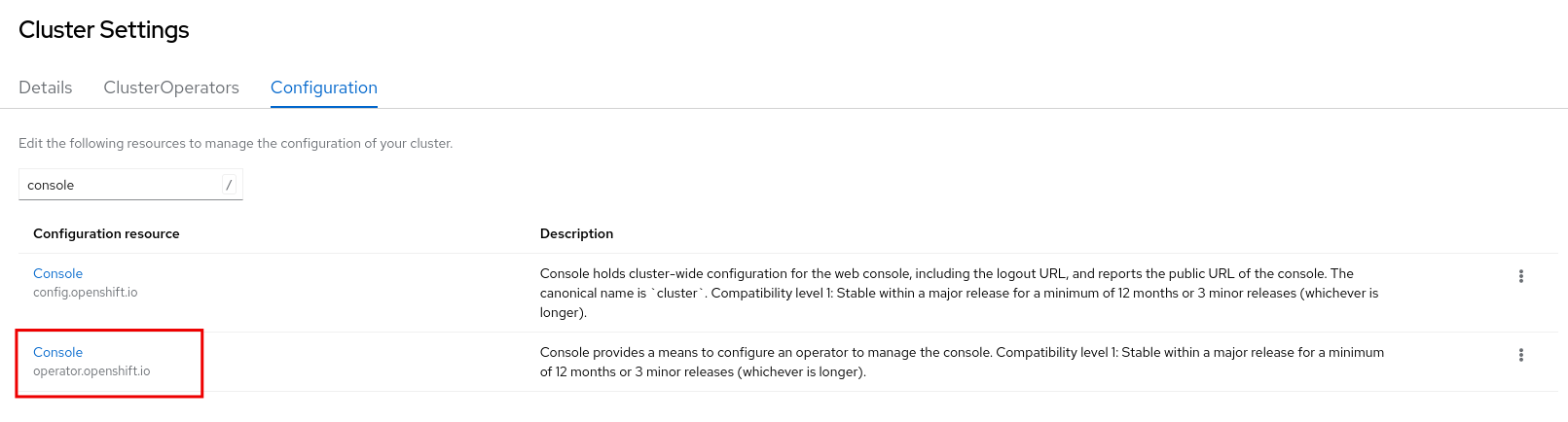
On the Configuration page, click the Console configuration resource with the description operator.openshift.io.
- From the Action drop-down list, select Customize, which opens the Cluster configuration page.
- Click the Web Terminal tab, which opens the Web Terminal Configuration page.
- Set a value for the timeout. From the drop-down list, select a time interval of Seconds, Minutes, Hours, or Milliseconds.
- Click Save.
8.2.3. Configuring the web terminal image for a session
You can change the default image for the web terminal for your current session.
Prerequisites
- You have access to an OpenShift Container Platform cluster that has the Web Terminal Operator installed.
- You are logged into the web console.
Procedure
-
Click the web terminal icon (
).
- Click Image to display advanced configuration options for the web terminal image.
- Enter the URL of the image that you want to use.
- Click Start to begin a terminal instance using the specified image setting.
8.2.4. Configuring the web terminal image for all users
You can use the Administrator perspective of the web console to set the default web terminal image for all users.
Prerequisites
- You have cluster administrator permissions and are logged in to the web console.
- You have installed the Web Terminal Operator.
Procedure
-
In the Administrator perspective, navigate to Administation
Cluster Settings. - On the Cluster Settings page, click the Configuration tab.
On the Configuration page, click the Console configuration resource with the description operator.openshift.io.
- From the Action drop-down list, select Customize, which opens the Cluster configuration page.
- Click the Web Terminal tab, which opens the Web Terminal Configuration page.
- Enter the URL of the image that you want to use.
- Click Save.
8.3. Using the web terminal
You can launch an embedded command-line terminal instance in the web console. This terminal instance is preinstalled with common CLI tools for interacting with the cluster, such as oc, kubectl,odo, kn, tkn, helm, and subctl. It also has the context of the project you are working on and automatically logs you in using your credentials.
8.3.1. Accessing the web terminal
After the Web Terminal Operator is installed, you can access the web terminal. After the web terminal is initialized, you can use the preinstalled CLI tools like oc, kubectl, odo, kn, tkn, helm, and subctl in the web terminal. You can re-run commands by selecting them from the list of commands you have run in the terminal. These commands persist across multiple terminal sessions. The web terminal remains open until you close it or until you close the browser window or tab.
Prerequisites
- You have access to an OpenShift Container Platform cluster and are logged into the web console.
- The Web Terminal Operator is installed on your cluster.
Procedure
-
To launch the web terminal, click the command-line terminal icon (
) in the masthead of the console. A web terminal instance is displayed in the Command line terminal pane. This instance is automatically logged in with your credentials.
If a project has not been selected in the current session, select the project where the
DevWorkspaceCR must be created from the Project drop-down list. By default, the current project is selected.Note-
One
DevWorkspaceCR defines the web terminal of one user. This CR contains details about the user’s web terminal status and container image components. -
The
DevWorkspaceCR is created only if it does not already exist. -
The
openshift-terminalproject is the default project used for cluster administrators. They do not have the option to choose another project. The Web Terminal Operator installs the DevWorkspace Operator as a dependency.
-
One
Optional: Set the web terminal timeout for the current session:
- Click Timeout.
- In the field that appears, enter the timeout value.
- From the drop-down list, select a timeout interval of Seconds, Minutes, Hours, or Milliseconds.
Optional: Select a custom image for the web terminal to use.
- Click Image.
- In the field that appears, enter the URL of the image that you want to use.
- Click Start to initialize the web terminal using the selected project.
- Click + to open multiple tabs within the web terminal in the console.
8.4. Troubleshooting the web terminal
8.4.1. Web terminal and network policies
The web terminal might fail to start if the cluster has network policies configured. To start a web terminal instance, the Web Terminal Operator must communicate with the web terminal’s pod to verify it is running, and the OpenShift Container Platform web console needs to send information to automatically log in to the cluster within the terminal. If either step fails, the web terminal fails to start and the terminal panel is in a loading state until a context deadline exceeded error occurs.
To avoid this issue, ensure that the network policies for namespaces that are used for terminals allow ingress from the openshift-console and openshift-operators namespaces.
The following samples show NetworkPolicy objects for allowing ingress from the openshift-console and openshift-operators namespaces.
Allowing ingress from the openshift-console namespace
apiVersion: networking.k8s.io/v1
kind: NetworkPolicy
metadata:
  name: allow-from-openshift-console
spec:
  ingress:
  - from:
    - namespaceSelector:
        matchLabels:
          kubernetes.io/metadata.name: openshift-console
  podSelector: {}
  policyTypes:
  - Ingress
Allowing ingress from the openshift-operators namespace
apiVersion: networking.k8s.io/v1
kind: NetworkPolicy
metadata:
  name: allow-from-openshift-operators
spec:
  ingress:
  - from:
    - namespaceSelector:
        matchLabels:
          kubernetes.io/metadata.name: openshift-operators
  podSelector: {}
  policyTypes:
  - Ingress
8.5. Uninstalling the web terminal
Uninstalling the Web Terminal Operator does not remove any of the custom resource definitions (CRDs) or managed resources that are created when the Operator is installed. For security purposes, you must manually uninstall these components. By removing these components, you save cluster resources because terminals do not idle when the Operator is uninstalled.
Uninstalling the web terminal is a two-step process:
- Uninstall the Web Terminal Operator and related custom resources (CRs) that were added when you installed the Operator.
- Uninstall the DevWorkspace Operator and its related custom resources that were added as a dependency of the Web Terminal Operator.
8.5.1. Removing the Web Terminal Operator
You can uninstall the web terminal by removing the Web Terminal Operator and custom resources used by the Operator.
Prerequisites
- You have access to an OpenShift Container Platform cluster with cluster administrator permissions.
-
You have installed the
ocCLI.
Procedure
-
In the Administrator perspective of the web console, navigate to Operators
Installed Operators. - Scroll the filter list or type a keyword into the Filter by name box to find the Web Terminal Operator.
-
Click the Options menu
 for the Web Terminal Operator, and then select Uninstall Operator.
- In the Uninstall Operator confirmation dialog box, click Uninstall to remove the Operator, Operator deployments, and pods from the cluster. The Operator stops running and no longer receives updates.
8.5.2. Removing the DevWorkspace Operator
To completely uninstall the web terminal, you must also remove the DevWorkspace Operator and custom resources used by the Operator.
The DevWorkspace Operator is a standalone Operator and may be required as a dependency for other Operators installed in the cluster. Follow the steps below only if you are sure that the DevWorkspace Operator is no longer needed.
Prerequisites
- You have access to an OpenShift Container Platform cluster with cluster administrator permissions.
-
You have installed the
ocCLI.
Procedure
Remove the
DevWorkspacecustom resources used by the Operator, along with any related Kubernetes objects:$ oc delete devworkspaces.workspace.devfile.io --all-namespaces --all --wait$ oc delete devworkspaceroutings.controller.devfile.io --all-namespaces --all --waitWarningIf this step is not complete, finalizers make it difficult to fully uninstall the Operator.
Remove the CRDs used by the Operator:
WarningThe DevWorkspace Operator provides custom resource definitions (CRDs) that use conversion webhooks. Failing to remove these CRDs can cause issues in the cluster.
$ oc delete customresourcedefinitions.apiextensions.k8s.io devworkspaceroutings.controller.devfile.io$ oc delete customresourcedefinitions.apiextensions.k8s.io devworkspaces.workspace.devfile.io$ oc delete customresourcedefinitions.apiextensions.k8s.io devworkspacetemplates.workspace.devfile.io$ oc delete customresourcedefinitions.apiextensions.k8s.io devworkspaceoperatorconfigs.controller.devfile.ioVerify that all involved custom resource definitions are removed. The following command should not display any output:
$ oc get customresourcedefinitions.apiextensions.k8s.io | grep "devfile.io"Remove the
devworkspace-webhook-serverdeployment, mutating, and validating webhooks:$ oc delete deployment/devworkspace-webhook-server -n openshift-operators$ oc delete mutatingwebhookconfigurations controller.devfile.io$ oc delete validatingwebhookconfigurations controller.devfile.ioNoteIf you remove the
devworkspace-webhook-serverdeployment without removing the mutating and validating webhooks, you can not useoc execcommands to run commands in a container in the cluster. After you remove the webhooks you can use theoc execcommands again.Remove any remaining services, secrets, and config maps. Depending on the installation, some resources included in the following commands may not exist in the cluster.
$ oc delete all --selector app.kubernetes.io/part-of=devworkspace-operator,app.kubernetes.io/name=devworkspace-webhook-server -n openshift-operators$ oc delete serviceaccounts devworkspace-webhook-server -n openshift-operators$ oc delete clusterrole devworkspace-webhook-server$ oc delete clusterrolebinding devworkspace-webhook-serverUninstall the DevWorkspace Operator:
-
In the Administrator perspective of the web console, navigate to Operators
Installed Operators. - Scroll the filter list or type a keyword into the Filter by name box to find the DevWorkspace Operator.
-
Click the Options menu
for the Operator, and then select Uninstall Operator.
- In the Uninstall Operator confirmation dialog box, click Uninstall to remove the Operator, Operator deployments, and pods from the cluster. The Operator stops running and no longer receives updates.
-
In the Administrator perspective of the web console, navigate to Operators

'%20d='M201.5%20305.5c-13.8%200-24.9-11.1-24.9-24.6%200-13.8%2011.1-24.9%2024.9-24.9%2013.6%200%2024.6%2011.1%2024.6%2024.9%200%2013.6-11.1%2024.6-24.6%2024.6zM504%20256c0%20137-111%20248-248%20248S8%20393%208%20256%20119%208%20256%208s248%20111%20248%20248zm-132.3-41.2c-9.4%200-17.7%203.9-23.8%2010-22.4-15.5-52.6-25.5-86.1-26.6l17.4-78.3%2055.4%2012.5c0%2013.6%2011.1%2024.6%2024.6%2024.6%2013.8%200%2024.9-11.3%2024.9-24.9s-11.1-24.9-24.9-24.9c-9.7%200-18%205.8-22.1%2013.8l-61.2-13.6c-3-.8-6.1%201.4-6.9%204.4l-19.1%2086.4c-33.2%201.4-63.1%2011.3-85.5%2026.8-6.1-6.4-14.7-10.2-24.1-10.2-34.9%200-46.3%2046.9-14.4%2062.8-1.1%205-1.7%2010.2-1.7%2015.5%200%2052.6%2059.2%2095.2%20132%2095.2%2073.1%200%20132.3-42.6%20132.3-95.2%200-5.3-.6-10.8-1.9-15.8%2031.3-16%2019.8-62.5-14.9-62.5zM302.8%20331c-18.2%2018.2-76.1%2017.9-93.6%200-2.2-2.2-6.1-2.2-8.3%200-2.5%202.5-2.5%206.4%200%208.6%2022.8%2022.8%2087.3%2022.8%20110.2%200%202.5-2.2%202.5-6.1%200-8.6-2.2-2.2-6.1-2.2-8.3%200zm7.7-75c-13.6%200-24.6%2011.1-24.6%2024.9%200%2013.6%2011.1%2024.6%2024.6%2024.6%2013.8%200%2024.9-11.1%2024.9-24.6%200-13.8-11-24.9-24.9-24.9z'/%3e%3c/svg%3e)