 Red Hat Summit
Dieser Inhalt ist in der von Ihnen ausgewählten Sprache nicht verfügbar.
Chapter 5. Installing a cluster on OpenStack on your own infrastructure
In OpenShift Container Platform version 4.12, you can install a cluster on Red Hat OpenStack Platform (RHOSP) that runs on user-provisioned infrastructure.
Using your own infrastructure allows you to integrate your cluster with existing infrastructure and modifications. The process requires more labor on your part than installer-provisioned installations, because you must create all RHOSP resources, like Nova servers, Neutron ports, and security groups. However, Red Hat provides Ansible playbooks to help you in the deployment process.
5.1. Prerequisites
- You reviewed details about the OpenShift Container Platform installation and update processes.
- You read the documentation on selecting a cluster installation method and preparing it for users.
- You verified that OpenShift Container Platform 4.12 is compatible with your RHOSP version by using the Supported platforms for OpenShift clusters section. You can also compare platform support across different versions by viewing the OpenShift Container Platform on RHOSP support matrix.
- You have an RHOSP account where you want to install OpenShift Container Platform.
- You understand performance and scalability practices for cluster scaling, control plane sizing, and etcd. For more information, see Recommended practices for scaling the cluster.
On the machine from which you run the installation program, you have:
- A single directory in which you can keep the files you create during the installation process
- Python 3
5.2. Internet access for OpenShift Container Platform
In OpenShift Container Platform 4.12, you require access to the internet to install your cluster.
You must have internet access to:
- Access OpenShift Cluster Manager Hybrid Cloud Console to download the installation program and perform subscription management. If the cluster has internet access and you do not disable Telemetry, that service automatically entitles your cluster.
- Access Quay.io to obtain the packages that are required to install your cluster.
- Obtain the packages that are required to perform cluster updates.
If your cluster cannot have direct internet access, you can perform a restricted network installation on some types of infrastructure that you provision. During that process, you download the required content and use it to populate a mirror registry with the installation packages. With some installation types, the environment that you install your cluster in will not require internet access. Before you update the cluster, you update the content of the mirror registry.
5.3. Resource guidelines for installing OpenShift Container Platform on RHOSP
To support an OpenShift Container Platform installation, your Red Hat OpenStack Platform (RHOSP) quota must meet the following requirements:
| Resource | Value |
|---|---|
| Floating IP addresses | 3 |
| Ports | 15 |
| Routers | 1 |
| Subnets | 1 |
| RAM | 88 GB |
| vCPUs | 22 |
| Volume storage | 275 GB |
| Instances | 7 |
| Security groups | 3 |
| Security group rules | 60 |
| Server groups | 2 - plus 1 for each additional availability zone in each machine pool |
A cluster might function with fewer than recommended resources, but its performance is not guaranteed.
If RHOSP object storage (Swift) is available and operated by a user account with the swiftoperator role, it is used as the default backend for the OpenShift Container Platform image registry. In this case, the volume storage requirement is 175 GB. Swift space requirements vary depending on the size of the image registry.
By default, your security group and security group rule quotas might be low. If you encounter problems, run openstack quota set --secgroups 3 --secgroup-rules 60 <project> as an administrator to increase them.
An OpenShift Container Platform deployment comprises control plane machines, compute machines, and a bootstrap machine.
5.3.1. Control plane machines
By default, the OpenShift Container Platform installation process creates three control plane machines.
Each machine requires:
- An instance from the RHOSP quota
- A port from the RHOSP quota
- A flavor with at least 16 GB memory and 4 vCPUs
- At least 100 GB storage space from the RHOSP quota
5.3.2. Compute machines
By default, the OpenShift Container Platform installation process creates three compute machines.
Each machine requires:
- An instance from the RHOSP quota
- A port from the RHOSP quota
- A flavor with at least 8 GB memory and 2 vCPUs
- At least 100 GB storage space from the RHOSP quota
Compute machines host the applications that you run on OpenShift Container Platform; aim to run as many as you can.
5.3.3. Bootstrap machine
During installation, a bootstrap machine is temporarily provisioned to stand up the control plane. After the production control plane is ready, the bootstrap machine is deprovisioned.
The bootstrap machine requires:
- An instance from the RHOSP quota
- A port from the RHOSP quota
- A flavor with at least 16 GB memory and 4 vCPUs
- At least 100 GB storage space from the RHOSP quota
5.4. Downloading playbook dependencies
The Ansible playbooks that simplify the installation process on user-provisioned infrastructure require several Python modules. On the machine where you will run the installer, add the modules' repositories and then download them.
These instructions assume that you are using Red Hat Enterprise Linux (RHEL) 8.
Prerequisites
- Python 3 is installed on your machine.
Procedure
On a command line, add the repositories:
Register with Red Hat Subscription Manager:
$ sudo subscription-manager register # If not done alreadyPull the latest subscription data:
$ sudo subscription-manager attach --pool=$YOUR_POOLID # If not done alreadyDisable the current repositories:
$ sudo subscription-manager repos --disable=* # If not done alreadyAdd the required repositories:
$ sudo subscription-manager repos \
  --enable=rhel-8-for-x86_64-baseos-rpms \
  --enable=openstack-16-tools-for-rhel-8-x86_64-rpms \
  --enable=ansible-2.9-for-rhel-8-x86_64-rpms \
  --enable=rhel-8-for-x86_64-appstream-rpms
Install the modules:
$ sudo yum install python3-openstackclient ansible python3-openstacksdk python3-netaddr ansible-collections-openstackEnsure that the
pythoncommand points topython3:$ sudo alternatives --set python /usr/bin/python3
5.5. Downloading the installation playbooks
Download Ansible playbooks that you can use to install OpenShift Container Platform on your own Red Hat OpenStack Platform (RHOSP) infrastructure.
Prerequisites
- The curl command-line tool is available on your machine.
Procedure
To download the playbooks to your working directory, run the following script from a command line:
$ xargs -n 1 curl -O <<< '
        https://raw.githubusercontent.com/openshift/installer/release-4.12/upi/openstack/bootstrap.yaml
        https://raw.githubusercontent.com/openshift/installer/release-4.12/upi/openstack/common.yaml
        https://raw.githubusercontent.com/openshift/installer/release-4.12/upi/openstack/compute-nodes.yaml
        https://raw.githubusercontent.com/openshift/installer/release-4.12/upi/openstack/control-plane.yaml
        https://raw.githubusercontent.com/openshift/installer/release-4.12/upi/openstack/inventory.yaml
        https://raw.githubusercontent.com/openshift/installer/release-4.12/upi/openstack/network.yaml
        https://raw.githubusercontent.com/openshift/installer/release-4.12/upi/openstack/security-groups.yaml
        https://raw.githubusercontent.com/openshift/installer/release-4.12/upi/openstack/down-bootstrap.yaml
        https://raw.githubusercontent.com/openshift/installer/release-4.12/upi/openstack/down-compute-nodes.yaml
        https://raw.githubusercontent.com/openshift/installer/release-4.12/upi/openstack/down-control-plane.yaml
        https://raw.githubusercontent.com/openshift/installer/release-4.12/upi/openstack/down-load-balancers.yaml
        https://raw.githubusercontent.com/openshift/installer/release-4.12/upi/openstack/down-network.yaml
        https://raw.githubusercontent.com/openshift/installer/release-4.12/upi/openstack/down-security-groups.yaml
        https://raw.githubusercontent.com/openshift/installer/release-4.12/upi/openstack/down-containers.yaml'
The playbooks are downloaded to your machine.
During the installation process, you can modify the playbooks to configure your deployment.
Retain all playbooks for the life of your cluster. You must have the playbooks to remove your OpenShift Container Platform cluster from RHOSP.
You must match any edits you make in the bootstrap.yaml, compute-nodes.yaml, control-plane.yaml, network.yaml, and security-groups.yaml files to the corresponding playbooks that are prefixed with down-. For example, edits to the bootstrap.yaml file must be reflected in the down-bootstrap.yaml file, too. If you do not edit both files, the supported cluster removal process will fail.
5.6. Obtaining the installation program
Before you install OpenShift Container Platform, download the installation file on the host you are using for installation.
Prerequisites
- You have a computer that runs Linux or macOS, with 500 MB of local disk space.
Procedure
- Access the Infrastructure Provider page on the OpenShift Cluster Manager site. If you have a Red Hat account, log in with your credentials. If you do not, create an account.
- Select your infrastructure provider.
Navigate to the page for your installation type, download the installation program that corresponds with your host operating system and architecture, and place the file in the directory where you will store the installation configuration files.
ImportantThe installation program creates several files on the computer that you use to install your cluster. You must keep the installation program and the files that the installation program creates after you finish installing the cluster. Both files are required to delete the cluster.
ImportantDeleting the files created by the installation program does not remove your cluster, even if the cluster failed during installation. To remove your cluster, complete the OpenShift Container Platform uninstallation procedures for your specific cloud provider.
Extract the installation program. For example, on a computer that uses a Linux operating system, run the following command:
$ tar -xvf openshift-install-linux.tar.gz- Download your installation pull secret from the Red Hat OpenShift Cluster Manager. This pull secret allows you to authenticate with the services that are provided by the included authorities, including Quay.io, which serves the container images for OpenShift Container Platform components.
5.7. Generating a key pair for cluster node SSH access
During an OpenShift Container Platform installation, you can provide an SSH public key to the installation program. The key is passed to the Red Hat Enterprise Linux CoreOS (RHCOS) nodes through their Ignition config files and is used to authenticate SSH access to the nodes. The key is added to the ~/.ssh/authorized_keys list for the core user on each node, which enables password-less authentication.
After the key is passed to the nodes, you can use the key pair to SSH in to the RHCOS nodes as the user core. To access the nodes through SSH, the private key identity must be managed by SSH for your local user.
If you want to SSH in to your cluster nodes to perform installation debugging or disaster recovery, you must provide the SSH public key during the installation process. The ./openshift-install gather command also requires the SSH public key to be in place on the cluster nodes.
Do not skip this procedure in production environments, where disaster recovery and debugging is required.
You must use a local key, not one that you configured with platform-specific approaches such as AWS key pairs.
Procedure
If you do not have an existing SSH key pair on your local machine to use for authentication onto your cluster nodes, create one. For example, on a computer that uses a Linux operating system, run the following command:
$ ssh-keygen -t ed25519 -N '' -f <path>/<file_name>1 - 1
- Specify the path and file name, such as
~/.ssh/id_ed25519, of the new SSH key. If you have an existing key pair, ensure your public key is in the your~/.sshdirectory.
NoteIf you plan to install an OpenShift Container Platform cluster that uses FIPS validated or Modules In Process cryptographic libraries on the
x86_64,ppc64le, ands390xarchitectures. do not create a key that uses theed25519algorithm. Instead, create a key that uses thersaorecdsaalgorithm.View the public SSH key:
$ cat <path>/<file_name>.pubFor example, run the following to view the
~/.ssh/id_ed25519.pubpublic key:$ cat ~/.ssh/id_ed25519.pubAdd the SSH private key identity to the SSH agent for your local user, if it has not already been added. SSH agent management of the key is required for password-less SSH authentication onto your cluster nodes, or if you want to use the
./openshift-install gathercommand.NoteOn some distributions, default SSH private key identities such as
~/.ssh/id_rsaand~/.ssh/id_dsaare managed automatically.If the
ssh-agentprocess is not already running for your local user, start it as a background task:$ eval "$(ssh-agent -s)"Example output
Agent pid 31874NoteIf your cluster is in FIPS mode, only use FIPS-compliant algorithms to generate the SSH key. The key must be either RSA or ECDSA.
Add your SSH private key to the
ssh-agent:$ ssh-add <path>/<file_name>1 - 1
- Specify the path and file name for your SSH private key, such as
~/.ssh/id_ed25519
Example output
Identity added: /home/<you>/<path>/<file_name> (<computer_name>)
Next steps
- When you install OpenShift Container Platform, provide the SSH public key to the installation program.
5.8. Creating the Red Hat Enterprise Linux CoreOS (RHCOS) image
The OpenShift Container Platform installation program requires that a Red Hat Enterprise Linux CoreOS (RHCOS) image be present in the Red Hat OpenStack Platform (RHOSP) cluster. Retrieve the latest RHCOS image, then upload it using the RHOSP CLI.
Prerequisites
- The RHOSP CLI is installed.
Procedure
- Log in to the Red Hat Customer Portal’s Product Downloads page.
Under Version, select the most recent release of OpenShift Container Platform 4.12 for Red Hat Enterprise Linux (RHEL) 8.
ImportantThe RHCOS images might not change with every release of OpenShift Container Platform. You must download images with the highest version that is less than or equal to the OpenShift Container Platform version that you install. Use the image versions that match your OpenShift Container Platform version if they are available.
- Download the Red Hat Enterprise Linux CoreOS (RHCOS) - OpenStack Image (QCOW).
Decompress the image.
NoteYou must decompress the RHOSP image before the cluster can use it. The name of the downloaded file might not contain a compression extension, like
.gzor.tgz. To find out if or how the file is compressed, in a command line, enter:$ file <name_of_downloaded_file>From the image that you downloaded, create an image that is named
rhcosin your cluster by using the RHOSP CLI:$ openstack image create --container-format=bare --disk-format=qcow2 --file rhcos-${RHCOS_VERSION}-openstack.qcow2 rhcosImportantDepending on your RHOSP environment, you might be able to upload the image in either
.rawor.qcow2formats. If you use Ceph, you must use the.rawformat.WarningIf the installation program finds multiple images with the same name, it chooses one of them at random. To avoid this behavior, create unique names for resources in RHOSP.
After you upload the image to RHOSP, it is usable in the installation process.
5.9. Verifying external network access
The OpenShift Container Platform installation process requires external network access. You must provide an external network value to it, or deployment fails. Before you begin the process, verify that a network with the external router type exists in Red Hat OpenStack Platform (RHOSP).
Prerequisites
Procedure
Using the RHOSP CLI, verify the name and ID of the 'External' network:
$ openstack network list --long -c ID -c Name -c "Router Type"Example output
+--------------------------------------+----------------+-------------+
| ID                                   | Name           | Router Type |
+--------------------------------------+----------------+-------------+
| 148a8023-62a7-4672-b018-003462f8d7dc | public_network | External    |
+--------------------------------------+----------------+-------------+
A network with an external router type appears in the network list. If at least one does not, see Creating a default floating IP network and Creating a default provider network.
If the Neutron trunk service plugin is enabled, a trunk port is created by default. For more information, see Neutron trunk port.
5.10. Enabling access to the environment
At deployment, all OpenShift Container Platform machines are created in a Red Hat OpenStack Platform (RHOSP)-tenant network. Therefore, they are not accessible directly in most RHOSP deployments.
You can configure OpenShift Container Platform API and application access by using floating IP addresses (FIPs) during installation. You can also complete an installation without configuring FIPs, but the installer will not configure a way to reach the API or applications externally.
5.10.1. Enabling access with floating IP addresses
Create floating IP (FIP) addresses for external access to the OpenShift Container Platform API, cluster applications, and the bootstrap process.
Procedure
Using the Red Hat OpenStack Platform (RHOSP) CLI, create the API FIP:
$ openstack floating ip create --description "API <cluster_name>.<base_domain>" <external_network>Using the Red Hat OpenStack Platform (RHOSP) CLI, create the apps, or Ingress, FIP:
$ openstack floating ip create --description "Ingress <cluster_name>.<base_domain>" <external_network>By using the Red Hat OpenStack Platform (RHOSP) CLI, create the bootstrap FIP:
$ openstack floating ip create --description "bootstrap machine" <external_network>Add records that follow these patterns to your DNS server for the API and Ingress FIPs:
api.<cluster_name>.<base_domain>. IN A <API_FIP> *.apps.<cluster_name>.<base_domain>. IN A <apps_FIP>NoteIf you do not control the DNS server, you can access the cluster by adding the cluster domain names such as the following to your
/etc/hostsfile:-
<api_floating_ip> api.<cluster_name>.<base_domain> -
<application_floating_ip> grafana-openshift-monitoring.apps.<cluster_name>.<base_domain> -
<application_floating_ip> prometheus-k8s-openshift-monitoring.apps.<cluster_name>.<base_domain> -
<application_floating_ip> oauth-openshift.apps.<cluster_name>.<base_domain> -
<application_floating_ip> console-openshift-console.apps.<cluster_name>.<base_domain> -
application_floating_ip integrated-oauth-server-openshift-authentication.apps.<cluster_name>.<base_domain>
The cluster domain names in the
/etc/hostsfile grant access to the web console and the monitoring interface of your cluster locally. You can also use thekubectloroc. You can access the user applications by using the additional entries pointing to the <application_floating_ip>. This action makes the API and applications accessible to only you, which is not suitable for production deployment, but does allow installation for development and testing.-
Add the FIPs to the
inventory.yamlfile as the values of the following variables:-
os_api_fip -
os_bootstrap_fip -
os_ingress_fip
-
If you use these values, you must also enter an external network as the value of the os_external_network variable in the inventory.yaml file.
You can make OpenShift Container Platform resources available outside of the cluster by assigning a floating IP address and updating your firewall configuration.
5.10.2. Completing installation without floating IP addresses
You can install OpenShift Container Platform on Red Hat OpenStack Platform (RHOSP) without providing floating IP addresses.
In the inventory.yaml file, do not define the following variables:
-
os_api_fip -
os_bootstrap_fip -
os_ingress_fip
If you cannot provide an external network, you can also leave os_external_network blank. If you do not provide a value for os_external_network, a router is not created for you, and, without additional action, the installer will fail to retrieve an image from Glance. Later in the installation process, when you create network resources, you must configure external connectivity on your own.
If you run the installer with the wait-for command from a system that cannot reach the cluster API due to a lack of floating IP addresses or name resolution, installation fails. To prevent installation failure in these cases, you can use a proxy network or run the installer from a system that is on the same network as your machines.
You can enable name resolution by creating DNS records for the API and Ingress ports. For example:
api.<cluster_name>.<base_domain>.  IN  A  <api_port_IP>
*.apps.<cluster_name>.<base_domain>. IN  A <ingress_port_IP>
If you do not control the DNS server, you can add the record to your /etc/hosts file. This action makes the API accessible to only you, which is not suitable for production deployment but does allow installation for development and testing.
5.11. Defining parameters for the installation program
The OpenShift Container Platform installation program relies on a file that is called clouds.yaml. The file describes Red Hat OpenStack Platform (RHOSP) configuration parameters, including the project name, log in information, and authorization service URLs.
Procedure
Create the
clouds.yamlfile:If your RHOSP distribution includes the Horizon web UI, generate a
clouds.yamlfile in it.ImportantRemember to add a password to the
authfield. You can also keep secrets in a separate file fromclouds.yaml.If your RHOSP distribution does not include the Horizon web UI, or you do not want to use Horizon, create the file yourself. For detailed information about
clouds.yaml, see Config files in the RHOSP documentation.clouds: shiftstack: auth: auth_url: http://10.10.14.42:5000/v3 project_name: shiftstack username: <username> password: <password> user_domain_name: Default project_domain_name: Default dev-env: region_name: RegionOne auth: username: <username> password: <password> project_name: 'devonly' auth_url: 'https://10.10.14.22:5001/v2.0'
If your RHOSP installation uses self-signed certificate authority (CA) certificates for endpoint authentication:
- Copy the certificate authority file to your machine.
Add the
cacertskey to theclouds.yamlfile. The value must be an absolute, non-root-accessible path to the CA certificate:clouds: shiftstack: ... cacert: "/etc/pki/ca-trust/source/anchors/ca.crt.pem"TipAfter you run the installer with a custom CA certificate, you can update the certificate by editing the value of the
ca-cert.pemkey in thecloud-provider-configkeymap. On a command line, run:$ oc edit configmap -n openshift-config cloud-provider-config
Place the
clouds.yamlfile in one of the following locations:-
The value of the
OS_CLIENT_CONFIG_FILEenvironment variable - The current directory
-
A Unix-specific user configuration directory, for example
~/.config/openstack/clouds.yaml A Unix-specific site configuration directory, for example
/etc/openstack/clouds.yamlThe installation program searches for
clouds.yamlin that order.
-
The value of the
5.12. Creating the installation configuration file
You can customize the OpenShift Container Platform cluster you install on Red Hat OpenStack Platform (RHOSP).
Prerequisites
- Obtain the OpenShift Container Platform installation program and the pull secret for your cluster.
- Obtain service principal permissions at the subscription level.
Procedure
Create the
install-config.yamlfile.Change to the directory that contains the installation program and run the following command:
$ ./openshift-install create install-config --dir <installation_directory>1 - 1
- For
<installation_directory>, specify the directory name to store the files that the installation program creates.
When specifying the directory:
-
Verify that the directory has the
executepermission. This permission is required to run Terraform binaries under the installation directory. - Use an empty directory. Some installation assets, such as bootstrap X.509 certificates, have short expiration intervals, therefore you must not reuse an installation directory. If you want to reuse individual files from another cluster installation, you can copy them into your directory. However, the file names for the installation assets might change between releases. Use caution when copying installation files from an earlier OpenShift Container Platform version.
At the prompts, provide the configuration details for your cloud:
Optional: Select an SSH key to use to access your cluster machines.
NoteFor production OpenShift Container Platform clusters on which you want to perform installation debugging or disaster recovery, specify an SSH key that your
ssh-agentprocess uses.- Select openstack as the platform to target.
- Specify the Red Hat OpenStack Platform (RHOSP) external network name to use for installing the cluster.
- Specify the floating IP address to use for external access to the OpenShift API.
- Specify a RHOSP flavor with at least 16 GB RAM to use for control plane nodes and 8 GB RAM for compute nodes.
- Select the base domain to deploy the cluster to. All DNS records will be sub-domains of this base and will also include the cluster name.
- Enter a name for your cluster. The name must be 14 or fewer characters long.
- Paste the pull secret from the Red Hat OpenShift Cluster Manager.
-
Modify the
install-config.yamlfile. You can find more information about the available parameters in the "Installation configuration parameters" section. Back up the
install-config.yamlfile so that you can use it to install multiple clusters.ImportantThe
install-config.yamlfile is consumed during the installation process. If you want to reuse the file, you must back it up now.
You now have the file install-config.yaml in the directory that you specified.
5.13. Installation configuration parameters
Before you deploy an OpenShift Container Platform cluster, you provide parameter values to describe your account on the cloud platform that hosts your cluster and optionally customize your cluster’s platform. When you create the install-config.yaml installation configuration file, you provide values for the required parameters through the command line. If you customize your cluster, you can modify the install-config.yaml file to provide more details about the platform.
After installation, you cannot modify these parameters in the install-config.yaml file.
5.13.1. Required configuration parameters
Required installation configuration parameters are described in the following table:
| Parameter | Description | Values |
|---|---|---|
|
|
The API version for the | String |
|
|
The base domain of your cloud provider. The base domain is used to create routes to your OpenShift Container Platform cluster components. The full DNS name for your cluster is a combination of the |
A fully-qualified domain or subdomain name, such as |
|
|
Kubernetes resource | Object |
|
|
The name of the cluster. DNS records for the cluster are all subdomains of |
String of lowercase letters, hyphens ( |
|
|
The configuration for the specific platform upon which to perform the installation: | Object |
|
| Get a pull secret from the Red Hat OpenShift Cluster Manager to authenticate downloading container images for OpenShift Container Platform components from services such as Quay.io. |
|
5.13.2. Network configuration parameters
You can customize your installation configuration based on the requirements of your existing network infrastructure. For example, you can expand the IP address block for the cluster network or provide different IP address blocks than the defaults.
Only IPv4 addresses are supported.
Globalnet is not supported with Red Hat OpenShift Data Foundation disaster recovery solutions. For regional disaster recovery scenarios, ensure that you use a nonoverlapping range of private IP addresses for the cluster and service networks in each cluster.
| Parameter | Description | Values |
|---|---|---|
|
| The configuration for the cluster network. | Object Note
You cannot modify parameters specified by the |
|
| The Red Hat OpenShift Networking network plugin to install. |
Either |
|
| The IP address blocks for pods.
The default value is If you specify multiple IP address blocks, the blocks must not overlap. | An array of objects. For example: |
|
|
Required if you use An IPv4 network. |
An IP address block in Classless Inter-Domain Routing (CIDR) notation. The prefix length for an IPv4 block is between |
|
|
The subnet prefix length to assign to each individual node. For example, if | A subnet prefix.
The default value is |
|
|
The IP address block for services. The default value is The OpenShift SDN and OVN-Kubernetes network plugins support only a single IP address block for the service network. | An array with an IP address block in CIDR format. For example: |
|
| The IP address blocks for machines. If you specify multiple IP address blocks, the blocks must not overlap. | An array of objects. For example: |
|
|
Required if you use | An IP network block in CIDR notation.
For example, Note
Set the |
5.13.3. Optional configuration parameters
Optional installation configuration parameters are described in the following table:
| Parameter | Description | Values |
|---|---|---|
|
| A PEM-encoded X.509 certificate bundle that is added to the nodes' trusted certificate store. This trust bundle may also be used when a proxy has been configured. | String |
|
| Controls the installation of optional core cluster components. You can reduce the footprint of your OpenShift Container Platform cluster by disabling optional components. For more information, see the "Cluster capabilities" page in Installing. | String array |
|
|
Selects an initial set of optional capabilities to enable. Valid values are | String |
|
|
Extends the set of optional capabilities beyond what you specify in | String array |
|
| The configuration for the machines that comprise the compute nodes. |
Array of |
|
|
Determines the instruction set architecture of the machines in the pool. Currently, clusters with varied architectures are not supported. All pools must specify the same architecture. Valid values are | String |
|
|
Whether to enable or disable simultaneous multithreading, or Important If you disable simultaneous multithreading, ensure that your capacity planning accounts for the dramatically decreased machine performance. |
|
|
|
Required if you use |
|
|
|
Required if you use |
|
|
| The number of compute machines, which are also known as worker machines, to provision. |
A positive integer greater than or equal to |
|
| Enables the cluster for a feature set. A feature set is a collection of OpenShift Container Platform features that are not enabled by default. For more information about enabling a feature set during installation, see "Enabling features using feature gates". |
String. The name of the feature set to enable, such as |
|
| The configuration for the machines that comprise the control plane. |
Array of |
|
|
Determines the instruction set architecture of the machines in the pool. Currently, clusters with varied architectures are not supported. All pools must specify the same architecture. Valid values are | String |
|
|
Whether to enable or disable simultaneous multithreading, or Important If you disable simultaneous multithreading, ensure that your capacity planning accounts for the dramatically decreased machine performance. |
|
|
|
Required if you use |
|
|
|
Required if you use |
|
|
| The number of control plane machines to provision. |
The only supported value is |
|
| The Cloud Credential Operator (CCO) mode. If no mode is specified, the CCO dynamically tries to determine the capabilities of the provided credentials, with a preference for mint mode on the platforms where multiple modes are supported. Note Not all CCO modes are supported for all cloud providers. For more information about CCO modes, see the Cloud Credential Operator entry in the Cluster Operators reference content. Note
If your AWS account has service control policies (SCP) enabled, you must configure the |
|
|
|
Enable or disable FIPS mode. The default is Important
To enable FIPS mode for your cluster, you must run the installation program from a Red Hat Enterprise Linux (RHEL) computer configured to operate in FIPS mode. For more information about configuring FIPS mode on RHEL, see Switching RHEL to FIPS mode. The use of FIPS validated or Modules In Process cryptographic libraries is only supported on OpenShift Container Platform deployments on the Note If you are using Azure File storage, you cannot enable FIPS mode. |
|
|
| Sources and repositories for the release-image content. |
Array of objects. Includes a |
|
|
Required if you use | String |
|
| Specify one or more repositories that may also contain the same images. | Array of strings |
|
| How to publish or expose the user-facing endpoints of your cluster, such as the Kubernetes API, OpenShift routes. |
Setting this field to Important
If the value of the field is set to |
|
| The SSH key to authenticate access to your cluster machines. Note
For production OpenShift Container Platform clusters on which you want to perform installation debugging or disaster recovery, specify an SSH key that your |
For example, |
5.13.4. Additional Red Hat OpenStack Platform (RHOSP) configuration parameters
Additional RHOSP configuration parameters are described in the following table:
| Parameter | Description | Values |
|---|---|---|
|
| For compute machines, the size in gigabytes of the root volume. If you do not set this value, machines use ephemeral storage. |
Integer, for example |
|
| For compute machines, the root volume’s type. |
String, for example |
|
| For control plane machines, the size in gigabytes of the root volume. If you do not set this value, machines use ephemeral storage. |
Integer, for example |
|
| For control plane machines, the root volume’s type. |
String, for example |
|
|
The name of the RHOSP cloud to use from the list of clouds in the |
String, for example |
|
| The RHOSP external network name to be used for installation. |
String, for example |
|
| The RHOSP flavor to use for control plane and compute machines.
This property is deprecated. To use a flavor as the default for all machine pools, add it as the value of the |
String, for example |
5.13.5. Optional RHOSP configuration parameters
Optional RHOSP configuration parameters are described in the following table:
| Parameter | Description | Values |
|---|---|---|
|
| Additional networks that are associated with compute machines. Allowed address pairs are not created for additional networks. |
A list of one or more UUIDs as strings. For example, |
|
| Additional security groups that are associated with compute machines. |
A list of one or more UUIDs as strings. For example, |
|
| RHOSP Compute (Nova) availability zones (AZs) to install machines on. If this parameter is not set, the installation program relies on the default settings for Nova that the RHOSP administrator configured. On clusters that use Kuryr, RHOSP Octavia does not support availability zones. Load balancers and, if you are using the Amphora provider driver, OpenShift Container Platform services that rely on Amphora VMs, are not created according to the value of this property. |
A list of strings. For example, |
|
| For compute machines, the availability zone to install root volumes on. If you do not set a value for this parameter, the installation program selects the default availability zone. |
A list of strings, for example |
|
|
Server group policy to apply to the group that will contain the compute machines in the pool. You cannot change server group policies or affiliations after creation. Supported options include
An
If you use a strict |
A server group policy to apply to the machine pool. For example, |
|
| Additional networks that are associated with control plane machines. Allowed address pairs are not created for additional networks. Additional networks that are attached to a control plane machine are also attached to the bootstrap node. |
A list of one or more UUIDs as strings. For example, |
|
| Additional security groups that are associated with control plane machines. |
A list of one or more UUIDs as strings. For example, |
|
| RHOSP Compute (Nova) availability zones (AZs) to install machines on. If this parameter is not set, the installation program relies on the default settings for Nova that the RHOSP administrator configured. On clusters that use Kuryr, RHOSP Octavia does not support availability zones. Load balancers and, if you are using the Amphora provider driver, OpenShift Container Platform services that rely on Amphora VMs, are not created according to the value of this property. |
A list of strings. For example, |
|
| For control plane machines, the availability zone to install root volumes on. If you do not set this value, the installation program selects the default availability zone. |
A list of strings, for example |
|
|
Server group policy to apply to the group that will contain the control plane machines in the pool. You cannot change server group policies or affiliations after creation. Supported options include
An
If you use a strict |
A server group policy to apply to the machine pool. For example, |
|
| The location from which the installation program downloads the RHCOS image. You must set this parameter to perform an installation in a restricted network. | An HTTP or HTTPS URL, optionally with an SHA-256 checksum.
For example, |
|
|
Properties to add to the installer-uploaded ClusterOSImage in Glance. This property is ignored if
You can use this property to exceed the default persistent volume (PV) limit for RHOSP of 26 PVs per node. To exceed the limit, set the
You can also use this property to enable the QEMU guest agent by including the | A set of string properties. For example: |
|
| The default machine pool platform configuration. |
|
|
|
An existing floating IP address to associate with the Ingress port. To use this property, you must also define the |
An IP address, for example |
|
|
An existing floating IP address to associate with the API load balancer. To use this property, you must also define the |
An IP address, for example |
|
| IP addresses for external DNS servers that cluster instances use for DNS resolution. |
A list of IP addresses as strings. For example, |
|
| The UUID of a RHOSP subnet that the cluster’s nodes use. Nodes and virtual IP (VIP) ports are created on this subnet.
The first item in If you deploy to a custom subnet, you cannot specify an external DNS server to the OpenShift Container Platform installer. Instead, add DNS to the subnet in RHOSP. |
A UUID as a string. For example, |
5.13.6. Custom subnets in RHOSP deployments
Optionally, you can deploy a cluster on a Red Hat OpenStack Platform (RHOSP) subnet of your choice. The subnet’s GUID is passed as the value of platform.openstack.machinesSubnet in the install-config.yaml file.
This subnet is used as the cluster’s primary subnet. By default, nodes and ports are created on it. You can create nodes and ports on a different RHOSP subnet by setting the value of the platform.openstack.machinesSubnet property to the subnet’s UUID.
Before you run the OpenShift Container Platform installer with a custom subnet, verify that your configuration meets the following requirements:
-
The subnet that is used by
platform.openstack.machinesSubnethas DHCP enabled. -
The CIDR of
platform.openstack.machinesSubnetmatches the CIDR ofnetworking.machineNetwork. - The installation program user has permission to create ports on this network, including ports with fixed IP addresses.
Clusters that use custom subnets have the following limitations:
-
If you plan to install a cluster that uses floating IP addresses, the
platform.openstack.machinesSubnetsubnet must be attached to a router that is connected to theexternalNetworknetwork. -
If the
platform.openstack.machinesSubnetvalue is set in theinstall-config.yamlfile, the installation program does not create a private network or subnet for your RHOSP machines. -
You cannot use the
platform.openstack.externalDNSproperty at the same time as a custom subnet. To add DNS to a cluster that uses a custom subnet, configure DNS on the RHOSP network.
By default, the API VIP takes x.x.x.5 and the Ingress VIP takes x.x.x.7 from your network’s CIDR block. To override these default values, set values for platform.openstack.apiVIPs and platform.openstack.ingressVIPs that are outside of the DHCP allocation pool.
The CIDR ranges for networks are not adjustable after cluster installation. Red Hat does not provide direct guidance on determining the range during cluster installation because it requires careful consideration of the number of created pods per namespace.
5.13.7. Sample customized install-config.yaml file for RHOSP
This sample install-config.yaml demonstrates all of the possible Red Hat OpenStack Platform (RHOSP) customization options.
This sample file is provided for reference only. You must obtain your install-config.yaml file by using the installation program.
apiVersion: v1
baseDomain: example.com
controlPlane:
name: master
platform: {}
replicas: 3
compute:
- name: worker
platform:
openstack:
type: ml.large
replicas: 3
metadata:
name: example
networking:
  clusterNetwork:
  - cidr: 10.128.0.0/14
    hostPrefix: 23
machineNetwork:
- cidr: 10.0.0.0/16
serviceNetwork:
- 172.30.0.0/16
networkType: OVNKubernetes
platform:
openstack:
cloud: mycloud
externalNetwork: external
computeFlavor: m1.xlarge
apiFloatingIP: 128.0.0.1
fips: false
pullSecret: '{"auths": ...}'
sshKey: ssh-ed25519 AAAA...5.13.8. Setting a custom subnet for machines
The IP range that the installation program uses by default might not match the Neutron subnet that you create when you install OpenShift Container Platform. If necessary, update the CIDR value for new machines by editing the installation configuration file.
Prerequisites
-
You have the
install-config.yamlfile that was generated by the OpenShift Container Platform installation program.
Procedure
-
On a command line, browse to the directory that contains
install-config.yaml. From that directory, either run a script to edit the
install-config.yamlfile or update the file manually:To set the value by using a script, run:
$ python -c '
import yaml;
path = "install-config.yaml";
data = yaml.safe_load(open(path));
data["networking"]["machineNetwork"] = [{"cidr": "192.168.0.0/18"}];
1 open(path, "w").write(yaml.dump(data, default_flow_style=False))'- 1
- Insert a value that matches your intended Neutron subnet, e.g.
192.0.2.0/24.
-
To set the value manually, open the file and set the value of
networking.machineCIDRto something that matches your intended Neutron subnet.
5.13.9. Emptying compute machine pools
To proceed with an installation that uses your own infrastructure, set the number of compute machines in the installation configuration file to zero. Later, you create these machines manually.
Prerequisites
-
You have the
install-config.yamlfile that was generated by the OpenShift Container Platform installation program.
Procedure
-
On a command line, browse to the directory that contains
install-config.yaml. From that directory, either run a script to edit the
install-config.yamlfile or update the file manually:To set the value by using a script, run:
$ python -c ' import yaml; path = "install-config.yaml"; data = yaml.safe_load(open(path)); data["compute"][0]["replicas"] = 0; open(path, "w").write(yaml.dump(data, default_flow_style=False))'-
To set the value manually, open the file and set the value of
compute.<first entry>.replicasto0.
5.13.10. Cluster deployment on RHOSP provider networks
You can deploy your OpenShift Container Platform clusters on Red Hat OpenStack Platform (RHOSP) with a primary network interface on a provider network. Provider networks are commonly used to give projects direct access to a public network that can be used to reach the internet. You can also share provider networks among projects as part of the network creation process.
RHOSP provider networks map directly to an existing physical network in the data center. A RHOSP administrator must create them.
In the following example, OpenShift Container Platform workloads are connected to a data center by using a provider network:
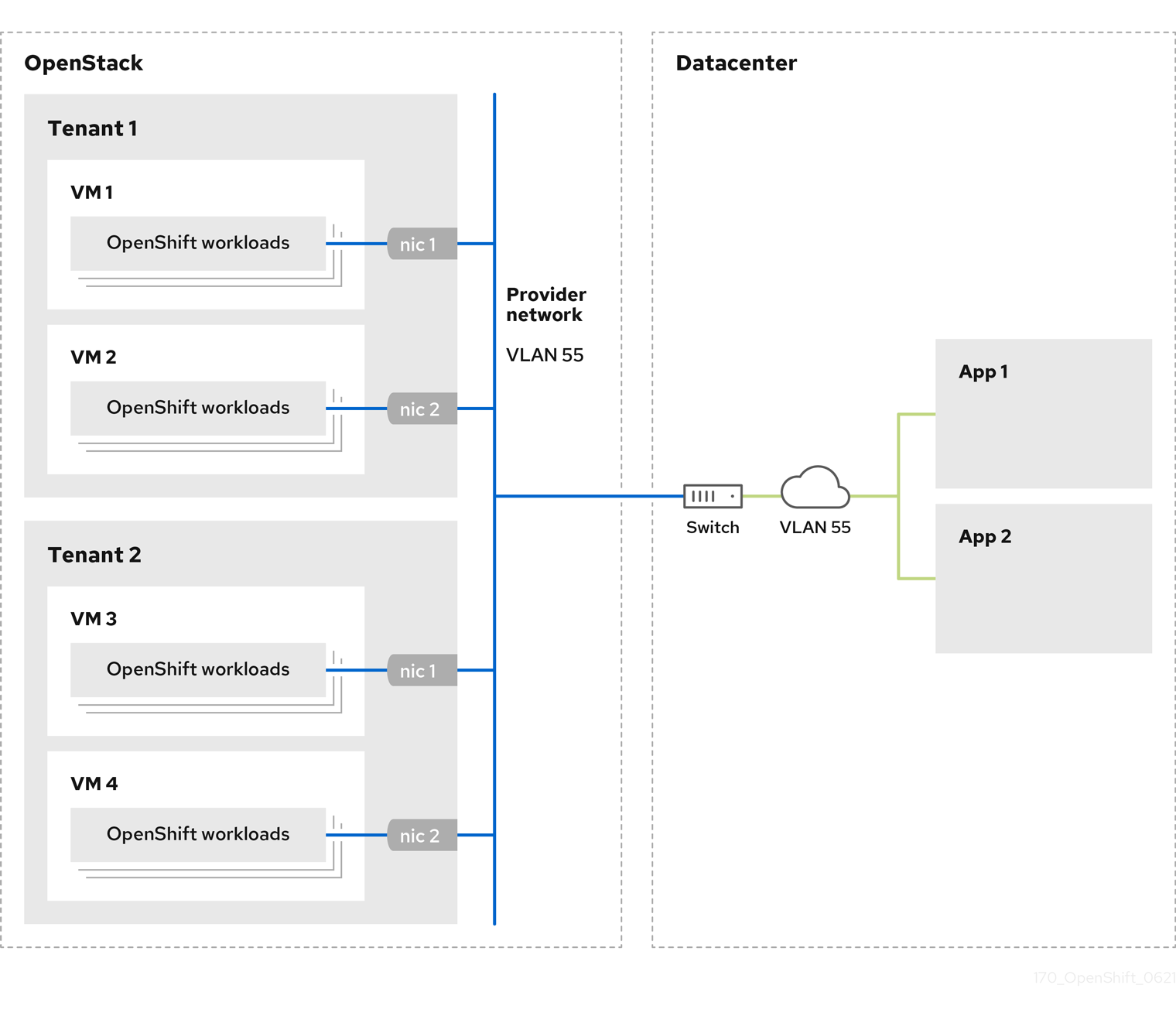
OpenShift Container Platform clusters that are installed on provider networks do not require tenant networks or floating IP addresses. The installer does not create these resources during installation.
Example provider network types include flat (untagged) and VLAN (802.1Q tagged).
A cluster can support as many provider network connections as the network type allows. For example, VLAN networks typically support up to 4096 connections.
You can learn more about provider and tenant networks in the RHOSP documentation.
5.13.10.1. RHOSP provider network requirements for cluster installation
Before you install an OpenShift Container Platform cluster, your Red Hat OpenStack Platform (RHOSP) deployment and provider network must meet a number of conditions:
- The RHOSP networking service (Neutron) is enabled and accessible through the RHOSP networking API.
- The RHOSP networking service has the port security and allowed address pairs extensions enabled.
The provider network can be shared with other tenants.
TipUse the
openstack network createcommand with the--shareflag to create a network that can be shared.The RHOSP project that you use to install the cluster must own the provider network, as well as an appropriate subnet.
Tip- To create a network for a project that is named "openshift," enter the following command
$ openstack network create --project openshift- To create a subnet for a project that is named "openshift," enter the following command
$ openstack subnet create --project openshiftTo learn more about creating networks on RHOSP, read the provider networks documentation.
If the cluster is owned by the
adminuser, you must run the installer as that user to create ports on the network.ImportantProvider networks must be owned by the RHOSP project that is used to create the cluster. If they are not, the RHOSP Compute service (Nova) cannot request a port from that network.
Verify that the provider network can reach the RHOSP metadata service IP address, which is
169.254.169.254by default.Depending on your RHOSP SDN and networking service configuration, you might need to provide the route when you create the subnet. For example:
$ openstack subnet create --dhcp --host-route destination=169.254.169.254/32,gateway=192.0.2.2 ...- Optional: To secure the network, create role-based access control (RBAC) rules that limit network access to a single project.
5.13.10.2. Deploying a cluster that has a primary interface on a provider network
You can deploy an OpenShift Container Platform cluster that has its primary network interface on an Red Hat OpenStack Platform (RHOSP) provider network.
Prerequisites
- Your Red Hat OpenStack Platform (RHOSP) deployment is configured as described by "RHOSP provider network requirements for cluster installation".
Procedure
-
In a text editor, open the
install-config.yamlfile. -
Set the value of the
platform.openstack.apiVIPsproperty to the IP address for the API VIP. -
Set the value of the
platform.openstack.ingressVIPsproperty to the IP address for the Ingress VIP. -
Set the value of the
platform.openstack.machinesSubnetproperty to the UUID of the provider network subnet. -
Set the value of the
networking.machineNetwork.cidrproperty to the CIDR block of the provider network subnet.
The platform.openstack.apiVIPs and platform.openstack.ingressVIPs properties must both be unassigned IP addresses from the networking.machineNetwork.cidr block.
Section of an installation configuration file for a cluster that relies on a RHOSP provider network
        ...
        platform:
          openstack:
            apiVIPs:
              - 192.0.2.13
            ingressVIPs:
              - 192.0.2.23
            machinesSubnet: fa806b2f-ac49-4bce-b9db-124bc64209bf
            # ...
        networking:
          machineNetwork:
          - cidr: 192.0.2.0/24
You cannot set the platform.openstack.externalNetwork or platform.openstack.externalDNS parameters while using a provider network for the primary network interface.
When you deploy the cluster, the installer uses the install-config.yaml file to deploy the cluster on the provider network.
You can add additional networks, including provider networks, to the platform.openstack.additionalNetworkIDs list.
After you deploy your cluster, you can attach pods to additional networks. For more information, see Understanding multiple networks.
5.14. Creating the Kubernetes manifest and Ignition config files
Because you must modify some cluster definition files and manually start the cluster machines, you must generate the Kubernetes manifest and Ignition config files that the cluster needs to configure the machines.
The installation configuration file transforms into the Kubernetes manifests. The manifests wrap into the Ignition configuration files, which are later used to configure the cluster machines.
-
The Ignition config files that the OpenShift Container Platform installation program generates contain certificates that expire after 24 hours, which are then renewed at that time. If the cluster is shut down before renewing the certificates and the cluster is later restarted after the 24 hours have elapsed, the cluster automatically recovers the expired certificates. The exception is that you must manually approve the pending
node-bootstrappercertificate signing requests (CSRs) to recover kubelet certificates. See the documentation for Recovering from expired control plane certificates for more information. - It is recommended that you use Ignition config files within 12 hours after they are generated because the 24-hour certificate rotates from 16 to 22 hours after the cluster is installed. By using the Ignition config files within 12 hours, you can avoid installation failure if the certificate update runs during installation.
Prerequisites
- You obtained the OpenShift Container Platform installation program.
-
You created the
install-config.yamlinstallation configuration file.
Procedure
Change to the directory that contains the OpenShift Container Platform installation program and generate the Kubernetes manifests for the cluster:
$ ./openshift-install create manifests --dir <installation_directory>1 - 1
- For
<installation_directory>, specify the installation directory that contains theinstall-config.yamlfile you created.
Remove the Kubernetes manifest files that define the control plane machines and compute machine sets:
$ rm -f openshift/99_openshift-cluster-api_master-machines-*.yaml openshift/99_openshift-cluster-api_worker-machineset-*.yamlBecause you create and manage these resources yourself, you do not have to initialize them.
- You can preserve the compute machine set files to create compute machines by using the machine API, but you must update references to them to match your environment.
Check that the
mastersSchedulableparameter in the<installation_directory>/manifests/cluster-scheduler-02-config.ymlKubernetes manifest file is set tofalse. This setting prevents pods from being scheduled on the control plane machines:-
Open the
<installation_directory>/manifests/cluster-scheduler-02-config.ymlfile. -
Locate the
mastersSchedulableparameter and ensure that it is set tofalse. - Save and exit the file.
-
Open the
To create the Ignition configuration files, run the following command from the directory that contains the installation program:
$ ./openshift-install create ignition-configs --dir <installation_directory>1 - 1
- For
<installation_directory>, specify the same installation directory.
Ignition config files are created for the bootstrap, control plane, and compute nodes in the installation directory. The
kubeadmin-passwordandkubeconfigfiles are created in the./<installation_directory>/authdirectory:. ├── auth │ ├── kubeadmin-password │ └── kubeconfig ├── bootstrap.ign ├── master.ign ├── metadata.json └── worker.ignExport the metadata file’s
infraIDkey as an environment variable:$ export INFRA_ID=$(jq -r .infraID metadata.json)
Extract the infraID key from metadata.json and use it as a prefix for all of the RHOSP resources that you create. By doing so, you avoid name conflicts when making multiple deployments in the same project.
5.15. Preparing the bootstrap Ignition files
The OpenShift Container Platform installation process relies on bootstrap machines that are created from a bootstrap Ignition configuration file.
Edit the file and upload it. Then, create a secondary bootstrap Ignition configuration file that Red Hat OpenStack Platform (RHOSP) uses to download the primary file.
Prerequisites
-
You have the bootstrap Ignition file that the installer program generates,
bootstrap.ign. The infrastructure ID from the installer’s metadata file is set as an environment variable (
$INFRA_ID).- If the variable is not set, see Creating the Kubernetes manifest and Ignition config files.
You have an HTTP(S)-accessible way to store the bootstrap Ignition file.
- The documented procedure uses the RHOSP image service (Glance), but you can also use the RHOSP storage service (Swift), Amazon S3, an internal HTTP server, or an ad hoc Nova server.
Procedure
Run the following Python script. The script modifies the bootstrap Ignition file to set the hostname and, if available, CA certificate file when it runs:
import base64
import json
import os

with open('bootstrap.ign', 'r') as f:
    ignition = json.load(f)

files = ignition['storage'].get('files', [])

infra_id = os.environ.get('INFRA_ID', 'openshift').encode()
hostname_b64 = base64.standard_b64encode(infra_id + b'-bootstrap\n').decode().strip()
files.append(
{
    'path': '/etc/hostname',
    'mode': 420,
    'contents': {
        'source': 'data:text/plain;charset=utf-8;base64,' + hostname_b64
    }
})

ca_cert_path = os.environ.get('OS_CACERT', '')
if ca_cert_path:
    with open(ca_cert_path, 'r') as f:
        ca_cert = f.read().encode()
        ca_cert_b64 = base64.standard_b64encode(ca_cert).decode().strip()

    files.append(
    {
        'path': '/opt/openshift/tls/cloud-ca-cert.pem',
        'mode': 420,
        'contents': {
            'source': 'data:text/plain;charset=utf-8;base64,' + ca_cert_b64
        }
    })

ignition['storage']['files'] = files;

with open('bootstrap.ign', 'w') as f:
    json.dump(ignition, f)
Using the RHOSP CLI, create an image that uses the bootstrap Ignition file:
$ openstack image create --disk-format=raw --container-format=bare --file bootstrap.ign <image_name>Get the image’s details:
$ openstack image show <image_name>Make a note of the
filevalue; it follows the patternv2/images/<image_ID>/file.NoteVerify that the image you created is active.
Retrieve the image service’s public address:
$ openstack catalog show image-
Combine the public address with the image
filevalue and save the result as the storage location. The location follows the pattern<image_service_public_URL>/v2/images/<image_ID>/file. Generate an auth token and save the token ID:
$ openstack token issue -c id -f valueInsert the following content into a file called
$INFRA_ID-bootstrap-ignition.jsonand edit the placeholders to match your own values:{ "ignition": { "config": { "merge": [{ "source": "<storage_url>",1 "httpHeaders": [{ "name": "X-Auth-Token",2 "value": "<token_ID>"3 }] }] }, "security": { "tls": { "certificateAuthorities": [{ "source": "data:text/plain;charset=utf-8;base64,<base64_encoded_certificate>"4 }] } }, "version": "3.2.0" } }- 1
- Replace the value of
ignition.config.merge.sourcewith the bootstrap Ignition file storage URL. - 2
- Set
nameinhttpHeadersto"X-Auth-Token". - 3
- Set
valueinhttpHeadersto your token’s ID. - 4
- If the bootstrap Ignition file server uses a self-signed certificate, include the base64-encoded certificate.
- Save the secondary Ignition config file.
The bootstrap Ignition data will be passed to RHOSP during installation.
The bootstrap Ignition file contains sensitive information, like clouds.yaml credentials. Ensure that you store it in a secure place, and delete it after you complete the installation process.
5.16. Creating control plane Ignition config files on RHOSP
Installing OpenShift Container Platform on Red Hat OpenStack Platform (RHOSP) on your own infrastructure requires control plane Ignition config files. You must create multiple config files.
As with the bootstrap Ignition configuration, you must explicitly define a hostname for each control plane machine.
Prerequisites
The infrastructure ID from the installation program’s metadata file is set as an environment variable (
$INFRA_ID).- If the variable is not set, see "Creating the Kubernetes manifest and Ignition config files".
Procedure
On a command line, run the following Python script:
$ for index in $(seq 0 2); do
    MASTER_HOSTNAME="$INFRA_ID-master-$index\n"
    python -c "import base64, json, sys;
ignition = json.load(sys.stdin);
storage = ignition.get('storage', {});
files = storage.get('files', []);
files.append({'path': '/etc/hostname', 'mode': 420, 'contents': {'source': 'data:text/plain;charset=utf-8;base64,' + base64.standard_b64encode(b'$MASTER_HOSTNAME').decode().strip(), 'verification': {}}, 'filesystem': 'root'});
storage['files'] = files;
ignition['storage'] = storage
json.dump(ignition, sys.stdout)" <master.ign >"$INFRA_ID-master-$index-ignition.json"
done
You now have three control plane Ignition files:
<INFRA_ID>-master-0-ignition.json,<INFRA_ID>-master-1-ignition.json, and<INFRA_ID>-master-2-ignition.json.
5.17. Creating network resources on RHOSP
Create the network resources that an OpenShift Container Platform on Red Hat OpenStack Platform (RHOSP) installation on your own infrastructure requires. To save time, run supplied Ansible playbooks that generate security groups, networks, subnets, routers, and ports.
Prerequisites
- Python 3 is installed on your machine.
- You downloaded the modules in "Downloading playbook dependencies".
- You downloaded the playbooks in "Downloading the installation playbooks".
Procedure
Optional: Add an external network value to the
inventory.yamlplaybook:Example external network value in the
inventory.yamlAnsible playbook... # The public network providing connectivity to the cluster. If not # provided, the cluster external connectivity must be provided in another # way. # Required for os_api_fip, os_ingress_fip, os_bootstrap_fip. os_external_network: 'external' ...ImportantIf you did not provide a value for
os_external_networkin theinventory.yamlfile, you must ensure that VMs can access Glance and an external connection yourself.Optional: Add external network and floating IP (FIP) address values to the
inventory.yamlplaybook:Example FIP values in the
inventory.yamlAnsible playbook... # OpenShift API floating IP address. If this value is non-empty, the # corresponding floating IP will be attached to the Control Plane to # serve the OpenShift API. os_api_fip: '203.0.113.23' # OpenShift Ingress floating IP address. If this value is non-empty, the # corresponding floating IP will be attached to the worker nodes to serve # the applications. os_ingress_fip: '203.0.113.19' # If this value is non-empty, the corresponding floating IP will be # attached to the bootstrap machine. This is needed for collecting logs # in case of install failure. os_bootstrap_fip: '203.0.113.20'ImportantIf you do not define values for
os_api_fipandos_ingress_fip, you must perform postinstallation network configuration.If you do not define a value for
os_bootstrap_fip, the installer cannot download debugging information from failed installations.See "Enabling access to the environment" for more information.
On a command line, create security groups by running the
security-groups.yamlplaybook:$ ansible-playbook -i inventory.yaml security-groups.yamlOn a command line, create a network, subnet, and router by running the
network.yamlplaybook:$ ansible-playbook -i inventory.yaml network.yamlOptional: If you want to control the default resolvers that Nova servers use, run the RHOSP CLI command:
$ openstack subnet set --dns-nameserver <server_1> --dns-nameserver <server_2> "$INFRA_ID-nodes"
Optionally, you can use the inventory.yaml file that you created to customize your installation. For example, you can deploy a cluster that uses bare metal machines.
5.17.1. Deploying a cluster with bare metal machines
If you want your cluster to use bare metal machines, modify the inventory.yaml file. Your cluster can have compute machines running on bare metal.
Bare-metal compute machines are not supported on clusters that use Kuryr.
Be sure that your install-config.yaml file reflects whether the RHOSP network that you use for bare metal workers supports floating IP addresses or not.
Prerequisites
- The RHOSP Bare Metal service (Ironic) is enabled and accessible via the RHOSP Compute API.
- Bare metal is available as a RHOSP flavor.
- If your cluster runs on an RHOSP version that is more than 16.1.6 and less than 16.2.4, bare metal workers do not function due to a known issue that causes the metadata service to be unavailable for services on OpenShift Container Platform nodes.
- The RHOSP network supports both VM and bare metal server attachment.
- If you want to deploy the machines on a pre-existing network, a RHOSP subnet is provisioned.
- If you want to deploy the machines on an installer-provisioned network, the RHOSP Bare Metal service (Ironic) is able to listen for and interact with Preboot eXecution Environment (PXE) boot machines that run on tenant networks.
-
You created an
inventory.yamlfile as part of the OpenShift Container Platform installation process.
Procedure
In the
inventory.yamlfile, edit the flavors for machines:Change the value of
os_flavor_workerto a bare metal flavor.An example bare metal
inventory.yamlfileall: hosts: localhost: ansible_connection: local ansible_python_interpreter: "{{ansible_playbook_python}}" # User-provided values os_subnet_range: '10.0.0.0/16' os_flavor_master: 'my-vm-flavor' os_flavor_worker: 'my-bare-metal-flavor'1 os_image_rhcos: 'rhcos' os_external_network: 'external' ...- 1
- Change this value to a bare metal flavor to use for compute machines.
Use the updated inventory.yaml file to complete the installation process. Machines that are created during deployment use the flavor that you added to the file.
The installer may time out while waiting for bare metal machines to boot.
If the installer times out, restart and then complete the deployment by using the wait-for command of the installer. For example:
$ ./openshift-install wait-for install-complete --log-level debug5.18. Creating the bootstrap machine on RHOSP
Create a bootstrap machine and give it the network access it needs to run on Red Hat OpenStack Platform (RHOSP). Red Hat provides an Ansible playbook that you run to simplify this process.
Prerequisites
- You downloaded the modules in "Downloading playbook dependencies".
- You downloaded the playbooks in "Downloading the installation playbooks".
-
The
inventory.yaml,common.yaml, andbootstrap.yamlAnsible playbooks are in a common directory. -
The
metadata.jsonfile that the installation program created is in the same directory as the Ansible playbooks.
Procedure
- On a command line, change the working directory to the location of the playbooks.
On a command line, run the
bootstrap.yamlplaybook:$ ansible-playbook -i inventory.yaml bootstrap.yamlAfter the bootstrap server is active, view the logs to verify that the Ignition files were received:
$ openstack console log show "$INFRA_ID-bootstrap"
5.19. Creating the control plane machines on RHOSP
Create three control plane machines by using the Ignition config files that you generated. Red Hat provides an Ansible playbook that you run to simplify this process.
Prerequisites
- You downloaded the modules in "Downloading playbook dependencies".
- You downloaded the playbooks in "Downloading the installation playbooks".
-
The infrastructure ID from the installation program’s metadata file is set as an environment variable (
$INFRA_ID). -
The
inventory.yaml,common.yaml, andcontrol-plane.yamlAnsible playbooks are in a common directory. - You have the three Ignition files that were created in "Creating control plane Ignition config files".
Procedure
- On a command line, change the working directory to the location of the playbooks.
- If the control plane Ignition config files aren’t already in your working directory, copy them into it.
On a command line, run the
control-plane.yamlplaybook:$ ansible-playbook -i inventory.yaml control-plane.yamlRun the following command to monitor the bootstrapping process:
$ openshift-install wait-for bootstrap-completeYou will see messages that confirm that the control plane machines are running and have joined the cluster:
INFO API v1.25.0 up
INFO Waiting up to 30m0s for bootstrapping to complete...
...
INFO It is now safe to remove the bootstrap resources
5.20. Logging in to the cluster by using the CLI
You can log in to your cluster as a default system user by exporting the cluster kubeconfig file. The kubeconfig file contains information about the cluster that is used by the CLI to connect a client to the correct cluster and API server. The file is specific to a cluster and is created during OpenShift Container Platform installation.
Prerequisites
- You deployed an OpenShift Container Platform cluster.
-
You installed the
ocCLI.
Procedure
Export the
kubeadmincredentials:$ export KUBECONFIG=<installation_directory>/auth/kubeconfig1 - 1
- For
<installation_directory>, specify the path to the directory that you stored the installation files in.
Verify you can run
occommands successfully using the exported configuration:$ oc whoamiExample output
system:admin
5.21. Deleting bootstrap resources from RHOSP
Delete the bootstrap resources that you no longer need.
Prerequisites
- You downloaded the modules in "Downloading playbook dependencies".
- You downloaded the playbooks in "Downloading the installation playbooks".
-
The
inventory.yaml,common.yaml, anddown-bootstrap.yamlAnsible playbooks are in a common directory. The control plane machines are running.
- If you do not know the status of the machines, see "Verifying cluster status".
Procedure
- On a command line, change the working directory to the location of the playbooks.
On a command line, run the
down-bootstrap.yamlplaybook:$ ansible-playbook -i inventory.yaml down-bootstrap.yaml
The bootstrap port, server, and floating IP address are deleted.
If you did not disable the bootstrap Ignition file URL earlier, do so now.
5.22. Creating compute machines on RHOSP
After standing up the control plane, create compute machines. Red Hat provides an Ansible playbook that you run to simplify this process.
Prerequisites
- You downloaded the modules in "Downloading playbook dependencies".
- You downloaded the playbooks in "Downloading the installation playbooks".
-
The
inventory.yaml,common.yaml, andcompute-nodes.yamlAnsible playbooks are in a common directory. -
The
metadata.jsonfile that the installation program created is in the same directory as the Ansible playbooks. - The control plane is active.
Procedure
- On a command line, change the working directory to the location of the playbooks.
On a command line, run the playbook:
$ ansible-playbook -i inventory.yaml compute-nodes.yaml
Next steps
- Approve the certificate signing requests for the machines.
5.23. Approving the certificate signing requests for your machines
When you add machines to a cluster, two pending certificate signing requests (CSRs) are generated for each machine that you added. You must confirm that these CSRs are approved or, if necessary, approve them yourself. The client requests must be approved first, followed by the server requests.
Prerequisites
- You added machines to your cluster.
Procedure
Confirm that the cluster recognizes the machines:
$ oc get nodesExample output
NAME      STATUS    ROLES   AGE  VERSION
master-0  Ready     master  63m  v1.25.0
master-1  Ready     master  63m  v1.25.0
master-2  Ready     master  64m  v1.25.0
The output lists all of the machines that you created.
NoteThe preceding output might not include the compute nodes, also known as worker nodes, until some CSRs are approved.
Review the pending CSRs and ensure that you see the client requests with the
PendingorApprovedstatus for each machine that you added to the cluster:$ oc get csrExample output
NAME        AGE     REQUESTOR                                                                   CONDITION
csr-8b2br   15m     system:serviceaccount:openshift-machine-config-operator:node-bootstrapper   Pending
csr-8vnps   15m     system:serviceaccount:openshift-machine-config-operator:node-bootstrapper   Pending
...
In this example, two machines are joining the cluster. You might see more approved CSRs in the list.
If the CSRs were not approved, after all of the pending CSRs for the machines you added are in
Pendingstatus, approve the CSRs for your cluster machines:NoteBecause the CSRs rotate automatically, approve your CSRs within an hour of adding the machines to the cluster. If you do not approve them within an hour, the certificates will rotate, and more than two certificates will be present for each node. You must approve all of these certificates. After the client CSR is approved, the Kubelet creates a secondary CSR for the serving certificate, which requires manual approval. Then, subsequent serving certificate renewal requests are automatically approved by the
machine-approverif the Kubelet requests a new certificate with identical parameters.NoteFor clusters running on platforms that are not machine API enabled, such as bare metal and other user-provisioned infrastructure, you must implement a method of automatically approving the kubelet serving certificate requests (CSRs). If a request is not approved, then the
oc exec,oc rsh, andoc logscommands cannot succeed, because a serving certificate is required when the API server connects to the kubelet. Any operation that contacts the Kubelet endpoint requires this certificate approval to be in place. The method must watch for new CSRs, confirm that the CSR was submitted by thenode-bootstrapperservice account in thesystem:nodeorsystem:admingroups, and confirm the identity of the node.To approve them individually, run the following command for each valid CSR:
$ oc adm certificate approve <csr_name>1 - 1
<csr_name>is the name of a CSR from the list of current CSRs.
To approve all pending CSRs, run the following command:
$ oc get csr -o go-template='{{range .items}}{{if not .status}}{{.metadata.name}}{{"\n"}}{{end}}{{end}}' | xargs --no-run-if-empty oc adm certificate approveNoteSome Operators might not become available until some CSRs are approved.
Now that your client requests are approved, you must review the server requests for each machine that you added to the cluster:
$ oc get csrExample output
NAME        AGE     REQUESTOR                                                                   CONDITION
csr-bfd72   5m26s   system:node:ip-10-0-50-126.us-east-2.compute.internal                       Pending
csr-c57lv   5m26s   system:node:ip-10-0-95-157.us-east-2.compute.internal                       Pending
...
If the remaining CSRs are not approved, and are in the
Pendingstatus, approve the CSRs for your cluster machines:To approve them individually, run the following command for each valid CSR:
$ oc adm certificate approve <csr_name>1 - 1
<csr_name>is the name of a CSR from the list of current CSRs.
To approve all pending CSRs, run the following command:
$ oc get csr -o go-template='{{range .items}}{{if not .status}}{{.metadata.name}}{{"\n"}}{{end}}{{end}}' | xargs oc adm certificate approve
After all client and server CSRs have been approved, the machines have the
Readystatus. Verify this by running the following command:$ oc get nodesExample output
NAME STATUS ROLES AGE VERSION master-0 Ready master 73m v1.25.0 master-1 Ready master 73m v1.25.0 master-2 Ready master 74m v1.25.0 worker-0 Ready worker 11m v1.25.0 worker-1 Ready worker 11m v1.25.0NoteIt can take a few minutes after approval of the server CSRs for the machines to transition to the
Readystatus.
Additional information
- For more information on CSRs, see Certificate Signing Requests.
5.24. Verifying a successful installation
Verify that the OpenShift Container Platform installation is complete.
Prerequisites
-
You have the installation program (
openshift-install)
Procedure
On a command line, enter:
$ openshift-install --log-level debug wait-for install-complete
The program outputs the console URL, as well as the administrator’s login information.
5.25. Telemetry access for OpenShift Container Platform
In OpenShift Container Platform 4.12, the Telemetry service, which runs by default to provide metrics about cluster health and the success of updates, requires internet access. If your cluster is connected to the internet, Telemetry runs automatically, and your cluster is registered to OpenShift Cluster Manager Hybrid Cloud Console.
After you confirm that your OpenShift Cluster Manager Hybrid Cloud Console inventory is correct, either maintained automatically by Telemetry or manually by using OpenShift Cluster Manager, use subscription watch to track your OpenShift Container Platform subscriptions at the account or multi-cluster level.
5.26. Next steps
- Customize your cluster.
- Remote health reporting
- If you need to enable external access to node ports, configure ingress cluster traffic by using a node port.
- If you did not configure RHOSP to accept application traffic over floating IP addresses, configure RHOSP access with floating IP addresses.

'%20d='M201.5%20305.5c-13.8%200-24.9-11.1-24.9-24.6%200-13.8%2011.1-24.9%2024.9-24.9%2013.6%200%2024.6%2011.1%2024.6%2024.9%200%2013.6-11.1%2024.6-24.6%2024.6zM504%20256c0%20137-111%20248-248%20248S8%20393%208%20256%20119%208%20256%208s248%20111%20248%20248zm-132.3-41.2c-9.4%200-17.7%203.9-23.8%2010-22.4-15.5-52.6-25.5-86.1-26.6l17.4-78.3%2055.4%2012.5c0%2013.6%2011.1%2024.6%2024.6%2024.6%2013.8%200%2024.9-11.3%2024.9-24.9s-11.1-24.9-24.9-24.9c-9.7%200-18%205.8-22.1%2013.8l-61.2-13.6c-3-.8-6.1%201.4-6.9%204.4l-19.1%2086.4c-33.2%201.4-63.1%2011.3-85.5%2026.8-6.1-6.4-14.7-10.2-24.1-10.2-34.9%200-46.3%2046.9-14.4%2062.8-1.1%205-1.7%2010.2-1.7%2015.5%200%2052.6%2059.2%2095.2%20132%2095.2%2073.1%200%20132.3-42.6%20132.3-95.2%200-5.3-.6-10.8-1.9-15.8%2031.3-16%2019.8-62.5-14.9-62.5zM302.8%20331c-18.2%2018.2-76.1%2017.9-93.6%200-2.2-2.2-6.1-2.2-8.3%200-2.5%202.5-2.5%206.4%200%208.6%2022.8%2022.8%2087.3%2022.8%20110.2%200%202.5-2.2%202.5-6.1%200-8.6-2.2-2.2-6.1-2.2-8.3%200zm7.7-75c-13.6%200-24.6%2011.1-24.6%2024.9%200%2013.6%2011.1%2024.6%2024.6%2024.6%2013.8%200%2024.9-11.1%2024.9-24.6%200-13.8-11-24.9-24.9-24.9z'/%3e%3c/svg%3e)