 Red Hat Summit
Dieser Inhalt ist in der von Ihnen ausgewählten Sprache nicht verfügbar.
Chapter 3. Bare metal configuration
When deploying OpenShift Container Platform on bare metal hosts, there are times when you need to make changes to the host either before or after provisioning. This can include inspecting the host’s hardware, firmware, and firmware details. It can also include formatting disks or changing modifiable firmware settings.
3.1. About the Bare Metal Operator
Use the Bare Metal Operator (BMO) to provision, manage, and inspect bare-metal hosts in your cluster.
The BMO uses three resources to complete these tasks:
-
BareMetalHost -
HostFirmwareSettings -
FirmwareSchema
The BMO maintains an inventory of the physical hosts in the cluster by mapping each bare-metal host to an instance of the BareMetalHost custom resource definition. Each BareMetalHost resource features hardware, software, and firmware details. The BMO continually inspects the bare-metal hosts in the cluster to ensure each BareMetalHost resource accurately details the components of the corresponding host.
The BMO also uses the HostFirmwareSettings resource and the FirmwareSchema resource to detail firmware specifications for the bare-metal host.
The BMO interfaces with bare-metal hosts in the cluster by using the Ironic API service. The Ironic service uses the Baseboard Management Controller (BMC) on the host to interface with the machine.
Some common tasks you can complete by using the BMO include the following:
- Provision bare-metal hosts to the cluster with a specific image
- Format a host’s disk contents before provisioning or after deprovisioning
- Turn on or off a host
- Change firmware settings
- View the host’s hardware details
3.1.1. Bare Metal Operator architecture
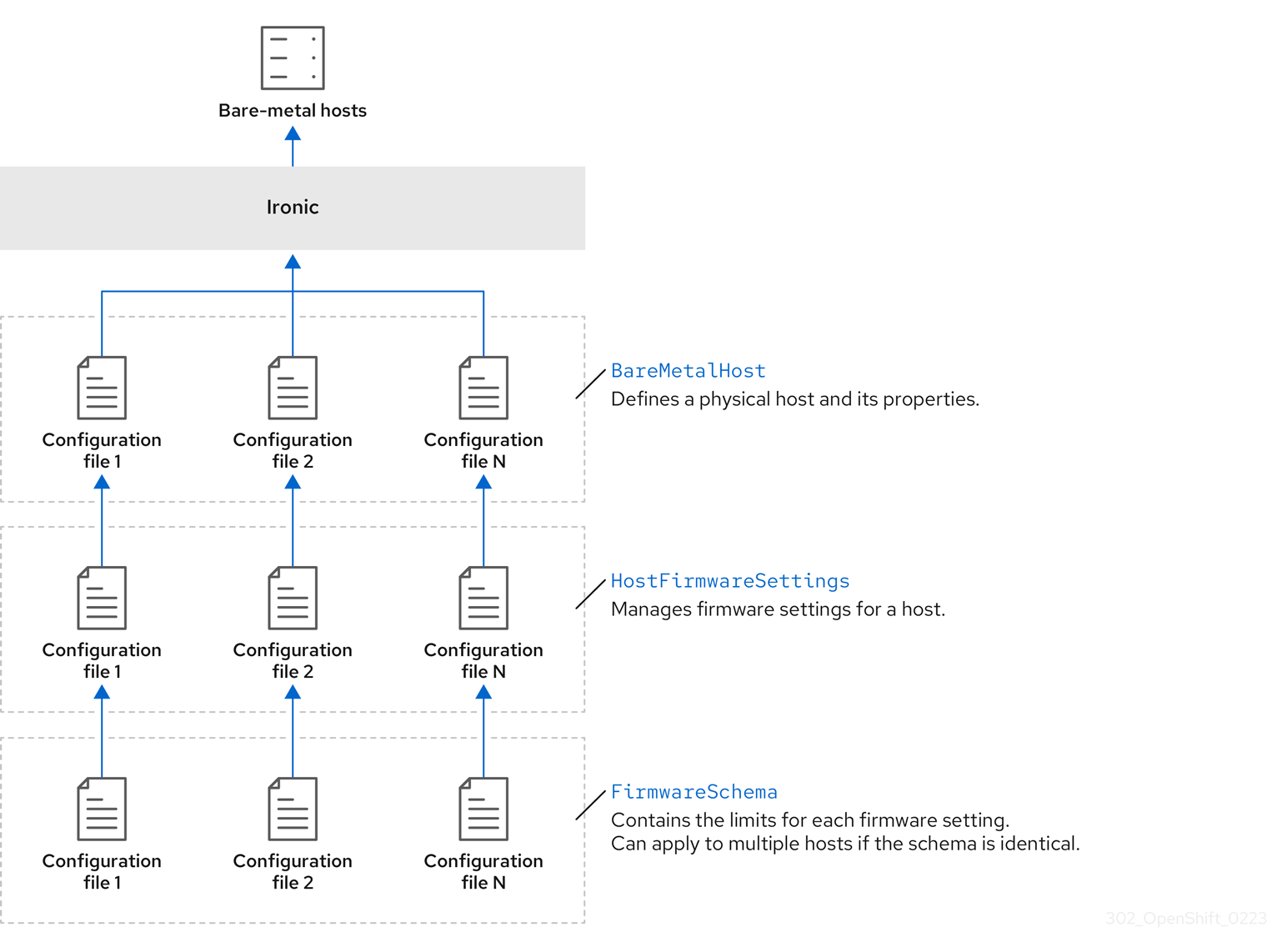
The Bare Metal Operator (BMO) uses three resources to provision, manage, and inspect bare-metal hosts in your cluster. The following diagram illustrates the architecture of these resources:
BareMetalHost
The BareMetalHost resource defines a physical host and its properties. When you provision a bare-metal host to the cluster, you must define a BareMetalHost resource for that host. For ongoing management of the host, you can inspect the information in the BareMetalHost or update this information.
The BareMetalHost resource features provisioning information such as the following:
- Deployment specifications such as the operating system boot image or the custom RAM disk
- Provisioning state
- Baseboard Management Controller (BMC) address
- Desired power state
The BareMetalHost resource features hardware information such as the following:
- Number of CPUs
- MAC address of a NIC
- Size of the host’s storage device
- Current power state
HostFirmwareSettings
You can use the HostFirmwareSettings resource to retrieve and manage the firmware settings for a host. When a host moves to the Available state, the Ironic service reads the host’s firmware settings and creates the HostFirmwareSettings resource. There is a one-to-one mapping between the BareMetalHost resource and the HostFirmwareSettings resource.
You can use the HostFirmwareSettings resource to inspect the firmware specifications for a host or to update a host’s firmware specifications.
You must adhere to the schema specific to the vendor firmware when you edit the spec field of the HostFirmwareSettings resource. This schema is defined in the read-only FirmwareSchema resource.
FirmwareSchema
Firmware settings vary among hardware vendors and host models. A FirmwareSchema resource is a read-only resource that contains the types and limits for each firmware setting on each host model. The data comes directly from the BMC by using the Ironic service. The FirmwareSchema resource enables you to identify valid values you can specify in the spec field of the HostFirmwareSettings resource.
A FirmwareSchema resource can apply to many BareMetalHost resources if the schema is the same.
3.2. About the BareMetalHost resource
Metal3 introduces the concept of the BareMetalHost resource, which defines a physical host and its properties. The BareMetalHost resource contains two sections:
-
The
BareMetalHostspec -
The
BareMetalHoststatus
3.2.1. The BareMetalHost spec
The spec section of the BareMetalHost resource defines the desired state of the host.
| Parameters | Description |
|---|---|
|
|
An interface to enable or disable automated cleaning during provisioning and de-provisioning. When set to |
|
The
|
|
| The MAC address of the NIC used for provisioning the host. |
|
|
The boot mode of the host. It defaults to |
|
|
A reference to another resource that is using the host. It could be empty if another resource is not currently using the host. For example, a |
|
| A human-provided string to help identify the host. |
|
| A boolean indicating whether the host provisioning and deprovisioning are managed externally. When set:
|
|
|
Contains information about the BIOS configuration of bare metal hosts. Currently,
|
|
The
|
|
| A reference to the secret containing the network configuration data and its namespace, so that it can be attached to the host before the host boots to set up the network. |
|
|
A boolean indicating whether the host should be powered on ( |
| (Optional) Contains the information about the RAID configuration for bare metal hosts. If not specified, it retains the current configuration. Note OpenShift Container Platform 4.12 supports hardware RAID for BMCs using the iRMC protocol only. OpenShift Container Platform 4.12 does not support software RAID. See the following configuration settings:
You can set the
If you receive an error message indicating that the driver does not support RAID, set the |
|
The
|
3.2.2. The BareMetalHost status
The BareMetalHost status represents the host’s current state, and includes tested credentials, current hardware details, and other information.
| Parameters | Description |
|---|---|
|
| A reference to the secret and its namespace holding the last set of baseboard management controller (BMC) credentials the system was able to validate as working. |
|
| Details of the last error reported by the provisioning backend, if any. |
|
| Indicates the class of problem that has caused the host to enter an error state. The error types are:
|
|
The
|
| Contains BIOS firmware information. For example, the hardware vendor and version. |
|
The
|
| The host’s amount of memory in Mebibytes (MiB). |
|
The
|
|
Contains information about the host’s |
|
| The timestamp of the last time the status of the host was updated. |
|
| The status of the server. The status is one of the following:
|
|
| Boolean indicating whether the host is powered on. |
|
The
|
|
| A reference to the secret and its namespace holding the last set of BMC credentials that were sent to the provisioning backend. |
3.3. Getting the BareMetalHost resource
The BareMetalHost resource contains the properties of a physical host. You must get the BareMetalHost resource for a physical host to review its properties.
Procedure
Get the list of
BareMetalHostresources:$ oc get bmh -n openshift-machine-api -o yamlNoteYou can use
baremetalhostas the long form ofbmhwithoc getcommand.Get the list of hosts:
$ oc get bmh -n openshift-machine-apiGet the
BareMetalHostresource for a specific host:$ oc get bmh <host_name> -n openshift-machine-api -o yamlWhere
<host_name>is the name of the host.Example output
apiVersion: metal3.io/v1alpha1
kind: BareMetalHost
metadata:
  creationTimestamp: "2022-06-16T10:48:33Z"
  finalizers:
  - baremetalhost.metal3.io
  generation: 2
  name: openshift-worker-0
  namespace: openshift-machine-api
  resourceVersion: "30099"
  uid: 1513ae9b-e092-409d-be1b-ad08edeb1271
spec:
  automatedCleaningMode: metadata
  bmc:
    address: redfish://10.46.61.19:443/redfish/v1/Systems/1
    credentialsName: openshift-worker-0-bmc-secret
    disableCertificateVerification: true
  bootMACAddress: 48:df:37:c7:f7:b0
  bootMode: UEFI
  consumerRef:
    apiVersion: machine.openshift.io/v1beta1
    kind: Machine
    name: ocp-edge-958fk-worker-0-nrfcg
    namespace: openshift-machine-api
  customDeploy:
    method: install_coreos
  online: true
  rootDeviceHints:
    deviceName: /dev/sda
  userData:
    name: worker-user-data-managed
    namespace: openshift-machine-api
status:
  errorCount: 0
  errorMessage: ""
  goodCredentials:
    credentials:
      name: openshift-worker-0-bmc-secret
      namespace: openshift-machine-api
    credentialsVersion: "16120"
  hardware:
    cpu:
      arch: x86_64
      clockMegahertz: 2300
      count: 64
      flags:
      - 3dnowprefetch
      - abm
      - acpi
      - adx
      - aes
      model: Intel(R) Xeon(R) Gold 5218 CPU @ 2.30GHz
    firmware:
      bios:
        date: 10/26/2020
        vendor: HPE
        version: U30
    hostname: openshift-worker-0
    nics:
    - mac: 48:df:37:c7:f7:b3
      model: 0x8086 0x1572
      name: ens1f3
    ramMebibytes: 262144
    storage:
    - hctl: "0:0:0:0"
      model: VK000960GWTTB
      name: /dev/sda
      sizeBytes: 960197124096
      type: SSD
      vendor: ATA
    systemVendor:
      manufacturer: HPE
      productName: ProLiant DL380 Gen10 (868703-B21)
      serialNumber: CZ200606M3
  lastUpdated: "2022-06-16T11:41:42Z"
  operationalStatus: OK
  poweredOn: true
  provisioning:
    ID: 217baa14-cfcf-4196-b764-744e184a3413
    bootMode: UEFI
    customDeploy:
      method: install_coreos
    image:
      url: ""
    raid:
      hardwareRAIDVolumes: null
      softwareRAIDVolumes: []
    rootDeviceHints:
      deviceName: /dev/sda
    state: provisioned
  triedCredentials:
    credentials:
      name: openshift-worker-0-bmc-secret
      namespace: openshift-machine-api
    credentialsVersion: "16120"
3.4. About the HostFirmwareSettings resource
You can use the HostFirmwareSettings resource to retrieve and manage the BIOS settings for a host. When a host moves to the Available state, Ironic reads the host’s BIOS settings and creates the HostFirmwareSettings resource. The resource contains the complete BIOS configuration returned from the baseboard management controller (BMC). Whereas, the firmware field in the BareMetalHost resource returns three vendor-independent fields, the HostFirmwareSettings resource typically comprises many BIOS settings of vendor-specific fields per host.
The HostFirmwareSettings resource contains two sections:
-
The
HostFirmwareSettingsspec. -
The
HostFirmwareSettingsstatus.
3.4.1. The HostFirmwareSettings spec
The spec section of the HostFirmwareSettings resource defines the desired state of the host’s BIOS, and it is empty by default. Ironic uses the settings in the spec.settings section to update the baseboard management controller (BMC) when the host is in the Preparing state. Use the FirmwareSchema resource to ensure that you do not send invalid name/value pairs to hosts. See "About the FirmwareSchema resource" for additional details.
Example
spec:
  settings:
ProcTurboMode: Disabled- 1
- In the foregoing example, the
spec.settingssection contains a name/value pair that will set theProcTurboModeBIOS setting toDisabled.
Integer parameters listed in the status section appear as strings. For example, "1". When setting integers in the spec.settings section, the values should be set as integers without quotes. For example, 1.
3.4.2. The HostFirmwareSettings status
The status represents the current state of the host’s BIOS.
| Parameters | Description |
|---|---|
|
The
|
|
The
|
|
The |
3.5. Getting the HostFirmwareSettings resource
The HostFirmwareSettings resource contains the vendor-specific BIOS properties of a physical host. You must get the HostFirmwareSettings resource for a physical host to review its BIOS properties.
Procedure
Get the detailed list of
HostFirmwareSettingsresources:$ oc get hfs -n openshift-machine-api -o yamlNoteYou can use
hostfirmwaresettingsas the long form ofhfswith theoc getcommand.Get the list of
HostFirmwareSettingsresources:$ oc get hfs -n openshift-machine-apiGet the
HostFirmwareSettingsresource for a particular host$ oc get hfs <host_name> -n openshift-machine-api -o yamlWhere
<host_name>is the name of the host.
3.6. Editing the HostFirmwareSettings resource
You can edit the HostFirmwareSettings of provisioned hosts.
You can only edit hosts when they are in the provisioned state, excluding read-only values. You cannot edit hosts in the externally provisioned state.
Procedure
Get the list of
HostFirmwareSettingsresources:$ oc get hfs -n openshift-machine-apiEdit a host’s
HostFirmwareSettingsresource:$ oc edit hfs <host_name> -n openshift-machine-apiWhere
<host_name>is the name of a provisioned host. TheHostFirmwareSettingsresource will open in the default editor for your terminal.Add name/value pairs to the
spec.settingssection:Example
spec:
  settings:
    name: value
1 - 1
- Use the
FirmwareSchemaresource to identify the available settings for the host. You cannot set values that are read-only.
- Save the changes and exit the editor.
Get the host’s machine name:
$ oc get bmh <host_name> -n openshift-machine nameWhere
<host_name>is the name of the host. The machine name appears under theCONSUMERfield.Annotate the machine to delete it from the machineset:
$ oc annotate machine <machine_name> machine.openshift.io/delete-machine=true -n openshift-machine-apiWhere
<machine_name>is the name of the machine to delete.Get a list of nodes and count the number of worker nodes:
$ oc get nodesGet the machineset:
$ oc get machinesets -n openshift-machine-apiScale the machineset:
$ oc scale machineset <machineset_name> -n openshift-machine-api --replicas=<n-1>Where
<machineset_name>is the name of the machineset and<n-1>is the decremented number of worker nodes.When the host enters the
Availablestate, scale up the machineset to make theHostFirmwareSettingsresource changes take effect:$ oc scale machineset <machineset_name> -n openshift-machine-api --replicas=<n>Where
<machineset_name>is the name of the machineset and<n>is the number of worker nodes.
3.7. Verifying the HostFirmware Settings resource is valid
When the user edits the spec.settings section to make a change to the HostFirmwareSetting(HFS) resource, the Bare Metal Operator (BMO) validates the change against the FimwareSchema resource, which is a read-only resource. If the setting is invalid, the BMO will set the Type value of the status.Condition setting to False and also generate an event and store it in the HFS resource. Use the following procedure to verify that the resource is valid.
Procedure
Get a list of
HostFirmwareSettingresources:$ oc get hfs -n openshift-machine-apiVerify that the
HostFirmwareSettingsresource for a particular host is valid:$ oc describe hfs <host_name> -n openshift-machine-apiWhere
<host_name>is the name of the host.Example output
Events: Type Reason Age From Message ---- ------ ---- ---- ------- Normal ValidationFailed 2m49s metal3-hostfirmwaresettings-controller Invalid BIOS setting: Setting ProcTurboMode is invalid, unknown enumeration value - FooImportantIf the response returns
ValidationFailed, there is an error in the resource configuration and you must update the values to conform to theFirmwareSchemaresource.
3.8. About the FirmwareSchema resource
BIOS settings vary among hardware vendors and host models. A FirmwareSchema resource is a read-only resource that contains the types and limits for each BIOS setting on each host model. The data comes directly from the BMC through Ironic. The FirmwareSchema enables you to identify valid values you can specify in the spec field of the HostFirmwareSettings resource. The FirmwareSchema resource has a unique identifier derived from its settings and limits. Identical host models use the same FirmwareSchema identifier. It is likely that multiple instances of HostFirmwareSettings use the same FirmwareSchema.
| Parameters | Description |
|---|---|
|
The
|
3.9. Getting the FirmwareSchema resource
Each host model from each vendor has different BIOS settings. When editing the HostFirmwareSettings resource’s spec section, the name/value pairs you set must conform to that host’s firmware schema. To ensure you are setting valid name/value pairs, get the FirmwareSchema for the host and review it.
Procedure
To get a list of
FirmwareSchemaresource instances, execute the following:$ oc get firmwareschema -n openshift-machine-apiTo get a particular
FirmwareSchemainstance, execute:$ oc get firmwareschema <instance_name> -n openshift-machine-api -o yamlWhere
<instance_name>is the name of the schema instance stated in theHostFirmwareSettingsresource (see Table 3).

'%20d='M201.5%20305.5c-13.8%200-24.9-11.1-24.9-24.6%200-13.8%2011.1-24.9%2024.9-24.9%2013.6%200%2024.6%2011.1%2024.6%2024.9%200%2013.6-11.1%2024.6-24.6%2024.6zM504%20256c0%20137-111%20248-248%20248S8%20393%208%20256%20119%208%20256%208s248%20111%20248%20248zm-132.3-41.2c-9.4%200-17.7%203.9-23.8%2010-22.4-15.5-52.6-25.5-86.1-26.6l17.4-78.3%2055.4%2012.5c0%2013.6%2011.1%2024.6%2024.6%2024.6%2013.8%200%2024.9-11.3%2024.9-24.9s-11.1-24.9-24.9-24.9c-9.7%200-18%205.8-22.1%2013.8l-61.2-13.6c-3-.8-6.1%201.4-6.9%204.4l-19.1%2086.4c-33.2%201.4-63.1%2011.3-85.5%2026.8-6.1-6.4-14.7-10.2-24.1-10.2-34.9%200-46.3%2046.9-14.4%2062.8-1.1%205-1.7%2010.2-1.7%2015.5%200%2052.6%2059.2%2095.2%20132%2095.2%2073.1%200%20132.3-42.6%20132.3-95.2%200-5.3-.6-10.8-1.9-15.8%2031.3-16%2019.8-62.5-14.9-62.5zM302.8%20331c-18.2%2018.2-76.1%2017.9-93.6%200-2.2-2.2-6.1-2.2-8.3%200-2.5%202.5-2.5%206.4%200%208.6%2022.8%2022.8%2087.3%2022.8%20110.2%200%202.5-2.2%202.5-6.1%200-8.6-2.2-2.2-6.1-2.2-8.3%200zm7.7-75c-13.6%200-24.6%2011.1-24.6%2024.9%200%2013.6%2011.1%2024.6%2024.6%2024.6%2013.8%200%2024.9-11.1%2024.9-24.6%200-13.8-11-24.9-24.9-24.9z'/%3e%3c/svg%3e)