 Red Hat Summit
Questo contenuto non è disponibile nella lingua selezionata.
Chapter 19. Managing cloud provider credentials
19.1. About the Cloud Credential Operator
The Cloud Credential Operator (CCO) manages cloud provider credentials as custom resource definitions (CRDs). The CCO syncs on CredentialsRequest custom resources (CRs) to allow OpenShift Container Platform components to request cloud provider credentials with the specific permissions that are required for the cluster to run.
By setting different values for the credentialsMode parameter in the install-config.yaml file, the CCO can be configured to operate in several different modes. If no mode is specified, or the credentialsMode parameter is set to an empty string (""), the CCO operates in its default mode.
19.1.1. Modes
By setting different values for the credentialsMode parameter in the install-config.yaml file, the CCO can be configured to operate in mint, passthrough, or manual mode. These options provide transparency and flexibility in how the CCO uses cloud credentials to process CredentialsRequest CRs in the cluster, and allow the CCO to be configured to suit the security requirements of your organization. Not all CCO modes are supported for all cloud providers.
- Mint: In mint mode, the CCO uses the provided admin-level cloud credential to create new credentials for components in the cluster with only the specific permissions that are required.
- Passthrough: In passthrough mode, the CCO passes the provided cloud credential to the components that request cloud credentials.
Manual: In manual mode, a user manages cloud credentials instead of the CCO.
- Manual with AWS Security Token Service: In manual mode, you can configure an AWS cluster to use Amazon Web Services Security Token Service (AWS STS). With this configuration, the CCO uses temporary credentials for different components.
- Manual with GCP Workload Identity: In manual mode, you can configure a GCP cluster to use GCP Workload Identity. With this configuration, the CCO uses temporary credentials for different components.
| Cloud provider | Mint | Passthrough | Manual |
|---|---|---|---|
| Alibaba Cloud | X | ||
| Amazon Web Services (AWS) | X | X | X |
| Microsoft Azure | X [1] | X | |
| Google Cloud Platform (GCP) | X | X | X |
| IBM Cloud | X | ||
| Nutanix | X | ||
| Red Hat OpenStack Platform (RHOSP) | X | ||
| Red Hat Virtualization (RHV) | X | ||
| VMware vSphere | X |
- Manual mode is the only supported CCO configuration for Microsoft Azure Stack Hub.
19.1.2. Determining the Cloud Credential Operator mode
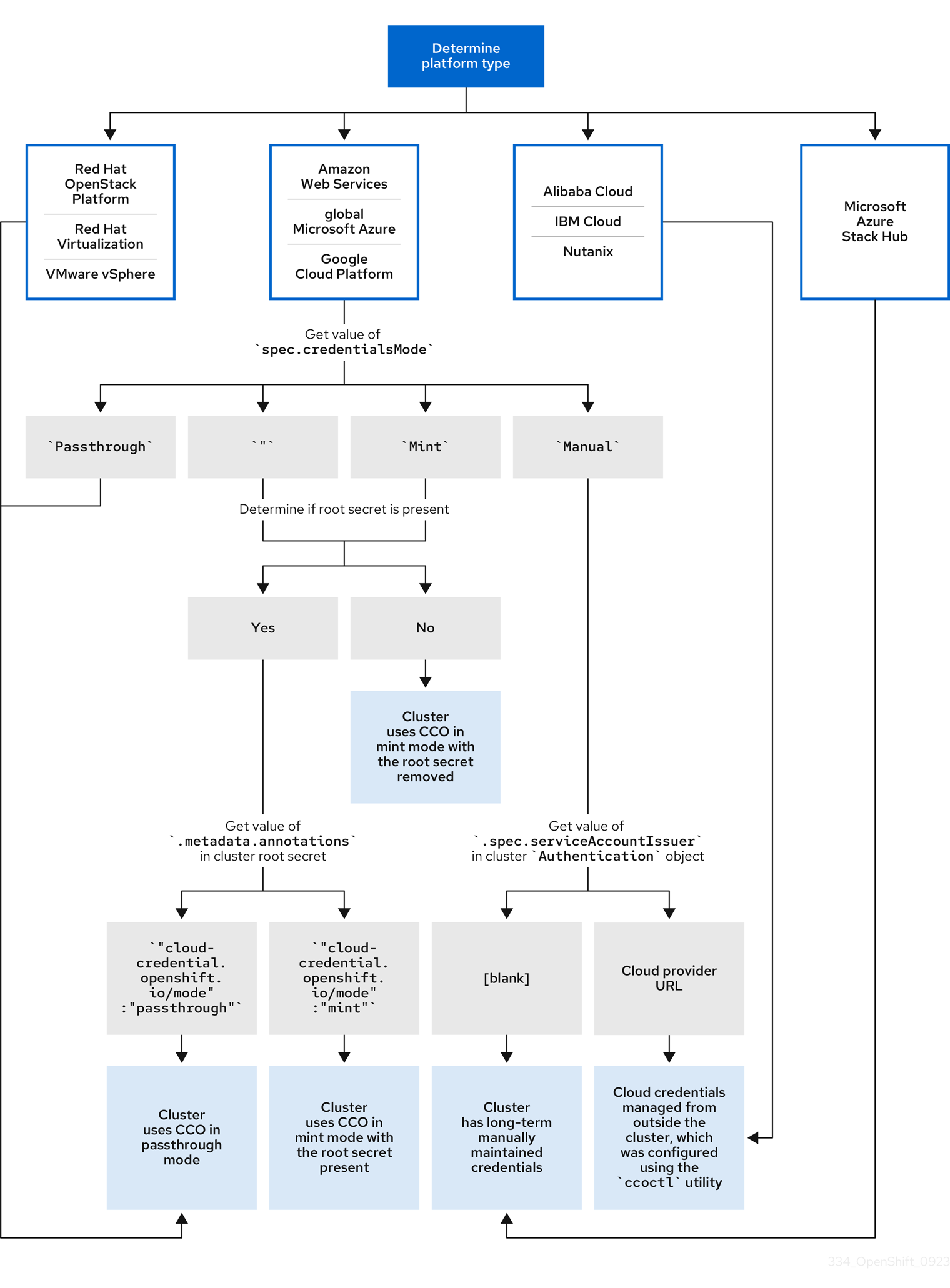
For platforms that support using the CCO in multiple modes, you can determine what mode the CCO is configured to use by using the web console or the CLI.
Figure 19.1. Determining the CCO configuration
19.1.2.1. Determining the Cloud Credential Operator mode by using the web console
You can determine what mode the Cloud Credential Operator (CCO) is configured to use by using the web console.
Only Amazon Web Services (AWS), global Microsoft Azure, and Google Cloud Platform (GCP) clusters support multiple CCO modes.
Prerequisites
- You have access to an OpenShift Container Platform account with cluster administrator permissions.
Procedure
-
Log in to the OpenShift Container Platform web console as a user with the
cluster-adminrole. -
Navigate to Administration
Cluster Settings. - On the Cluster Settings page, select the Configuration tab.
- Under Configuration resource, select CloudCredential.
- On the CloudCredential details page, select the YAML tab.
In the YAML block, check the value of
spec.credentialsMode. The following values are possible, though not all are supported on all platforms:-
'': The CCO is operating in the default mode. In this configuration, the CCO operates in mint or passthrough mode, depending on the credentials provided during installation. -
Mint: The CCO is operating in mint mode. -
Passthrough: The CCO is operating in passthrough mode. -
Manual: The CCO is operating in manual mode.
ImportantTo determine the specific configuration of an AWS or GCP cluster that has a
spec.credentialsModeof'',Mint, orManual, you must investigate further.AWS and GCP clusters support using mint mode with the root secret deleted.
An AWS or GCP cluster that uses manual mode might be configured to create and manage cloud credentials from outside of the cluster using the AWS Security Token Service (STS) or GCP Workload Identity. You can determine whether your cluster uses this strategy by examining the cluster
Authenticationobject.-
AWS or GCP clusters that use the default (
'') only: To determine whether the cluster is operating in mint or passthrough mode, inspect the annotations on the cluster root secret:Navigate to Workloads
Secrets and look for the root secret for your cloud provider. NoteEnsure that the Project dropdown is set to All Projects.
Expand Platform Secret name AWS
aws-credsGCP
gcp-credentialsTo view the CCO mode that the cluster is using, click
1 annotationunder Annotations, and check the value field. The following values are possible:-
Mint: The CCO is operating in mint mode. -
Passthrough: The CCO is operating in passthrough mode.
If your cluster uses mint mode, you can also determine whether the cluster is operating without the root secret.
-
AWS or GCP clusters that use mint mode only: To determine whether the cluster is operating without the root secret, navigate to Workloads
Secrets and look for the root secret for your cloud provider. NoteEnsure that the Project dropdown is set to All Projects.
Expand Platform Secret name AWS
aws-credsGCP
gcp-credentials- If you see one of these values, your cluster is using mint or passthrough mode with the root secret present.
- If you do not see these values, your cluster is using the CCO in mint mode with the root secret removed.
AWS or GCP clusters that use manual mode only: To determine whether the cluster is configured to create and manage cloud credentials from outside of the cluster, you must check the cluster
Authenticationobject YAML values.-
Navigate to Administration
Cluster Settings. - On the Cluster Settings page, select the Configuration tab.
- Under Configuration resource, select Authentication.
- On the Authentication details page, select the YAML tab.
In the YAML block, check the value of the
.spec.serviceAccountIssuerparameter.-
A value that contains a URL that is associated with your cloud provider indicates that the CCO is using manual mode with AWS STS or GCP Workload Identity to create and manage cloud credentials from outside of the cluster. These clusters are configured using the
ccoctlutility. -
An empty value (
'') indicates that the cluster is using the CCO in manual mode but was not configured using theccoctlutility.
-
A value that contains a URL that is associated with your cloud provider indicates that the CCO is using manual mode with AWS STS or GCP Workload Identity to create and manage cloud credentials from outside of the cluster. These clusters are configured using the
-
Navigate to Administration
19.1.2.2. Determining the Cloud Credential Operator mode by using the CLI
You can determine what mode the Cloud Credential Operator (CCO) is configured to use by using the CLI.
Only Amazon Web Services (AWS), global Microsoft Azure, and Google Cloud Platform (GCP) clusters support multiple CCO modes.
Prerequisites
- You have access to an OpenShift Container Platform account with cluster administrator permissions.
-
You have installed the OpenShift CLI (
oc).
Procedure
-
Log in to
ocon the cluster as a user with thecluster-adminrole. To determine the mode that the CCO is configured to use, enter the following command:
$ oc get cloudcredentials cluster \
  -o=jsonpath={.spec.credentialsMode}
The following output values are possible, though not all are supported on all platforms:
-
'': The CCO is operating in the default mode. In this configuration, the CCO operates in mint or passthrough mode, depending on the credentials provided during installation. -
Mint: The CCO is operating in mint mode. -
Passthrough: The CCO is operating in passthrough mode. -
Manual: The CCO is operating in manual mode.
ImportantTo determine the specific configuration of an AWS or GCP cluster that has a
spec.credentialsModeof'',Mint, orManual, you must investigate further.AWS and GCP clusters support using mint mode with the root secret deleted.
An AWS or GCP cluster that uses manual mode might be configured to create and manage cloud credentials from outside of the cluster using the AWS Security Token Service (STS) or GCP Workload Identity. You can determine whether your cluster uses this strategy by examining the cluster
Authenticationobject.-
AWS or GCP clusters that use the default (
'') only: To determine whether the cluster is operating in mint or passthrough mode, run the following command:$ oc get secret <secret_name> \ -n kube-system \ -o jsonpath \ --template '{ .metadata.annotations }'where
<secret_name>isaws-credsfor AWS orgcp-credentialsfor GCP.This command displays the value of the
.metadata.annotationsparameter in the cluster root secret object. The following output values are possible:-
Mint: The CCO is operating in mint mode. -
Passthrough: The CCO is operating in passthrough mode.
If your cluster uses mint mode, you can also determine whether the cluster is operating without the root secret.
-
AWS or GCP clusters that use mint mode only: To determine whether the cluster is operating without the root secret, run the following command:
$ oc get secret <secret_name> \
  -n=kube-system
where
<secret_name>isaws-credsfor AWS orgcp-credentialsfor GCP.If the root secret is present, the output of this command returns information about the secret. An error indicates that the root secret is not present on the cluster.
AWS or GCP clusters that use manual mode only: To determine whether the cluster is configured to create and manage cloud credentials from outside of the cluster, run the following command:
$ oc get authentication cluster \
  -o jsonpath \
  --template='{ .spec.serviceAccountIssuer }'
This command displays the value of the
.spec.serviceAccountIssuerparameter in the clusterAuthenticationobject.-
An output of a URL that is associated with your cloud provider indicates that the CCO is using manual mode with AWS STS or GCP Workload Identity to create and manage cloud credentials from outside of the cluster. These clusters are configured using the
ccoctlutility. -
An empty output indicates that the cluster is using the CCO in manual mode but was not configured using the
ccoctlutility.
-
An output of a URL that is associated with your cloud provider indicates that the CCO is using manual mode with AWS STS or GCP Workload Identity to create and manage cloud credentials from outside of the cluster. These clusters are configured using the
19.1.3. Default behavior
For platforms on which multiple modes are supported (AWS, Azure, and GCP), when the CCO operates in its default mode, it checks the provided credentials dynamically to determine for which mode they are sufficient to process CredentialsRequest CRs.
By default, the CCO determines whether the credentials are sufficient for mint mode, which is the preferred mode of operation, and uses those credentials to create appropriate credentials for components in the cluster. If the credentials are not sufficient for mint mode, it determines whether they are sufficient for passthrough mode. If the credentials are not sufficient for passthrough mode, the CCO cannot adequately process CredentialsRequest CRs.
If the provided credentials are determined to be insufficient during installation, the installation fails. For AWS, the installer fails early in the process and indicates which required permissions are missing. Other providers might not provide specific information about the cause of the error until errors are encountered.
If the credentials are changed after a successful installation and the CCO determines that the new credentials are insufficient, the CCO puts conditions on any new CredentialsRequest CRs to indicate that it cannot process them because of the insufficient credentials.
To resolve insufficient credentials issues, provide a credential with sufficient permissions. If an error occurred during installation, try installing again. For issues with new CredentialsRequest CRs, wait for the CCO to try to process the CR again. As an alternative, you can manually create IAM for AWS, Azure, and GCP.
19.2. Using mint mode
Mint mode is supported for Amazon Web Services (AWS) and Google Cloud Platform (GCP).
Mint mode is the default mode on the platforms for which it is supported. In this mode, the Cloud Credential Operator (CCO) uses the provided administrator-level cloud credential to create new credentials for components in the cluster with only the specific permissions that are required.
If the credential is not removed after installation, it is stored and used by the CCO to process CredentialsRequest CRs for components in the cluster and create new credentials for each with only the specific permissions that are required. The continuous reconciliation of cloud credentials in mint mode allows actions that require additional credentials or permissions, such as upgrading, to proceed.
Mint mode stores the administrator-level credential in the cluster kube-system namespace. If this approach does not meet the security requirements of your organization, see Alternatives to storing administrator-level secrets in the kube-system project for AWS or GCP.
19.2.1. Mint mode permissions requirements
When using the CCO in mint mode, ensure that the credential you provide meets the requirements of the cloud on which you are running or installing OpenShift Container Platform. If the provided credentials are not sufficient for mint mode, the CCO cannot create an IAM user.
19.2.1.1. Amazon Web Services (AWS) permissions
The credential you provide for mint mode in AWS must have the following permissions:
-
iam:CreateAccessKey -
iam:CreateUser -
iam:DeleteAccessKey -
iam:DeleteUser -
iam:DeleteUserPolicy -
iam:GetUser -
iam:GetUserPolicy -
iam:ListAccessKeys -
iam:PutUserPolicy -
iam:TagUser -
iam:SimulatePrincipalPolicy
19.2.1.2. Google Cloud Platform (GCP) permissions
The credential you provide for mint mode in GCP must have the following permissions:
-
resourcemanager.projects.get -
serviceusage.services.list -
iam.serviceAccountKeys.create -
iam.serviceAccountKeys.delete -
iam.serviceAccounts.create -
iam.serviceAccounts.delete -
iam.serviceAccounts.get -
iam.roles.get -
resourcemanager.projects.getIamPolicy -
resourcemanager.projects.setIamPolicy
19.2.2. Admin credentials root secret format
Each cloud provider uses a credentials root secret in the kube-system namespace by convention, which is then used to satisfy all credentials requests and create their respective secrets. This is done either by minting new credentials with mint mode, or by copying the credentials root secret with passthrough mode.
The format for the secret varies by cloud, and is also used for each CredentialsRequest secret.
Amazon Web Services (AWS) secret format
apiVersion: v1
kind: Secret
metadata:
  namespace: kube-system
  name: aws-creds
stringData:
  aws_access_key_id: <base64-encoded_access_key_id>
  aws_secret_access_key: <base64-encoded_secret_access_key>
Google Cloud Platform (GCP) secret format
apiVersion: v1
kind: Secret
metadata:
  namespace: kube-system
  name: gcp-credentials
stringData:
  service_account.json: <base64-encoded_service_account>
19.2.3. Mint mode with removal or rotation of the administrator-level credential
Currently, this mode is only supported on AWS and GCP.
In this mode, a user installs OpenShift Container Platform with an administrator-level credential just like the normal mint mode. However, this process removes the administrator-level credential secret from the cluster post-installation.
The administrator can have the Cloud Credential Operator make its own request for a read-only credential that allows it to verify if all CredentialsRequest objects have their required permissions, thus the administrator-level credential is not required unless something needs to be changed. After the associated credential is removed, it can be deleted or deactivated on the underlying cloud, if desired.
Prior to a non z-stream upgrade, you must reinstate the credential secret with the administrator-level credential. If the credential is not present, the upgrade might be blocked.
The administrator-level credential is not stored in the cluster permanently.
Following these steps still requires the administrator-level credential in the cluster for brief periods of time. It also requires manually re-instating the secret with administrator-level credentials for each upgrade.
19.2.3.1. Rotating cloud provider credentials manually
If your cloud provider credentials are changed for any reason, you must manually update the secret that the Cloud Credential Operator (CCO) uses to manage cloud provider credentials.
The process for rotating cloud credentials depends on the mode that the CCO is configured to use. After you rotate credentials for a cluster that is using mint mode, you must manually remove the component credentials that were created by the removed credential.
Prerequisites
Your cluster is installed on a platform that supports rotating cloud credentials manually with the CCO mode that you are using:
- For mint mode, Amazon Web Services (AWS) and Google Cloud Platform (GCP) are supported.
- You have changed the credentials that are used to interface with your cloud provider.
- The new credentials have sufficient permissions for the mode CCO is configured to use in your cluster.
Procedure
-
In the Administrator perspective of the web console, navigate to Workloads
Secrets. In the table on the Secrets page, find the root secret for your cloud provider.
Expand Platform Secret name AWS
aws-credsGCP
gcp-credentials-
Click the Options menu
 in the same row as the secret and select Edit Secret.
- Record the contents of the Value field or fields. You can use this information to verify that the value is different after updating the credentials.
- Update the text in the Value field or fields with the new authentication information for your cloud provider, and then click Save.
Delete each component secret that is referenced by the individual
CredentialsRequestobjects.-
Log in to the OpenShift Container Platform CLI as a user with the
cluster-adminrole. Get the names and namespaces of all referenced component secrets:
$ oc -n openshift-cloud-credential-operator get CredentialsRequest \
  -o json | jq -r '.items[] | select (.spec.providerSpec.kind=="<provider_spec>") | .spec.secretRef'
where
<provider_spec>is the corresponding value for your cloud provider:-
AWS:
AWSProviderSpec -
GCP:
GCPProviderSpec
Partial example output for AWS
{ "name": "ebs-cloud-credentials", "namespace": "openshift-cluster-csi-drivers" } { "name": "cloud-credential-operator-iam-ro-creds", "namespace": "openshift-cloud-credential-operator" }-
AWS:
Delete each of the referenced component secrets:
$ oc delete secret <secret_name> \1 -n <secret_namespace>2 Example deletion of an AWS secret
$ oc delete secret ebs-cloud-credentials -n openshift-cluster-csi-driversYou do not need to manually delete the credentials from your provider console. Deleting the referenced component secrets will cause the CCO to delete the existing credentials from the platform and create new ones.
-
Log in to the OpenShift Container Platform CLI as a user with the
Verification
To verify that the credentials have changed:
-
In the Administrator perspective of the web console, navigate to Workloads
Secrets. - Verify that the contents of the Value field or fields have changed.
19.2.3.2. Removing cloud provider credentials
After installing an OpenShift Container Platform cluster with the Cloud Credential Operator (CCO) in mint mode, you can remove the administrator-level credential secret from the kube-system namespace in the cluster. The administrator-level credential is required only during changes that require its elevated permissions, such as upgrades.
Prior to a non z-stream upgrade, you must reinstate the credential secret with the administrator-level credential. If the credential is not present, the upgrade might be blocked.
Prerequisites
- Your cluster is installed on a platform that supports removing cloud credentials from the CCO. Supported platforms are AWS and GCP.
Procedure
-
In the Administrator perspective of the web console, navigate to Workloads
Secrets. In the table on the Secrets page, find the root secret for your cloud provider.
Expand Platform Secret name AWS
aws-credsGCP
gcp-credentials-
Click the Options menu
in the same row as the secret and select Delete Secret.
19.3. Using passthrough mode
Passthrough mode is supported for Amazon Web Services (AWS), Microsoft Azure, Google Cloud Platform (GCP), Red Hat OpenStack Platform (RHOSP), Red Hat Virtualization (RHV), and VMware vSphere.
In passthrough mode, the Cloud Credential Operator (CCO) passes the provided cloud credential to the components that request cloud credentials. The credential must have permissions to perform the installation and complete the operations that are required by components in the cluster, but does not need to be able to create new credentials. The CCO does not attempt to create additional limited-scoped credentials in passthrough mode.
Manual mode is the only supported CCO configuration for Microsoft Azure Stack Hub.
19.3.1. Passthrough mode permissions requirements
When using the CCO in passthrough mode, ensure that the credential you provide meets the requirements of the cloud on which you are running or installing OpenShift Container Platform. If the provided credentials the CCO passes to a component that creates a CredentialsRequest CR are not sufficient, that component will report an error when it tries to call an API that it does not have permissions for.
19.3.1.1. Amazon Web Services (AWS) permissions
The credential you provide for passthrough mode in AWS must have all the requested permissions for all CredentialsRequest CRs that are required by the version of OpenShift Container Platform you are running or installing.
To locate the CredentialsRequest CRs that are required, see Manually creating IAM for AWS.
19.3.1.2. Microsoft Azure permissions
The credential you provide for passthrough mode in Azure must have all the requested permissions for all CredentialsRequest CRs that are required by the version of OpenShift Container Platform you are running or installing.
To locate the CredentialsRequest CRs that are required, see Manually creating IAM for Azure.
19.3.1.3. Google Cloud Platform (GCP) permissions
The credential you provide for passthrough mode in GCP must have all the requested permissions for all CredentialsRequest CRs that are required by the version of OpenShift Container Platform you are running or installing.
To locate the CredentialsRequest CRs that are required, see Manually creating IAM for GCP.
19.3.1.4. Red Hat OpenStack Platform (RHOSP) permissions
To install an OpenShift Container Platform cluster on RHOSP, the CCO requires a credential with the permissions of a member user role.
19.3.1.5. Red Hat Virtualization (RHV) permissions
To install an OpenShift Container Platform cluster on RHV, the CCO requires a credential with the following privileges:
-
DiskOperator -
DiskCreator -
UserTemplateBasedVm -
TemplateOwner -
TemplateCreator -
ClusterAdminon the specific cluster that is targeted for OpenShift Container Platform deployment
19.3.1.6. VMware vSphere permissions
To install an OpenShift Container Platform cluster on VMware vSphere, the CCO requires a credential with the following vSphere privileges:
| Category | Privileges |
|---|---|
| Datastore | Allocate space |
| Folder | Create folder, Delete folder |
| vSphere Tagging | All privileges |
| Network | Assign network |
| Resource | Assign virtual machine to resource pool |
| Profile-driven storage | All privileges |
| vApp | All privileges |
| Virtual machine | All privileges |
19.3.2. Admin credentials root secret format
Each cloud provider uses a credentials root secret in the kube-system namespace by convention, which is then used to satisfy all credentials requests and create their respective secrets. This is done either by minting new credentials with mint mode, or by copying the credentials root secret with passthrough mode.
The format for the secret varies by cloud, and is also used for each CredentialsRequest secret.
Amazon Web Services (AWS) secret format
apiVersion: v1
kind: Secret
metadata:
  namespace: kube-system
  name: aws-creds
stringData:
  aws_access_key_id: <base64-encoded_access_key_id>
  aws_secret_access_key: <base64-encoded_secret_access_key>
Microsoft Azure secret format
apiVersion: v1
kind: Secret
metadata:
  namespace: kube-system
  name: azure-credentials
stringData:
  azure_subscription_id: <base64-encoded_subscription_id>
  azure_client_id: <base64-encoded_client_id>
  azure_client_secret: <base64-encoded_client_secret>
  azure_tenant_id: <base64-encoded_tenant_id>
  azure_resource_prefix: <base64-encoded_resource_prefix>
  azure_resourcegroup: <base64-encoded_resource_group>
  azure_region: <base64-encoded_region>
On Microsoft Azure, the credentials secret format includes two properties that must contain the cluster’s infrastructure ID, generated randomly for each cluster installation. This value can be found after running create manifests:
$ cat .openshift_install_state.json | jq '."*installconfig.ClusterID".InfraID' -rExample output
mycluster-2mpcnThis value would be used in the secret data as follows:
azure_resource_prefix: mycluster-2mpcn
azure_resourcegroup: mycluster-2mpcn-rg
Google Cloud Platform (GCP) secret format
apiVersion: v1
kind: Secret
metadata:
  namespace: kube-system
  name: gcp-credentials
stringData:
  service_account.json: <base64-encoded_service_account>
Red Hat OpenStack Platform (RHOSP) secret format
apiVersion: v1
kind: Secret
metadata:
  namespace: kube-system
  name: openstack-credentials
data:
  clouds.yaml: <base64-encoded_cloud_creds>
  clouds.conf: <base64-encoded_cloud_creds_init>
Red Hat Virtualization (RHV) secret format
apiVersion: v1
kind: Secret
metadata:
  namespace: kube-system
  name: ovirt-credentials
data:
  ovirt_url: <base64-encoded_url>
  ovirt_username: <base64-encoded_username>
  ovirt_password: <base64-encoded_password>
  ovirt_insecure: <base64-encoded_insecure>
  ovirt_ca_bundle: <base64-encoded_ca_bundle>
VMware vSphere secret format
apiVersion: v1
kind: Secret
metadata:
  namespace: kube-system
  name: vsphere-creds
data:
 vsphere.openshift.example.com.username: <base64-encoded_username>
 vsphere.openshift.example.com.password: <base64-encoded_password>
19.3.3. Passthrough mode credential maintenance
If CredentialsRequest CRs change over time as the cluster is upgraded, you must manually update the passthrough mode credential to meet the requirements. To avoid credentials issues during an upgrade, check the CredentialsRequest CRs in the release image for the new version of OpenShift Container Platform before upgrading. To locate the CredentialsRequest CRs that are required for your cloud provider, see Manually creating IAM for AWS, Azure, or GCP.
19.3.3.1. Rotating cloud provider credentials manually
If your cloud provider credentials are changed for any reason, you must manually update the secret that the Cloud Credential Operator (CCO) uses to manage cloud provider credentials.
The process for rotating cloud credentials depends on the mode that the CCO is configured to use. After you rotate credentials for a cluster that is using mint mode, you must manually remove the component credentials that were created by the removed credential.
Prerequisites
Your cluster is installed on a platform that supports rotating cloud credentials manually with the CCO mode that you are using:
- For passthrough mode, Amazon Web Services (AWS), Microsoft Azure, Google Cloud Platform (GCP), Red Hat OpenStack Platform (RHOSP), Red Hat Virtualization (RHV), and VMware vSphere are supported.
- You have changed the credentials that are used to interface with your cloud provider.
- The new credentials have sufficient permissions for the mode CCO is configured to use in your cluster.
Procedure
-
In the Administrator perspective of the web console, navigate to Workloads
Secrets. In the table on the Secrets page, find the root secret for your cloud provider.
Expand Platform Secret name AWS
aws-credsAzure
azure-credentialsGCP
gcp-credentialsRHOSP
openstack-credentialsRHV
ovirt-credentialsVMware vSphere
vsphere-creds-
Click the Options menu
in the same row as the secret and select Edit Secret.
- Record the contents of the Value field or fields. You can use this information to verify that the value is different after updating the credentials.
- Update the text in the Value field or fields with the new authentication information for your cloud provider, and then click Save.
If you are updating the credentials for a vSphere cluster that does not have the vSphere CSI Driver Operator enabled, you must force a rollout of the Kubernetes controller manager to apply the updated credentials.
NoteIf the vSphere CSI Driver Operator is enabled, this step is not required.
To apply the updated vSphere credentials, log in to the OpenShift Container Platform CLI as a user with the
cluster-adminrole and run the following command:$ oc patch kubecontrollermanager cluster \ -p='{"spec": {"forceRedeploymentReason": "recovery-'"$( date )"'"}}' \ --type=mergeWhile the credentials are rolling out, the status of the Kubernetes Controller Manager Operator reports
Progressing=true. To view the status, run the following command:$ oc get co kube-controller-manager
Verification
To verify that the credentials have changed:
-
In the Administrator perspective of the web console, navigate to Workloads
Secrets. - Verify that the contents of the Value field or fields have changed.
19.3.4. Reducing permissions after installation
When using passthrough mode, each component has the same permissions used by all other components. If you do not reduce the permissions after installing, all components have the broad permissions that are required to run the installer.
After installation, you can reduce the permissions on your credential to only those that are required to run the cluster, as defined by the CredentialsRequest CRs in the release image for the version of OpenShift Container Platform that you are using.
To locate the CredentialsRequest CRs that are required for AWS, Azure, or GCP and learn how to change the permissions the CCO uses, see Manually creating IAM for AWS, Azure, or GCP.
19.4. Using manual mode
Manual mode is supported for Alibaba Cloud, Amazon Web Services (AWS), Microsoft Azure, IBM Cloud, and Google Cloud Platform (GCP).
In manual mode, a user manages cloud credentials instead of the Cloud Credential Operator (CCO). To use this mode, you must examine the CredentialsRequest CRs in the release image for the version of OpenShift Container Platform that you are running or installing, create corresponding credentials in the underlying cloud provider, and create Kubernetes Secrets in the correct namespaces to satisfy all CredentialsRequest CRs for the cluster’s cloud provider.
Using manual mode allows each cluster component to have only the permissions it requires, without storing an administrator-level credential in the cluster. This mode also does not require connectivity to the AWS public IAM endpoint. However, you must manually reconcile permissions with new release images for every upgrade.
For information about configuring your cloud provider to use manual mode, see the manual credentials management options for your cloud provider:
19.4.1. Manual mode with cloud credentials created and managed outside of the cluster
An AWS or GCP cluster that uses manual mode might be configured to create and manage cloud credentials from outside of the cluster using the AWS Security Token Service (STS) or GCP Workload Identity. With this configuration, the CCO uses temporary credentials for different components.
For more information, see Using manual mode with Amazon Web Services Security Token Service or Using manual mode with GCP Workload Identity.
19.4.2. Updating cloud provider resources with manually maintained credentials
Before upgrading a cluster with manually maintained credentials, you must create any new credentials for the release image that you are upgrading to. You must also review the required permissions for existing credentials and accommodate any new permissions requirements in the new release for those components.
Procedure
Extract and examine the
CredentialsRequestcustom resource for the new release.The "Manually creating IAM" section of the installation content for your cloud provider explains how to obtain and use the credentials required for your cloud.
Update the manually maintained credentials on your cluster:
-
Create new secrets for any
CredentialsRequestcustom resources that are added by the new release image. -
If the
CredentialsRequestcustom resources for any existing credentials that are stored in secrets have changed permissions requirements, update the permissions as required.
-
Create new secrets for any
Next steps
-
Update the
upgradeable-toannotation to indicate that the cluster is ready to upgrade.
19.4.2.1. Indicating that the cluster is ready to upgrade
The Cloud Credential Operator (CCO) Upgradable status for a cluster with manually maintained credentials is False by default.
Prerequisites
-
For the release image that you are upgrading to, you have processed any new credentials manually or by using the Cloud Credential Operator utility (
ccoctl). -
You have installed the OpenShift CLI (
oc).
Procedure
-
Log in to
ocon the cluster as a user with thecluster-adminrole. Edit the
CloudCredentialresource to add anupgradeable-toannotation within themetadatafield by running the following command:$ oc edit cloudcredential clusterText to add
...
  metadata:
    annotations:
      cloudcredential.openshift.io/upgradeable-to: <version_number>
...
Where
<version_number>is the version that you are upgrading to, in the formatx.y.z. For example, use4.12.2for OpenShift Container Platform 4.12.2.It may take several minutes after adding the annotation for the upgradeable status to change.
Verification
-
In the Administrator perspective of the web console, navigate to Administration
Cluster Settings. To view the CCO status details, click cloud-credential in the Cluster Operators list.
-
If the Upgradeable status in the Conditions section is False, verify that the
upgradeable-toannotation is free of typographical errors.
-
If the Upgradeable status in the Conditions section is False, verify that the
- When the Upgradeable status in the Conditions section is True, begin the OpenShift Container Platform upgrade.
19.5. Using manual mode with Amazon Web Services Security Token Service
Manual mode with STS is supported for Amazon Web Services (AWS).
This credentials strategy is supported for only new OpenShift Container Platform clusters and must be configured during installation. You cannot reconfigure an existing cluster that uses a different credentials strategy to use this feature.
19.5.1. About manual mode with AWS Security Token Service
In manual mode with STS, the individual OpenShift Container Platform cluster components use AWS Security Token Service (STS) to assign components IAM roles that provide short-term, limited-privilege security credentials. These credentials are associated with IAM roles that are specific to each component that makes AWS API calls.
19.5.1.1. AWS Security Token Service authentication process
The AWS Security Token Service (STS) and the AssumeRole API action allow pods to retrieve access keys that are defined by an IAM role policy.
The OpenShift Container Platform cluster includes a Kubernetes service account signing service. This service uses a private key to sign service account JSON web tokens (JWT). A pod that requires a service account token requests one through the pod specification. When the pod is created and assigned to a node, the node retrieves a signed service account from the service account signing service and mounts it onto the pod.
Clusters that use STS contain an IAM role ID in their Kubernetes configuration secrets. Workloads assume the identity of this IAM role ID. The signed service account token issued to the workload aligns with the configuration in AWS, which allows AWS STS to grant access keys for the specified IAM role to the workload.
AWS STS grants access keys only for requests that include service account tokens that meet the following conditions:
- The token name and namespace match the service account name and namespace.
- The token is signed by a key that matches the public key. The public key pair for the service account signing key used by the cluster is stored in an AWS S3 bucket. AWS STS federation validates that the service account token signature aligns with the public key stored in the S3 bucket.
19.5.1.2. Authentication flow for AWS STS
The following diagram illustrates the authentication flow between AWS and the OpenShift Container Platform cluster when using AWS STS.
- Token signing is the Kubernetes service account signing service on the OpenShift Container Platform cluster.
- The Kubernetes service account in the pod is the signed service account token.
Figure 19.2. AWS Security Token Service authentication flow

Requests for new and refreshed credentials are automated by using an appropriately configured AWS IAM OpenID Connect (OIDC) identity provider combined with AWS IAM roles. Service account tokens that are trusted by AWS IAM are signed by OpenShift Container Platform and can be projected into a pod and used for authentication.
19.5.1.3. Token refreshing for AWS STS
The signed service account token that a pod uses expires after a period of time. For clusters that use AWS STS, this time period is 3600 seconds, or one hour.
The kubelet on the node that the pod is assigned to ensures that the token is refreshed. The kubelet attempts to rotate a token when it is older than 80 percent of its time to live.
19.5.1.4. OpenID Connect requirements for AWS STS
You can store the public portion of the encryption keys for your OIDC configuration in a public or private S3 bucket.
The OIDC spec requires the use of HTTPS. AWS services require a public endpoint to expose the OIDC documents in the form of JSON web key set (JWKS) public keys. This allows AWS services to validate the bound tokens signed by Kubernetes and determine whether to trust certificates. As a result, both S3 bucket options require a public HTTPS endpoint and private endpoints are not supported.
To use AWS STS, the public AWS backbone for the AWS STS service must be able to communicate with a public S3 bucket or a private S3 bucket with a public CloudFront endpoint. You can choose which type of bucket to use when you process CredentialsRequest objects during installation:
-
By default, the CCO utility (
ccoctl) stores the OIDC configuration files in a public S3 bucket and uses the S3 URL as the public OIDC endpoint. -
As an alternative, you can have the
ccoctlutility store the OIDC configuration in a private S3 bucket that is accessed by the IAM identity provider through a public CloudFront distribution URL.
19.5.1.5. AWS component secret formats
Using manual mode with STS changes the content of the AWS credentials that are provided to individual OpenShift Container Platform components. Compare the following secret formats:
AWS secret format using long-lived credentials
apiVersion: v1
kind: Secret
metadata:
  namespace: <target-namespace>
name: <target-secret-name>
data:
  aws_access_key_id: <base64-encoded-access-key-id>
aws_secret_access_key: <base64-encoded-secret-access-key>AWS secret format with STS
apiVersion: v1
kind: Secret
metadata:
  namespace: <target-namespace>
name: <target-secret-name>
stringData:
  credentials: |-
    [default]
    sts_regional_endpoints = regional
    role_name: <operator-role-name>
web_identity_token_file: <path-to-token> 19.5.2. Installing an OpenShift Container Platform cluster configured for manual mode with STS
To install a cluster that is configured to use the Cloud Credential Operator (CCO) in manual mode with STS:
- Configure the Cloud Credential Operator utility.
- Create the required AWS resources individually, or with a single command.
- Run the OpenShift Container Platform installer.
- Verify that the cluster is using short-lived credentials.
Because the cluster is operating in manual mode when using STS, it is not able to create new credentials for components with the permissions that they require. When upgrading to a different minor version of OpenShift Container Platform, there are often new AWS permission requirements. Before upgrading a cluster that is using STS, the cluster administrator must manually ensure that the AWS permissions are sufficient for existing components and available to any new components.
19.5.2.1. Configuring the Cloud Credential Operator utility
To create and manage cloud credentials from outside of the cluster when the Cloud Credential Operator (CCO) is operating in manual mode, extract and prepare the CCO utility (ccoctl) binary.
The ccoctl utility is a Linux binary that must run in a Linux environment.
Prerequisites
- You have access to an OpenShift Container Platform account with cluster administrator access.
-
You have installed the OpenShift CLI (
oc).
You have created an AWS account for the
ccoctlutility to use with the following permissions:Expand Table 19.3. Required AWS permissions Permission type Required permissions iampermissions-
iam:CreateOpenIDConnectProvider -
iam:CreateRole -
iam:DeleteOpenIDConnectProvider -
iam:DeleteRole -
iam:DeleteRolePolicy -
iam:GetOpenIDConnectProvider -
iam:GetRole -
iam:GetUser -
iam:ListOpenIDConnectProviders -
iam:ListRolePolicies -
iam:ListRoles -
iam:PutRolePolicy -
iam:TagOpenIDConnectProvider -
iam:TagRole
s3permissions-
s3:CreateBucket -
s3:DeleteBucket -
s3:DeleteObject -
s3:GetBucketAcl -
s3:GetBucketTagging -
s3:GetObject -
s3:GetObjectAcl -
s3:GetObjectTagging -
s3:ListBucket -
s3:PutBucketAcl -
s3:PutBucketPolicy -
s3:PutBucketPublicAccessBlock -
s3:PutBucketTagging -
s3:PutObject -
s3:PutObjectAcl -
s3:PutObjectTagging
cloudfrontpermissions-
cloudfront:ListCloudFrontOriginAccessIdentities -
cloudfront:ListDistributions -
cloudfront:ListTagsForResource
If you plan to store the OIDC configuration in a private S3 bucket that is accessed by the IAM identity provider through a public CloudFront distribution URL, the AWS account that runs the
ccoctlutility requires the following additional permissions:-
cloudfront:CreateCloudFrontOriginAccessIdentity -
cloudfront:CreateDistribution -
cloudfront:DeleteCloudFrontOriginAccessIdentity -
cloudfront:DeleteDistribution -
cloudfront:GetCloudFrontOriginAccessIdentity -
cloudfront:GetCloudFrontOriginAccessIdentityConfig -
cloudfront:GetDistribution -
cloudfront:TagResource -
cloudfront:UpdateDistribution
NoteThese additional permissions support the use of the
--create-private-s3-bucketoption when processing credentials requests with theccoctl aws create-allcommand.-
Procedure
Obtain the OpenShift Container Platform release image by running the following command:
$ RELEASE_IMAGE=$(./openshift-install version | awk '/release image/ {print $3}')Obtain the CCO container image from the OpenShift Container Platform release image by running the following command:
$ CCO_IMAGE=$(oc adm release info --image-for='cloud-credential-operator' $RELEASE_IMAGE -a ~/.pull-secret)NoteEnsure that the architecture of the
$RELEASE_IMAGEmatches the architecture of the environment in which you will use theccoctltool.Extract the
ccoctlbinary from the CCO container image within the OpenShift Container Platform release image by running the following command:$ oc image extract $CCO_IMAGE --file="/usr/bin/ccoctl" -a ~/.pull-secretChange the permissions to make
ccoctlexecutable by running the following command:$ chmod 775 ccoctl
Verification
To verify that
ccoctlis ready to use, display the help file by running the following command:$ ccoctl --helpOutput of
ccoctl --helpOpenShift credentials provisioning tool Usage: ccoctl [command] Available Commands: alibabacloud Manage credentials objects for alibaba cloud aws Manage credentials objects for AWS cloud gcp Manage credentials objects for Google cloud help Help about any command ibmcloud Manage credentials objects for IBM Cloud nutanix Manage credentials objects for Nutanix Flags: -h, --help help for ccoctl Use "ccoctl [command] --help" for more information about a command.
19.5.2.2. Creating AWS resources with the Cloud Credential Operator utility
You can use the CCO utility (ccoctl) to create the required AWS resources individually, or with a single command.
19.5.2.2.1. Creating AWS resources individually
If you need to review the JSON files that the ccoctl tool creates before modifying AWS resources, or if the process the ccoctl tool uses to create AWS resources automatically does not meet the requirements of your organization, you can create the AWS resources individually. For example, this option might be useful for an organization that shares the responsibility for creating these resources among different users or departments.
Otherwise, you can use the ccoctl aws create-all command to create the AWS resources automatically.
By default, ccoctl creates objects in the directory in which the commands are run. To create the objects in a different directory, use the --output-dir flag. This procedure uses <path_to_ccoctl_output_dir> to refer to this directory.
Some ccoctl commands make AWS API calls to create or modify AWS resources. You can use the --dry-run flag to avoid making API calls. Using this flag creates JSON files on the local file system instead. You can review and modify the JSON files and then apply them with the AWS CLI tool using the --cli-input-json parameters.
Prerequisites
-
Extract and prepare the
ccoctlbinary.
Procedure
Generate the public and private RSA key files that are used to set up the OpenID Connect provider for the cluster:
$ ccoctl aws create-key-pairExample output:
2021/04/13 11:01:02 Generating RSA keypair
2021/04/13 11:01:03 Writing private key to /<path_to_ccoctl_output_dir>/serviceaccount-signer.private
2021/04/13 11:01:03 Writing public key to /<path_to_ccoctl_output_dir>/serviceaccount-signer.public
2021/04/13 11:01:03 Copying signing key for use by installer
where
serviceaccount-signer.privateandserviceaccount-signer.publicare the generated key files.This command also creates a private key that the cluster requires during installation in
/<path_to_ccoctl_output_dir>/tls/bound-service-account-signing-key.key.Create an OpenID Connect identity provider and S3 bucket on AWS:
$ ccoctl aws create-identity-provider \
--name=<name> \
--region=<aws_region> \
--public-key-file=<path_to_ccoctl_output_dir>/serviceaccount-signer.public
where:
-
<name>is the name used to tag any cloud resources that are created for tracking. -
<aws-region>is the AWS region in which cloud resources will be created. -
<path_to_ccoctl_output_dir>is the path to the public key file that theccoctl aws create-key-paircommand generated.
Example output:
2021/04/13 11:16:09 Bucket <name>-oidc created
2021/04/13 11:16:10 OpenID Connect discovery document in the S3 bucket <name>-oidc at .well-known/openid-configuration updated
2021/04/13 11:16:10 Reading public key
2021/04/13 11:16:10 JSON web key set (JWKS) in the S3 bucket <name>-oidc at keys.json updated
2021/04/13 11:16:18 Identity Provider created with ARN: arn:aws:iam::<aws_account_id>:oidc-provider/<name>-oidc.s3.<aws_region>.amazonaws.com
where
openid-configurationis a discovery document andkeys.jsonis a JSON web key set file.This command also creates a YAML configuration file in
/<path_to_ccoctl_output_dir>/manifests/cluster-authentication-02-config.yaml. This file sets the issuer URL field for the service account tokens that the cluster generates, so that the AWS IAM identity provider trusts the tokens.-
Create IAM roles for each component in the cluster.
Extract the list of
CredentialsRequestobjects from the OpenShift Container Platform release image:$ oc adm release extract --credentials-requests \ --cloud=aws \ --to=<path_to_directory_with_list_of_credentials_requests>/credrequests1 --from=quay.io/<path_to>/ocp-release:<version>- 1
credrequestsis the directory where the list ofCredentialsRequestobjects is stored. This command creates the directory if it does not exist.
Use the
ccoctltool to process allCredentialsRequestobjects in thecredrequestsdirectory:$ ccoctl aws create-iam-roles \ --name=<name> \ --region=<aws_region> \ --credentials-requests-dir=<path_to_directory_with_list_of_credentials_requests>/credrequests \ --identity-provider-arn=arn:aws:iam::<aws_account_id>:oidc-provider/<name>-oidc.s3.<aws_region>.amazonaws.comNoteFor AWS environments that use alternative IAM API endpoints, such as GovCloud, you must also specify your region with the
--regionparameter.If your cluster uses Technology Preview features that are enabled by the
TechPreviewNoUpgradefeature set, you must include the--enable-tech-previewparameter.For each
CredentialsRequestobject,ccoctlcreates an IAM role with a trust policy that is tied to the specified OIDC identity provider, and a permissions policy as defined in eachCredentialsRequestobject from the OpenShift Container Platform release image.
Verification
To verify that the OpenShift Container Platform secrets are created, list the files in the
<path_to_ccoctl_output_dir>/manifestsdirectory:$ ll <path_to_ccoctl_output_dir>/manifestsExample output:
total 24
-rw-------. 1 <user> <user> 161 Apr 13 11:42 cluster-authentication-02-config.yaml
-rw-------. 1 <user> <user> 379 Apr 13 11:59 openshift-cloud-credential-operator-cloud-credential-operator-iam-ro-creds-credentials.yaml
-rw-------. 1 <user> <user> 353 Apr 13 11:59 openshift-cluster-csi-drivers-ebs-cloud-credentials-credentials.yaml
-rw-------. 1 <user> <user> 355 Apr 13 11:59 openshift-image-registry-installer-cloud-credentials-credentials.yaml
-rw-------. 1 <user> <user> 339 Apr 13 11:59 openshift-ingress-operator-cloud-credentials-credentials.yaml
-rw-------. 1 <user> <user> 337 Apr 13 11:59 openshift-machine-api-aws-cloud-credentials-credentials.yaml
You can verify that the IAM roles are created by querying AWS. For more information, refer to AWS documentation on listing IAM roles.
19.5.2.2.2. Creating AWS resources with a single command
If you do not need to review the JSON files that the ccoctl tool creates before modifying AWS resources, and if the process the ccoctl tool uses to create AWS resources automatically meets the requirements of your organization, you can use the ccoctl aws create-all command to automate the creation of AWS resources.
Otherwise, you can create the AWS resources individually.
By default, ccoctl creates objects in the directory in which the commands are run. To create the objects in a different directory, use the --output-dir flag. This procedure uses <path_to_ccoctl_output_dir> to refer to this directory.
Prerequisites
You must have:
-
Extracted and prepared the
ccoctlbinary.
Procedure
Extract the list of
CredentialsRequestobjects from the OpenShift Container Platform release image by running the following command:$ oc adm release extract \ --credentials-requests \ --cloud=aws \ --to=<path_to_directory_with_list_of_credentials_requests>/credrequests \1 --from=quay.io/<path_to>/ocp-release:<version>- 1
credrequestsis the directory where the list ofCredentialsRequestobjects is stored. This command creates the directory if it does not exist.
NoteThis command can take a few moments to run.
If your cluster uses cluster capabilities to disable one or more optional components, delete the
CredentialsRequestcustom resources for any disabled components.Example
credrequestsdirectory contents for OpenShift Container Platform 4.12 on AWS0000_30_machine-api-operator_00_credentials-request.yaml1 0000_50_cloud-credential-operator_05-iam-ro-credentialsrequest.yaml2 0000_50_cluster-image-registry-operator_01-registry-credentials-request.yaml3 0000_50_cluster-ingress-operator_00-ingress-credentials-request.yaml4 0000_50_cluster-network-operator_02-cncc-credentials.yaml5 0000_50_cluster-storage-operator_03_credentials_request_aws.yaml6 - 1
- The Machine API Operator CR is required.
- 2
- The Cloud Credential Operator CR is required.
- 3
- The Image Registry Operator CR is required.
- 4
- The Ingress Operator CR is required.
- 5
- The Network Operator CR is required.
- 6
- The Storage Operator CR is an optional component and might be disabled in your cluster.
Use the
ccoctltool to process allCredentialsRequestobjects in thecredrequestsdirectory:$ ccoctl aws create-all \ --name=<name> \1 --region=<aws_region> \2 --credentials-requests-dir=<path_to_directory_with_list_of_credentials_requests>/credrequests \3 --output-dir=<path_to_ccoctl_output_dir> \4 --create-private-s3-bucket5 - 1
- Specify the name used to tag any cloud resources that are created for tracking.
- 2
- Specify the AWS region in which cloud resources will be created.
- 3
- Specify the directory containing the files for the component
CredentialsRequestobjects. - 4
- Optional: Specify the directory in which you want the
ccoctlutility to create objects. By default, the utility creates objects in the directory in which the commands are run. - 5
- Optional: By default, the
ccoctlutility stores the OpenID Connect (OIDC) configuration files in a public S3 bucket and uses the S3 URL as the public OIDC endpoint. To store the OIDC configuration in a private S3 bucket that is accessed by the IAM identity provider through a public CloudFront distribution URL instead, use the--create-private-s3-bucketparameter.
NoteIf your cluster uses Technology Preview features that are enabled by the
TechPreviewNoUpgradefeature set, you must include the--enable-tech-previewparameter.
Verification
To verify that the OpenShift Container Platform secrets are created, list the files in the
<path_to_ccoctl_output_dir>/manifestsdirectory:$ ls <path_to_ccoctl_output_dir>/manifestsExample output:
cluster-authentication-02-config.yaml
openshift-cloud-credential-operator-cloud-credential-operator-iam-ro-creds-credentials.yaml
openshift-cluster-csi-drivers-ebs-cloud-credentials-credentials.yaml
openshift-image-registry-installer-cloud-credentials-credentials.yaml
openshift-ingress-operator-cloud-credentials-credentials.yaml
openshift-machine-api-aws-cloud-credentials-credentials.yaml
You can verify that the IAM roles are created by querying AWS. For more information, refer to AWS documentation on listing IAM roles.
19.5.2.3. Running the installer
Prerequisites
- Configure an account with the cloud platform that hosts your cluster.
- Obtain the OpenShift Container Platform release image.
Procedure
Change to the directory that contains the installation program and create the
install-config.yamlfile:$ openshift-install create install-config --dir <installation_directory>where
<installation_directory>is the directory in which the installation program creates files.Edit the
install-config.yamlconfiguration file so that it contains thecredentialsModeparameter set toManual.Example
install-config.yamlconfiguration fileapiVersion: v1 baseDomain: cluster1.example.com credentialsMode: Manual1 compute: - architecture: amd64 hyperthreading: Enabled- 1
- This line is added to set the
credentialsModeparameter toManual.
Create the required OpenShift Container Platform installation manifests:
$ openshift-install create manifestsCopy the manifests that
ccoctlgenerated to the manifests directory that the installation program created:$ cp /<path_to_ccoctl_output_dir>/manifests/* ./manifests/Copy the private key that the
ccoctlgenerated in thetlsdirectory to the installation directory:$ cp -a /<path_to_ccoctl_output_dir>/tls .Run the OpenShift Container Platform installer:
$ ./openshift-install create cluster
19.5.2.4. Verifying the installation
- Connect to the OpenShift Container Platform cluster.
Verify that the cluster does not have
rootcredentials:$ oc get secrets -n kube-system aws-credsThe output should look similar to:
Error from server (NotFound): secrets "aws-creds" not foundVerify that the components are assuming the IAM roles that are specified in the secret manifests, instead of using credentials that are created by the CCO:
Example command with the Image Registry Operator
$ oc get secrets -n openshift-image-registry installer-cloud-credentials -o json | jq -r .data.credentials | base64 --decodeThe output should show the role and web identity token that are used by the component and look similar to:
Example output with the Image Registry Operator
[default]
role_arn = arn:aws:iam::123456789:role/openshift-image-registry-installer-cloud-credentials
web_identity_token_file = /var/run/secrets/openshift/serviceaccount/token
19.6. Using manual mode with GCP Workload Identity
Manual mode with GCP Workload Identity is supported for Google Cloud Platform (GCP).
This credentials strategy is supported for only new OpenShift Container Platform clusters and must be configured during installation. You cannot reconfigure an existing cluster that uses a different credentials strategy to use this feature.
19.6.1. About manual mode with GCP Workload Identity
In manual mode with GCP Workload Identity, the individual OpenShift Container Platform cluster components can impersonate IAM service accounts using short-term, limited-privilege credentials.
Requests for new and refreshed credentials are automated by using an appropriately configured OpenID Connect (OIDC) identity provider combined with IAM service accounts. Service account tokens that are trusted by GCP are signed by OpenShift Container Platform and can be projected into a pod and used for authentication. Tokens are refreshed after one hour.
Figure 19.3. Workload Identity authentication flow

Using manual mode with GCP Workload Identity changes the content of the GCP credentials that are provided to individual OpenShift Container Platform components.
GCP secret format
apiVersion: v1
kind: Secret
metadata:
  namespace: <target_namespace>
name: <target_secret_name>
data:
service_account.json: <service_account> Content of the Base64 encoded service_account.json file using long-lived credentials
{
   "type": "service_account",
   "project_id": "<project_id>",
   "private_key_id": "<private_key_id>",
   "private_key": "<private_key>",
   "client_email": "<client_email_address>",
   "client_id": "<client_id>",
   "auth_uri": "https://accounts.google.com/o/oauth2/auth",
   "token_uri": "https://oauth2.googleapis.com/token",
   "auth_provider_x509_cert_url": "https://www.googleapis.com/oauth2/v1/certs",
   "client_x509_cert_url": "https://www.googleapis.com/robot/v1/metadata/x509/<client_email_address>"
}Content of the Base64 encoded service_account.json file using GCP Workload Identity
{
   "type": "external_account",
"audience": "//iam.googleapis.com/projects/123456789/locations/global/workloadIdentityPools/test-pool/providers/test-provider",
   "subject_token_type": "urn:ietf:params:oauth:token-type:jwt",
   "token_url": "https://sts.googleapis.com/v1/token",
   "service_account_impersonation_url": "https://iamcredentials.googleapis.com/v1/projects/-/serviceAccounts/<client_email_address>:generateAccessToken",
   "credential_source": {
      "file": "<path_to_token>",
      "format": {
         "type": "text"
      }
   }
}- 1
- The credential type is
external_account. - 2
- The target audience is the GCP Workload Identity provider.
- 3
- The resource URL of the service account that can be impersonated with these credentials.
- 4
- The path to the service account token inside the pod. By convention, this is
/var/run/secrets/openshift/serviceaccount/tokenfor OpenShift Container Platform components.
19.6.2. Installing an OpenShift Container Platform cluster configured for manual mode with GCP Workload Identity
To install a cluster that is configured to use the Cloud Credential Operator (CCO) in manual mode with GCP Workload Identity:
Because the cluster is operating in manual mode when using GCP Workload Identity, it is not able to create new credentials for components with the permissions that they require. When upgrading to a different minor version of OpenShift Container Platform, there are often new GCP permission requirements. Before upgrading a cluster that is using GCP Workload Identity, the cluster administrator must manually ensure that the GCP permissions are sufficient for existing components and available to any new components.
19.6.2.1. Configuring the Cloud Credential Operator utility
To create and manage cloud credentials from outside of the cluster when the Cloud Credential Operator (CCO) is operating in manual mode, extract and prepare the CCO utility (ccoctl) binary.
The ccoctl utility is a Linux binary that must run in a Linux environment.
Prerequisites
- You have access to an OpenShift Container Platform account with cluster administrator access.
-
You have installed the OpenShift CLI (
oc).
Procedure
Obtain the OpenShift Container Platform release image by running the following command:
$ RELEASE_IMAGE=$(./openshift-install version | awk '/release image/ {print $3}')Obtain the CCO container image from the OpenShift Container Platform release image by running the following command:
$ CCO_IMAGE=$(oc adm release info --image-for='cloud-credential-operator' $RELEASE_IMAGE -a ~/.pull-secret)NoteEnsure that the architecture of the
$RELEASE_IMAGEmatches the architecture of the environment in which you will use theccoctltool.Extract the
ccoctlbinary from the CCO container image within the OpenShift Container Platform release image by running the following command:$ oc image extract $CCO_IMAGE --file="/usr/bin/ccoctl" -a ~/.pull-secretChange the permissions to make
ccoctlexecutable by running the following command:$ chmod 775 ccoctl
Verification
To verify that
ccoctlis ready to use, display the help file by running the following command:$ ccoctl --helpOutput of
ccoctl --helpOpenShift credentials provisioning tool Usage: ccoctl [command] Available Commands: alibabacloud Manage credentials objects for alibaba cloud aws Manage credentials objects for AWS cloud gcp Manage credentials objects for Google cloud help Help about any command ibmcloud Manage credentials objects for IBM Cloud nutanix Manage credentials objects for Nutanix Flags: -h, --help help for ccoctl Use "ccoctl [command] --help" for more information about a command.
19.6.2.2. Creating GCP resources with the Cloud Credential Operator utility
You can use the ccoctl gcp create-all command to automate the creation of GCP resources.
By default, ccoctl creates objects in the directory in which the commands are run. To create the objects in a different directory, use the --output-dir flag. This procedure uses <path_to_ccoctl_output_dir> to refer to this directory.
Prerequisites
You must have:
-
Extracted and prepared the
ccoctlbinary.
Procedure
Extract the list of
CredentialsRequestobjects from the OpenShift Container Platform release image by running the following command:$ oc adm release extract \ --credentials-requests \ --cloud=gcp \ --to=<path_to_directory_with_list_of_credentials_requests>/credrequests \1 quay.io/<path_to>/ocp-release:<version>- 1
credrequestsis the directory where the list ofCredentialsRequestobjects is stored. This command creates the directory if it does not exist.
NoteThis command can take a few moments to run.
If your cluster uses cluster capabilities to disable one or more optional components, delete the
CredentialsRequestcustom resources for any disabled components.Example
credrequestsdirectory contents for OpenShift Container Platform 4.12 on GCP0000_26_cloud-controller-manager-operator_16_credentialsrequest-gcp.yaml1 0000_30_machine-api-operator_00_credentials-request.yaml2 0000_50_cloud-credential-operator_05-gcp-ro-credentialsrequest.yaml3 0000_50_cluster-image-registry-operator_01-registry-credentials-request-gcs.yaml4 0000_50_cluster-ingress-operator_00-ingress-credentials-request.yaml5 0000_50_cluster-network-operator_02-cncc-credentials.yaml6 0000_50_cluster-storage-operator_03_credentials_request_gcp.yaml7 - 1
- The Cloud Controller Manager Operator CR is required.
- 2
- The Machine API Operator CR is required.
- 3
- The Cloud Credential Operator CR is required.
- 4
- The Image Registry Operator CR is required.
- 5
- The Ingress Operator CR is required.
- 6
- The Network Operator CR is required.
- 7
- The Storage Operator CR is an optional component and might be disabled in your cluster.
Use the
ccoctltool to process allCredentialsRequestobjects in thecredrequestsdirectory:$ ccoctl gcp create-all \ --name=<name> \ --region=<gcp_region> \ --project=<gcp_project_id> \ --credentials-requests-dir=<path_to_directory_with_list_of_credentials_requests>/credrequestswhere:
-
<name>is the user-defined name for all created GCP resources used for tracking. -
<gcp_region>is the GCP region in which cloud resources will be created. -
<gcp_project_id>is the GCP project ID in which cloud resources will be created. -
<path_to_directory_with_list_of_credentials_requests>/credrequestsis the directory containing the files ofCredentialsRequestmanifests to create GCP service accounts.
NoteIf your cluster uses Technology Preview features that are enabled by the
TechPreviewNoUpgradefeature set, you must include the--enable-tech-previewparameter.-
Verification
To verify that the OpenShift Container Platform secrets are created, list the files in the
<path_to_ccoctl_output_dir>/manifestsdirectory:$ ls <path_to_ccoctl_output_dir>/manifests
You can verify that the IAM service accounts are created by querying GCP. For more information, refer to GCP documentation on listing IAM service accounts.
19.6.2.3. Running the installer
Prerequisites
- Configure an account with the cloud platform that hosts your cluster.
- Obtain the OpenShift Container Platform release image.
Procedure
Change to the directory that contains the installation program and create the
install-config.yamlfile:$ openshift-install create install-config --dir <installation_directory>where
<installation_directory>is the directory in which the installation program creates files.Edit the
install-config.yamlconfiguration file so that it contains thecredentialsModeparameter set toManual.Example
install-config.yamlconfiguration fileapiVersion: v1 baseDomain: cluster1.example.com credentialsMode: Manual1 compute: - architecture: amd64 hyperthreading: Enabled- 1
- This line is added to set the
credentialsModeparameter toManual.
Create the required OpenShift Container Platform installation manifests:
$ openshift-install create manifestsCopy the manifests that
ccoctlgenerated to the manifests directory that the installation program created:$ cp /<path_to_ccoctl_output_dir>/manifests/* ./manifests/Copy the private key that the
ccoctlgenerated in thetlsdirectory to the installation directory:$ cp -a /<path_to_ccoctl_output_dir>/tls .Run the OpenShift Container Platform installer:
$ ./openshift-install create cluster
19.6.2.4. Verifying the installation
- Connect to the OpenShift Container Platform cluster.
Verify that the cluster does not have
rootcredentials:$ oc get secrets -n kube-system gcp-credentialsThe output should look similar to:
Error from server (NotFound): secrets "gcp-credentials" not foundVerify that the components are assuming the service accounts that are specified in the secret manifests, instead of using credentials that are created by the CCO:
Example command with the Image Registry Operator
$ oc get secrets -n openshift-image-registry installer-cloud-credentials -o json | jq -r '.data."service_account.json"' | base64 -dThe output should show the role and web identity token that are used by the component and look similar to:
Example output with the Image Registry Operator
{
   "type": "external_account",
1 "audience": "//iam.googleapis.com/projects/123456789/locations/global/workloadIdentityPools/test-pool/providers/test-provider", "subject_token_type": "urn:ietf:params:oauth:token-type:jwt", "token_url": "https://sts.googleapis.com/v1/token", "service_account_impersonation_url": "https://iamcredentials.googleapis.com/v1/projects/-/serviceAccounts/<client-email-address>:generateAccessToken",2 "credential_source": { "file": "/var/run/secrets/openshift/serviceaccount/token", "format": { "type": "text" } } }

'%20d='M201.5%20305.5c-13.8%200-24.9-11.1-24.9-24.6%200-13.8%2011.1-24.9%2024.9-24.9%2013.6%200%2024.6%2011.1%2024.6%2024.9%200%2013.6-11.1%2024.6-24.6%2024.6zM504%20256c0%20137-111%20248-248%20248S8%20393%208%20256%20119%208%20256%208s248%20111%20248%20248zm-132.3-41.2c-9.4%200-17.7%203.9-23.8%2010-22.4-15.5-52.6-25.5-86.1-26.6l17.4-78.3%2055.4%2012.5c0%2013.6%2011.1%2024.6%2024.6%2024.6%2013.8%200%2024.9-11.3%2024.9-24.9s-11.1-24.9-24.9-24.9c-9.7%200-18%205.8-22.1%2013.8l-61.2-13.6c-3-.8-6.1%201.4-6.9%204.4l-19.1%2086.4c-33.2%201.4-63.1%2011.3-85.5%2026.8-6.1-6.4-14.7-10.2-24.1-10.2-34.9%200-46.3%2046.9-14.4%2062.8-1.1%205-1.7%2010.2-1.7%2015.5%200%2052.6%2059.2%2095.2%20132%2095.2%2073.1%200%20132.3-42.6%20132.3-95.2%200-5.3-.6-10.8-1.9-15.8%2031.3-16%2019.8-62.5-14.9-62.5zM302.8%20331c-18.2%2018.2-76.1%2017.9-93.6%200-2.2-2.2-6.1-2.2-8.3%200-2.5%202.5-2.5%206.4%200%208.6%2022.8%2022.8%2087.3%2022.8%20110.2%200%202.5-2.2%202.5-6.1%200-8.6-2.2-2.2-6.1-2.2-8.3%200zm7.7-75c-13.6%200-24.6%2011.1-24.6%2024.9%200%2013.6%2011.1%2024.6%2024.6%2024.6%2013.8%200%2024.9-11.1%2024.9-24.6%200-13.8-11-24.9-24.9-24.9z'/%3e%3c/svg%3e)