Display system topologies
You can understand the topology of a system by using a number of commands.
Procedure
-
To display an overview of your system topology:
$ numactl --hardwareavailable: 4 nodes (0-3) node 0 cpus: 0 4 8 12 16 20 24 28 32 36 node 0 size: 65415 MB node 0 free: 43971 MB [...] -
To gather the information about the CPU architecture, such as the number of CPUs, threads, cores, sockets, and NUMA nodes:
$ lscpuArchitecture: x86_64 CPU op-mode(s): 32-bit, 64-bit Byte Order: Little Endian CPU(s): 40 On-line CPU(s) list: 0-39 Thread(s) per core: 1 Core(s) per socket: 10 Socket(s): 4 NUMA node(s): 4 Vendor ID: GenuineIntel CPU family: 6 Model: 47 Model name: Intel(R) Xeon(R) CPU E7- 4870 @ 2.40GHz Stepping: 2 CPU MHz: 2394.204 BogoMIPS: 4787.85 Virtualization: VT-x L1d cache: 32K L1i cache: 32K L2 cache: 256K L3 cache: 30720K NUMA node0 CPU(s): 0,4,8,12,16,20,24,28,32,36 NUMA node1 CPU(s): 2,6,10,14,18,22,26,30,34,38 NUMA node2 CPU(s): 1,5,9,13,17,21,25,29,33,37 NUMA node3 CPU(s): 3,7,11,15,19,23,27,31,35,39 -
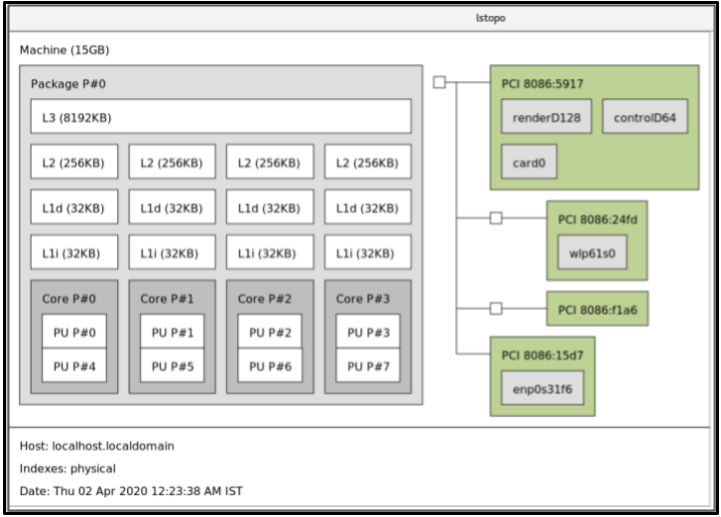
To view a graphical representation of your system:
# dnf install hwloc-gui# lstopo
-
To view the detailed textual output:
# dnf install hwloc# lstopo-no-graphicsMachine (15GB) Package L#0 + L3 L#0 (8192KB) L2 L#0 (256KB) + L1d L#0 (32KB) + L1i L#0 (32KB) + Core L#0 PU L#0 (P#0) PU L#1 (P#4) HostBridge L#0 PCI 8086:5917 GPU L#0 "renderD128" GPU L#1 "controlD64" GPU L#2 "card0" PCIBridge PCI 8086:24fd Net L#3 "wlp61s0" PCIBridge PCI 8086:f1a6 PCI 8086:15d7 Net L#4 "enp0s31f6"