 Red Hat Summit
51.2. Adding THEN actions in guided rules
The THEN part of the rule contains the actions to be performed when the WHEN condition of the rule has been met. For example, when a loan applicant is under 21 years old, the THEN action might set approved to false, declining the loan because the applicant is under age. You can set simple or complex actions to determine how and when your rules are applied.
Prerequisites
- All data objects required for your rules have been created or imported and are listed in the Data Objects tab of the guided rules designer.
Procedure
In the guided rules designer, click the plus icon (
 ) on the right side of the
 THENsection.The Add a new action window with the available action elements opens.
図51.5 Add a new action to the rule
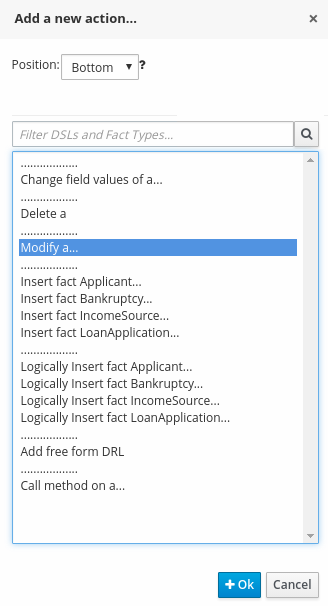
The list includes insertion and modification options based on the data objects in the Data Objects tab of the guided rules designer, and on any DSL objects defined for the package (if you selected Show declared DSL sentences when you created this guided rule):
-
Change field values of: Use this to set the value of fields on a fact (such as
LoanApplication) without notifying the decision engine of the change. - Delete: Use this to delete a fact.
- Modify: Use this to specify fields to be modified for a fact and to notify the decision engine of the change.
- Insert fact: Use this to insert a fact and define resulting fields and values for the fact.
- Logically Insert fact: Use this to insert a fact logically into the decision engine and define resulting fields and values for the fact. The decision engine is responsible for logical decisions on insertions and retractions of facts. After regular or stated insertions, facts have to be retracted explicitly. After logical insertions, facts are automatically retracted when the conditions that originally asserted the facts are no longer true.
- Add free form DRL: Use this to insert a free-form DRL field where you can define condition elements freely, without the guided rules designer.
- Call method on: Use this to invoke a method from another fact.
-
Change field values of: Use this to set the value of fields on a fact (such as
- Choose an action element (for example, Modify) and click Ok.
Click the action element in the guided rules designer and use the Add a field window to select a field.
図51.6 Add a field
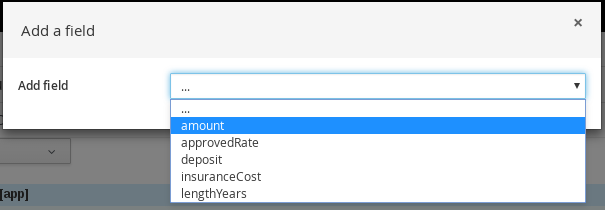
After you select a field, the window closes automatically.
-
Click the edit icon (
 ) to define the field value. The field value can be a literal value or a formula.
- After you define all action components of the rule, click Validate in the upper-right toolbar of the guided rules designer to validate the guided rule actions. If the rule validation fails, address any problems described in the error message, review all components in the rule, and try again to validate the rule until the rule passes.
- Click Save in the guided rules designer to save your work.

'%20d='M201.5%20305.5c-13.8%200-24.9-11.1-24.9-24.6%200-13.8%2011.1-24.9%2024.9-24.9%2013.6%200%2024.6%2011.1%2024.6%2024.9%200%2013.6-11.1%2024.6-24.6%2024.6zM504%20256c0%20137-111%20248-248%20248S8%20393%208%20256%20119%208%20256%208s248%20111%20248%20248zm-132.3-41.2c-9.4%200-17.7%203.9-23.8%2010-22.4-15.5-52.6-25.5-86.1-26.6l17.4-78.3%2055.4%2012.5c0%2013.6%2011.1%2024.6%2024.6%2024.6%2013.8%200%2024.9-11.3%2024.9-24.9s-11.1-24.9-24.9-24.9c-9.7%200-18%205.8-22.1%2013.8l-61.2-13.6c-3-.8-6.1%201.4-6.9%204.4l-19.1%2086.4c-33.2%201.4-63.1%2011.3-85.5%2026.8-6.1-6.4-14.7-10.2-24.1-10.2-34.9%200-46.3%2046.9-14.4%2062.8-1.1%205-1.7%2010.2-1.7%2015.5%200%2052.6%2059.2%2095.2%20132%2095.2%2073.1%200%20132.3-42.6%20132.3-95.2%200-5.3-.6-10.8-1.9-15.8%2031.3-16%2019.8-62.5-14.9-62.5zM302.8%20331c-18.2%2018.2-76.1%2017.9-93.6%200-2.2-2.2-6.1-2.2-8.3%200-2.5%202.5-2.5%206.4%200%208.6%2022.8%2022.8%2087.3%2022.8%20110.2%200%202.5-2.2%202.5-6.1%200-8.6-2.2-2.2-6.1-2.2-8.3%200zm7.7-75c-13.6%200-24.6%2011.1-24.6%2024.9%200%2013.6%2011.1%2024.6%2024.6%2024.6%2013.8%200%2024.9-11.1%2024.9-24.6%200-13.8-11-24.9-24.9-24.9z'/%3e%3c/svg%3e)