 红帽全球峰会
此内容没有您所选择的语言版本。
Chapter 10. Troubleshooting
This section describes resources for troubleshooting the Migration Toolkit for Containers (MTC).
10.1. Logs and debugging tools
This section describes logs and debugging tools that you can use for troubleshooting.
10.1.1. Viewing migration plan resources
You can view migration plan resources to monitor a running migration or to troubleshoot a failed migration by using the MTC web console and the command line interface (CLI).
Procedure
- In the MTC web console, click Migration Plans.
Click the Migrations number next to a migration plan to view the Migrations page.
The Migrations page displays the migration types associated with the migration plan, for example, Stage, Migration, or Rollback.
- Click the Type link to view the Migration details page.
Expand Migration resources to view the migration resources and their status.
NoteTo troubleshoot a failed migration, start with a high-level resource that has failed and then work down the resource tree towards the lower-level resources.
Click the Options menu
 next to a resource and select one of the following options:
Copy
oc describecommand copies the command to your clipboard.Log in to the relevant cluster and then run the command.
The conditions and events of the resource are displayed in YAML format.
Copy
oc logscommand copies the command to your clipboard.Log in to the relevant cluster and then run the command.
If the resource supports log filtering, a filtered log is displayed.
View JSON displays the resource data in JSON format in a web browser.
The data is the same as the output for the
oc get <resource>command.
10.1.2. Viewing a migration plan log
You can view an aggregated log for a migration plan. You use the MTC web console to copy a command to your clipboard and then run the command from the command line interface (CLI).
The command displays the filtered logs of the following pods:
-
Migration Controller -
Velero -
Restic -
Rsync -
Stunnel -
Registry
Procedure
- In the MTC web console, click Migration Plans.
Click the Migrations number next to a migration plan to view the Migrations page.
The Migrations page displays the migration types associated with the migration plan, for example, Stage or Cutover for warm migration.
- Click View logs.
-
Click the Copy icon to copy the
oc logscommand to your clipboard. Log in to the relevant cluster and enter the command on the CLI.
The aggregated log for the migration plan is displayed.
10.1.3. Using the migration log reader
You can use the migration log reader to display a single filtered view of all the migration logs.
Procedure
Get the
mig-log-readerpod:$ oc -n openshift-migration get pods | grep logEnter the following command to display a single migration log:
$ oc -n openshift-migration logs -f <mig-log-reader-pod> -c color1 - 1
- The
-c plainoption displays the log without colors.
10.1.4. Using the must-gather tool
You can collect logs, metrics, and information about MTC custom resources by using the must-gather tool.
The must-gather data must be attached to all customer cases.
You can collect data for a one-hour or a 24-hour period and view the data with the Prometheus console.
Prerequisites
-
You must be logged in to the OpenShift Container Platform cluster as a user with the
cluster-adminrole. - You must have the OpenShift CLI installed.
Procedure
-
Navigate to the directory where you want to store the
must-gatherdata. Run the
oc adm must-gathercommand:To gather data for the past hour:
$ oc adm must-gather --image=registry.redhat.io/rhmtc/openshift-migration-must-gather-rhel8:v1.4The data is saved as
/must-gather/must-gather.tar.gz. You can upload this file to a support case on the Red Hat Customer Portal.To gather data for the past 24 hours:
$ oc adm must-gather --image= \
  registry.redhat.io/rhmtc/openshift-migration-must-gather-rhel8: \
  v1.4 -- /usr/bin/gather_metrics_dump
This operation can take a long time. The data is saved as
/must-gather/metrics/prom_data.tar.gz. You can view this file with the Prometheus console.
To view data with the Prometheus console
Create a local Prometheus instance:
$ make prometheus-runThe command outputs the Prometheus URL:
Output
Started Prometheus on http://localhost:9090- Launch a web browser and navigate to the URL to view the data by using the Prometheus web console.
After you have viewed the data, delete the Prometheus instance and data:
$ make prometheus-cleanup
You can debug the Backup and Restore custom resources (CRs) and partial migration failures with the Velero command line interface (CLI). The Velero CLI runs in the velero pod.
10.1.5.1. Velero command syntax
Velero CLI commands use the following syntax:
$ oc exec $(oc get pods -n openshift-migration -o name | grep velero) -- ./velero <resource> <command> <resource_id>
You can specify velero-<pod> -n openshift-migration in place of $(oc get pods -n openshift-migration -o name | grep velero).
10.1.5.2. Help command
The Velero help command lists all the Velero CLI commands:
$ oc exec $(oc get pods -n openshift-migration -o name | grep velero) -- ./velero --help10.1.5.3. Describe command
The Velero describe command provides a summary of warnings and errors associated with a Velero resource:
$ oc exec $(oc get pods -n openshift-migration -o name | grep velero) -- ./velero <resource> describe <resource_id>Example
$ oc exec $(oc get pods -n openshift-migration -o name | grep velero) -- ./velero backup describe 0e44ae00-5dc3-11eb-9ca8-df7e5254778b-2d8ql10.1.5.4. Logs command
The Velero logs command provides the logs associated with a Velero resource:
velero <resource> logs <resource_id>Example
$ oc exec $(oc get pods -n openshift-migration -o name | grep velero) -- ./velero restore logs ccc7c2d0-6017-11eb-afab-85d0007f5a19-x4lbf10.1.6. Debugging a partial migration failure
You can debug a partial migration failure warning message by using the Velero CLI to examine the Restore custom resource (CR) logs.
A partial failure occurs when Velero encounters an issue that does not cause a migration to fail. For example, if a custom resource definition (CRD) is missing or if there is a discrepancy between CRD versions on the source and target clusters, the migration completes but the CR is not created on the target cluster.
Velero logs the issue as a partial failure and then processes the rest of the objects in the Backup CR.
Procedure
Check the status of a
MigMigrationCR:$ oc get migmigration <migmigration> -o yamlExample output
status:
  conditions:
  - category: Warn
    durable: true
    lastTransitionTime: "2021-01-26T20:48:40Z"
    message: 'Final Restore openshift-migration/ccc7c2d0-6017-11eb-afab-85d0007f5a19-x4lbf: partially failed on destination cluster'
    status: "True"
    type: VeleroFinalRestorePartiallyFailed
  - category: Advisory
    durable: true
    lastTransitionTime: "2021-01-26T20:48:42Z"
    message: The migration has completed with warnings, please look at `Warn` conditions.
    reason: Completed
    status: "True"
    type: SucceededWithWarnings
Check the status of the
RestoreCR by using the Velerodescribecommand:$ oc exec $(oc get pods -n openshift-migration -o name | grep velero) -n openshift-migration -- ./velero restore describe <restore>Example output
Phase:  PartiallyFailed (run 'velero restore logs ccc7c2d0-6017-11eb-afab-85d0007f5a19-x4lbf' for more information)

Errors:
  Velero:     <none>
  Cluster:    <none>
  Namespaces:
    migration-example:  error restoring example.com/migration-example/migration-example: the server could not find the requested resource
Check the
RestoreCR logs by using the Velerologscommand:$ oc exec $(oc get pods -n openshift-migration -o name | grep velero) -n openshift-migration -- ./velero restore logs <restore>Example output
time="2021-01-26T20:48:37Z" level=info msg="Attempting to restore migration-example: migration-example" logSource="pkg/restore/restore.go:1107" restore=openshift-migration/ccc7c2d0-6017-11eb-afab-85d0007f5a19-x4lbf
time="2021-01-26T20:48:37Z" level=info msg="error restoring migration-example: the server could not find the requested resource" logSource="pkg/restore/restore.go:1170" restore=openshift-migration/ccc7c2d0-6017-11eb-afab-85d0007f5a19-x4lbf
The
RestoreCR log error message,the server could not find the requested resource, indicates the cause of the partially failed migration.
10.1.7. Using MTC custom resources for troubleshooting
You can check the following Migration Toolkit for Containers (MTC) custom resources (CRs) to troubleshoot a failed migration:
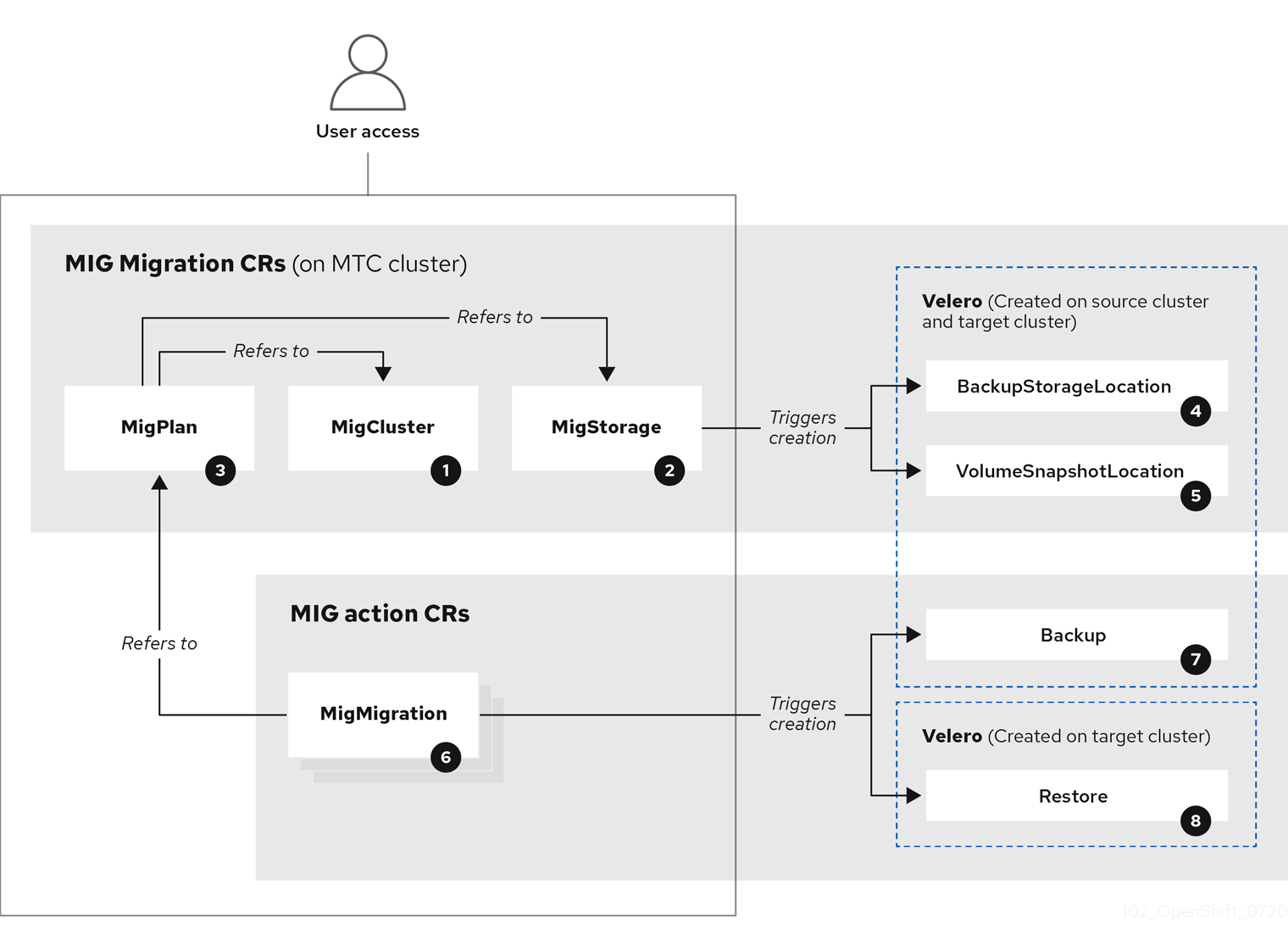
 MigCluster (configuration, MTC cluster): Cluster definition
 MigStorage (configuration, MTC cluster): Storage definition
 MigPlan (configuration, MTC cluster): Migration plan
The MigPlan CR describes the source and target clusters, replication repository, and namespaces being migrated. It is associated with 0, 1, or many MigMigration CRs.
Deleting a MigPlan CR deletes the associated MigMigration CRs.
 BackupStorageLocation (configuration, MTC cluster): Location of
 Velero backup objects
 VolumeSnapshotLocation (configuration, MTC cluster): Location of
 Velero volume snapshots
 MigMigration (action, MTC cluster): Migration, created every time you stage or migrate data. Each
 MigMigration CR is associated with a MigPlan CR.
 Backup (action, source cluster): When you run a migration plan, the
 MigMigration CR creates two Velero backup CRs on each source cluster:
- Backup CR #1 for Kubernetes objects
- Backup CR #2 for PV data
 Restore (action, target cluster): When you run a migration plan, the
 MigMigration CR creates two Velero restore CRs on the target cluster:
- Restore CR #1 (using Backup CR #2) for PV data
- Restore CR #2 (using Backup CR #1) for Kubernetes objects
Procedure
List the
MigMigrationCRs in theopenshift-migrationnamespace:$ oc get migmigration -n openshift-migrationExample output
NAME                                   AGE
88435fe0-c9f8-11e9-85e6-5d593ce65e10   6m42s
Inspect the
MigMigrationCR:$ oc describe migmigration 88435fe0-c9f8-11e9-85e6-5d593ce65e10 -n openshift-migrationThe output is similar to the following examples.
MigMigration example output
name:         88435fe0-c9f8-11e9-85e6-5d593ce65e10
namespace:    openshift-migration
labels:       <none>
annotations:  touch: 3b48b543-b53e-4e44-9d34-33563f0f8147
apiVersion:  migration.openshift.io/v1alpha1
kind:         MigMigration
metadata:
  creationTimestamp:  2019-08-29T01:01:29Z
  generation:          20
  resourceVersion:    88179
  selfLink:           /apis/migration.openshift.io/v1alpha1/namespaces/openshift-migration/migmigrations/88435fe0-c9f8-11e9-85e6-5d593ce65e10
  uid:                 8886de4c-c9f8-11e9-95ad-0205fe66cbb6
spec:
  migPlanRef:
    name:        socks-shop-mig-plan
    namespace:   openshift-migration
  quiescePods:  true
  stage:         false
status:
  conditions:
    category:              Advisory
    durable:               True
    lastTransitionTime:  2019-08-29T01:03:40Z
    message:               The migration has completed successfully.
    reason:                Completed
    status:                True
    type:                  Succeeded
  phase:                   Completed
  startTimestamp:         2019-08-29T01:01:29Z
events:                    <none>
Velero backup CR #2 example output that describes the PV data
apiVersion: velero.io/v1
kind: Backup
metadata:
  annotations:
    openshift.io/migrate-copy-phase: final
    openshift.io/migrate-quiesce-pods: "true"
    openshift.io/migration-registry: 172.30.105.179:5000
    openshift.io/migration-registry-dir: /socks-shop-mig-plan-registry-44dd3bd5-c9f8-11e9-95ad-0205fe66cbb6
  creationTimestamp: "2019-08-29T01:03:15Z"
  generateName: 88435fe0-c9f8-11e9-85e6-5d593ce65e10-
  generation: 1
  labels:
    app.kubernetes.io/part-of: migration
    migmigration: 8886de4c-c9f8-11e9-95ad-0205fe66cbb6
    migration-stage-backup: 8886de4c-c9f8-11e9-95ad-0205fe66cbb6
    velero.io/storage-location: myrepo-vpzq9
  name: 88435fe0-c9f8-11e9-85e6-5d593ce65e10-59gb7
  namespace: openshift-migration
  resourceVersion: "87313"
  selfLink: /apis/velero.io/v1/namespaces/openshift-migration/backups/88435fe0-c9f8-11e9-85e6-5d593ce65e10-59gb7
  uid: c80dbbc0-c9f8-11e9-95ad-0205fe66cbb6
spec:
  excludedNamespaces: []
  excludedResources: []
  hooks:
    resources: []
  includeClusterResources: null
  includedNamespaces:
  - sock-shop
  includedResources:
  - persistentvolumes
  - persistentvolumeclaims
  - namespaces
  - imagestreams
  - imagestreamtags
  - secrets
  - configmaps
  - pods
  labelSelector:
    matchLabels:
      migration-included-stage-backup: 8886de4c-c9f8-11e9-95ad-0205fe66cbb6
  storageLocation: myrepo-vpzq9
  ttl: 720h0m0s
  volumeSnapshotLocations:
  - myrepo-wv6fx
status:
  completionTimestamp: "2019-08-29T01:02:36Z"
  errors: 0
  expiration: "2019-09-28T01:02:35Z"
  phase: Completed
  startTimestamp: "2019-08-29T01:02:35Z"
  validationErrors: null
  version: 1
  volumeSnapshotsAttempted: 0
  volumeSnapshotsCompleted: 0
  warnings: 0
Velero restore CR #2 example output that describes the Kubernetes resources
apiVersion: velero.io/v1
kind: Restore
metadata:
  annotations:
    openshift.io/migrate-copy-phase: final
    openshift.io/migrate-quiesce-pods: "true"
    openshift.io/migration-registry: 172.30.90.187:5000
    openshift.io/migration-registry-dir: /socks-shop-mig-plan-registry-36f54ca7-c925-11e9-825a-06fa9fb68c88
  creationTimestamp: "2019-08-28T00:09:49Z"
  generateName: e13a1b60-c927-11e9-9555-d129df7f3b96-
  generation: 3
  labels:
    app.kubernetes.io/part-of: migration
    migmigration: e18252c9-c927-11e9-825a-06fa9fb68c88
    migration-final-restore: e18252c9-c927-11e9-825a-06fa9fb68c88
  name: e13a1b60-c927-11e9-9555-d129df7f3b96-gb8nx
  namespace: openshift-migration
  resourceVersion: "82329"
  selfLink: /apis/velero.io/v1/namespaces/openshift-migration/restores/e13a1b60-c927-11e9-9555-d129df7f3b96-gb8nx
  uid: 26983ec0-c928-11e9-825a-06fa9fb68c88
spec:
  backupName: e13a1b60-c927-11e9-9555-d129df7f3b96-sz24f
  excludedNamespaces: null
  excludedResources:
  - nodes
  - events
  - events.events.k8s.io
  - backups.velero.io
  - restores.velero.io
  - resticrepositories.velero.io
  includedNamespaces: null
  includedResources: null
  namespaceMapping: null
  restorePVs: true
status:
  errors: 0
  failureReason: ""
  phase: Completed
  validationErrors: null
  warnings: 15
Additional resources for debugging tools
10.2. Common issues and concerns
This section describes common issues and concerns that can cause issues during migration.
10.2.1. Updating deprecated internal images
If your application uses images from the openshift namespace, the required versions of the images must be present on the target cluster.
If an OpenShift Container Platform 3 image is deprecated in OpenShift Container Platform 4.5, you can manually update the image stream tag by using podman.
Prerequisites
-
You must have
podmaninstalled. -
You must be logged in as a user with
cluster-adminprivileges. -
If you are using insecure registries, add your registry host values to the
[registries.insecure]section of/etc/container/registries.confto ensure thatpodmandoes not encounter a TLS verification error. - The internal registries must be exposed on the source and target clusters.
Procedure
Ensure that the internal registries are exposed on the OpenShift Container Platform 3 and 4 clusters.
The internal registry is exposed by default on OpenShift Container Platform 4.
-
If you are using insecure registries, add your registry host values to the
[registries.insecure]section of/etc/container/registries.confto ensure thatpodmandoes not encounter a TLS verification error. Log in to the OpenShift Container Platform 3 registry:
$ podman login -u $(oc whoami) -p $(oc whoami -t) --tls-verify=false <registry_url>:<port>Log in to the OpenShift Container Platform 4 registry:
$ podman login -u $(oc whoami) -p $(oc whoami -t) --tls-verify=false <registry_url>:<port>Pull the OpenShift Container Platform 3 image:
$ podman pull <registry_url>:<port>/openshift/<image>Tag the OpenShift Container Platform 3 image for the OpenShift Container Platform 4 registry:
$ podman tag <registry_url>:<port>/openshift/<image> \1 <registry_url>:<port>/openshift/<image>2 Push the image to the OpenShift Container Platform 4 registry:
$ podman push <registry_url>:<port>/openshift/<image>1 - 1
- Specify the OpenShift Container Platform 4 cluster.
Verify that the image has a valid image stream:
$ oc get imagestream -n openshift | grep <image>Example output
NAME      IMAGE REPOSITORY                                                      TAGS    UPDATED
my_image  image-registry.openshift-image-registry.svc:5000/openshift/my_image  latest  32 seconds ago
10.2.2. Direct volume migration does not complete
If direct volume migration does not complete, the target cluster might not have the same node-selector annotations as the source cluster.
Migration Toolkit for Containers (MTC) migrates namespaces with all annotations in order to preserve security context constraints and scheduling requirements. During direct volume migration, MTC creates Rsync transfer pods on the target cluster in the namespaces that were migrated from the source cluster. If a target cluster namespace does not have the same annotations as the source cluster namespace, the Rsync transfer pods cannot be scheduled. The Rsync pods remain in a Pending state.
You can identify and fix this issue by performing the following procedure.
Procedure
Check the status of the
MigMigrationCR:$ oc describe migmigration <pod> -n openshift-migrationThe output includes the following status message:
Example output
Some or all transfer pods are not running for more than 10 mins on destination clusterOn the source cluster, obtain the details of a migrated namespace:
$ oc get namespace <namespace> -o yaml1 - 1
- Specify the migrated namespace.
On the target cluster, edit the migrated namespace:
$ oc edit namespace <namespace>Add the missing
openshift.io/node-selectorannotations to the migrated namespace as in the following example:apiVersion: v1 kind: Namespace metadata: annotations: openshift.io/node-selector: "region=east" ...- Run the migration plan again.
10.2.3. Error messages and resolutions
This section describes common error messages you might encounter with the Migration Toolkit for Containers (MTC) and how to resolve their underlying causes.
If a CA certificate error message is displayed the first time you try to access the MTC console, the likely cause is the use of self-signed CA certificates in one of the clusters.
To resolve this issue, navigate to the oauth-authorization-server URL displayed in the error message and accept the certificate. To resolve this issue permanently, add the certificate to the trust store of your web browser.
If an Unauthorized message is displayed after you have accepted the certificate, navigate to the MTC console and refresh the web page.
10.2.3.2. OAuth timeout error in the MTC console
If a connection has timed out message is displayed in the MTC console after you have accepted a self-signed certificate, the causes are likely to be the following:
- Interrupted network access to the OAuth server
- Interrupted network access to the OpenShift Container Platform console
-
Proxy configuration that blocks access to the
oauth-authorization-serverURL. See MTC console inaccessible because of OAuth timeout error for details.
You can determine the cause of the timeout.
- Inspect the MTC console web page with a browser web inspector.
-
Check the
Migration UIpod log for errors.
10.2.3.3. Certificate signed by unknown authority error
If you use a self-signed certificate to secure a cluster or a replication repository for the Migration Toolkit for Containers (MTC), certificate verification might fail with the following error message: Certificate signed by unknown authority.
You can create a custom CA certificate bundle file and upload it in the MTC web console when you add a cluster or a replication repository.
Procedure
Download a CA certificate from a remote endpoint and save it as a CA bundle file:
$ echo -n | openssl s_client -connect <host_FQDN>:<port> \
| sed -ne '/-BEGIN CERTIFICATE-/,/-END CERTIFICATE-/p' > <ca_bundle.cert>
If a Velero Backup custom resource contains a reference to a backup storage location (BSL) that does not exist, the Velero pod log might display the following error messages:
$ oc logs <MigrationUI_Pod> -n openshift-migrationYou can ignore these error messages. A missing BSL cannot cause a migration to fail.
If a migration fails because Restic times out, the following error is displayed in the Velero pod log.
level=error msg="Error backing up item" backup=velero/monitoring error="timed out waiting for all PodVolumeBackups to complete" error.file="/go/src/github.com/heptio/velero/pkg/restic/backupper.go:165" error.function="github.com/heptio/velero/pkg/restic.(*backupper).BackupPodVolumes" group=v1
The default value of restic_timeout is one hour. You can increase this parameter for large migrations, keeping in mind that a higher value may delay the return of error messages.
Procedure
-
In the OpenShift Container Platform web console, navigate to Operators
Installed Operators. - Click Migration Toolkit for Containers Operator.
- In the MigrationController tab, click migration-controller.
In the YAML tab, update the following parameter value:
spec:
  restic_timeout: 1h
1 - 1
- Valid units are
h(hours),m(minutes), ands(seconds), for example,3h30m15s.
- Click Save.
If data verification fails when migrating a persistent volume with the file system data copy method, the following error is displayed in the MigMigration CR.
Example output
status:
  conditions:
  - category: Warn
    durable: true
    lastTransitionTime: 2020-04-16T20:35:16Z
    message: There were verify errors found in 1 Restic volume restores. See restore `<registry-example-migration-rvwcm>`
      for details
    status: "True"
type: ResticVerifyErrors A data verification error does not cause the migration process to fail.
You can check the Restore CR to identify the source of the data verification error.
Procedure
- Log in to the target cluster.
View the
RestoreCR:$ oc describe <registry-example-migration-rvwcm> -n openshift-migrationThe output identifies the persistent volume with
PodVolumeRestoreerrors.Example output
status:
  phase: Completed
  podVolumeRestoreErrors:
  - kind: PodVolumeRestore
    name: <registry-example-migration-rvwcm-98t49>
    namespace: openshift-migration
  podVolumeRestoreResticErrors:
  - kind: PodVolumeRestore
    name: <registry-example-migration-rvwcm-98t49>
    namespace: openshift-migration
View the
PodVolumeRestoreCR:$ oc describe <migration-example-rvwcm-98t49>The output identifies the
Resticpod that logged the errors.Example output
  completionTimestamp: 2020-05-01T20:49:12Z
  errors: 1
  resticErrors: 1
  ...
  resticPod: <restic-nr2v5>
View the
Resticpod log to locate the errors:$ oc logs -f <restic-nr2v5>
If you are migrating data from NFS storage and root_squash is enabled, Restic maps to nfsnobody and does not have permission to perform the migration. The following error is displayed in the Restic pod log.
Example output
backup=openshift-migration/<backup_id> controller=pod-volume-backup error="fork/exec /usr/bin/restic: permission denied" error.file="/go/src/github.com/vmware-tanzu/velero/pkg/controller/pod_volume_backup_controller.go:280" error.function="github.com/vmware-tanzu/velero/pkg/controller.(*podVolumeBackupController).processBackup" logSource="pkg/controller/pod_volume_backup_controller.go:280" name=<backup_id> namespace=openshift-migration
You can resolve this issue by creating a supplemental group for Restic and adding the group ID to the MigrationController CR manifest.
Procedure
- Create a supplemental group for Restic on the NFS storage.
-
Set the
setgidbit on the NFS directories so that group ownership is inherited. Add the
restic_supplemental_groupsparameter to theMigrationControllerCR manifest on the source and target clusters:spec: restic_supplemental_groups: <group_id>1 - 1
- Specify the supplemental group ID.
-
Wait for the
Resticpods to restart so that the changes are applied.
10.2.4. Known issues
This release has the following known issues:
During migration, the Migration Toolkit for Containers (MTC) preserves the following namespace annotations:
-
openshift.io/sa.scc.mcs -
openshift.io/sa.scc.supplemental-groups openshift.io/sa.scc.uid-rangeThese annotations preserve the UID range, ensuring that the containers retain their file system permissions on the target cluster. There is a risk that the migrated UIDs could duplicate UIDs within an existing or future namespace on the target cluster. (BZ#1748440)
-
- Most cluster-scoped resources are not yet handled by MTC. If your applications require cluster-scoped resources, you might have to create them manually on the target cluster.
- If a migration fails, the migration plan does not retain custom PV settings for quiesced pods. You must manually roll back the migration, delete the migration plan, and create a new migration plan with your PV settings. (BZ#1784899)
-
If a large migration fails because Restic times out, you can increase the
restic_timeoutparameter value (default:1h) in theMigrationControllercustom resource (CR) manifest. - If you select the data verification option for PVs that are migrated with the file system copy method, performance is significantly slower.
If you are migrating data from NFS storage and
root_squashis enabled,Resticmaps tonfsnobody. The migration fails and a permission error is displayed in theResticpod log. (BZ#1873641)You can resolve this issue by adding supplemental groups for
Resticto theMigrationControllerCR manifest:spec: ... restic_supplemental_groups: - 5555 - 6666- If you perform direct volume migration with nodes that are in different availability zones, the migration might fail because the migrated pods cannot access the PVC. (BZ#1947487)
10.3. Rolling back a migration
You can roll back a migration by using the MTC web console or the CLI.
You can roll back a migration by using the Migration Toolkit for Containers (MTC) web console.
If you roll back a failed direct volume migration, the following resources are preserved in the namespaces specified in the migration plan to help you debug the failed migration:
- Config maps (source and target clusters)
-
SecretCRs (source and target clusters) -
RsyncCRs (source cluster) -
ServiceCRs (target cluster) -
RouteCRs (target cluster)
These resources must be deleted manually.
If you later run the same migration plan successfully, the resources from the failed migration are deleted automatically.
If your application was stopped during a failed migration, you must roll back the migration to prevent data corruption in the persistent volume.
Rollback is not required if the application was not stopped during migration because the original application is still running on the source cluster.
Procedure
- In the MTC web console, click Migration plans.
-
Click the Options menu
beside a migration plan and select Rollback.
Click Rollback and wait for rollback to complete.
In the migration plan details, Rollback succeeded is displayed.
Verify that rollback was successful in the OpenShift Container Platform web console of the source cluster:
-
Click Home
Projects. - Click the migrated project to view its status.
- In the Routes section, click Location to verify that the application is functioning, if applicable.
-
Click Workloads
Pods to verify that the pods are running in the migrated namespace. -
Click Storage
Persistent volumes to verify that the migrated persistent volume is correctly provisioned.
-
Click Home
You can roll back a migration by creating a MigMigration custom resource (CR) from the command line interface.
If you roll back a failed direct volume migration, the following resources are preserved in the namespaces specified in the MigPlan custom resource (CR) to help you debug the failed migration:
- Config maps (source and destination clusters)
-
SecretCRs (source and destination clusters) -
RsyncCRs (source cluster) -
ServiceCRs (destination cluster) -
RouteCRs (destination cluster)
These resources must be deleted manually.
If you later run the same migration plan successfully, the resources from the failed migration are deleted automatically.
If your application was stopped during a failed migration, you must roll back the migration to prevent data corruption in the persistent volume.
Rollback is not required if the application was not stopped during migration because the original application is still running on the source cluster.
Procedure
Create a
MigMigrationCR based on the following example:$ cat << EOF | oc apply -f - apiVersion: migration.openshift.io/v1alpha1 kind: MigMigration metadata: labels: controller-tools.k8s.io: "1.0" name: <migmigration> namespace: openshift-migration spec: ... rollback: true ... migPlanRef: name: <migplan>1 namespace: openshift-migration EOF- 1
- Specify the name of the associated
MigPlanCR.
- In the MTC web console, verify that the migrated project resources have been removed from the target cluster.
- Verify that the migrated project resources are present in the source cluster and that the application is running.

'%20d='M201.5%20305.5c-13.8%200-24.9-11.1-24.9-24.6%200-13.8%2011.1-24.9%2024.9-24.9%2013.6%200%2024.6%2011.1%2024.6%2024.9%200%2013.6-11.1%2024.6-24.6%2024.6zM504%20256c0%20137-111%20248-248%20248S8%20393%208%20256%20119%208%20256%208s248%20111%20248%20248zm-132.3-41.2c-9.4%200-17.7%203.9-23.8%2010-22.4-15.5-52.6-25.5-86.1-26.6l17.4-78.3%2055.4%2012.5c0%2013.6%2011.1%2024.6%2024.6%2024.6%2013.8%200%2024.9-11.3%2024.9-24.9s-11.1-24.9-24.9-24.9c-9.7%200-18%205.8-22.1%2013.8l-61.2-13.6c-3-.8-6.1%201.4-6.9%204.4l-19.1%2086.4c-33.2%201.4-63.1%2011.3-85.5%2026.8-6.1-6.4-14.7-10.2-24.1-10.2-34.9%200-46.3%2046.9-14.4%2062.8-1.1%205-1.7%2010.2-1.7%2015.5%200%2052.6%2059.2%2095.2%20132%2095.2%2073.1%200%20132.3-42.6%20132.3-95.2%200-5.3-.6-10.8-1.9-15.8%2031.3-16%2019.8-62.5-14.9-62.5zM302.8%20331c-18.2%2018.2-76.1%2017.9-93.6%200-2.2-2.2-6.1-2.2-8.3%200-2.5%202.5-2.5%206.4%200%208.6%2022.8%2022.8%2087.3%2022.8%20110.2%200%202.5-2.2%202.5-6.1%200-8.6-2.2-2.2-6.1-2.2-8.3%200zm7.7-75c-13.6%200-24.6%2011.1-24.6%2024.9%200%2013.6%2011.1%2024.6%2024.6%2024.6%2013.8%200%2024.9-11.1%2024.9-24.6%200-13.8-11-24.9-24.9-24.9z'/%3e%3c/svg%3e)